
iTechGuides is reader-supported. When you buy through links on our site, we may earn an affiliate commission. As an Amazon Associate I earn from qualifying purchases. Learn more
Can’t find the pre-installed Notepad on your PC? Not to worry, this guide teaches you how to reinstall Notepad in Windows 11.
Option 1: Reinstall Notepad From Windows Optional Features
The first and fastest method to reinstall Notepad on Windows 11 is with the use of Windows Optional Features. That said, follow the steps below to reinstall Notepad via Optional features:
- Click on the search icon in your Windows 11 Taskbar and type optional features in the search field.

- Then, from the results of your search, click on Optional Features.

- On the right pane of the Optional Features settings page, click View features.

- Then, on the search field of the Add an optional feature pop-up menu, type notepad.

- Next, click on the checkbox beside Notepad and click Next to Install this feature.

- Furthermore, to start the installation process click Install.

- Then, on the Recent actions sub-menu, you will see the progress of the installation.

- Finally, when the installation is completed, restart your PC as prompted in the screenshot below.

Option 2: Reinstall Notepad Using Dism Command
Moving on, another method I want to teach you in this guide is how to reinstall Notepad using the DISM command. Follow the steps below to perform the task with Command Prompt:
- Firstly, click on the search icon next to the Windows start menu on the Taskbar. Then, in the search box type command prompt.

- Then, from the result of the search, right-click on Command Prompt and click on Run as administrator.

- You will receive a User Account Control prompt asking you to allow the program to make changes to your PC. Click Yes to proceed.
- In Command Prompt, to get the capability identity for Notepad, type the command below and press enter on your keyword.
DISM.exe /Online /Get-Capabilities | find "Notepad"
This command will display the Capability Identity of Notepad. You will need it to install Notepad.
Popular on Amazon

- POWER FOR YOUR MOST PRODUCTIVE DAYS: Galaxy Book5 Pro 360 models come with a new Intel Core Ultra 7 processor 256V with a higher-performance Intel ARC graphics & newly added AI neural processing unit (NPU) that reaches as high as 47 TOPS to achieve Copilot+ AI.
- POWERFUL. DURABLE. LIGHT. AMAZINGLY SLIM: Galaxy Book5 Pro 360 is the epitome of portability and the lightest in our all-new Galaxy Book5 Series but very durable carved from CNC Aluminum; Thickness: 12.7mm, Weight: 3.72 lbs.
- EVERYTHING UNDER MULTI-CONTROL: Navigate your phone, Galaxy Tab, Samsung TVs, and Smart Monitors using your laptop's touchpad and keyboard.¹
- PHONE LINK: Sync your Galaxy phone to access AI features, call, text, and more— all without touching your phone.²
- TRANSCRIPT ASSIST: Turn recorded lectures and meetings into written notes, then translate and summarize quickly with Galaxy AI.³

- Finally, to install Notepad in Windows 11 with DISM, type the command below and press enter.
Dism /Online /Add-Capability /CapabilityName:Microsoft.Windows.Notepad.System~~~~0.0.1.0
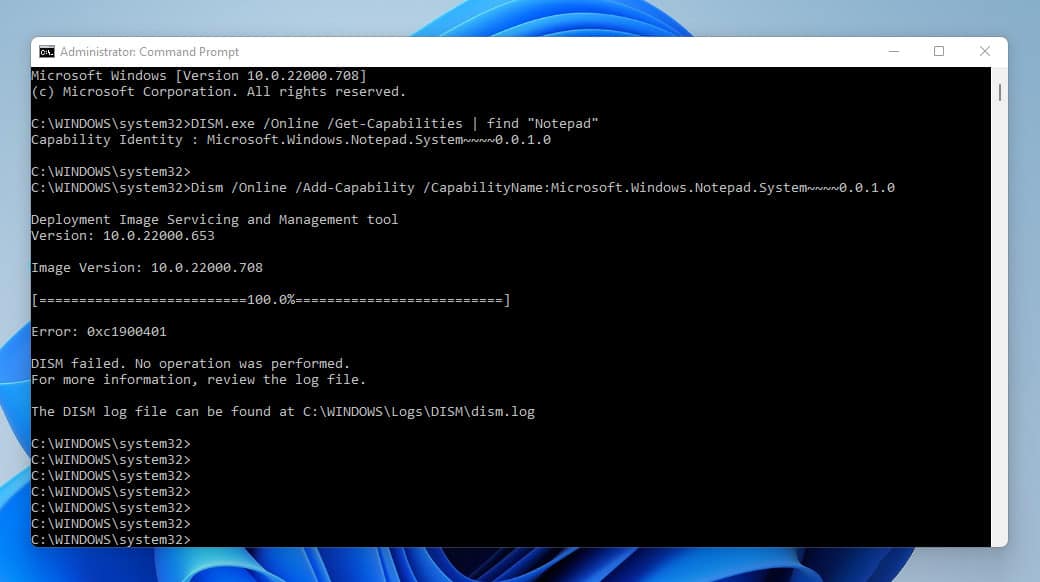
- When the command completes, Notepad will be available on your Windows 11 PC.

Option 3: Reinstall Notepad with PowerShell
If you are an administrator on your computer, you can also install Notepad via PowerShell. Here are the steps:
- Firstly, click on the search icon on the Windows 11 Taskbar. Then, in the search field type powershell.

- Next, from the result of your search right-click on Windows PowerShell and select Run as administrator.

Before you can install Notepad with PowerShell, you need to know the name of the application.
- To get the name of Notepad with PowerShell, type the command below and press enter.
Get-WindowsCapability -Online | Where-Object {$_.Name -like "*notepad*"}
As shown in the screenshot below, the command will display the name as Microsoft.Windows.Notepad~~~~0.0.1.0. You will need this name for the next command.
The Tool Desk
Outbyte PC Repair FREERepair Windows errors before they cause bigger problemsFix Now →Outbyte Driver Updater FREEFix the driver behind crashes, sound loss and screen glitchesFind Drivers →
- Finally, to reinstall Notepad in WIndow 11 via PowerShell, type the command below and press enter on your keyboard.
Add-WindowsCapability -Online -Name Microsoft.Windows.Notepad~~~~0.0.1.0

- When the installation is completed, PowerShell will display RestartNeeded. If it shows false, then you don’t need to restart the computer.
The screenshot below gives more clarity.

Frequently Asked Questions
Yes, it does. Windows 11 comes with a pre-installed Notepad. However, if you cannot find it on your PC, you can install it as an Optional feature.
Notepad files are saved to the Document folder in Windows 11.
The Notepad is a text editor. That is to say, it is an app dedicated to editing plain text, and files are saved in .txt file format
a) Navigate to Settings.
b) On the left pane of the Settings screen, click on Apps.
c) Then, on the right pane of the screen click on Optional features.
d) On the top right of the Optional features screen, click View features.
e) Next, on the search field of the Add an optional feature pop-up screen type notepad.
f) Then, from the result of the search, click on the check box next to Notepad and click Next.
g) Moving forward, click Install to start the installation process.
h) Finally, you will be able to see the progress of the installation on the Recent actions sub-menu.
Free tools Windows power users keep installed
One-click scans. No signup required.
Also popular on Amazon

- Upgrade USB Hub, Expand Multiple Ports: Denlane 8-in-2 usb hub/usb c hub perfectly solves the problem of insufficient computer ports and effectively organizes messy cables. Includes interfaces: usb 3.0*1(5Gbps), usb 2.0*4(480Mbps), usb-c date trasfer*1, tf&sd card reader*1, 3.5mm audio adapter*1
- Dual Connector Meet Various Laptop/PC: The usb-c hub & usb port hub compatible with all computers, laptops such as Mac/MacBook Pro/MacBook Air/iPad or phones/tablets with Type C ports, Windows 10, Android, Chrome OS, Linux, iOS etc.
- Multi USB-A & USB-C Ports Extender : To enhance using stability, Denlane usbc hub usb splitter upgrade USB 3.0 port, and retaining USB 2.0 port, which can be connected to the daily use of the USB flash drive, mouse, keyboard, etc. And the USB 3.0 up to 5Gbps transfer speed to support read hard disk, printer and other high-performance needs of the device. There is also a USB-C data transfer port, which can easily meet your peripherals with various interface
- Widely USB Expansion: Denlane usb 3.0 laptop hub extender compatible with multi devices--laptop, computer tower, xbox, for ps4, flash drive, keyboard, mouse, sd card Reader, hard disk, cellphone OTG adapter, printer, camera, headphone, usb fan or any other usb peripheral devices
- Plug and Play, Travel Size: This usb splitter no need for any apps, drivers or ethernet, easy to use. Slim and portable design with aluminum body for better heat dissipation. Denlane usb c hub with usb is a prefect accessories for you
To know if Notepad is installed on your computer, click on the search icon next Windows 11 start menu. Then, on the search box type notepad.
If Notepad appears among your search results it means it is installed on your PC. However, if it does not, it means the app is not installed on your computer.
Conclusion
Having Notepad readily available on your PC can make your work really easy and seamless. This is because Notepad helps us to save files in plain text which makes them easy to copy and paste without worry about the format.
However, on some rare occasions, Notepad may mysteriously disappear from your computer – you may also accidentally uninstall it. If this happens, you can follow any of the three methods discussed in this article to reinstall Notepad on your Windows 11 PC.
To be more specific, you can reinstall Notepad from Optional features or Command Prompt. Also, you can reinstall Notepad on your Windows 11 with PowerShell.
I hope you found this Itechguide helpful. If you did, click on “Yes” beside the “Was this page helpful” question below.
You may also express your thoughts and opinions by using the “Leave a Comment” form at the bottom of this page.
Finally, for more guides on how to do stuff on Windows 11, please visit our Windows 11 How-To page.
Quick Recap
Product prices and availability are accurate as of the date/time indicated and are subject to change. Any price and availability information displayed on Amazon at the time of purchase will apply.
Quick wins for a faster PC:
Repair Windows errors before they cause bigger problemsFix Now →Fix the driver behind crashes, sound loss and screen glitchesFind Drivers →Clear out junk files and repair common Windows errorsFree Scan →