

Recommended Free Tools
iTechGuides is reader-supported. When you buy through links on our site, we may earn an affiliate commission. As an Amazon Associate I earn from qualifying purchases. Learn more
This Itechguide teaches you how to move photos from Google Drive to Google Photos. The guide covers 3 methods to move photos from Google Drive to Google Photos.
Option 1: Download and Upload
This is a manual option but if you have a few photos to move you can use this method.
There are 2 steps to complete this task – 1, download the photos from Google Drive. 2, Unzip the Photos and Upload them to Google Photos.
Step 1: Download the photos from Google Drive
- Open Drive.Google.com from a browser on your PC.
- Then, open the folder containing the photos you want to move. If the photos are saved to Your Drive, skip this step.
- Locate the photo you want to move in Google Drive and click it. The photo will be selected.

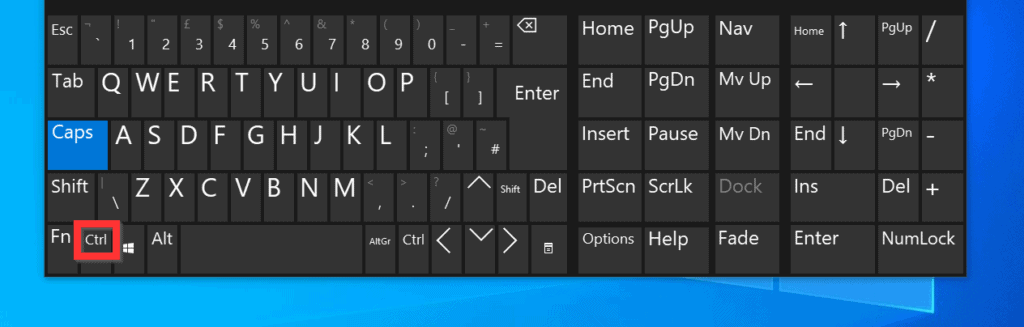
- Once the first photo is selected, hold the Ctrl key on your keyboard. Then, click ALL the photos you want to move – click one photo per time. This will select all the photos.
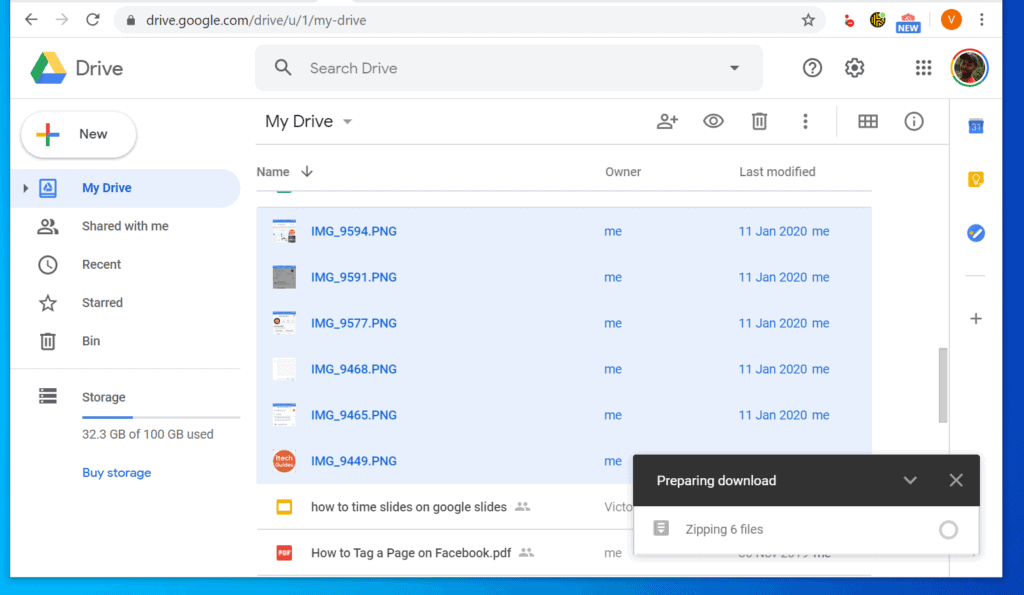
- After selecting all the photos, right-click the selected photos. Then click Download.

- Google Drive will zip all the photos and download the zip file.
- After zipping the files, a Save As window will open. Select the folder you want to save the zip file. Then, at the bottom right of the Save As window, click Save.

Step 2: Unzip the Photos and Upload them to Google Photos
Once you have downloaded the photos, the next step is to unzip and upload them to Photos. Here are the steps…
Popular on Amazon

- Solid state performance with up to 800MB/s read speeds in a portable drive. (Based on internal testing; performance may be lower depending on host device, interface, usage conditions and other factors. 1MB=1,000,000 bytes.)
- Back up your content and memories on a storage solution that fits seamlessly into your mobile lifestyle.
- Take it with you on your adventures—up to two-meter drop protection means this durable drive can take a beating. (Based on internal testing.)
- Secure it to your belt loop or backpack for extra peace of mind thanks to the tough rubber hook.
- From Sandisk, a brand professional photographers trust to take on assignments.
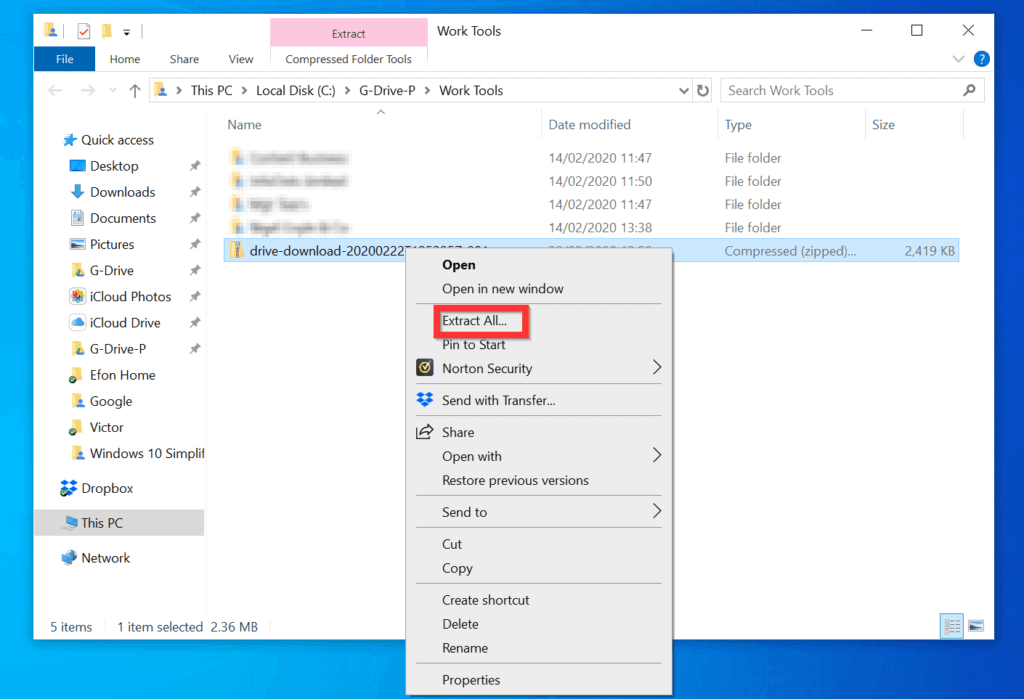
- Open the folder you saved the downloaded photos. Then, right-click the zipped file and select Extract All.
- When the Extract Compressed (Zipped) Folders window open, at the bottom right of the window, click Extract.

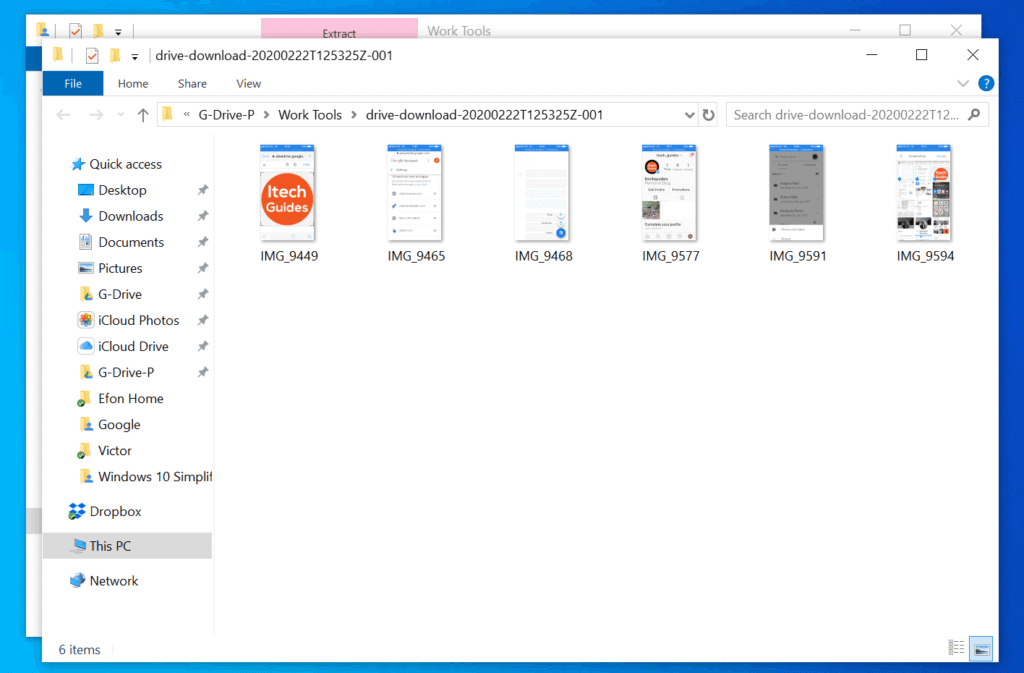
- A folder with the same name as the zip file will be created with all the downloaded photos saved in the folder. The folder will also open automatically.
In the remaining part of this section, you will upload the downloaded photos to Google Photos.
- Open Photos.Google.com from a browser on your PC.
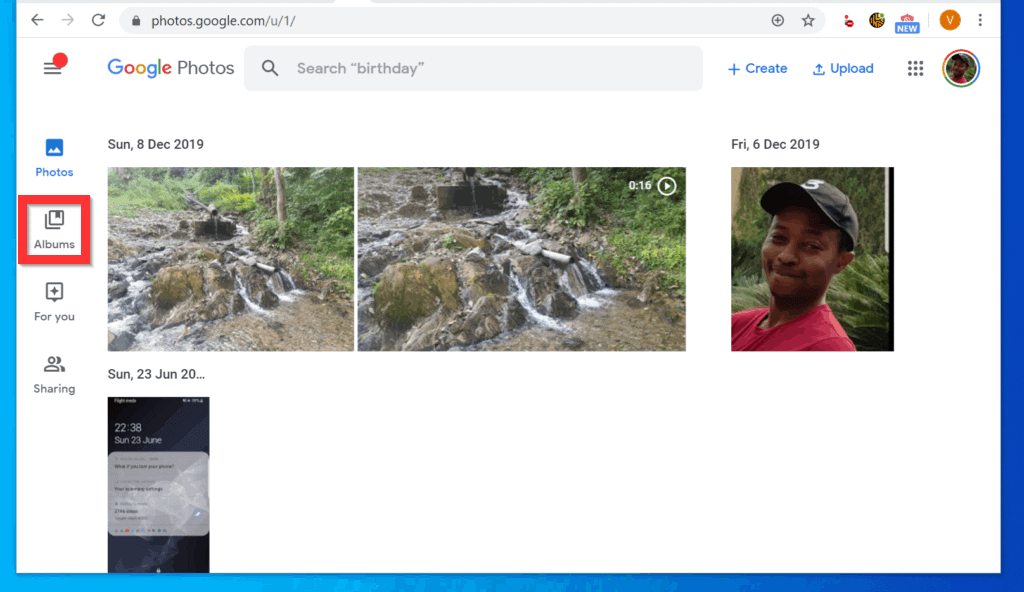
- Place Google Photos browser window side by side the unzipped folder containing your downloaded photos.

- Then, select all the photos in the folder and drag it to Google Photos.

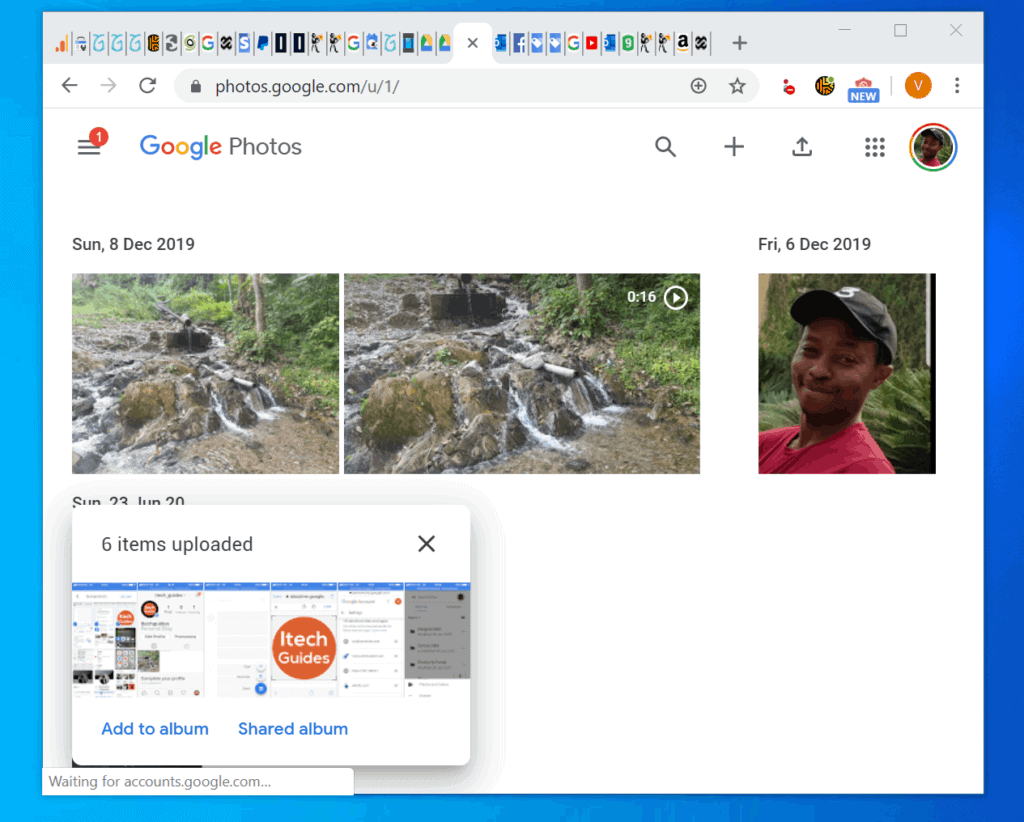
- When you see Drop files anywhere to upload, drop the files. The photos will start uploading to your Google Photos.

- Once the photos are uploaded, Google Photos will offer you the option to Add the photos to an Album.
Option 2: Use Google Photos Upload Feature
Google Photos offers you the option to upload photos directly from Google Drive. This is also a manual process but faster than the previous method…
Also popular on Amazon

- Easily store and access 1TB to content on the go with the Seagate Portable Drive, a USB external hard drive.Specific uses: Personal
- Designed to work with Windows or Mac computers, this external hard drive makes backup a snap just drag and drop. Reformatting may be required for Mac
- To get set up, connect the portable hard drive to a computer for automatic recognition no software required
- This USB drive provides plug and play simplicity with the included 18 inch USB 3.0 cable
- The available storage capacity may vary.
- Open Photos.Google.com from your PC.
- At the top right of Google Photos, click Upload.

- Then, on the UPLOAD FROM menu, select Google Drive.

- When Google Drive opens, click MY DRIVE tab.
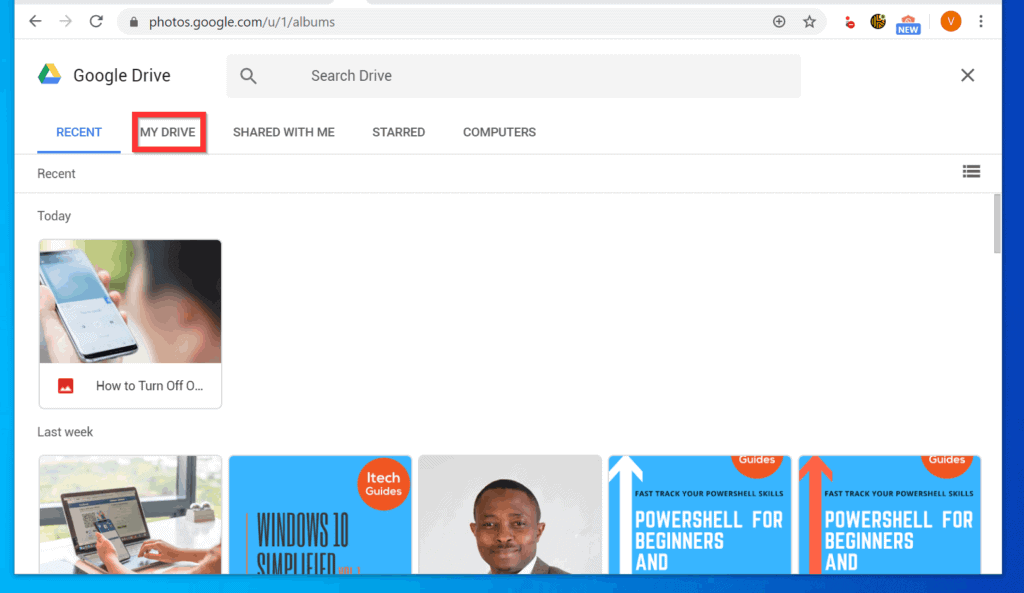
- Then, locate the folder with the photos you want to move to Google Photos. Then, click the first photo.
- Once the first photo is selected, hold the Ctrl key on your keyboard. Then, click ALL the photos you want to move – click one photo per time. This will select all the photos.
- Once the photos are selected, at the bottom right of the page, click UPLOAD.

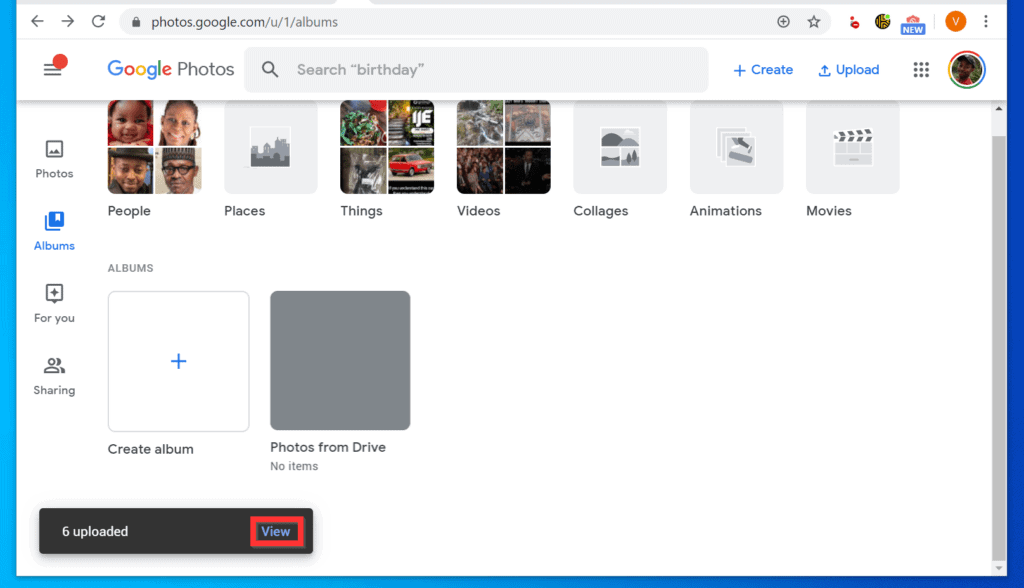
- The photos will be uploaded from Google Drive to Google Photos. After the upload, a notification will be displayed at the bottom left. To view the uploaded photos, click View.
Option 3: Use MultCloud
This is a 3-step process….
Step 1: Create a MultCloud Account
The final method to move photos from Google Drive to Google Photos is to use a FREE tool called MultCloud. Here are the steps…
Do these 3 things before closing this tab:
1Fix the driver behind crashes, sound loss and screen glitches2Repair Windows errors before they cause bigger problems3Scan for outdated or missing drivers - takes under a minute- Click MultCloud.com to open the sign up page.
- When the page opens, complete all the fields and click Create Account.
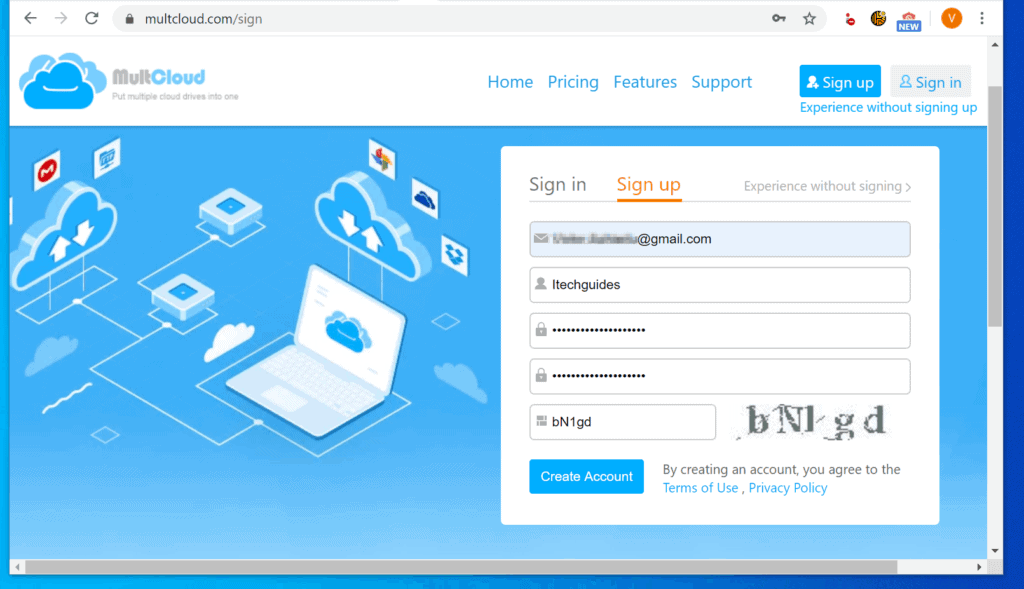
- To activate your account, open your email and click the activation link.

Step 2: Link Google Drive and Google Photos to MultCloud
- Login to MultCloud.com with the email address and password you used to sign up.
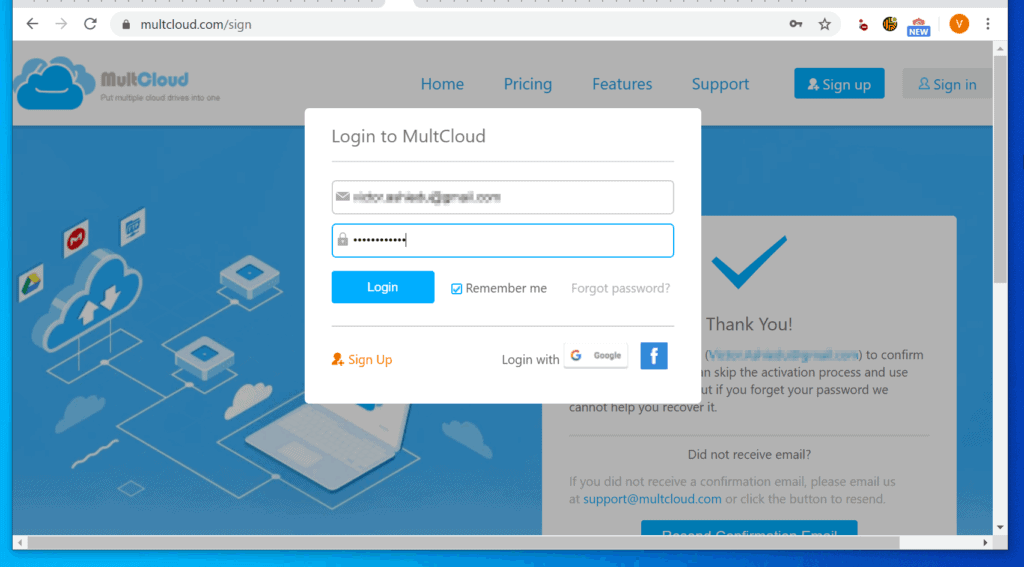
- Then, on the top menu or left pane of the page, click Add Clouds or Add Cloud Drives respectively.
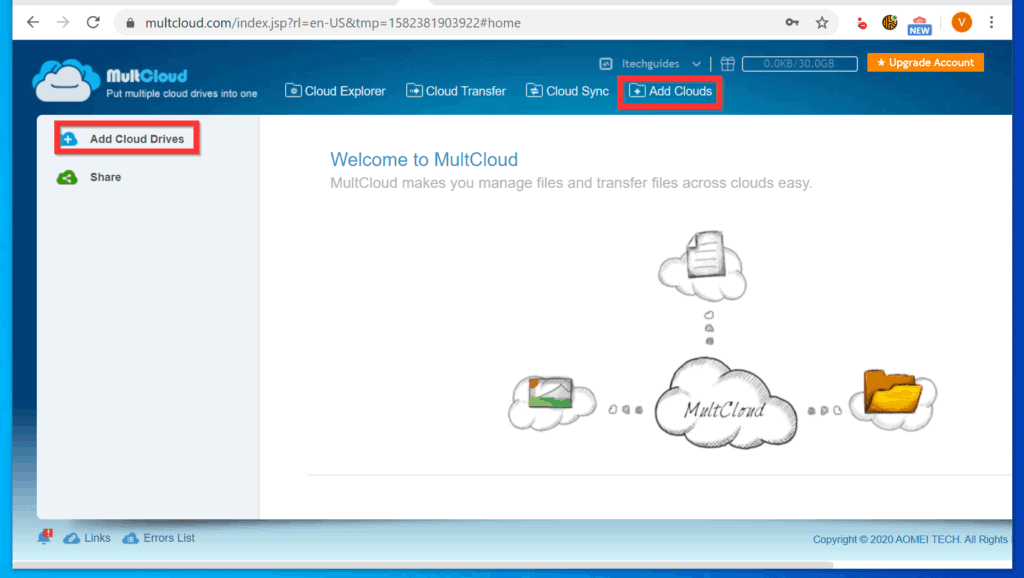
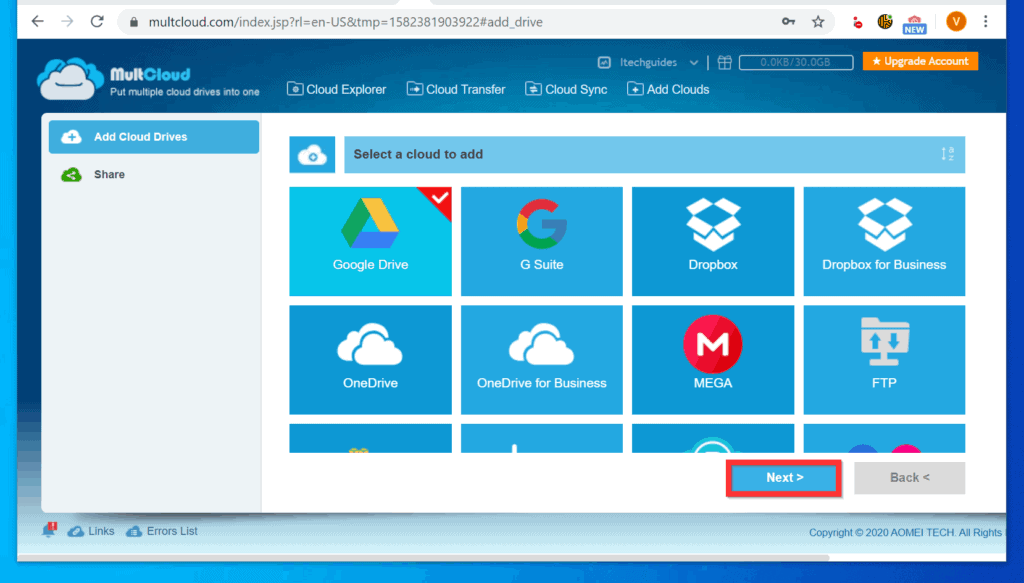
- On the Select a cloud to add page, click Google Drive.
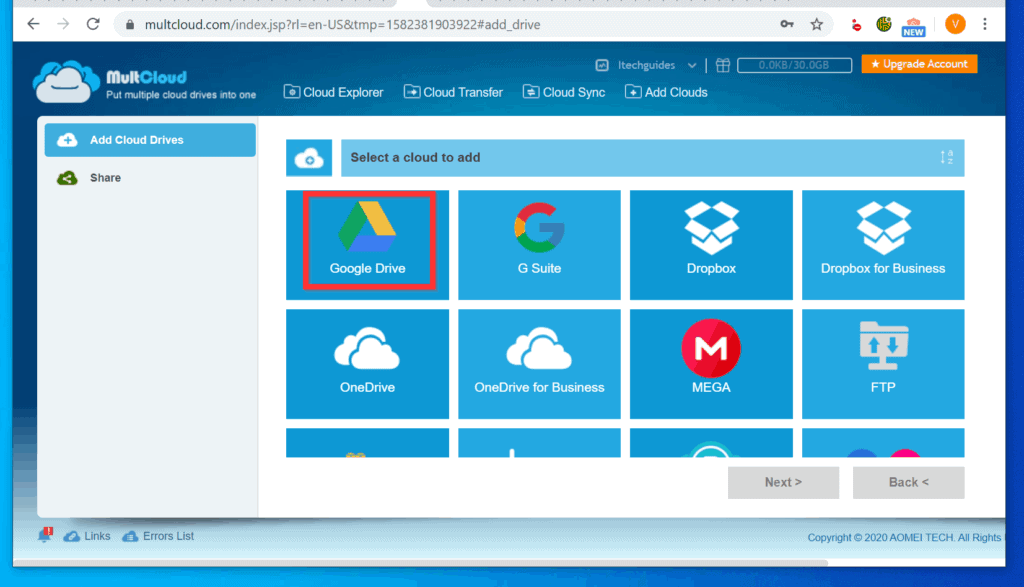
- To proceed with adding Google Drive, at the bottom right of the page, click Next.
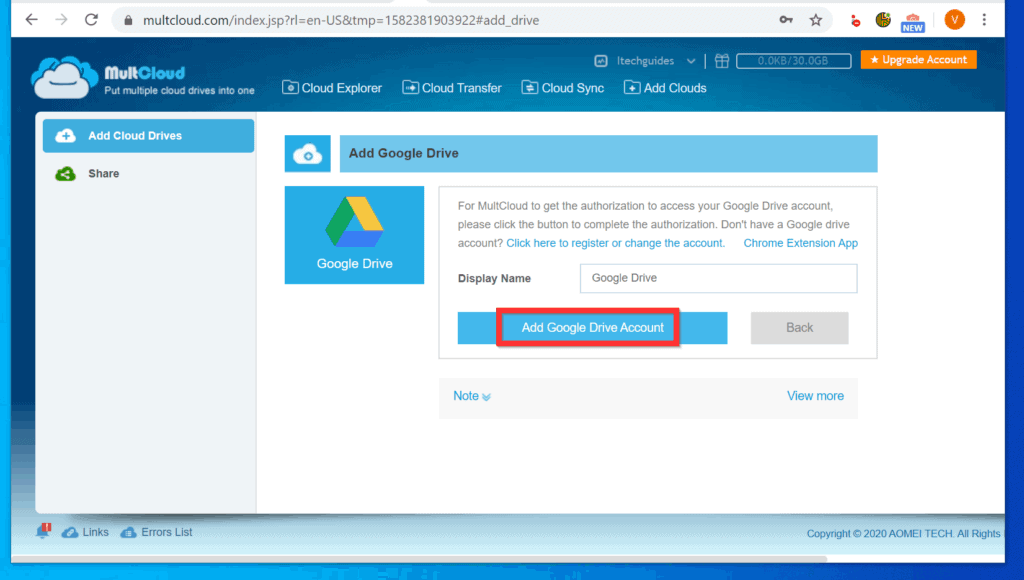
- Then, on the Add Google Drive page, click Add Google Drive Account. You will be redirected to Google Account page.
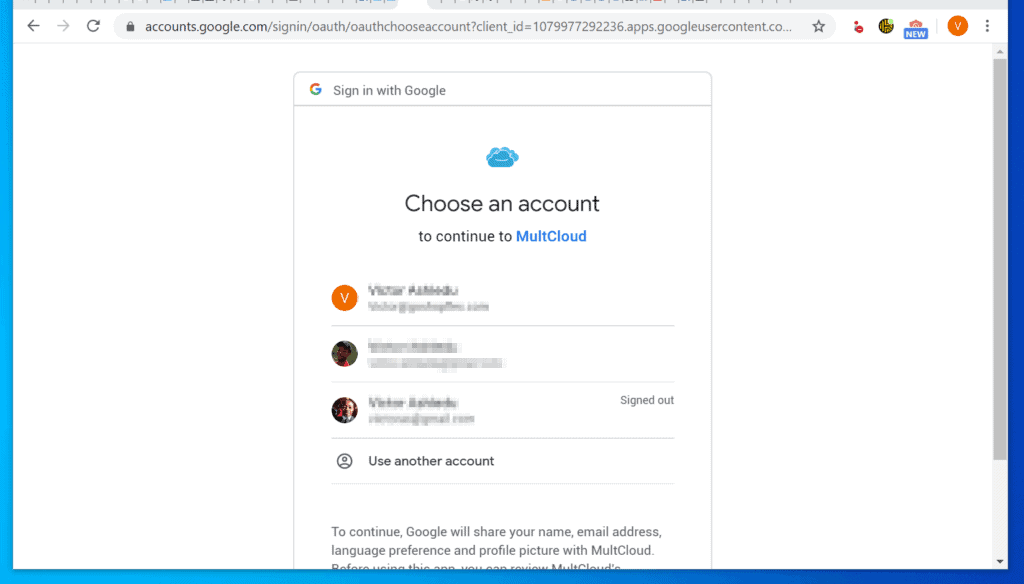
- If you are logged into the same browser with multiple Google accounts, Google will request you to select an account to grant MultCloud access.
- Remember to select the Google account for the Google Drive with the photos you want to move to Google Photos.
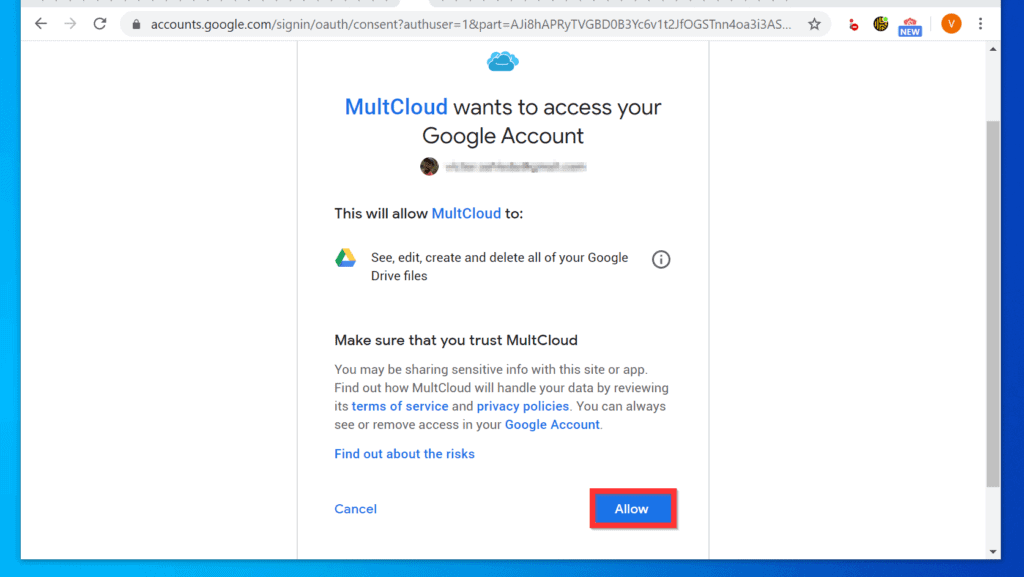
- On the next page, confirm that you want to grant MultCloud access to your Google Drive account by clicking Allow (bottom right of the page).
- Your Google Drive account will be added to your MultCloud account.
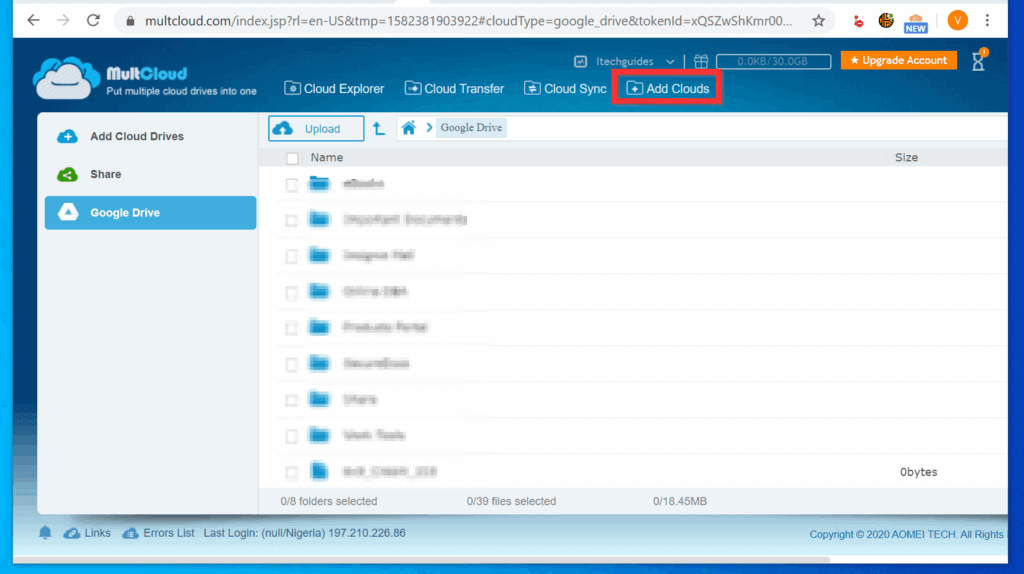
- The next step is to add Google Photos. To proceed, click Add Clouds.
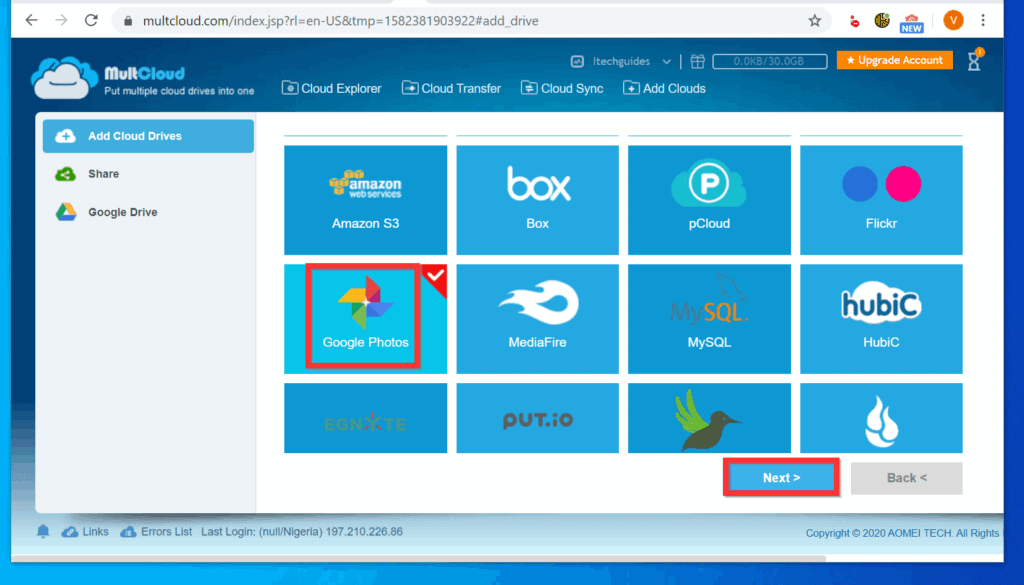
- Then, select Google Photos from the list and click Next.
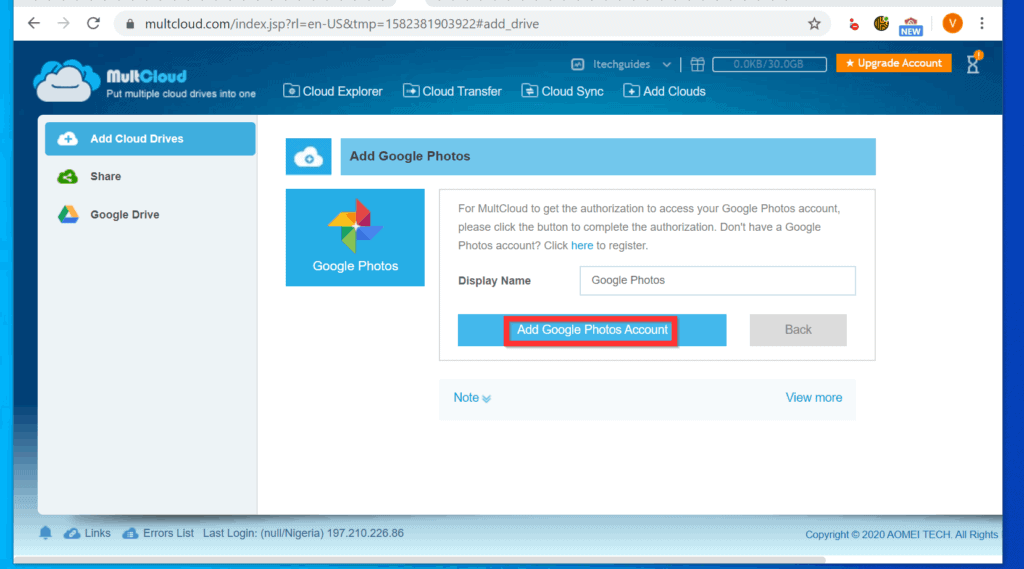
- Finally, click Add Google Photos Account. Then, follow the steps to grant MultCliud access to the Google Photos account you want to moves photos to.
Step 3: Move Photos from Google Drive to Google Photos with Multcloud
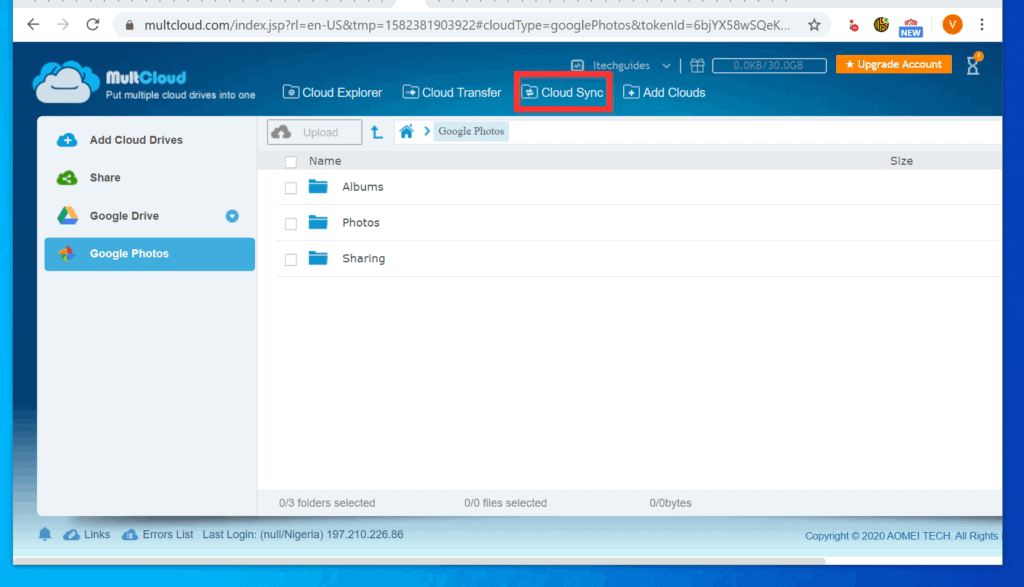
- On the top right of MultCloud, click Cloud Sync.
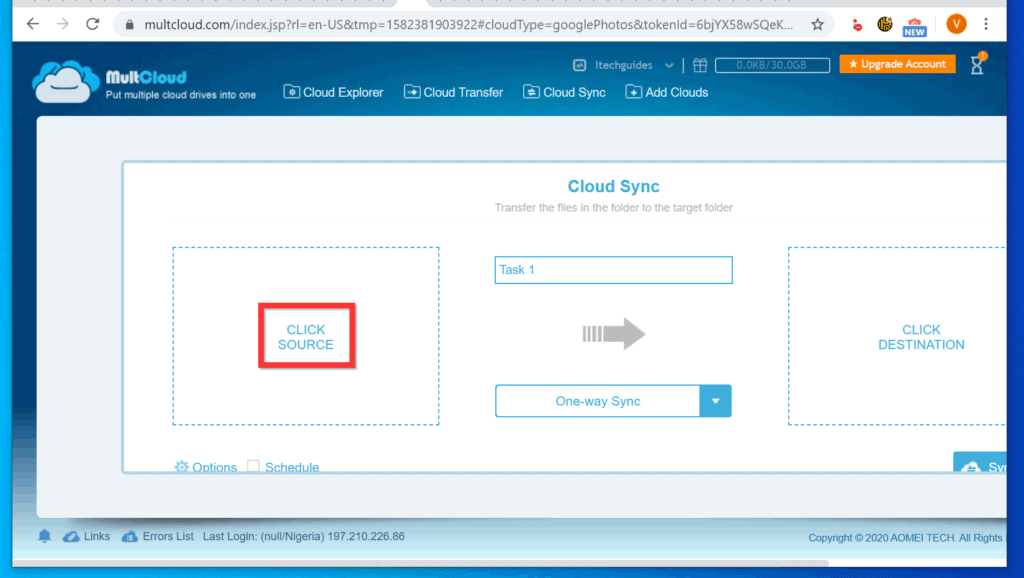
- When the first page of cloud Sync opens, click CLICK SOURCE.
- When the Choose pop up opens, click the arrow beside Google Drive to expand it.

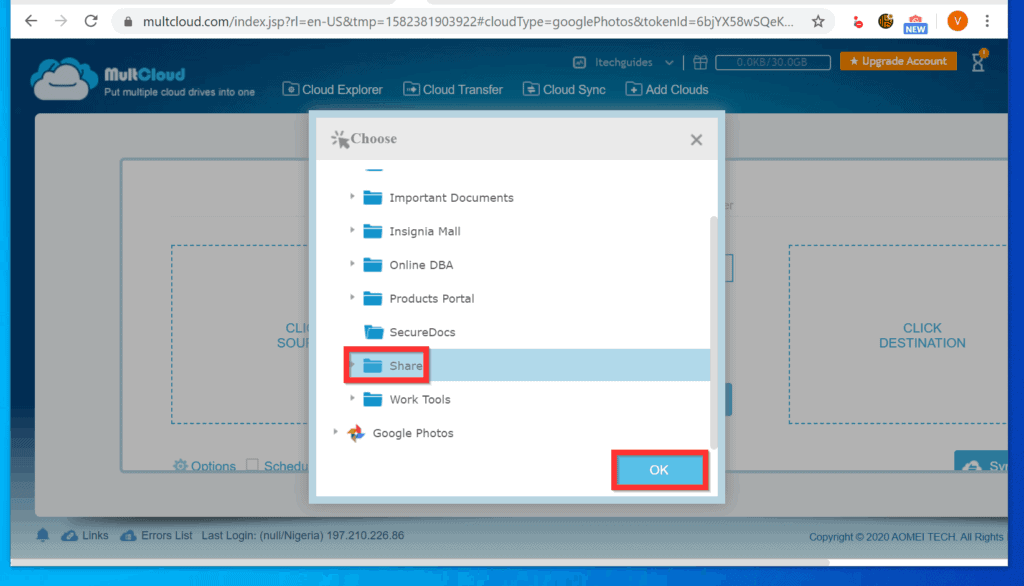
- Finally, locate the folder with the photos you want to move and select it. Then, click OK.
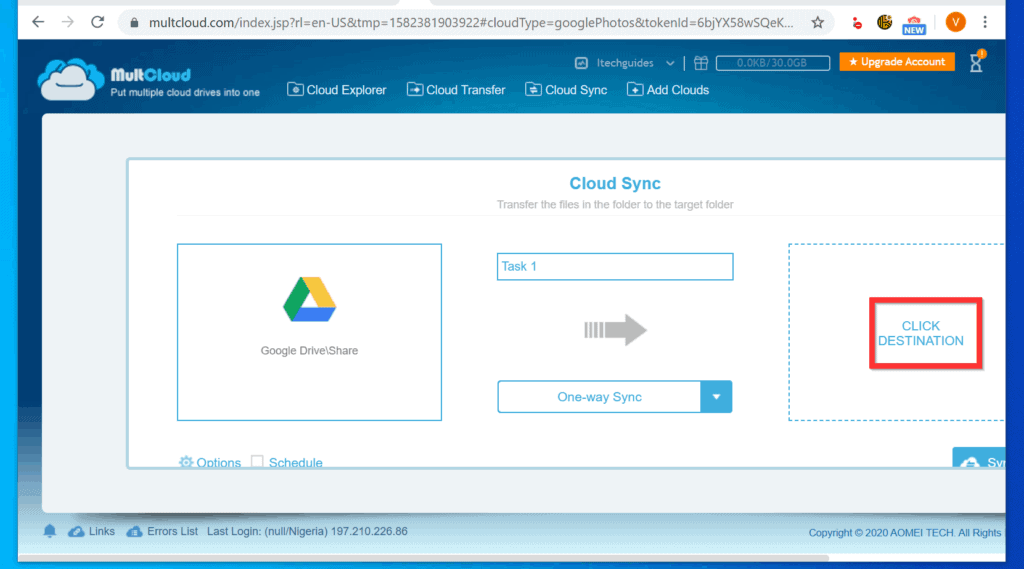
- You will be returned to Cloud Sync page, click CLICK DESTINATION.
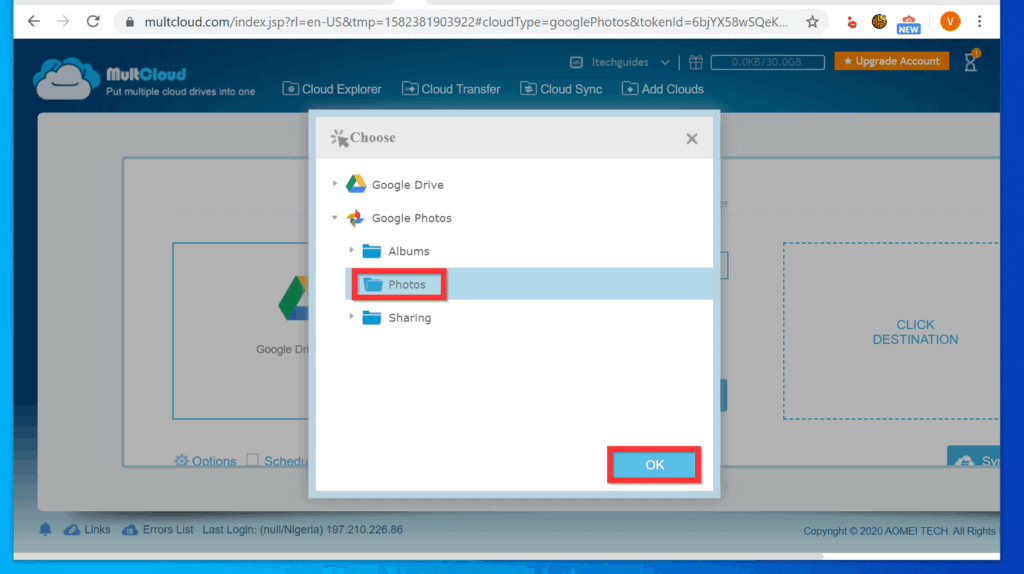
- Then, click the arrow beside Google Photos to expand it.
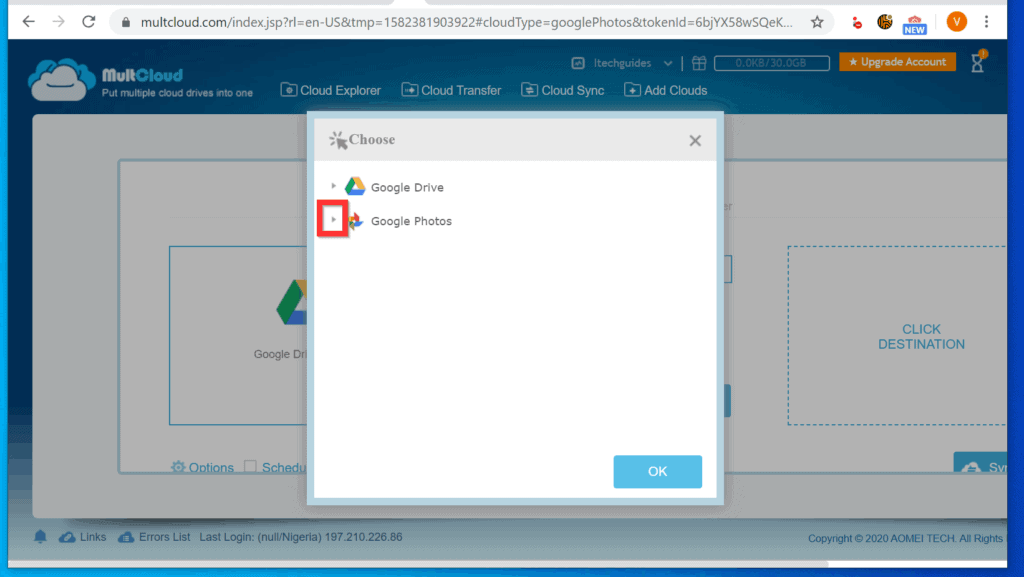
- Select Photos folder then click OK.
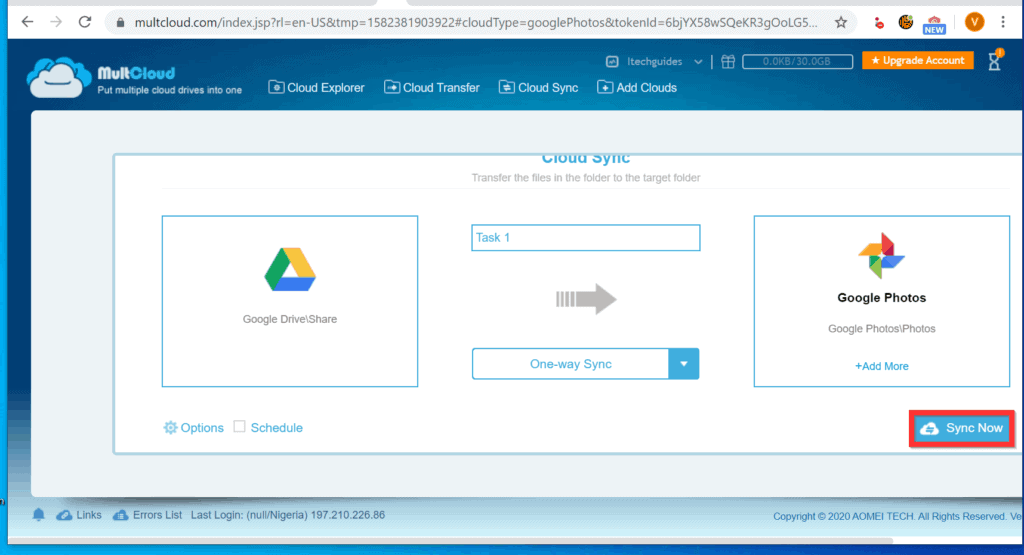
- Finally, to move photos from Google Drive to Google Photos with MultCloud, at the bottom right of the Cloud Sync page, click Sync Now.
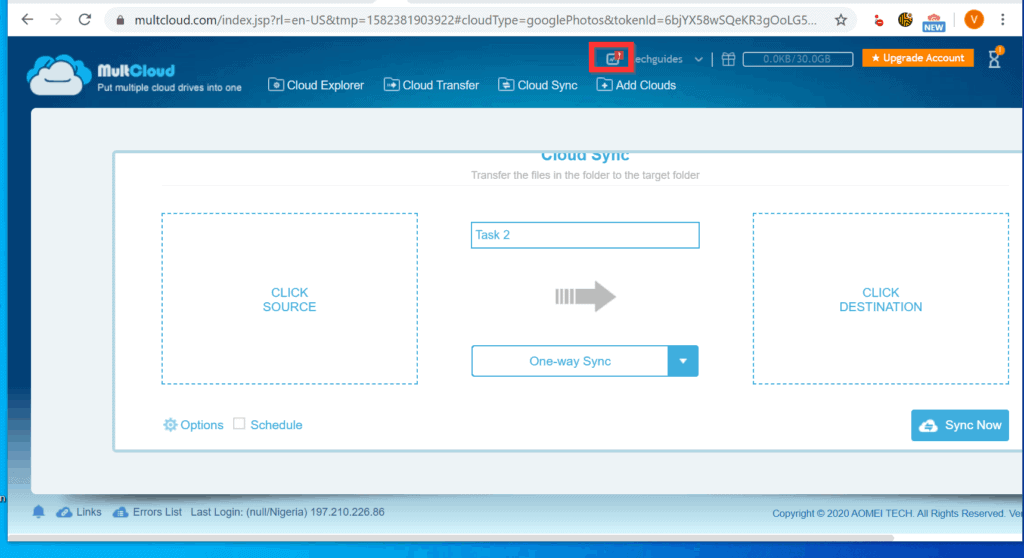
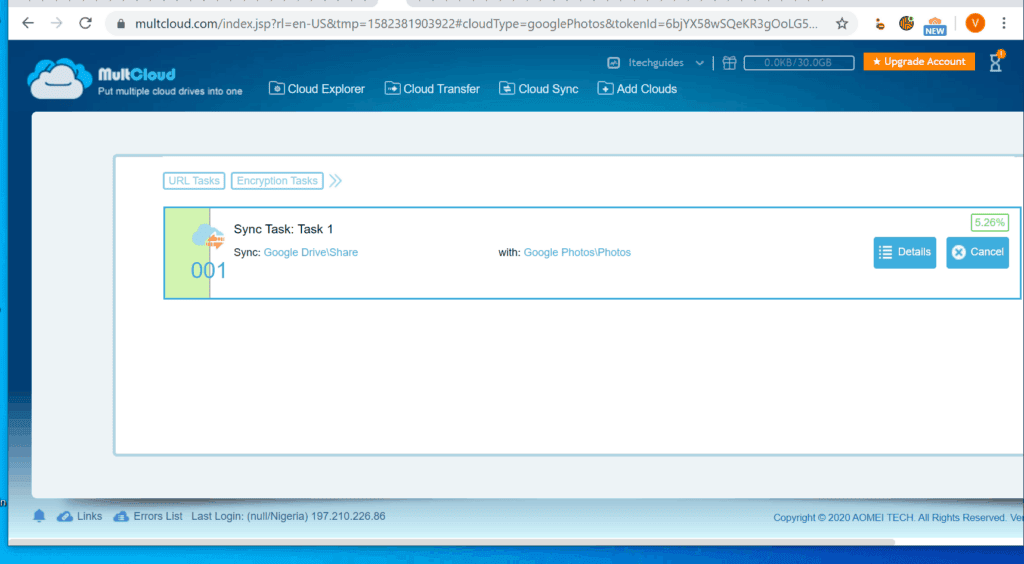
- The task will move to your MultCloud Task Manager. To monitor the progress of the sync, click the Task Manager icon (beside your user name).
It is this easy to move photos from Google Drive to Google Photos! I hope you found this Itechguide helpful. If it was helpful, click on “Yes” beside the “Was this page helpful” question below.
Also popular on Amazon
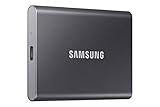
- MADE FOR THE MAKERS: Create; Explore; Store; The T7 Portable SSD delivers fast speeds and durable features to back up any endeavor; Build your video editing empire, file your photographs or back up your blogs all in an instant
- SHARE IDEAS IN A FLASH: Don’t waste a second waiting and spend more time doing; The T7 is embedded with PCIe NVMe technology that brings fast read and write speeds up to 1,050/1,000 MB/s¹, making it almost twice as fast as the T5
- ALWAYS MAKE THE SAVE: Compact design with massive capacity; With capacities up to 4TB, save exactly what you need to your drive – from large working files to game data and everything in between
- ADAPTS TO EVERY NEED: Whether using a PC or mobile phone, count on the T7 for extensive compatibility²; It’s a true team player when it comes to heavy-duty application usage or file-saving
- HI RESOLUTION VIDEO RECORDING: Record Ultra High Resolution (4K 60fs) videos directly onto the T7 Portable SSD with your favorite camera or mobile devices; Supports iPhone 15 Pro Res 4K at 60fps video and more³
You may also express your thoughts and opinions by using the “Leave a Comment” form at the bottom of this page.
Finally, for more Google Itechguides, visit our Google How To page.
Quick Recap
Also popular on Amazon

- Note: Magsafe is not available in this version
- High-speed Data Transfer: Lexar external SSD ES3 supports USB 3.2 Gen 2 up to 1050MB/s read and 1000MB/s write to transfer files fast for more efficient work. (Performance may be lower if not supporting USB 3.2 Gen 2 on Mac and other systems)
- Wide Compatibility: Lexar Portable SSD ES3 compatibility with iPhone 17 series (Not supported on iPhone 14 and older models), Android mobile devices, laptops, cameras, Xbox X|S, PS4, PS5, gaming console, and more
- On The Go: Lexar external solid state drive ES3's thin, stylish, and durable design, weighs 42g and is only 10.5mm thick, making it smaller than a card and easily fits in your pocket. It comes with a Type-C cable for plug-and-play convenience
- Data Safety First: Lexar SSD ES3 includes Lexar DataShieldTM 256-bit AES encryption software to protect files
Also popular on Amazon

- NEARLY 2X FASTER THAN OUR PREVIOUS GENERATION(8) – move 1,000 high-res photos in under 60 seconds(6) with up to 2000MB/s transfer speeds(2).
- IP65 RATING AND UP TO 3M DROP PROTECTION(3) – protects against spills and drops.
- POCKET-SIZED – fits easily in pockets and small bags.
- SPACE TO OWN YOUR AI CONTENT – speed and capacity to download your high-res clips and photo edits.
- 256-BIT AES ENCRYPTION(4) – helps keep private files secure with password protection.
Product prices and availability are accurate as of the date/time indicated and are subject to change. Any price and availability information displayed on Amazon at the time of purchase will apply.
The Tool Desk
Outbyte Driver Updater FREEScan for outdated or missing drivers - takes under a minuteDriver Scan →Outbyte PC Repair FREERepair Windows errors before they cause bigger problemsFix Now →


How do I go about getting the option on the Google Photos Upload function to have Google Drive as a selectable option? The only options available are Computer or Download Backup and Sync