
Do these 3 things before closing this tab:
1Scan for outdated or missing drivers - takes under a minute2Repair Windows errors before they cause bigger problems3Fix the driver behind crashes, sound loss and screen glitchesiTechGuides is reader-supported. When you buy through links on our site, we may earn an affiliate commission. As an Amazon Associate I earn from qualifying purchases. Learn more
You cannot make a print and a display perfectly identical: a screen emits light, while paper reflects light. You can, however, achieve a close, repeatable match. The reliable method is to stabilise and profile the display, use the ICC profile for the exact printer-and-paper combination, soft-proof the image, and ensure that colour is managed by either the application or the printer driver—not both.
This guide covers a quick home-printer workflow and a more accurate colour-managed workflow for photographs, artwork, and design work. It also explains why prints look dark, dull, green, magenta, or different from one application to another.
Why printer colours cannot perfectly match screen colours
A monitor and a sheet of paper produce colour in fundamentally different ways:
- A display is emissive. Its pixels generate light, so an image can appear bright, saturated, and luminous.
- Paper is reflective. Ink absorbs some wavelengths and reflects others. The result depends on the paper’s white point, coating, texture, ink absorption, and the light used to view it.
- The devices have different gamuts. A gamut is the range of colours a device can reproduce. A monitor may show vivid blue, green, or orange that the selected printer and paper cannot reproduce.
- Screen brightness affects perception. A bright monitor can make an image look lighter and more saturated than the same image can look on paper.
- The viewing environment matters. Daylight, warm household bulbs, dim rooms, glare, and coloured walls can all change how a print appears.
Colour management uses profiles to translate device-specific colour values into a device-independent colour space and then into the capabilities of the printer and paper. It is not simply a matter of converting RGB to CMYK. Many modern inkjet printers accept RGB data and use proprietary combinations of cyan, magenta, yellow, black, and sometimes additional inks. The important part is the conversion into the correct printer, ink, paper, and driver condition. The International Color Consortium explains profiles and colour conversion, while X-Rite describes why screen and print colours can differ.
Popular on Amazon

- SPECIFICATIONS: Monitor calibration colorimeter with Easy 1 2 3 software workflow, USB C connection, compact body approx. 34mm tall x 37mm diameter, adjustable counterweight for screen placement, supports up to 2 displays, brightness target selection including Native or Photo with before and after check.
- EASY SETUP: Guided 1 2 3 workflow makes calibration fast and approachable, helping photographers and creators achieve more accurate color without complicated settings, so you can edit with confidence and trust what you see on screen.
- COLOR ACCURACY: Corrects common monitor color shifts to deliver truer tones and more reliable contrast, improving consistency across editing sessions and helping your images look closer to final output on other screens and devices.
- DUAL DISPLAY SUPPORT: Calibrates up to 2 monitors for matching color across a multi screen workspace, ideal for photo editing, video work, and creative setups where consistent viewing on both displays matters.
- BEFORE AFTER CHECK: Built in comparison view lets you instantly see the difference after calibration, making it easy to confirm improved accuracy and maintain consistent results by repeating the process on a regular schedule.
Therefore, the practical target is a predictable approximation: when you print the same file again using the same equipment, paper, profiles, and viewing conditions, the result should remain close.
Choose the right workflow
| Workflow | Best for | Advantages | Limitations |
|---|---|---|---|
| Printer manages colour | Casual photographs, school work, office documents, and basic home printing | Simple and usually the least error-prone when no printer profile is available | Less predictable between applications, papers, and driver settings |
| Application manages colour with an ICC profile | Photography, artwork, design work, and repeatable prints | Provides the greatest control over the conversion and rendering intent | Requires a correct display profile, printer/paper profile, and driver configuration |
| Custom printer profile | Professional work, unusual papers, third-party inks, or demanding colour matching | Describes the actual printer, ink, paper, and print mode | Requires a spectrophotometer or a profiling service |
| Manual driver sliders | Last-resort correction for one known problem | Can sometimes improve a particular print quickly | Not colour management; a change that helps one image may harm another |
For ordinary documents and casual prints, start with the printer-managed method. For photographs or artwork where the screen preview matters, use the application-managed ICC workflow below.
The simple home-printer method
This approach is appropriate when you do not have a measured monitor profile or a trustworthy printer-and-paper ICC profile.
- Use a sensible file colour space. For an unknown consumer workflow, sRGB is usually the safest interchange space.
- Use the correct side of the paper. Photo paper normally has one printable side. Load it as specified by the paper manufacturer.
- Select the exact paper type in the driver. For example, choose the manufacturer’s glossy, semi-gloss, matte, or plain-paper setting rather than leaving the driver on a generic default.
- Use compatible ink. Original manufacturer ink, or a third-party ink specifically profiled for the paper and printer, is more predictable than an uncharacterised combination.
- Choose Printer Manages Colors in the application, if that option is available.
- Leave the printer driver’s normal colour management enabled. Depending on the driver, this may be called ICM, ColorSync, Printer Matching, or an automatic colour mode.
- Print a small test image. Compare it with the display under reasonably neutral, consistent lighting rather than changing several driver sliders at once.
This method is easy, but it cannot compensate for a monitor that is excessively bright or for a paper-and-ink combination that has no suitable profile. If a print is consistently too dark, reducing monitor brightness is usually more useful than increasing printer brightness.
For accurate work: calibration, profiling, and soft proofing
Calibration is not the same as profiling
Calibration adjusts a display toward chosen conditions, such as a target brightness, white point, and gamma. It may change the monitor’s controls or create a correction table.
Profiling measures the display after adjustment and creates an ICC profile describing how that display actually reproduces colour. Colour-managed applications use the profile to interpret what they show. The ICC describes profiling as displaying or printing colour patches, measuring the resulting colours, and generating a device profile; see the ICC guidance on creating profiles.
An operating-system calibration wizard can be useful for basic correction. For serious colour work, a hardware colorimeter is preferable because it measures the display rather than relying on eyesight. A calibrator is not essential for casual home printing, and Apple notes that calibration is generally unnecessary for a typical home or office Mac, but it becomes valuable when you need repeatable photographic or design output.
What’s actually slowing this PC down?
Pick the symptom - the matching free tool is one click away.
Prepare the display before judging colour
Disable features that change the screen’s colour or brightness while you work:
- Windows Night light
- macOS Night Shift
- macOS True Tone
- Automatic brightness and content-adaptive brightness
- Vivid, game, cinema, or HDR modes when evaluating ordinary print work, unless your intended output specifically requires them
Also reduce reflections and glare, avoid strongly coloured walls immediately around the display, and keep the room lighting reasonably stable. Apple explains that True Tone changes display colour and intensity according to ambient light, and Night Shift changes the display’s colour temperature. Neither should be active when you are making a critical colour judgement.
Windows display preparation
- Open Settings → System → Display.
- Turn off Night light.
- Turn off automatic or content-adaptive brightness if those controls are available on your hardware.
- Search Settings for calibrate display color and follow the calibration wizard.
- For measured work, use a hardware colorimeter and leave the resulting ICC profile active in the operating system.
Windows labels and available brightness controls vary by display and version. Microsoft documents the current Windows brightness, Night light, and display-colour controls.
macOS display preparation
- Open Apple menu → System Settings → Displays.
- Turn off True Tone and Night Shift.
- Open the Colour profile menu and choose Customise.
- Click Add to launch Display Calibrator Assistant.
- For critical work, create the profile with a hardware calibrator instead.
Apple’s display-calibration instructions note that the exact controls can differ by Mac and display.
PC Slower Than It Used to Be?
A free scan shows the junk files, broken settings and background clutter dragging Windows down - then fixes them in one click.Free scan · Windows 10 & 11Crashes, No Sound, or Screen Glitches?
Random freezes, missing sound and display glitches usually trace back to one bad driver. Find and replace yours safely.Free scan · under a minuteSet a consistent viewing environment
There is no single target that is mandatory for every print job. As one manufacturer reference, Canon gives an example of D50 or 5000 K white balance, 100–120 cd/m² display luminance, gamma 2.2, and approximately 500 lux viewing illumination for controlled evaluation. These are useful reference conditions, not universal requirements for every home or office. The Canon guidance should be treated as a starting point for a controlled setup.
Also popular on Amazon

- QUICK & EASY COLOR CALIBRATOR: Whether you're editing photos, designing graphics, or producing content, SpyderExpress helps you view colors with precision and confidence; Ideal for creators who want accurate, lifelike colour in both digital and print
- READY FOR THE LATEST DISPLAYS: The only calibrator of its kind to currently support the latest Liquid Retina XDR displays, including the MacBook M4 mini-LED screen, alongside everyday monitors; Upgrade the software for OLED and advanced mini-LED support
- 3x FASTER THAN TYPICAL ENTRY-LEVEL TOOLS: Get edit-ready color in just 90 seconds - see skin tones, shadows, and highlights as they’re meant to be, with consistent, trustworthy results
- GROW YOUR TOOLKIT WITH SOFTWARE UPGRADES: Unlock advanced features like ambient light adjustment, multi-display profiling, and DevicePreview - shows how your work will appear across different devices; No new hardware needed, upgrade when you're ready
- REAL COLOUR, REAL EASY: Download the software, plug in the device, and follow the 3 simple steps. Save profiles, calibrate up to 3-connected displays per workstation, and recalibrate before editing to ensure your screen always shows true-to-life color
Allow prints to dry or stabilise before making a final comparison, particularly with pigment or heavy ink coverage. View the print in the same type of lighting each time. A print can appear too dark in a dim room even when the display and printer are behaving correctly.
Use the correct printer-and-paper ICC profile
A printer profile is not just a profile for the printer model. It must match the complete output condition:
- Exact printer model
- Ink set
- Paper brand and surface, such as glossy, lustre, baryta, or matte
- Paper type or media setting selected in the driver
- Print-quality mode
- Sometimes the driver version, operating system, or RIP workflow
A glossy-paper profile is not interchangeable with a matte-paper profile. Surface finish changes the paper white, ink behaviour, black density, and gamut. Even two papers from the same manufacturer may need different profiles. Adobe’s overview of colour profiles explains that output profiles describe a particular printer or press condition and that glossy and matte media can have different gamuts.
The Tool Desk
Outbyte Driver Updater FREEFix the driver behind crashes, sound loss and screen glitchesFind Drivers →Outbyte PC Repair FREEClear out junk files and repair common Windows errorsFree Scan →Look for the profile in this order:
- The printer manufacturer’s support page
- The paper manufacturer’s download page
- Profiles installed with the printer driver
- A profile supplied by a print service
Manufacturer-supplied profiles are a good starting point, but they may not perfectly describe an individual printer, especially if the printer is ageing, uses different ink, or has a different driver and quality setting. An .icc file and an .icm file are equivalent ICC profile formats with different extensions, according to the ICC FAQ.
Preserve the image’s embedded colour profile
When opening a photograph or design file, preserve its embedded profile when possible. Do not assign a random profile merely because the colours look wrong.
Assigning a profile changes how the existing numerical colour values are interpreted. The pixel numbers stay the same, but the displayed colour can change dramatically.
Converting to a profile changes the colour values so the appearance is preserved as closely as possible in a different colour space or output condition. Adobe explains the distinction in its guide to assigning and converting colour profiles.
Recommended Free Tools
For a general consumer workflow, keep photographs in sRGB unless you have a reason to use a wider space. Adobe RGB or another wide-gamut RGB space can retain colours that may be printable on capable equipment, but only when every application in the workflow is colour-managed. Save in a format that preserves profiles, such as JPEG, TIFF, PSD, or an appropriately configured PDF.
Do not blindly convert every photograph to CMYK. Many desktop inkjet workflows remain RGB until the application or driver performs the output conversion. Convert to CMYK only when a commercial printer or a specific press workflow requires it, and follow that service’s supplied profile and submission instructions.
Soft-proof the image before printing
Soft proofing previews how an image is likely to look after conversion to a particular printer-and-paper condition. It cannot show the physical texture of paper perfectly, but it can reveal gamut limitations and changes in contrast, saturation, and shadow detail.
Photoshop soft-proofing steps
- Choose View → Proof Setup → Custom.
- Under Device to Simulate, select the exact printer-and-paper ICC profile.
- For a normal photographic conversion, leave Preserve RGB Numbers disabled.
- Test Perceptual or Relative Colorimetric rendering intent.
- Enable Black Point Compensation where appropriate.
- If available, enable Simulate Paper Color and Simulate Black Ink.
- Choose View → Proof Colors to toggle the preview.
- Use View → Gamut Warning to identify colours outside the printer’s reproducible gamut.
Soft proofing is only as reliable as the display profile, output profile, monitor, and viewing light. Adobe lists those limitations in its Photoshop soft-proofing documentation.
A neon blue, intense green, or brilliant orange may be visible on the display but fall outside the printer-and-paper gamut. The printer must replace it with a nearby reproducible colour. Gamut warning helps locate those areas so you can adjust them deliberately rather than wondering why saturation disappeared.
Also popular on Amazon
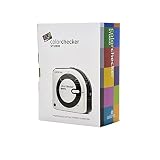
- SPECIFICATIONS: All in one spectrophotometer for camera to print color control, supports monitor display and projector profiling plus printer paper and scanner profiling with Calibrite PROFILER software, includes ColorChecker Classic Mini target for camera profiling, includes USB cable and monitor profiling holder pouch.
- ALL IN ONE: Profiles the devices that impact your final results including monitors, laptops, and projectors plus printers, paper, cameras and scanners, helping photographers maintain consistent color across capture, edit, and output workflows.
- INTELLIGENT PROFILING: Adaptive iterative profiling optimizes results for each unique display every time you calibrate, improving accuracy over repeat sessions and reducing the frustration of color drift and inconsistent screen performance.
- PRINT MATCHING: Ambient light measurement helps set optimal display luminance for comparing prints to your screen, improving print to monitor consistency and supporting more reliable proofing and final output decisions.
- CAMERA SUPPORT: Includes ColorChecker Classic Mini for camera profiling with Calibrite PROFILER software, enabling custom profiles for RAW workflows and a more consistent starting point before you begin editing and grading.
Choosing a rendering intent
| Intent | Typical use | What it does |
|---|---|---|
| Perceptual | Photographs with many out-of-gamut colours | Re-maps colours together to preserve overall visual relationships and smooth transitions. It may change some colours that were originally within gamut. |
| Relative Colorimetric | Images or graphics where in-gamut colours should remain close | Preserves in-gamut colours more closely and clips or remaps out-of-gamut colours. Black Point Compensation can help with shadow differences. |
| Absolute Colorimetric | Specialised proofing where the source paper white should be simulated | Attempts to preserve the source white and is less commonly the best choice for ordinary photo printing. |
| Saturation | Some charts, diagrams, and presentation graphics | Prioritises vividness over accurate colour relationships and is usually unsuitable for photographic colour matching. |
Start with Perceptual for photographs, then compare it with Relative Colorimetric. There is no universal best setting; the image, printer profile, and intended result determine which looks better. The ICC rendering-intent guidance and Adobe’s Lightroom rendering-intent descriptions explain the trade-offs.
Exact Photoshop printing workflow
Once the display is stable, the correct profile is installed, and the image has been soft-proofed:
- Choose File → Print.
- Expand Color Management.
- Select Photoshop Manages Colors.
- Select the exact printer-and-paper ICC profile.
- Choose the rendering intent used for the soft proof.
- Enable Black Point Compensation if appropriate.
- Open Print Settings or Printer Settings.
- Set the exact paper size, paper type, and print-quality mode.
- Disable colour management in the printer driver.
The final hand-off is essential. Photoshop performs the conversion using the selected profile; the printer driver must then send those already converted values without applying a second conversion. Adobe’s Photoshop colour-managed printing workflow documents this arrangement.
Free tools Windows power users keep installed
One-click scans. No signup required.
What to select in common printer drivers
- Epson: choose Off (No Color Adjustment), or the equivalent option, when the application supplies the ICC profile. Epson’s labels vary by model.
- Canon: under colour matching or colour correction, choose None or Off when Photoshop is managing colour.
- HP: use the application-managed colour option where provided, and disable the driver’s additional colour correction.
- macOS: depending on the application and driver, the hand-off may appear as ColorSync, printer matching, or no colour adjustment.
See the manufacturer examples for Epson colour-management options, Canon ICC printing, and HP application-managed colour. Your model’s exact menu names may differ.
Never select an ICC profile in Photoshop while also enabling ICM, ColorSync, driver matching, or automatic colour correction in the driver. That double colour management commonly causes dark, dull, or strongly tinted prints. Adobe’s colour-management troubleshooting guidance and Canon’s driver documentation describe the same application-versus-driver choice.
When to let the printer manage colour
If you do not have a trustworthy printer-and-paper profile, do not guess at one. In the application, choose Printer Manages Colors. In the printer driver, enable its normal colour management, ICM, ColorSync, or equivalent automatic mode. Select the exact paper type and quality setting, then print without manually changing cyan, magenta, brightness, or contrast.
This is often the best option for a casual home printer because the driver’s built-in conversion is designed for its supported media. It provides less control than an application-managed workflow and may produce different results in different applications, but it is safer than applying an incorrect profile or accidentally converting twice. Adobe recommends printer-managed colour when no custom printer-and-paper profile is available.
Quick wins for a faster PC:
Repair Windows errors before they cause bigger problemsFix Now →Fix the driver behind crashes, sound loss and screen glitchesFind Drivers →On macOS, ColorSync Utility can expose more explicit choices, including Prematch to printer profile, Hand off to printer, and Print as colour target, without colour management. The last option is for profiling targets, not ordinary photographs. Apple lists these choices in its ColorSync Utility printing guide.
Lightroom Classic workflow
In Lightroom Classic, use the same printer profile for both soft proofing and printing:
- Use Lightroom’s Develop module soft proofing and select the printer-and-paper profile.
- In the Print module, open the Print Job panel.
- Choose the same profile under the colour-management settings.
- Choose a suitable rendering intent and enable Black Point Compensation if appropriate.
- Open the operating-system printer settings and disable driver colour management.
The exact panel labels can vary by Lightroom Classic version. Adobe’s Lightroom Classic print-job documentation describes the profile selection and driver hand-off.
Troubleshooting: when the print does not match
| Symptom | Likely causes | What to do |
|---|---|---|
| Print is darker than the display | Display brightness is too high; print is being viewed in dim light; paper cannot reproduce the display’s emitted brightness | Lower and profile the display, soft-proof the image, and compare the print under neutral, consistent light. Do not immediately brighten every photograph. |
| Colours are dull or neon colours disappear | Important colours are outside the printer-and-paper gamut; matte paper may have a smaller gamut than glossy paper | Use gamut warning, try Perceptual and Relative Colorimetric, adjust the image within the soft proof, or use a wider-gamut printer and paper where appropriate. |
| Everything has a green, magenta, blue, or yellow cast | Wrong profile, wrong paper setting, double colour management, clogged or empty ink channel, or third-party ink mismatch | Confirm the printer model, ink, paper, driver media setting, and colour-management mode as one complete set. Then perform a nozzle check. |
| Prints vary between Photoshop, a browser, and another application | One application is colour-managed while another ignores embedded profiles, or the applications use different printer-management settings | Use a known colour-managed application, or use printer-managed colour consistently for the consumer workflow. Check that the image’s embedded profile is preserved. |
| Changing paper ruined the match | The paper surface, white point, ink absorption, and gamut changed, but the old profile or media setting was retained | Install and select the exact profile for the new paper and choose its matching driver media type. |
| Bands, missing colours, streaks, or uneven patches | Clogged nozzles, an empty cartridge, a misaligned print head, or an unsuitable paper setting | Run a nozzle check first. Clean only if the pattern shows gaps or missing segments, and align the print head when the printer recommends it. |
| A custom profile looks worse than the old one | The profiling target was colour-managed during printing, measured before the print dried, or printed with the wrong paper or quality setting | Reprint the target with colour management disabled, use the exact media setting, allow the target to dry as instructed, and measure it with the profiling tool. |
For hardware-related faults, colour management cannot repair missing ink or bad nozzles. Epson recommends checking the nozzle pattern before cleaning; gaps or faint lines indicate that cleaning may be needed. Canon similarly identifies paper settings, clogged nozzles, ink supply, cleaning, and print-head alignment as causes of uneven or streaked colour in its colour troubleshooting guidance.
A reliable diagnostic sequence
When a result looks wrong, change one variable at a time:
Also popular on Amazon

- SPECIFICATIONS; Includes Calibrite Display 123 colorimeter for monitor calibration plus ColorChecker Passport Video 2 for video and photo capture control, designed for exposure reference, white balance setup, and consistent color workflow from capture through edit.
- CAPTURE CONTROL; Passport Video 2 helps set accurate white point, verify exposure, and match multiple cameras on set, giving filmmakers and hybrid shooters a reliable reference for consistent footage in changing or mixed lighting conditions.
- MONITOR CALIBRATION; Display 123 provides an easy monitor profiling workflow so photographers and creators can trust on-screen color when editing, grading, designing, or delivering work that must remain consistent across displays.
- CREATIVE CONFIDENCE; Built for content creators who want dependable color management, this kit reduces trial-and-error corrections, improves workflow efficiency, and supports accurate results for both still photography and professional video production.
- PRO CREATOR WORKFLOW; Ideal for videographers and photographers who require consistent color standards across multiple cameras, monitors, and software platforms, helping maintain professional results from on-set capture through final post-production.
- Check the physical print. Look for bands, missing colours, streaks, or uneven density. If present, run a nozzle check before investigating profiles.
- Confirm the media. Check the printable side, paper type in the driver, paper size, quality mode, and whether the paper is supported.
- Confirm the supplies. Check ink levels and whether the profile was made for the actual ink set.
- Identify the colour manager. Confirm that exactly one of the application or driver is managing colour.
- Confirm the profiles. Check that the display profile is active and that the printer profile matches the printer, ink, paper, and media setting.
- Check the file profile. Preserve the embedded profile. Do not solve a display problem by randomly assigning sRGB, Adobe RGB, or another profile.
- Check the environment. Disable Night Shift, Night light, True Tone, automatic brightness, and vivid display modes. Compare the print in stable lighting.
- Only then test adjustments. Compare rendering intents or make a controlled image adjustment inside the soft-proof view.
This sequence prevents a clogged nozzle or double conversion from being mistaken for a problem with the photograph itself.
Creating a custom printer profile
Use a custom profile when the manufacturer does not provide one for your paper, when you use an unusual ink, when the printer has significant individual variation, or when colour consistency justifies the cost.
The usual process is:
- Print a colour target supplied by the profiling software.
- Disable all colour management while printing the target. The target contains known colour patches; it must not be altered by another conversion.
- Use the exact printer, ink, paper, driver media setting, and quality mode intended for the profile.
- Allow the print to dry or stabilise for the period specified by the profiling system.
- Measure the patches with a spectrophotometer.
- Generate and install the ICC profile.
- Use that profile in the application-managed workflow and keep the matching driver settings unchanged.
You can purchase or rent suitable measurement hardware, or send the target to a profiling service. The ICC profile-creation guidance and HP’s custom-profile procedure describe the general process. A profile is valid only for the conditions it describes. Changing the printer, ink, paper, driver, quality mode, or sometimes the viewing light can invalidate the expected match.
Special cases
Commercial print services and presses
For a commercial press or online print service, request its current output profile and submission specification. Follow its required colour space, file format, bleed, resolution, and conversion instructions. A home inkjet print is not automatically a press proof, even if it looks similar on screen.
Black-and-white printing
Black-and-white photographs may need a neutral or advanced black-and-white driver mode. Some printers use colour inks to create neutral tones, and small differences in colour management can introduce a green, magenta, or warm cast. Test the printer’s monochrome mode separately from the colour workflow and use the paper profile recommended for that mode.
Glossy versus matte paper
Changing from glossy to matte is not a cosmetic change. The surface, white point, black density, ink absorption, and gamut all change. Use a separate profile and the matching driver media setting for each surface. A manufacturer profile is generally better than no profile, but a custom profile is more accurate when the combination is sensitive.
Common mistakes to avoid
- Expecting literal screen-to-paper identity instead of a close, repeatable match.
- Leaving the monitor in a very bright or vivid mode and compensating by brightening files.
- Judging a print under a different light every time.
- Using a glossy profile for matte paper or a generic paper setting for a profiled paper.
- Selecting an application ICC profile and enabling printer-driver colour correction as well.
- Assigning a random profile because the image looks wrong.
- Converting every image to CMYK without a print-service requirement.
- Changing cyan, magenta, brightness, and contrast sliders before checking nozzles, paper settings, and colour-management ownership.
- Assuming a profile remains accurate after changing ink, paper, driver, print quality, or printer.
Quick checklist
- Display is in a stable mode with Night Shift, Night light, True Tone, and automatic brightness disabled.
- Display has been calibrated and profiled when the work requires accuracy.
- Image’s embedded profile has been preserved.
- Printer profile matches the exact printer, ink, paper, media setting, and quality mode.
- Printable side of the paper is facing correctly.
- Soft proof uses the same printer-and-paper profile as the print job.
- Rendering intent has been tested rather than assumed.
- Exactly one device manages colour.
- Nozzle check is clean and ink levels are adequate.
- Print is dry and being judged under consistent, neutral lighting.
Frequently Asked Questions
Why are my prints darker than the display?
The display may be brighter than the paper can appear, or you may be viewing the print in dim light. Lower and profile the display, soft-proof the image, and compare the print under stable neutral lighting. A very bright monitor is one of the most common reasons a print is edited too dark.
Outdated Drivers Are Slowing You Down
One free scan finds every outdated or missing driver and matches the right update for your exact hardware.Free scan · exact hardware matchPC Slower Than It Used to Be?
A free scan shows the junk files, broken settings and background clutter dragging Windows down - then fixes them in one click.Free scan · Windows 10 & 11Should I use RGB or CMYK for printing?
Do not convert automatically just because the job is being printed. Many desktop inkjet workflows accept RGB data and perform the output conversion using the printer-and-paper profile. Use CMYK when a commercial printer or press specification requires it; otherwise preserve the appropriate embedded RGB profile, commonly sRGB for an unmanaged consumer workflow.
Do I need a monitor calibrator?
Not for casual home printing, where printer-managed colour and the correct paper setting are often sufficient. A colorimeter is strongly recommended for photography, artwork, design, or repeatable colour work because it measures the display and creates a profile rather than relying on visual judgement.
Why did changing paper alter the colours so much?
Paper is part of the colour system. Its coating, white point, ink absorption, surface finish, and gamut affect the result. Select the profile and driver media setting made for the new paper; do not continue using the profile for the old paper.
Why do I get a green or magenta cast even after choosing a profile?
Check for double colour management, a mismatched paper setting, an ink-set mismatch, or a blocked nozzle. Confirm that either the application or the driver—not both—is managing colour, then print a nozzle check. If the nozzle pattern is faulty, solve that hardware issue before adjusting colour settings.
The Bottom Line
The shortest dependable recipe is: stabilise the display, use the exact paper setting and ICC profile, soft-proof important images, and let only one part of the workflow manage colour. For casual printing, let the printer manage colour. For photographs and design work, let the application manage colour with a matched printer-and-paper profile. If the print has bands or a strong cast, check ink and nozzles before changing the image.
Quick Recap
Product prices and availability are accurate as of the date/time indicated and are subject to change. Any price and availability information displayed on Amazon at the time of purchase will apply.

