

iTechGuides is reader-supported. When you buy through links on our site, we may earn an affiliate commission. As an Amazon Associate I earn from qualifying purchases. Learn more
This Itechguide teaches you how to go live on Facebook. The guide covers steps to go live on Facebook from a Smartphone or a computer.
Going live on Facebook is very easy. However, if you want to stream a professional video or are streaming for a business, there are things you need to do to get it right.
In other words, you need to prepare and plan your Facebook go-live event. Here are some of the things you need to do to prepare your go-live event:
PC Slower Than It Used to Be?
A free scan shows the junk files, broken settings and background clutter dragging Windows down - then fixes them in one click.Free scan · Windows 10 & 11Crashes, No Sound, or Screen Glitches?
Random freezes, missing sound and display glitches usually trace back to one bad driver. Find and replace yours safely.Free scan · under a minute- Decide whether you are going live immediately or scheduling your go-live
- Determine your audience – who will see your live stream?
- Are you live-streaming alone or with a group of friends?
- Are you streaming with your phone or from your computer?
- Decide if you are streaming with the camera on your device or an external camera
- Get all you need to stream live – this will depend on your answer to 4 and 5 above
- Finally, pre-write a description for your Facebook go-live video
Don’t get me wrong, you do not have to go through this list for all Facebook live streaming. You can open Facebook app on your phone now and tap “Live” – and you’ll be live in seconds.
Popular on Amazon

- 100% LIFETIME PROTECTION: Enjoy reliable performance with lifetime coverage, guaranteeing your tripod is always protected against any defects or issues.
- Ultimate Materials & Engineerin: EUCOS's phone tripod utilizes modified Nylon PA6/6 for all-weather durability. The engineered polymer delivers exceptional crush/shear resistance and toughness, achieving optimal rigidity-flexibility balance.
- Rapid Extension Tripod for Phone: Glide the rod in a single, fluid motion to convert it from a compact tripod into a full 62" selfie stick. Achieve instant elevation for dynamic filming.
- Studio-Grade Phone Rig: Safely harness phones from 2.2" to 3.6" wide with pro-level clamping and effortless framing. Built-in cold shoe expands your creative options with lights and mics.
- Hands-Free Control: The Wireless remote enables instant pairing with smartphone and remote capture from up to 33ft/10m. Ensures rock-solid stability for blur-free photography and Start/Stop video recordings effortlessly—all without device contact.
However, if you want to go pro or are a business, you should follow the outlines steps.
In this guide, I will walk you through each of the steps. Additionally, I will explain every step.
If it is your first time of streaming live on Facebook, I strongly recommend that you read through this guide. Then, take the actions to plan and prepare for your go-live event. Finally, you can go live and stream away!
Quick wins for a faster PC:
Scan for outdated or missing drivers - takes under a minuteDriver Scan →Repair Windows errors before they cause bigger problemsFix Now →To help you answer the questions I outlined above, I will walk you through the steps to stream live on Facebook from a computer and from a phone.
Option 1: Go Live On Facebook from Your Computer
To go live on Facebook, follow the steps below:
- Open Facebook.com from a browser on your computer. Then, log in with your Facebook email and password
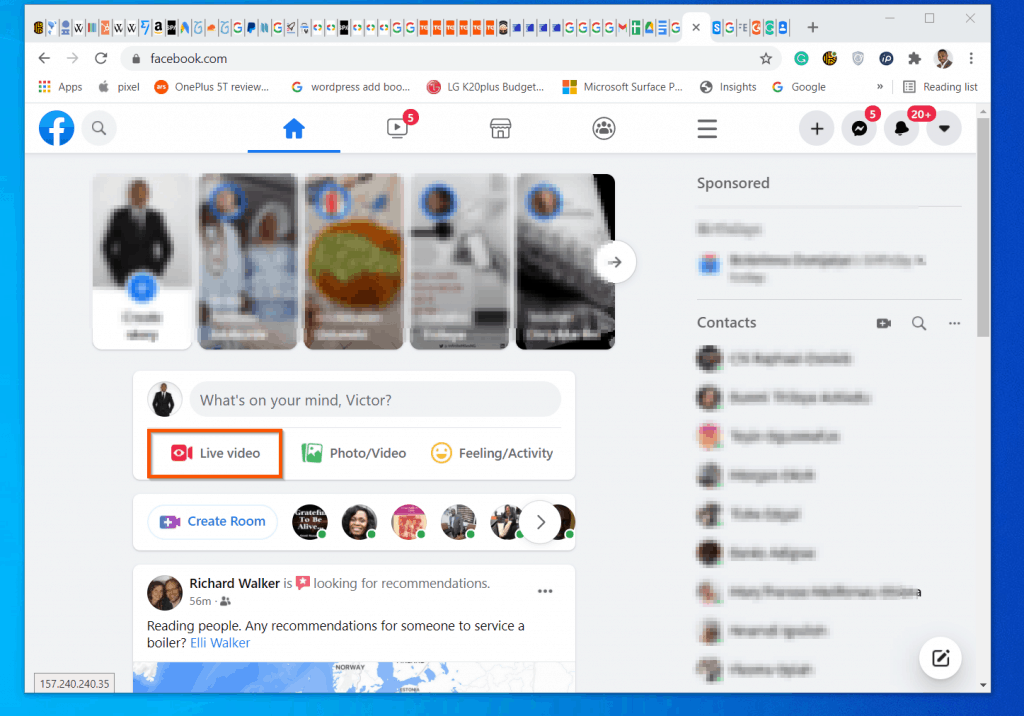
- When your Facebook newsfeed opens, click Live video.
Facebook live will open. As of the time of writing this guide (April 2021), this is how the page looks. On the left pane of the page, you have different options to go live.
When you click any of these options (on the left pane), the page will display additional options on the right pane. Additionally, at the bottom of the left pane, at the Post section, you can determine where the go-live video will be posted.
You can post the video to your timeline, to a Facebook page that you manage, or a Facebook group. Moving down further on the left pane, you have the option to determine who sees your live video.

In the next sub-sections, I will walk you through the different sections and features. Moreover, I will help you answer the 7 questions I highlighted at the beginning of this guide.
How to Go Live on Facebook Immediately

When you click “Go Live Now” on the left pane of the Facebook live page, you will be offered three options on the right pane of the page. You can stream using the camera on your laptop or desktop (this is the default option).
Moreover, you can also stream using a paired encoder, or use a stream key. In the following three headings, I will explain, in great detail, what each section offers.
How to Go Live on Facebook with a Camera
As I mentioned earlier, when you click “Go Live Now”, Facebook Live offers you three options on the right pane of the page. The first and default option is to stream from a camera on your computer – or attached to your computer.
What’s actually slowing this PC down?
Pick the symptom - the matching free tool is one click away.
To use this option, click Use camera – highlighted in the screenshot below.

Ideally, when you click this option, you will be asked to permit Facebook to use your camera.
However, if you previously denied this access or you mistakenly denied it when the prompt popped up – follow the steps below to grant your Facebook access to use the camera on your computer –
If you use Google Chrome, to remove Facebook.com from the camera block list, copy and paste this link into your Chrome browser:
chrome://settings/content/camera
It will open a page like the one shown in the screenshot below. Delete Facebook.com from the Block section.

After making the changes above, if camera is still blocked, copy and paste this link in Chrome:
chrome://settings/content
Then, on the “Recent activity” list, click Facebook.com. Finally, allow Facebook.com to access Camera and Microphone.

However, if you use Microsoft Edge, to remove Facebook.com from camera block list, copy and paste this link into your Edge browser:
The Tool Desk
Outbyte Driver Updater FREEFix the driver behind crashes, sound loss and screen glitchesFind Drivers →Outbyte PC Repair FREERepair Windows errors before they cause bigger problemsFix Now →edge://settings/content/camera
The link will open a page like the one shown in the screenshot below. Delete Facebook.com from the Block section.

Additionally, you can copy and paste this into Edge browser:
edge://settings/content
Then, under “Site permissions”, click Facebook.com. Finally, allow Facebook to access Camera and Microphone.

Once Facebook.com has access to the Camera and the Microphone on your computer, you should be able to go live on Facebook with the camera on your laptop.
Back to the Facebook live page, at the bottom right of the page, you a preview of your streaming window will be displayed (labelled 3 below).
Finally, to go live, on the bottom left of the page, click Go Live. Not so fast though. Before you click the Go Live button, there are a few other settings.
In the next two sub-sections, I will discuss additional Camera streaming settings found at the bottom of the page. I will also discuss the two options at the bottom of the left pane of the page – permission (who sees the live stream), and where the stream is posted (Post on timeline, post on page you manage, or post on a Group).
Also popular on Amazon

- 【12-INCH RING LIGHT WITH 240 LEDS】Equipped with 240 high-efficiency LEDs, this 10W ring light delivers bright, stable and evenly diffused illumination. The soft light helps reduce harsh shadows and improves facial and product details for video calls, live streaming, makeup, photography and content creation.
- 【TOUCH CONTROLS, 5 COLOR MODES & 10 BRIGHTNESS LEVELS】Adjust power, color temperature and brightness directly from the responsive touch-control panel. Choose from 5 color modes ranging from 3000K warm light to 6000K cool light and 10 brightness levels from 10% to 100% for makeup, streaming, tutorials, video calls and product shoots.
- 【62-INCH TRIPOD & HANDHELD SELFIE STICK】The adjustable tripod extends up to 62 inches and quickly converts into a handheld selfie stick for flexible filming. Its lightweight yet stable design supports desktop recording, standing videos, selfies, group photos, travel content and overhead shooting.
- 【360° ADJUSTABLE FOR PORTRAIT, LANDSCAPE & OVERHEAD SHOTS】The rotatable light head and adjustable phone holder make it easy to switch between portrait, landscape, low-angle and overhead views. Position your phone and lighting at a comfortable angle for TikTok, YouTube, livestreaming, tutorials, makeup and video calls.
- 【COMPLETE USB-POWERED CREATOR KIT】 Includes a 12-inch LED ring light, 62-inch tripod stand, phone holder, Bluetooth remote shutter and USB power cable. This all-in-one setup is easy to assemble, store and move between bedrooms, offices, studios and travel locations for everyday content creation.
For more on these, see the sections beneath this image.
Recommended Free Tools

Other Camera Live Stream Options
In this section, I will be discussing additional options available when you select to go live on Facebook with the camera on your laptop. In the screenshot below, I have labeled these two sections 1 and 2.

Starting with the Settings, you have two options in this section – Streaming and Viewing.

To access the options in the Streaming section, expand it.

By default, the End live video if stream stops is enabled. If you are streaming with a poor internet connection, you may want to disable this option.
Do these 3 things before closing this tab:
1Fix the driver behind crashes, sound loss and screen glitches2Clear out junk files and repair common Windows errors3Scan for outdated or missing drivers - takes under a minuteHowever, before you turn End live video if stream stops off, note the limitations of turning it off.

Moving on, you also have the option to set your Stream latency. This affects your life streaming.
Specifically, the Stream latency determines how long it takes from when you broadcast to when your viewers see your live stream. The best option is to use the default – Auto.

Scrolling down below Stream latency settings, you have additional options. For example, you can enable Embed live videos. This option allows you to insert your live video to another site.
Free tools Windows power users keep installed
One-click scans. No signup required.
However, for this option to be available, you have to set the privacy to Public. More on this in the next section.
Still blow Stream latency settings, you can set two more options. However, the option that you may be interested in is the Unpublish after live video ends.
By default, when you end your Facebook live streaming, the video is published on your Facebook News feed. However, if you do not want the video to be published, turn Unpublish after live video ends on.

In this subsection, we have been discussing additional options you can manage when you are streaming with the camera on your laptop. So far, I have been explaining the Stream part of Settings.
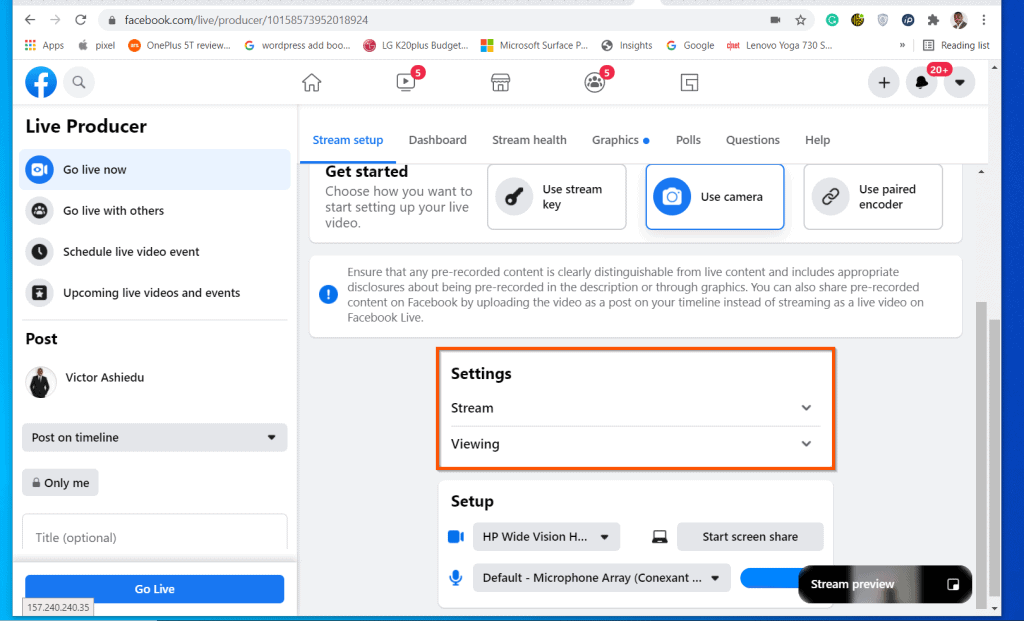
To close the Stream subsection, click the arrow beside it.

Then, expand the Viewing subsection.

The Viewing subsection offers three configurations:
Allow viewers to rewind – this is enabled by default. Depending on the type of live streaming, you may want to disable this option.
Turn on auto-generated captions – this option is turned off by default. However, if you want Facebook to automatically display what you are saying on the video, then turn this on.
The Tool Desk
Outbyte PC Repair FREEClear out junk files and repair common Windows errorsFree Scan →Outbyte Driver Updater FREEScan for outdated or missing drivers - takes under a minuteDriver Scan →This may be helpful if your accent is different from what most of your audience may easily understand. Enabling Turn on auto-generated captions allows your viewers to read what you are saying on the screen.
Allow viewers to message you – this is also turned off my default. However, if you want your audience to send you a live message while you are live streaming, enable this option.
This feature may be useful if you are hosting an interactive video section and you want your viewers to ask questions or contribute to the live section.

Moving on, further down, you have another option called Setup. This section offers you options to choose the camera and microphone to use for your Facebook live stream.
You also have an option to share your screen. I cannot think of any live application of this option but if you find it useful, you may turn it on.

We are still discussing Go live now. So far, we have covered how to go live on Facebook with a camera. In the next sub-section, I will show you how to go live on Facebook with a streaming key.

How to Go Live on Facebook with Stream Key

Before you can go live on Facebook with a stream key, you need to download a streaming software first. To download one of Facebook’s approved streaming software, click download Broadcaster Software.
After downloading and installing the streaming software, open it. You will be asked for your Facebook stream Server URL and Stream key.
Open Facebook live and click Go live now. Then, on the right-pane, select Use stream key.
Also popular on Amazon

- 62" Phone Tripod & Selfie Stick Combo: Extendable phone tripod for iPhone and Android, combining a tripod stand and selfie stick in one lightweight design for selfies, photos, videos, vlogging, live streaming, and family gatherings.
- Adjustable Height & 360° Rotation: The tripod extends up to 62 inches to support standing shots, group photos, video calls, and content creation. The 360° rotating phone holder allows vertical or horizontal shooting.
- Stable Phone Holder for Daily Recording: Designed for hands-free video recording, online meetings, tutorials, livestreams, and social content. The phone holder keeps your device positioned securely for clear, steady shots.
- Wide Compatibility with Phones and Cameras: Fits most smartphones from 2.8" to 5.7" wide and includes a universal 1/4" screw mount for compatible cameras, action cameras, webcams, and camcorders.
- Wireless Remote & Complete Kit: Includes 1 phone tripod/selfie stick, 1 universal phone holder, 1 adapter, and 1 wireless remote shutter. Backed by 12-month after-sales support for everyday shooting needs.

Finally, scroll to the bottom of the page and copy the Server URL and Stream key. Next, paste the Server URL and Stream key in the streaming software and stream.

How To Go Live On Facebook With Paired Encoder

The third option to go live on Facebook is to use a paired encoder.
To use this option, on the left pane, click Go live now. Then, on the right-pane, click Use paired encoder.

To learn more about streaming encoders and all available options, read this guide – Comparing the Top Live Streaming Encoder Software Solutions.
Before you go live with a paired encoder, you may want to modify additional settings. To see these settings, scroll to the bottom.
There are two options you can configure. Firstly, in the “Setup options”, you can enable Use a backup stream. This features allows you to add a second streaming encoder that works as a backup.
You do not have to use the backup encoder but it will be useful if the primary encoder fails.
Recommended Free Tools

Additionally, you can modify the streaming settings. This setting is similar to the settings in the Camera option discussed in Other Camera Live Stream Options (link opens the section of the guide in a new browser tab)

So far, this guide has covered the Facebook Go live now option. The guide has covered the three options you can use to go live on Facebook – Use camera, Use stream key, and Use paired encoder.
In the subsequent sections of this guide, I will discuss how to go live with others, how to schedule a Facebook live video event, and view upcoming live videos and events.
Before I show you how to use these other features, in the next section, I will show you how to determine where your live video is posted. You will also learn how to modify who sees your Facebook live stream .
Free tools Windows power users keep installed
One-click scans. No signup required.
Finally you will learn how to write a description for your Facebook live video.

Facebook Live Post and Privacy Settings

In the last paragraph of the previous section, I hinted that this section will dive into the post section of your Facebook live stream. In this section, I will discuss the highlighted portion of the screenshot below.
Specifically, in the next sub-sections I will walk you through the options to post your Facebook live videos. I will also covers the live stream privacy settings – that determines who can watch the live stream vide.
Finally, I will cover how to add a header and description for your live stream video.

Facebook Live Post Options
Before you go live with your video, you need to configure where the video is shared. By default a Facebook live video is posted on your timeline.

However, you can change this by clicking the Post on timeline drop-down. When you click on this drop-down, you can select two more options – Post to a Page that you manage, or Post in group.
More on these options below this screenshot.

If you select Post to a Page that you manage, Facebook will display a second drop-down with a list of Facebook Pages you manage. To select a Page, click the drop-down.

Alternatively, if you select Post in group, Facebook will display a drop-down with a list of the Facebook groups you can post.
Quick wins for a faster PC:
Clear out junk files and repair common Windows errorsFree Scan →Fix the driver behind crashes, sound loss and screen glitchesFind Drivers →Repair Windows errors before they cause bigger problemsFix Now →
Facebook Live Privacy Settings
The privacy setting is only available if you select to post your Facebook live video to your timeline.

To modify who can see your live video, click the privacy icon. Mine is displaying Only me. However, yours may display other privacy options.

When you click the privacy icon, the Select audience pop up will be displayed. Select the group you want to see your live video.
In this example, I want the live stream to be available to everybody. So I will select Public.
Do these 3 things before closing this tab:
1Clear out junk files and repair common Windows errors2Fix the driver behind crashes, sound loss and screen glitches3Repair Windows errors before they cause bigger problems
Back on the Facebook live options screen, the privacy will now display the option you selected. In this example, mine is showing Public.

Facebook Live Video Title and Description
Before you finally go live on Facebook with the Go live now option, it is important to add a title (optional) and a description (required). These two fields are labeled 1 and 2 in the screenshot below.

As I mentioned earlier (and also can be seen in the field), the title is optional. However, it is a good idea to add a title to your live video.
Also popular on Amazon
- Steel-Reinforced Steadiness:Featuring a tri-functional design, this 66-inch aluminum phone tripod stand integrates a steady base, telescoping arm, and multi-angle phone holder - an all-in-one solution for content creation, from overhead product shots to full-body portraits
- Intuitive Angle Control: Precision-engineered locking flanges enable instant switching between portrait, landscape, and 45° angled shots. Universally compatible with mobile phones ranging from 2.2" to 3.6" widths without slippage, making it a versatile addition to your Tripod & Monopod Accessories
- True Mobile Rig Flexibility:Engineered for steady everyday use rigidity, this adaptable cell phone tripod mount ensures rock-solid grip on smartphones. Its built-in Cold-Shoe slot enables seamless attachment of vlogging accessories like LED panels or mics
- Vibration-Free Content Creation: Integrated wireless Bluetooth remote (10m range) eliminates touchscreen interference. Perfect for capturing crisp stills or initiating smooth video recordings hands-free – an essential tool among modern Tripod & Monopod Accessories for solo creators
- In the Box: 66" Metal iphone tripod stand, 360° rotatable phone mount, 10m range phone camera remote, Includes 36 months of technical support and product coverage

Moving on to the description. This is required.

According to Facebook’s live video requirement, your description should include the following:
What’s actually slowing this PC down?
Pick the symptom - the matching free tool is one click away.
- Clear let your audience know the difference between pre-recorded and live videos
- Your live video should include appropriate disclosures
Finally, you are ready to go live on Facebook! To go live, on the left pane, click Go live and stream away!

This guide is still discussing how to go live on Facebook from a computer. So far, the guide has covered the Go live now option.
In the next sections, the guide will discuss Go live with others, Schedule live video event, and Upcoming live videos and events.

How to Go Live on Facebook with Others
With the Go live now option, you are streaming alone. However, if you want to go live with other people, select the Go live with others option.
Crashes, No Sound, or Screen Glitches?
Random freezes, missing sound and display glitches usually trace back to one bad driver. Find and replace yours safely.Free scan · under a minutePC Slower Than It Used to Be?
A free scan shows the junk files, broken settings and background clutter dragging Windows down - then fixes them in one click.Free scan · Windows 10 & 11When you select this option, the right-pane will display the option to invite people to go live with you.

To proceed, click the Set Up Live Broadcast button. When you click the button, a new window will pop-up – see the second screenshot below.
To create a Facebook room and add people that you want to stream with, click Try it.


Then, on the first page of the live broadcast set up, select your options and click Next.

On the Invite people to broadcast page, select your friends you want to live stream with. You can use the search feature (3) to find friends you want to invite.
You also copy the live broadcast share link (1). When you finish, click Done.

Finally, to go live on Facebook with other people, click Go Live. The people you invited can join you at any time during the live broadcast.

How to Schedule a Facebook Live Video Event
If you do not want to go live immediately, you can schedule your Facebook go-live event for a date in the future. This feature is very useful if you want to create a buzz around your Facebook live event.
Once you have scheduled the Facebook live event, you can advertise and share the URL with others.
To schedule a Facebook live video event, on the left pane, click the option. When you click Schedule live video event, there are additional options to set up. More below the screenshot below.

For additional options on the left pane of the screen, scroll down.
Then, select where the live video will be posted when it goes live (1), give the live event a name (2), and set the date and time for the Facebook live video event (3).
Do these 3 things before closing this tab:
1Scan for outdated or missing drivers - takes under a minute2Clear out junk files and repair common Windows errors3Fix the driver behind crashes, sound loss and screen glitchesFinally, add a description (4), set who will see the video (5) and click Next (6).

On the next screen, still on the left pane, you can upload a cover photo for the event. If you have a flier for the live video event, you can upload it with the Upload Cover Photo button.
Additionally, to modify the event, click Event settings. Finally, to schedule the Facebook live video event, at the bottom of the left pane, click Create Event.


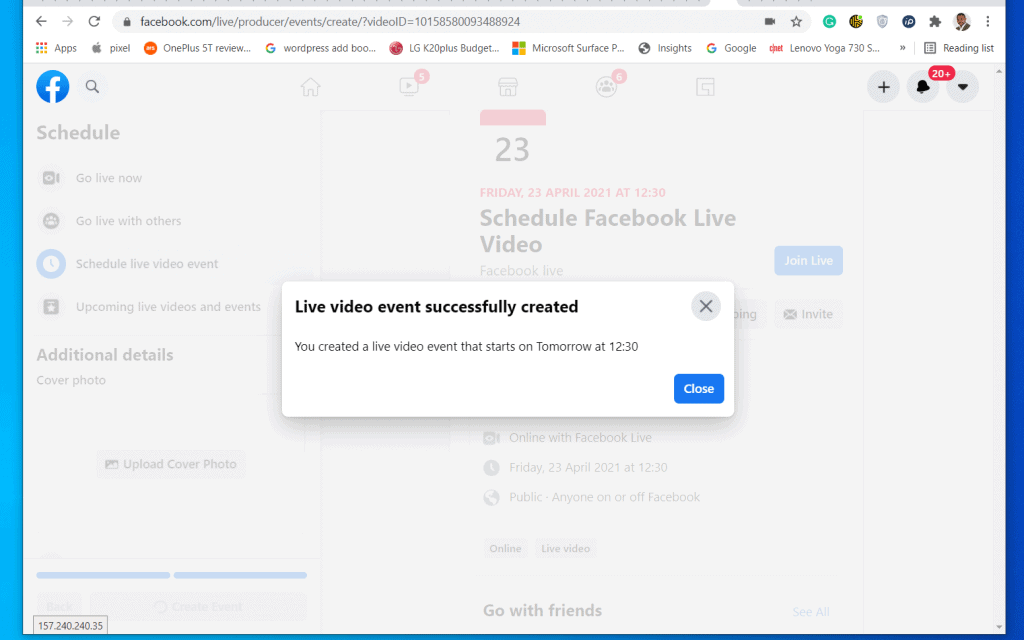
When you Create Event, if everything goes well, you will receive a confirmation screen similar to the one shown in the screenshot below.
What’s actually slowing this PC down?
Pick the symptom - the matching free tool is one click away.

How to View and Edit Upcoming Facebook Live Videos and Events
In the last section, I covered how to schedule a Facebook live stream video event. In the last paragraph, I showed the confirmation screenshot.
For your reference, here is the screenshot again. If you click the Close button on this confirmation pop-up window, you will be automatically redirected to the Upcoming live videos and events section of the Facebook live screen – see the second screenshot below.
On the right-pane of Upcoming live videos and events section, all your scheduled Facebook live video events will be displayed.

All scheduled Facebook live events offers some options. Firstly, to view what the post looks like, click the View Post button.
Quick wins for a faster PC:
Clear out junk files and repair common Windows errorsFree Scan →Fix the driver behind crashes, sound loss and screen glitchesFind Drivers →Repair Windows errors before they cause bigger problemsFix Now →
Additionally, you can edit the event by clicking the Edit Post button. When you click the Edit Post button, you can copy the URL of the scheduled event – see the second screenshot below.
Also popular on Amazon
- 【74 Inch Tall Tripod and Compact Tripod】 This tall camera tripod has a height adjustment range of 19-74 inches. It can meet the needs of daily work. This compact tripod comes with a carrying bag for outdoor and indoor shooting. This compact tripod weighs 3.14 lbs / 1.4 kg and is easy to store and stow.
- 【Tripod for All Camera and Phone】Standard 1/4" screw mount and 3/8" screw compatible with all cameras ( Canon, Nikon, Fujifilm, Olympus, Panasonic), DSLR, SLR, and digital cinema cameras, also spotting scopes, projector, compact camcorders, binoculars. The 360° phone mount is compatible with iPhone 17 16 15 14 13 12 11 Pro/XS/XR/MAX/8/8 Plus/X/7 Plus/7/6s Plus/6s/6 Plus/6/Samsung Galaxy S22/ S21 Series/ Galaxy Z Flip/ NOTE/ One Plus 1+Series.
- 【Professional 3-Way Pan Head】VICTIV Professional camera tripod stand is equipped with a stable and smooth 3-way pan head, it allows 360° horizontal panoramic shots, 180° up and down shots, and 90° vertical portraits. Non-slip pads provide great grip. You can also hang a backpack on the weight hook for extra stability.
- 【Video Tripod for Photography】The video camera tripod is suitable for outdoor and indoor shooting. It can meet the daily shooting needs of video producers, video bloggers, and youtube users. Camera tripods for Photography, food shooting, live streaming, scenery shooting, and portrait shooting, etc.
- 【Complete Tripod Units】What You Get: 1X Tripod for cell phone and camera, 1X Universal Phone Holder, 1X Extra Quick Release Plate,1X 3-way Pan Head, 1X Handle, 3X Non-slip pads. Please contact us anytime if any questions.
You can copy the live video event URL to share with others. This is a very good marketing tool.


Finally, back on the Upcoming live videos and events section of the Facebook live page, you can modify the live video settings by clicking Set Up Live Video button.

When you click the Set Up Live Video button, you will be redirected to the Go live now section. On the right-pane, you can change how you want to stream.
In the screenshot below, when I scheduled the live video event, I selected Use camera. However, I can decided to use a different streaming option.
For a detailed explanation of these options, see the Go live now (link opens in a new browser tab) section of this guide.

Option 2: Go Live with the Facebook App
So far, this comprehensive guide has covered how to go live on Facebook from a computer. In this second section of the guide, you will learn how to go live with the Facebook app.
How to Start a Live Video from the Facebook App
To kick off this section, follow the steps below to start a live video on the Facebook app:
PC Slower Than It Used to Be?
A free scan shows the junk files, broken settings and background clutter dragging Windows down - then fixes them in one click.Free scan · Windows 10 & 11Crashes, No Sound, or Screen Glitches?
Random freezes, missing sound and display glitches usually trace back to one bad driver. Find and replace yours safely.Free scan · under a minute- Open the Facebook app on your mobile device.

- Then, on top of the app’s home screen (beneath “What’s on your mind”), tap Live. Facebook app will request access to the camera and microphone on your phone.

- On the Allow Facebook to access your camera and microphone prompt, tap ALLOW. You will receive two additional prompts – the first to allow access to camera, the second, to allow access to microphone.

- Tap Allow on each prompt – see the screenshot below.

- Finally, the Facebook live screen will be displayed. By default, the back camera will be activated. However, if you want to show your face, tap the camera icon to turn on the selfie camera.

How to Set Facebook Live Privacy Settings
In the last section, I hinted that before you go live on the Facebook app, you need to set who will see the live video.
To determine who will see the live video, on the top left of the live video screen, tap the Post drop-down.

- Then, from the displayed options, select an option. To return to the Facebook live video screen, on the top left tap the back button – see the second screenshot below.


How to Add Description to a Live Facebook Video
In the section where I covered how to go live on Facebook from a computer, I discussed the requirements of the description of a Facebook live video. To read about these requirements, click here (link opens the section in a new browser tab).
When you are ready to add a description to your Facebook live video, tap Tap to add a description.
Free tools Windows power users keep installed
One-click scans. No signup required.

Then, enter a description for your live video. When you are done, on the top right, tap DONE.

How to Add Location, Tag Friends, or Add Feelings/Activity
Next to the description box, you will find three additional options – Add Location, Tag Friends, and Feelings/Activity. If you have been using Facebook, you should be used to these options.

However, for a quick explanation, if you wish to add where you are broadcasting live from, tap

Moreover, to tag some of your friends on the live video, tap Tag Friends.
The Tool Desk
Outbyte PC Repair FREERepair Windows errors before they cause bigger problemsFix Now →Outbyte Driver Updater FREEFix the driver behind crashes, sound loss and screen glitchesFind Drivers →
Finally, to add a feeling to the live video, tap Feelings/Activity. This allows you to add emotions or activities.
For example, you may add that you are feeling very happy, or that you are throwing a party.

How to Go Live with Friends on the Facebook App
To go live with friends on Facebook, follow the steps below:
- On the Facebook live screen, scroll to the bottom of the screen and tap Bring a friend. If this option is not displayed, tap the + sign at the bottom left of the screen – see the second screenshot below.


- Facebook will display a list of all your Facebook friends. To add a friend to your live broadcast, tap the checkbox beside the friend. When you finish selecting the friends you want to add, at the bottom right, tap DONE.

- Finally, you will be returned to the Facebook live screen. To go live with the selected friends, tap Start Live Video.

How to Schedule a Live Video on Facebook App
If you want to run a Facebook live video event at a later date, you can schedule the event from the Facebook app. Follow the steps below to
Recommended Free Tools
- At the bottom left of the Facebook live vide screen, tap Live video event. If this is not displayed, tap the + sign at the bottom left of the screen.

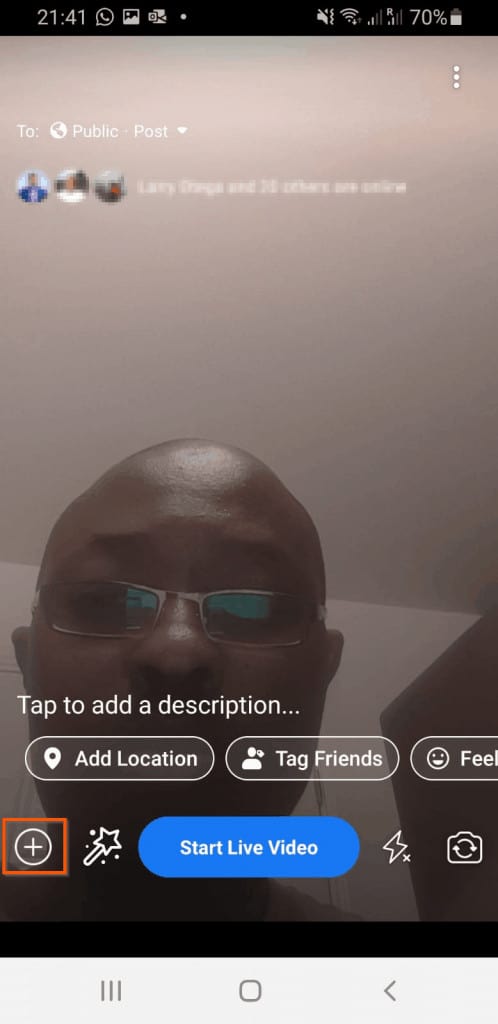
- Then, on the select the type of live Facebook video event you want to schedule. Majority of events will fit in the General category. Only select Class if you want to host an interactive class. In this example, I will select General.

- If you selected General event, on the next screen, enter a name for the event. Then, enter the date and time for the live broadcast. Finally, select who will see the event with the Privacy setting – then, tap Next.

- Next, enter a description for your Facebook live video event and tap Next.

- Finally, add a cover photo for the scheduled event (optional) – then, review the details of the live video event you are scheduling – and if everything looks good, tap Create Event.

Once the Facebook live video event is scheduled, you will be redirected to a page to share the event. The page will also have a link to copy the scheduled event URL.
When you are done inviting your friends to the scheduled event, to close the Share to screen, on the top left tap the close button.

The scheduled event page will now be displayed. On this screen, you can perform additional actions. When you finish, tap the back button on the top left of the screen.
When you tap the back button you will be returned to the Facebook app home screen. To learn how to view and/or edit your scheduled Facebook live video events, see the next section.

How to View Scheduled Facebook Live Video Events on the App
If you are wondering how to view and/or edit your scheduled Facebook live video events, here are the steps:
- On the top right of the Facebook app, tap the menu.

- Then, scroll down on the displayed options and tab Events.

- Your scheduled events will be displayed in the Your upcoming events section. To view and event, tap on it.

I hope you found this comprehensive “How to Go Live on Facebook” guide helpful and easy to understand. I also hope you were able to go live on Facebook with the guide.
I hope that you found it helpful. If you did, kindly click Yes to “Was this page Helpful?” below.
You could also share your thoughts with the “Leave a Comment” form found at the end of this page.
Finally, for more Social media Itechguides, visit our Social Media How-to page. You may also find our Work from Home page very helpful.
Quick Recap
Product prices and availability are accurate as of the date/time indicated and are subject to change. Any price and availability information displayed on Amazon at the time of purchase will apply.



