

iTechGuides is reader-supported. When you buy through links on our site, we may earn an affiliate commission. As an Amazon Associate I earn from qualifying purchases. Learn more
This Itechguide teaches you how to find computer specs in Windows 10. The guide covers steps for 3 methods to find the specs of your Windows 10 PC.
Option 1: Find Computer Specs from Systems Settings
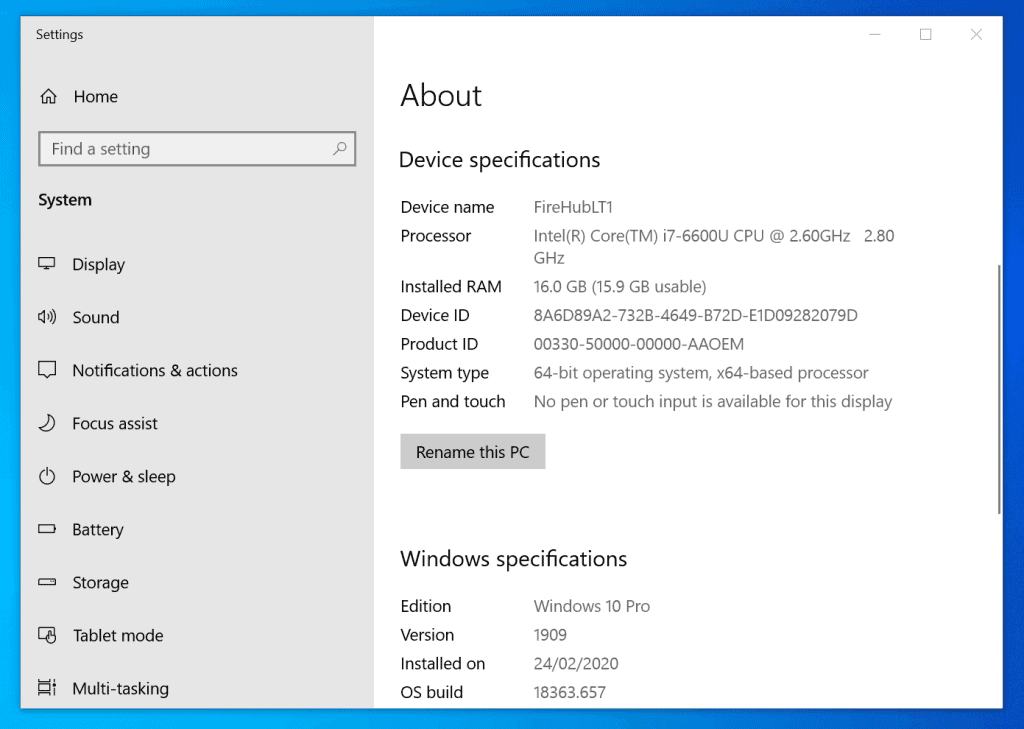
- Right-click the Windows 10 Start menu and click System. Windows 10 About settings page will open.

- To see the computer specifications, scroll down to Device specifications.
- The Device specifications section displays the Processor type, total RAM (Memory) installed on the computer. It also displays whether your Operating system is 32 or 64-bits.
- The About page also has another section, Windows specifications. This section displays your Windows 10 edition, version and build.
Option 2: Find Computer Specs with CMD or PowerShell
- Type cmd in the search bar. Then click Command Prompt.
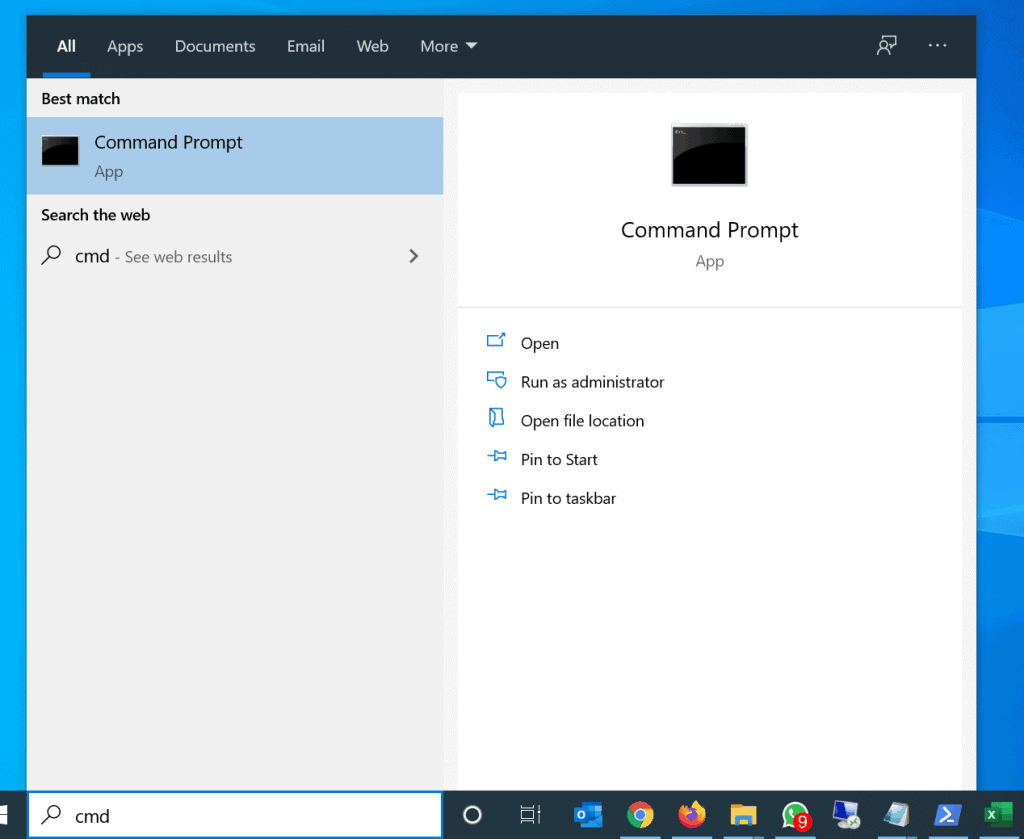
- On the Command Prompt, type the command below and press the enter key on your keyboard.
systeminfo | FINDSTR "OS System Processor Total"
- The command displays information about your computer.

You can also find computer specifications in Windows 10 with PowerShell. Here are the steps to get computer specs with PowerShell…
| # | Preview | Product | Price | |
|---|---|---|---|---|
| 1 |
|
Windows 10 For Dummies (For Dummies (Computer/Tech)) | $13.31 | Buy on Amazon |
| 2 |
|
Windows 10 For Seniors For Dummies (For Dummies (Computer/Tech)) | $13.90 | Buy on Amazon |
| 3 |

|
Windows 10 for Dummies | $10.50 | Buy on Amazon |
| 4 |

|
Windows 10 All-in-One For Dummies,, 4th Edition | $30.32 | Buy on Amazon |
| 5 |

|
Windows 10 for Seniors for Dummies | $13.00 | Buy on Amazon |
- Search powershell and open Windows PowerShell. Then, click Windows PowerShell.
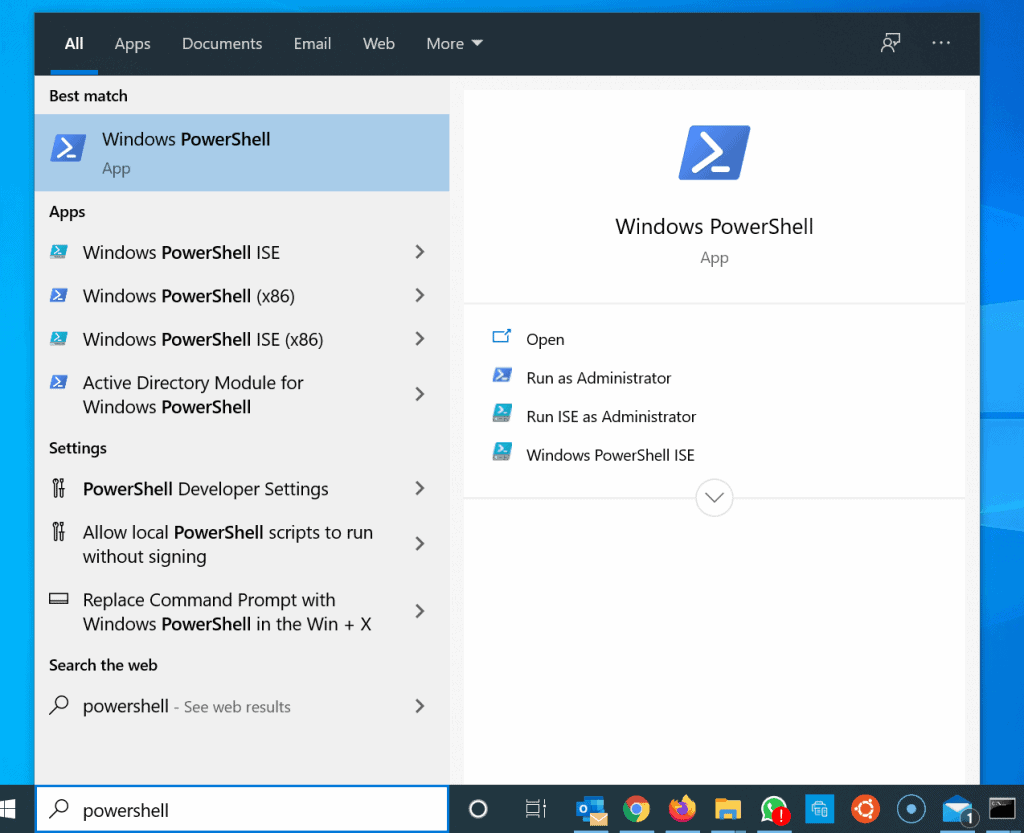
- On Windows PowerShell, type the command below and press enter.
systeminfo /fo csv | ConvertFrom-Csv | select OS, System, Processor, Total | Format-List
Here is the result in PowerShell…

Option 3: Find Computer Specs from System Information
There are 2 methods to open System Information in Windows 10.
Outdated Drivers Are Slowing You Down
One free scan finds every outdated or missing driver and matches the right update for your exact hardware.Free scan · exact hardware matchPC Slower Than It Used to Be?
A free scan shows the junk files, broken settings and background clutter dragging Windows down - then fixes them in one click.Free scan · Windows 10 & 11- Open Command Prompt, type the command below and press enter.
MSINFO32
- System Information displays your Computer specs and more.
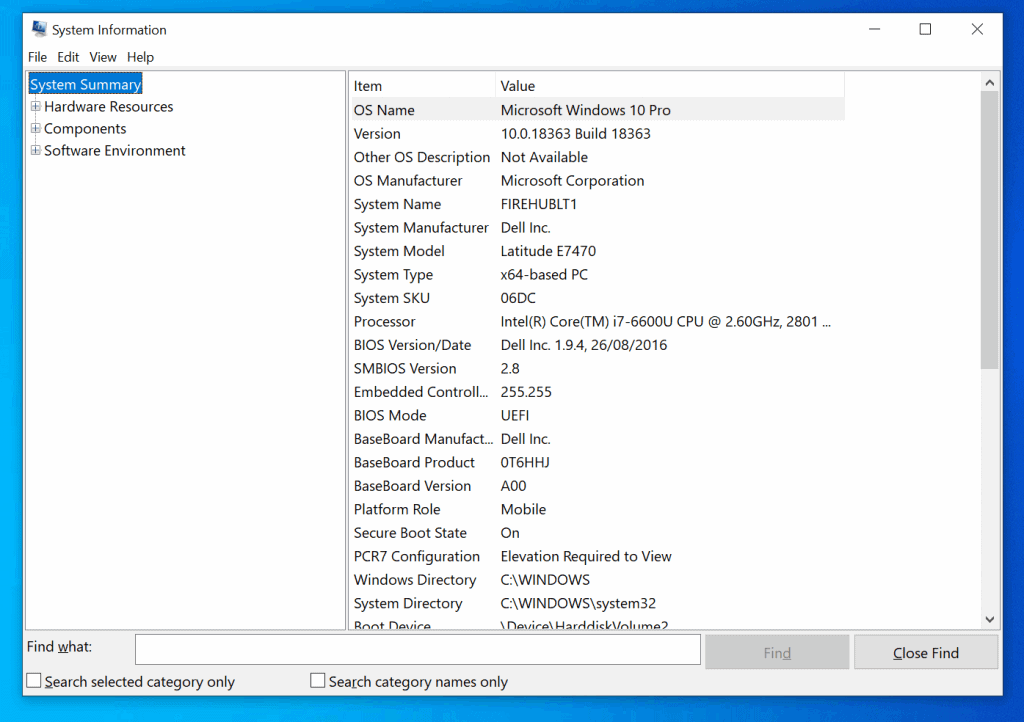
- Another way to open System Information is to type system information in the search box. Then, open System Information.

I hope you found this Itechguide helpful. If you found it helpful, click on “Yes” beside the “Was this page helpful” question below.
Popular on Amazon
You may also express your thoughts and opinions by using the “Leave a Comment” form at the bottom of this page.
Finally, for more Windows 10 Itechguides such as this, visit our Windows How-To page.
Quick Recap
Also popular on Amazon
Also popular on Amazon
Also popular on Amazon
Also popular on Amazon
Product prices and availability are accurate as of the date/time indicated and are subject to change. Any price and availability information displayed on Amazon at the time of purchase will apply.
Recommended Free Tools



