
Quick wins for a faster PC:
Scan for outdated or missing drivers - takes under a minuteDriver Scan →Repair Windows errors before they cause bigger problemsFix Now →Fix the driver behind crashes, sound loss and screen glitchesFind Drivers →iTechGuides is reader-supported. When you buy through links on our site, we may earn an affiliate commission. As an Amazon Associate I earn from qualifying purchases. Learn more
Do you want to know the specifications of your Windows 11 PC? This guide shows you multiple ways to find computer specs in Windows 11.
Option 1: Check Computer Specs From Systems Settings
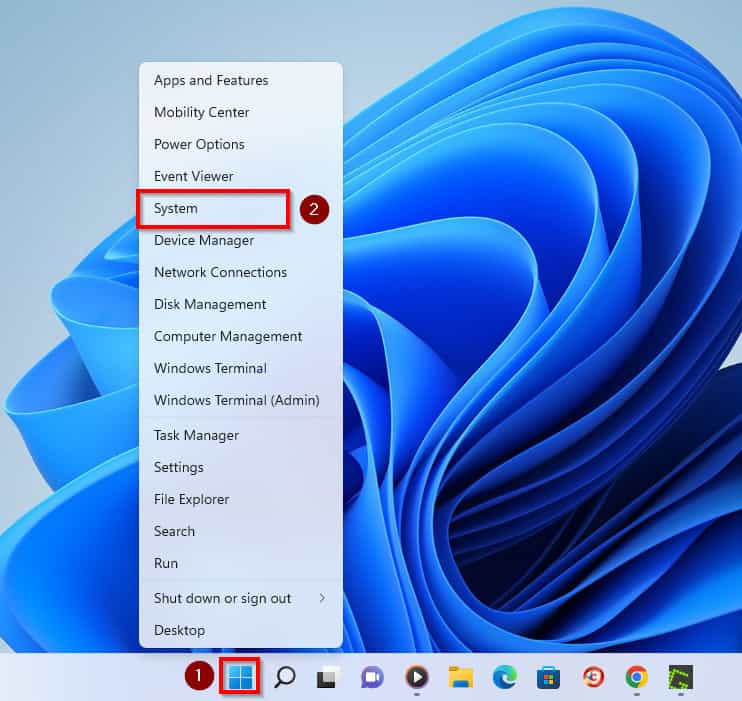
- Firstly, right-click the Windows 11 Start icon and select System. This action will take you to the About page of the computer in the Settings window.
- When you are on the About page, you will see your computer’s specs under the Device specifications category.
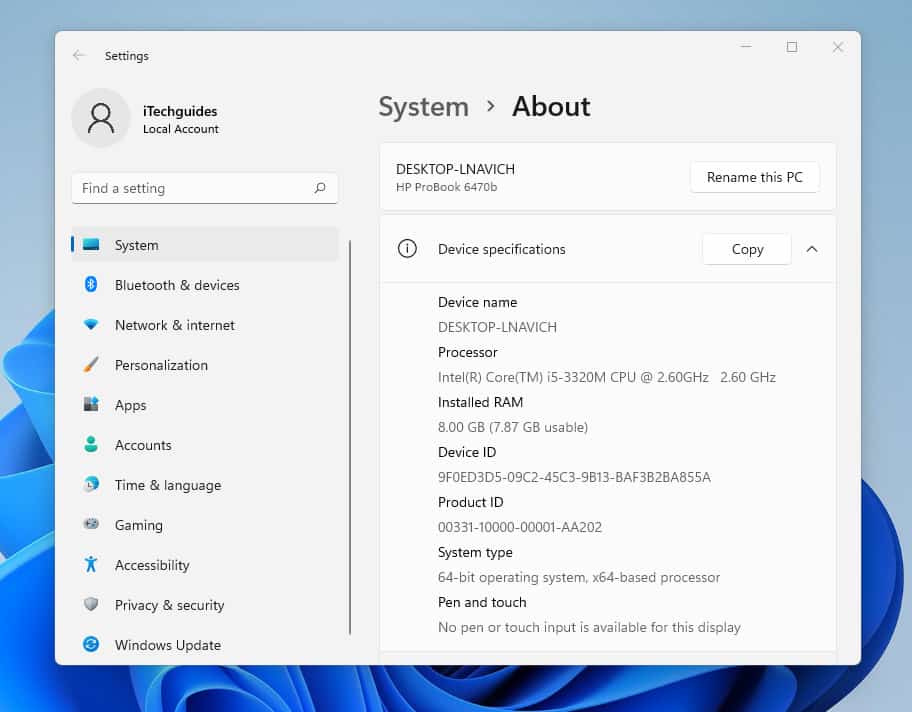
- From the screenshot above, the Device specifications category contains the Processor type and total RAM (Memory) installed on the computer. Also, it displays whether your operating system is 32 or 64-bits and so on.
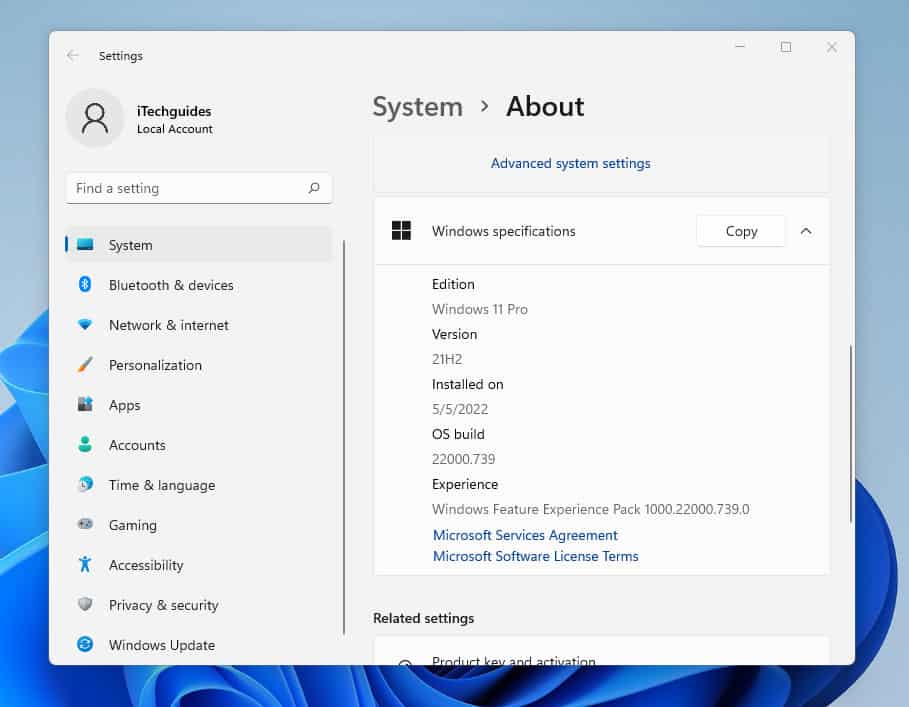
- Apart from Device specifications, the About page also contains Windows specifications – you will find it when you scroll down.
Option 2: Get Computer Specs with CMD or PowerShell
This section covers steps to find your computer’s specs using CMD or PowerShell.

Method 1: Find Computer Specs with CMD
- Click on the Search icon on your Windows 11 taskbar and type cmd in the search field.
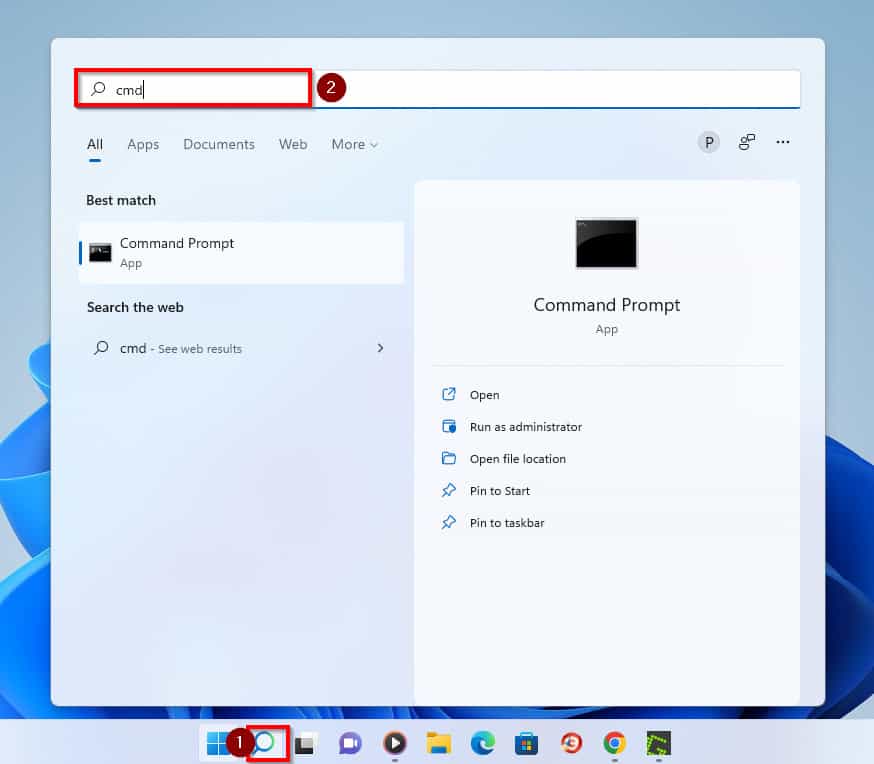
- Then, from the results of your search, right-click Command Prompt and select Run as administrator.
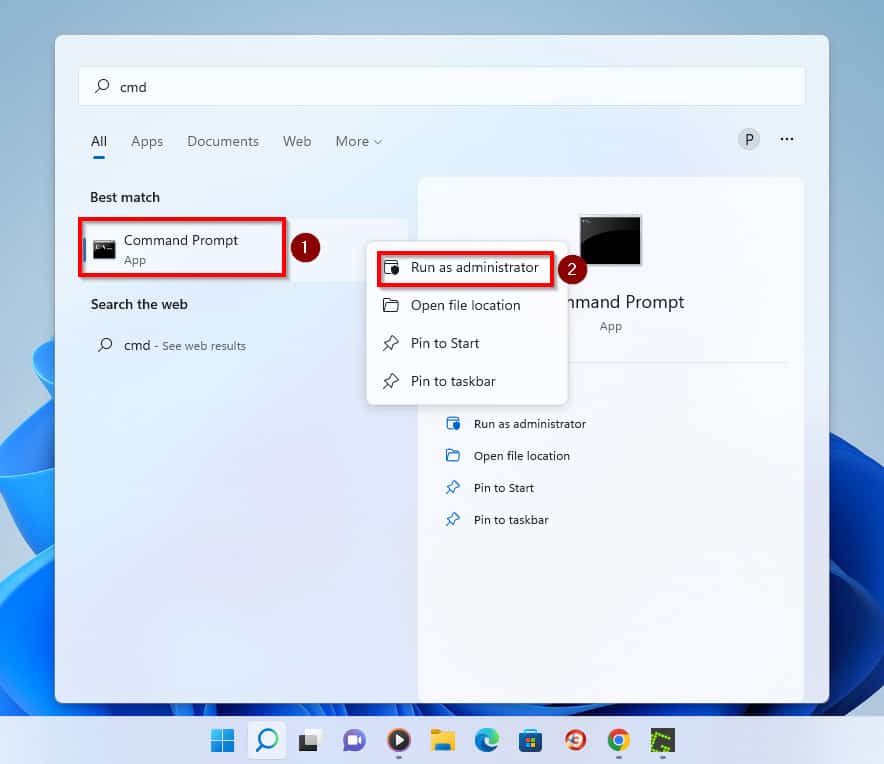
- By doing that, you will receive a User Account Control prompt, asking you to allow the program to make changes to your computer. Click Yes to continue.
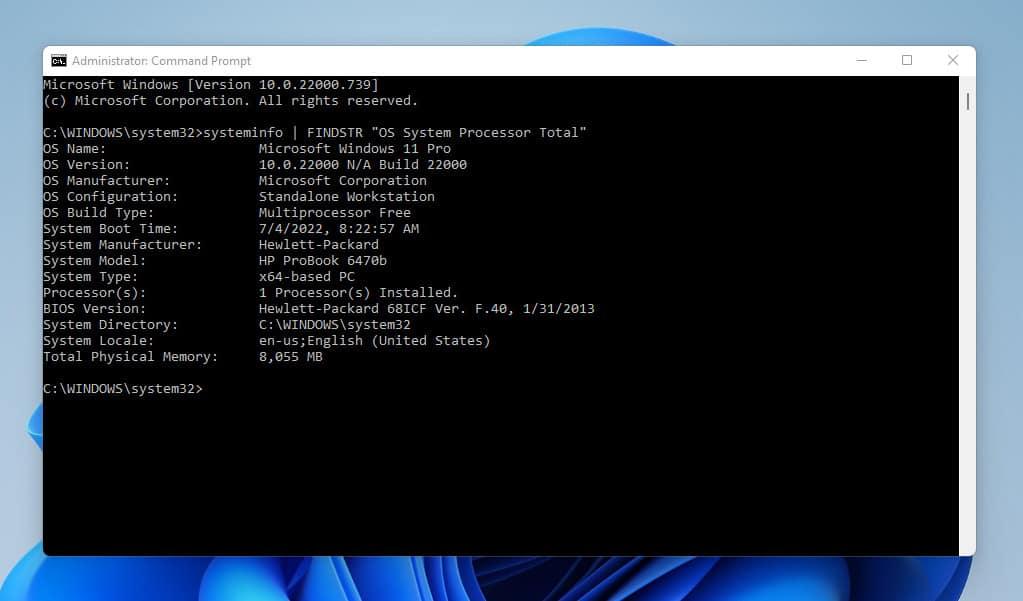
- In the Command Prompt window, type the command below and press Enter to display your PC’s specifications.
systeminfo | FINDSTR "OS System Processor Total"
Method 2: Find Computer Specs with PowerShell
You can also find your computer specs in Windows 11 using PowerShell. Follow the steps below to achieve this.
- Click on the Windows 11 search icon on the taskbar and type powershell in the search field.
- Then, from the results of the search, right-click Windows PowerShell and select Run as administrator.
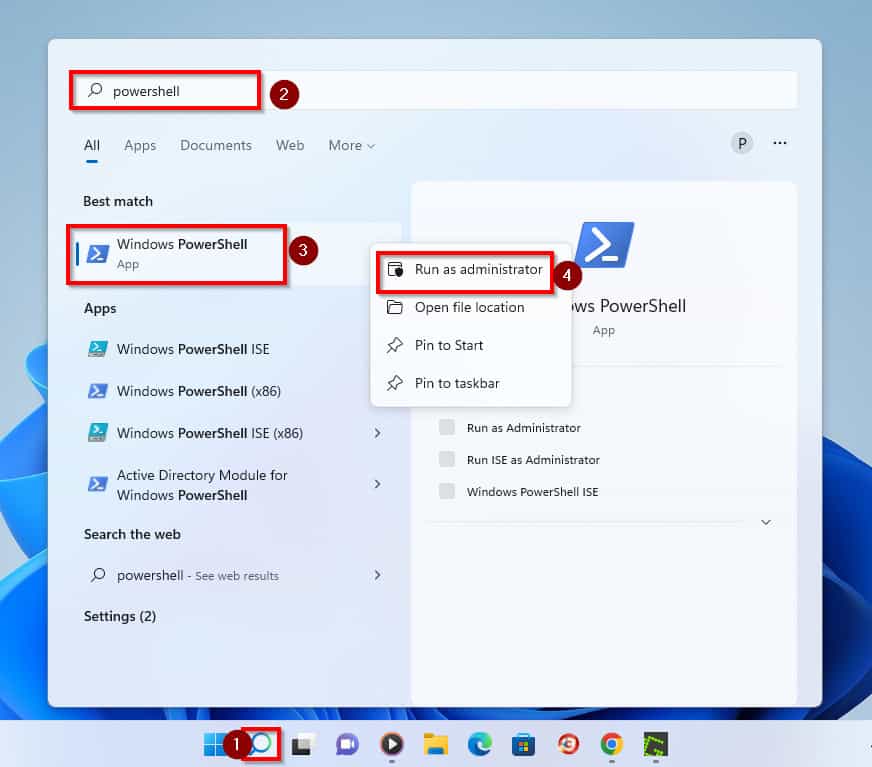
- You will receive a User Account Control prompt requesting permission to allow PowerShell to make changes to your computer. Click Yes to proceed.
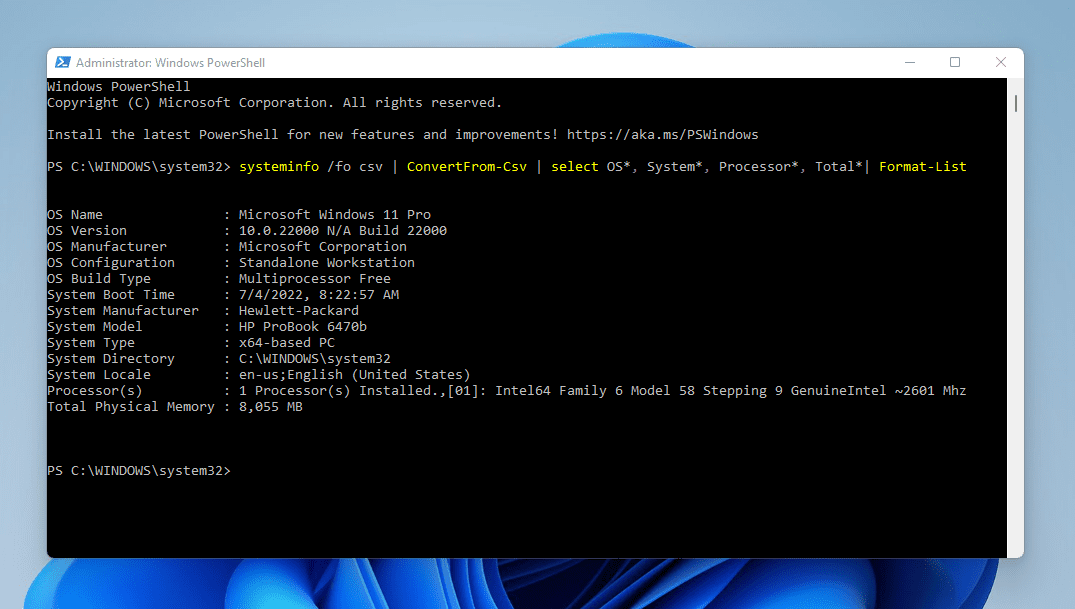
- When the PowerShell window opens, type the command below and press Enter to get your computer specifications.
systeminfo /fo csv | ConvertFrom-Csv | select OS*, System*, Processor*, Total* | Format-List
Option 3: Find Computer Specs From System Information
You can also find your computer specs in Windows 11 from System Information. Besides, two different methods of opening System Information in a Windows 11 PC exist.
Popular on Amazon
The first method involves using Command Prompt, while the other entails a simple search. To open System Information using Command Prompt, follow the steps below.
- Press the Windows key + S on your keyboard and type cmd in the search box. After that, click Command Prompt from the search result.
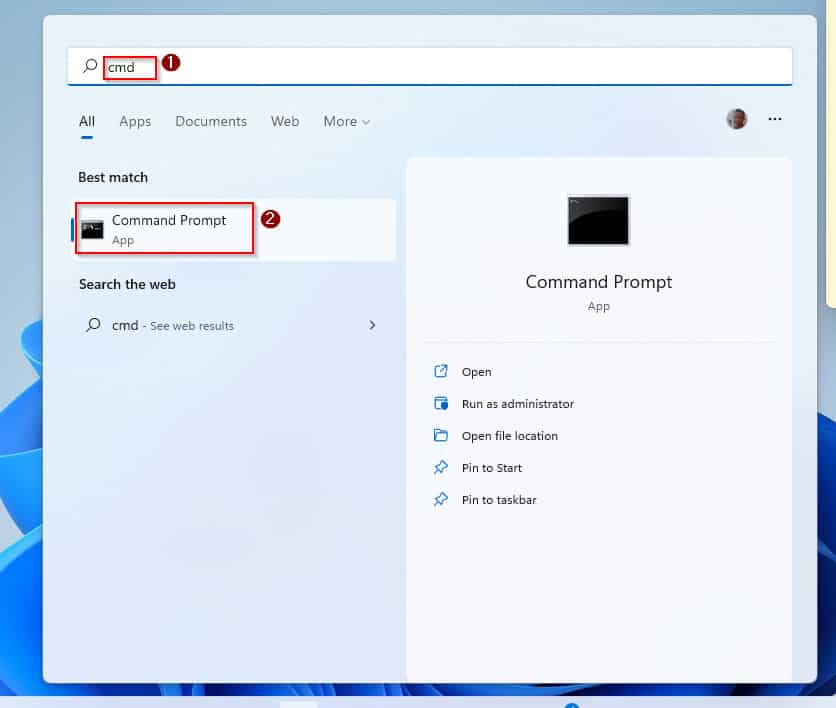
- When the Command Prompt window opens, type the command below and press Enter.
MSINFO32
- That action will take you to the System Information window, where you will find your computer specs.
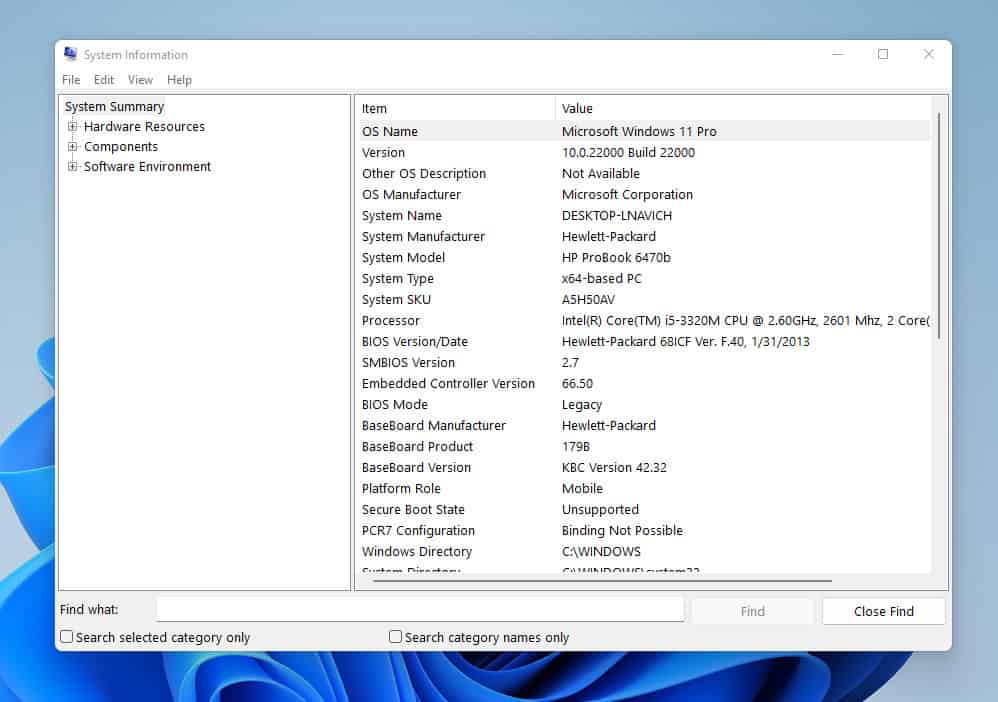
Meanwhile, follow the steps below to open System Information using a simple search.
- Click on the search icon on your taskbar and type system information in the search box. Then, from the result of your search, click System Information.
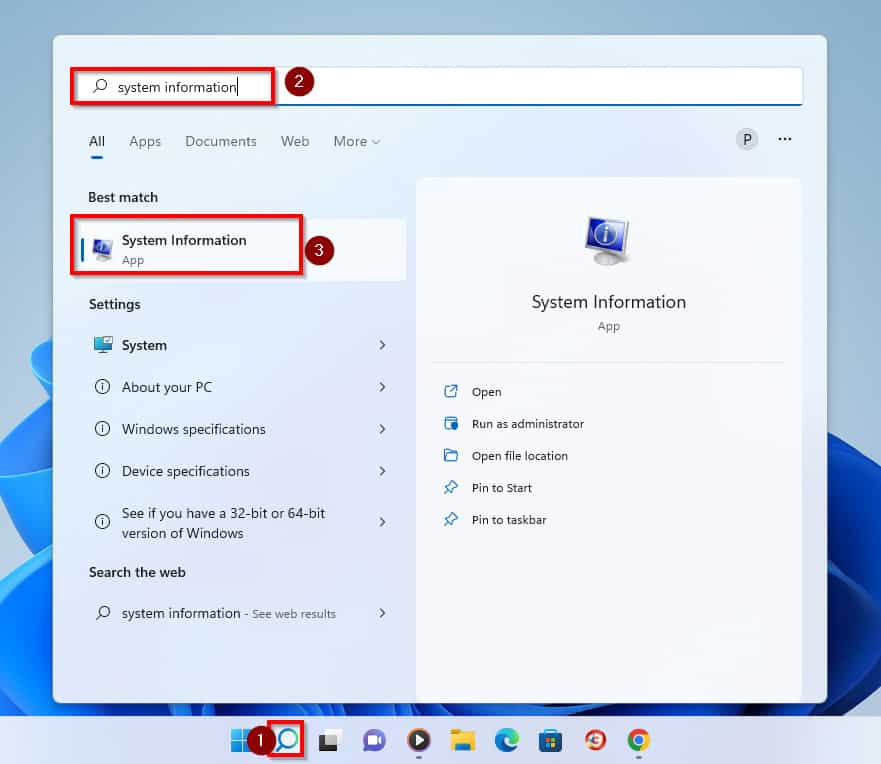
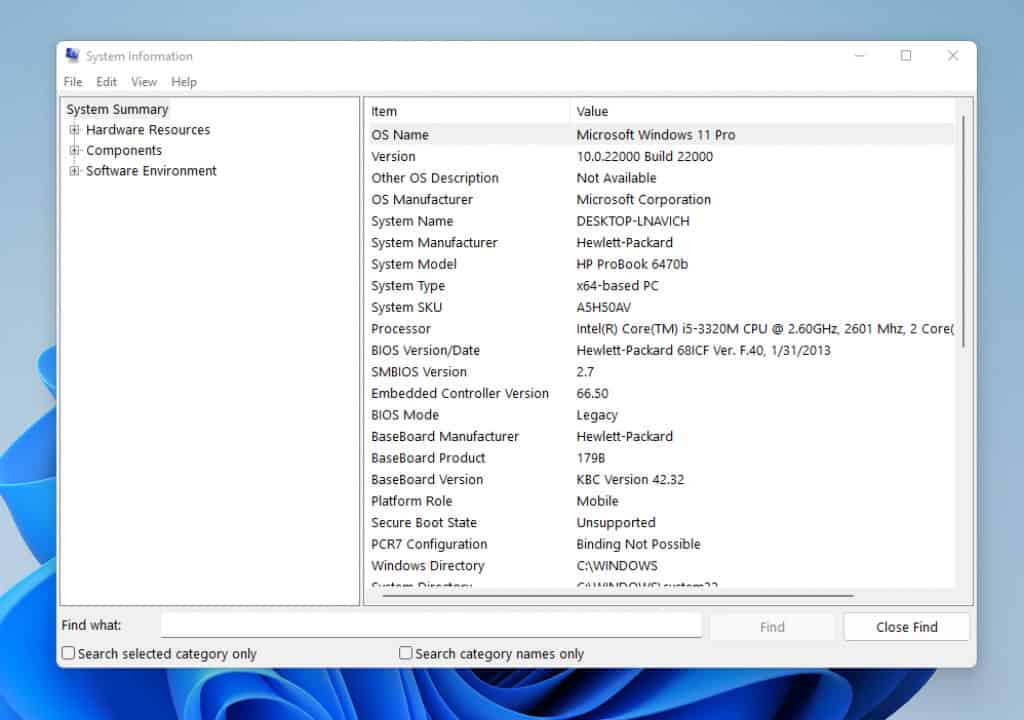
- This automatically takes you to the System Information window, where you can find your computer specifications.
Frequently Asked Questions
a) Press the Windows + I keys to get to Windows settings.
b) On the right pane of the Settings window, scroll down to the bottom and click About.
c) You should be able to see your computer’s RAM specs under the Device Specifications category.
To check your computer’s specifications, follow these simple steps below:
a) Right-click the Windows Start icon and select Settings.
b) On the left pane of the Settings window, System settings will be selected by default because it is first on the list.
c) Then, on the right pane of the window, scroll down to the bottom of the page and click About.
d) Finally, you will see your Windows 11 computer specs under Device Specifications.
You can check the specs on your Windows computer via Command Prompt. Follow the steps below to perform this task.
a) Click on the Windows search icon and type cmd in the search field.
b) Then, from the results of your search, click Command Prompt.
c) In the Command Prompt window, type the command below and press Enter to display your PC specifications.
“systeminfo | FINDSTR “OS System Processor Total”
The command to launch System Information on your Windows 11 PC is “msinfo32”.
Yes, it does. Windows 11 require more RAM than Windows 10 to enable it to run and function effectively.
Also popular on Amazon

- Intel Core i9 HX Power for Elite Gaming: Dominate demanding titles with the Intel Core i9-14900HX and its 24-core hybrid architecture, delivering fast load times, high FPS, and smooth multitasking.
- GeForce RTX 5070 With Ray Tracing & DLSS 4: Powered by NVIDIA Blackwell, the RTX 5070 delivers stronger ray tracing, higher FPS, faster AI upscaling, and more responsive gameplay—ideal for competitive and cinematic gaming.
- QHD 165Hz, 100% DCI-P3 for Ultra-Clear Combat: The QHD 165Hz display reveals more detail, reduces motion blur, and boosts visibility in fast-paced games while delivering richer, more accurate colors.
- Cooler Boost 5 for Sustained Performance: Dual fans and a 5-heat-pipe share-pipe design keep the CPU and GPU cool, maintaining stable frame rates during long gaming marathons.
- 4-Zone RGB Keyboard + Full Game-Ready Ports: Customize your setup with a 4-zone RGB keyboard and highlighted WASD keys. Includes USB-C Gen 2, HDMI up to 8K, multiple USB-A ports, RJ45, Wi-Fi 6E & Hi-Res Audio.
Conclusion
Knowing the specifications of your computer is very important. This helps you to know what tasks your PC is capable of performing.
In that regard, this guide provided multiple ways to find computer specs in Windows 11. Specifically, we discussed how to find computer specs from System settings, Command Prompt or PowerShell, and System Information.
Thus, with the detailed steps mentioned in this guide, you can check your computer specs easily.
I hope this post was helpful to you. If you do, click on “Yes” beside the “Was this page helpful” question below.
Windows Errors? Fix Them Before They Spread
Repair common Windows errors and clear accumulated junk for a smoother, more stable PC - no reinstall needed.Free scan · no reinstallOutdated Drivers Are Slowing You Down
One free scan finds every outdated or missing driver and matches the right update for your exact hardware.Free scan · exact hardware matchYou may also express your thoughts and opinions by using the “Leave a Comment” form at the bottom of this page.
Finally, visit our Windows 11 How-To page for more Windows 11 guides.
Quick Recap
Product prices and availability are accurate as of the date/time indicated and are subject to change. Any price and availability information displayed on Amazon at the time of purchase will apply.