

iTechGuides is reader-supported. When you buy through links on our site, we may earn an affiliate commission. As an Amazon Associate I earn from qualifying purchases. Learn more
Do you need help configuring VMWare ESXi servers to use an iSCSI storage as a shared datastore? Join me as I walk you through the steps to accomplish this task.
Step 1: Configure the First ESXi Server
The first step to setting up multiple ESXi servers to share an iSCSI storage is to connect the first server. Follow these steps:
- Sign in to the ESXi host via a browser or vSphere client. I am using a browser sign-in for my lab demo.
- On the left menu of the ESXi host, click the Storage node.

- After that, click the Adapter tab, then choose Software iSCSI.

- Once the Configure iSCSI pop-up opens, click Enabled (iSCSI is disabled by default on VMWare ESXi hosts). After selecting Enabled, it will take some seconds to load the iSCSI configuration.
- On the Dynamic Targets section, click “Add dynamic target.”

- After that, add the IP address of the iSCSI target under Address and click Save configuration.

- Before you configure the first VMware ESXi Server to share the iSCSI storage, click Refresh to display the software iSCSI adapter you just added.

- To see the iSCSI storage, click the Devices tab. If the iSCSI device is not displayed, click Refresh. The next step is to create a datastore with the new iSCSI storage.

- To create a new datastore, click New datastore.

- Then, on the first page of the New datastore wizard, give the datastore a name and click Next.

- The ESXi host will automatically detect the unclaimed iSCSI storage device. Click Next to proceed.

- Then, on the disk partitioning page, accept the defaults and click Next to continue.

- Finally, to finish configuring the shared iSCSI storage on the first VMWare ESXi Servers, review your selections and click Finish. After that, click Yes on the data loss warning.

Before you set up the second VMWare ESXi Server to share the iSCSI storage, click the Datastore tab and confirm that the datastore is listed.
The Tool Desk
Outbyte PC Repair FREEClear out junk files and repair common Windows errorsFree Scan →Outbyte Driver Updater FREEFix the driver behind crashes, sound loss and screen glitchesFind Drivers →
Step 2: Set up the Second ESXi Server
- Sign in to the second ESXi host and repeat steps 1 to 7 from the previous section.
- On the Devices tab, click the iSCSI target. When it opens, you can confirm that it is the same iSCSI device by its capacity and is formated with the VMFS partition style.


- After adding the software iSCSI using the same iSCSI target storage, after a while, the datastore you created in the first host should be displayed in the second host.

Conclusion
Configuring VMWare ESXi Servers to share an iSCSI target storage may seem complicated. However, as shown in this article, it is pretty straightforward.
#1 Best Overall

- Full-Scale Professional Network-Attached Storage – Business storage solution with hard drives included and optimized to store, share, and back up data for environments of any size.
- Advanced Hardware and Firmware – Product designed for stability and security, capable of handling heavy data loads without dropping performance.
- Purpose-Built for Data Protection – Secure NAS on closed system with 256-bit drive encryption, two-factor authentication, and flexible backup features to keep your data safe.
- Snapshots for Instant Data Backup and Recovery – Snapshots can be created and used to recover data near instantaneously, with little or no system disruptions, and mitigate ransomware.
- Fast Data Transfers – Native 10GbE port for high-speed file transfers with no cable upgrade needed.
The trick is to add the iSCSI target on the first host and create a datastore. After that, on the second ESXi host, after adding the same iSCSI LUM, the datastore should be detected automatically.
We hope you were able to add and share an iSCSI target to your ESXi hosts using the steps in this article. The “Leave a Reply” form at the bottom of this page is available for you to leave your comments.
Rank #2

- Value NAS with RAID for centralized storage and backup for all your devices. Check out the LS 700 for enhanced features, cloud capabilities, macOS 26, and up to 7x faster performance than the LS 200.
- Connect the LinkStation to your router and enjoy shared network storage for your devices. The NAS is compatible with Windows and macOS*, and Buffalo's US-based support is on-hand 24/7 for installation walkthroughs. *Only for macOS 15 (Sequoia) and earlier. For macOS 26, check out our LS 700 series.
- Subscription-Free Personal Cloud – Store, back up, and manage all your videos, music, and photos and access them anytime without paying any monthly fees.
- Storage Purpose-Built for Data Security – A NAS designed to keep your data safe, the LS200 features a closed system to reduce vulnerabilities from 3rd party apps and SSL encryption for secure file transfers.
- Back Up Multiple Computers & Devices – NAS Navigator management utility and PC backup software included. NAS Navigator 2 for macOS 15 and earlier. You can set up automated backups of data on your computers.
You could also use the “Was this page helpful?” buttons below to give us your feedback.
Quick Recap
Best Value
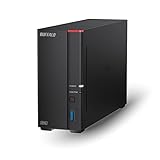
- Get enhanced features, cloud capabilities, MacOS 26 compatibility, and up to 7x faster performance than LS 200.
- Connect the LinkStation to your router and enjoy shared network storage for all your devices. The NAS is compatible with Windows and MacOS 26, and Buffalo's US-based support is on-hand 24/7 for installation walkthroughs.
- Subscription-Free Personal Cloud – Store, back up, and manage all your videos, music, and photos and access them anytime without paying any monthly fees.
- Storage Purpose-Built for Data Security – A NAS designed to keep your data safe, the LS700 features a closed system to reduce vulnerabilities from 3rd party apps and SSL encryption for secure file transfers.
- Back Up Multiple Computers & Devices – NAS Navigator management utility and PC backup software included. You can set up automated backups of data on your computers.
Rank #4
- Value NAS with RAID for centralized storage and backup for all your devices. Check out the LS 700 for enhanced features, cloud capabilities, macOS 26, and up to 7x faster performance than the LS 200.
- Connect the LinkStation to your router and enjoy shared network storage for your devices. The NAS is compatible with Windows and macOS*, and Buffalo's US-based support is on-hand 24/7 for installation walkthroughs. *Only for macOS 15 (Sequoia) and earlier. For macOS 26, check out our LS 700 series.
- Subscription-Free Personal Cloud – Store, back up, and manage all your videos, music, and photos and access them anytime without paying any monthly fees.
- Storage Purpose-Built for Data Security – A NAS designed to keep your data safe, the LS200 features a closed system to reduce vulnerabilities from 3rd party apps and SSL encryption for secure file transfers.
- Back Up Multiple Computers & Devices – NAS Navigator management utility and PC backup software included. NAS Navigator 2 for macOS 15 and earlier. You can set up automated backups of data on your computers.
Rank #3
- Value NAS with RAID for centralized storage and backup for all your devices. Check out the LS 700 for enhanced features, cloud capabilities, macOS 26, and up to 7x faster performance than the LS 200.
- Connect the LinkStation to your router and enjoy shared network storage for your devices. The NAS is compatible with Windows and macOS*, and Buffalo's US-based support is on-hand 24/7 for installation walkthroughs. *Only for macOS 15 (Sequoia) and earlier. For macOS 26, check out our LS 700 series.
- Subscription-Free Personal Cloud – Store, back up, and manage all your videos, music, and photos and access them anytime without paying any monthly fees.
- Storage Purpose-Built for Data Security – A NAS designed to keep your data safe, the LS200 features a closed system to reduce vulnerabilities from 3rd party apps and SSL encryption for secure file transfers.
- Back Up Multiple Computers & Devices – NAS Navigator management utility and PC backup software included. NAS Navigator 2 for macOS 15 and earlier. You can set up automated backups of data on your computers.
Product prices and availability are accurate as of the date/time indicated and are subject to change. Any price and availability information displayed on Amazon at the time of purchase will apply.

