
iTechGuides is reader-supported. When you buy through links on our site, we may earn an affiliate commission. As an Amazon Associate I earn from qualifying purchases. Learn more
mGBA is the best GBA emulator for Windows PC for most people. The stable release listed on its official downloads page is version 0.10.5 as of August 16, 2026, and it combines accurate GBA emulation, Game Boy and Game Boy Color support, controller configuration, save states, real-time-clock support, and straightforward Windows installation.
RetroArch with the mGBA core is the better choice if you already manage several retro-gaming systems in one library. VBA-M offers a familiar classic-emulator experience, BizHawk is built for tool-assisted and technical workflows, and no$gba is aimed at development and GBA/Nintendo DS experimentation. NanoBoyAdvance is an accuracy-focused specialist project, but its GitHub repository was archived on June 21, 2026, so its current distribution and maintenance require extra checking.
This list focuses on Windows software and separates genuinely current general-purpose choices from specialist, experimental, lightweight, and legacy projects. Download emulators from official project pages or repositories. The article does not provide game ROMs or BIOS files; use only game dumps and system files that you are legally entitled to use under the laws applicable to you.
Key takeaways
- mGBA is the best overall choice: the official Windows download page lists stable version 0.10.5, with installer and portable packages for 32-bit and 64-bit Windows.
- RetroArch is a frontend, not one standalone GBA emulator: RetroArch uses cores such as mGBA to provide unified libraries, controller profiles, shaders, recording, netplay, and hotkeys.
- VBA-M is not the same project as the original VisualBoyAdvance: VBA-M is the maintained continuation readers should investigate instead of downloading an old VisualBoyAdvance build.
- BizHawk is better for TAS, frame advance, rerecording, debugging, and multi-system workflows than for uncomplicated everyday play.
- NanoBoyAdvance is an experimental accuracy option: its GitHub repository was archived on June 21, 2026, and development moved to Codeberg, so current Windows binaries should be verified before use.
- Normal in-game battery saves are more portable than save states: make and test an in-game save before moving a game between standalone mGBA and RetroArch’s mGBA core.
Quick comparison: which GBA emulator should you choose?
| Emulator | Best for | Architecture | GB/GBC support | Save states | Controller support | Link or multiplayer | Current-status label |
|---|---|---|---|---|---|---|---|
| mGBA | Most Windows users | Standalone | Documented | Documented | Documented | Local link documented; test the specific setup | Best overall |
| RetroArch with mGBA core | Multi-system libraries | Frontend plus core | Provided by the selected core | Documented frontend feature | Automatic and manual configuration | Netplay is a frontend feature; game and core limits apply | Best multi-system option |
| VisualBoyAdvance-M | Familiar classic workflow | Standalone | Project-specific; check current documentation | Available as a conventional emulator feature | Available | Check the current project documentation | Classic alternative |
| BizHawk | TAS and technical workflows | Emulator suite | Depends on system cores | Save slots documented | Joypad support documented | Depends on the core and workflow | Specialist |
| NanoBoyAdvance | Accuracy investigation | Standalone project | GBA-focused | Listed by the project | Remapping listed by the project | Verify the required feature | Experimental; maintenance transition |
| no$gba | GBA/DS development and debugging | Standalone specialist tool | GBA and Nintendo DS/DSi-related work | Depends on the workflow | Gaming and debug versions are separate | Technical setup may be required | Developer-focused |
| BatGBA | Minimal or lightweight use | Standalone legacy option | Verify current support | Verify current support | Verify current support | Verify current support | Low-confidence; verify first |
| RascalBoy Advance | Investigating older link-play options | Standalone legacy option | Verify current support | Verify current support | Verify current support | Historical link-play interest | Low-confidence; legacy |
| Boycott Advance | Historical or unusual compatibility research | Standalone legacy project | Verify current support | Verify current support | Verify current support | Verify current support | Low-confidence; historical |
The comparison distinguishes the quality of the emulator from the quality of the user experience. RetroArch and BizHawk can deliver powerful GBA workflows, but neither is as simple as opening a standalone emulator and loading a game.
Popular on Amazon

- 💝【New Retro Game System】The R40 retro handheld game console is a high-performance retro video game console, equipped with a 1.2GHz 64-bit RK3326 CPU and Linux system with a ARM64bit quad-core Cortex-A35 CPU. It offers a smooth and responsive gaming experience across a variety of emulators.
- 💝【3.5 inch HD Tempered Glass Screen】The R40 Retro video game console features a 3.5 inch IPS screen covered with scratch-resistant tempered glass. The screen has a resolution of 640*480 pixels, presenting clear images and soft colors. It can accurately display the delicate details of the game graphics , effectively reducing visual fatigue and provide an immerse game experience.
- 💝【Multiple Functions】The R40 retro game console is not only a game console, which you can also play games on TV by connecting HDMI cable. Meanwhile it can use as music player, Video player, Camera. DV, Recoder,Calculator etc. Owing one game console, you can use different fucntions.
- 💝【Portable Design & Long Battery Life】Designed for portability, this mini retro game console features a compact and lightweight design. The 3000mAh rechargeable battery offers up to 10 hours of playtime, making it perfect for gaming on the go. It also includes built-in speakers and a 3.5mm headphone jack for an immersive audio experience.
- 💝【128G Storage】This retro gaming console comes can be plugged and played without an internet connection. With its 128G storage capacity, you can enjoy a vast library of games, and there's an option to insert an additional TF card to expand your game collection even further.
How were these Windows GBA emulators evaluated?
The evaluation gives the greatest weight to compatibility and accuracy, followed by setup simplicity, features, controller handling, save reliability, maintenance, and specialist capability. A useful editorial weighting is 30% accuracy and compatibility, 20% ease of setup, 15% features, 10% controller experience, 10% save reliability, 10% maintenance and download trust, and 5% specialist capability.
Those weights are a decision framework, not a laboratory benchmark. No controlled test suite was supplied for every emulator, so this article does not invent frame-rate results, compatibility percentages, latency measurements, or unsupported star ratings. “Best” means the best documented fit for the stated reader rather than a claim that one emulator runs every game perfectly.
The checks and version references in this article use the research date August 16, 2026. Software releases, repositories, and download locations can change after that date.
Do these 3 things before closing this tab:
1Clear out junk files and repair common Windows errors2Scan for outdated or missing drivers - takes under a minute3Repair Windows errors before they cause bigger problems1. Why is mGBA the best GBA emulator for Windows PC?
mGBA is the best GBA emulator for Windows PC for most users because it combines a simple standalone workflow with a strong accuracy and compatibility focus. The project documents support for Game Boy Advance, Game Boy, and Game Boy Color software, save states, configurable controls, real-time-clock behavior, local link features, save-type detection, and unusual hardware such as motion sensors, rumble, the Solar Sensor, Game Boy Camera, and Game Boy Printer. See the mGBA project documentation and its official FAQ for the supported-feature and troubleshooting details.
The official mGBA downloads page lists stable version 0.10.5 as of August 16, 2026. The page provides native Windows installer and portable packages in both 32-bit and 64-bit forms.
mGBA pros
- Strong project emphasis on accuracy, compatibility, and development-oriented features.
- One application supports GBA, GB, and GBC software.
- Windows installer and portable versions are available from the official project page.
- Supports save states, normal battery saves, controller remapping, real-time clocks, and documented link functionality.
- Can use a built-in BIOS implementation or load an external BIOS when a user has a legitimate reason and legally obtained file.
mGBA cons
- It does not provide RetroArch’s unified multi-system playlists, global frontend profiles, or shader-management workflow.
- Advanced link, peripheral, BIOS, and development features can require technical configuration.
- Development builds may contain newer changes but are less conservative than the stable release.
Who should choose mGBA: choose mGBA if you want to play GBA games, Pokémon titles, ROM hacks, homebrew, or GB/GBC games without learning a large frontend. Choose the 64-bit installer on a normal modern Windows PC; choose the portable archive if you prefer not to use a conventional installation.
2. Is RetroArch with the mGBA core better for multi-system users?
RetroArch with the mGBA core is the best GBA option for users who already maintain NES, SNES, Genesis, arcade, PlayStation, or other systems in one library. RetroArch describes itself as a frontend for emulators, game engines, and media players; the mGBA core performs the GBA emulation. The distinction matters because frontend settings and core settings can affect different parts of the experience.
Recommended Free Tools
The official RetroArch site documents unified settings, automatic controller configuration, shaders, achievements, netplay, recording, playlists, hotkeys, and a core updater. The Libretro mGBA documentation covers the core-specific side of the setup. The official site displayed RetroArch version 1.21.0 during the research pass; confirm the current version immediately before publication or download because RetroArch releases can change.
RetroArch pros
- One frontend can organize many systems and controller profiles.
- Shaders, recording, netplay, playlists, achievements, and hotkeys are integrated into the same ecosystem.
- Per-core and per-game settings can be useful for a large collection.
- The mGBA core offers a familiar accuracy-focused GBA option inside the frontend.
RetroArch cons
- Initial setup is more complicated than installing standalone mGBA.
- New users can confuse frontend settings, core settings, overrides, save directories, and game-specific profiles.
- Updating a core can alter behavior independently of the frontend version.
- Diagnosing a save, controller, shader, or audio problem can require checking several configuration layers.
Who should choose RetroArch: choose RetroArch when the value of one unified library outweighs the extra setup. If you only want GBA games on Windows, standalone mGBA is usually the shorter path.
3. Is VBA-M still a good alternative to mGBA?
VisualBoyAdvance-M is a reasonable familiar alternative, especially for readers migrating from the old VisualBoyAdvance family, but VBA-M should not be confused with the original VisualBoyAdvance project. The VBA-M repository is the relevant project to investigate; an old VisualBoyAdvance download is not automatically an equivalent current recommendation.
VBA-M follows the conventional standalone-emulator model: open the application, select a game, configure controls, and use its own settings. That familiarity can be more valuable than a modern interface for someone who already knows the older workflow.
Quick wins for a faster PC:
Fix the driver behind crashes, sound loss and screen glitchesFind Drivers →Repair Windows errors before they cause bigger problemsFix Now →VBA-M pros
- Familiar interface for users of older VisualBoyAdvance-based setups.
- Standalone workflow without requiring a separate frontend and core.
- Broad feature set and a multi-platform project.
VBA-M cons
- The interface looks older than mGBA and may require more manual configuration.
- Its accuracy story is less compelling as a default recommendation than mGBA’s documented project focus.
- Current Windows release details should be checked on the project’s current releases page before installation.
Who should choose VBA-M: choose VBA-M if compatibility with an existing VBA-family workflow or familiar menus is more important than choosing the strongest general default.
4. Why do advanced users choose BizHawk?
BizHawk is the best choice in this list for tool-assisted speedruns, frame-by-frame analysis, rerecording, debugging, and technical multi-system workflows. BizHawk is an emulator suite rather than a simple standalone GBA emulator, and its project documentation emphasizes full-screen play, joypad support, rerecording, debugging tools, save slots, and multiple system cores. The BizHawk repository and BizHawk documentation hub provide the relevant technical context.
For GBA work, understand the layers: BizHawk supplies the suite and tools, while the appropriate system core handles the emulation. That arrangement is powerful for TAS workflows but can feel excessive when the goal is simply to play a game with a controller.
Also popular on Amazon
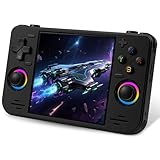
- 【Massive Preloaded Game Library & Powerful Emulation】This RF40H retro handheld game console supports over 20 emulators and comes pre-installed with over 20,000 retro classic games, perfectly recreating the arcade and home console gaming experience. A high-performance quad-core processor ensures smooth gameplay, eliminating lag. Relive your nostalgic memories! NOTE: This product is not suitable for people under 12 year old.
- 【Vibrant 4.0-Inch IPS Display for Immersive Play】Enjoy every pixel-perfect moment on the brilliant 4.0-inch IPS screen. Featuring a 720x720 high-definition resolution, wide viewing angles, and tempered glass protection, it delivers crisp, vibrant visuals with rich colors. Whether it's fast-paced action or detailed RPGs, the UYTGXEN retro game console handheld brings your gaming adventures to life.
- 【Supports WiFi for Connect & Compete】Our RF40H retro gaming console supports WiFi connectivity, allowing you to say goodbye to single-player games and enjoy online multiplayer battles with friends, or connect a wired controller for instant couch co-op gaming. Equipped with high-fidelity stereo speakers or a dedicated 3.5mm headphone jack, immerse yourself in a rich and dynamic audio experience, bringing every explosion and classic sound effect to life. Keep your hand held game console fresh and exciting.
- 【Open-Source Linux System】Take control with the versatile open source Linux system. Tech-savvy users can customize the interface, add new emulators, and manage their game library with greater freedom. With 64GB of built-in storage, you can add your favorite ROMs anytime to create the ultimate personal game collection.
- 【All-in-One Portable Design & Long-Lasting Battery】Your perfect travel companion! Designed for ultimate portability, this sleek retro game console fits comfortably in your hands and slips into any bag. Fueled by a robust 4000mAh rechargeable battery, it delivers an impressive 6-8 hours of continuous gameplay on a single charge—perfect for long commutes, trips, or gaming sessions anywhere.
BizHawk pros
- Rerecording, debugging, frame advance, save slots, and specialist hotkeys support technical analysis.
- Multi-system support makes it useful for creators working across several platforms.
- Strong fit for TAS and reproducible testing workflows.
BizHawk cons
- Overkill for ordinary GBA play.
- Users must understand the difference between the frontend suite and the selected emulation core.
- Its Windows-oriented distribution and specialist controls are less approachable for beginners.
5. Is NanoBoyAdvance worth using for accuracy testing?
NanoBoyAdvance is worth investigating as an experimental accuracy-focused option, not as the safest uncomplicated recommendation for a general Windows player. The project describes itself as cycle-accurate and lists features including an HQ audio mixer, color correction, xBRZ upscaling, LCD ghosting simulation, controller remapping, archive loading, real-time-clock support, and save states.
The Tool Desk
Outbyte Driver Updater FREEFix the driver behind crashes, sound loss and screen glitchesFind Drivers →Outbyte PC Repair FREEClear out junk files and repair common Windows errorsFree Scan →The important current-status qualification is that the NanoBoyAdvance GitHub repository was archived on June 21, 2026, with development moved to the project’s Codeberg destination. Verify the current Windows binary process, release activity, and download integrity before relying on NanoBoyAdvance.
NanoBoyAdvance pros
- Cycle-accurate design goal appeals to testers and accuracy enthusiasts.
- Includes display, audio, controller, archive, RTC, and save-state features described by the project.
- Useful for comparing edge cases and investigating timing-sensitive behavior.
NanoBoyAdvance cons
- The GitHub archival notice creates uncertainty for readers who expect a conventional current Windows download.
- The Codeberg migration must be understood before selecting a build.
- Its experimental status makes mGBA a safer default for ordinary play.
6. Why would a developer use no$gba?
no$gba is the specialist choice for GBA and Nintendo DS-related development, debugging, and dual-system experimentation rather than casual gaming. The official no$gba page lists no$gba v3.06 dated April 14, 2025, and provides separate Windows debug and gaming versions.
The separate versions are significant: a player who wants a small gaming emulator may not need the debug build, while a developer may specifically need debugging and technical tools. The old-fashioned interface and documentation make no$gba less inviting than mGBA for a first installation. Some advanced DS or DSi functions can also require system files and additional technical setup.
no$gba pros
- Supports GBA and Nintendo DS/DSi-related development work.
- Separate debug and gaming versions serve different audiences.
- Small downloads and technical documentation suit experienced users.
- The official site lists a specific current version and date from the research pass.
no$gba cons
- Dated interface and documentation are not beginner-friendly.
- Advanced features can require additional system files and configuration.
- It is a poor first choice when the reader only wants straightforward GBA play.
7. Are BatGBA, RascalBoy Advance, and Boycott Advance still worth downloading?
BatGBA, RascalBoy Advance, and Boycott Advance should be treated as lightweight or legacy names to investigate only after verifying an official Windows download, maintenance status, source availability, and file trustworthiness. The research pass found these names in secondary comparison coverage, including a WindowsReport discovery list, but it did not establish sufficiently strong current primary-source evidence for release versions, security posture, Windows usability, or active maintenance.
| Project | Reason to investigate | Why to be cautious | Publication-safe verdict |
|---|---|---|---|
| BatGBA | A minimal or lightweight emulator may appeal to users with modest hardware. | Current maintenance, security, feature depth, and official Windows availability require verification. | Lightweight legacy option only; do not present it as equal to mGBA. |
| RascalBoy Advance | Readers interested in older link-play options may encounter the name. | Current Windows compatibility and development status require verification. | Legacy multiplayer mention, not a general recommendation. |
| Boycott Advance | Historical interest or an unusual compatibility reason may justify research. | Fresh evidence for modern maintenance, downloads, and usability was not established. | Historical alternative; do not make it a modern first choice. |
Do not use a third-party mirror merely because a search result places the mirror above an official project page. An old emulator can still launch a game, but lack of current documentation, unknown packaging, misleading download buttons, and abandoned code are meaningful risks.
What makes a good GBA emulator?
A good GBA emulator must balance compatibility and accuracy with reliable saves, low-friction controls, trustworthy Windows distribution, and the features needed by the specific game. Popularity alone is not enough.
- Compatibility and accuracy: timing, graphics, audio, real-time clocks, homebrew, ROM hacks, and unusual hardware should be considered separately.
- Video: integer scaling, aspect-ratio correction, nearest-neighbor pixels, color correction, LCD simulation, and optional shaders affect the image differently.
- Input: reliable detection, remapping, digital D-pad mapping, player profiles, and non-conflicting hotkeys matter more than a long feature list.
- Saves: normal in-game battery saves should be dependable, while save states should be treated as convenient emulator snapshots.
- Advanced features: fast-forward, screenshots, recording, cheats, link play, debugging, and frame advance serve different readers.
- Maintenance and trust: use official downloads, check the project status, and prefer documented current builds.
- Architecture: know whether the download is a standalone emulator, a frontend that loads a core, or a multi-system suite.
How do you install and configure mGBA on Windows?
The basic mGBA setup is download, install or extract, load a legally obtained ROM dump, configure controls, and verify a normal save. Menu labels can vary between stable, development, Qt, and SDL builds, so treat the following path as a practical sequence rather than an immutable UI specification.
- Open the official mGBA downloads page.
- Choose the 64-bit Windows installer for a normal modern Windows PC. Choose the portable 64-bit archive if you do not want a conventional installation. Use a 32-bit build only when Windows itself is 32-bit or a specific compatibility reason requires it.
- Install mGBA or extract the portable archive into a folder that you can write to. Avoid protected locations if Windows prevents the emulator from creating save files.
- Open mGBA and use File → Load ROM, or the equivalent open command in the installed build.
- Select a legally obtained GBA, GB, or GBC game dump. If an archive fails to load, extract the game file and try again rather than assuming the emulator is incompatible.
- Open the input or controller settings and map the GBA D-pad, A, B, Start, Select, and shoulder buttons. A keyboard works if you do not have a gamepad.
- Map hotkeys for save state, load state, fast-forward, screenshot, and pause only after checking that the hotkeys do not conflict with gameplay controls.
- Start the game and create a normal in-game save. Do not rely on a save state as the only copy of progress.
- Close mGBA normally, reopen the game, and confirm that the battery save persists.
- Back up the battery-save file and important state files before changing emulator versions, ROM revisions, patches, or frontends.
Do you need a BIOS to use mGBA?
An external BIOS is optional for ordinary mGBA use because mGBA includes a BIOS implementation, although mGBA can also load an external BIOS. Users may prefer a legitimate external BIOS for authenticity, development, or particular compatibility behavior, but the article does not provide or link to copyrighted BIOS downloads.
BIOS requirements differ between emulators and configurations. Do not assume that a BIOS requirement or optional-BIOS policy for mGBA applies identically to VBA-M, RetroArch cores, BizHawk, no$gba, or another project. The mGBA FAQ and Libretro mGBA documentation are the appropriate references for those configurations.
How should you handle saves and save states?
Normal in-game saves are the important long-term saves, while save states are emulator snapshots that can become incompatible after software or configuration changes. Battery saves are often more transferable between emulators than save states, but the exact filename, location, save type, ROM revision, and core configuration still matter.
- Make an in-game save before migrating from standalone mGBA to RetroArch’s mGBA core or the reverse.
- Close the emulator normally and reopen the game to verify that the battery save was written.
- Back up the
.savor equivalent battery-save file before experimenting. - Keep the original save untouched until the new emulator successfully loads and writes its own copy.
- Do not assume a save state from one emulator, core, ROM revision, patched ROM, or emulator version will load correctly in another.
- Use a writable save directory and check whether cloud-sync software has replaced a newer save with an older copy.
The mGBA FAQ documents Windows save troubleshooting and save-state issues, including a historical corruption issue that was fixed in later releases.
How do you configure a controller and improve the picture?
Map a controller’s digital D-pad to the GBA D-pad, bind the six face and system buttons, and keep save-state and fast-forward hotkeys separate from gameplay controls. XInput controllers and generic USB gamepads may be detected differently, so test the active player profile in the emulator rather than relying on the controller’s label.
For a keyboard, assign comfortable keys for D-pad, A, B, Start, Select, L, and R. For an analog gamepad, map the left stick to the digital D-pad if the emulator or frontend does not automatically provide that mapping. If a controller works in menus but not in the game, check the active player, duplicate mappings, per-game overrides, and conflicting hotkeys. RetroArch’s official feature documentation covers automatic controller configuration and manual remapping, while mGBA documents configurable controls in its project documentation.
Also popular on Amazon
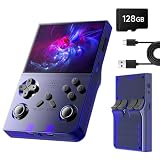
- 💝【New Retro Game System】The R40 retro handheld game console is a high-performance retro video game console, equipped with a 1.2GHz 64-bit RK3326 CPU and Linux system with a ARM64bit quad-core Cortex-A35 CPU. It offers a smooth and responsive gaming experience across a variety of emulators.
- 💝【3.5 inch HD Tempered Glass Screen】The R40 Retro video game console features a 3.5 inch IPS screen covered with scratch-resistant tempered glass. The screen has a resolution of 640*480 pixels, presenting clear images and soft colors. They can all be accurately displayed, effectively reducing visual fatigue and allowing players to immerse themselves in the game.
- 💝【Multiple Functions】The R40 retro game console is not only a game console, which you can also play games on TV by connecting HDMI cable. Meanwhile it can use as music player, Video player, Camera. DV, Recoder,Calculator etc. Owing one game console, you can use different fucntions.
- 💝【Portable Design & Long Battery Life】Designed for portability, this mini retro game console features a compact and lightweight design. The 3000mAh rechargeable battery offers up to 10 hours of playtime, making it perfect for gaming on the go. It also includes built-in speakers and a 3.5mm headphone jack for an immersive audio experience.
- 💝【128G Storage】This retro gaming console comes can be plugged and played without an internet connection. With its 128G storage capacity, you can enjoy a vast library of games, and there's an option to insert an additional TF card to expand your game collection even further.
Display choices
- Integer scaling: preserves whole-pixel relationships and usually produces the cleanest sharp-pixel result when the window size permits it.
- Nearest-neighbor scaling: keeps pixels crisp but can look blocky at large sizes.
- Aspect-ratio correction: avoids stretching the original image into an unnecessarily wide shape.
- Color correction and LCD simulation: can make the picture resemble original handheld hardware, but these are preferences rather than universal accuracy guarantees.
- Shaders: RetroArch supports shader use and stacking multiple shaders. Shaders can add scanlines, LCD effects, or smoothing, but excessive processing can make the image blurry or reduce performance.
- xBRZ and enhancement filters: NanoBoyAdvance lists xBRZ upscaling, color correction, and LCD ghosting simulation among its features.
Which GBA games expose emulator differences?
Games that use real-time clocks, sensors, rumble, link features, or unusual cartridges are more useful compatibility tests than a game that only needs basic graphics, sound, and controls. Test the exact game, region, revision, ROM format, and feature instead of treating a successful boot as proof that every function works.
- Pokémon games: real-time-clock behavior can affect time-based events and should be tested if that feature matters.
- Boktai and Solar Sensor games: sensor behavior can require emulator-specific support or configuration.
- Rumble and motion-sensor games: a game may boot even when the peripheral behavior is incomplete or unavailable on the chosen controller.
- Game Boy Camera and Game Boy Printer software: peripheral support is a specialist capability, not a guarantee of ordinary GBA compatibility.
- Link-play games: local same-PC linking, network play, game support, player count, core support, and frontend support are separate questions.
- ROM hacks and homebrew: patched images can behave differently from the original release, particularly when a patch changes timing, save behavior, or hardware assumptions.
- Compressed archives: a game may boot after extraction even when loading the original archive fails.
mGBA’s project documentation specifically lists real-time-clock support, local link support, motion sensors, rumble, Solar Sensor, Game Boy Camera, and Game Boy Printer support. Those documented capabilities make mGBA a strong default, but they do not justify the claim that every peripheral works perfectly in every game.
How do you fix a GBA game that will not boot?
- Test a known-good, legally obtained dump from the same game, region, and revision.
- Extract the ROM instead of loading it directly from a compressed archive.
- Try the current stable mGBA build rather than an unknown development build or abandoned mirror.
- Remove temporary cheats, patches, and enhancement settings.
- Compare standalone mGBA with RetroArch’s mGBA core to determine whether the problem is the game file, the core, or the frontend configuration.
- Record the exact title, region, revision, file format, emulator version, and error message before seeking project-specific help.
How do you fix missing saves?
Missing saves usually result from an unwritten battery save, an unwritable folder, a moved or renamed ROM, a core or version change, cloud synchronization, or reliance on a save state instead of an in-game save.
PC Slower Than It Used to Be?
A free scan shows the junk files, broken settings and background clutter dragging Windows down - then fixes them in one click.Free scan · Windows 10 & 11Crashes, No Sound, or Screen Glitches?
Random freezes, missing sound and display glitches usually trace back to one bad driver. Find and replace yours safely.Free scan · under a minute- Use a writable folder outside protected Windows system directories.
- Load the game, make an in-game save, wait briefly, and close the emulator normally.
- Reopen the same ROM and confirm the save before changing any settings.
- Back up the battery-save file before testing another emulator or core.
- Check whether the ROM filename, folder, or revision changed. Save naming often depends on the game identity.
- Check cloud-sync history if a synchronized folder contains an older save.
- Treat save states as supplementary and keep them separate from the archival battery save.
How do you fix audio crackling or desynchronization?
Audio crackling or desynchronization can come from synchronization settings, audio-buffer configuration, shader load, RetroArch overrides, or an unstable development build. Start with the stable emulator build, disable demanding video effects temporarily, and review the emulator’s audio and synchronization settings.
The mGBA FAQ documents synchronization and audio-buffer troubleshooting, including a documented “sync to audio only” recommendation for certain PC audio problems. RetroArch users should also check whether a core-specific or game-specific override is replacing the global audio settings.
How do you fix a controller that works in menus but not in games?
- Confirm that the correct device and player slot are active.
- Remove duplicate controller mappings and rebind the GBA D-pad and buttons.
- Map an analog stick to the digital D-pad if the game requires directional input.
- Check RetroArch global, core, and game-specific controller profiles separately.
- Disable hotkeys that use the same buttons as gameplay controls.
- Test with the keyboard. If the keyboard works, the problem is input configuration rather than ROM loading or emulation.
How do you troubleshoot link play?
“Supports link play” does not guarantee that every game, player count, link mode, core, frontend, or network arrangement will work identically. First distinguish local same-PC linking from network play, then confirm that the exact standalone build, core, or frontend supports the required mode.
mGBA documents local and network-related link capabilities, while RetroArch documents netplay as a frontend feature. Both claims should be tested with the exact game and number of players before being treated as a guarantee. Player 2 controls should be tested before troubleshooting link communication.
Free tools Windows power users keep installed
One-click scans. No signup required.
Which GBA emulator should you choose?
| Your situation | Recommended choice | Reason |
|---|---|---|
| You simply want to play GBA, GB, or GBC games on Windows. | mGBA standalone | Shortest setup path with broad documented support and a current Windows release. |
| You already use several retro systems and want one library. | RetroArch with the mGBA core | Unified controller profiles, playlists, shaders, recording, hotkeys, and frontend features. |
| You used the old VisualBoyAdvance family and want a familiar workflow. | VBA-M | Standalone classic-emulator experience from the continuing VBA-M project. |
| You need TAS, frame advance, rerecording, or debugging. | BizHawk | Specialist tools and multi-system workflows outweigh its complexity. |
| You need GBA/DS development or debugging features. | no$gba | Separate debug and gaming versions and a developer-oriented toolset. |
| You want to investigate cycle accuracy. | NanoBoyAdvance | Cycle-accurate project goal, but verify Codeberg maintenance and current binaries first. |
| You want a lightweight or legacy emulator. | Verify BatGBA, RascalBoy Advance, or Boycott Advance individually | Current primary-source evidence for these entries was insufficient to recommend them as modern defaults. |
What should you download, and what should you avoid?
Use the official mGBA downloads page, the official RetroArch site, the VBA-M repository, the BizHawk repository, the official no$gba page, or the current NanoBoyAdvance project destination after verifying the Codeberg migration.
Avoid search-result download aggregators and unofficial “ROM” or “BIOS” pages. Such pages may bundle unwanted software, preserve outdated builds, use misleading download buttons, or provide files whose provenance is unclear. “Official source” is a safer and more precise description than an unverified claim that a particular download is guaranteed safe.
Frequently Asked Questions
Are GBA emulators legal?
GBA emulators are software tools, but emulator legality and the legality of game ROM dumps and BIOS files vary by jurisdiction and by how the files were obtained. Use an emulator from its official project source and use only game dumps and system files that you are legally entitled to use.
Can I play Pokémon games with mGBA?
mGBA supports GBA software and is a strong default for Pokémon games, but real-time-clock behavior, save handling, ROM revision, and any applied patch should be tested for the specific title. No emulator should be treated as a guarantee that every game feature works perfectly.
What’s actually slowing this PC down?
Pick the symptom - the matching free tool is one click away.
Can I transfer a GBA save from mGBA to RetroArch?
Normal in-game battery saves are generally more portable than emulator save states, but filenames, save locations, ROM revisions, and core settings can differ. Make an in-game save, back up the original battery-save file, and verify the copied save before deleting anything.
Is RetroArch better than standalone mGBA?
RetroArch with the mGBA core is better for users who want one multi-system library, unified controller profiles, shaders, recording, netplay, and frontend hotkeys. Standalone mGBA is better for most users who only want a straightforward Windows GBA emulator because it has fewer configuration layers.
Why should I avoid old VisualBoyAdvance downloads?
Old VisualBoyAdvance downloads should not be treated as the current default because the original VisualBoyAdvance project and the continuing VBA-M project are not the same recommendation. If you want that classic family of emulator, investigate the maintained VBA-M project from its official repository instead.
The Bottom Line
For most Windows users, download stable mGBA from the official project page. Select the 64-bit installer on a modern PC, map your controller, make a normal in-game save, and keep a backup before experimenting with save states or alternate cores. Use RetroArch with the mGBA core when a unified multi-system library matters more than the simplest setup; choose BizHawk, no$gba, or NanoBoyAdvance only when their specialist capabilities match your goal.
Quick Recap
Product prices and availability are accurate as of the date/time indicated and are subject to change. Any price and availability information displayed on Amazon at the time of purchase will apply.

