
iTechGuides is reader-supported. When you buy through links on our site, we may earn an affiliate commission. As an Amazon Associate I earn from qualifying purchases. Learn more
Updated note: Roblox introduced an official Maximum Framerate setting for Windows on May 30, 2024. This guide prioritizes Roblox’s built-in controls and supported Windows settings over third-party FPS unlockers.
The correct fix depends on what “lag” means. A jerky camera usually indicates low client FPS or inconsistent frame times. Teleporting players and delayed actions usually indicate network latency, packet loss, or server delay. If only one experience performs badly, the experience itself may be the problem. Diagnose the symptom first, then apply the smallest safe change that addresses it.
Quick Roblox performance checklist
For a safe first pass, work through these steps:
- Restart the PC and Roblox.
- Plug in a laptop and close unnecessary browser tabs, launchers, recording software, and overlays.
- In Roblox, set Graphics Mode to Manual and lower Graphics Quality by one or two notches.
- Set Maximum Framerate to a value your PC and monitor can sustain.
- On Windows, test System > Power & battery > Power mode > Best performance.
- On a laptop, confirm Roblox is assigned to the intended GPU.
- Test the same experience again and compare it with another experience.
- For connection problems, check Roblox Status, try Ethernet or another network, and pause downloads or streaming.
These steps will not produce a guaranteed FPS increase on every computer. They are useful because they separate graphics, system, network, and experience problems instead of treating all of them as the same issue.
The Tool Desk
Outbyte PC Repair FREERepair Windows errors before they cause bigger problemsFix Now →Outbyte Driver Updater FREEFix the driver behind crashes, sound loss and screen glitchesFind Drivers →First identify the type of lag
| What you notice | Most likely cause | First check |
|---|---|---|
| The camera or movement looks visually jerky | Low client FPS or frame-time stutter | Press Shift+F5, inspect FPS, and lower Roblox graphics quality |
| Other players teleport or actions arrive late | Network latency, packet loss, or server delay | Press Shift+F3 and test Ethernet or another network |
| Only one experience runs badly | Experience or server performance | Test another experience and another server |
| Performance gets worse after 10–30 minutes | Heat, power throttling, memory growth, or background software | Check temperatures and clock speeds, then test while plugged in |
| FPS is exactly 60 on a 120 Hz, 144 Hz, or 240 Hz monitor | Roblox’s default cap or another frame-rate limit | Check Maximum Framerate and GPU-driver frame-rate limits |
| FPS is high but gameplay still feels uneven | Frame-time spikes, overlays, thermal throttling, or network/server delay | Check frame-time consistency and disable overlays for a test |
| Joining takes a long time or fails | Firewall, DNS, router, outage, corrupted files, or a large experience | Check Roblox Status, firewall permissions, and another network |
| Everyone complains at the same time | Server or experience performance | Compare other servers and report the issue to the creator |
Roblox separates network lag, graphics lag, and system lag. Lowering graphics quality can reduce graphics lag, but it cannot repair poor Wi-Fi, packet loss, or a slow server.
Popular on Amazon

- 【14Lighting Modes】This gaming mouse pad features 14 lighting modes: including colorful, dynamic breathing lighting mode and monochrome static lighting mode, making your gaming atmosphere warmer and more atmospheric. It also has a power-off memory function, which can memorize the mode you selected last time.
- 【Gaming Mouse Pad Large】The 31.5 x 12x 0.3 inch mouse pad fits your desktop perfectly and provides a lot of space for movement. The large mouse pad is suitable for computers and keyboards and mice, bringing the greatest help to your work environment or games.
- 【Easy to use】 This extended mouse pad has a button to control the lighting. Press once to change the color you like, press twice quickly to change the brightness, press and hold for about 3 seconds to turn on/off. The mouse pad is powered by USB, plug and play, no driver required.
- 【Super soft, smooth and waterproof】 The RGB gaming mouse pad is made of smooth microfiber material, which makes the mouse move more precise. The soft and smooth surface is more perfect for waterproofing. Effectively prevent damage from spilled beverages or other liquids, and is easy to clean with water without fading. Ideal for games or work
- [Rubber material] It is made of rubber material, which is stable and not easy to move.
Measure performance before changing settings
Use a repeatable test rather than judging a setting from a busy moment in a different server.
- Restart Windows.
- Plug in the laptop if you are using one.
- Close browsers playing video, recording software, game launchers, cloud-sync activity, and unnecessary overlays.
- Join the same experience and, if possible, test in the same demanding area.
- Record the approximate FPS, whether it is stable, the displayed ping or data ping, and how long it takes for the problem to appear.
- Change one setting at a time and repeat the test.
Roblox diagnostic shortcuts
- Shift+F5: shows the client’s debug statistics summary, including FPS.
- Shift+F3: shows network debug information, including individual-client data ping.
- Shift+F2: shows render statistics.
- Ctrl+F6: opens the desktop client’s MicroProfiler, an advanced tool for investigating frame-time and performance spikes.
These shortcuts are documented in Roblox’s performance identification documentation, along with additional statistics guidance in the performance improvement documentation. The MicroProfiler is explained in the MicroProfiler documentation.
How to read the results
- Low FPS with high GPU utilization: the graphics workload is probably the limiting factor. Lower Roblox graphics quality and check that a laptop is using the intended GPU.
- Low FPS with a heavily loaded CPU: the experience may be CPU-bound by scripts, physics, animation, or other simulation work. Lowering graphics may produce only a small improvement.
- High FPS with uneven motion: investigate frame-time spikes, overlays, recording tools, drivers, heat, and periodic work inside the experience. Average FPS alone can hide stutter.
- Normal FPS with high or fluctuating ping: troubleshoot the network, server, or experience rather than the graphics settings.
- Low FPS and high data ping together: the client or experience may be spending time processing frames or replication queues. Faster internet is not automatically the solution.
Roblox distinguishes ordinary network ping from data ping. Data ping can include time spent in client and server replication queues, so an elevated in-game number is not always caused only by your internet connection. Roblox also notes that inconsistent frame times can feel like stutter even when the average FPS appears acceptable.
What’s actually slowing this PC down?
Pick the symptom - the matching free tool is one click away.
Use Roblox’s graphics settings correctly
Set Graphics Mode to Manual
While inside an experience:
- Press Esc, or click the Roblox logo in the upper-left corner.
- Select Settings.
- Find Graphics Mode.
- Change it from Automatic to Manual.
- Move the Graphics Quality slider left to reduce rendering work, or right to improve image quality.
- Resume the experience and test movement in the same area.
Roblox confirms this path in its Graphics Quality support article. Manual mode prevents automatic adjustments from obscuring the result of your testing.
Do not assume that a particular graphics number is best for every PC. Start with the current setting, lower it by one or two notches, and test. Stop lowering once frame pacing is stable. If the image is unnecessarily poor, raise the setting one notch at a time. Experiences vary substantially in geometry, lighting, particles, textures, scripts, and physics.
Lowering graphics helps most when the GPU or rendering workload is the bottleneck. It may help little when the experience is CPU-bound, the server is slow, the laptop is throttling, or another program is consuming system resources.
Choose Maximum Framerate based on stable performance
Roblox added the Windows Maximum Framerate setting on May 30, 2024. The announced choices were:
Quick wins for a faster PC:
Repair Windows errors before they cause bigger problemsFix Now →Scan for outdated or missing drivers - takes under a minuteDriver Scan →Clear out junk files and repair common Windows errorsFree Scan →- Default: 60 FPS.
- 60 FPS
- 120 FPS
- 144 FPS
- 240 FPS
Open the in-game Esc > Settings menu and select the available Maximum Framerate value. Roblox’s official announcement says that choosing a higher value does not create a performance benefit if the device cannot reach it. Current Roblox performance documentation describes the Windows client as having a default 60 FPS cap that can be raised to 240 FPS, while server simulation remains capped at 60 FPS.
| Display or situation | Reasonable starting target |
|---|---|
| 60 Hz monitor | 60 FPS |
| 120 Hz monitor | 120 FPS if the PC can sustain it |
| 144 Hz monitor | 144 FPS if performance remains stable |
| 240 Hz monitor | 240 FPS only when the PC and experience can actually sustain it |
| Hot laptop or frequent FPS drops | Use a lower stable cap |
| PC cannot maintain 120 FPS | Do not select 120 expecting Roblox to generate missing frames |
A stable 60 FPS can feel better than a fluctuating 100–160 FPS. Raising the cap can also increase heat, fan noise, and power use, which may eventually cause throttling. A maximum frame rate is a ceiling, not a boost.
Also popular on Amazon

- 【Large size】:Measuring 800 x 300 mm/ 31. 5×12 inches, which is wider and taller than others. Large mouse pad can perfectly fit your keyboard and mouse of any size, and there is also ample space for peripherals such as phones, tablets, etc.
- 【LED backlight mouse pad】:Blade Hawks RGB mouse pad provides 7 static modes and 7 dynamic modes will give you the options you are looking for. Power-off memory function remembers the last lighting mode you selected. The super glow fiber Chroma will give you a colorful gaming setup that you want.
- 【Anti-slip rubber base】:Made from Natural rubber, this gaming mousepad will firmly grip your desktop, allowing you to enjoy the ultimate precision in the games you are most passionate about. It also comes with a texture that enhances this ability even further.
- 【Smooth and waterproof surface】: Micro-textured cloth surface, for extremely precise mouse control and a smooth movement. When liquid splashes on the gaming mouse pad, it forms water droplets and slides down. Will not delay your work or gameplay.
- 【Plug and play】: This mouse and keyboard pad is powered by USB, plug and play, no driver required. One button control light modes. Press one time to change the lighting mode, press twice to change the brightness, press and hold about 3 seconds turn ON/OFF.
Windows settings that can improve consistency
Use Best performance power mode when appropriate
- Open Start > Settings.
- Go to System > Power & battery.
- Under Power mode, select Best performance.
- On a laptop, test while connected to AC power.
Microsoft lists Best power efficiency, Balanced, and Best performance modes. Best performance may prevent Windows from prioritizing battery life, but it increases power consumption and can increase heat and fan noise. Reverse the change by selecting Balanced or Best power efficiency when you are away from a charger. See Microsoft’s power mode documentation.
Laptop manufacturers may provide separate Quiet, Balanced, Performance, Turbo, or Gaming profiles. Test the manufacturer’s performance profile if available, but remember that it cannot overcome a weak GPU or a poorly optimized experience.
Recommended Free Tools
Assign Roblox to the intended GPU
This is particularly useful on laptops with integrated and discrete graphics.
- Open Settings.
- Go to System > Display > Graphics.
- Find Roblox in the app list, or add the appropriate official desktop app.
- Select Options.
- Choose High performance.
- Select Save, then restart Roblox.
Windows provides Let Windows decide, Power saving, and High performance per-application choices. The setting is documented by Microsoft under Graphics settings and windowed-game optimizations.
On NVIDIA laptops, Windows may override an older NVIDIA Control Panel preference. NVIDIA says this behavior began with Windows 10 version 20H1. AMD also documents assigning switchable-graphics applications to High Performance, which selects the discrete GPU at the cost of higher power consumption. See the NVIDIA guidance and AMD guidance.
High performance is not guaranteed to improve FPS. It will not solve a CPU-bound experience, thermal throttling, an already-correct GPU assignment, or a problem caused by the experience. An external monitor can also be connected to a port wired to a different GPU, depending on the laptop design.
Leave windowed-game optimizations at their default initially
Windows 11’s Optimizations for windowed games is intended for compatible DirectX 10 and DirectX 11 games running in windowed or borderless-windowed modes. Microsoft says it can reduce frame latency and enable features such as variable refresh rate and Auto HDR on supported systems.
Do not automatically disable fullscreen optimizations or change compatibility settings because a generic guide recommends it. Leave the Windows default unchanged first. If Roblox stutters specifically in windowed or borderless mode, test the setting on and off, record which produces better frame pacing, and keep the better result. Restore the default if the change has no benefit.
Check Game Mode and background activity
Check Settings > Gaming > Game Mode and generally leave Game Mode enabled unless a controlled test shows a conflict. Close programs that compete for CPU, GPU, memory, disk, or network time:
Also popular on Amazon

- 【12 Stunning RGB Light Modes】: Featuring 4 dynamic modes (Color Gradient, Breathing, Flicker Change, Cycle Color) and 8 static modes, this gaming mouse pad offers vivid RGB lighting to create an immersive gaming atmosphere - all while ensuring your eyes remain comfortable.
- 【Oversized for Full Coverage】: With dimensions of 31.5 x 11.8 inches, this mouse pad provides plenty of space for both your keyboard and mouse. The smooth surface allows for precise movements, offering an ideal experience for gaming or office work.
- 【Durable & High Quality】: Built with a durable touch button switch to easily turn the lights on and off, reducing unnecessary power consumption. The long-lasting LED bulbs are resistant to damage, ensuring consistent brightness over extended use.
- 【Anti-Slip Rubber Base】: The natural rubber base grips your desk firmly, preventing any movement during intense gaming sessions or work tasks, offering stability and a smooth experience.
- 【Edge Stitching】: Reinforced anti-fray stitching around the edges ensures the mouse pad’s durability, preventing wear and tear over time.
- Browsers playing video or using many tabs.
- Game launchers and software updaters.
- Cloud-sync clients while they are synchronizing.
- Screen-recording or streaming software.
- Discord, NVIDIA, AMD, or Xbox overlays if they coincide with stutter.
- Unstable RGB-control or hardware-monitoring utilities.
To reduce programs that start automatically, use Settings > Apps > Startup or the Startup apps section of Task Manager. Microsoft documents both startup management and general performance troubleshooting. Turn an item back on if it is needed or if disabling it makes no difference. If normal testing cannot identify a background conflict, Microsoft’s clean-boot procedure can isolate startup services; return Windows to normal startup afterward.
Do these 3 things before closing this tab:
1Clear out junk files and repair common Windows errors2Fix the driver behind crashes, sound loss and screen glitches3Repair Windows errors before they cause bigger problemsUpdate Windows and graphics drivers
- Install pending Windows updates.
- Install the latest stable NVIDIA, AMD, or Intel graphics driver from the GPU manufacturer.
- Restart the PC.
- If the issue began immediately after a driver update, test rolling back to the previous driver.
Roblox identifies outdated graphics drivers as one possible cause of graphics problems. Microsoft recommends Windows Update, Device Manager, or the hardware manufacturer’s official website and warns against random driver-download sites. Do not use third-party “driver booster” utilities. Roblox’s graphics troubleshooting guidance and Microsoft’s driver guidance cover these steps.
For an optional automated check for missing or outdated Windows hardware drivers, Outbyte Driver Updater can help identify candidates, but use the GPU manufacturer’s official site for final installation and rollback decisions.
Fix high ping and network lag
More bandwidth does not automatically mean lower ping. Roblox’s published household recommendation is 4–8 Mbps for single use, but that is not a guarantee of low latency, low jitter, or good performance in every experience. Latency depends on routing, congestion, Wi-Fi conditions, packet loss, and the location and condition of the game server.
Use this network troubleshooting order
- Check Roblox Status for incidents involving Games, Player, Game Join, Asset Delivery, or other services.
- Join another experience. If only one experience is affected, do not immediately change your entire network.
- Test wired Ethernet if possible.
- On Wi-Fi, move closer to the router and test the 5 GHz or 6 GHz band when available. These bands can be less congested but generally have shorter range.
- Pause downloads, cloud synchronization, video streaming, and other network-heavy activity.
- Restart the router.
- Temporarily disable a VPN or proxy for testing. A VPN can improve one route but make another worse.
- Allow the official Roblox application through Windows Firewall and check third-party security software.
- Test a different network, such as a phone hotspot, to see whether the problem follows the home network.
Roblox’s connection troubleshooting guidance recommends checking the connection, firewall, and alternate connection methods. Never permanently disable antivirus protection. If security software is falsely blocking Roblox, update it and add Roblox to its allow list instead.
Windows Errors? Fix Them Before They Spread
Repair common Windows errors and clear accumulated junk for a smoother, more stable PC - no reinstall needed.Free scan · no reinstallCrashes, No Sound, or Screen Glitches?
Random freezes, missing sound and display glitches usually trace back to one bad driver. Find and replace yours safely.Free scan · under a minuteFirewall and managed-network details
Roblox uses dynamically assigned outgoing ports. Its documentation refers to UDP ports 49152–65535, and blocked UDP traffic can cause connection problems. Ordinary home users should not respond by forwarding that entire range on the router.
The safer order is to allow the official Roblox application through Windows Firewall, inspect third-party firewall rules, and test another network. On a school, workplace, or other managed network, ask the administrator to follow Roblox’s education-network requirements instead of changing network rules yourself.
Useful Windows network commands
Run these in Command Prompt. They are diagnostic tools, not FPS-boost commands:
ipconfig /flushdnsThis clears the local DNS resolver cache. It may help with website or launcher name-resolution problems, but it does not directly lower ping in an established Roblox session or increase FPS.
Free tools Windows power users keep installed
One-click scans. No signup required.
ping 1.1.1.1 -n 20This provides a rough test of reachability, latency, and packet loss to Cloudflare. It does not measure the route to the actual Roblox game server.
Also popular on Amazon
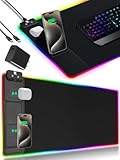
- 【Fast Charging Mouse Pad with Phone Holder】Gaming Mouse Pad has built-in 15W fast wireless charging function, which can conveniently charge your compatible devices without extra cables interfering with your desktop. Desk Mat compatible with iPhone 15/14/13/12/11/X/XR/XS/8 series; Samsung Galaxy S23/S22/S21/S20/S10/S9/S8/Note 9/8; Airpods 3rd/Airpods Pro 2nd/Airpods Pro and other Qi enabled devices. (Note: 15W need power adapter 9V 3A, and power adapter is not included with this Mousepad)
- 【Desk Mat with 11 RGB Lighting Modes】LED Mouse Pad designed with 11 different lighting modes - 2 dynamic modes and 11 static lighting modes; RGB Gaming Mouse Pad allows you to personalize your gaming setup. Choose your favorite color to create a visually stunning gaming experience. The power-off memory function can remember your last light mode choice. Awesome Cool Gaming Mousepad.
- 【XXL Oversized Desk Pad】Mouse Pad has large size 31.49x15.75 inch, the extended mousepad provides a larger usable area to cover your keyboard, mouse and other stuffs on your desktop. Desk Pad provides a comfortable experience while playing games or working. And protect your desktop from scratches, stains and water spills. Say goodbye to messy desktop and hello to a clean and organized workspace.
- 【4mm Thick High-Quality Mousepad】The mouse pad features a Nano-textured fabric surface and stitched edges to ensure durability. The ultra-smooth surface provides more precise mouse movement. Less resistance compared to other mouse pads. Waterproof surface is easy to clean and Non-Slip Rubber Base can firmly grip your desktop, taking your gaming experience to the higher level.
- 【Easy to Use】Extended mouse pad is powered by USB and no driver required. One button controls all light modes, press once to switch light color, long press to switch light modes. The wireless charging function and RGB lighting can work separately. Just Plug and Play. Awesome Gaming Mouse Pad for Gamer Esports Pros.
tracert roblox.comThis shows a route toward the Roblox website domain, not necessarily the route used by the game server. Treat both commands as clues rather than proof of what is happening inside a particular experience.
Laptop-specific fixes: power, GPU, and heat
Laptops often trade sustained performance for battery life, quiet operation, and compact cooling. A laptop may run Roblox well for several minutes and then slow down as heat or power limits take effect.
- Play while connected to the correct AC charger.
- Use the manufacturer’s Performance, Turbo, or Gaming profile for testing.
- Keep air vents unobstructed and avoid beds, blankets, and other soft surfaces.
- Check whether CPU or GPU clock speeds fall when FPS declines.
- Use the Windows High performance GPU assignment described above.
- Try a lower Roblox frame-rate cap to reduce heat and fan noise.
There is no universal safe temperature threshold for every CPU or GPU. Limits vary by chip, laptop firmware, cooling system, and manufacturer. Look for a pattern: if FPS drops as the system becomes hot and clock speeds fall, thermal or power throttling is a credible cause. Roblox discusses thermal-throttling symptoms during extended hardware testing; applying the same diagnostic idea to PCs is reasonable, but Roblox does not provide one universal PC temperature limit.
Best performance mode and a higher FPS cap may improve responsiveness briefly while making sustained performance worse if they push the laptop into thermal throttling. The best setting is the one that keeps frame times stable over the entire session.
When the Roblox experience or server is the problem
Compare the problematic experience with a lightweight experience, a visually demanding experience, and—when possible—another server of the same experience.
If only one experience is slow, the likely causes include large maps, asset streaming, expensive scripts, excessive objects, physics, particles, or a poorly performing server. Roblox notes that badly built experiences can contain problematic scripts or too many objects. A player may be able to reduce the graphics load, rejoin a different server, or report the problem, but cannot repair the creator’s code locally.
Server performance can also affect what feels like network lag. Roblox’s performance documentation explains that low server heartbeat can reduce client performance and increase latency. A higher client FPS cap cannot make a slow server simulate at 120 or 240 updates per second; the server simulation remains capped at 60 FPS.
Report a reproducible issue to the experience creator with the experience name, approximate time, server or region if visible, whether other players were affected, and whether another experience worked normally. If every player is affected at once, check Roblox Status before troubleshooting your PC.
Independent reader supportYour contribution helps us test, update, and keep practical guides available for everyone.Reinstall Roblox only for launch, corruption, or connection problems
Reinstalling is not a routine FPS optimization. Use it when Roblox will not launch, reports missing or failed client files, repeatedly fails to join, or behaves as though its installation is corrupted.
Also popular on Amazon

- [Customizable RGB Lighting Modes] Featuring 14 lighting effects, including static solid colors and dynamic gradient modes. You can switch and adjust via the one-button controller to match your gaming setup, home office, or personal style. The soft non-glare lighting adds ambient style to your desktop, without harsh glare to distract from your work or gameplay
- [Extended Large Size for Full Desktop Coverage] Measuring 31.5'' × 11.8'' with a 0.16 inch thickness, providing enough space for your full-size keyboard, mouse, headset, and other small desktop accessories. The reinforced stitched edges reduce fraying, curling, and deformation, helping the mat stay flat on most desk surfaces for long-term daily use
- [Smooth Fabric Surface for Consistent Mouse Control] Crafted with high-density premium soft fabric, the mouse pad delivers a smooth, low-friction glide for consistent and accurate cursor tracking. It works well with most optical, laser, wired, and wireless mice, supporting stable performance for both gaming sessions and daily office work
- [Non-Slip Rubber Base & Waterproof Fabric] The high-density textured rubber base grips firmly to most smooth desk surfaces, reducing sliding and shifting during mouse movement or regular use. The waterproof fabric surface repels accidental spills and daily stains
- [Stylish RGB Design for Modern Desk Setups] The RGB edge lighting adds a sleek and visually appealing touch to your desktop, creating a more immersive and visually appealing gaming environment.
- Restart the computer.
- Close Roblox and other programs that may be using its files.
- Reinstall Roblox from an official source.
- If the Microsoft Store version is malfunctioning, test the official desktop version; if the desktop version is malfunctioning, test the official Store version.
Roblox now distinguishes the newer Microsoft Store application named Roblox – Windows, which uses a blue icon, from the older Store application named Roblox, which uses a light-gray icon. After successfully installing and signing in to the newer app, Roblox recommends uninstalling the old one. See Roblox’s Store-app instructions.
For a specific client-side library or corrupted-installation error, Roblox’s support instructions include clearing the Roblox cache under:
%localappdata%RobloxUse cache clearing as a corruption or launch-failure measure, not as a regular FPS tweak or a guaranteed fix for memory growth. Roblox also provides reinstallation instructions and a separate Failed to Load Library troubleshooting article.
Check whether the PC meets Roblox’s requirements
Roblox’s published Windows requirements include:
- 64-bit Windows 10 or Windows 11.
- DirectX 10 or higher feature-level support.
- At least 1 GB of memory recommended.
- At least 300 MB of available storage recommended.
- A recommended minimum household connection of 4–8 Mbps for single use.
Roblox’s broad best-performance guidance suggests a desktop less than five years old with a dedicated video card, or a laptop less than three years old with integrated graphics. These are broad recommendations, not promises of a particular FPS in a demanding experience. See the official computer hardware and operating-system requirements.
Roblox’s support page continues to list Windows 10 and Windows 11, but Microsoft ended normal Windows 10 support on October 14, 2025. Windows 10 may continue to run Roblox, yet it no longer receives Microsoft’s normal security and support updates. Moving to a supported Windows release is a security decision as well as a compatibility consideration.
FPS tweaks and “boosters” to avoid
Many generic guides recommend registry edits, undocumented FastFlags, process-priority changes, DPI overrides, compatibility tweaks, or external unlockers. These are not good default recommendations because they lack a universal Roblox-supported performance guarantee and can introduce new problems.
Avoid:
- Unofficial Roblox clients.
- Unknown DLL injectors or FPS-booster executables.
- External FPS unlockers when Roblox’s built-in Maximum Framerate setting is available.
- Random registry “optimizers.”
- Driver-booster utilities from third-party download sites.
- Undocumented FastFlag packs copied from unknown sources.
- Permanently disabling antivirus, anti-cheat, or Windows security features.
- Setting Roblox’s process priority to High without a specific, reversible diagnostic reason.
Roblox says external FPS unlockers modify an internal dynamic flag that is not a stable public API and recommends the built-in setting instead. Roblox’s anti-cheat guidance also warns that modified versions of the app or software that changes how Roblox works can violate its rules and may result in account action. See the Maximum Framerate announcement and anti-cheat messages guidance.
A practical troubleshooting decision tree
- Is the camera visually choppy? Check Shift+F5, set Graphics Mode to Manual, lower graphics, inspect GPU/CPU load, and check for heat or background activity.
- Is FPS high but motion uneven? Look for frame-time spikes, overlays, recording software, driver problems, or thermal throttling. Test a lower stable frame-rate cap.
- Are players teleporting or actions delayed? Check Shift+F3, Roblox Status, Wi-Fi or Ethernet, VPNs, downloads, firewall rules, and another network.
- Does only one experience lag? Test another server and experience. Suspect the creator’s scripts, assets, physics, or server performance.
- Is FPS exactly 60? Check Roblox Maximum Framerate, GPU-driver limits, Windows display settings, and whether the PC is already unable to render faster.
- Does performance decline during a long session? Check heat, clock speeds, power mode, memory usage, and background synchronization. Rejoin or restart Roblox to test for experience or client memory growth.
- Can Roblox not launch or join? Check Roblox Status, firewall permissions, the installed app version, another network, official reinstallation, and cache clearing only when corruption is suspected.
Frequently Asked Questions
Why is Roblox stuck at exactly 60 FPS?
Roblox’s Windows client defaults to a 60 FPS cap. Open the in-game Settings menu and check Maximum Framerate. If a higher option is selected but FPS remains at 60, also check GPU-driver frame-rate limits, power-saving mode, the correct GPU assignment, and whether the PC or experience can actually render faster.
Does faster internet increase Roblox FPS?
No. Internet speed primarily affects connection capacity, not rendering performance. FPS is limited by the client, graphics settings, CPU/GPU workload, drivers, heat, and the experience. Faster or more reliable networking may reduce connection problems, but it does not create additional frames.
Why does Roblox lag in only one game?
The experience may use heavier graphics, scripts, physics, assets, or a poorly performing server. Compare it with other experiences and servers. If the problem follows only that experience, lower its graphics load, rejoin later, and report the issue to the creator rather than assuming the PC is defective.
Crashes, No Sound, or Screen Glitches?
Random freezes, missing sound and display glitches usually trace back to one bad driver. Find and replace yours safely.Free scan · under a minutePC Slower Than It Used to Be?
A free scan shows the junk files, broken settings and background clutter dragging Windows down - then fixes them in one click.Free scan · Windows 10 & 11Should I install a Roblox FPS unlocker?
Not as a default solution. Roblox provides a built-in Windows Maximum Framerate setting and recommends using it instead of external unlockers. Unofficial clients, DLL injectors, and software that modifies Roblox can be unstable, unsafe, or potentially violate Roblox’s rules.
The Bottom Line
The most reliable Roblox performance fix is not a hidden “booster” setting: identify whether the problem is FPS, frame pacing, networking, heat, or the experience itself. Use Manual graphics, choose a realistic Maximum Framerate, run a laptop from AC power with the correct GPU, close competing software, and test the network separately. If only one experience or server is affected, the creator or Roblox may need to fix the underlying problem.
Quick Recap
Product prices and availability are accurate as of the date/time indicated and are subject to change. Any price and availability information displayed on Amazon at the time of purchase will apply.

