
iTechGuides is reader-supported. When you buy through links on our site, we may earn an affiliate commission. As an Amazon Associate I earn from qualifying purchases. Learn more
You can change Microsoft Teams audio before joining or while a call or meeting is in progress. Before you enter, use the pre-join controls to choose computer audio, phone audio, room audio, or no audio. On the desktop app, set separate default Speaker and Microphone devices at Settings and more > Settings > Devices. During a meeting, open the audio menu beside the microphone control and select More audio settings (or Audio settings, depending on the Teams surface). Changes made during a meeting take effect immediately.
The right fix depends on whether you need to change the microphone, the speaker, the connection method, or the operating-system routing underneath Teams. The steps below cover desktop, web, mobile, Bluetooth, Windows, and Remote Desktop cases.
What can you change in Teams?
Teams treats audio as separate choices: the microphone sends your voice, the speaker plays meeting sound, and the audio source determines whether those signals use your computer, phone, or a meeting-room system. You can change one without necessarily changing the other.
What’s actually slowing this PC down?
Pick the symptom - the matching free tool is one click away.
| Choice | What it uses | When it is useful |
|---|---|---|
| Computer audio | Your computer’s selected microphone and speaker | Headsets, USB microphones, built-in laptop audio, or desktop speakers |
| Phone audio | A telephone connection for meeting audio | When computer audio is unavailable or unreliable |
| Room audio | A configured meeting-room audio system | When joining from a room with shared conferencing equipment |
| Don’t use audio | No microphone or speaker connection | When you intend to receive and send audio elsewhere or join silently |
On mobile, the equivalent pre-join options can include Join without audio, Call me, Dial in, and Join a meeting room. The labels shown depend on the meeting and client surface.
Popular on Amazon

- Omnidirectional Microphone - It is not a Speaker or Speakerphone, it is a condenser microphone. The microphone has an omnidirectional pickup pattern with a pickup distance of 11.5 ft, making it easy to capture the most subtle sounds from 360° directions and transmit the sound more loud and clear. Participants can hear each other without raising their voices.
- Made for Conferences - This microphone is perfect for small or medium meetings over an internet network by using Skype/GoToMeeting/WebEx/Hangouts/Fuze/VoIP/Zoom and other softwares. You can also use it for court reports, seminars, remote training, business negotiations, video chats, etc.
- Plug & Play, No Drivers Required - The microphone is compatible with all operating systems - both Windows and macOS. You just need to plug the microphone to start recording. If there is no response after inserting the mic, please go to the microphone setting of your computer and select the mic as the INPUT device.
- Convenient Mute Button - Quickly mute/unmute your microphone. The built-in blue indicator light for checking whether the USB microphone is working.
- Well Designed Cable - The microphone is constructed of sturdy and metal material and the base is fitted with an anti-slip mat which keeps it stable on desktop during use. It is small, convenient and does not require much space when in use. Connected with a 1.8m nylon shielded wire, it effectively eliminates signal interferences to achieve the best recording results.
How do I choose an audio source before joining a meeting?
The pre-join screen is the safest place to select the connection you want, because you can verify the choice before other participants hear or see you.
Desktop or web pre-join
- Open the meeting link or select the meeting in Teams and wait for the pre-join screen.
- Open the audio selector. Choose Computer audio, Phone audio, Room audio, or Don’t use audio.
- If you choose computer audio, check that the displayed microphone and speaker are the intended devices. If the wrong device is shown, change it in the device settings described below.
- Join the meeting after confirming the source.
Choosing phone or room audio changes where Teams expects the meeting sound to come from. It does not automatically repair a missing computer microphone or speaker; those devices still need to be detected and permitted by the operating system when you use computer audio.
Mobile pre-join
- Open the meeting in the Teams mobile app.
- Tap More join options.
- Select the appropriate option, such as Join without audio, Call me, Dial in, or Join a meeting room.
- To choose a phone speaker before joining, tap the Speaker control on the pre-join screen and select the desired device.
Use Join without audio when you do not want the phone’s microphone or speaker connected. You can still join the meeting and use another approved audio path.
Free tools Windows power users keep installed
One-click scans. No signup required.
How do I change the default microphone and speaker in the Teams desktop app?
Desktop defaults are controlled from Teams’ Devices page. The microphone and speaker have separate dropdowns, so switching your headphones does not require changing the microphone unless you want both signals on the same headset.
- Select Settings and more (the three-dot menu) in Teams.
- Choose Settings.
- Open Devices.
- Under Audio settings, open Speaker and select the output device you want to hear.
- Open Microphone and select the input device you want others to hear.
- Use Make a test call to verify the result when that option is available.
The Devices page also exposes Manage devices, automatic microphone-sensitivity adjustment, noise suppression, and device-button synchronization. These controls can matter when the device is present but the microphone level, background noise, or headset buttons behave unexpectedly.
Also popular on Amazon

- ✔Crystal Clear Sound: Conduct advanced noise-canceling technology, the Conference microphone can easily capture clear sound with a 360°sensitivity pickup range(3m/10ft), 10 times better than a traditional computer microphone. (𝐍𝐎𝐓𝐄: 𝐈𝐭'𝐬 𝐣𝐮𝐬𝐭 𝐚 𝐦𝐢𝐜𝐫𝐨𝐩𝐡𝐨𝐧𝐞, 𝐧𝐨𝐭 𝐚 𝐬𝐩𝐞𝐚𝐤𝐞𝐫)
- ✔Plug and Play: Connected to a computer through a USB cable(1.8m/6ft), no drivers to install, hassle-free installation, well compatible with Windows and macOS. (NOT compatible with Raspberry Pi/Android)
- ✔Compact and Versatile: This microphone are small and portable. You can put it in your pocket or briefcase and take it wherever you want. Perfect for meetings, interviews, podcasting, home studio recording, YouTube, Twitch, Skype, Face Time, Gaming, and more.
- ✔Convenient Mute Button - Quickly mute/unmute your microphone: the built-in Indicator LED lights tell you the working status (Green Light: Microphone has been connected; Flashing Green Light: Working Mode; RED Light: Mute Mode)
- ✔Advanced Cancellation Technology - Built-in high-performance CMTECK CCS2.0 SMART CHIP can effectively block the noise and eliminate echo, better than a traditional computer microphone
Choosing separate input and output devices
A common setup is a USB or Bluetooth headset for the microphone and a different speaker for playback, or the reverse. Select each device independently, then make a test call so you can confirm both directions instead of assuming that a single device selection covers both.
How do I switch audio while I am already in a meeting?
Teams applies an in-meeting device change immediately, so you do not need to leave and rejoin just to move from laptop audio to headphones.
Desktop meeting controls
- In the meeting controls, select the dropdown arrow next to Mic.
- Choose More audio settings. Some Teams client surfaces label this Audio settings.
- Under the audio controls, select the desired Speaker and Microphone.
- Close the settings surface and speak or play meeting audio to confirm the new route.
Microsoft states that audio setting changes made during a meeting take effect immediately. If the new device is silent, check its mute state and the operating-system output selection rather than repeatedly changing the Teams dropdown.
Mobile meeting controls
- Tap Speaker during the meeting.
- Select the device you want to use for playback.
- If you need to stop both microphone and speaker audio from the phone, choose Audio off.
Mobile controls focus on the phone’s available audio routes. A Bluetooth headset must be connected to the phone and available to the operating system before Teams can offer it.
Which Teams audio option should I use: computer, phone, room, or no audio?
Choose based on where the audio physically needs to travel, not simply on which option appears first.
Also popular on Amazon
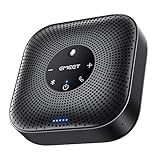
- Enhanced 360° Voice Pickup with 4 AI Mics - The EMEET OfficeCore M0 Plus Bluetooth speakerphone features a four-mic array, which enhances voice pickup from any direction. Powered by EMEET’s VoiceIA algorithm upgraded in 2023, the mic can filters out background noise and eliminates echos of the speaker.
- Crystal-Clear Audio Quality - The 3W high-quality bluetooth conference speaker can spread sound evenly throughout the room, ensuring no details are missed. With full duplex audio support, our conference speaker produces natural and rich sounds, so to feel like you are talking to others in person.
- Expandable for Larger Meetings - Room is too large? Link 2 EMEET’s Bluetooth speakerphones with the Daisy Chain, you will have 2x professional mics and speakers working seamlessly extending the conferencing space, effectively supporting up to 16 attendees. This feature supports multiple models of EMEET products, such as Meeting Capsule, M3, or M0 Plus, making it a flexible solution for setting up your conference room.
- Easy to Set Up and Use - The EMEET Conference Speaker and Microphone M0 Plus offers 2 ways to connect: USB-C & USB-C-to-A Adapter, and Bluetooth 5.0 with single-device or dual-device connection. No drivers or additional software is required, simply plug and play. The speakphone is compatible with most conferencing platforms, such as Zoom, Microsoft Teams, Slack, Webex, and etc. Connect Bluetooth-enabled phones using standard Bluetooth protocols, regardless of brand or model.
- Long Battery Life for Optimal Performance - Equipped with a large capacity battery, the M0 Plus Bluetooth conference speaker with microphone supports long-term calls over 10 hours of talk time on a single charge, making it perfect for all-day meetings. The M0 Plus Bluetooth Conference Speakerphone is optimal for use in the meeting room, home office, or on business trips, ensuring that you always have a professional meeting experience.
| Situation | Recommended source | What to check |
|---|---|---|
| You are using a laptop, USB headset, or desktop microphone | Computer audio | The Teams Speaker and Microphone dropdowns point to the intended devices. |
| Your computer microphone or speaker is unavailable | Phone audio | The phone number or dial-in method supplied for that meeting is available. |
| You are physically in a configured conference room | Room audio | The room system is the device you intend to use, rather than the laptop’s built-in microphone. |
| You only need to observe, or another device will carry audio | Don’t use audio or Join without audio | Your microphone and speaker remain disconnected from the Teams session. |
These are connection choices, not quality ratings. A phone connection can be the practical fallback for a failed computer device, while room audio avoids having several nearby microphones compete with one another.
Do these 3 things before closing this tab:
1Fix the driver behind crashes, sound loss and screen glitches2Repair Windows errors before they cause bigger problems3Scan for outdated or missing drivers - takes under a minuteHow can I test that the new audio devices work?
On the desktop app, Make a test call is the fastest built-in verification. It checks the selected microphone and speaker together, allowing you to confirm that Teams can send and receive audio before you rely on the device in a live meeting.
- Open Settings and more > Settings > Devices.
- Confirm the Speaker and Microphone selections.
- Select Make a test call.
- Follow the test prompts and listen for playback while speaking into the selected microphone.
- Return to the dropdowns and choose another device if either direction fails, then test again.
Microsoft notes that the test call is unavailable in Teams for the web and is currently available in English. In a browser, verify the selected devices through the Teams audio controls and the browser or operating-system permission prompts instead.
Why is Teams not showing my microphone?
When a microphone is missing, work from Teams outward: reselect the device, test it, then confirm that Windows detects and permits it.
- In Teams, open Settings and more > Settings > Devices and reselect the intended microphone.
- Run Make a test call if you are using the desktop app and the option is available.
- Open Windows Start > Settings > System > Sound > Input.
- Confirm that the microphone appears, is selected as the input device, and is not muted.
- Check the physical mute switch or button on the headset, microphone, laptop, or docking hardware.
If Windows cannot see the microphone, changing the Teams dropdown cannot solve the problem. Reconnect the hardware, allow the operating system and Teams to access the microphone, and then return to Devices.
The Tool Desk
Outbyte Driver Updater FREEScan for outdated or missing drivers - takes under a minuteDriver Scan →Outbyte PC Repair FREEClear out junk files and repair common Windows errorsFree Scan →Also popular on Amazon
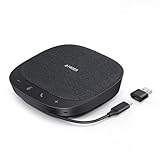
- Smart Voice Enhancement: Eliminate background noise while simultaneously enhancing voices for a professional meeting experience in any environment.
- Plug and Play: Connect via USB-C (includes standard USB adapter) and join meetings in an instant. A wired connection offers a stable and reliable USB speakerphone experience.
- 360° Voice Coverage: A USB speakerphone with 4 high-sensitivity microphones to pick up all voices within 3m in super-high clarity.
- Superior Sound: A 1.75” driver paired with 2 passive bass-radiators adds body and depth to both meeting audio and music.
- What’s In The Box: PowerConf S330 USB Speakerphone, USB-C to USB-A adapter.
Remote Desktop microphone routing
Remote Desktop can redirect audio differently from a local Windows session. In Remote Desktop Connection, open Local Resources, find Remote audio, and choose the option that records from the local computer. Reconnect the remote session after changing the redirection setting, then select the redirected microphone in Teams.
Why is Teams not showing sound through my speaker or headphones?
A missing or silent speaker usually requires checking both Teams’ output choice and Windows’ output route.
- Open Settings and more > Settings > Devices in Teams and select the intended Speaker.
- Run a desktop test call when available.
- Open Windows Start > Settings > System > Sound and inspect the output device selection and mute state.
- For wired hardware, unplug it and reconnect it firmly. For Bluetooth hardware, charge it and reconnect it.
- Make sure the Bluetooth device is not connected to another phone or computer at the same time.
- Return to Teams and select the device again if it became available only after reconnection.
A speaker can be listed but still produce no sound when Windows is sending output to a different device or when the headset itself is muted. Check the system-level route before changing meeting settings repeatedly.
Independent reader supportYour contribution helps us test, update, and keep practical guides available for everyone.What should I check when the device works in Windows but not in Teams?
Teams still needs permission to use a device that Windows detects. Browser and operating-system permissions must allow microphone and speaker access, and an organization policy can restrict which controls are available.
- Review the browser’s site permissions if you are using Teams on the web, and allow microphone access for Teams.
- Confirm that Windows privacy and sound settings allow microphone access and that the device is not muted.
- Reconnect Bluetooth or wired hardware, then reopen the Teams device list.
- Check whether the meeting organizer or IT administrator has applied a policy that removes or limits audio choices.
- If a setting is unavailable rather than merely incorrect, ask the administrator whether the meeting or account policy controls it.
Permission and policy issues are different from a wrong device selection: the device may be healthy while Teams is prevented from opening it or the meeting surface is prevented from offering a control.
Also popular on Amazon

- Built-in AI Noise Reduction: Compared to the base model, G11 pro upgraded AI noise cancellation, effectively eliminates distractions like fan noise, keyboard clicks. It delivers clear, crisp teleconferencing experiences, making it perfect for conference calls, online learning and chatting
- Omnidirectional Conference Mic: Features omnidirectional pickup pattern with a pickup distance of 11.5 ft, making it easy to capture sounds from 360° directions. Highly sensitive pickup ensures participants hear everything clearly. Tips: This is not a speaker
- Effortless Control: Physical volume and monitoring control buttons are built into the microphone body, allowing you to effortlessly adjust both microphone and monitoring volume. Click to adjust volume between 4 levels
- Mute & Monitor: Quickly mute/unmute your microphone by one tap. Built-in 3.5mm jack allows connection of headphones for monitoring. Long press for 3 seconds to enable/disable: Blue-Mic mode, Red-Mute, Purple-Monitoring. Note: Do not connect the 3.5mm jack to external speakers, as this may cause feedback interference
- Plug & Play: Compatible with all operating systems,both Windows and macOS. No additional drivers needed . If there is no response after inserting the mic, please go to the microphone setting of your computer and select the mic as the INPUT device
How do I diagnose the problem by platform and timing?
Use the shortest path that matches where the failure occurs.
| Where the problem appears | First action | Next layer |
|---|---|---|
| Before joining on desktop | Choose the audio source on the pre-join screen. | Open Teams Devices and verify Speaker and Microphone. |
| During a desktop meeting | Use the arrow beside Mic, then More audio settings or Audio settings. | Run a test call after the meeting and inspect Windows Sound if needed. |
| Before joining on mobile | Use More join options or the Speaker control. | Confirm the phone’s Bluetooth or speaker route. |
| During a mobile meeting | Tap Speaker and choose a route, or use Audio off. | Check that the phone sees and is connected to the intended accessory. |
| Teams cannot list the device | Check Windows Sound, Bluetooth charge/connection, or Remote Desktop routing. | Review permissions and administrator restrictions. |
| Device is listed but silent | Check mute state and Teams Speaker selection. | Check Windows output routing and reconnect the hardware. |
What are the most common mistakes when switching Teams audio?
- Changing the speaker but not the microphone: Teams stores these as separate selections. If you move to a headset for listening, verify whether you also want its microphone.
- Choosing phone audio while expecting computer playback: Phone audio is a different connection path. Select computer audio when the computer should carry the meeting sound.
- Testing only one direction: Hearing others does not prove that they can hear you. Use the desktop test call or speak briefly after switching.
- Ignoring system mute: Teams can show the correct device while Windows, the headset, or a physical button is muted.
- Pairing Bluetooth elsewhere: A Bluetooth accessory connected to another device may not appear as available to Teams on the computer or phone.
- Trying to fix Remote Desktop from Teams alone: Remote audio redirection must be configured in Remote Desktop Connection before Teams can use the local microphone.
- Assuming every client has every control: The test call is not available on Teams for the web, and labels such as More audio settings and Audio settings can vary by client surface.
When should I switch during the meeting instead of leaving and rejoining?
Switch during the meeting when the target device is already connected and available. The in-meeting audio menu applies the change immediately, which is useful when a headset battery fails, a room system becomes available, or you need to move from a laptop microphone to a USB device.
Leave and rejoin only when the connection method itself must change and the current meeting surface cannot offer it—for example, when you need to move from a failed computer path to a phone or room connection. Before rejoining, note which source you intend to use so you do not accidentally reconnect the failed device.
Windows Errors? Fix Them Before They Spread
Repair common Windows errors and clear accumulated junk for a smoother, more stable PC - no reinstall needed.Free scan · no reinstallOutdated Drivers Are Slowing You Down
One free scan finds every outdated or missing driver and matches the right update for your exact hardware.Free scan · exact hardware matchFrequently Asked Questions
Can I change only the microphone and keep the same speaker in Teams?
Yes. The desktop Devices page has separate Speaker and Microphone selectors, and the in-meeting audio settings expose the same two roles. Select only the input device when you want playback to remain unchanged.
Does changing Teams audio affect other apps on my computer?
Teams changes its own selected audio path, while Windows maintains a separate system output and input route. If another app still uses the wrong device, inspect Windows Sound rather than assuming the Teams selection changed the entire computer.
Why is the Teams test call missing from my screen?
Microsoft says the built-in test call is available in the desktop app, currently in English, and unavailable on Teams for the web. For a browser session, use the meeting audio controls and browser permission prompts to verify access.
Can an administrator prevent me from changing an audio device?
Yes. Microsoft notes that meeting-organizer or IT-admin policies can make some settings unavailable. If a control is absent for your account or meeting, confirm whether policy—not hardware—is limiting the choice.
What is the safest fallback when my computer audio fails just before a meeting?
Use the pre-join audio selector to choose phone audio, if that meeting provides it, rather than repeatedly reconnecting an undetected device. You can also join without audio and use another approved connection while troubleshooting the computer path.
Quick Recap
Product prices and availability are accurate as of the date/time indicated and are subject to change. Any price and availability information displayed on Amazon at the time of purchase will apply.

