
iTechGuides is reader-supported. When you buy through links on our site, we may earn an affiliate commission. As an Amazon Associate I earn from qualifying purchases. Learn more
To merge and manage your Google Contacts safely, first confirm whether records are stored in the correct Google Account, on the device, or on a SIM; export a backup; use Merge & fix; organize with labels; then verify synchronization. Google Contacts can recover deleted records for 30 days and supports imports from CSV, vCard, VCF, and SIM sources.
That order matters because a phone can display contacts from several Google Accounts alongside local Phone, Device, or SIM records. Editing a visible contact does not prove that the contact is stored in the Google Account you intend to synchronize.
Key takeaways
- Google Contacts can synchronize contacts saved in a Google Account across signed-in Android devices and other supported devices, but Phone, Device, and SIM contacts may remain local.
- Export a Google CSV or vCard backup before bulk cleanup; exporting copies contacts to a file and does not delete them from Google Contacts.
- Use Merge & fix to review duplicate suggestions, but contacts stored in different Google Accounts cannot be merged directly.
- Labels categorize one existing contact into groups such as family or work; labels do not create duplicate contact records.
- Deleted contacts remain in Trash for 30 days, while Undo changes can roll back broader changes made during the previous 30 days.
- Google Contacts supports up to 25,000 contacts or 20 MB excluding photos, so large imports and oversized records can cause update errors.
What does Google Contacts manage?
Google Contacts is a cloud-backed contact directory, not simply the address book stored on one phone. Contacts saved to a Google Account are intended to synchronize with signed-in Android devices and other supported devices, so an edit made in one location can propagate to the others. The exact features and menu names can vary between the web interface, Android, iPhone or iPad, and Google Workspace.
The Tool Desk
Outbyte PC Repair FREERepair Windows errors before they cause bigger problemsFix Now →Outbyte Driver Updater FREEScan for outdated or missing drivers - takes under a minuteDriver Scan →The first safety question is where each contact is stored. Android can contain contacts saved in a Google Account, on the device, or on a SIM card. Device and SIM contacts do not necessarily synchronize through Google services. Google documents an option to save device and SIM contacts as Google contacts, but automatic saving can target only one selected Google Account. Google’s device and SIM contact sync instructions explain this account-selection issue.
Popular on Amazon

- Pre-designed templates for both business and personal use
- 10,000 clipart images and 100 fonts
- Notes table for history and to-do items
- Sort, filter and index
- Calculation & totaling
If several Google Accounts are signed in on one Android device, contacts from each account may synchronize to the device. Check the selected account before editing, moving, deleting, or merging contacts. Otherwise, you may clean up one account while still seeing another account’s records on the same phone.
| Storage location | What it means | Before editing |
|---|---|---|
| Google Account | Cloud-backed contact data that can synchronize with signed-in devices. | Confirm the specific Google Account selected in Contacts. |
| Device or Phone | Contact data stored locally on the Android device; synchronization is not guaranteed. | Save or move the contact to the intended Google Account first. |
| SIM card | Contact data stored on the SIM; it is not automatically the same as Google Contacts. | Import or save the contact to the intended Google Account if cloud synchronization is required. |
How should you back up Google Contacts before cleanup?
Back up Google Contacts before merging, deleting, importing, or making other bulk changes. On a computer, Google Contacts can export selected contacts or all contacts. Choose Google CSV for a Google-to-Google transfer; choose CSV or vCard when a broader transfer workflow requires those formats. Exporting creates a copy and does not remove contacts from the account. Google’s export instructions document the available choices.
- Open Google Contacts on a computer and select the contacts to preserve, or select all contacts.
- Choose the export command and select Google CSV, CSV, or vCard according to the destination.
- Save the downloaded file somewhere separate from the Google Account being cleaned, such as a local computer or external storage.
- Open or inspect the exported file only if needed, and retain the original backup until the cleanup and synchronization checks are complete.
A USB flash drive for contact backup is an optional destination for an exported CSV or vCard file. Google Contacts does not require a USB drive: a local computer or other separately stored location can also preserve the backup. Keep in mind that a file backup is a snapshot; changes made after export will not appear in that file.
Quick wins for a faster PC:
Fix the driver behind crashes, sound loss and screen glitchesFind Drivers →Repair Windows errors before they cause bigger problemsFix Now →Scan for outdated or missing drivers - takes under a minuteDriver Scan →How do you merge duplicate contacts in Google Contacts?
On the Google Contacts website, open Merge & fix to review duplicate suggestions. You can merge individual suggestions or choose Merge all. Google also supports selecting particular contacts and merging them manually. Google’s duplicate-contact instructions describe these controls.
- Confirm that you are working in the intended Google Account.
- Open Merge & fix.
- Inspect each suggested match, including names, phone numbers, email addresses, postal addresses, and notes.
- Merge individual matches when the records clearly represent the same person or business.
- Use Merge all only after reviewing the suggestions and confirming that a bulk merge is appropriate.
Do not assume Google will detect every duplicate. The matching process may not identify records with substantially different names or incomplete details, and common names can produce suggestions that need careful review. A merge can combine useful information, but it can also create a record that needs follow-up editing if the duplicate entries contain conflicting phone numbers or addresses.
Also popular on Amazon

- This contact burnishes has plastic insulated handle for working on live contacts
- Tool is packaged in a clear plastic vial for protection from grease and moisture
- Burnished measures 3" length by 3/16" width by 0.007" thickness
- Model number: OB-1/12
Contacts saved in different Google Accounts cannot be merged directly. If one person’s records are split between accounts, export from one account, import into the intended account, review the resulting records, and only then remove unwanted originals if appropriate. Importing is a copy operation unless you separately delete the source records.
| Cleanup action | Best use | Important limitation |
|---|---|---|
| Merge an individual suggestion | A clearly verified duplicate. | Review conflicting fields before confirming. |
| Merge all | A reviewed set of reliable duplicate suggestions. | Do not treat it as proof that every duplicate was found. |
| Manual selection and merge | Specific records you know represent the same person. | Contacts in different Google Accounts cannot be merged directly. |
| Export, then import | Moving records between Google Accounts or services. | The original records remain until you remove them separately. |
How do Google Contacts labels work?
Google Contacts labels organize existing contacts into categories such as family, friends, or work. A label is a grouping, not another copy of a contact. On the web, you can create a label, select contacts, apply the label, remove contacts from a label, and rename or delete labels. Google’s contact grouping instructions cover these actions.
What’s actually slowing this PC down?
Pick the symptom - the matching free tool is one click away.
- Create a label with a useful name, such as Work, Family, or Emergency.
- Select the relevant contacts.
- Apply the label to categorize those contacts.
- Remove a contact from the label when the category no longer applies, without deleting the contact itself.
- Rename or delete the label when your organizational system changes.
Labels can also populate recipients in Gmail while composing a message. When a contact has multiple email addresses, a label group contributes only that contact’s default email address. Check the recipients before sending if a contact record contains several addresses.
How do you edit, delete, and recover Google Contacts?
On Android, the Contacts app can edit a contact’s name, email address, phone number, photo, and additional fields. Select the correct account and record before saving an edit. Google’s Android editing and deletion guidance explains the recovery options.
| Recovery feature | What it does | Time or risk |
|---|---|---|
| Trash | Recovers contacts that you deleted. | Deleted contacts are permanently deleted after 30 days unless recovered sooner. |
| Undo changes | Rolls back a broader set of contact changes for the selected account. | Can undo changes made during the previous 30 days; restoring an earlier point can remove contacts added after that point. |
| Exported backup | Provides a separate file copy of the contacts at export time. | It does not automatically include later edits or deletions. |
Use Trash when a deleted record is the problem. Use Undo changes when a larger cleanup, merge, or edit operation needs to be rolled back. Export before using Undo changes because restoring an earlier state can remove contacts added after that state. Recovery tools apply to the selected Google Account, not automatically to every account visible on a device.
Also popular on Amazon

- BURNISHING TOOLS, WIDTH: 0.12, THICKNESS: 0.012, FEATURES: ULTRA FINE GRADE, EXCELLENT FOR REMOVING
- OXIDATION FROM SWITCHES &
How do you import contacts into Google Contacts?
Google Contacts can import CSV and vCard files from a computer. Android can import contacts from a VCF file and can import SIM contacts into a selected Google Account. Imported contacts remain in the original account or source unless you separately remove them, so importing is not the same as moving. Google’s import instructions cover file and SIM imports.
PC Slower Than It Used to Be?
A free scan shows the junk files, broken settings and background clutter dragging Windows down - then fixes them in one click.Free scan · Windows 10 & 11Crashes, No Sound, or Screen Glitches?
Random freezes, missing sound and display glitches usually trace back to one bad driver. Find and replace yours safely.Free scan · under a minute- Prepare a CSV, vCard, VCF, or SIM source and identify the Google Account that should receive the contacts.
- Start the import from the computer or Android workflow appropriate to the source.
- Choose the destination Google Account carefully if multiple accounts are signed in.
- Review the imported records for duplicate names, missing fields, and incorrect formatting.
- After confirming the destination copy, remove the original records separately only if you intend to delete them.
Google warns that imports may fail or require splitting when more than 3,000 contacts are imported at once. Google also states that an account can hold up to 25,000 contacts. Split a large file into smaller batches, import one batch at a time, and check the result before continuing.
How do you synchronize Google Contacts across Android, iPhone, iPad, and computers?
Google Contacts saved to a Google Account synchronize with Android when that account is signed in and contact synchronization is enabled. Google also supports adding the account to an iPhone or iPad so contacts can appear in Apple’s Contacts app. Google’s Android and computer synchronization guidance explains the Android side, while Google’s iPhone synchronization instructions cover iPhone and iPad setup.
Android
Sign in to the intended Google Account on the Android device and confirm that Google Contacts synchronization is enabled. Users can turn Google Contacts sync off, disable automatic account synchronization, or trigger a manual refresh. Turning off Google Contacts sync removes those Google contacts from the device; unsynchronized local changes can be lost if they were never saved to the cloud.
iPhone and iPad
- Open Settings > Apps > Contacts > Accounts.
- Add the Google Account.
- Enable Contacts.
- Save the account and open the Contacts app.
Google states that updates then synchronize with the iPhone and other places where the user is signed in. Menu labels can differ by iOS version, so look for the Contacts account and synchronization switch if the exact wording differs.
Also popular on Amazon

- 【Software Installation Support】After purchase, you may contact us directly via Amazon Messages for software installation assistance and setup guidance (only one complimentary installation is provided). Upon receiving your message, we will promptly assist you in resolving the issue.
- 【Wide Compatibility】The diagnostic tool specifically designed for Doosan excavators, loaders, and heavy machinery, this scanner performs factory-grade inspections of engine, hydraulic systems, and fault diagnosis. Supports program brushing (ECU flash), ensuring comprehensive troubleshooting and maintenance.
- 【Function】Read/clear fault codes, check ECU information, and perform data management.Test engine performance, EOL (End-of-Line) diagnostics.
- 【Diagnostic Service System】DDT SCR DDT DPF G2 Scan DCU G2 Scan ECU DMS-5. Note: Recommended Windows 10 Pro (stable software installation guaranteed).
- 【Support Languages】This DOOSAN Diagnostic Tool supports English, Korean, Chinese, Dutch, French, Spanish, and Russian. Multiple language options allow users to flexibly operate and configure settings according to their needs.
| Destination | Required setup | Verification |
|---|---|---|
| Android | Sign in to the intended Google Account and enable Google Contacts sync. | Edit a test field in the correct account and confirm the change appears elsewhere. |
| iPhone or iPad | Add the Google Account under Settings > Apps > Contacts > Accounts and enable Contacts. | Open Apple’s Contacts app and check that the Google contact list appears. |
| Computer | Open Google Contacts while signed in to the intended account. | Confirm the edited, merged, labeled, or imported record in the web list. |
What is Google Workspace contact delegation?
Google Workspace contact delegation lets another user access contacts in the same domain or organization when an administrator has enabled contact sharing. Delegation is an enterprise feature, not a general consumer sharing feature, and delegated management is performed on a computer rather than the mobile Contacts app. Google’s delegation documentation lists the supported actions and restrictions.
A delegate can add, edit, delete, and search contacts, undo changes, and manage labels. A delegate cannot import contacts, export or forward contacts, merge duplicates, change settings, or manage Trash. A Workspace administrator may need to enable contact sharing before delegation is available.
Why does Google Contacts show a “Can’t update contact” or similar error?
Google Contacts errors can result from account selection, synchronization state, import size, or account and contact limits. Check the selected account first, confirm that synchronization is enabled, and retry a smaller or simpler change before assuming that the contact is permanently damaged.
- Wrong account: Verify that the contact belongs to the Google Account you are editing, especially when several accounts are signed in.
- Local contact: A Phone, Device, or SIM record may not be part of Google Contacts. Save or import it into the intended Google Account if synchronization is needed.
- Sync disabled: Re-enable Google Contacts synchronization or trigger a manual refresh. Preserve any local changes before turning synchronization off.
- Import too large: Split imports exceeding 3,000 contacts into smaller batches.
- Account full: Google states that an account supports up to 25,000 contacts or 20 MB when photos are excluded.
- Record too large: An individual contact can be up to 128 KB; most fields can contain up to 1,024 characters, and a contact can have up to 500 fields.
These limits come from Google’s Contacts error guidance. Remove unnecessary duplicate or obsolete records only after exporting a backup, and simplify unusually large fields or attachments when an individual record exceeds the documented limits.
A safe Google Contacts maintenance checklist
- Identify the account: Check whether each record is in the intended Google Account, on the device, or on a SIM.
- Export a backup: Save Google CSV for Google-to-Google work, or CSV/vCard for broader transfers.
- Merge carefully: Review Merge & fix suggestions and manually verify common names and conflicting fields.
- Apply labels: Group existing contacts without creating additional records.
- Edit and delete: Make corrections, then use Trash for accidental deletions.
- Recover deliberately: Use Trash for deleted records and Undo changes for a broader rollback within 30 days.
- Import in controlled batches: Keep imports at or below the documented 3,000-contact batch warning and review each result.
- Verify synchronization: Check the intended account on Android, iPhone, iPad, and computer instead of assuming that every visible contact is cloud-backed.
Frequently Asked Questions
Can Google Contacts merge contacts from two different Google Accounts?
Google Contacts can merge duplicate contacts in the same Google Account through Merge & fix. Contacts stored in different Google Accounts cannot be merged directly; export and import the records into one account, review them, and remove the originals separately if needed.
Also popular on Amazon
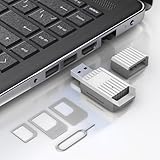
- Notice: This SIM card reader is plug-and-play. However, you will need to download a SIM editor to your computer. You can download a SIM editor via the link in image 4, or you can search for one on Google or other websites. Our reader is widely compatible with various SIM editors. If you still cannot obtain an editor, you can contact the seller's customer service to obtain the installation package.
- 【USB-A SIM Card Reader for Windows】 Engineered exclusively for Windows operating systems, this reader offers native plug-and-play support from Windows XP through Windows 11. Simply insert the SIM card, connect to a USB-A port, and manage contacts, SMS, and SIM toolkit data directly via compatible PC software (e.g., SIM Manager/Editor Software, which is widely available online). Note: This device does not support Android, macOS, Chrome OS, or iOS.
- 【Professional Tool for SIM Data Management & Backup】Ideal for IT technicians, mobile repair shops, and frequent travelers who need to: ① Back up phonebook contacts and SMS from SIM cards to a PC. ②Edit/add or delete SIM-stored contacts in bulk using a full keyboard and mouse. ③Read SIM card identifiers (IMSI, ICCID) for inventory or troubleshooting. ④Retrieve PUK codes or view network-related SIM data via compatible tools. ⑤Archive legacy SIM card data before deactivating old numbers.
- 【Complete SIM Adapter Kit】Nano, Micro, Full-Size & Eject Tool Included. Comes ready for any SIM card format encountered in the field. The kit includes: Nano-to-Micro Adapter – converts today’s most common nano SIM to micro size. Micro-to-Standard Adapter – enables full-size SIM slot compatibility. SIM eject pin – safely removes SIM cards from phones without damage. This all-in-one set eliminates the need to buy separate adapters for different devices.
- 【Easy 4-Step Operation】① Get a Windows computer or laptop ready. ② Download and install your preferred SIM editor software (freely available online). ③ Insert a Standard SIM – or convert your Nano/Micro SIM using the included adapter – into the reader. ④ Connect via USB-A and start managing your SIM data instantly.
How long can you recover a deleted Google Contact?
Deleted Google Contacts remain in Trash for 30 days unless recovered sooner. Undo changes is different: it rolls back a broader set of changes made during the previous 30 days for the selected account and can remove contacts added after the restored point.
Do I need a USB drive to back up Google Contacts?
No. A USB flash drive, local computer, or other separate storage location is optional for preserving an exported Google CSV or vCard backup. Google Contacts can be exported without purchasing additional hardware.
How many contacts can Google Contacts import or store?
Google warns that imports may fail or require splitting when more than 3,000 contacts are imported at once. Google states that an account can hold up to 25,000 contacts, so large imports should be split and reviewed in batches.
The Bottom Line
The safest way to merge and manage your Google Contacts is to confirm the storage account, export a backup, review duplicates in Merge & fix, organize records with labels, and verify synchronization afterward. Device and SIM contacts, multiple Google Accounts, import limits, and Workspace delegation can all change what Google Contacts is able to merge or synchronize.
Quick Recap
Product prices and availability are accurate as of the date/time indicated and are subject to change. Any price and availability information displayed on Amazon at the time of purchase will apply.

