
iTechGuides is reader-supported. When you buy through links on our site, we may earn an affiliate commission. As an Amazon Associate I earn from qualifying purchases. Learn more
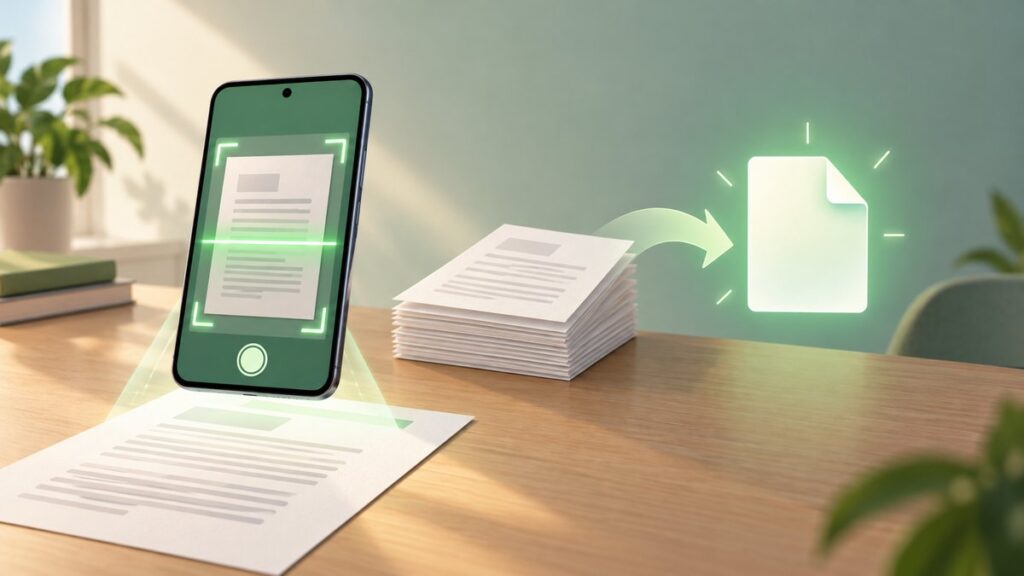
The 14 best Android scanner apps, as of August 12, 2026, are best presented as 13 current, source-verified choices plus one slot that requires a live listing check. Adobe Scan is the strongest all-rounder; Google Drive and Files by Google are simplest; vFlat suits books; TurboScan favors local processing; and Microsoft Lens is retired.
This updated shortlist treats the original 2025 topic as a practical buying and workflow guide, not a laboratory ranking. The recommendations are based on current official product pages and Google Play listings supplied for the research, with no hands-on testing or scan-quality benchmark claimed.
Key takeaways
- Adobe Scan is the strongest all-purpose choice for automatic capture, OCR, searchable PDFs, page management, folders, password protection, and Adobe Document Cloud access.
- Google Drive and Files by Google are the simplest choices for Android users who already want searchable PDFs inside Google storage or file management.
- Genius Scan and TurboScan are the clearest options for users prioritizing on-device or local-first processing, although privacy disclosures should still be reviewed.
- vFlat is the specialist choice for books and curved pages because it advertises two-page capture, curved-page flattening, finger removal, and OCR.
- Microsoft Lens is no longer a current Android recommendation: Microsoft removed Lens from Google Play on February 9, 2026, ended support after that date, and stopped scanning on March 9, 2026.
- The supplied research verifies 13 active recommendations; the fourteenth slot should be filled only after checking a live Google Play listing rather than guessing from an older roundup.
How do the 14 best Android scanner apps compare?
The table below separates genuine searchable-PDF or OCR support from ordinary image export and distinguishes local handling from cloud-centered storage. The list is a practical shortlist, not a lab ranking: the available research does not include hands-on testing, scan-quality benchmarks, or personal experience.
| App | Best fit | PDF, OCR, or export | Storage and processing emphasis | Pricing or account note |
|---|---|---|---|---|
| Adobe Scan | Best overall | Searchable and editable text, PDF creation, page reordering | Adobe Document Cloud, folders, password protection | Some advanced features require a subscription |
| Google Drive | Best simple Google workflow | Searchable PDFs from receipts, letters, and billing statements | Saves into Google Drive | Best for users already organized around Google storage |
| Files by Google | Best lightweight Android utility | Searchable PDFs; files can be found by searching for PDF | Integrated with Android file management | No pricing detail established in the supplied research |
| Genius Scan | Best privacy-conscious dedicated scanner | OCR and searchable PDF creation | On-device processing, encryption, organization, cloud export | No hard-coded price recommended; check the current listing |
| SwiftScan | Best polished capture and automation | On-device OCR, PDF and JPG export, PDF editing | Cloud destinations include Google Drive, Dropbox, Box, Evernote, and WebDAV | Check current feature and account requirements |
| vFlat Scan | Best for books and curved pages | OCR, PDF and JPG export, flattened curved pages | Two-page capture and automatic page handling | Android 8.0 or later and at least 2 GB of RAM |
| TurboScan | Best local or offline-first option | Multi-page PDF and JPEG export | Processing occurs on the phone; processing does not need an internet connection | Listing describes a one-time purchase model |
| CamScanner | Best feature breadth | OCR plus PDF, JPG, Word, and TXT export | Cloud synchronization, annotations, tags, printing, and fax | Subscriptions are available; review Play data-safety disclosures |
| Notebloc Scanner | Best free option for notes and school paperwork | OCR for typed text in 18 languages; PDF and JPEG export | Folders, multi-page documents, automatic corners and perspective correction | Listing describes unlimited use |
| Tiny Scanner | Best broad PDF toolkit | OCR, PDF-to-Word/JPG/Excel conversion, signing, merging, and splitting | Batch scanning, encryption, filters, and cloud synchronization | Feature limits, advertising, and account requirements can apply |
| Dropbox | Best for an existing Dropbox workspace | Single-page PDF or PNG; multi-page PDF | Scans go into a Dropbox-centered workflow | Most useful for existing Dropbox users |
| Microsoft OneDrive | Best current Microsoft replacement for Lens | Multi-page scans combined into one PDF | Cloud-bound OneDrive storage; local saving on the device is not supported | Best for users who accept a Microsoft cloud workflow |
| Fast Scanner | Best straightforward local-file option | Multi-page PDF and JPEG export | Can save PDFs on the device or open them in other apps | Check the current listing for present commercial terms |
| Fourteenth verification slot | Not yet responsibly named | Must be verified as an active Android scanner with current PDF and privacy details | Check live availability, local export, OCR, and cloud behavior | Do not silently substitute retired Microsoft Lens |
Important: the research does not provide a sufficiently strong, current primary-source record for a named fourteenth app. Clear Scanner is mentioned as a possible publication-time check, but it is not presented here as a verified recommendation.
#1 Best Overall

- 【Compatibility】Scanner Holster with Belt Clip and Loops For Zebra TC70x, TC70, TC72, TC75x, TC75, TC77, M60, MC67 handheld barcode scanners.
- 【Inside Dimensions】3.9*1.9*6.7 inch(L*T*H). Fits up to 2.5 inch belt widths.
- 【Advanced design】Scanner case with smooth and sturdy zipper,zipper easy to open and close,do not worry about jamming or braking.
- 【Easy access】This scanner holster protects your barcode scanner from dirt and scratches.You can remove and place your scanner in easily.
- 【Warranty】Simple and convenient return process.100% satisfaction guaranteed. Warranty would be valid for 6 months.
What changed since the 2025 Android scanner app lists?
The most important change is the retirement of Microsoft Lens. According to Microsoft’s Lens retirement notice, Microsoft removed the Android and iOS app from Google Play on February 9, 2026. Support ended after February 9, and scanning continued only until March 9, 2026. As of the August 12, 2026 research date, Microsoft Lens should be treated as historical context rather than a downloadable recommendation.
Microsoft recommends OneDrive as the replacement. OneDrive can scan whiteboards, business cards, documents, and photos, and it can combine multiple pages into one PDF. OneDrive has an important limitation for former Lens users: Microsoft says OneDrive does not support saving scans locally to the device. Users who depended on Lens for local or device-first handling should consider TurboScan, Fast Scanner, or another app that explicitly supports local export instead.
Which Android scanner app is best for your needs?
The right choice depends less on the camera capture itself than on what happens after capture: whether the result becomes a searchable PDF, where the file is stored, whether processing occurs on the phone, and how much document-management functionality is needed.
1. Adobe Scan — best overall
Adobe Scan is the best general recommendation when a user wants a complete document workflow rather than a camera that merely saves pictures. Adobe’s current Google Play listing describes automatic document detection, PDF creation, OCR, searchable and editable text, page reordering, folders, password protection, and Adobe Document Cloud access.
Adobe Scan is especially strong for paperwork that must remain useful after scanning. OCR makes text searchable, while editable text can help when a scanned document needs correction or reuse. The listing also advertises cleanup tools for fingers, shadows, stains, creases, and handwriting. Some advanced features require a subscription, so users should check which tools are included in the current version before adopting Adobe Scan for a large workflow.
Choose Adobe Scan if: searchable and editable text, organization, and PDF cleanup matter more than keeping every file strictly local.
2. Google Drive — best simple Google workflow
Google Drive’s Android scanning feature is the easiest fit for people who already keep documents in Google Drive. Google documents scanning receipts, letters, and billing statements from the Android Drive app and saving the results as searchable PDFs in Google Drive.
Quick wins for a faster PC:
Repair Windows errors before they cause bigger problemsFix Now →Fix the driver behind crashes, sound loss and screen glitchesFind Drivers →Google Drive reduces the export step because the scan is already placed in the storage system many Google users use for sharing and retrieval. The trade-off is that Google Drive is a cloud-centered workflow, not the clearest choice for someone whose priority is a local copy that never needs to leave the phone.
Choose Google Drive if: the destination matters as much as the scan and Google Drive is already your document system.
3. Files by Google — best lightweight Android utility
Files by Google is a practical choice for occasional scans when installing a dedicated scanner app feels unnecessary. Google says Files by Google can scan documents and save them as searchable PDFs. Scanned files can be discovered by searching for PDF inside the app.
Files by Google is suited to receipts, forms, notes, and other documents that need to become ordinary files quickly. The app is particularly convenient for users who want scanning alongside Android file management rather than a separate document-management account. The supplied research does not establish a detailed OCR editing toolkit, cloud automation system, or pricing structure for this feature, so users needing those capabilities should look at Adobe Scan, Genius Scan, or Tiny Scanner.
Crashes, No Sound, or Screen Glitches?
Random freezes, missing sound and display glitches usually trace back to one bad driver. Find and replace yours safely.Free scan · under a minutePC Slower Than It Used to Be?
A free scan shows the junk files, broken settings and background clutter dragging Windows down - then fixes them in one click.Free scan · Windows 10 & 11Rank #2

- 👍Military Grade Heavy Duty - Rugged Vertical 1680D Scanner Holster with Belt Clip For Zebra TC70x, TC70, TC72, TC75x, TC75, TC77, M60, MC67 handheld barcode scanners
- 👍Durable Metal belt clip - our scanner case holder has a strong metal belt clip, vertically, easy put on and take off. Elastic strap with hook & loop closure prevents scanner from falling out of holster
- 👍Excellent Protection - from the elements and protects your barcode scanner from dirt and scratches, inners and made of super soft velvet.
- 👍Easy Access - You can remove and place your scanner in easily. Perfect design if you use your handheld barcode scanner frequently. Prevents costly drops, keeps handle-less barcode scanners/mobile computers close and ready
- 👍Industrial Grade – Abrasion-resistant ripstop 1680D polyester for long lasting use in harsh environments
Choose Files by Google if: you want a lightweight Android utility that creates searchable PDFs and helps you find the resulting files.
4. Genius Scan — best dedicated scanner for privacy-conscious users
Genius Scan is the strongest dedicated option for users who want document scanning features while keeping processing on the phone where possible. Its listing describes document detection, background and shadow removal, batch scanning, multi-page PDFs, on-device processing, encryption, organization, cloud export, OCR, and searchable PDF creation.
Genius Scan’s on-device processing is a narrower and more accurate claim than calling the entire service private. Storage, export destinations, account behavior, and the app’s current data-safety disclosures still deserve review. Encryption is useful when documents are stored or shared, but encryption does not by itself tell you where every processing step occurs.
Choose Genius Scan if: you want a dedicated scanner with searchable PDFs, batch handling, encryption, and an advertised on-device processing path.
Free tools Windows power users keep installed
One-click scans. No signup required.
5. SwiftScan — best for polished capture and cloud automation
SwiftScan focuses on a polished capture-to-destination workflow. Its official product page describes automatic capture, cropping, optimization, PDF and JPG export, on-device OCR, cloud destinations including Google Drive, Dropbox, Box, Evernote, and WebDAV, as well as PDF editing and fax features.
The broad destination list makes SwiftScan useful when scans must move into an existing mix of cloud services. On-device OCR can also reduce the need to send recognition work elsewhere, although users should distinguish that advertised processing behavior from a blanket claim that all data stays local. Check current feature availability and account requirements before choosing SwiftScan for a business workflow.
Choose SwiftScan if: automatic capture, on-device OCR, PDF editing, and several cloud export destinations are more important than a minimal app.
6. vFlat Scan — best for books, textbooks, and curved pages
vFlat Scan is the clearest specialist for books and other bound material. vFlat advertises automatic border detection, OCR, curved-page flattening, finger removal, two-page capture, and PDF or JPG export. These features address problems that ordinary flat-document scanners do not handle as well, particularly the bend near a book’s spine.
Do these 3 things before closing this tab:
1Scan for outdated or missing drivers - takes under a minute2Clear out junk files and repair common Windows errors3Fix the driver behind crashes, sound loss and screen glitchesThe Android listing states that vFlat requires Android 8.0 or later and at least 2 GB of RAM. Two-page capture can make a textbook or magazine workflow more efficient, while curved-page flattening is intended to produce a more usable result from pages that cannot lie completely flat.
For repeated book scanning, an optional phone document scanner stand can keep the camera position consistent and reduce hand movement across a long batch. No specific stand has been tested for this article, and a stand is not required to use vFlat.
Choose vFlat if: the source is a book, textbook, magazine, or another document with curved pages rather than a loose sheet.
7. TurboScan — best for local or offline-first processing
TurboScan is the clearest fit for users who want processing on the phone and local file handling. Its listing says processing occurs on the phone and does not require an internet connection for processing. TurboScan can store or send scans as multi-page PDF or JPEG files.
The Tool Desk
Outbyte Driver Updater FREEScan for outdated or missing drivers - takes under a minuteDriver Scan →Outbyte PC Repair FREEClear out junk files and repair common Windows errorsFree Scan →Rank #3
- 👍Military Grade Heavy Duty - Rugged Vertical 1680D Scanner Holster with Belt Clip For Zebra TC70x, TC70, TC72, TC75x, TC75, TC77, M60, MC67 handheld barcode scanners
- 👍Durable Metal belt clip - our scanner case holder has a strong metal belt clip, vertically, easy put on and take off. Elastic strap with hook & loop closure prevents scanner from falling out of holster
- 👍Excellent Protection - from the elements and protects your barcode scanner from dirt and scratches, inners and made of super soft velvet.
- 👍Easy Access - You can remove and place your scanner in easily. Perfect design if you use your handheld barcode scanner frequently. Prevents costly drops, keeps handle-less barcode scanners/mobile computers close and ready
- 👍Industrial Grade – Abrasion-resistant ripstop 1680D polyester for long lasting use in harsh environments
TurboScan also lists perspective correction, shadow removal, SureScan, page reordering, and export to other apps. Those tools cover the main steps in a paper-to-PDF workflow without requiring a cloud destination. The listing describes a one-time purchase model, but this article avoids hard-coded prices because store pricing and editions can change.
Local processing does not mean that every export or sharing action is automatically private. Review the current Play Store data-safety information and check the destination before sending a document to another app.
Choose TurboScan if: you need multi-page PDF or JPEG files, local handling, and processing that does not depend on an internet connection.
8. CamScanner — best for feature breadth
CamScanner offers one of the broadest document toolkits in this shortlist. Its current listing describes OCR, PDF, JPG, Word, and TXT export, annotations, password protection, tagging, cloud synchronization, printing, and fax.
That breadth can be useful for people who scan, annotate, organize, convert, print, and send documents from the same app. The trade-off is that users should be more deliberate about permissions, account requirements, subscriptions, and privacy. CamScanner’s Play disclosure states that the app may share or collect certain data types; users should read the current disclosure rather than assuming that feature richness equals privacy or that a privacy policy alone proves local handling.
Choose CamScanner if: document conversion, annotations, tags, cloud synchronization, printing, and fax are worth reviewing a more complex account and privacy model.
9. Notebloc Scanner — best free option for notes and school paperwork
Notebloc Scanner is aimed at notes, receipts, drawings, and school paperwork. The current listing describes unlimited use, multi-page documents, folders, PDF and JPEG export, automatic corner detection, perspective correction, shadow removal, and OCR for typed text in 18 languages.
Notebloc is a sensible choice when the source material is varied and the user wants a free scanning option with basic organization. The OCR qualification matters: the listing specifically describes typed text in 18 languages, so users should not assume identical results for handwriting, decorative type, or poor-quality photographs.
What’s actually slowing this PC down?
Pick the symptom - the matching free tool is one click away.
The listing also identifies compatibility with a Notebloc notebook. That notebook is optional and is not required for the scanner app; no current affiliate or retail partnership is being claimed here.
Choose Notebloc if: you want unlimited scanning for notes, receipts, drawings, or school documents with multi-page PDF output and typed-text OCR.
10. Tiny Scanner — best broad PDF toolkit
Tiny Scanner goes beyond capture with a large set of PDF operations. Its current listing describes AI-assisted border detection, batch scanning, filters, OCR, PDF-to-Word, JPG, and Excel conversion, signing, merging, splitting, encryption, and cloud synchronization.
Rank #4

- 【Compatibility】Scanner Holster with Belt Clip and Loops For Zebra TC70x, TC70, TC72, TC75x, TC75, TC77, M60, MC67 handheld barcode scanners.
- 【Inside Dimensions】3.9*1.9*6.7 inch(L*T*H). Fits up to 2.5 inch belt widths.
- 【Advanced design】Scanner case with smooth and sturdy zipper,zipper easy to open and close,do not worry about jamming or braking.
- 【Easy access】This scanner holster protects your barcode scanner from dirt and scratches.You can remove and place your scanner in easily.
- 【Warranty】Simple and convenient return process.100% satisfaction guaranteed. Warranty would be valid for 6 months.
Tiny Scanner is a good match for users who regularly need to modify PDFs after scanning. Merging and splitting help assemble or separate document sets, signing supports forms, and encryption can add protection before sharing. The trade-off is that feature limits, advertising, and account requirements should be checked in the current app because those conditions can affect whether the broad toolkit is practical for your workflow.
Choose Tiny Scanner if: PDF conversion and editing tasks such as signing, merging, splitting, and encryption matter as much as camera capture.
11. Dropbox — best for an existing Dropbox workspace
Dropbox’s mobile scanner is most useful when the rest of the document workflow already lives in Dropbox. Dropbox says its Android and iOS mobile app can scan documents, apply filters, save scans as PDFs, and convert existing files into scans.
Dropbox’s learning material distinguishes the output by page count: single-page scans can be saved as PDF or PNG, while multi-page scans are saved as PDF. That makes Dropbox a straightforward choice for users who want the scan to land directly in an existing cloud workspace instead of exporting and uploading it separately.
Choose Dropbox if: reducing export friction into an established Dropbox account matters more than local-first storage.
Recommended Free Tools
12. Microsoft OneDrive — best current replacement for Microsoft Lens
Microsoft OneDrive is the current Microsoft-supported replacement for Lens users who accept cloud storage. OneDrive for Android can scan whiteboards, business cards, documents, and photos, and multiple pages can be combined into a single PDF.
OneDrive is not a like-for-like replacement for every Lens workflow. Microsoft separately warns that OneDrive does not support saving scans locally on the device. Users who need a local copy should choose an app with explicit device export, such as TurboScan or Fast Scanner, rather than assuming that a Microsoft replacement preserves Lens’s previous storage behavior.
Choose OneDrive if: you already use Microsoft cloud services and are comfortable with scans being stored in OneDrive rather than locally on the Android device.
13. Fast Scanner — best straightforward multi-page export
Fast Scanner is a simple multi-page option for documents, receipts, notes, invoices, business cards, and whiteboards. The current Google Play listing describes PDF and JPEG export, the ability to save PDFs on the device, and the ability to open files in other apps.
Recommended Free Tools
Fast Scanner is useful when the main requirement is a usable multi-page file with uncomplicated local handling. The supplied research does not establish a comparable OCR feature set to Adobe Scan, Genius Scan, vFlat, Notebloc, or Tiny Scanner, so users who need searchable text should verify the current listing or choose one of those explicitly documented OCR options.
Choose Fast Scanner if: local PDF or JPEG export and opening files in other Android apps are the main priorities.
Best Value

- Specially designed for Fujitsu ScanSnap iX100 Wireless Mobile Scanner for Mac and PC
- Case is made from a high quality synthetic material which is tough, durable
- Protect your favorite device from bumps dents and scratches
- Material:EVA ; Color: Black
- Case Only! (device and accessories are sold separately)
Why is there no named fourteenth app?
The fourteenth position is deliberately left as a verification slot because the research does not establish a sufficiently strong, current primary-source record for another named Android scanner app. Older roundups often repeat apps whose availability, ownership, pricing, advertising, OCR limits, or privacy disclosures have changed.
Clear Scanner is a possible candidate for a publication-time check, but this dossier does not verify a current listing strongly enough to call Clear Scanner one of the best apps. A publisher requiring exactly 14 named apps should verify a live Google Play listing immediately before publication and confirm Android availability, PDF output, OCR behavior, local export, current permissions, ads, and pricing. The article should not silently use Microsoft Lens to fill the gap because Lens scanning ended on March 9, 2026.
Quick wins for a faster PC:
Scan for outdated or missing drivers - takes under a minuteDriver Scan →Repair Windows errors before they cause bigger problemsFix Now →How should you choose an Android scanner app?
Do you need a searchable PDF or just a picture?
Choose an app with explicitly documented OCR or searchable-PDF support when you need to find, copy, edit, or convert words later. Adobe Scan, Genius Scan, vFlat, Notebloc, and Tiny Scanner explicitly describe OCR-related functions in the supplied sources. Google Drive and Files by Google explicitly describe searchable PDFs.
TurboScan, Dropbox, OneDrive, and Fast Scanner are documented primarily around PDF, JPEG, or cloud output in this research. That does not prove that those apps can never recognize text, but it means the cited material does not support recommending them specifically for OCR-heavy work.
Do you need local storage or cloud access?
Storage is the most important dividing line after OCR. TurboScan emphasizes on-phone processing and multi-page PDF or JPEG storage, Fast Scanner describes saving PDFs on the device, and Genius Scan advertises on-device processing with cloud export. Google Drive and Dropbox are cloud-centered workflows, while OneDrive explicitly does not support saving scans locally on the device.
Cloud storage can simplify access across devices and sharing, but it also ties the scan to the relevant account and service. Local export can reduce cloud dependence, but the user becomes responsible for backup, organization, and secure sharing.
What’s actually slowing this PC down?
Pick the symptom - the matching free tool is one click away.
Which apps deserve extra privacy review?
No app should be called private solely because it has a privacy statement. A narrower claim is more defensible: Genius Scan and SwiftScan advertise on-device processing, while TurboScan says processing occurs on the phone and does not need an internet connection for processing. CamScanner’s current Play listing includes data-sharing and data-collection disclosures, so CamScanner users should review those disclosures along with permissions, account requirements, and subscriptions.
For every scanner app, read the current Google Play data-safety section and the permissions requested by the installed version. A scan may contain identity documents, financial details, medical information, signatures, or business records, so the destination and sharing step matter as much as the camera feature.
Is a phone stand necessary for scanning?
A stand is not necessary, but a stable camera position can make long batches and book scans more repeatable. An optional overhead phone stand for scanning documents is most relevant for users digitizing books, receipts, notes, or multi-page paperwork; no specific model is recommended or claimed to have been tested here.
What is the most practical workflow?
- For an occasional receipt or form: start with Google Drive or Files by Google. Both fit a quick Android-to-searchable-PDF workflow.
- For OCR-heavy paperwork: start with Adobe Scan or Genius Scan. Adobe emphasizes searchable and editable text, while Genius Scan combines OCR with on-device processing and searchable PDF creation.
- For a book or curved textbook: use vFlat because curved-page flattening and two-page capture address the physical shape of bound pages.
- For local or offline-first handling: consider TurboScan, then review the current app-store privacy disclosure and export destination before scanning sensitive material.
- For an existing cloud account: use Dropbox, OneDrive, or Google Drive when placing scans directly into that workspace is more valuable than local storage.
- Before exporting: inspect every page, correct the order, confirm that the PDF contains all pages, and verify OCR on important names, numbers, dates, and totals.
How can you avoid common scanning mistakes?
Automatic border detection and perspective correction help, but no scanner app removes the need to inspect the finished document. Check that fingers, shadows, stains, creases, and page edges have not obscured important content, especially when scanning receipts or signed forms.
For multi-page documents, confirm that the app created one PDF rather than a collection of unrelated images. For OCR, search for a distinctive word and compare copied text with the original page. OCR can misread handwriting, unusual fonts, low contrast, or small numbers even when the resulting PDF looks clean.
For books, keep the phone position and lighting consistent across pages. vFlat’s curved-page flattening and finger-removal features are designed for this situation, but the user should still inspect page boundaries and the inner margin near the binding.
Bottom line
For most Android users, start with Adobe Scan. Choose Google Drive or Files by Google for a simple Google workflow, Genius Scan for advertised on-device processing and encryption, vFlat for books, TurboScan for local or offline-first handling, and OneDrive only when Microsoft cloud storage is acceptable. The 2025-style list needs one important correction in 2026: Microsoft Lens is retired, and the supplied research verifies 13 current apps rather than an honest named fourteenth.
The Bottom Line
Best overall: Adobe Scan. Best for books: vFlat. Best for local processing: TurboScan. Best simple Google option: Google Drive or Files by Google. Best Microsoft replacement: OneDrive, with the limitation that OneDrive does not save scans locally. Microsoft Lens should not be included as a current app in 2026.
Quick Recap
Product prices and availability are accurate as of the date/time indicated and are subject to change. Any price and availability information displayed on Amazon at the time of purchase will apply.

