
Outdated Drivers Are Slowing You Down
One free scan finds every outdated or missing driver and matches the right update for your exact hardware.Free scan · exact hardware matchPC Slower Than It Used to Be?
A free scan shows the junk files, broken settings and background clutter dragging Windows down - then fixes them in one click.Free scan · Windows 10 & 11iTechGuides is reader-supported. When you buy through links on our site, we may earn an affiliate commission. As an Amazon Associate I earn from qualifying purchases. Learn more
Intel has identified the underlying mechanism behind the instability affecting certain 13th- and 14th-generation desktop Core processors. The company calls it Vmin Shift Instability: reliability aging in a clock-tree circuit inside the CPU’s IA core can increase the minimum voltage the processor needs to operate reliably. Once that voltage requirement shifts far enough, applications may crash or the entire system may freeze.
There is an important timing correction, however. Intel published its formal root-cause explanation on September 25, 2024. The newer development is microcode 0x12F, released on May 1, 2025, plus Intel’s continuing recommendation to use a BIOS containing 0x12F or later and the motherboard’s Intel Default Settings.
What is actually failing inside the CPU?
The problem is not simply that a motherboard “overvolts” a processor. Intel found several interacting causes, including motherboard power settings and CPU microcode behavior.
The direct failure mechanism is a clock-tree circuit inside the IA core. Excessive voltage and temperature can accelerate reliability aging in that circuit. Its clock duty cycle can then shift, increasing the processor’s minimum required operating voltage. Intel refers to that increase as a Vmin shift.
Popular on Amazon
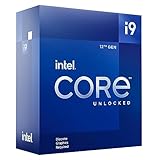
- Built for the Next Generation of Gaming. Game and multitask without compromise powered by Intel’s performance hybrid architecture on an unlocked processor.
- Discrete graphics required
- Compatible with Intel 600 series and 700 series chipset-based motherboards
- The processor features Socket LGA-1700 socket for installation on the PCB
- 30 MB of L3 cache memory provides excellent hit rate in short access time enabling improved system performance
When the CPU can no longer operate reliably at the voltage being supplied for a particular workload, the visible result can be a repeated application crash, a lock-up, or a system freeze. A BIOS update can reduce the conditions that promote further degradation, but it cannot electrically restore a processor that has already degraded.
The four conditions Intel identified
- Motherboard power settings above Intel’s guidance. Some boards used aggressive power limits or performance profiles rather than Intel’s recommended operating parameters. Intel’s mitigation is to select the board’s Intel Default Settings profile.
- An eTVB microcode algorithm. On certain 13th- and 14th-generation Core i9 desktop processors, the algorithm allowed higher performance states to continue at high temperatures. Intel addressed this behavior with microcode 0x125, released in June 2024.
- An SVID microcode algorithm. This could request high voltages for a problematic frequency and duration. Intel addressed it with microcode 0x129, released in August 2024.
- Elevated voltage requests during idle or light activity. Later investigation found that BIOS and microcode behavior could request higher core voltages even when the processor was lightly loaded. Microcode 0x12B, released in September 2024, incorporated the earlier mitigations and addressed this additional behavior.
That history matters because “the motherboard was overvolting the CPU” is an incomplete explanation. Motherboard settings were one contributing factor, but Intel also identified multiple voltage-request and performance-state behaviors in its own firmware and microcode.
What microcode 0x12F changes
Microcode 0x12F is a supplement to the 0x12B mitigation, not a replacement for it. Intel released it on May 1, 2025 after receiving a limited number of reports from systems running for several days under low-activity or lightly threaded workloads.
The Tool Desk
Outbyte PC Repair FREERepair Windows errors before they cause bigger problemsFix Now →Outbyte Driver Updater FREEScan for outdated or missing drivers - takes under a minuteDriver Scan →Intel says 0x12F does not change the root-cause diagnosis. It also reported no measurable performance impact in its internal testing. Real-world results still depend on the processor, motherboard, cooling, power limits, memory configuration, and workload.
The practical target is therefore straightforward: install a motherboard or system BIOS that contains microcode 0x12F or later, then use the Intel Default Settings option where the firmware provides it.
Also popular on Amazon

- Game and multitask without compromise powered by Intel’s performance hybrid architecture on an unlocked processor.
- Discrete graphics required
- Compatible with Intel 600 series and 700 series chipset-based motherboards
- Intel and reg; Core and reg; i5 processor offers hyper-threading architecture that delivers high performance for demanding applications with improved onboard graphics and turbo boost
- The processor features Socket LGA-1700 socket for installation on the PCB
How to protect an affected desktop
- Identify the exact processor and motherboard. In Windows, press
Win + R, entermsinfo32, and check the Processor and BaseBoard fields. You can also use a utility such as CPU-Z, or check the model printed on the processor box. - Open the manufacturer’s support page. Search for the exact motherboard model—not merely the chipset—and open its BIOS or firmware downloads. For a prebuilt desktop, use the system manufacturer’s support page instead.
- Read the BIOS release notes. Look for references to Intel 0x12F, Vmin Shift Instability, 13th/14th Gen desktop stability, or updated Intel microcode. The BIOS version number alone does not tell you which microcode it contains.
- Update the BIOS using the vendor’s documented method. This may involve a built-in utility such as ASUS EZ Flash, MSI M-Flash, Gigabyte Q-Flash, or ASRock Instant Flash. Keep the system connected to reliable power and do not interrupt the update.
- Load Intel Default Settings. The wording and location differ by firmware. It may be under an overclocking, performance, CPU power, or advanced settings page. Do not assume that “Optimized Defaults” and “Intel Default Settings” are identical; select the specifically labeled Intel profile when available.
- Test the system at stock settings. Remove manual overclocks, undervolts, enhanced turbo settings, and unusually aggressive motherboard power profiles while troubleshooting.
The microcode is delivered through the BIOS or system firmware. It is not a standalone Windows application that can be downloaded and installed separately.
Which processors and systems are affected?
The issue concerns certain 13th- and 14th-generation Intel Core desktop processors. Intel says 13th- and 14th-generation mobile processors are not affected by this specific issue. Later Lunar Lake and Arrow Lake client families are also outside this problem.
Do these 3 things before closing this tab:
1Clear out junk files and repair common Windows errors2Fix the driver behind crashes, sound loss and screen glitches3Repair Windows errors before they cause bigger problemsThe affected desktop product range is broader than Core i9. Intel’s current issue guidance covers selected Core i5, i7, and i9 desktop models. Examples from Intel’s published extended-warranty list include:
| Generation | Examples of listed desktop models |
|---|---|
| 13th Gen | Core i9-13900K, 13900KF, 13900KS, 13900F and 13900; Core i7-13700K, 13700KF, 13700F, 13700 and 13790F; Core i5-13600K and 13600KF |
| 14th Gen | Selected Core i9-14900-series, Core i7-14700-series and Core i5-14600K/KF processors |
This is not a complete eligibility list. Check the exact model against Intel’s current support documentation, particularly before submitting a warranty claim. A 13th- or 14th-generation product name by itself does not establish eligibility.
What symptoms should owners look for?
Intel’s documented symptoms are repeated application crashes and system freezes. A game, browser, compiler, or other demanding program may fail repeatedly, or the entire computer may become unresponsive. Instability can also appear only after long periods of operation or under a particular workload.
Also popular on Amazon

- Game without compromise. Play harder and work smarter with Intel Core 14th Gen processors
- 24 cores (8 P-cores plus 16 E-cores) and 32 threads. Integrated Intel UHD Graphics 770 included
- Leading max clock speed of up to 6.0 GHz gives you smoother game play, higher frame rates, and rapid responsiveness
- Compatible with Intel 600-series (with potential BIOS update) or 700-series chipset-based motherboards
- DDR4 and DDR5 platform support cuts your load times and gives you the space to run the most demanding games
These symptoms do not prove Vmin Shift Instability. Unstable memory settings, a failing power supply, inadequate cooling, motherboard defects, corrupt system files, graphics drivers, and ordinary software bugs can look similar. Troubleshooting should therefore include returning the BIOS to conservative settings, checking temperatures, testing memory, and updating drivers—but affected processors should not be dismissed simply because a basic stress test passes.
Recommended Free Tools
A system that becomes stable after the BIOS update is not proof that it was never exposed to the problem. The mitigation reduces further exposure; it does not reverse existing degradation. If crashes continue after updating the BIOS and using Intel Default Settings, document the failures and pursue a replacement rather than repeatedly increasing voltage or disabling the safeguards.
Warranty and replacement options
Intel extended the warranty by two years for eligible processors affected by the instability issue, for a maximum of five years from the original purchase date. A replacement does not restart that period; the warranty continues to be measured from the original purchase date.
| How you bought the processor | Where to start |
|---|---|
| Prebuilt desktop or OEM system | Contact the system manufacturer. The manufacturer normally handles the processor and complete-system warranty. |
| Boxed retail processor | Contact Intel Customer Support and provide the processor model, proof of purchase, and requested troubleshooting information. |
| Tray processor | Contact the retailer or system builder that sold it. OEM and reseller warranty rules apply. |
Before contacting support, record the exact CPU model, serial number if available, purchase date, motherboard model, current BIOS version, and examples of the crashes or freezes. Keep the original proof of purchase. If the processor is inside a prebuilt machine, do not assume Intel will be the correct first contact.
Common claims that are now out of date
- “Intel has only just found the cause.” The formal root-cause announcement was made in September 2024. The current update concerns the 0x12F mitigation and ongoing support guidance.
- “Microcode 0x129 was the final fix.” It was followed by 0x12B and then 0x12F. Intel currently recommends 0x12F or later.
- “Only Core i9 processors are affected.” The highest-profile reports involved Core i9 chips, but Intel’s affected desktop categories include selected Core i5, i7, and i9 processors.
- “A BIOS update repairs a damaged CPU.” It limits the operating conditions that can cause further instability. It cannot reverse degradation that has already occurred.
- “The fix is a Windows update.” The relevant microcode arrives through the motherboard or system BIOS.
- “The update causes a major performance loss.” Intel reported performance within run-to-run variation in its comparisons, although results vary by system configuration.
FAQ
Does every 13th- or 14th-generation Intel processor have this problem?
No. The issue affects certain 13th- and 14th-generation Core desktop processors. Intel says the relevant mobile processors and later Lunar Lake and Arrow Lake client families are unaffected. Check the exact desktop model against Intel’s current list.
Also popular on Amazon

- Game Without Compromise. Play harder and work smarter with Intel Core 14th Gen processors
- 20 cores (8 P-cores plus 12 E-cores) and 28 threads. Integrated Intel UHD Graphics 770 included
- Up to 5.6 GHz with Turbo Boost Max Technology 3.0 gives you smooth game play, high frame rates, and rapid responsiveness
- Compatible with Intel 600-series (with potential BIOS update) or 700-series chipset-based motherboards
- DDR4 and DDR5 platform support cuts your load times and gives you the space to run the most demanding games
How do I check whether my BIOS includes microcode 0x12F?
Check the motherboard or system manufacturer’s BIOS release notes for a reference to Intel microcode 0x12F or later. BIOS setup screens do not always display the microcode revision clearly, so the manufacturer’s documentation is usually the most reliable route.
Will updating the BIOS fix a CPU that is already crashing?
It may prevent further exposure and can improve stability if the processor has not degraded. It cannot restore a CPU that has already suffered Vmin Shift degradation. Continued crashes after the update may justify a warranty exchange.
Should I use Intel Default Settings even if my computer is stable?
Yes, if your motherboard provides that profile and you are using an affected desktop processor. Intel recommends the profile because it keeps the board within Intel’s intended power guidance. Remove manual overclocks and aggressive enhancement settings while troubleshooting.
The Bottom Line
Intel’s explanation is now specific: voltage and temperature stress can age a clock-tree circuit in certain 13th- and 14th-generation desktop Core CPUs, shifting the minimum voltage required for reliable operation. The remedy is not a Windows patch or a single magic setting. Update the motherboard or system BIOS to one containing microcode 0x12F or later, select Intel Default Settings, and monitor the system at stock configuration. If crashes or freezes continue, treat the processor as potentially degraded and use the appropriate Intel, OEM, or retailer warranty route.
Quick wins for a faster PC:
Clear out junk files and repair common Windows errorsFree Scan →Fix the driver behind crashes, sound loss and screen glitchesFind Drivers →Repair Windows errors before they cause bigger problemsFix Now →Quick Recap
Product prices and availability are accurate as of the date/time indicated and are subject to change. Any price and availability information displayed on Amazon at the time of purchase will apply.

