
Do these 3 things before closing this tab:
1Scan for outdated or missing drivers - takes under a minute2Repair Windows errors before they cause bigger problems3Fix the driver behind crashes, sound loss and screen glitchesiTechGuides is reader-supported. When you buy through links on our site, we may earn an affiliate commission. As an Amazon Associate I earn from qualifying purchases. Learn more
Do you want to update a device driver on your Windows PC but don’t know how? This guide features numerous methods to update drivers in Windows 11.
Option 1: Update Drivers Through Device Manager
The most common method to update drivers on your Windows 11 computer is through the device manager. The following steps and screenshots demonstrate how to update drivers through the device manager.
- On the taskbar, right-click the Start button, then select Device Manager from the displayed option.

- When Device Manager opens, locate and right-click the device driver you wish to update. Then, select Update driver from the options that appear – for this demonstration, I will update the Intel(R) HD Graphics 4000 display driver of my PC.

- Afterward, select Search automatically for drivers in the Update Drivers window that appears.

- Consequently, Windows will start to search the internet for the latest driver for your PC and automatically install it. Therefore, ensure your computer is connected to the internet during this procedure.

- After successfully updating your device driver, restart your PC to finalize the installation.
Option 2: Update Drivers via Windows Update
You can also update a device driver on your Windows 11 computer through the Windows update. To do that, follow the steps and screenshot images below.
Recommended Free Tools
- On the Windows 11 taskbar, right-click the Start button and click Settings from the options that pop up.

- When the Settings window opens on your computer, select Windows Update on the left pane.

- Then, click Advanced options on the right pane.

- Following that, click Optional updates under Additional options.

- Next, select Driver updates. Then, under Driver updates, check the box of the device driver you want to update.

- Lastly, click the Download & install button. Thus, Windows 11 will start downloading the driver update from the internet and install it automatically on your PC.

- After updating the device driver, restart your Windows 11 computer.
Option 3: Update Drivers Using a Third-party Application
There are various third-party applications for updating drivers in Windows 11. However, I suggest you use the IObit Driver Booster application.
Popular on Amazon
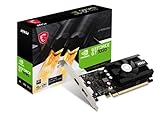
- Chipset: NVIDIA GeForce GT 1030
- Video Memory: 4GB DDR4
- Boost Clock: 1430 MHz
- Memory Interface: 64-bit
- Output: DisplayPort x 1 (v1.4a) / HDMI 2.0b x 1
That application is a free and safe third-party application that allows users to update drivers in Windows OS. The following sub-sections demonstrate how to download, install, and use the application to update drivers in Windows 11.
Step 1: Download and Install IObit Driver Booster
- Firstly, click this link (the link opens in a new tab). Hence, select the green Free Download button on the web page that the link directs you to.

- Consequently, the installation file of the IObit Driver Booster application should start to download on your PC. After the installation file has been downloaded on your PC, locate the file – the name of the installation file should be driver_booster_setup.

- Then, double-click the installation file to begin the installation process of the IObit Driver Booster app. Hence, you will receive a prompt requesting access to allow the app to make changes to your device – select Yes to continue.
- On the app’s installation window, click the red Install button at the center.

- After doing that, the installation app will ask you to install another application during installation. Thus, select No, thanks and click the Next button.

- Finally, the IObit Driver Booster application will begin to install on your Windows 11 computer.

Step 2: Update Drivers 11 Using the IObit Driver Booster App
After installing the IObit Driver Booster app on your PC, follow the steps below to update drivers with the app.
- On the Windows 11 taskbar, click the Search button and type “driver booster 10” in the search box. Then, from the search result, click the Driver Booster 10 application to open it.

- When the application opens, click the huge Scan button at the center. Hence, the app will begin scanning to check the status of your computer’s drivers – see the second screenshot below.


- After the scan, the app will list every outdated driver on your computer. Hence, check the box of the device driver(s) you wish to update and click the Update Now button at the top right corner.

- Consequently, the application will begin to update the selected device driver(s).

- After the update, restart your computer.
Frequently Asked Questions
In my opinion, the best free driver updater application for Windows 11 is IObit Driver Booster. Other notable free driver updater apps include Avast Driver Updater, Driver Easy, and WinZip Driver Updater.
Quick wins for a faster PC:
Fix the driver behind crashes, sound loss and screen glitchesFind Drivers →Repair Windows errors before they cause bigger problemsFix Now →Scan for outdated or missing drivers - takes under a minuteDriver Scan →If your laptop doesn’t meet the requirements to install Windows 11, it is most likely to slow down when running Windows 11.
Also popular on Amazon

- Powered by NVIDIA GeForce GT 610, 40nm chipset process with 523MHz core frequency, integrated with 2048MB DDR3 memory and 64-bit bus width
- Compatible with windows 11 system, no need to download driver manually
- HDMI / VGA 2 ports output available. HDMI Max Resolution-2560x1600, VGA Max Resolution-2048x1536
- Support DirectX 11, OpenCL, CUDA, DirectCompute 5.0
- Original half height bracket matches with the low profile brackets make the Glorto GeForce GT 610 graphics card fit well with all PC tower, small form factor and HTPC(except micro form factor)
Read our How To Update Graphics Driver In Windows 11 article to discover various methods to update the graphics driver in Windows 11.
Your computer needs to have a minimum of 4 GB RAM to install the Windows 11 OS. However, for optimal performance, your computer must have 8 GB RAM or more.
The Windows 11 OS was released by Microsoft on October 5, 2021.
Conclusion
Device drivers are very essential in every Windows computer. Without them, your computer will not function properly.
Also popular on Amazon

- 【4GB VRAM for Smooth Multitasking】: Equipped with 4GB DDR3 memory and a 128-bit bus width, this GT 740 provides a significant performance boost over standard 2GB models. It ensures smooth 1080P video playback and lag-free performance for office multitasking and basic graphic design.
- 【Triple Display Versatility (HDMI+DVI+VGA)】: Features a comprehensive output interface including HDMI, DVI, and VGA ports. Connect to modern monitors or legacy projectors without needing expensive adapters. Ideal for setting up a dual-monitor workstation to increase productivity.
- 【The Perfect Legacy PC Upgrade】: An excellent, cost-effective solution for reviving older desktop PCs. This card supports DirectX 12 (11_0) and is fully compatible with Windows 11/10/7, making it the go-to choice for upgrading from integrated graphics to a dedicated GPU.
- 【Low Power & Plug-and-Play】: Designed for high efficiency, this graphics card draws all its power directly from the PCIe slot with no external power connector required. It is compatible with standard power supplies, making installation quick and hassle-free.
- 【Quiet & Reliable Cooling System】: Built with an optimized heatsink and a low-noise cooling fan that maintains stable temperatures even during extended use. Perfect for building a Quiet Office PC or a dedicated HTPC for the living room.
Besides, outdated device drivers can cause various problems for your Windows 11 computer. Gladly, this guide provided multiple methods to update drivers in Windows 11.
Specifically, we discussed how to update drivers via the device manager and Windows update. As a matter of fact, this guide also taught us how to perform the task using a third-party application.
I hope you found this guide helpful. If you did, click on “Yes” beside the “Was this page helpful” question below.
Free tools Windows power users keep installed
One-click scans. No signup required.
You may also express your thoughts and opinions by using the “Leave a Comment” form at the bottom of this page.
Finally, for more Windows 11 Itechguides, visit our Windows 11 How-To page.