
The Tool Desk
Outbyte Driver Updater FREEFix the driver behind crashes, sound loss and screen glitchesFind Drivers →Outbyte PC Repair FREEClear out junk files and repair common Windows errorsFree Scan →iTechGuides is reader-supported. When you buy through links on our site, we may earn an affiliate commission. As an Amazon Associate I earn from qualifying purchases. Learn more
Undervolting reduces the voltage a CPU requests at a given performance level. Done correctly, it can lower power use and temperatures, reduce fan noise, or help a processor maintain boost clocks within a thermal limit. Done carelessly, it can cause calculation errors, WHEA hardware events, application crashes, reboots, corrupted files, or a system that will not boot.
There is no universally safe undervolt. The stable value depends on the individual CPU, motherboard firmware, cooling, memory settings, workload, and the control being used. Intel Core Voltage Offset and AMD Curve Optimizer are also different features: an offset changes voltage behavior directly, while Curve Optimizer shifts the processor’s voltage/frequency curve.
This guide uses current procedures and software behavior as of August 2026. Make a backup before tuning, and treat every setting beyond stock behavior as experimental until it has passed testing.
Free tools Windows power users keep installed
One-click scans. No signup required.
Before you start: check your platform
Undervolting controls are not available on every desktop, laptop, CPU, motherboard, or BIOS version. Laptop manufacturers commonly hide voltage controls, and newer processors may enforce a minimum voltage through firmware or microcode.
Popular on Amazon
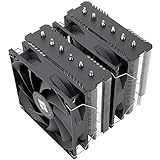
- [Brand Overview] Thermalright is a Taiwan brand with more than 20 years of development. It has a certain popularity in the domestic and foreign markets and has a pivotal influence in the player market. We have been focusing on the research and development of computer accessories. R & D product lines include: CPU air-cooled radiator, case fan, thermal silicone pad, thermal silicone grease, CPU fan controller, anti falling off mounting bracket, support mounting bracket and other commodities
- [Product specification] Thermalright PA120 SE; CPU Cooler dimensions: 125(L)x135(W)x155(H)mm (4.92x5.31x6.1 inch); heat sink material: aluminum, CPU cooler is equipped with metal fasteners of Intel & AMD platform to achieve better installation, double tower cooling is stronger((Note:Please check your case and motherboard for compatibility with this size cooler.)
- 【2 PWM Fans】TL-C12C; Standard size PWM fan:120x120x25mm (4.72x4.72x0.98 inches); fan speed (RPM):1550rpm±10%; power port: 4pin; Voltage:12V; Air flow:66.17CFM(MAX); Noise Level≤25.6dB(A), leave room for memory-chip(RAM), so that installation of ice cooler cpu is unrestricted
- 【AGHP technique】6×6mm heat pipes apply AGHP technique, Solve the Inverse gravity effect caused by vertical / horizontal orientation, 6 pure copper sintered heat pipes & PWM fan & Pure copper base&Full electroplating reflow welding process, When CPU cooler works, match with pwm fans, aim to extreme CPU cooling performance
- 【Compatibility】The CPU cooler Socket supports: Intel:115X/1200/1700/17XX AMD:AM4;AM5; For different CPU socket platforms, corresponding mounting plate or fastener parts are provided(Note: Toinstall the AMD platform, you need to use the original motherboard's built-in backplanefor installation, which is not included with this product)
Intel 13th- and 14th-generation desktop CPUs
If you have an affected Intel 13th- or 14th-generation desktop processor, do not use undervolting as a replacement for Intel’s stability mitigation. First:
- Update the motherboard BIOS to a release containing Microcode 0x12F or later, if one is available for your board.
- Load the relevant Intel Default Settings profile.
- Only then consider additional tuning.
Intel identifies the latest microcode and Intel Default Settings as part of its response to Vmin Shift Instability. Eligible affected processors may also receive extended warranty coverage of up to five years from the original purchase date. See Intel’s support information.
Intel Undervolt Protection
Intel Undervolt Protection (UVP) applies to 12th-generation Intel Core processors and newer. It can prevent voltage from falling below a BIOS- or boot-time voltage floor. Intel XTU may still display an editable voltage control; a yellow lightning-bolt icon indicates that UVP restricts the setting.
UVP is enabled by default. Disabling it is not recommended because it can create security and stability risks, and whether it can be disabled depends on the CPU, motherboard, BIOS, and OEM. Details are available in Intel’s UVP documentation.
Step 1: establish a stock baseline
Do not begin with XMP or EXPO enabled. Memory overclocking introduces another possible source of errors and makes it harder to identify whether the CPU undervolt is responsible.
- Enter BIOS/UEFI.
- Load the motherboard’s default or optimized settings.
- Temporarily disable XMP on Intel systems or EXPO on AMD systems.
- Boot into Windows and record idle temperature, load temperature, CPU package power, effective core clocks, and a benchmark result.
- Check whether Windows already contains WHEA hardware errors.
Use a consistent workload for the baseline. Record the test name, duration, room temperature, and result so that you can compare the undervolted configuration later. A lower temperature is useful only if performance and reliability remain intact.
Check WHEA errors in Event Viewer
WHEA errors are recorded in the Windows System log. Open:
Windows Errors? Fix Them Before They Spread
Repair common Windows errors and clear accumulated junk for a smoother, more stable PC - no reinstall needed.Free scan · no reinstallOutdated Drivers Are Slowing You Down
One free scan finds every outdated or missing driver and matches the right update for your exact hardware.Free scan · exact hardware matchEvent Viewer
→ Windows Logs
→ System
→ Filter Current Log…
→ Event sources: WHEA-LoggerThe provider is named Microsoft-Windows-WHEA-Logger. A WHEA event is evidence that Windows detected a hardware-level error, but it does not prove that the CPU alone is defective; cache, memory, and system-bus conditions can also be involved.
Check WHEA errors with PowerShell
Open PowerShell as administrator and run:
Get-WinEvent -FilterHashtable @{
    LogName='System'
    ProviderName='Microsoft-Windows-WHEA-Logger'
} -MaxEvents 50 |
Format-List TimeCreated, Id, LevelDisplayName, Message
Check the log again after each significant test stage. Corrected errors still matter when evaluating an undervolt; a system that quietly reports hardware corrections is not demonstrating a clean result.
How to undervolt an Intel CPU
Method 1: Intel Extreme Tuning Utility
Intel Extreme Tuning Utility (XTU) is convenient for testing because you can apply a setting in Windows and quickly return to the previous value. It is not supported on every Intel platform.
Also popular on Amazon
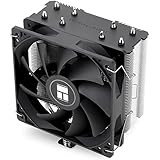
- [Brand Overview] Thermalright is a Taiwan brand with more than 20 years of development. It has a certain popularity in the domestic and foreign markets and has a pivotal influence in the player market. We have been focusing on the research and development of computer accessories. R & D product lines include: CPU air-cooled radiator, case fan, thermal silicone pad, thermal silicone grease, CPU fan controller, anti falling off mounting bracket, support mounting bracket and other commodities
- [Product specification]AX120R SE; CPU Cooler dimensions: 125(L)x71(W)x148(H)mm (4.92x2.8x 5.83 inch); Product weight:0.645kg(1.42lb); heat sink material: aluminum, CPU cooler is equipped with metal fasteners of Intel & AMD platform to achieve better installation
- 【PWM Fans】TL-C12C; Standard size PWM fan:120x120x25mm (4.72x4.72x0.98 inches); fan speed (RPM):1550rpm±10%; power port: 4pin; Voltage:12V; Air flow:66.17CFM(MAX); Noise Level≤25.6dB(A), the fan pairs efficient cool with low-noise-level, providing you an environment with both efficient cool and true quietness
- 【AGHP technique】4×6mm heat pipes apply AGHP technique, Solve the Inverse gravity effect caused by vertical / horizontal orientation. Up to 20000 hours of industrial service life, S-FDB bearings ensure long service life of air-cooler radiators. UL class a safety insulation low-grade, industrial strength PBT + PC material to create high-quality products for you. The height is 148mm, Suitable for medium-sized computer case
- 【Compatibility】The CPU cooler Socket supports: Intel:1150/1151/1155/1156/1200/1700/17XX/1851,AMD:AM4 /AM5; For different CPU socket platforms, corresponding mounting plate or fastener parts are provided
Apply a Core Voltage Offset in XTU
- Install Intel XTU from Intel’s official download page.
- Open Intel Extreme Tuning Utility.
- Select Advanced Tuning.
- Find Core Voltage Offset.
- Enter a small negative value.
- Click the yellow Apply button.
- Run a short stress test and check temperatures, effective clocks, crashes, and WHEA events.
Intel recommends changing voltage by no more than 0.05 V at a time. For a cautious first pass, use smaller increments such as 0.010 V to 0.025 V. These are practical testing increments, not guaranteed-safe values.
If the system remains stable, apply one further small reduction and test again. If it fails, return to the last known-good value rather than trying to recover by making several changes at once.
Run the XTU stress test
Intel XTU
→ Stress Test
→ Select CPU, Memory, or Integrated Graphics
→ Choose the duration
→ Start
Use approximately five minutes for an initial check, around 30 minutes for a stronger first test, and several hours for a configuration intended for continuous use. XTU’s stress test can run for much longer, but passing one heavy all-core test is not enough. Lightly threaded boost transitions, idle, sleep/resume, browsers, games, and normal applications can expose failures that an all-core workload misses.
When XTU controls are missing or ineffective
- The processor or motherboard may not support XTU voltage controls.
- Desktop full-overclocking controls generally require a supported unlocked processor and compatible overclocking chipset.
- Laptop firmware may remove voltage controls.
- BIOS UVP may block the change.
- Windows VBS/HVCI or an OEM security policy may interfere.
- A yellow lightning-bolt icon may mean the value cannot go below the protected voltage floor.
If XTU accepts a number but voltage, power, or behavior does not change, assume the setting has not been applied until you verify it. Do not disable security protections merely to force an undervolt.
Method 2: Intel BIOS/UEFI voltage offset
BIOS tuning is normally preferable for a persistent configuration because it is applied before Windows starts. Menu names vary by manufacturer, chipset, CPU generation, BIOS release, and whether the system is a desktop or laptop.
ASUS-style Intel path
BIOS/UEFI
→ Advanced Mode
→ Ai Tweaker
→ CPU Core/Cache Voltage
→ Offset Mode
→ Offset Mode Sign
→ -
→ CPU Core Voltage Offset
Where available, use adaptive or offset behavior rather than forcing one fixed voltage at every ratio. Offset mode modifies the processor’s normal voltage behavior; manual mode applies one user-defined voltage and can interfere with low-power idle states and boost behavior.
MSI-style Intel path
Some MSI boards expose:
BIOS/UEFI
→ Overclocking
→ CPU Core Voltage
→ Offset Mode
Other boards use:
BIOS/UEFI
→ Overclocking
→ CPU Lite Load Control
CPU Lite Load is not a simple voltage slider. It changes AC load-line behavior used to calculate or request voltage. Lower modes may reduce power, but a mode that is stable on one processor may fail on another. MSI recommends stepping down gradually and validating the lowest stable mode.
ASRock-style Intel path
BIOS/UEFI
→ OC Tweaker
→ Voltage Configuration
→ CPU CORE/Cache Voltage
→ Offset Mode
ASRock boards commonly offer Auto, Offset Mode, and Fixed Mode in this area, although the exact fields differ between models and BIOS releases.
For any manufacturer, consult the manual for the exact board model and search for CPU Core Voltage, CPU Core/Cache Voltage, Offset Mode, Adaptive + Offset, CPU Lite Load, or CPU AC Loadline. There is no universal BIOS path.
Recommended Free Tools
How to undervolt an AMD Ryzen CPU
Preferred method: Curve Optimizer
On supported Ryzen processors, Curve Optimizer is generally the preferred undervolting control. It shifts the voltage/frequency curve toward lower voltage rather than applying a simple fixed voltage offset.
Also popular on Amazon

- 【Better Heat Dissipation】The CPU cooler comes with a dual-tower heatsink and two 120mm PWM fans to ensure excellent heat dissipation from the CPU.
- 【Aesthetic Appeal】A blackout cooler can blend seamlessly into the design of many computer cases, especially those with black or dark-colored interiors.
- 【157mm Height】The dual-tower CPU air cooler can fit most tower cases due to a 157mm height in total.
- 【RAM Compatibility】The CPU air cooler gives 40mm clearance for standard RAM and a maximum of 63mm height with the cut-out fin.
- 【6 Heat Pipes】Six Ф6mm copper heat pipes can efficiently absorb heat from the CPU and transfer it to the heatsink.
The current Ryzen Master documentation is for version 3.1.0, released May 20, 2026, and supports 64-bit Windows 10 and Windows 11.
Apply Curve Optimizer in Ryzen Master
- Install the current AMD Ryzen Master version supported by your system. AMD recommends updating the motherboard BIOS and loading BIOS defaults before installation.
- Open Ryzen Master.
- Select Tuning.
- Open the Workspace sub-tab.
- Select CPU.
- Enable Curve Optimizer.
- Choose All Cores for a simple initial test, or Per Core for precise tuning. Per Die is available only on multi-die CPUs.
- Enter a conservative negative value.
- Click Apply.
- Test the system before making the negative value larger.
Increase the negative value gradually. If one core produces errors, reduce that core’s negative value instead of weakening every core. Individual cores do not necessarily tolerate the same curve setting.
Use Ryzen Master’s automatic optimizer carefully
Where supported, Ryzen Master can derive Curve Optimizer values automatically. Treat the result as a starting point, not a stability guarantee. AMD notes that longer stress-test durations can produce more stable derived values, while short tests can produce values that later fail.
Do these 3 things before closing this tab:
1Fix the driver behind crashes, sound loss and screen glitches2Repair Windows errors before they cause bigger problems3Scan for outdated or missing drivers - takes under a minuteRun the Ryzen Master stress test
Ryzen Master
→ ⋮
→ Stress Test
→ Hardware: System, CPU, or RAM
→ Stress Test Duration
→ Start
The current documented duration range is 10 to 600 seconds. AMD warns that the system can crash or reboot and that the display may flicker. Some processors may not be fully stressed immediately, so increase the duration when a short run appears unusually easy.
You can also use:
System
→ Apply & Test
This applies the current profile and runs the configured test.
AMD BIOS Curve Optimizer path
Common BIOS locations include:
BIOS/UEFI
→ Advanced
→ AMD Overclocking
→ Precision Boost Overdrive
→ Curve Optimizer
→ All Core or Per Core
→ Negative
→ Magnitude
Some boards instead use:
BIOS/UEFI
→ OC Tweaker
→ Precision Boost Overdrive
→ Curve Optimizer
These are examples, not universal instructions. Use the manual for the installed motherboard and BIOS version.
Older AMD CPUs and conventional offsets
Older Ryzen systems or boards without Curve Optimizer may expose a conventional CPU voltage offset. On supported MSI AMD boards, the general concept is:
BIOS/UEFI
→ CPU Core Voltage
→ Offset Mode
→ CPU Offset Voltage
Do not confuse CPU Core Voltage with SoC Voltage. Core voltage affects CPU cores; SoC voltage affects the memory controller and related functions. Lowering SoC voltage unnecessarily can cause memory-training failures, boot loops, and RAM errors. Leave it alone unless you have a platform-specific reason and verified documentation for that exact CPU.
A stability-testing procedure that is worth trusting
Use this sequence for every meaningful change:
- Record the stock result.
- Change one voltage or curve setting only.
- Run a short test to catch immediate crashes and excessive temperatures.
- Run a longer sustained CPU test.
- Test idle, browser use, and lightly threaded workloads.
- Test restart, cold boot, and sleep/resume.
- Check WHEA-Logger events.
- Test the games, applications, and file operations you actually use.
- Only after the CPU setting is stable, re-enable XMP or EXPO.
- Repeat the tests with memory overclocking enabled.
Use multiple workload types:
- A short CPU stress test for immediate errors and temperatures.
- A sustained all-core test for heavy-load stability.
- A variable or mixed-load test for voltage-transient behavior.
- A lightly threaded test for per-core boost stability.
- Real games and applications.
- Sleep/resume and cold-boot testing.
OCCT’s variable CPU test uses different operands for at least 10 minutes each. Its CPU + RAM test can implicate the CPU, memory, or power supply, so it is useful for finding a problem but not always for isolating its cause.
Stop testing and revert to the last known-good setting after a blue screen, unexpected reboot, application crash, WHEA event, stress-test calculation error, freeze, failed sleep resume, failed cold boot, corrupted file, failed archive/checksum operation, or unexplained performance loss.
Also popular on Amazon

- [5-inch IPS LCD Screen] The radiator features a magnetic top cover with a built-in display, offering a resolution of 480x854. It allows real-time monitoring of various system parameters and, combined with the TRCC control software, supports custom background themes for personalized display.
- [Excellent Cooling Performance] The CPU cooler is primarily composed of a dual-tower design, two fans, and a magnetically attached top cover featuring a 5-inch IPS LCD screen. Six pure copper heat pipes paired with a nickel-plated copper base ensure optimal contact with the CPU. Combined with a high-speed rotation of 2150 RPM, this configuration delivers superior cooling efficiency for the heatsink.
- [Heatsink Specifications] Overall dimensions of the CPU cooler: 125x135x164mm (LxWxH), fan dimensions: 120x120x25mm, fan speed: 2150 RPM±10%, airflow: 69 CFM, operating noise ≤27 dB(A), fan power interface: 4-pin PWM, RGB interface: 5V 3-pin ARGB. The dual fans included with the heatsink feature S-FDB V2 bearings, known for their longevity, ensuring sustained cooling performance over time.
- [AGHP Heat Pipe Technology] The 6x6mm heat pipes utilize AGHP Gen 5.0 technology, effectively countering the adverse effects of gravity in both vertical and horizontal orientations. The pure copper heat pipes, combined with a nickel-plated micro-engraved copper base via reflow soldering, enhance cooling performance across dual platforms while accommodating GPU and RAM clearance with a designed offset.
- [164mm Height] The heatsink cooler stands at 164mm in height, ensuring compatibility with mainstream ATX cases. The cooling towers feature a matte black coating, while the magnetic top cover incorporates a display screen, blending high-performance cooling with innovative design. The dual-tower, dual-fan layout is engineered for seamless compatibility with tall RAM heat spreaders and GPU installations.
A benchmark score is not a stability test. An undervolt can lower temperatures while still producing incorrect calculations or reducing effective clocks through clock stretching or protection mechanisms. Compare effective clocks and benchmark results with the stock baseline.
What’s actually slowing this PC down?
Pick the symptom - the matching free tool is one click away.
How to recover from a failed undervolt
If Windows still starts
- Open the tuning application.
- Load the previous known-good profile or return the voltage control to default.
- Click Apply, if required.
- Reboot.
- Check WHEA logs again.
In Ryzen Master 3.1.0, use:
⋮
→ Reset CPU Hardware
→ Restart
This resets hardware tuning settings and requires a restart.
If the system crashes before Windows loads
- Power the system off.
- Enter BIOS/UEFI.
- Load optimized or default settings.
- Save and reboot.
- If the settings remain stuck or BIOS cannot be entered, follow the motherboard manual’s CMOS-clear procedure.
- Test at stock before attempting another undervolt.
A low-voltage setting does not normally physically damage a CPU simply because the voltage is low. However, repeated crashes can cause data loss, and an unstable system should not be used for important work until it has been returned to a known-good configuration.
Common undervolting failure modes
| Symptom | Likely explanation |
|---|---|
| XTU accepts an offset but nothing changes | UVP, VBS/HVCI, OEM firmware restrictions, or an unsupported platform may be blocking it. |
| BSOD during idle or light use | A low-voltage or per-core boost state is unstable even though all-core load passed. |
| Stress test passes but games crash | The game uses different boost states, instruction mixes, cache behavior, or transient loads. |
| Random WHEA errors | The undervolt is marginal. A corrected error is still a reason to reduce the undervolt. |
| Boot loop after a BIOS change | The firmware cannot initialize the CPU or memory at the selected setting. |
| Lower voltage reduces benchmark performance | Clock stretching, current protection, power-limit interaction, or insufficient voltage may be reducing effective clocks. |
| Ryzen Master shows only monitoring controls | The CPU, motherboard, APU, or BIOS does not permit overclocking controls. |
| EXPO or XMP fails after CPU tuning | Memory overclocking adds another variable and may reduce the system’s remaining stability margin. |
| Lowering SoC voltage causes RAM errors | SoC voltage is separate from CPU-core voltage and affects memory-controller-related functions. |
| A 13th- or 14th-generation Intel system remains unstable | Vmin Shift Instability or prior processor degradation may be involved. Undervolting is not a repair. |
FAQ
What is a safe CPU undervolt?
There is no universal safe value. Start with a small change, such as a 0.010 V to 0.025 V Intel offset increment or a conservative AMD Curve Optimizer value, then test thoroughly. The correct limit is the lowest setting that remains error-free across heavy load, light load, idle, sleep/resume, cold boot, and normal applications.
Is undervolting dangerous?
It normally does not damage a CPU merely because the voltage is lower, but an unstable undervolt can cause incorrect calculations, crashes, data loss, boot failure, or corrupted files. Back up important data and keep a known-good setting.
Why does my Intel undervolt not apply in XTU?
Intel Undervolt Protection, BIOS configuration, Windows VBS/HVCI, OEM firmware restrictions, or an unsupported platform may prevent it. A yellow lightning-bolt icon in XTU indicates that UVP may be enforcing a voltage floor.
Is AMD Curve Optimizer the same as a voltage offset?
No. Curve Optimizer shifts the CPU’s voltage/frequency curve toward lower voltage when using a negative value. It is not the same as forcing one fixed voltage or applying a conventional offset.
How long should I test an undervolt?
Use a short test for obvious failures, a longer sustained test for heavy-load stability, and then test real applications, idle, light workloads, sleep/resume, and cold boot. A 10-minute test or benchmark score alone does not prove stability.
Should I undervolt SoC voltage on Ryzen?
Not as a routine CPU-undervolting step. SoC voltage affects the memory controller and related functions, so lowering it can cause memory errors, training failures, or boot problems. Treat it as a separate, platform-specific adjustment.
Quick wins for a faster PC:
Clear out junk files and repair common Windows errorsFree Scan →Fix the driver behind crashes, sound loss and screen glitchesFind Drivers →Repair Windows errors before they cause bigger problemsFix Now →The Bottom Line
The safest way to undervolt is to establish a stock baseline, change one control in small increments, and test more than one type of workload. Intel users may use XTU or a BIOS offset where the platform permits it; AMD Ryzen users with support should generally start with Curve Optimizer rather than a fixed voltage. Keep XMP and EXPO disabled until the CPU setting is stable, monitor WHEA-Logger events, and revert at the first sign of an error. Lower temperatures are a useful result, but they are not proof that the undervolt is reliable.

