
Quick wins for a faster PC:
Fix the driver behind crashes, sound loss and screen glitchesFind Drivers →Repair Windows errors before they cause bigger problemsFix Now →iTechGuides is reader-supported. When you buy through links on our site, we may earn an affiliate commission. As an Amazon Associate I earn from qualifying purchases. Learn more
The most dependable setup is to start with your meeting platform’s built-in transcription when your organization already standardizes on Zoom, Microsoft Teams, or Google Meet. Enable the feature before the call, confirm who is allowed to start it, notify everyone, and then turn each approved commitment into a record with an owner, due date, timestamp, and status. Choose a third-party notetaker when you need one assistant to join meetings across platforms, produce summaries automatically, or send tasks to Slack, a CRM, or a task manager. In every case, treat the transcript as source material: a person must check names, context, decisions, and privacy requirements before notes or tasks are distributed.
What is the best way to set up transcription and action-item capture?
Use a five-part workflow: select the right transcription method, check permissions and storage, announce recording or transcription, capture decisions in explicit language, and review the resulting transcript before creating tasks. Native transcription is usually simplest inside a single standardized platform. A third-party assistant is more useful for mixed Zoom, Teams, and Google Meet calendars or when automatic joining, summaries, and downstream task routing matter more than keeping all data inside the meeting platform.
- Choose the method. Pick native transcription for a platform your organization already administers. Pick an approved third-party assistant for cross-platform coverage or automation.
- Prepare the meeting. Verify the subscription or Workspace edition, organizer and administrator permissions, spoken language, storage capacity, retention rules, and participant-notice settings.
- Get informed consent. Tell participants that transcription or recording is active and follow organizational, contractual, and legal requirements. Do not allow an unapproved assistant into a meeting containing restricted information.
- Make commitments unambiguous. State the action, owner, deliverable, due date, and next checkpoint aloud.
- Review and route. Open or export the transcript, correct speaker names and context, remove tentative ideas, obtain human approval, and send the final items to the team’s task system.
Should I use native transcription or a third-party meeting assistant?
Native tools keep setup and access within the meeting service and are the sensible default for a single-platform organization. Third-party assistants add cross-platform joining, automated summaries, and integrations, but they also create another location where meeting information may be processed or retained.
The Tool Desk
Outbyte Driver Updater FREEScan for outdated or missing drivers - takes under a minuteDriver Scan →Outbyte PC Repair FREEClear out junk files and repair common Windows errorsFree Scan →| Option | Platform coverage | How it starts | Transcript handling | Automation strengths |
|---|---|---|---|---|
| Zoom native transcription | Zoom meetings | The host selects More > Transcript; participants can ask the host to start it. | The host can stop or delete the transcript. The transcript panel can be saved as a .TXT file on the local computer. |
Provides speech-to-text retention inside the meeting workflow; separate task routing is needed. |
| Microsoft Teams live transcription | Teams meetings | A participant with the required ability selects More actions > Transcribe and confirms the spoken language. Administrators can control availability with meeting policy. | Open the meeting chat, choose Recap > Transcript, and download it. Recordings and transcripts are stored in OneDrive or SharePoint subject to permissions and policy. | Speaker names and timestamps appear live; task routing normally requires a separate manual or automated step. |
| Google Meet Transcripts | Google Meet on eligible Workspace editions | Choose Meeting tools > Transcribe > Start transcription. With Host management enabled, only the host and co-hosts can start it. | The transcript is saved in the organizer’s Google Drive under the Google Meet folder with meeting-specific subfolders. It contains spoken words; chat requires recording to capture it. | Useful for a Meet-centered organization; external task routing needs another step. |
| Otter Notetaker | Zoom, Google Meet, and Microsoft Teams | Connect a Google or Microsoft calendar, authorize access, and select synchronized events for automatic joining. | The assistant joins, records, and transcribes in real time; review access and retention in its account and organizational controls. | Automated live and post-meeting summaries across supported platforms. |
| Fireflies.ai | Meetings joined through its supported calendar and conferencing integrations | Configure auto-join preferences, meeting language, recording, privacy, restrictions, and compliance notifications. | Rules can include or exclude meetings by keywords or domains; configure who receives recap email and how information is retained. | Automatic notes and action items can be routed to Slack, a CRM, or a task manager. |
Whichever option you select, define an approval owner. The person who chairs the meeting or owns the project should verify that an apparent commitment was actually agreed, rather than an idea, request, or conditional statement.
Popular on Amazon

- 【PCM Recording and Automatic Noise Reduction】:This digital voice recorder is equipped with advanced dual noise reduction microphones and supports 1536 kbps PCM HD audio recording, ensuring crystal-clear sound capture in any environment. Recorder device with automatic noise reduction and voice-activated recording, the recorder only picks up the sound when there’s speech, reducing background noise,Excellent sound quality can meet the needs of students, journalists, music lovers and more people
- 【136GB Memory and Long Battery Life】Voice Recorder with Playback with 8GB built-in storage and includes a complimentary 128GB TF card, this digital voice recorder can hold up to 9775 hours of recordings in MP3 format or WAV format;Recorder for lectures with a built-in 1100mAh rechargeable lithium battery, this voice recorder can continuously record for up to 68 hours on a single charge, making it perfect for back-to-back meetings, interviews, or extended classroom sessions
- 【One Click Record and Save】: Our voice recorder supports one click recording and saving functions. Even when the product is in a powered-off state, simply push up the side recording button to immediately enter recording mode, and push down the recording button to save the recording. This allows for capturing as much information as possible.Easily transfer your recordings to your computer using the USB-C connection, allowing for fast and secure file management
- 【Easy-to-Use】This portable voice recorder is designed with a simple, user-friendly interface featuring a large, easy-to-read LCD screen. The voice-activated recording (VOR) feature makes hands-free operation a breeze. With one-touch recording, users can start or stop recording instantly, even during busy moments. A-B repeat function and password protection ensure that important segments are easily accessible and secure
- 【Portable and Durable Design】Designed with portability in mind, this lightweight screen recorder fits comfortably in your pocket or bag, weighing only 97 grams. Its sleek and durable metal casing ensures longevity and protection from everyday wear and tear. Whether you’re traveling, in the office, or attending a lecture, this compact recorder is always ready to capture clear, high-quality audio
How do I prepare permissions, language, storage, and privacy?
Do the checks before attendees arrive. A missing plan entitlement or administrator policy is the most common reason a transcription control does not appear.
Check the service or Workspace edition
For Google Meet, Transcripts are available on Business Standard, Business Plus, Enterprise Starter, Enterprise Standard, Enterprise Plus, Teaching and Learning Upgrade, Education Plus, and Workspace Individual. The organization and host also need sufficient Google Drive space. Zoom and Teams likewise require the feature to be enabled for the account or organization; in Teams, an administrator’s meeting policy can allow or block transcription even when the user interface otherwise supports it.
Confirm who may start and stop
In Zoom, the host starts transcription and can stop or delete it; participants can request that the host begin. In Teams, the ability to start live transcription depends on the user’s permissions and the administrator’s AllowTranscription policy. In Google Meet, Host management can limit starting to the host and co-hosts. Write this responsibility into the meeting plan so nobody assumes another attendee is recording.
Set language and storage deliberately
Teams asks the starter to confirm the spoken language. Configure the meeting language in any third-party assistant and test names, accents, and specialist vocabulary in a low-risk call. Check available Drive, OneDrive, SharePoint, or local storage and apply the organization’s retention period before enabling automatic joining.
Decide which meetings are eligible for automation
Calendar-connected assistants can be convenient, but a broad rule may admit a bot to confidential calls. Define an allowlist or exclusion rule using meeting types, keywords, domains, or organizers. Fireflies exposes privacy, recording-rule, restriction-rule, and compliance-notification controls. Otter lets you select synchronized calendar events for automatic joining. Keep sensitive meetings outside these rules unless the tool is approved for that information classification.
Give participants a clear notice
Say that transcription or recording is active, identify the purpose, and explain where the resulting material will be stored and who can access it. Follow your organization’s policy and the requirements that apply to the participants’ locations, contracts, and data. A visible indicator is helpful, but an announcement is still the clearest way to avoid surprise.
Also popular on Amazon
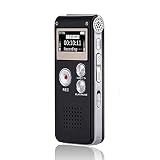
- 【Simple Operation】- switch on your voice recorder, one button for recording. press the "REC", start the recording, press "STOP", end the recording, press “PLAY”, listen what you just recorded, and then Press A-B, select your important section to repeat. Easy to playback with inner powerful speaker, support external sound speaker playback, let you enjoy superior recording quality.
- 【Clear Voice Record】- high quality recording with noise redution, you will get super clear recorded voice, the sensitive microphone help you to catch speaker's words in an interview, lectures, meetings.
- 【Voice Activated Recording】- automatic voice reduction function, it starts recording when sound is detected or turn to standby state, saving recording time and reduce power consumption.
- 【 Player Function】- this voice recorder can be used as an music player, you could enjoy the music after your tired study, meeting and so on. Also can function as a detachable data storage device.you can take along your favorite pictures and documents whenever you go.Simply cut-and-paste or drag-and -drop files to or from it via USB connection, the player will appear as a removeable drive in Windows.
- 【High quality and long time】 uses DSP noise reduction technology to filter out environmental noise, has high-quality recording, 【1536kbps】to restore the real scene. It can continuously record for more than 30 hours and play for 7 hours.
How do I turn on transcription in Zoom?
Enable transcription for the account first, then start it from the meeting controls. The host controls the transcript lifecycle.
Do these 3 things before closing this tab:
1Repair Windows errors before they cause bigger problems2Scan for outdated or missing drivers - takes under a minute3Clear out junk files and repair common Windows errors- Before the meeting, verify that transcription is enabled for the Zoom account or organization and that the host has permission to use it.
- Start or join the meeting and tell participants that speech-to-text capture is beginning.
- Select More > Transcript.
- Watch for the visible transcription indicator and confirm that words are appearing.
- If the meeting no longer needs transcription, the host can stop it. The host can also delete the transcript when policy permits.
- Open the transcript panel and save the text as a
.TXTfile to the local computer when a portable copy is required.
Zoom describes transcripts as speech-to-text data intended for retaining and saving what was said in the meeting. A downloaded text file is raw evidence, not a vetted decision log, so check names, negations, dates, and speaker intent before converting it into tasks.
How do I turn on live transcription in Microsoft Teams?
Teams displays the conversation in real time with each speaker’s name and a timestamp. Both the user’s ability and the administrator’s policy must permit transcription.
- Ask the Teams administrator to confirm that the meeting policy allows transcription through the
AllowTranscriptionsetting. - During the meeting, announce the capture and select More actions > Transcribe.
- Confirm the spoken language when Teams prompts you.
- Check the live panel for speech, speaker labels, and timestamps. Correct misunderstandings in the meeting itself by restating the decision clearly.
- Stop transcription from the meeting controls when the discussion is complete.
- Afterward, open the meeting chat, choose Recap > Transcript, and download the file if a local copy or handoff is needed.
Teams stores transcripts with recordings in OneDrive or SharePoint. Access therefore follows the permissions and organizational policy on those services, not merely the list of people who attended the call. Review the sharing scope before forwarding a downloaded transcript.
How do I turn on a Google Meet transcript?
Google Meet requires an eligible edition, available Drive space, and the right host controls. The transcript records spoken words, while chat messages require recording to capture them.
- Confirm that the organization uses one of the supported editions: Business Standard, Business Plus, Enterprise Starter, Enterprise Standard, Enterprise Plus, Teaching and Learning Upgrade, Education Plus, or Workspace Individual.
- Check that the organization and host have enough Google Drive storage and that the host is permitted to transcribe.
- Join the meeting and tell attendees that transcription is starting.
- Choose Meeting tools > Transcribe > Start transcription.
- If Host management is enabled, have the host or a co-host perform the start action.
- Confirm that the transcription indicator is visible and that the language is producing sensible text.
- After the meeting, find the transcript in the organizer’s Google Drive under the Google Meet folder and its meeting-specific subfolder.
Do not assume the transcript is a complete meeting record: chat, shared files, polls, and screen content are separate artifacts. Capture those items through the organization’s approved process when they are material to a decision.
Also popular on Amazon
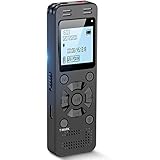
- Clear PCM Recording: Adopts upgraded noise cancelling microphone with professional recording chip. Capture 1536Kbps premium quality sound. Voice recorder with playback function, which is well designed for the users to easily access. Customer Service includes real life phone call from a specialist to give instructions on this high-quality recording device. We ensure your satisfaction on this product.
- 128GB Digital Recorder, Computers Compatible: stores 9296hours of recording, or 40,000songs, up to 54 hours of continuous recording with full battery. Recording can be pre-set into mp3 128kbps,192kbps, or wav 1536kbps format. A wonderful voice recording device for lectures, meetings, and conversations.
- Voice Activated Recorder: This recorder device can set voice decibels at 6 different levels. Regardless the level of the volume, with correct voice decibel level, this recorder will catch talking voice only, reduce blank and whispering snippet.
- Powerful Feature: Multi-usage as a voice recorder, an USB flash drive, and a Mp3 Player. Newly developed 4-folder storage(A/B/C/D) for file management make your recording and other files more organized. Many other helpful features like password protection, A-B repeat, auto record, bookmark, ideal recorder for lectures, meetings, speeches, and interviews.
- Fast File Download: V618 can easily transfer files onto computers. A rechargeable voice recorder that can be quickly recharged, suit for students, teachers, seniors, businesspeople, writers, and bloggers
How do I configure an automatic meeting assistant?
Connect the assistant only after deciding which meetings it may join and where its data may be retained. Calendar access makes joining automatic, so the inclusion rule is as important as the transcription setting.
Otter Notetaker
- Connect a Google or Microsoft calendar and authorize the requested access.
- Review synchronized events and select the meetings for automatic joining; do not select confidential calls unless the service is approved for them.
- Confirm that participants will see or hear the assistant’s presence and that your notice meets organizational requirements.
- Use the real-time transcript and automated summaries as drafts. Check owners, dates, and decisions before sharing.
Otter’s August 21, 2026 help guidance describes automatic joining for Zoom, Google Meet, and Microsoft Teams, with recording, real-time transcription, and meeting summaries in the same workflow.
Fireflies.ai
- Set auto-join preferences and define which calendars, organizers, domains, keywords, or meeting types are included or excluded.
- Choose the meeting language and recording behavior.
- Configure privacy, restriction rules, compliance notifications, and recap-email recipients.
- Test the assistant on a low-risk meeting, then verify that the transcript and summary are accessible only to the intended audience.
- Enable approved routing to Slack, a CRM, or a task manager only after a human review step is clear.
Fireflies’ setup guidance, updated October 20, 2026, describes automatic notes and action items with downstream routing. Routing is an operational convenience, not proof that every extracted task is correct.
How should I capture action items from a transcript?
Use one structured record per commitment. A transcript supplies evidence of what was said; the action-item record supplies the accountability needed to get the work done.
| Field | What to record | Example phrasing in the meeting |
|---|---|---|
| Action | The concrete deliverable or next step | “Update the onboarding checklist with the new approval step.” |
| Owner | The single person accountable for completion | “Jordan owns this, not the whole operations team.” |
| Due date | The agreed date or time, including time zone when relevant | “Please deliver it by 3 p.m. Eastern on 14 November.” |
| Source timestamp | The transcript time where the commitment was made | “Transcript 00:42:18.” |
| Status | Current state such as proposed, approved, in progress, blocked, or done | “Approved; waiting for the security review.” |
Make commitments explicit while people are talking
Ask for an owner and date instead of accepting “someone should look at this.” Repeat the final wording so the transcript contains an unambiguous sentence. If the date or owner is still provisional, label it as proposed rather than presenting it as an agreed task.
Review the transcript before creating tasks
- Verify that the speaker named by the system actually made the commitment.
- Read the surrounding lines so a conditional statement is not turned into a guaranteed task.
- Remove brainstorming, rejected proposals, and duplicate items.
- Resolve pronouns, acronyms, and dates that the transcript may have rendered incorrectly.
- Ask the chair or project owner to approve the final list before distribution.
Route approved items to the team’s system
Native transcripts may require a manual copy or a separate automation step. A third-party assistant can send approved items to Slack, a CRM, or a task manager, but retain the owner, due date, source timestamp, and status during the transfer. Keep the transcript link or file reference with the task when policy allows so the assignee can inspect the original context.
Also popular on Amazon

- Capture every conversation clearly: Four microphones capture voices from up to 5 meters (16.4 feet) away. Note Pro detects in-person conversations and phone calls, while Plaud Desktop covers online meetings.
- Award-winning design: Winner of the iF, Red Dot Design, and the 2026 Good Design Awards. Just 2.99 mm (0.12 inches) thin and 30 g (1.06 oz), with a 0.95-inch display for recording status, battery level and more.
- Everything Included: Includes Plaud Note Pro, magnetic case, magnetic ring, charging cable, and a free Starter Plan with 300 transcription minutes per month. Upgrade anytime in the Plaud app to Pro Plan (1,200 min/mo) or Unlimited Plan(Up to 24 hours of transcription per user per day)
- Notes tailored to you: Plaud combines transcripts, highlights, notes, images, and files into a tailored summary with key decisions, details, and next steps. Record for 30 hours in Enhance mode or 50 hours in Endurance mode, with 64 GB of storage for months of conversations.
- Turn conversations into finished work: Plaud Agent turns conversations into structured emails, reports, presentations, spreadsheets, and more, ready to review and share.
Where is the transcript saved, and who can access it?
Storage depends on the platform and the account that organized the meeting. Treat the location as part of the setup, not as an afterthought.
What’s actually slowing this PC down?
Pick the symptom - the matching free tool is one click away.
- Zoom: The transcript panel can be saved as a
.TXTfile to the host’s local computer. The host can stop or delete the transcript, subject to the account’s controls. - Teams: Open the meeting chat and choose Recap > Transcript to access or download it. Transcripts are stored with recordings in OneDrive or SharePoint, and permissions and organizational policy determine access.
- Google Meet: The organizer’s Google Drive contains a Google Meet folder with meeting-specific subfolders. Drive space and sharing permissions govern availability.
- Automatic assistants: The service’s workspace holds the transcript, summaries, and any routed copies. Review its retention, privacy, calendar, and integration permissions before inviting it to meetings.
Set retention and sharing rules before the meeting. A transcript may contain personal data, confidential plans, or contractual information even when the meeting itself was informal. Remove obsolete copies according to the applicable institutional schedule rather than leaving downloads in personal folders.
Independent reader supportYour contribution helps us test, update, and keep practical guides available for everyone.What can go wrong, and how do I fix it?
The transcription control is missing
Check the subscription or Workspace edition, then ask the administrator to verify the relevant policy. In Teams, specifically confirm AllowTranscription. In Google Meet, verify Drive capacity and Host management. In Zoom, confirm that transcription is enabled for the host account.
The assistant joins the wrong meeting
Pause automatic joining, inspect the calendar connection, and narrow the allowlist or keyword and domain rules. Remove the assistant from any sensitive meeting and notify the organizer if information may already have been captured. Reauthorize only the calendar scope the service needs.
Names, dates, or technical terms are wrong
Confirm the spoken language, improve microphone placement, and ask speakers to state names and acronyms clearly. During the call, restate the corrected decision. Afterward, use the source timestamp and surrounding context to edit the approved notes; do not silently convert uncertain text into a task.
Participants were surprised by the capture
Stop transcription if required by policy, explain what was captured and where it is stored, and follow the organization’s incident or consent procedure. Resume only after the required notice and approvals are in place. A visible indicator does not replace a clear verbal announcement.
Also popular on Amazon

- 【One Click Record and Save】This voice recorder features instant one-click recording and saving. Even when powered off, simply push up the side button to start recording and push down to save. Designed with ergonomic controls, this digital voice recorder ensures fast operation so you never miss important moments—perfect as a voice recorder with playback, mini recorder device, or portable recorder for interviews, lectures, and field work
- 【64GB Memory & High-Capacity Battery】Equipped with a built-in 64GB TF card, this recorder device stores up to 4,600 hours of recordings. Its 600mAh battery supports up to 48 hours of continuous use (MP3 at 32kbps). Ideal for students, journalists, and professionals, this tape recorder portable mini excels in lectures, meetings, interviews, and even for paranormal sound research
- 【PCM Recording & Automatic Noise Reduction】Capture audio in WAV format with up to 1536kbps PCM quality. Advanced noise reduction minimizes background sounds, delivering crystal-clear playback on headphones or professional gear. This makes it an excellent audio recorder, digital audio recorder, or sound recorder for music creation, interviews, and high-detail sound archiving
- 【Voice-Activated Recorder, Big Screen & Password Protection】The voice activated recorder automatically starts/stops when sound reaches your set level, helping save storage and battery. A large 1.44-inch screen offers easy navigation, while password protection safeguards your files—perfect for storing personal memos and important audio files when using it as a dictaphone voice recorder or recording device for professional use
- 【Multi-Function Recorder】This versatile digital recorder supports internal and external recording, file segmentation, scheduled recording, A-B loop playback, MP3 music, and bookmarking. Functions as a USB storage drive and MP3 player with quick transfer via USB cable. Great as a pocket recorder, lecture recorder, mini voice recorder, or recording devices for travel and daily use
Tasks were created from tentative discussion
Mark the item as proposed, return to the timestamp, and ask the meeting owner to confirm whether it was accepted. Delete or correct downstream tasks that were generated before approval, then add the final owner, due date, and status.
What quality and privacy controls should every team keep?
Use only tools approved for the meeting’s information classification. University of Otago guidance recommends informing participants, reviewing AI-generated notes before sharing, managing recordings and transcripts under institutional requirements, and recognizing that organizers may remove unapproved assistants. Third-party services can retain meeting information outside organization-managed controls, so document who may access the service, how long data remains, and how copies are deleted.
- Assign a meeting owner who approves the transcript-derived action list.
- Publish a short notice covering transcription, recording, purpose, storage, and audience.
- Apply auto-join exclusions to confidential, personnel, legal, or otherwise restricted meetings.
- Check language, speaker labels, timestamps, and high-impact decisions manually.
- Keep a source timestamp for each action and a status that distinguishes proposed from approved work.
- Review integration permissions whenever a transcript is sent to Slack, a CRM, or a task manager.
- Delete or archive transcripts according to the organization’s retention schedule.
What is the practical decision rule?
Start with native Zoom, Teams, or Google Meet transcription when your organization already uses one platform and wants the fewest moving parts. Select an approved assistant when meetings span platforms or when automatic summaries and task-system routing justify an additional data processor. Whichever route you take, announce capture, restrict access, and require human approval before a transcript becomes an official record or an assigned task.
Recommended Free Tools
Frequently Asked Questions
Can I transcribe a meeting without recording video?
Yes. The native workflows described here capture speech-to-text without requiring a video recording in the transcript itself. Check your organization’s policy because a platform may still create or associate other meeting artifacts, and Google Meet chat capture specifically requires recording.
How can I preserve the exact moment a decision was made?
Keep the transcript timestamp in the action-item record and quote the decisive sentence when the wording matters. If the transcript is edited for readability, retain the unedited file or platform reference under the same retention and access rules.
What should I do when an attendee refuses transcription?
Pause and follow the meeting owner’s consent and legal procedure rather than treating silence as permission. You may need to continue without transcription, move the discussion to an approved channel, or obtain a documented alternative before restarting.
Can an automatic assistant be removed during a meeting?
Organizers can remove unapproved assistants, and your platform or organization may do so automatically through policy. If that happens, record the decision manually and review calendar rules before allowing the assistant into another call.
Free tools Windows power users keep installed
One-click scans. No signup required.
Quick Recap
Product prices and availability are accurate as of the date/time indicated and are subject to change. Any price and availability information displayed on Amazon at the time of purchase will apply.

