

iTechGuides is reader-supported. When you buy through links on our site, we may earn an affiliate commission. As an Amazon Associate I earn from qualifying purchases. Learn more
This Itechguide teaches you how to save an image from Google Docs. The guide covers 3 methods to save an image from Google Docs.
Option 1: Save an Image by Downloading the Document as HTML
The first method to download an Image from a Google Docs document is to download the document as a HTML. Then access the images in the downloaded file. Here are the steps…
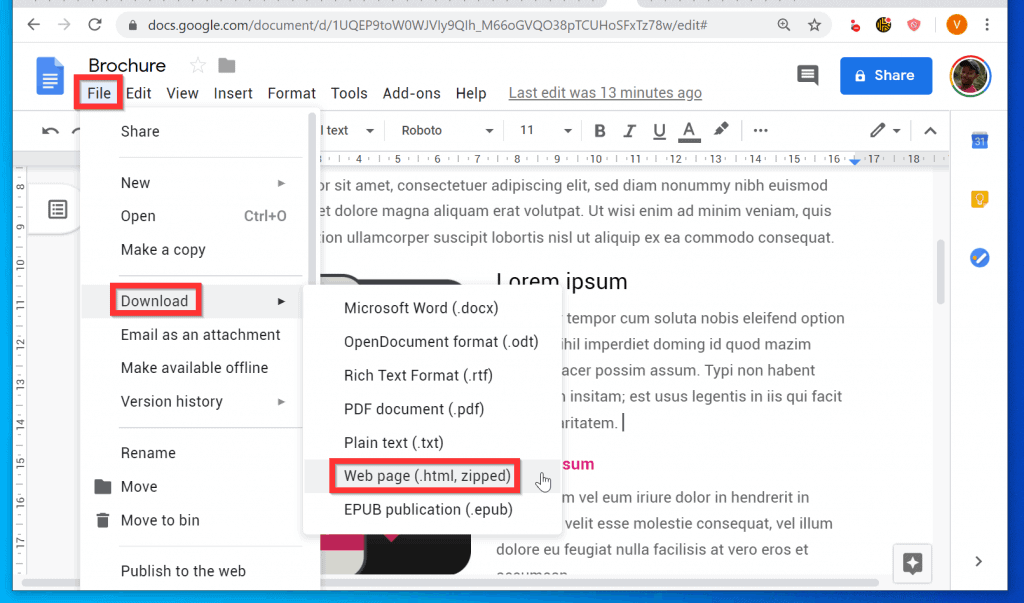
- On the top left of the Google Docs document menu, click File. Then, from the displayed options, point to Download and click Web page (.html, zipped).
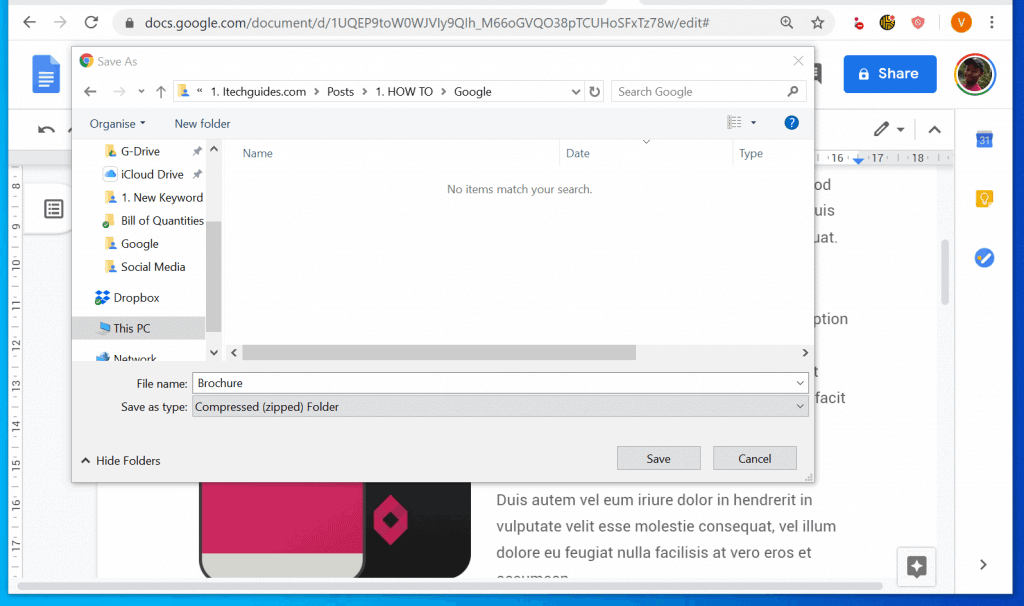
- When the Save As explorer opens, save the zip file in a folder on your computer. Note the path or better still copy the path where you saved the file.
- Open the folder you saved the zipped file and unzip it. To unzip the file right-click it and click Extract All…

- On the next screen, ensure that Show extracted files when complete box is checked. Then, at the bottom right, click Extract.

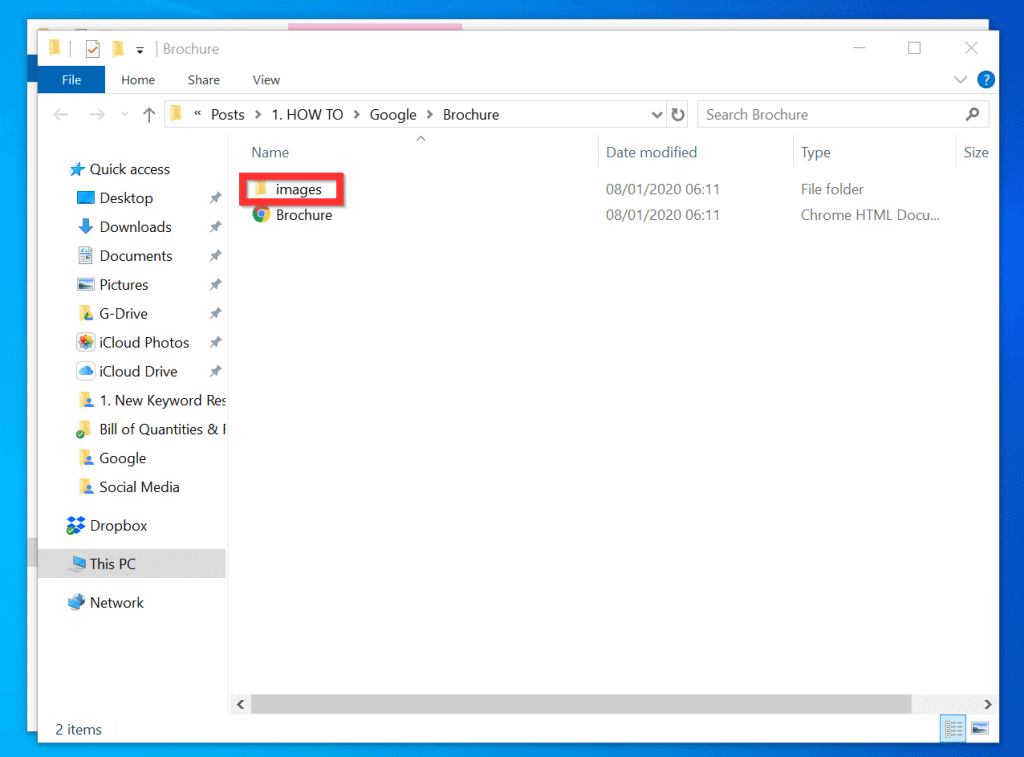
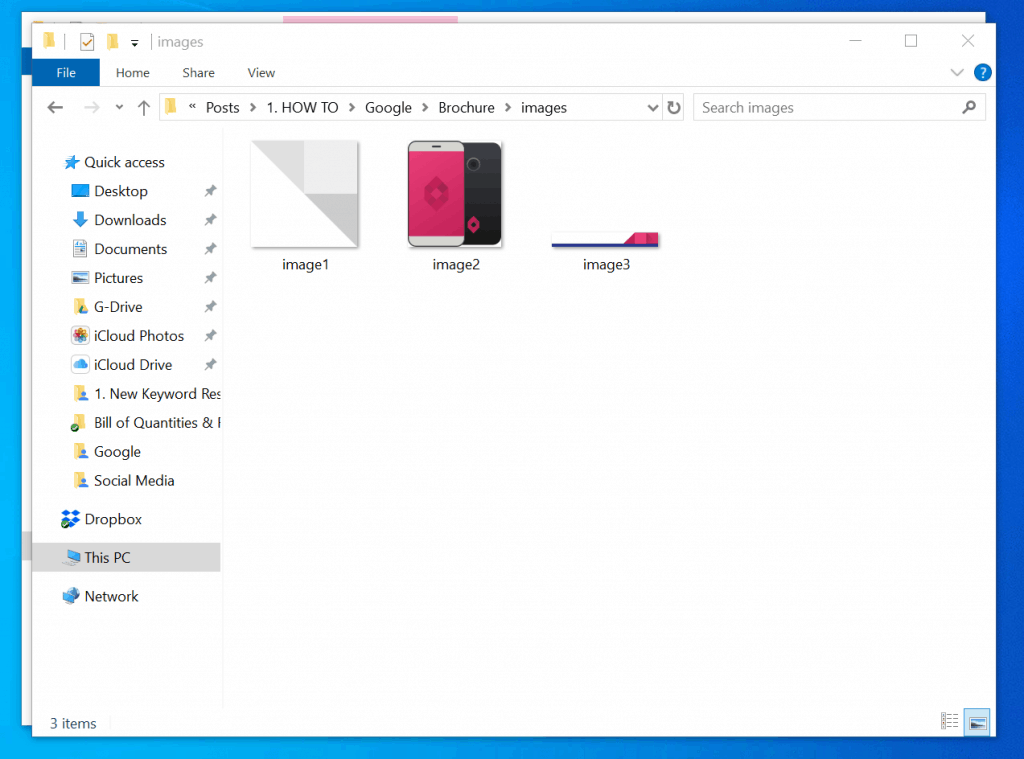
- The file will unzip and open the folder automatically. Open the Images folder. All images in the Google Docs document are saved to this folder!
Option 2: Save an Image by Publishing the Document to the Web
The second trick to save an image from Google Docs is to publish the document to the web.
Recommended Free Tools
- From the top left of the document, click File. Then, scroll down the displayed options and click Publish to the web.
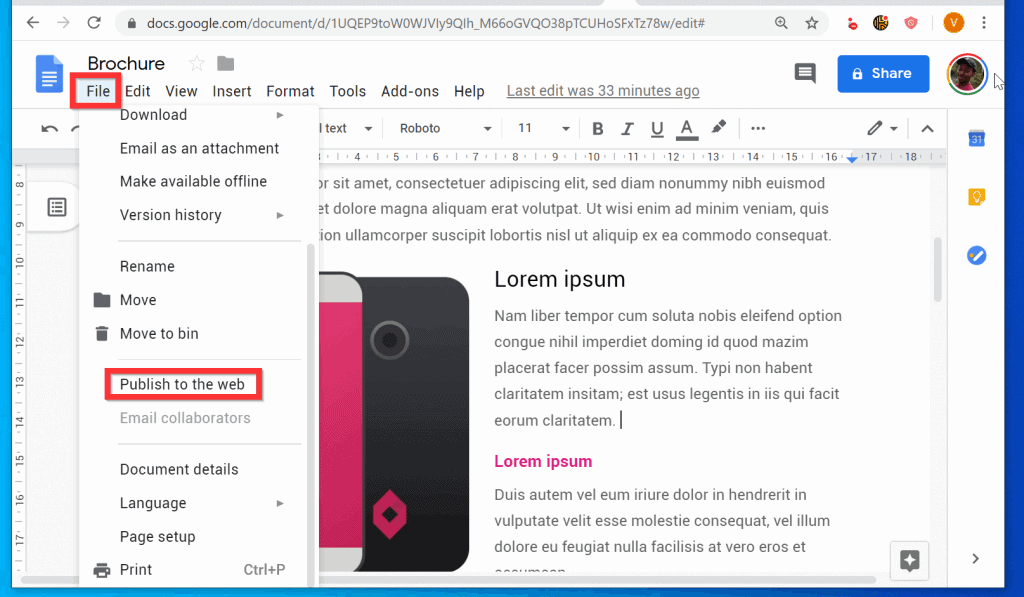
- When the Publish to the web pop up opens, ensure your are on the Link tab (default). Then click Publish.
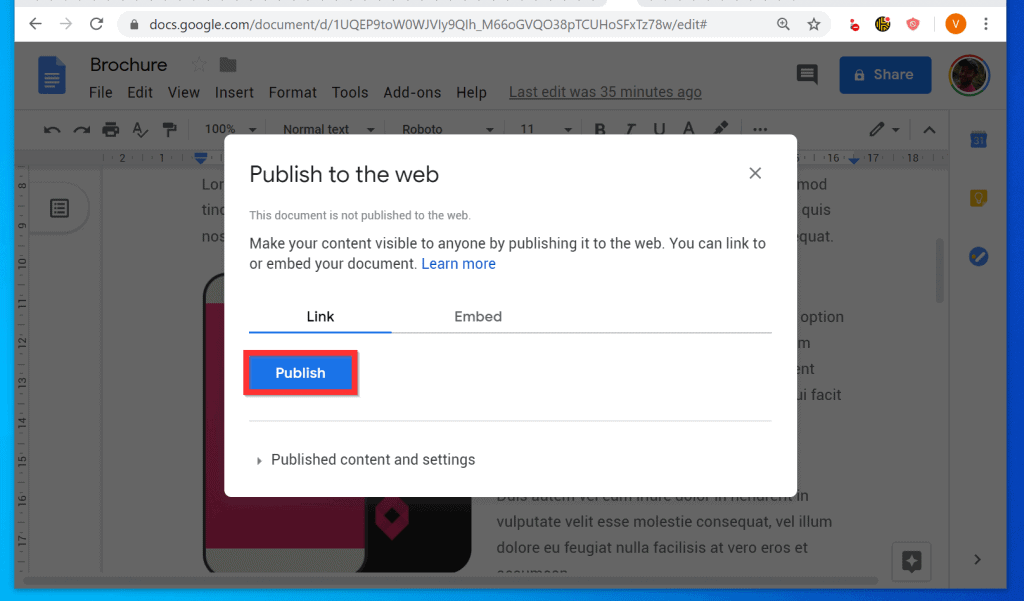
- To publish the document to the web, at the confirmation pop up, click OK.
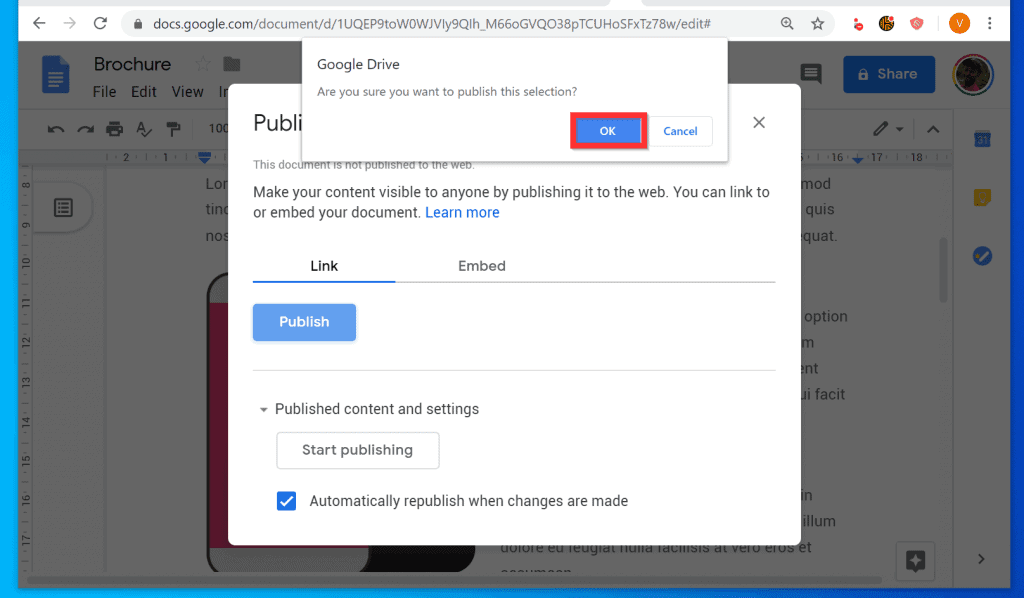
- At the page publication confirmation screen, copy the Link.
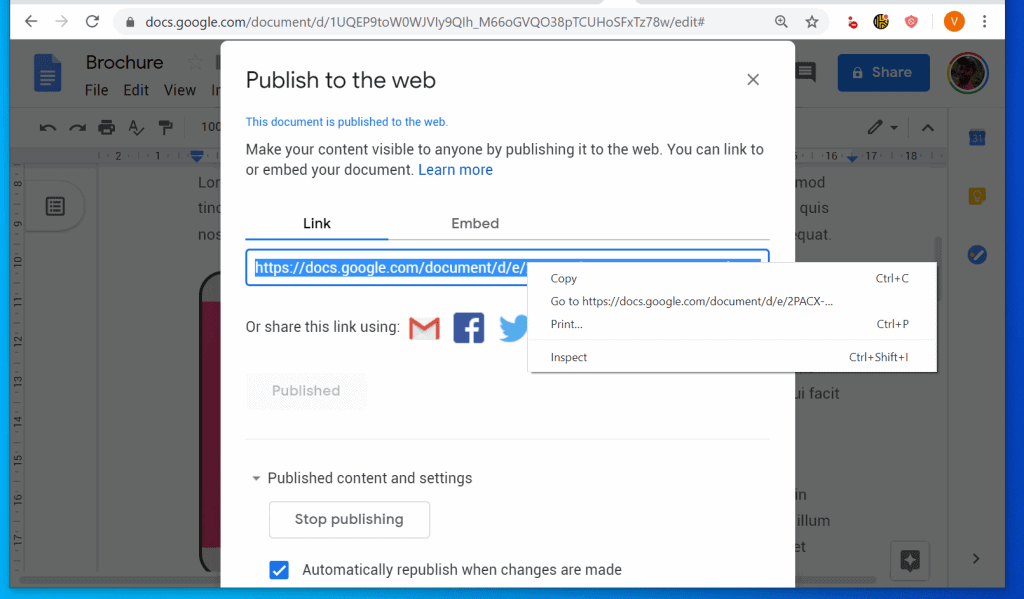
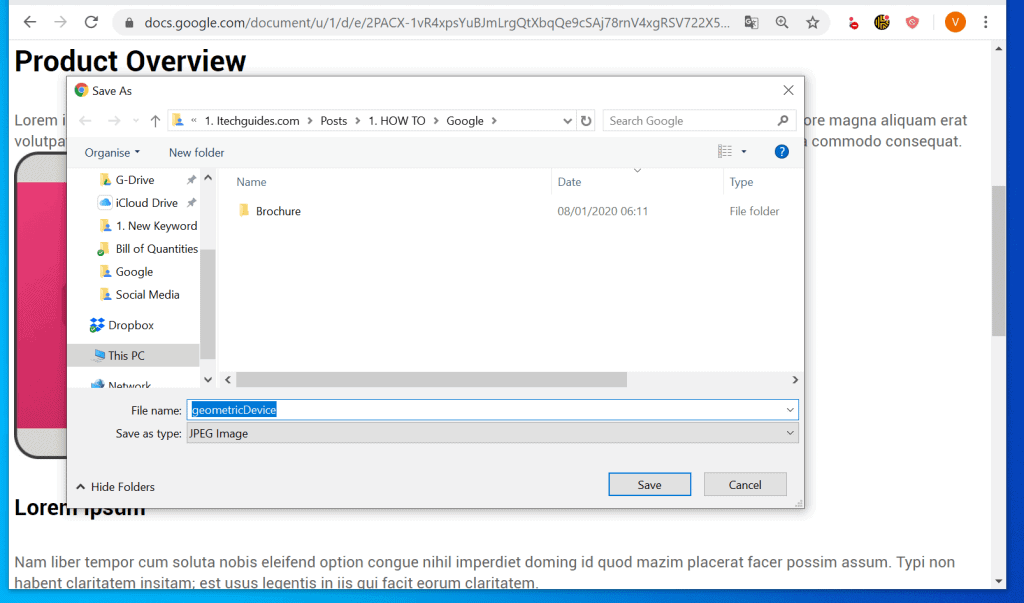
- Then, open the link in a new page. When the document opens in a web page, right-click the image you want to save and click Save image as…

- Finally, to save an image from Google Docs, save the image in a folder on your computer.
Option 3: Save an Image by Downloading the Document as Microsoft Word
The final method discussed in this Itechguide covers steps to download a Google Docs document as a Microsoft Word file. Then, save the image from the word file…
Popular on Amazon

- USB-C 2-in-1 storage OTG: The Lexar JumpDrive Dual Drive D40E features USB Type-A and Type-C connectors in a slim, portable form factor for easy device compatibility
- Transfer speeds up to 100MB/s: Based on internal testing, performance may vary depending upon the host device, interface, and usage conditions. 1MB=1,000,000 bytes
- Plug and Play: Widely compatible with USB Type-C smartphones, tablets, laptops, Macs, and traditional Type-A devices, no software installation required. The 360° swivel design allows for easy switching between connectors without the hassle of losing a cap
- Durable & Compact: The Lexar D40E USB memory stick features a metal enclosure, withstands temperatures from 0° to 50° C (32°F to 122°F), and is lightweight at 26g with dimensions of 70.4 x 16.9 x 11.7mm
- Security & Warranty: Securely protects files using an advanced security software solution with 256-bit AES encryption. Backed by a Lexar 3-year limited warranty
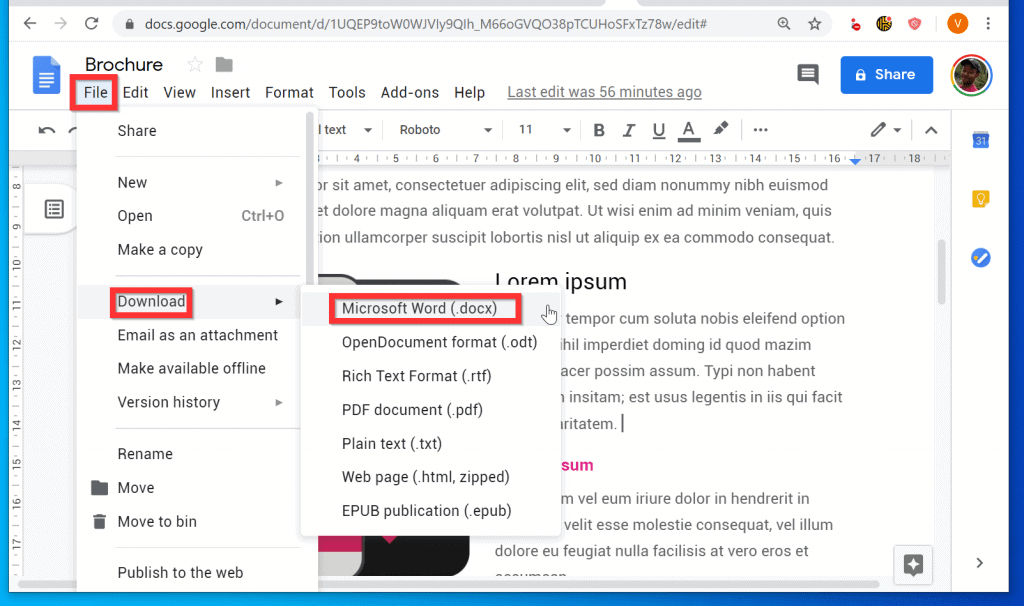
- On the top left of the menu, click File and point to Download. Then, from the download options, click Microsoft Word (.docx).
- Finally, save the Word file in a folder on your computer.

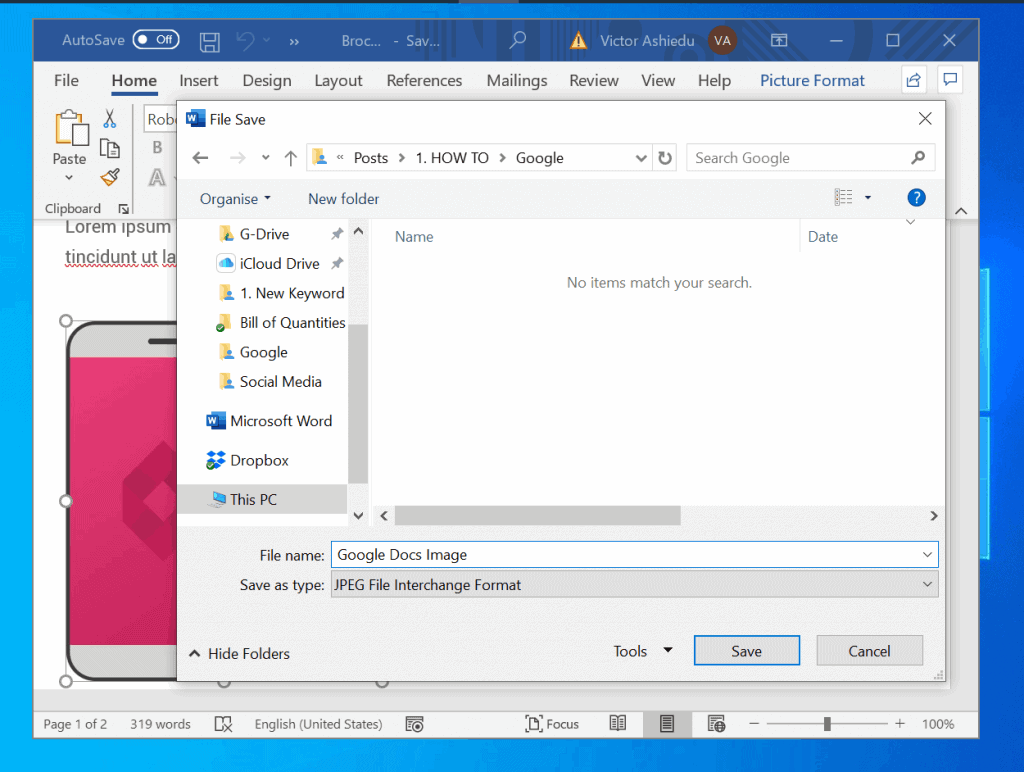
- Open the Microsoft Word file. Then right-click the image you want to save and click Save as Picture.

- Finally, select a folder, give the image a name and click Save.
I hope you found this guide helpful? If you found the guide helpful, click on “Yes” beside the “Was this page helpful” question below.
You may also express your thoughts and opinions by using the “Leave a Comment” form at the bottom of this page.
Also popular on Amazon

- High-speed USB 3.0 performance of up to 150MB/s(1) [(1) Write to drive up to 15x faster than standard USB 2.0 drives (4MB/s); varies by drive capacity. Up to 150MB/s read speed. USB 3.0 port required. Based on internal testing; performance may be lower depending on host device, usage conditions, and other factors; 1MB=1,000,000 bytes]
- Transfer a full-length movie in less than 30 seconds(2) [(2) Based on 1.2GB MPEG-4 video transfer with USB 3.0 host device. Results may vary based on host device, file attributes and other factors]
- Transfer to drive up to 15 times faster than standard USB 2.0 drives(1)
- Sleek, durable metal casing
- Easy-to-use password protection for your private files(3) [(3)Password protection uses 128-bit AES encryption and is supported by Windows 7, Windows 8, Windows 10, and Mac OS X v10.9 plus; Software download required for Mac, visit the SanDisk SecureAccess support page]
Finally, for more Google Itechguides, visit our Google How To page.
Quick Recap
Also popular on Amazon

- 【16GB Flash Drive】USB flash drives with 16GB capacity, meet your needs of daily use on work, school, home and travelling for photos, music, videos, files storage and transfer. IMEASON thumb drives can be used to store different files, easy to data backup.
- 【Metal Swivel Cap Design】USB thumb drive is metal swivel cover provides extra protection for the usb thumbdrive connector, no usb drive cap to lose; keychain design makes it easier to carry without worrying lose it.
- 【Wide Compatibility】USB drive supports Windows 7/8/10/11 / Vista / XP / Unix / 2000 / ME / NT Linux and Mac OS, also Supports USB 2.0 and 1.1 ports. USB Stick support TV, desktop, notebook computer, car, audio and other device. The USB Memory Stick is your great data storage and transfer companion with traveling and working.
- 【Easy to use】usb memory stick is plug and play without any software installation. Just simply plug the Flashdrive into the port of your USB-compatible devices such as computer, laptop to start data storage or transmission.
- 【What You Get】16 GB USB Flash Drive Thumb Drive, The default format of the usb storage flash drive is FAT32.
Also popular on Amazon

- GOOD VALUE PACKAGE - 1 Pack 32GB Memory Stick USB 2.0 Flash Drives with great cost performance and high quality.
- BIG CAPACITY - The available capacity: 29.10GB-29.8GB, You can save the data of movies, music, photos, designs, programs, manuals, handouts in a high speed.Good performance in digital data storing, transferring and sharing with families, friends, workmates, clients and machines.
- EASY TO USE & PLUG AND WORK - Support windows 7 / 8 / 10 / Vista / XP / 2000 / ME / NT Linux and Mac OS, Compatible with USB2.0 and below.
- TWISTTURN DESIGN & EASY CARRY - The metal clip rotates 360° round the ABS plastic body which with rubber oil skin feeling finish. The capless design can avoid lossing of cap, and providing efficient protection to the USB port.
- WARRANTY & SUPPORT - SIMMAX logo is laser printed on the USB connector surface, our products are of good quality and we promise that any problem about the product within one year since you buy.
Also popular on Amazon

- What You Get - 2 pack 64GB genuine USB 2.0 flash drives, 12-month warranty and lifetime friendly customer service
- Great for All Ages and Purposes – the thumb drives are suitable for storing digital data for school, business or daily usage. Apply to data storage of music, photos, movies and other files
- Easy to Use - Plug and play USB memory stick, no need to install any software. Support Windows 7 / 8 / 10 / Vista / XP / Unix / 2000 / ME / NT Linux and Mac OS, compatible with USB 2.0 and 1.1 ports
- Convenient Design - 360°metal swivel cap with matt surface and ring designed zip drive can protect USB connector, avoid to leave your fingerprint and easily attach to your key chain to avoid from losing and for easy carrying
- Brand Yourself - Brand the flash drive with your company's name and provide company's overview, policies, etc. to the newly joined employees or your customers
Product prices and availability are accurate as of the date/time indicated and are subject to change. Any price and availability information displayed on Amazon at the time of purchase will apply.



To tell the truth, I think that it is great luck that I stumbled across your article because downloading images from Google Docs has always been connected with many difficulties and I haven’t been able to find optimal ways to implement this process. I can say that these methods are so easy and your guide is so clear that you don’t have any questions left. I think that it is a smart decision to give each of them a try in order to determine which one is the most convenient for you and which one you will use in the long term. Also, I think that it is really important to scrutinize each of them in order to be really savvy in this matter and in technology in particular. Also, I think that it is really important to have data about images that you are going to download because, otherwise, you have a risk of facing many difficulties or pretension from the side of the owner.