
iTechGuides is reader-supported. When you buy through links on our site, we may earn an affiliate commission. As an Amazon Associate I earn from qualifying purchases. Learn more
On Linux, run ollama serve to start Ollama’s headless HTTP server. For a persistent service, use the documented systemd unit and start it with systemctl. Ollama’s local API uses port 11434; to let another computer connect, configure the service’s OLLAMA_HOST listening address and protect network access with a firewall or reverse proxy.
Choose how to run the server
The right deployment depends on whether you need a temporary foreground process, a service that starts and restarts under Linux, or a containerized environment. The official Ollama documentation covers native Linux installation and systemd, as well as Docker deployments for NVIDIA and AMD GPUs.
| Method | Best fit | What to consider |
|---|---|---|
Foreground ollama serve |
Testing or a manually managed process | Keep the terminal process running; its output is where you inspect logs. |
| Linux systemd service | A persistent Linux host | systemd manages the service lifecycle; customize its environment through a systemd drop-in. |
| Docker | Container isolation or a reproducible deployment | GPU setup varies by vendor, and model storage needs a persistent volume. |
These options do not come with published performance figures in the cited official pages, so choose based on operational requirements rather than an assumed speed advantage. See the Linux installation guide and Docker instructions.
PC Slower Than It Used to Be?
A free scan shows the junk files, broken settings and background clutter dragging Windows down - then fixes them in one click.Free scan · Windows 10 & 11Crashes, No Sound, or Screen Glitches?
Random freezes, missing sound and display glitches usually trace back to one bad driver. Find and replace yours safely.Free scan · under a minuteStart Ollama in the foreground
Ollama’s quickstart describes ollama serve as the way to start Ollama without running the desktop application. On a Linux machine where Ollama is installed, open a terminal and run:
Popular on Amazon
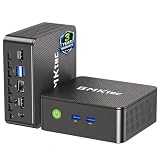
- WHY CHOOSE G3 ULTRA MINI PC PENTIUM GOLD 7505 - Choose the Intel Pentium Gold 7505 for snappier everyday responsiveness: It delivers up to 30% faster single-core performance than the Ryzen 5 3500U, making office apps and web browsing feel noticeably quicker, while its Intel UHD Graphics (48 EUs) provides 2.4x the GPU performance of the N100 & N150's 24-EU graphics, ensuring smoother 4K streaming and light photo editing.
- 16GB RAM MEMORY & 512GB STORAGE - GMKtec Nucbox G3 Ultra mini computer is prebuilt with 16GB LPDDR4 RAM at 3200 MT/s, you will enjoy a speedier experience with Built-in 512GB M.2 SATA Hard Drive. Our mini desktop pc boots up in seconds, work on multiple browser tabs, software applications and quickly transfers files. There is a primary slot and secondary expansion storage. Primary slot is M.2 2280 PCIE and secondary slot is M.2 2280 SATA.
- RICH INTERFACE - Nucbox pentium mini computer is equipped with 3* USB 3.2 Gen2 ports, up to 10Gbps/S, 1*USB 2.0, HDMI(4K@60Hz)*2, 3.5mm Audio Jack. Supports WiFi 6, and Gigabit Ethernet RJ45 2.5GbE network connectivity, Bluetooth 5.2. This Mini PC supports multiple device connection and can be used with servers, monitoring equipment, office equipment, displays, projectors, televisions, etc.
- 4K DUAL SCREEN DISPLAY - Mini desktop computer is equipped with upgraded Intel Graphics(max 1000MHz), supports 4K video playback and AV1 decoding, connect the pc with a projector as a home theatre, enjoy a variety of entertainments. Two HDMI 2.0 ports allows you to multi-task efficiently on two 4K@60Hz displays.
- UPGRADED COOLING FAN - The G3 Ultra has upgraded the cooling fan to reduce fan noise and thermals. We are using an upgraded thermal paste as well to help reduce heat on the CPU.
ollama serveLeave that process running while clients use the server. This is useful for a quick check or a manually managed session; it is not the persistent-service setup described by Ollama for Linux. The terminal displays the foreground process output, which is also the first place to look if startup fails.
Install and run a persistent Linux service
For a durable Linux host, the official guide documents installation with the shell installer and a systemd service. The unit runs as the ollama user and group, uses Restart=always and RestartSec=3, and starts /usr/bin/ollama serve. The guide supplies the service setup; use its current instructions for the full unit contents rather than substituting an undocumented service file.
-
Install Ollama using the documented command:
curl -fsSL https://ollama.com/install.sh | sh -
Reload systemd’s unit definitions and enable the service to start through systemd:
Free tools Windows power users keep installed
One-click scans. No signup required.
Special offer. See more information about Outbyte and uninstall instructions. Please review EULA and Privacy policy.sudo systemctl daemon-reload sudo systemctl enable ollama -
Start it:
sudo systemctl start ollama -
Check its status:
sudo systemctl status ollama
Enabling and starting are separate operations: the documented commands perform each action explicitly. Consult the Ollama Linux guide for the service unit and installation details.
Expose the API to another computer
Ollama’s OLLAMA_HOST setting controls the address on which the service listens. A service configured with OLLAMA_HOST=0.0.0.0 listens on network interfaces rather than only a local interface. This makes remote access possible at the network-listening layer, but it does not by itself provide an access-control boundary. Restrict access with a host firewall or a reverse proxy in a real deployment.
Set the host address for systemd
-
Open a systemd override for Ollama:
sudo systemctl edit ollama -
Add the environment setting under the
[Service]section:[Service] Environment="OLLAMA_HOST=0.0.0.0" -
Reload systemd and restart Ollama so the changed environment takes effect:
Special offer. See more information about Outbyte and uninstall instructions. Please review EULA and Privacy policy.sudo systemctl daemon-reload sudo systemctl restart ollama
Use a narrower listening address if your setup calls for it; the official FAQ’s example specifically shows 0.0.0.0. Do not expose the service broadly without deciding how network access will be restricted. The Ollama FAQ documents this environment-setting method.
Connect using the documented API port
The documented local API port is 11434. The quickstart shows requests to /api/generate and /api/chat. From another computer, replace localhost with the server’s reachable hostname or address, and ensure the network and host firewall allow the connection to that port.
A minimal generate request, run on the Ollama host, is:
curl http://localhost:11434/api/generate -d '{
  "model": "llama3.2",
  "prompt": "Why is the sky blue?"
}'
A chat request uses a messages array:
curl http://localhost:11434/api/chat -d '{
  "model": "llama3.2",
  "messages": [
    {"role": "user", "content": "Why is the sky blue?"}
  ]
}'
These examples follow the request shapes in the Ollama quickstart. For a client on another machine, use the server’s reachable address in place of localhost; the exact address depends on your network.
Do these 3 things before closing this tab:
1Fix the driver behind crashes, sound loss and screen glitches2Clear out junk files and repair common Windows errors3Scan for outdated or missing drivers - takes under a minuteAlso popular on Amazon

- 12th Intel Alder Lake N95 Processor – The GMKtec G3 S Mini PC is powered by the 12th Gen Intel N95 processor with 4 cores, 4 threads, 6MB cache and a burst frequency up to 3.4GHz. Compared with N100/N5105/N5100/N5095, the N95 delivers up to 36% overall performance improvement. Perfect for routine tasks, office work, and home entertainment, this compact mini desktop is more convenient than traditional bulky PCs.
- 8GB RAM & 256GB SSD Storage – Pre-installed with 8GB DDR4 memory and a fast 256GB M.2 2242 SSD, the G3 S mini desktop offers quicker startup, smoother multitasking, and faster file transfers. Enjoy seamless performance whether you’re working on multiple applications, browsing, or streaming content.
- Rich Interfaces & Connectivity – The G3 S mini computer comes equipped with USB 3.2 (up to 10Gbps), dual HDMI 2.0 (4K@60Hz), and a 3.5mm audio jack. With support for WiFi 5, Bluetooth 5.0, and Gigabit Ethernet (RJ45 1000MbE), it connects easily with monitors, projectors, printers, office equipment, and other peripherals, making it versatile for both home and business use.
- Dual 4K Display Support – Featuring upgraded Intel UHD Graphics (up to 1000MHz), the G3 S supports 4K video playback and AV1 decoding for a smooth viewing experience. With dual HDMI outputs, you can connect two 4K@60Hz displays simultaneously, enabling efficient multitasking for work and entertainment.
- GMKTEC WARRANTY - GMKtec offers a 3-year limited warranty (1 year replacement + 2 years parts replacement) for each mini PC, starting from the date of the purchase effective on all sales starting Oct. 2026. All defects due to design and workmanship are covered. With a professional after sales team always ready to attend to your needs, you can simply relax and enjoy your mini PC
Run Ollama in Docker
The official image is ollama/ollama. The documented GPU commands publish port 11434 and mount a named volume at /root/.ollama, which preserves downloaded models if the container is recreated. NVIDIA and AMD deployments use different runtime and device configuration.
NVIDIA GPU
The documented NVIDIA flow first configures the NVIDIA Container Toolkit and restarts Docker. Then run:
docker run -d --gpus=all -v ollama:/root/.ollama -p 11434:11434 --name ollama ollama/ollamaAMD GPU
For AMD, the official instructions use the ROCm-tagged image and device mappings:
docker run -d --device /dev/kfd --device /dev/dri -v ollama:/root/.ollama -p 11434:11434 --name ollama ollama/ollama:rocmFollow the vendor-specific setup in the official Docker guide; the NVIDIA flag is not a substitute for the documented AMD device configuration.
Recommended Free Tools
Download and run a model in the container
Run the model command inside the running container:
docker exec -it ollama ollama run llama3.2The named volume in the run commands keeps downloaded models in /root/.ollama across container recreation. If you omit persistent storage, do not assume models stored only in the container filesystem will survive its replacement.
Use the API beyond generation and chat
The API reference includes endpoints for creating models, listing local models, retrieving model information, copying and deleting models, pulling and pushing models, generating embeddings, listing running models, and retrieving the Ollama version. Use the endpoint reference for request parameters and response formats rather than inferring them from the two basic examples above.
Streaming responses are enabled by default for applicable endpoints. To request a non-streaming response, include "stream": false in the JSON body where supported. Check the API reference for endpoint-specific behavior and the quickstart for basic usage.
The Tool Desk
Outbyte PC Repair FREEClear out junk files and repair common Windows errorsFree Scan →Outbyte Driver Updater FREEScan for outdated or missing drivers - takes under a minuteDriver Scan →Native service or Docker?
Both approaches can run an Ollama API server, but their operational trade-offs differ. Native systemd is the straightforward documented pattern for a persistent Linux service. Docker is useful when isolation or reproducibility matters, but adds container-runtime and device configuration.
| Decision area | Native Linux with systemd | Docker |
|---|---|---|
| GPU setup | Not detailed as a GPU-specific setup in the cited Linux service instructions. | Vendor-specific: NVIDIA uses --gpus=all; AMD uses the ROCm image and device mappings. |
| Model persistence | Not specified as a separate volume in the cited systemd instructions. | Named volume ollama mounted at /root/.ollama in the documented commands. |
| Service lifecycle | Managed with systemd commands such as enable, start, and status. |
Managed as a container; the documented example runs it detached. |
| Upgrade and rollback | Not stated in the cited service instructions. | Not stated in the cited Docker instructions. |
| Network exposure | Set OLLAMA_HOST through a systemd override; restrict access with a firewall or reverse proxy. |
The documented command maps host port 11434 to container port 11434; apply appropriate network controls. |
| Logs | journalctl for the systemd unit. |
docker logs for the container. |
Logs and troubleshooting
Choose the log source that matches how Ollama was launched. For systemd, follow the unit logs with:
journalctl -u ollama --no-pager --follow --pager-endFor the documented Docker container:
docker logs ollamaFor a manually started ollama serve, inspect the terminal where it is running. Ollama’s troubleshooting guide also advises checking the latest driver and container-runtime setup when GPU discovery fails.
Also popular on Amazon

- Business & Education Orders: GEEKOM Air12 Mini PCs Set up classrooms, offices, and work teams with the GEEKOM Air12 Mini PC. Orders of multiple units may be eligible for tiered pricing — contact us for details. Every unit is backed by a 3-year limited warranty and technical support from the GEEKOM team.
- Original Factory SSD Chips for Stable Long-Term AI Workloads: Our mini PC is equipped with authentic factory grade SSD chips to sustain consistent read & write performance throughout nonstop 7×24 AI cloud hosting and automation tasks, eliminating unstable storage issues that interrupt your AI jobs.
- 8 GB DDR4 + 256 GB NVMe SSD, Easy Upgrades: Ready for browsing, documents and daily apps. Dual RAM and storage slots support upgrades up to 64GB RAM and 2TB SSD for growing needs, responsive startup and convenient file access.
- Triple 4K Displays, Connected Workspace: HDMI 2.0, Mini DP 1.4 and USB C support up to three 4K displays for study and office tasks. Wi-Fi 6, Bluetooth, 5 USB ports and an SD reader connect peripherals. Output depends on devices.
- IceBlast 3.0, Quiet Cooling: Dual copper heat pipes, a quiet fan and optimized airflow help manage heat and noise during extended browsing, study and office work, ideal for home offices and shared spaces.
The client cannot connect
-
Check that the server process or service is running. For systemd, inspect
sudo systemctl status ollama; for Docker, inspectdocker logs ollama.Special offer. See more information about Outbyte and uninstall instructions. Please review EULA and Privacy policy. -
If connecting remotely to a systemd service, confirm that
OLLAMA_HOSTis set to an address that listens on network interfaces, then reload systemd and restart the service. -
Check that the client is using the server’s reachable address and port
11434, and that firewall or proxy rules permit the connection.
The service ignores a changed host setting
A systemd environment change needs a systemd reload and service restart. Re-run sudo systemctl daemon-reload and sudo systemctl restart ollama, then inspect status and logs.
The Docker container does not discover the GPU
GPU discovery failures can stem from drivers, the container runtime, or container configuration. Check that the latest driver and the relevant vendor runtime setup are in place, then verify that the run command matches the GPU vendor: NVIDIA’s documented command uses --gpus=all, while AMD’s uses the ROCm image with /dev/kfd and /dev/dri device mappings.
Quick wins for a faster PC:
Clear out junk files and repair common Windows errorsFree Scan →Fix the driver behind crashes, sound loss and screen glitchesFind Drivers →Repair Windows errors before they cause bigger problemsFix Now →Models are missing after recreating a container
Use persistent storage for /root/.ollama. The documented Docker commands mount the named volume ollama at that path so downloaded models persist across container recreation.
Or skip the browser setup
If your goal is to capture a screenshot of the running API or a web page about your deployment, ScreenshotNeo is a separate website screenshot API and MCP server; it does not run or expose Ollama. A single GET request can return an image or PDF. The API accepts the other screenshot APIs’ parameter names too.
For example, this cURL request captures a page as WebP; replace the target URL as needed. See the ScreenshotNeo API documentation for available options.
curl -G "https://api.screenshotneo.com/v1/shot" -d access_key=YOUR_API_KEY --data-urlencode url=https://stripe.com -o shot.webp-
Cookie banners are accepted and removed before capture, along with supported consent platforms, newsletter popups, and chat widgets; each cleanup step can be turned off.
What’s actually slowing this PC down?
Pick the symptom - the matching free tool is one click away.
Special offer. See more information about Outbyte and uninstall instructions. Please review EULA and Privacy policy. -
Bot checks or CAPTCHAs, blank pages, timeouts, failed loads, and cache hits cost nothing; response headers report the page verdict and billing status.
-
An MCP server provides
take_screenshot,get_page_info, andcapture_pdftools for Claude, Cursor, and other MCP clients. -
The Free plan includes 1,000 shots per month with no card; paid plans start at $5 for 3,000 shots.
Sign up for ScreenshotNeo’s free plan to try 1,000 screenshots a month with no card.

