
Quick wins for a faster PC:
Fix the driver behind crashes, sound loss and screen glitchesFind Drivers →Repair Windows errors before they cause bigger problemsFix Now →Scan for outdated or missing drivers - takes under a minuteDriver Scan →iTechGuides is reader-supported. When you buy through links on our site, we may earn an affiliate commission. As an Amazon Associate I earn from qualifying purchases. Learn more
For most personal Windows 11 PCs, the current solution is simple: uninstall the standalone Microsoft Copilot app from Settings > Apps > Installed apps. If you only want the icon out of sight, unpin it instead. If you want to stop the Copilot key or Win+C, change the key’s target separately.
There is no single switch that removes every Microsoft Copilot surface. The standalone Microsoft Copilot app, Microsoft 365 Copilot, Copilot in Edge, Copilot in Teams and Outlook, and Copilot on the web are separate experiences. The older “Copilot in Windows” terminology and its legacy policy also do not reliably describe the current Windows 11 app.
Updated: August 11, 2026
What changed with Copilot in Windows?
Microsoft’s original “Copilot in Windows” experience was replaced through Windows updates that began rolling out to managed PCs in September 2024 and broadly with the October 2024 security update. On current Windows 11 installations, the consumer target is generally the standalone Microsoft Copilot app. Work and school users may instead encounter the Microsoft 365 Copilot app or Copilot Chat, authenticated through Microsoft Entra ID.
That distinction matters because removing the consumer app does not automatically disable every Microsoft-branded Copilot feature. Use the method that matches your actual goal.
Popular on Amazon

- 【 Compatible Models 】MacBook Pro A2141 A2251 A2289 A2338 A2442 A2485 and Macbook Air A2179 A2337 A2681 (2019-2022 13" 14" 16")
- 【 What's Inside? 】Package comes with 1 pc key cap and 1 pc white hinge.(Please note that a silicone rubber cup is not included by default and is supplied free upon request—please leave a message when placing your order.)
- 【 Installation Tips 】 First of all,Check the white hinge piece,If it's not damaged,you don't have to replace it,just install the key cap directly. And for hinge's installation,you need to make sure it's in the right direction,you may check it from the pics in the listing.
- 【 Returns - Risk Free 】You may return it for any reason.
Choose the right method
| Your goal | Best method | What it changes |
|---|---|---|
| Remove only the visible icon | Unpin Copilot from Start or the taskbar | Changes the shortcut; the app may remain installed |
| Remove the consumer Copilot app from a personal PC | Settings > Apps > Installed apps > Copilot > Uninstall | Uninstalls the standalone Microsoft Copilot app |
| Remove it with a script or when Settings has no Uninstall option | Windows PowerShell and Remove-AppxPackage |
Removes the Microsoft.Copilot AppX package for the targeted user |
| Stop the Copilot key or Win+C from opening Copilot | Customize the Copilot-key setting | Changes the keyboard target; it does not uninstall Copilot |
| Block the consumer app on managed PCs | AppLocker | Prevents installation and blocks launch of the consumer package |
| Remove or block the app across an eligible business or school fleet | Windows 11 24H2+ app-removal policies | Performs device-level managed removal and can block reinstallation while active |
1. Unpin Copilot if you only want the icon gone
Unpinning is the least disruptive option. It removes the shortcut from view but does not uninstall Copilot or prevent it from opening through another shortcut.
- To remove it from the taskbar, right-click the Copilot icon and choose Unpin from taskbar.
- To remove it from Start, open Start, locate Copilot, right-click it, and choose Unpin from Start if that option is available.
New Windows 11 PCs may have the Copilot app installed and pinned to the taskbar or Start menu. A missing icon therefore does not prove that the app has been removed.
2. Uninstall Microsoft Copilot through Settings
Best for: Personal Windows 11 PCs where you want the standalone consumer app removed.
- Open Start > Settings.
- Select Apps > Installed apps.
- Search for Copilot.
- Open the … menu beside the Microsoft Copilot app.
- Select Uninstall, then confirm.
If the app is listed, this is the preferred consumer-facing method. Restarting Windows is normally unnecessary, but you can restart if an icon or shortcut remains visible after uninstalling.
Important limitation: This removes the standalone Windows app only. It does not remove Microsoft 365 Copilot, Copilot in Microsoft Edge, Copilot in Teams or Outlook, or access to Copilot through a web browser.
3. Remove the app with PowerShell
Best for: Administrators, scripts, or PCs where the Settings app does not offer Uninstall.
Microsoft documents the following Windows PowerShell approach. Open Windows PowerShell and run:
Do these 3 things before closing this tab:
1Fix the driver behind crashes, sound loss and screen glitches2Repair Windows errors before they cause bigger problems3Scan for outdated or missing drivers - takes under a minute# Get the package full name of the Copilot app
$packageFullName = Get-AppxPackage -Name "Microsoft.Copilot" | Select-Object -ExpandProperty PackageFullName
# Remove the Copilot app
Remove-AppxPackage -Package $packageFullNameThe command targets the Microsoft.Copilot AppX package. It is an uninstall operation, not a permanent prevention policy. A user or administrator may reinstall the app later unless AppLocker or an app-removal policy prevents that.
Also popular on Amazon
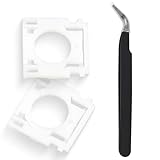
- Compatible With: Logitech MX Keys / Logitech MX Keys S Series, Logitech MX Keys Mini & Logitech Craft Advanced Keyboard
- Good Quality: Each replacement support brackets keycap hinge was tested before shipping and working in good condition.
- Made from hing quality ABS, these keycap hinge are built to last and offer reliable functionality.
- This replacement requires skilled installation to replace the white hing support brackets effectively.
- Package contain 2pcs support hing brackets, 1pc tweezer
A safer version for scripting
The published command assumes that the package is present. A defensive script can check first and avoid passing an empty package name to Remove-AppxPackage:
$copilot = Get-AppxPackage -Name "Microsoft.Copilot" -ErrorAction SilentlyContinue

if ($copilot) {
    $copilot | Remove-AppxPackage
    Write-Host "Microsoft Copilot was removed."
} else {
    Write-Host "Microsoft Copilot was not found for this user."
}
This check is a scripting improvement, not a claim that the command removes the package for every user on the computer. Verify the result under each required user account or use a separately tested, organization-wide deployment method.
4. Stop the Copilot key or Win+C shortcut
Uninstalling the app and changing the keyboard shortcut are separate tasks. On current Windows builds, the dedicated Copilot key can open Microsoft Copilot or Microsoft 365 Copilot when available. Win+C can also open one of those experiences.
The Tool Desk
Outbyte Driver Updater FREEScan for outdated or missing drivers - takes under a minuteDriver Scan →Outbyte PC Repair FREEClear out junk files and repair common Windows errorsFree Scan →To assign the key to another function:
- Open Settings.
- Open the Copilot-key customization setting. Depending on the Windows build, it may appear under Personalization > Text input > Customize Copilot key on keyboard, or under Bluetooth & devices > Keyboard > Shortcuts and hotkeys > Customize Copilot key on keyboard.
- Choose Search or another available target instead of Copilot.
The exact menu location and available targets can vary by Windows version, account type, installed applications, region, and organizational policy. This setting changes what the key or shortcut targets; it does not uninstall Copilot.
Managing the Copilot key for an organization
Administrators can use the SetCopilotHardwareKey policy to set the target application for the Copilot key. Microsoft documents the policy for Windows 11 version 22H2 with the applicable update and later supported versions. Confirm the policy’s availability and administrative-template version before deployment.
5. Block the consumer Copilot app with AppLocker
Best for: Business or school administrators who need to prevent the standalone consumer package from being installed or launched on managed Windows 11 PCs.
Microsoft’s current management guidance recommends AppLocker for the newer Copilot experience instead of the older TurnOffWindowsCopilot policy. Create a packaged-app rule that targets:
- Publisher:
CN=MICROSOFT CORPORATION, O=MICROSOFT CORPORATION, L=REDMOND, S=WASHINGTON, C=US - Package name:
MICROSOFT.COPILOT - Package version:
*and above
When the rule is enabled, Microsoft says it prevents the consumer app from being installed if it is not already present and blocks it from launching if it is already installed.
Also popular on Amazon

- Compatibility: This keycap fits for Microsoft Surface Laptop 3/4/5 13.5" & 15" Models 1867 1868 1872 1873 1950 1951 1953 1958 1959 series 2019-2023 year,Not Compatible for Surface Laptop 6/7, Laptop Go, or Laptop Studio — Please Verify Your Model Before Purchase.
- Before purchasing, please confirm your device model number is compatible. You can find the model number on the bottom cover of your laptop (e.g., model 1867).
- Tips: to remove the old keycaps, gently pry up from the upper left or upper right corner. This requires some patience and careful handling. If you have no prior experience, we recommend watching a tutorial video online before attempting.
- Note: each keyboard key consists of three parts — the upper keycap, the lower hinge, and the silicone cup at the bottom. If the hinge or silicone cup is lost or damaged, replacing the keycap alone will not fix the issue. You will need to replace the hinge and silicone cup first before installing a new keycap.
- Package:1 set of US layout keycaps(note: Win keycpas is not included) and 2 Pcs tool (crowbar triangle flake)
Deployment cautions
- Test the rule in audit mode or on a pilot group before broad deployment.
- Confirm that the rule targets the intended package and does not interfere with a separate Microsoft 365 Copilot deployment.
- Use your organization’s normal change-control and rollback process.
AppLocker is an enterprise control. It is usually excessive for a personal PC where Settings uninstall or a PowerShell removal is sufficient.
6. Use Windows 11 24H2+ app-removal policies
Microsoft provides additional controls for managed devices running Windows 11 version 24H2 or later. These controls are not interchangeable, and edition support is important.
RemoveMicrosoftCopilotApp policy
The WindowsAI Policy CSP documents RemoveMicrosoftCopilotApp for supported Enterprise, Education, and IoT Enterprise editions. It is not documented as available for Windows 11 Pro.
This policy is conditional. Microsoft says it applies when:
- Microsoft 365 Copilot and Microsoft Copilot are both installed;
- the Microsoft Copilot app was not installed by the user; and
- the Microsoft Copilot app has not been launched in the last 28 days.
When enabled, it uninstalls the Microsoft Copilot app. Users can reinstall it later, so this is a managed cleanup mechanism rather than a complete anti-reinstallation control.
Policy-based in-box app removal
For a more persistent device-wide block, Microsoft documents policy-based in-box app removal for managed Windows 11 Enterprise and Education devices running version 24H2 or later. It can be configured through domain Group Policy or an MDM service such as Intune.
Outdated Drivers Are Slowing You Down
One free scan finds every outdated or missing driver and matches the right update for your exact hardware.Free scan · exact hardware matchWindows Errors? Fix Them Before They Spread
Repair common Windows errors and clear accumulated junk for a smoother, more stable PC - no reinstall needed.Free scan · no reinstallImportant behavior includes:
- Device scope: Assign the policy to device groups, not only user groups.
- Removal timing: Removal can occur during provisioning or user sign-in, including after an OS upgrade or policy update.
- Reinstallation: Reinstallation remains blocked while the app is selected in the policy.
- Package identification: To find the Package Family Name, run:
Get-AppxPackage *Copilot* | Select-Object PackageFamilyNameMicrosoft’s documentation includes Copilot in its app-removal examples and describes adding package family names through Group Policy or a custom OMA-URI payload.
Also popular on Amazon
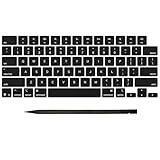
- Why Change Keycaps? Stop sticky or unresponsive keys before they start. This simple care preserves your keyboard's like-new feel and performance, saving you from the cost and hassle of future repairs
- Why Choose Us? Crafted from premium materials, built to last. Exceptional Light Transmission. Optimal Backlight Visibility. Simple, fast installation with included tool.
- Package includes 1 Full Set of keycap. Scissor Hinge not include. Hinge Clip issues cannot be fixed with this part.
- Compatible with MacBook Pro 14 16 inch M4 M5 Pro Max A3401 A3403 A3112 A3185 A3186 A3434 (EMC 8623 EMC 8624 EMC 8623 EMC 8894 EMC 8895) (MX2G3LL MX2V3LL MX2W3LL MW2W3LL MX2E3LL MX2F3LL MX2T3LL), For Air 13 15 inch M4 A3240 A3241 (EMC 8781 EMC 8782) (MC6T4LL MC6U4LL/A MC7A4LL) 2024-2026 Year
- Please make sure your machine model matches our product before chachasing(You can check the model Number AXXX (E.g A3240) on the back of the machine bottom case.If your keycap or hinge is different with our listing, it will not fit each other. Please find other listings in our shop.
Operational warnings
- Do not apply conflicting Intune and Group Policy versions of the same removal control in a hybrid environment. Policy precedence can become unpredictable.
- The policy does not support multi-session environments.
- Removing an app deletes associated on-disk app data. Notify users before deployment.
- If the app later needs to return, remove it from the policy list and wait for policy synchronization before reinstalling it from the Microsoft Store or another management tool.
Why the old “Turn off Windows Copilot” registry fix is not the default
The older TurnOffWindowsCopilot policy remains documented for supported Windows 10 and Windows 11 configurations, including some Windows 11 22H2 and 23H2 installations:
- Group Policy: User Configuration > Administrative Templates > Windows Components > Windows Copilot > Turn off Windows Copilot
- Registry policy path:
HKEY_CURRENT_USERSoftwarePoliciesMicrosoftWindowsWindowsCopilot - Value:
TurnOffWindowsCopilot=1
However, Microsoft marks this policy as deprecated and says it is not intended for the newer Copilot experience rolling out on newer Windows builds. It may still matter on a legacy configuration, but it is not the right default for current Windows 11 installations.
Do not treat a registry edit as a universal solution. Avoid relying on unsupported tactics such as disabling unrelated services, deleting scheduled tasks, editing the hosts file, or using unofficial debloat scripts. The official controls differ by package, Windows version, edition, and management scope.
What removing Windows Copilot does not disable
Copilot in Microsoft Edge
Copilot and the Edge side pane are separate from the Windows Copilot app. Removing the Windows app does not remove Copilot in Edge. Edge has its own settings and administrative policies.
Microsoft 365 Copilot, Teams, Outlook, and Copilot Chat
Work and school users may receive Copilot through Microsoft 365 services rather than the consumer Windows app. Microsoft 365 administrators can manage availability through the Microsoft 365 admin center’s Integrated Apps controls. Depending on the configuration, blocking Copilot there can affect the Microsoft 365 Copilot app, Teams, Outlook, and Copilot Chat on the web for selected users or groups.
This is a tenant-level control, not a Windows uninstall method.
Copilot on the web
Uninstalling an app does not prevent a user from visiting a Copilot website in a browser. Browser and tenant controls must be handled separately.
Recommended Free Tools
Privacy, memory, and training settings
Turning off personalization, memory, or the use of conversations for training is a privacy choice. It does not remove or disable the Windows app.
Also popular on Amazon
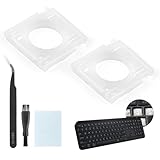
- Compatibility: This keyboard hinge compatible with Logitech MX Keys is suitable for square keys. This product is not a keyboard and does not include keycaps. Please confirm your purchase requirements and model before purchasing to avoid placing an incorrect order.
- Application: If your keyboard keys are falling off, you can use our keyboard hinge clip for Logitech MX Keys to replace them and restore your keyboard to like-new condition. Please note that if your keyboard keys are not working properly, our product is not suitable for such cases.
- Quality and Durability: For Logitech MX Keys support brackets is made of plastic, which reduces wear and tear during use and increases the durability of your keyboard. It is quality-inspected before shipment, so you can use it with confidence.
- Easy Installation: First, remove the keycaps, align the keyboard hinge for Logitech MX Keys insert it into place, press firmly and then reinstall the keycaps. If you are unsure how to operate, we recommend that you consult a professional.
- Packaging Details: 2 Keyboard hinge clips for Logitech MX Keys + 1 set of tools. Our tools can help you install easily. If you have any questions about the product or need an installation video, please leave us a message.
Verify that you changed the intended scope
After making a change, verify the exact behavior you intended:
- Open Start > All apps and search for Microsoft Copilot.
- Check Settings > Apps > Installed apps for Copilot.
- Press Win+C once and confirm that it opens the configured target—such as Search—instead of Copilot.
- On a managed device, confirm AppLocker or MDM/Group Policy status through your organization’s normal reporting tools.
- For policy-based removal, administrators can inspect the documented policy registry location and use
gpresultor AppX deployment logs as appropriate. Microsoft also documents relevant verification paths and event IDs for that policy.
Do not conclude that Copilot is permanently gone merely because its taskbar icon disappeared.
Reinstall or roll back the change
- A normally uninstalled consumer Copilot app can be reinstalled from the Microsoft Store.
- For policy-based removal, remove the app from the policy list, synchronize the policy, and then reinstall it through the Store or an approved management tool.
- For AppLocker, remove or modify the blocking rule according to organizational change-control procedures before attempting installation or launch.
Windows updates, user actions, and management policies can have different effects. Avoid absolute claims that an update will always reinstall Copilot or will never reinstall it; the result depends on the particular removal or application-control method.
Free tools Windows power users keep installed
One-click scans. No signup required.
Frequently Asked Questions
Does uninstalling Copilot remove Copilot from Windows 11 completely?
No. It removes the standalone Microsoft Copilot app only. Copilot in Edge, Microsoft 365 Copilot, Copilot in Teams and Outlook, and browser access are separate surfaces.
Why can I still press Win+C after uninstalling Copilot?
Win+C is a keyboard entry point, not the uninstall mechanism. Change the Copilot-key setting under the relevant Keyboard or Personalization settings page and choose Search or another available target.
Does PowerShell prevent Copilot from being installed again?
No. The documented PowerShell command removes the AppX package for the targeted user. AppLocker or a supported device-level app-removal policy is needed to prevent installation or launch.
Is the TurnOffWindowsCopilot registry setting still useful?
It can apply to some legacy Windows 10 and Windows 11 configurations, but Microsoft marks it deprecated and says it is not intended for the newer Copilot experience. Use current AppLocker or supported app-removal controls instead.
What’s actually slowing this PC down?
Pick the symptom - the matching free tool is one click away.
Can I remove Copilot on Windows 11 Pro with the RemoveMicrosoftCopilotApp policy?
The documented policy is for supported Enterprise, Education, and IoT Enterprise editions, not Windows 11 Pro. On a Pro PC, use Settings or PowerShell for removal, and check the available application-control options if you need to block reinstallation.
The Bottom Line
For a personal Windows 11 PC, uninstall Microsoft Copilot through Settings > Apps > Installed apps. Use PowerShell when the Settings option is unavailable, and separately remap the Copilot key or Win+C if needed. For managed Enterprise or Education fleets, use AppLocker or the supported Windows 11 24H2+ app-removal policies. None of these Windows-app methods automatically disables Copilot in Edge, Microsoft 365, Teams, Outlook, or on the web.

