
iTechGuides is reader-supported. When you buy through links on our site, we may earn an affiliate commission. As an Amazon Associate I earn from qualifying purchases. Learn more
The easiest way to print from an iPhone or iPad is AirPrint: open the photo, PDF, email, webpage, or document, tap Share (or More, Reply, or Actions), choose Print, select the printer, adjust the available options, and tap Print.
AirPrint works only when the exact printer model supports it and the printer is reachable on the same local network. If the printer does not support AirPrint, use its official app, Wi-Fi Direct, a supported cloud-printing feature, Bluetooth for compatible specialty printers, or a Mac or Windows computer. A USB cable alone usually will not let an iPhone or iPad print to a conventional USB-only printer.
Choose the right printing method first
| Your situation | Best option | What to expect |
|---|---|---|
| The printer supports AirPrint and is connected to your network | AirPrint | No printer driver or extra app is required. |
| The printer has Wi-Fi but does not support AirPrint | Manufacturer app | Printing is controlled by the printer maker’s app and exact-model support varies. |
| You do not have a usable home network | Wi-Fi Direct | The iPhone or iPad connects directly to the printer, sometimes temporarily losing normal internet access. |
| The printer supports remote or email printing | Manufacturer cloud service | The printer must be online, and an account or internet connection may be required. |
| You have a portable photo, label, receipt, or specialty printer | Manufacturer app or supported Bluetooth mode | It may not appear in Apple’s standard Print menu. |
| The printer is USB-only or very old | Mac or Windows computer | Transfer the file to the computer and print using the computer’s driver or printer software. |
Do not assume that a printer with Wi-Fi, Bluetooth, or a USB-C port supports AirPrint. Check the exact model before choosing an app or troubleshooting discovery.
The fastest method: print with AirPrint
AirPrint is Apple’s driverless printing system, built into iPhone and iPad. It does not normally require a printer-specific driver or an additional app.
Popular on Amazon
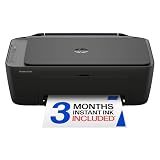
- PERFECT FOR BASIC PRINTING NEEDS – Print everyday color documents like to-do lists, letters, financial documents and recipes
- KEY FEATURES – Color print, copy, scan, and a 60-sheet input tray, plus mobile and wireless printing
- OPTIMIZE PRINT FORMATTING WITH HP AI – Print web pages and emails with precision—no wasted pages or awkward layouts; HP AI easily removes unwanted content, so your prints are just the way you want
- ICON LCD – Print your basic documents with ease from the intuitive control panel
- PRINT SPEED – Up to 7.5 ppm black, 5.5 ppm color
What you need
- An AirPrint-compatible printer. Check the exact model, not just the printer family.
- A powered-on printer that is awake, connected, and free of paper jams or other errors.
- Paper loaded in the correct tray.
- The iPhone or iPad and printer connected to the same local network in a typical home setup.
- An app or document that supports printing.
The printer may also need current firmware or AirPrint enabled in its network settings. The printer can be connected to the network over Wi-Fi or wired Ethernet; the iPhone or iPad does not need to use the same physical connection type. For example, an iPhone on Wi-Fi can print to an AirPrint printer connected to the router by Ethernet. It is the network path that matters, not whether both devices use Wi-Fi.
Standard AirPrint steps
- Open the app containing the item you want to print.
- Open the photo, PDF, email, webpage, or document.
- Tap Share, More, Reply, or Actions, depending on the app.
- Tap Print. If you do not see it, swipe upward in the share sheet to reveal more actions.
- Tap No Printer Selected.
- Choose the AirPrint printer from the list.
- Set the number of copies, page range, and any other options the app and printer provide.
- Tap Print.
Apple documents AirPrint support in apps such as Mail, Photos, and Safari, as well as many third-party apps. Menu placement can differ by app, device orientation, and iOS or iPadOS release. Apple’s current guides use iOS/iPadOS 26 labels, but older versions may show slightly different wording.
Print options and limitations
The available controls depend on both the app and the printer. You may see options for:
Recommended Free Tools
- Number of copies.
- Specific pages or a page range.
- Color or black-and-white printing.
- Paper size, paper tray, or media type.
- Portrait or landscape orientation.
- Two-sided printing, if the printer supports duplex printing.
- Quality, scaling, borderless printing, or finishing options on compatible models.
AirPrint does not expose every setting on every printer. If a setting such as borderless photo printing, scaling, or a special paper type is missing, the manufacturer’s app may provide more controls.
Check or cancel a print job
On an iPhone, open the App Switcher and select Print Center. A badge indicates queued documents. Select the job and tap Cancel Printing if necessary. You can also check the printer’s own display or status lights for paper, ink, toner, or connection errors.
Print photos, PDFs, email, webpages, and documents
Photos
- Open Photos.
- Open one photo, or tap Select and choose multiple photos.
- Tap Share.
- Tap Print.
- Select the printer, set the available options, and tap Print.
When printing photos, check the paper size, orientation, scaling, and crop settings. A photo can be cropped to fit the selected paper even when it looks uncropped on the screen.
PDFs and files
Open the PDF in Files or another compatible document app, tap its share or actions menu, and choose Print. On iPad models with the current Preview app, open the PDF, tap the actions menu beside the filename, tap Print, select a printer, and tap the print button.
Do these 3 things before closing this tab:
1Scan for outdated or missing drivers - takes under a minute2Repair Windows errors before they cause bigger problems3Fix the driver behind crashes, sound loss and screen glitchesA PDF is generally a better source for printing a document than a screenshot because it preserves text and page structure more reliably.
Email messages and attachments
In Mail on iPad, open the message, tap More Actions, and choose Print. To print an attachment, open the attachment, tap its share or actions control, and choose Print. The exact controls can differ between Mail and other email apps.
Webpages in Safari
- Open the page in Safari.
- Tap Share.
- Scroll through the actions and tap Print.
- Choose the printer and adjust the page range or other available options.
- Tap Print.
A webpage may reflow when printed. Advertisements, navigation elements, images, and page breaks can differ from what appears on screen. If Safari’s output is unsuitable, use the site’s own PDF or print view when available, or save the page as a PDF before printing.
Documents in Pages
In Pages on iPhone, open the document, tap the More button, tap Print, select a printer, choose the page range and number of copies, and print.
When an app has no Print command
- Look under Share, More, Actions, or an overflow menu.
- Swipe upward in the share sheet; some actions are below the initially visible area.
- Check the app’s Help or User Guide.
- Export or save the item as a PDF.
- Open the PDF in Files or Preview and print it.
- Use a screenshot only for a simple visual item as a last resort.
Not every app supports printing. A screenshot can reduce quality, omit pages, and turn selectable text into an image, so it is not equivalent to printing the original document.
How to check whether your printer supports AirPrint
- Open Apple’s About AirPrint page and search the printer brand, model, or category.
- Check the printer maker’s specifications or support page for the exact model.
- Confirm the full model number, including regional or series suffixes. Similar-looking models in one family can have different wireless and AirPrint features.
- Check whether the printer’s firmware is current and whether AirPrint can be enabled in its network settings.
Apple says AirPrint printer information is supplied by manufacturers and updated regularly. A printer listed as USB-only may support driverless printing or scanning from a Mac through USB, but that does not mean it can print directly from an iPhone or iPad.
Also popular on Amazon

- Affordable Versatility - A budget-friendly all-in-one printer perfect for both home users and hybrid workers, offering exceptional value
- Crisp, Vibrant Prints - Experience impressive print quality for both documents and photos, thanks to its 2-cartridge hybrid ink system that delivers sharp text and vivid colors
- Effortless Setup & Use - Get started quickly with easy setup for your smartphone or computer, so you can print, scan, and copy without delay
- Reliable Wireless Connectivity - Enjoy stable and consistent connections with dual-band Wi-Fi (2.4GHz or 5GHz), ensuring smooth printing from anywhere in your home or office
- Scan & Copy Handling - Utilize the device’s integrated scanner for efficient scanning and copying operations
Wi-Fi capability is not the same as AirPrint compatibility. A Wi-Fi printer may require Canon PRINT, the HP app, Epson Smart Panel, Brother Mobile Connect, or another official app. If Apple’s AirPrint list and the manufacturer’s specifications do not identify the exact model as AirPrint-compatible, plan to use the manufacturer’s app or another supported method.
How to print without AirPrint
1. Use the printer manufacturer’s official app
This is the normal alternative when a printer has wireless connectivity but does not support AirPrint. The app may communicate over the home network, Wi-Fi Direct, a proprietary wireless mode, or a cloud service.
General setup
- Find the exact printer model number.
- Install the official iPhone or iPad app recommended for that model.
- Use the app’s setup wizard to connect the printer to Wi-Fi, or enable the printer’s direct wireless mode.
- When iOS or iPadOS asks, allow the app to access the local network and the photos or files it needs.
- Choose the document or photo inside the app.
- Select print settings and submit the job.
On iOS 14 and later and iPadOS 14 and later, an app that searches for devices on the local network must request permission. If permission was denied, open Settings → Privacy & Security → Local Network and enable the printer app. This permission is separate from AirPrint’s system-level operation.
Common manufacturer apps
| Brand | App or route | Important qualification |
|---|---|---|
| HP | HP app; HP Smart may still apply where the newer HP app is unavailable | HP’s current support material lists iOS/iPadOS 17 or later for the HP app and says some cloud features require an account. Requirements and app availability vary by model and market. |
| Canon | Canon PRINT | Canon says the app was previously called Canon PRINT Inkjet/SELPHY. Its U.S. page currently lists iPhone/iPad support beginning with iOS 16.0 and limits features to compatible models. |
| Epson | Epson Smart Panel or Epson iPrint | Smart Panel works with selected products and normally requires the device and printer to be on the same wireless network. Epson iPrint supports selected files and cloud accounts, subject to model support. |
| Brother | Brother Mobile Connect or Brother iPrint&Scan | Available connection methods depend on the printer model and can include Wi-Fi and Wi-Fi Direct/Wireless Direct. |
Use the links below to confirm current support before installing:
- HP app and HP Smart information and HP mobile printing methods.
- Canon PRINT.
- Epson Smart Panel and Epson iPrint.
- Brother mobile printing and connection options.
Advantages and trade-offs
Manufacturer apps can print from non-AirPrint printers and may add scanning, ink or toner status, maintenance, layout, special media, and printer-specific controls. The trade-off is that they require an app, may not support every file type, and can require access to Photos, Files, Bluetooth, local-network devices, or an account.
Separate local printing from cloud printing. An account may not be necessary for a print job sent locally over Wi-Fi, while remote printing, fax, supply ordering, or advanced cloud features may require an account. HP, for example, distinguishes local app printing from account-dependent features.
Free tools Windows power users keep installed
One-click scans. No signup required.
2. Use Wi-Fi Direct or the printer’s direct wireless network
Wi-Fi Direct lets a compatible printer communicate with the iPhone or iPad without using the household router. Printer menus may call this Wi-Fi Direct, Wireless Direct, or Direct Connection.
- Enable the direct wireless feature on the printer.
- Open Settings → Wi-Fi on the iPhone or iPad.
- Join the printer’s network, using the password or PIN shown by the printer if required, or let the manufacturer app configure the connection.
- Open the manufacturer app and select the file or photo.
- Print from the app. On selected models, AirPrint may also work over the direct connection.
Wi-Fi Direct does not automatically make a printer AirPrint-compatible. Some direct-wireless modes work only inside the manufacturer’s app. Also, the iPhone or iPad may temporarily lose normal internet access while connected directly to the printer. Do not assume the printer network is open; use the password or security method specified by the model.
HP documents Wi-Fi Direct printing from iPhone and iPad, while Brother documents Wi-Fi Direct or Wireless Direct on selected machines.
3. Use a manufacturer cloud or email-printing feature
Some supported printers provide a cloud service, remote-print feature, or printer-specific email address. This can allow a job to be sent when the iPhone or iPad and printer are on different networks.
The Tool Desk
Outbyte Driver Updater FREEFix the driver behind crashes, sound loss and screen glitchesFind Drivers →Outbyte PC Repair FREERepair Windows errors before they cause bigger problemsFix Now →Availability depends on the printer model, service, country, account, and internet connection. Examples include HP Print Anywhere and ePrint on selected printers and Epson iPrint cloud and remote printing on supported products.
Cloud printing has different trade-offs from local AirPrint:
- The file may pass through the manufacturer’s cloud service.
- The printer must be online and the service must be operating.
- File types or sizes may be restricted.
- Delivery can be delayed rather than immediate.
- An account, subscription-like feature, or verification may be required.
- It is not available on every printer, and not every printer has an email address.
4. Use Bluetooth only when the printer explicitly supports Bluetooth printing
Bluetooth is most useful for certain portable photo, label, receipt, and compact specialty printers, plus some older mobile printers. It is not a universal replacement for AirPrint.
Also popular on Amazon

- Affordable Versatility - A budget-friendly all-in-one printer perfect for both home users and hybrid workers, offering exceptional value
- Crisp, Vibrant Prints - Experience impressive print quality for both documents and photos, thanks to its 2-cartridge hybrid ink system that delivers sharp text and vivid colors
- Effortless Setup & Use - Get started quickly with easy setup for your smartphone or computer, so you can print, scan, and copy without delay
- Reliable Wireless Connectivity - Enjoy stable and consistent connections with dual-band Wi-Fi (2.4GHz or 5GHz), ensuring smooth printing from anywhere in your home or office
- Scan & Copy Handling - Utilize the device’s integrated scanner for efficient scanning and copying operations
- Check the manual for Bluetooth printing, not merely Bluetooth setup or Bluetooth discovery.
- Use the manufacturer’s app when the printer requires one.
- Do not expect every Bluetooth printer to appear in Apple’s normal AirPrint printer list.
- Do not confuse Bluetooth Low Energy used for setup with a Bluetooth print channel.
HP states that Bluetooth Smart/BLE can help an app discover a printer without enabling Bluetooth printing itself. Canon documents model-specific Bluetooth printing through Canon PRINT on selected printers. In other words, Bluetooth support must be confirmed for the exact printer and app.
Outdated Drivers Are Slowing You Down
One free scan finds every outdated or missing driver and matches the right update for your exact hardware.Free scan · exact hardware matchWindows Errors? Fix Them Before They Spread
Repair common Windows errors and clear accumulated junk for a smoother, more stable PC - no reinstall needed.Free scan · no reinstall5. Transfer the file to a Mac or Windows computer
For a USB-only or very old printer with no compatible iPhone or iPad app, a computer is usually the dependable solution:
- Save the photo or document to Files, iCloud Drive, OneDrive, Dropbox, email, or another transfer location.
- Move or download it to a Mac or Windows computer. Apple’s file-transfer guide covers moving files between an iPhone or iPad and a computer.
- Install the printer’s driver or manufacturer software on the computer.
- Print from the computer.
A Mac can share a directly attached printer with another Mac or UNIX computer through System Settings → General → Sharing → Printer Sharing. However, Apple’s Printer Sharing documentation does not describe that feature as a native iPhone or iPad printing path. Exposing a legacy printer to iPhone or iPad therefore requires a compatible third-party AirPrint proxy or server, with its own compatibility, security, privacy, and cost considerations.
Can I print from an iPhone or iPad with a USB cable?
Not to a conventional USB-only printer in the general case. Plugging a Lightning-to-USB or USB-C cable into an iPhone or iPad does not provide a universal printer-driver system. An iPad’s USB-C port can support many accessories and storage devices, but that does not mean iPadOS can drive any USB printer.
Apple’s documented AirPrint workflow uses network-connected printers. Apple documents driverless USB printing and scanning for USB-only printers through a Mac, not a general direct iPhone or iPad connection. A printer connected to a router’s USB port, an AirPort USB port, or a computer’s USB port should not automatically be expected to appear as an AirPrint printer either. Apple specifically notes limitations for AirPrint through AirPort USB and Bluetooth-to-computer connections.
What’s actually slowing this PC down?
Pick the symptom - the matching free tool is one click away.
A particular manufacturer may support a special accessory or printer-specific connection, so check that model’s documentation. Otherwise, use the manufacturer app over Wi-Fi or Wi-Fi Direct, transfer the file to a computer, or use a print service.
Fix “No AirPrint Printers Found”
Follow these checks in order. Discovery problems are often caused by the network rather than by a defective printer.
- Verify compatibility. Confirm the exact model supports AirPrint. Wi-Fi alone is not enough.
- Wake the printer. Make sure it is powered on, finished starting up, online, and not showing a paper, ink, toner, jam, or maintenance error.
- Check the network. Confirm the iPhone or iPad and printer are connected to the same local network. Similar network names are not proof that they are on the same network.
- Leave guest Wi-Fi. Guest networks commonly block communication between devices. Also check for client isolation, privacy separators, or device isolation on the router.
- Restart the printer and router. Allow the printer time to reconnect fully before trying AirPrint again.
- Update software. Install available printer firmware and iOS or iPadOS updates.
- Check printer settings. Some models allow AirPrint to be disabled in network or administration settings.
- Test the official app. If the manufacturer app finds and prints to the printer but AirPrint does not, the printer can print; the remaining problem is likely AirPrint discovery or network configuration.
- Check managed networks. On an office, school, hotel, or other managed network, ask the administrator whether Bonjour or mDNS discovery is allowed between the iPhone or iPad and the printer’s network segment.
HP identifies printer sleep, poor wireless connectivity, wireless isolation, and disabled AirPrint as common causes. Brother also identifies mismatched SSIDs, multiple misconfigured access points, blocked Bonjour communication, and router privacy-separator settings.
For a home network, the most useful quick test is to connect both devices to the main non-guest network, restart the printer, wait for it to obtain a network connection, and try again. If that fails, use the manufacturer app to determine whether the issue is limited to AirPrint discovery.
Fix a manufacturer app that cannot find the printer
- Open Settings → Privacy & Security → Local Network and enable access for the printer app.
- Give the app access to Photos or Files if it needs to read the item you want to print.
- Turn on Bluetooth if the manufacturer uses Bluetooth for setup or discovery.
- Confirm that the app supports the exact printer model and your iOS or iPadOS version.
- Run the app’s printer setup wizard again rather than relying on an old saved connection.
- Confirm the printer and phone are on the same network, or switch to the printer’s Wi-Fi Direct mode.
- Restart the printer, phone or tablet, and router if the app still shows no device.
Local-network permission is especially easy to miss after initially denying the prompt or restoring a device from backup.
Fix a missing Print option
- Swipe upward in the share sheet to reveal hidden actions.
- Look under More, Actions, Reply, or the app’s overflow menu.
- Check whether the app supports printing at all.
- Export or save the item as a PDF, then print the PDF from Files or Preview.
- Use the manufacturer app if it supports the item’s file type.
Some apps intentionally provide sharing or exporting but no native print action. Saving a document as a PDF is usually the cleanest workaround.
Independent reader supportYour contribution helps us test, update, and keep practical guides available for everyone.Fix a stuck print job
- Open the App Switcher and select Print Center.
- Select the queued document and tap Cancel Printing.
- Check the printer’s screen or lights for a paper jam, empty tray, incorrect paper size, offline state, or ink or toner warning.
- Reload the correct paper and make sure the intended printer is selected.
- Restart the printer and submit a one-page test file.
If a one-page test works but a large document does not, check the document’s page range, file type, printer storage, and the app’s handling of the file.
When the printed result looks wrong
- Webpages can reflow: printed page breaks and content may differ from the screen.
- Photos can crop: the image aspect ratio may not match the paper.
- Screenshots are images: text will not remain selectable and quality may be lower.
- App layouts differ: an app may use a print-specific layout rather than reproducing the screen.
- Check paper settings: paper size, orientation, scaling, borderless mode, tray, and duplex settings must match the loaded paper and may be available only in the manufacturer app.
- Prefer the original PDF: it normally preserves document structure better than a screenshot or copied webpage.
Frequently asked questions
Does the printer and iPhone need to be on the same Wi-Fi?
Usually, yes. In a normal home setup, AirPrint requires the iPhone or iPad and printer to be reachable on the same local network. A printer connected by Ethernet can still work with an iPhone on Wi-Fi. A managed network may need Bonjour or mDNS discovery allowed between network segments. Wi-Fi Direct and cloud printing are exceptions: Wi-Fi Direct creates a direct connection, while cloud printing uses the internet rather than local discovery.
Quick wins for a faster PC:
Clear out junk files and repair common Windows errorsFree Scan →Scan for outdated or missing drivers - takes under a minuteDriver Scan →Repair Windows errors before they cause bigger problemsFix Now →Also popular on Amazon

- AFFORDABLE ALL-IN-ONE FOR HOME AND HOME OFFICE: Print, copy, and scan on one compact wireless printer designed for everyday home office printing, schoolwork, documents, and reports. Produce beautiful prints for results that stand out.
- EASY TO USE WITH CLOUD APP CONNECTIONS: Print from and scan to popular Cloud apps(2), including Google Drive, Dropbox, Box, OneDrive, and more from the simple-to-use 1.8” color display on your printer.
- FULL-SIZE FEATURES IN A COMPACT DESIGN: This printer includes automatic duplex (2-sided) printing, a 20-sheet single-sided Automatic Document Feeder (ADF)(3), and a 150-sheet paper tray(3). Engineered to print at fast speeds of up to 16 pages per minute (ppm) in black and up to 9 ppm in color(4).
- MULTIPLE CONNECTION OPTIONS: Connect your way. Interface with your printer on your wireless network or via USB.
- MOBILE PRINTING MADE EASY: Go mobile with the Brother Mobile Connect app(5) that delivers easy onscreen menu navigation for printing, copying, scanning, and device management from your mobile device. Monitor your ink usage with Page Gauge to help ensure you don’t run out(6).
Can I print over cellular data?
Not with ordinary local AirPrint discovery. Cellular data does not put the iPhone or iPad on the printer’s local network. You may be able to print remotely through a supported manufacturer cloud service, but the printer must support that feature, remain online, and may require an account.
Does a printer connected by Ethernet work with an iPhone?
Yes, if it supports AirPrint or another compatible network-printing method and is reachable from the iPhone’s network. The iPhone does not connect to the printer with an Ethernet cable; it reaches the networked printer over Wi-Fi.
Does Wi-Fi mean that a printer supports AirPrint?
No. Wi-Fi only describes the network connection. Some Wi-Fi printers require the manufacturer’s app. Check Apple’s AirPrint list and the manufacturer’s exact-model specifications.
Can I print over Bluetooth?
Only when the exact printer explicitly supports Bluetooth printing, usually through its manufacturer app. Bluetooth Low Energy may be used only for setup or discovery and does not necessarily carry print jobs. A Bluetooth printer also may not appear in Apple’s standard AirPrint list.
Why does the manufacturer app work when AirPrint does not?
The app may use a different discovery method, a model-specific protocol, Wi-Fi Direct, or a cloud connection. AirPrint may be disabled, blocked by guest Wi-Fi or wireless isolation, or unable to use Bonjour or mDNS across a managed network. If the app prints successfully, focus troubleshooting on AirPrint discovery and network configuration.
Can I print without internet access?
Yes, local AirPrint and many manufacturer apps can print without internet when the iPhone or iPad and printer share a functioning local network. Wi-Fi Direct can also work without a router. Internet is needed for remote or cloud printing, app downloads, account verification, and some cloud-based features.
Can I print to a printer connected to my Mac by USB?
Not as a standard direct AirPrint destination. You can print from the Mac itself, or investigate a compatible AirPrint proxy or server. Ordinary macOS Printer Sharing is not documented by Apple as a native iPhone or iPad printing path.
What is the best option for an old printer?
First check whether its manufacturer provides a current iPhone or iPad app with support for the exact model. If not, transfer the file to a Mac or Windows computer and print there. A third-party AirPrint server may be possible, but verify its current iOS/iPadOS support, printer protocols, helper-computer requirements, privacy policy, security, and cost before relying on it.
Recommended Free Tools
Frequently Asked Questions
Can I print a webpage, email, or PDF from an iPhone or iPad?
Yes. Open the item, use Share, More, Reply, or Actions, choose Print, select the printer, and submit the job. If Print is unavailable, save or export the item as a PDF and print the PDF from Files or Preview.
What should I do if my printer does not appear?
Confirm the exact model supports AirPrint, wake the printer, put both devices on the same non-guest local network, disable or avoid wireless isolation, restart the printer and router, and check for firmware updates. For a manufacturer app, also enable Settings → Privacy & Security → Local Network for that app.
Can a USB-C cable connect an iPad directly to any printer?
No. There is no general Apple-supported direct USB printing workflow for conventional USB-only printers from iPhone or iPad. Use a compatible manufacturer solution if one is explicitly documented, or print through a Mac or Windows computer.
What is the simplest way to print without AirPrint?
Install the printer maker’s official app for the exact model. It may print over the home network or Wi-Fi Direct and may expose more settings than AirPrint. If no compatible app exists, use a computer or supported cloud-printing service.
Windows Errors? Fix Them Before They Spread
Repair common Windows errors and clear accumulated junk for a smoother, more stable PC - no reinstall needed.Free scan · no reinstallCrashes, No Sound, or Screen Glitches?
Random freezes, missing sound and display glitches usually trace back to one bad driver. Find and replace yours safely.Free scan · under a minuteThe Bottom Line
Use AirPrint whenever the exact printer model supports it: connect the printer and iPhone or iPad to the same local network, choose Share → Print, select the printer, and submit the job. If AirPrint is unavailable, the manufacturer’s official app is usually the next-best option. Wi-Fi Direct, supported cloud features, and model-specific Bluetooth can work in narrower situations, while a USB-only printer normally requires a Mac or Windows computer.

