
Not an administrator on your Windows 10 PC and will like to change that? We thought it was a great idea – so we wrote this guide that teaches you how to get administrator privileges on Windows 10.
There are 2 ways to achieve this:
1, log in with the built-in administrator account. 2, if you do not have the password for the local administrator account, ask another person with administrator privileges on the PC to grant you administrator permission on the PC.
Option 1: Get Administrator Privileges via Windows Settings
The fastest method to grant your account administrator permissions on a Windows 10 PC is via Accounts Settings. Here are the detailed steps…
- Right-click the Windows 10 Start menu and click Settings.

- Then, on the Windows Settings screen, click Accounts.
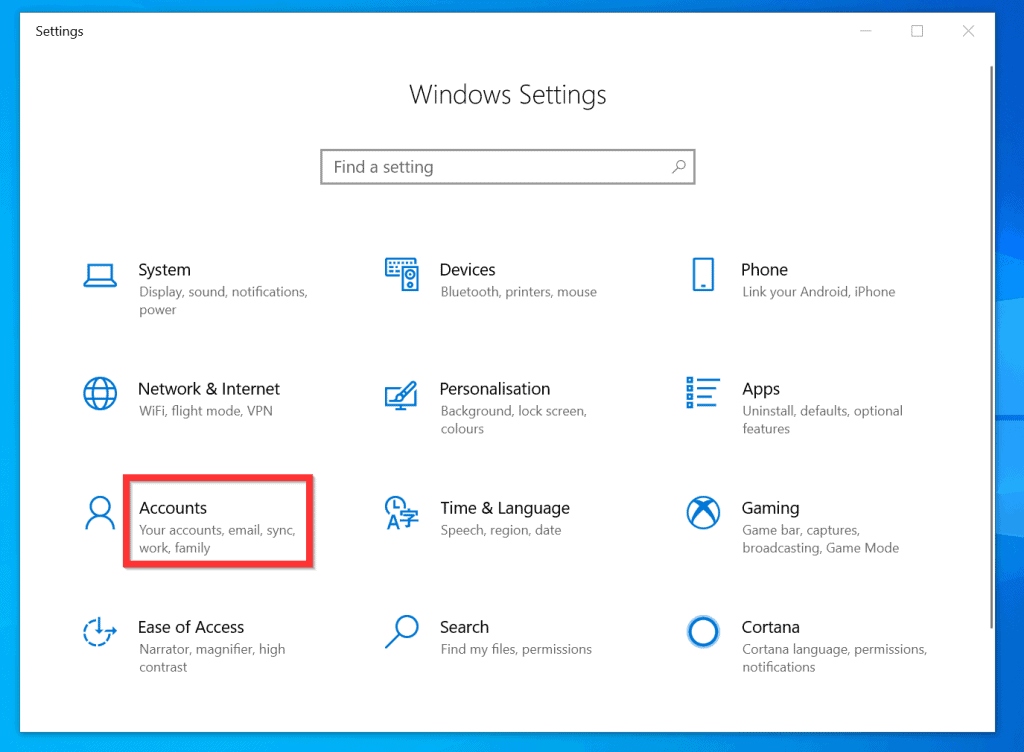
- On the left pane of Your info screen, click Family & other users.
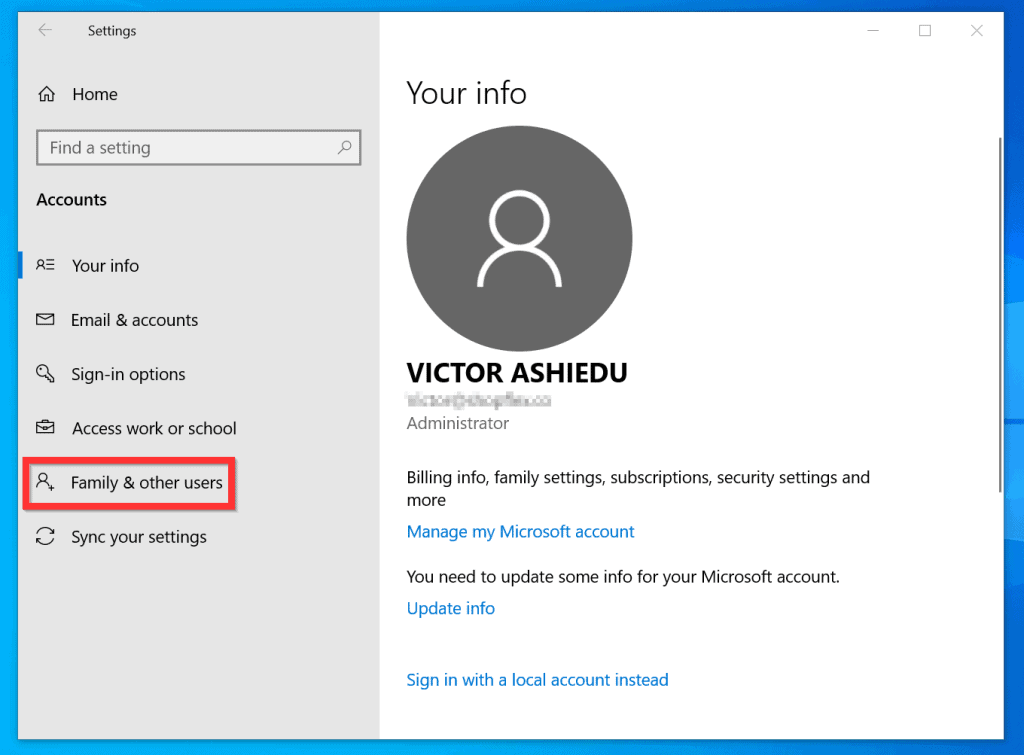
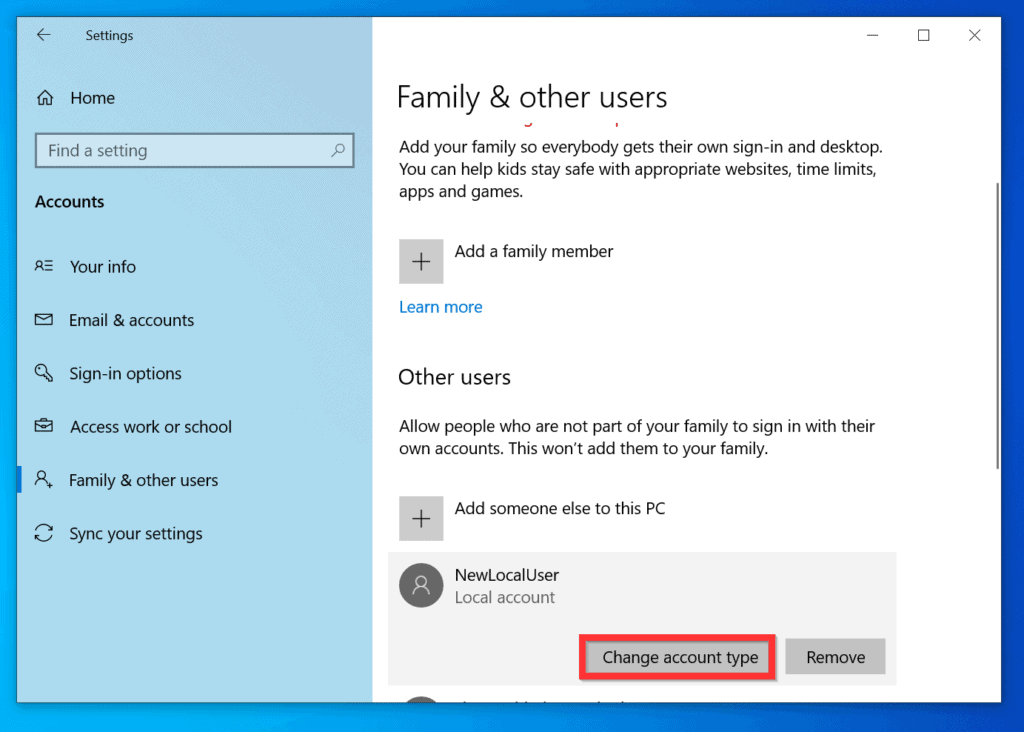
- When Family & other users screen opens, on the Other users section, click on the account you want to grant administrator privileges. The account will expand and display additional options.
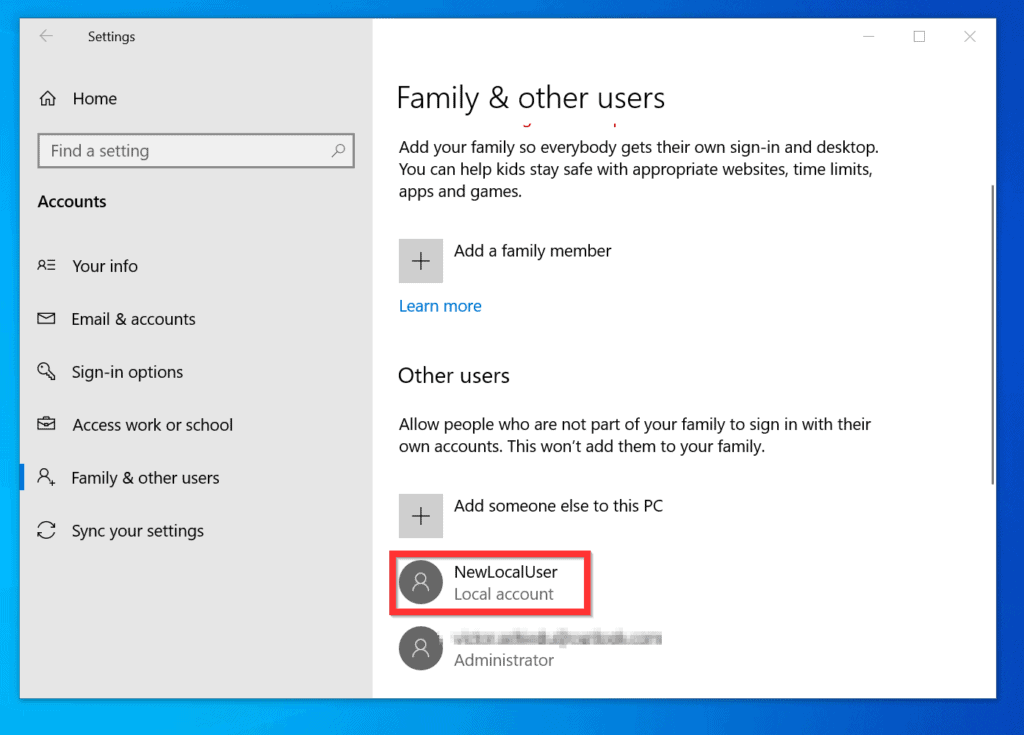
- Then, from the displayed account options, click Change account type.
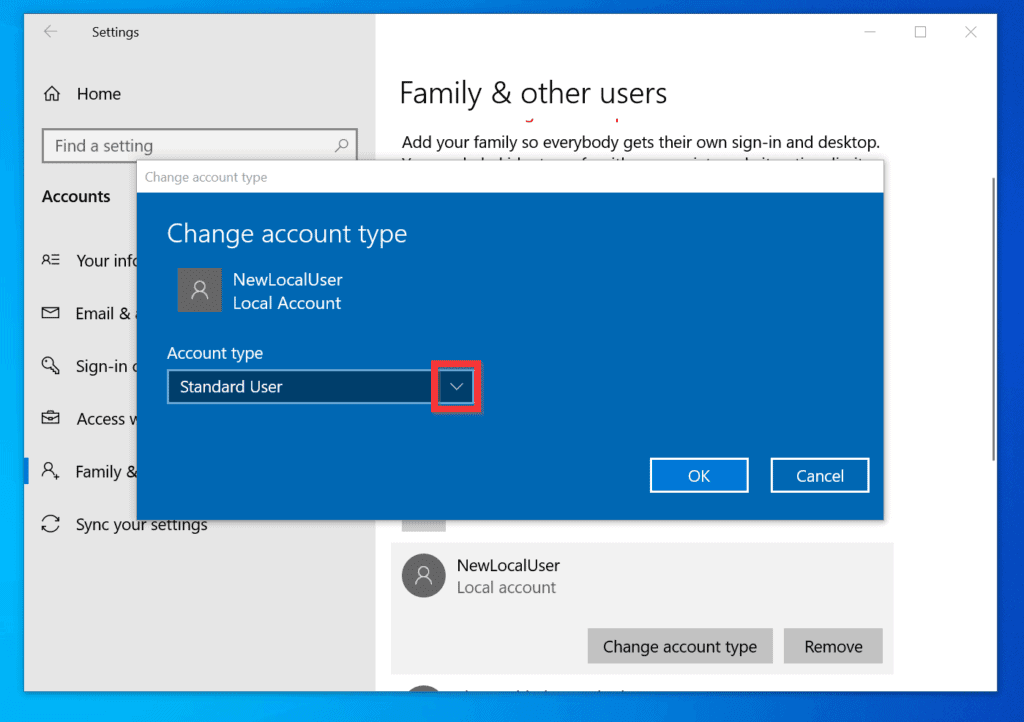
- Finally, click the Account type drop-down and select Administrators on the Change account type pop-up window.
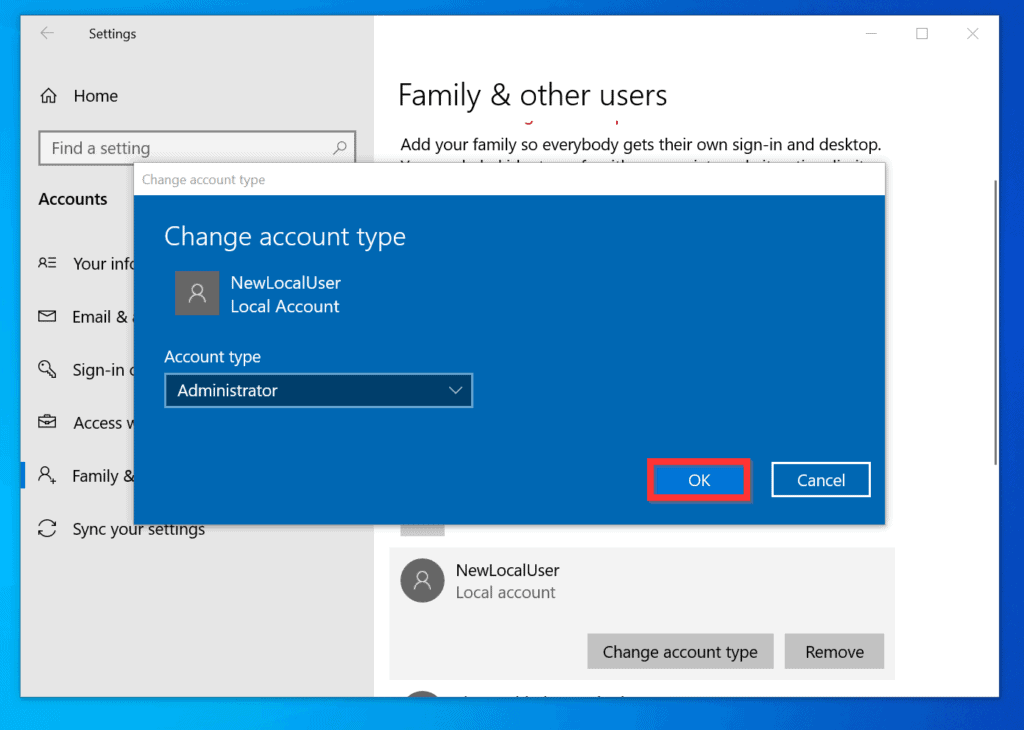
- To save your changes, on the bottom right of the Change account type pop-up window, click OK.
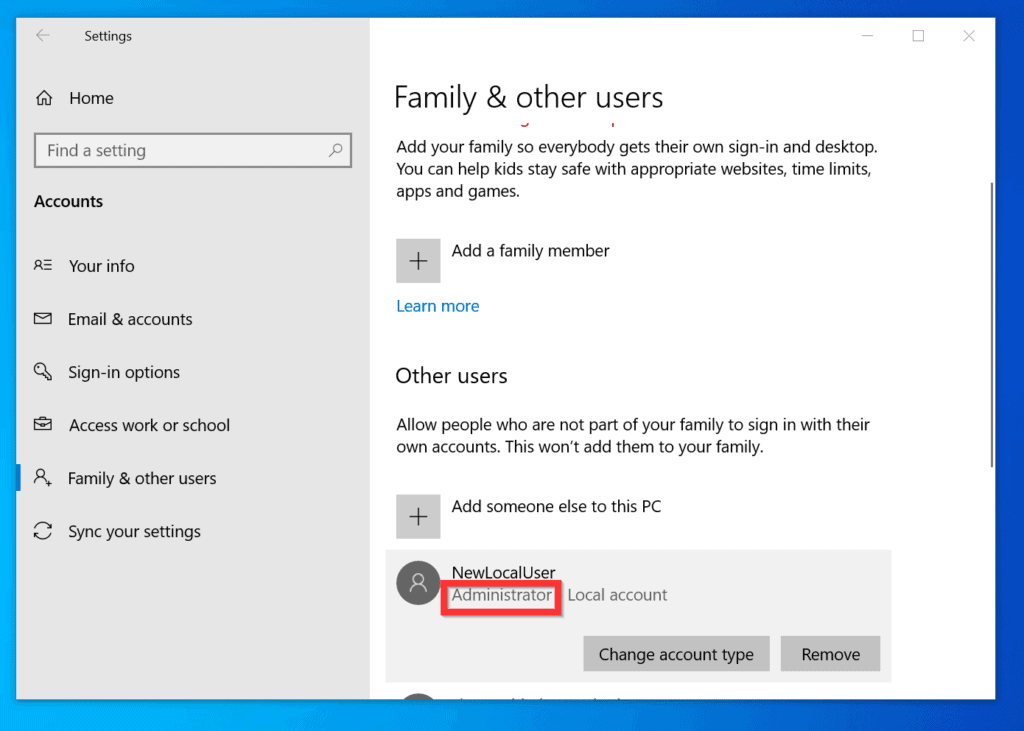
- You will be returned to the Family & other users screen. The user will now be identified as an Administrator.
Option 2: Get Administrator Privileges with Command Prompt
For Windows admins that prefer command prompt over GUI, this section is for you!
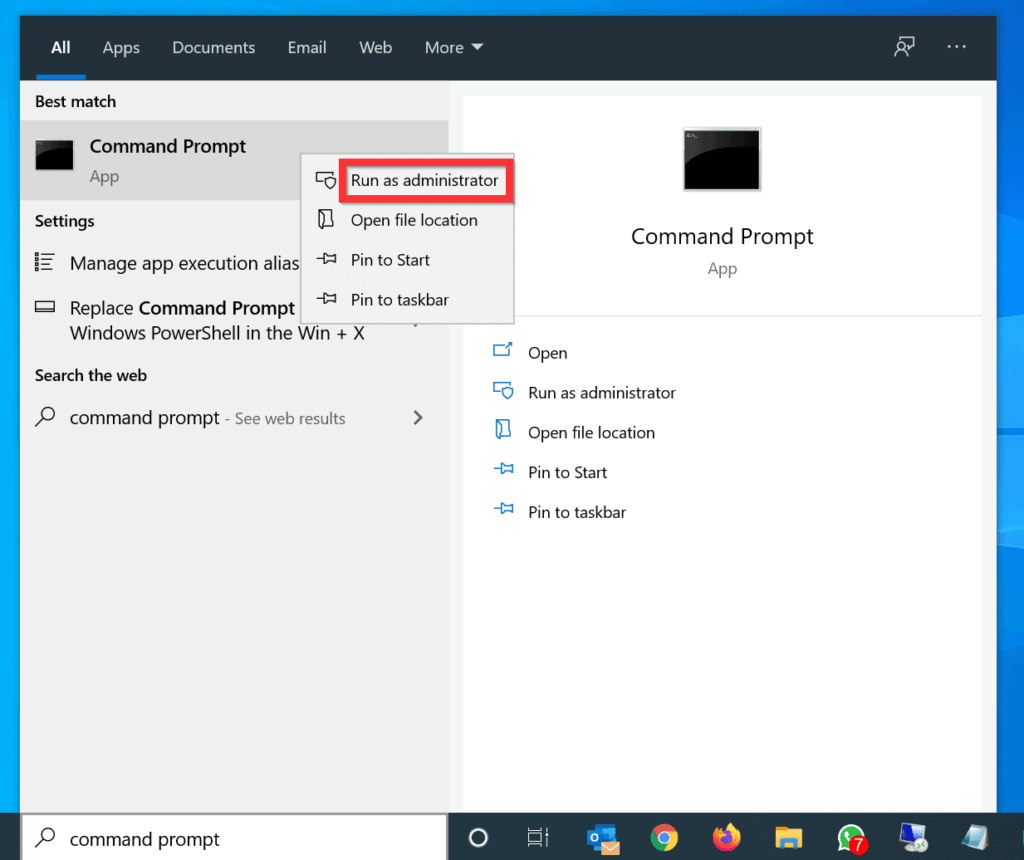
- Type command prompt or cmd in the search box. Then, from the search results, right-click Command Prompt and select Run as administrator.
- You will receive a User Account Control confirmation screen requesting you to allow the program to make changes to your computer, click Yes.
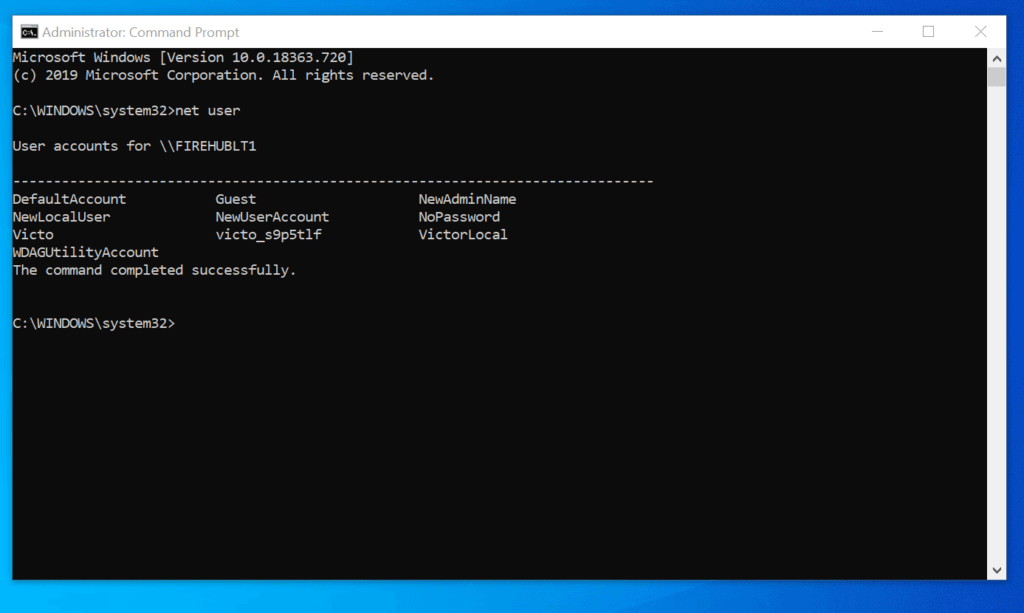
- On Command Prompt, to list all users on the computer, type the command below and press enter.
net user
- Copy the username for the user you want to grant administrator privilege.
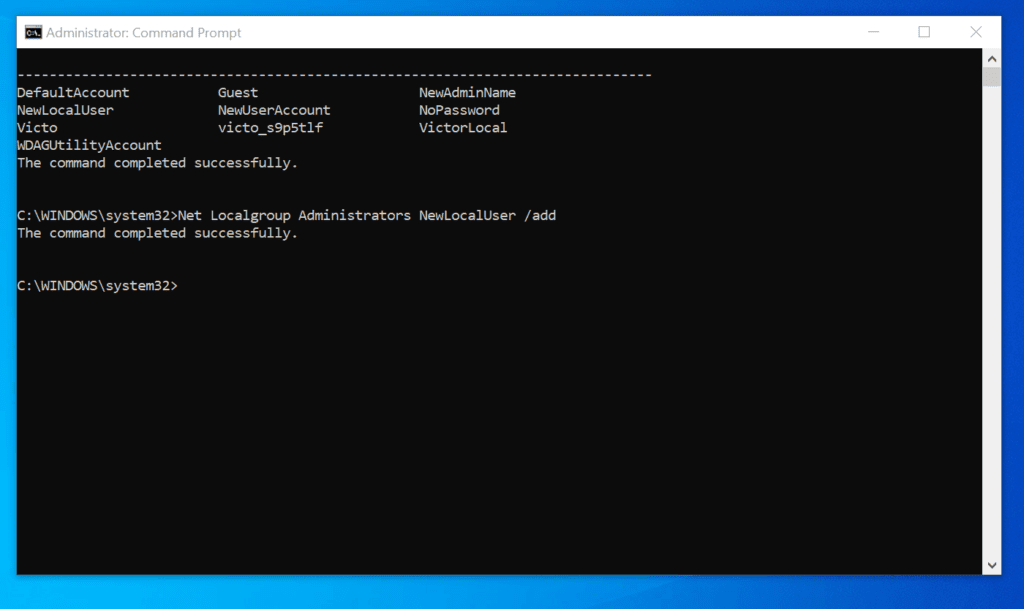
- Finally, to grant administrator privileges on Windows 10 to the user, type the command below and press enter.
Net Localgroup Administrators UserName /add
Replace UserName with the username for the user you want to add to the administrators’ group. In this example, I want to add the user, NewLocalUser, to the local administrators’ group. Here is the modified command…
Outdated Drivers Are Slowing You Down
One free scan finds every outdated or missing driver and matches the right update for your exact hardware.Free scan · exact hardware matchPC Slower Than It Used to Be?
A free scan shows the junk files, broken settings and background clutter dragging Windows down - then fixes them in one click.Free scan · Windows 10 & 11#1 Best Overall

- Reliable Plug and Play: The USB receiver provides a reliable wireless connection up to 33 ft (1), so you can forget about drop-outs and delays and you can take it wherever you use your computer
- Type in Comfort: The design of this keyboard creates a comfortable typing experience thanks to the low-profile, quiet keys and standard layout with full-size F-keys, number pad, and arrow keys
- Durable and Resilient: This full-size wireless keyboard features a spill-resistant design (2), durable keys and sturdy tilt legs with adjustable height
- Long Battery Life: MK270 combo features a 36-month keyboard and 12-month mouse battery life (3), along with on/off switches allowing you to go months without the hassle of changing batteries
- Easy to Use: This wireless keyboard and mouse combo features 8 multimedia hotkeys for instant access to the Internet, email, play/pause, and volume so you can easily check out your favorite sites
Net Localgroup Administrators NewLocalUser /add
- If the command returns “The command completed successfully”, you have successfully granted the user administrator privileges.
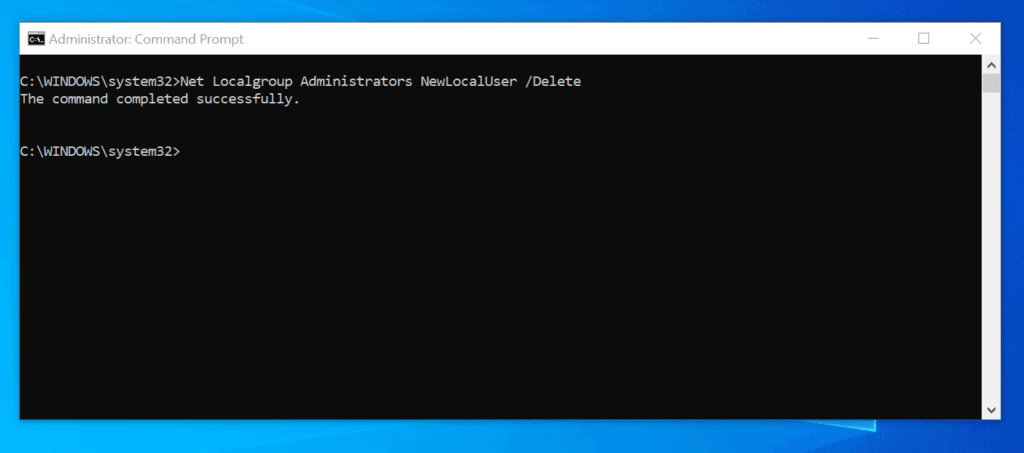
- To remove the administrator privileges, type the command below and press enter.
Net Localgroup Administrators NewLocalUser /Delete
- If the command returns “The command completed successfully”, the user’s administrator privileges have been revoked.
Option 3: Get Administrator Privileges with PowerShell
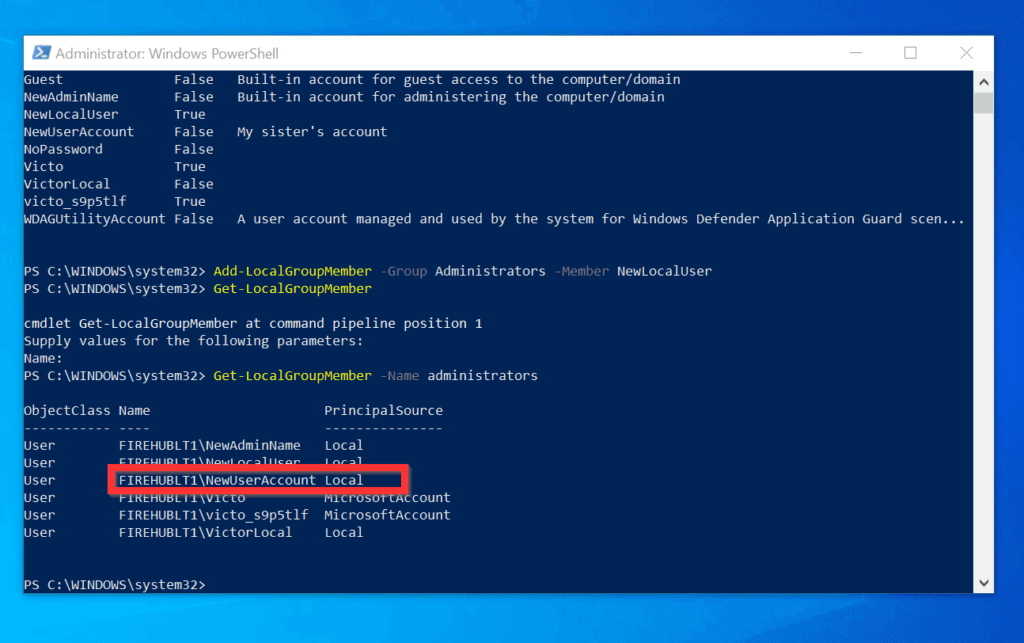
PowerShell is Microsoft’s newest tool that helps Windows administrators automate Windows tasks. To use PowerShell to grant a user administrator access, use the steps below…
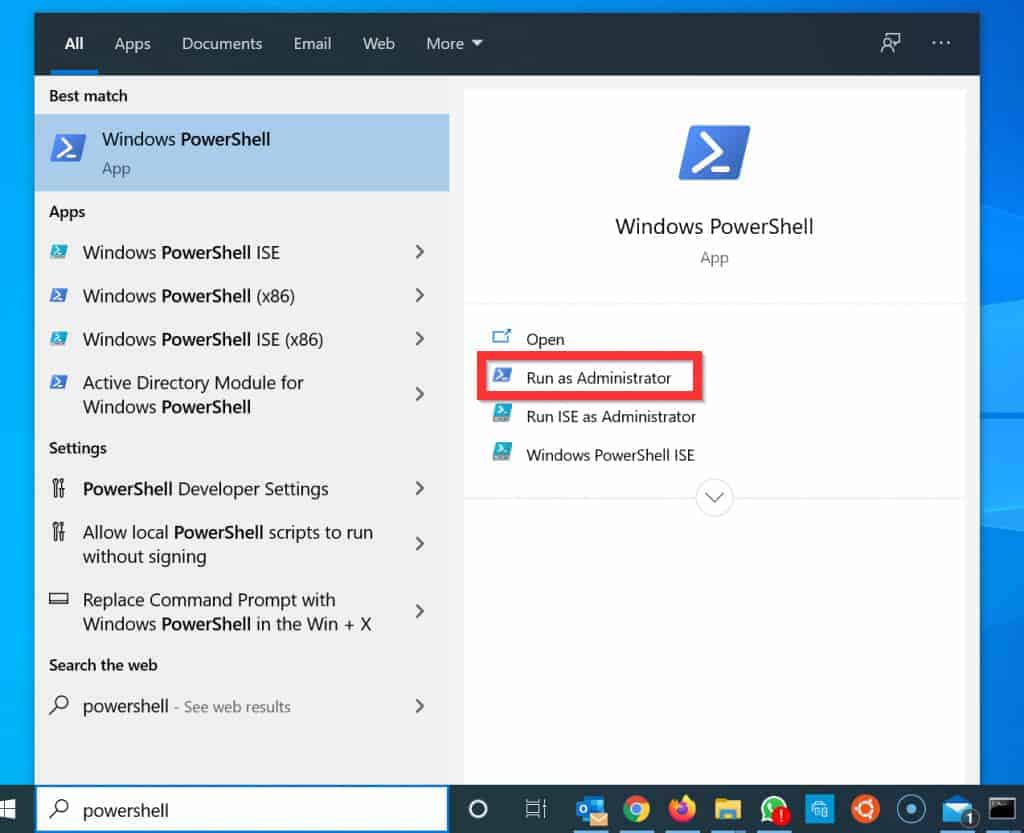
- Type powershell in the search box. Then, on the right pane of the search results, below Windows PowerShell, click Run as Administrator.
- You will receive a User Account Control requesting permission to allow PowerShell to open, click Yes.
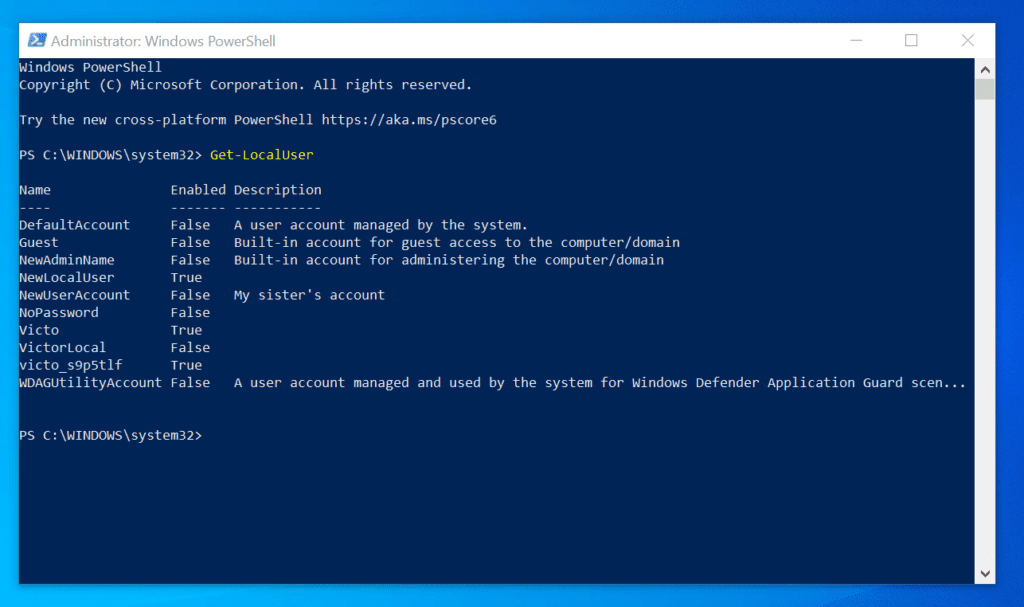
- Then, on the PowerShell prompt, type the command below and press enter to list all users on the local PC.
Get-LocalUser
- The command will list all the local users on the local computer. Note the username for the user you want to add to the administrators’ group.
- Then, to grant administrator privileges on Windows 10 with PowerShell, type this command and press enter.
Add-LocalGroupMember -Group Administrators -Member NewLocalUser
Replace NewLocalUser with the username you want to make administrator.
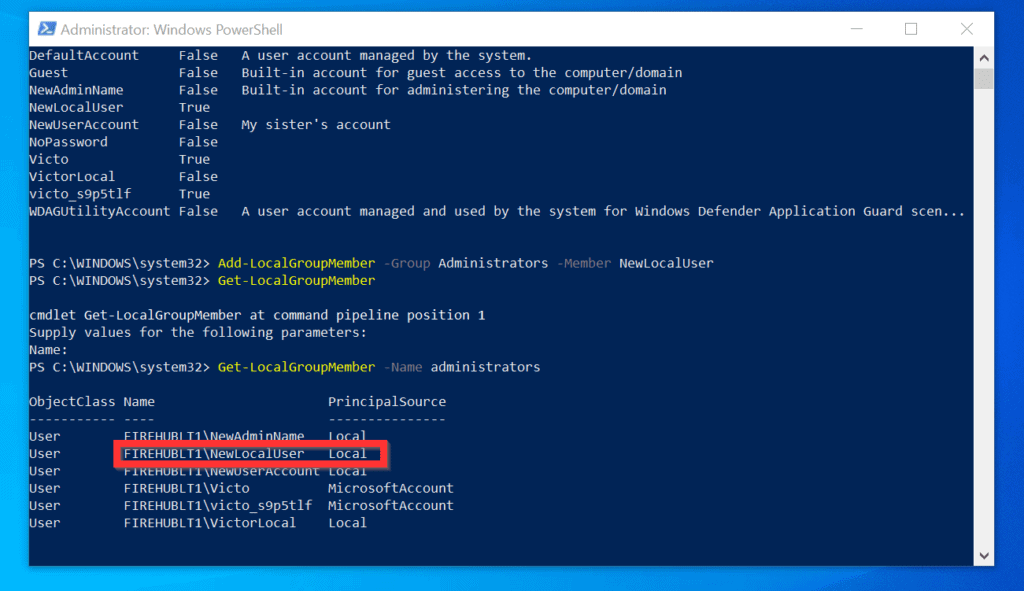
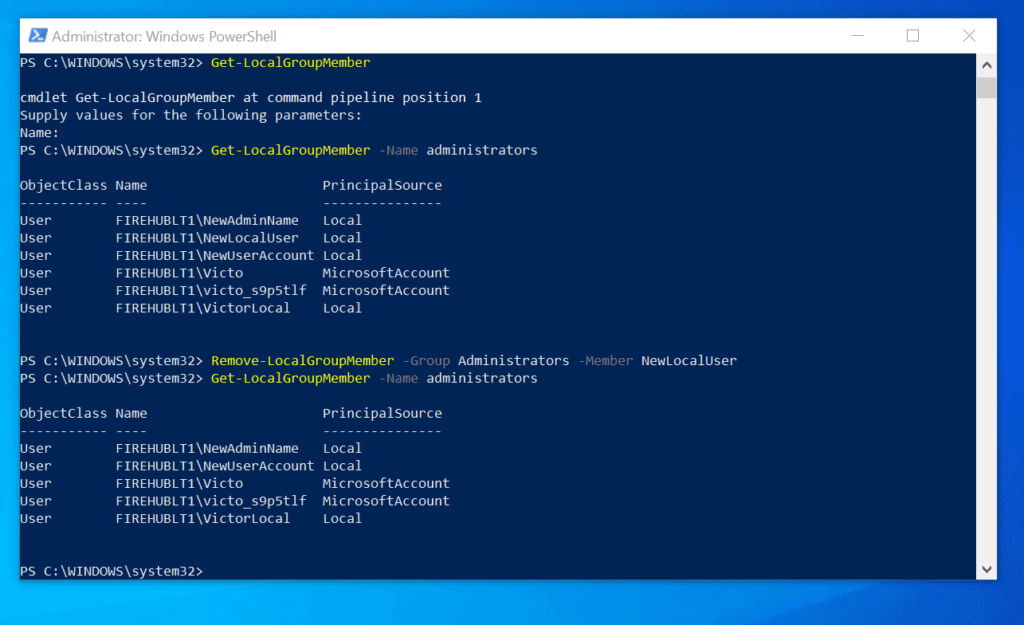
- Type the command below and press enter to confirm that the user is now a member of the local administrators’ group.
Get-LocalGroupMember -Name administrators
- The user will be listed as a member…
- If you want to revoke administrator privileges, use the command below.
Remove-LocalGroupMember -Group Administrators -Member NewLocalUser
Replace NewLocalUser with the username you want to make administrator.
Rank #2

- All-day Comfort: This USB keyboard creates a comfortable and familiar typing experience thanks to the deep-profile keys and standard full-size layout with all F-keys, number pad and arrow keys
- Built to Last: The spill-proof (2) design and durable print characters keep you on track for years to come despite any on-the-job mishaps; it’s a reliable partner for your desk at home, or at work
- Long-lasting Battery Life: A 24-month battery life (4) means you can go for 2 years without the hassle of changing batteries of your wireless full-size keyboard
- Simply plug the USB receiver into a USB port on your desktop, laptop or netbook computer and start using the keyboard right away without any software installation
- Simply Wireless: Forget about drop-outs and delays thanks to a strong, reliable wireless connection with up to 33 ft range (5); K270 is compatible with Windows 7, 8, 10 or later
- Finally, to confirm that the user was successfully removed from the local administrators’ group, use the command below…
Get-LocalGroupMember -Name administrators
- The result of the command confirms that the user, NewLocalUser is no longer on the Administrators’ group.
Frequently Asked Questions
From the first screen of the Windows 10 recovery environment (Automatic Repair), click Advanced options. Then, proceed to Troubleshoot -> Advanced options -> Command Prompt. Once Command Prompt is open, follow the steps below to change administrator in Windows recovery environment:
1. Type the command net user administrator /active:yes – then press enter
2. Type net user and press enter – then note the name of the user you want to make administrator
3. Finally, to grant administrator privileges on Windows 10 to the user, type the command below and press enter Net Localgroup Administrators
Quick wins for a faster PC:
Scan for outdated or missing drivers - takes under a minuteDriver Scan →Clear out junk files and repair common Windows errorsFree Scan →Right-click the Windows 10 Start menu and click Computer Management. Then, on the left pane of Computer Management, expand Local Users and Groups, and click the Groups node. The Administrators group will be displayed on the details pane of the Groups node.
To add a user to the Administrators group, double-click Administrators and click Add. Finally, enter the name of the user you want to make administrator and click OK.
If you know the password to the built-in Administrator account, login with that account and complete the steps below. Otherwise, ask another user that has full administrator privileges to complete the task –
Search settings, then open the Settings App. Then, click Accounts -> Family & other users. Finally, click your user name and click Change account type – then, on the Account type drop-down, select Administrators and click OK.
Rank #3

- 【Ergonomic Wireless Keyboard Mouse 】: Wireless ergonomic keyboard is equipped with adjustable height tilt legs to increase comfort and prevent your wrists injury when typing for a long time. The full size wireless keyboard with numeric keypad and 12 multimedia shortcut keys, such as play/ pause, volume increase and decrease, and email, to help you improve work efficiency
- 【Stable & Reliable Wireless Connection】: This wireless keyboard and mouse combo share the same USB receiver(stored in the mouse), and they can also be used separately. Plug & play, no need to download any software, 2.4 GHz wireless provides a powerful and reliable connection up to 33 feet(10m) without any delays.You can enjoy the convenience and freedom of wireless connection at home or at work
- 【Comfortable Optical Mouse】: This compact lightweight wireless mouse features a hand-friendly contoured shape for all-day comfort, and smooth, precise tracking.1600 DPI to meet your daily needs. Perfect for home & office work and entertainment
- 【Long Battery Life】: Up to 365 Days of battery life for keyboard and mouse wireless, say goodbye to the hassle of charging cables and replacing batteries. After 10 minutes of inactivity, the wireless keyboard mouse combo will automatically go into sleep mode to save energy. The wireless keyboard requires one AAA battery, and the wireless mouse requires one AA battery.
- 【Less Noise, More Quiet Keys】: Soft membrane keys provide a quiet and comfortable typing experience, So you can type with confidence on a wireless keyboard crafted for comfort, precision and fluidity. The wireless mouse adopts silent micro-motion technology, which is almost completely silent when clicked. No more concerns about disturbing others.
Boot Windows 10 to recovery mode. Then, select Troubleshoot -> Reset this PC -> Remove Everything. In the last step, if you select Keep my files, you will be required to log in with a password when you finish the reset.
However, if you select Remove Everything, a fresh Windows 10 copy will be installed and offer you the option to create a new administrator login account. For the detailed steps, read our guide – How to Reset Windows 10 Without Password.
Conclusion
If you want to have full control over what happens on your Windows 10 PC, you need administrator privileges. However, before you can get this privilege, you need to know the password of the built-in Administrator account.
What’s actually slowing this PC down?
Pick the symptom - the matching free tool is one click away.
Alternatively, you can ask another user with administrator privileges to add you as an administrator on the computer. In any case, you can add yourself or another person to the Administrator group in 3 ways.
Rank #4

- Wireless keyboard has 7 colors & 4 modes RGB backlit options and adjustable brightness to provide you with more visual aesthetics typing atmosphere.
- Computer keyboard designed with 8.7" convenient device holder to hold your phone or tablet, keep your desk clean and tidy.
- The wireless keyboard features lighted and responsive tactile keystrokes for a smooth and quiet typing experience, ability to increase your work efficiency.
- Keyboard wireless layout with convenient access to all the right shortcut and multimedia keys, achieve more with less effort.
- Backlit wireless keyboard with built-in 1500mAh rechargeable battery that reduce the hassle of traditional battery replacement and wiring.
The first method covered in this guide showed you how to perform this task from the Windows Settings. In addition to that, the second and third methods show how to perform the same task with command prompt and PowerShell, respectively.
As you can see, it is very easy to get administrator privileges on Windows 10!
I hope you found this Itechguide helpful. If you did, kindly click on “Yes” beside the “Was this page helpful” question below.
Best Value

- Dependable wireless connection: Enjoy the reliability and convenience of 2.4 GHz connectivity with your logitech wireless keyboard and mouse combo, wireless range up to 10 meters away at home, or work.
- Full-Size Wireless Keyboard: Comfortable, quiet typing on a familiar keyboard layout with palm rest, spill-resistant design, and media keys. This wireless keyboard and mouse logitech has easy-access to media keys
- Plug and Play: MK345 works seamlessly with Windows, macOS, and ChromeOS. Experience hassle-free setup with the logitech mk345 wireless combo and wireless keyboard mouse combo for various operating systems.
- Long-lasting Battery: The MK345 combo offers a full size keyboard battery life of up to 3 years and a mouse battery life of 18 months (1); batteries included
- Comfortable Right-handed Mouse: This wireless USB mouse with dongle works well for this wireless mouse and keyboard combo, featuring a contoured shape for all-day comfort and smooth, precise tracking and scrolling for easier navigation.
You may also express your thoughts and opinions by using the “Leave a Comment” form at the bottom of this page.
Finally, for more Windows 10 Itechguides, visit our Windows 10 How-To page.
Quick Recap
Product prices and availability are accurate as of the date/time indicated and are subject to change. Any price and availability information displayed on Amazon at the time of purchase will apply.


WHY are soooo many of us/people experiencing this issue? It seems MICROSOFT is overstepping its bounds from purchase & sale to consumer- under guise of “security!”
It’s one thing to install “software” that PROTECTS us as individuals from malicious acts & harm- but quite another that you are protecting a machine that was bought & fully paid for!! Being denied opening Templates in Word due to “Administrative permission/rights” is total BS!!
HOW DARE YOU prevent me- the rightful/sole owner- from doing “tasks” that the “ADMINISTRATOR” is able to do????? Really??? That I can supposedly CHANGE & grant myself “rights” after going through HELL to do so (still don’t have full Admin Rights!) WTF?
HOW- PLEASE- is that helpful? It’s NOT! All it does is CONFIRM my dislike & disdain for Microsoft.
Ready for this lovely new laptop’s replacement!