
iTechGuides is reader-supported. When you buy through links on our site, we may earn an affiliate commission. As an Amazon Associate I earn from qualifying purchases. Learn more
Read this guide to learn how to fix a RAW USB drive on Windows or an Unallocated USB drive on Mac, recover your files, and restore normal access.
Why Did Your USB Drive Turn RAW?
Many users run into the same problem: a USB drive suddenly appears as RAW on Windows or Unallocated on Mac and becomes inaccessible. This usually does not happen without a reason. Several problems can damage the file system or partition information and cause the drive to appear this way:
- File system corruption. Improper ejection, a system crash, sudden power loss, or malware can damage important file system data and leave the USB corrupted.
- Interrupted formatting. If formatting stops before it finishes, the drive may be left without a valid file system.
- Partition damage. A corrupted partition table can prevent the operating system from locating the volume correctly.
- Flash memory failure. Worn-out memory cells or controller problems can cause read errors and make the drive inaccessible.
- Unsupported file system. A drive that uses a file system your operating system cannot read may appear inaccessible even when the data is still intact.
Make Sure the Problem Is With the USB Drive
Similar symptoms can also result from a faulty USB port or a problem with your computer. Before you attempt RAW USB drive recovery or repair, first make sure the USB drive itself is the source of the problem. Start with a few safe checks that do not modify anything stored on the drive:
Recommended Free Tools
- Try another USB port. A faulty or unstable port can prevent your computer from communicating with the USB drive correctly.
- Test the drive on another computer. If it works normally there, the issue is more likely related to your original computer.
- Reconnect the drive. Safely disconnect it, restart your computer, and plug it back in.
- Check how the drive appears. Open Disk Management on Windows or Disk Utility on Mac and see whether the device is detected.
If the same problem occurs on another computer and the USB still appears as RAW on Windows or Unallocated on Mac, you can reasonably focus on the drive itself. But don’t worry, you can still get your data back. Just remember not to format the drive yet, even if Windows asks you to.
Popular on Amazon

- USB-C 2-in-1 storage OTG: The Lexar JumpDrive Dual Drive D40E features USB Type-A and Type-C connectors in a slim, portable form factor for easy device compatibility
- Transfer speeds up to 100MB/s: Based on internal testing, performance may vary depending upon the host device, interface, and usage conditions. 1MB=1,000,000 bytes
- Plug and Play: Widely compatible with USB Type-C smartphones, tablets, laptops, Macs, and traditional Type-A devices, no software installation required. The 360° swivel design allows for easy switching between connectors without the hassle of losing a cap
- Durable & Compact: The Lexar D40E USB memory stick features a metal enclosure, withstands temperatures from 0° to 50° C (32°F to 122°F), and is lightweight at 26g with dimensions of 70.4 x 16.9 x 11.7mm
- Security & Warranty: Securely protects files using an advanced security software solution with 256-bit AES encryption. Backed by a Lexar 3-year limited warranty
Recover Data From a RAW USB Drive Before Repairing It
If you have confirmed that the USB drive itself is the problem, recover your important files before you try to fix it. Many repair methods involve formatting, rebuilding partitions, or changing the file system. These operations can overwrite existing file system information and make subsequent recovery more difficult or even impossible. This is why recovering data before repairing a damaged USB is the safer order when the drive still contains files you need.
For this, you will need data recovery software. If you are unsure which tool to choose, we recommend Disk Drill. It is one of the best USB recovery software tools and can scan storage devices with damaged or inaccessible file systems. It also does not require advanced technical skills and has straightforward navigation.
Follow these steps to recover your files:
- Download Disk Drill and install it on your Windows PC or Mac. Install the software on your computer, not on the affected USB drive.
- Connect the problematic USB drive to your computer and launch Disk Drill.
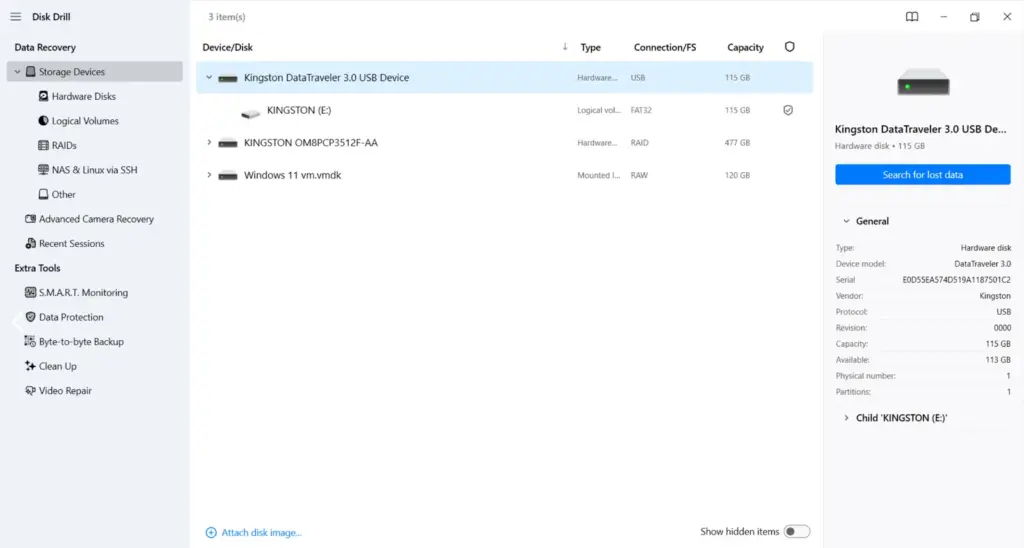
- Find the USB drive in the list of available storage devices and select it. Click Search for lost data.
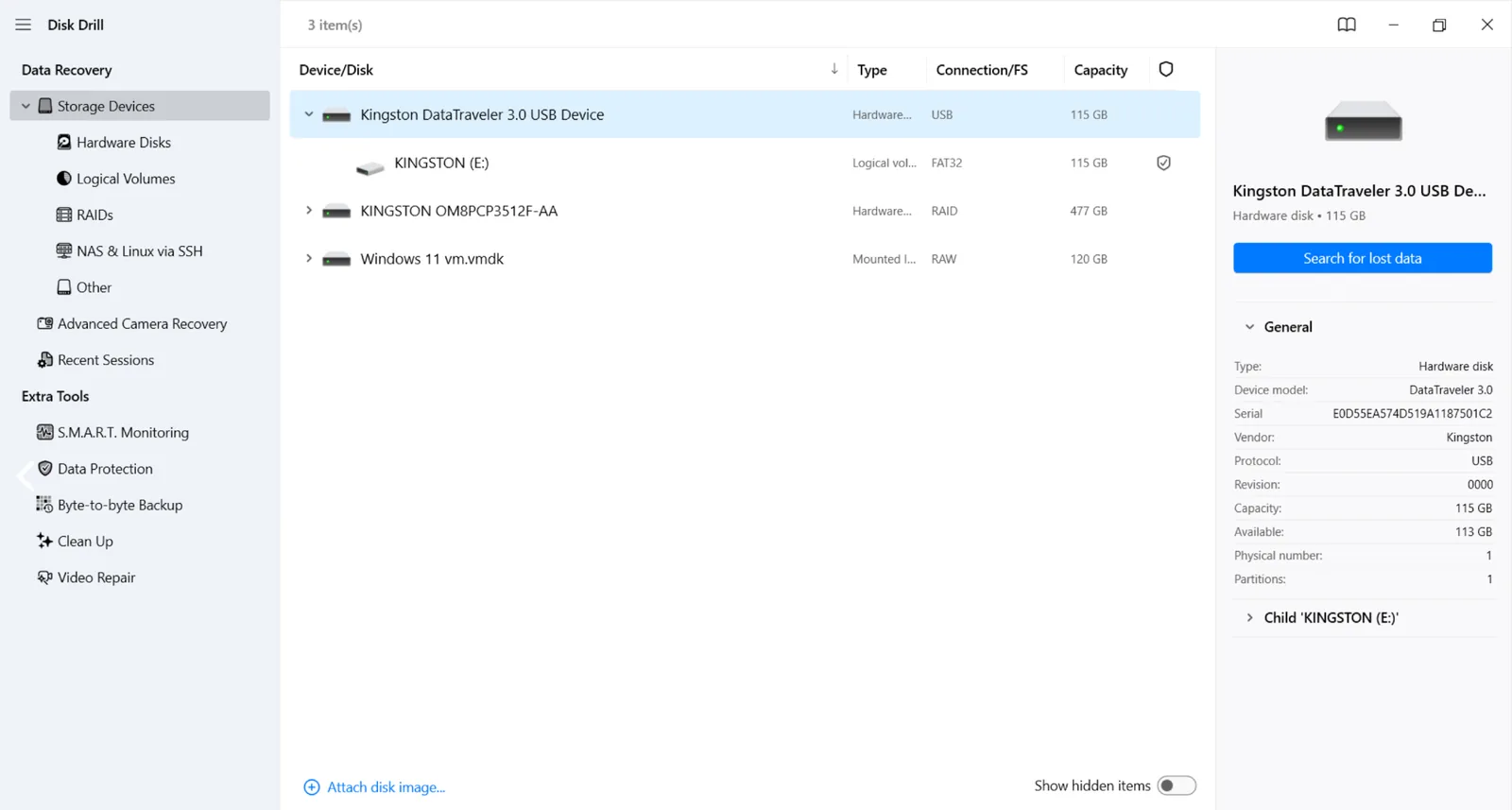
- Select Universal Scan.
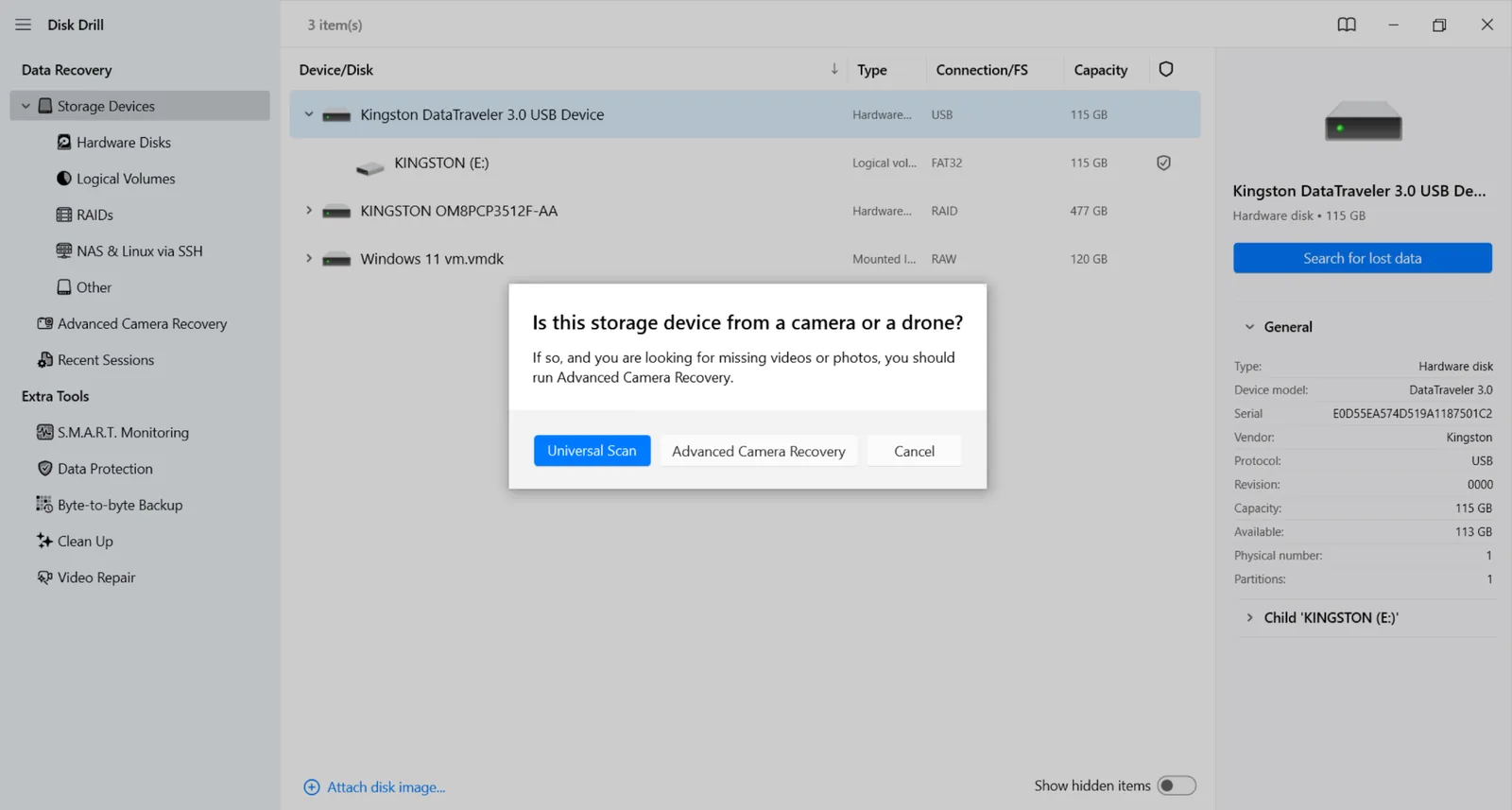
- Let Disk Drill scan the USB drive. You can wait for the scan to finish or start checking the files it has already found.
- Click Review found items. You can use Pictures, Video, Audio, Documents, Archives, and Other to narrow down the results.
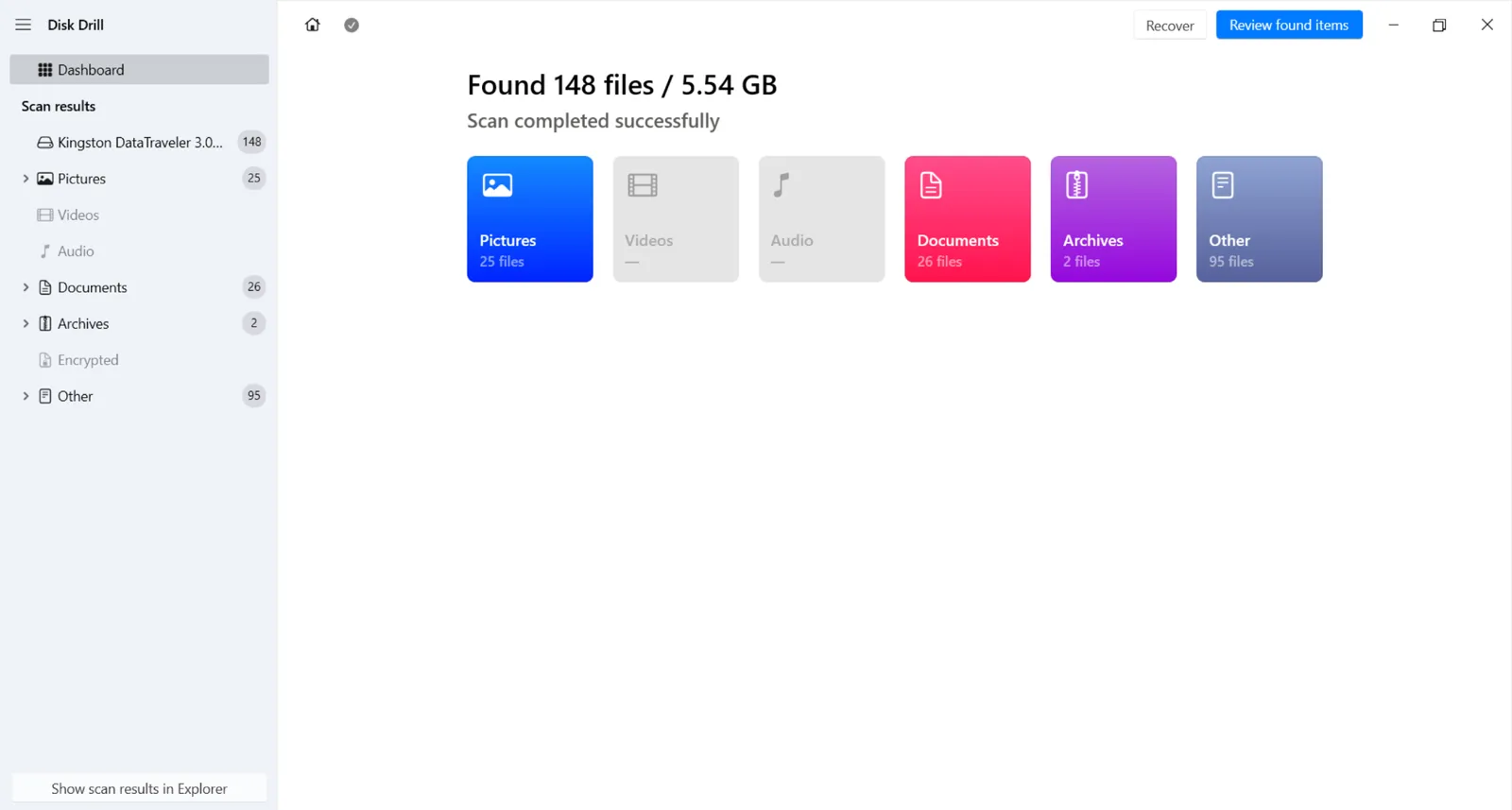
- Find the files you need and preview them to verify their contents.
- Check the boxes next to the files and folders you want to restore and click Recover.
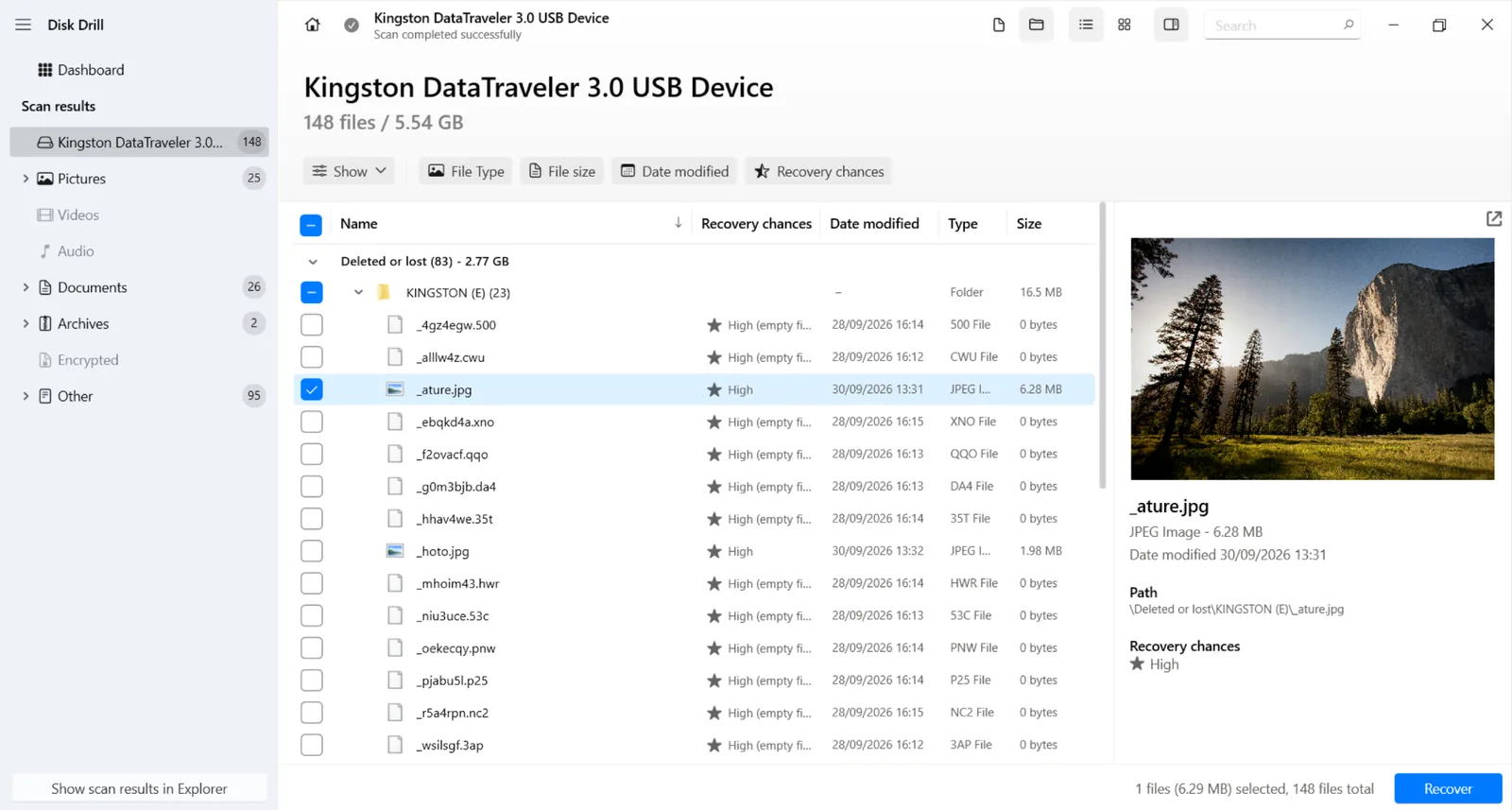
- Choose your computer, another external drive, or another healthy storage device as the recovery destination. Do not save the recovered files back to the problematic USB drive because this could overwrite other recoverable data.
Once you have confirmed that the recovered files open correctly and are stored somewhere safe, you can proceed with the repair.
Free tools Windows power users keep installed
One-click scans. No signup required.
Also popular on Amazon

- High-speed USB 3.0 performance of up to 150MB/s(1) [(1) Write to drive up to 15x faster than standard USB 2.0 drives (4MB/s); varies by drive capacity. Up to 150MB/s read speed. USB 3.0 port required. Based on internal testing; performance may be lower depending on host device, usage conditions, and other factors; 1MB=1,000,000 bytes]
- Transfer a full-length movie in less than 30 seconds(2) [(2) Based on 1.2GB MPEG-4 video transfer with USB 3.0 host device. Results may vary based on host device, file attributes and other factors]
- Transfer to drive up to 15 times faster than standard USB 2.0 drives(1)
- Sleek, durable metal casing
- Easy-to-use password protection for your private files(3) [(3)Password protection uses 128-bit AES encryption and is supported by Windows 7, Windows 8, Windows 10, and Mac OS X v10.9 plus; Software download required for Mac, visit the SanDisk SecureAccess support page]
USB Drive RAW Format Fix Methods
Now that your data is safe, you can try to make the USB drive usable again. Start with the built-in repair tool, then try TestDisk if the partition structure is damaged. If neither option works, formatting provides the most direct USB RAW format fix.
Method 1. Use First Aid on Mac
Disk Utility on Mac includes a built-in repair tool called First Aid. It checks the USB drive for file system errors and attempts to repair them without formatting the drive or erasing its data.
To use First Aid in Disk Utility:
- Connect the USB drive to your Mac.
- Open Disk Utility.
- Select View > Show All Devices.
- Select the affected USB drive or volume in the sidebar.
- Click First Aid.
- Click Run and wait for Disk Utility to check the drive.
- Click Done when the process finishes.
If First Aid repairs the problem, reconnect the USB drive and check whether you can access it normally. If First Aid cannot repair the drive or there is no volume it can work with, move to the next method.
Also popular on Amazon

- What You Get - 2 pack 64GB genuine USB 2.0 flash drives, 12-month warranty and lifetime friendly customer service
- Great for All Ages and Purposes – the thumb drives are suitable for storing digital data for school, business or daily usage. Apply to data storage of music, photos, movies and other files
- Easy to Use - Plug and play USB memory stick, no need to install any software. Support Windows 7 / 8 / 10 / Vista / XP / Unix / 2000 / ME / NT Linux and Mac OS, compatible with USB 2.0 and 1.1 ports
- Convenient Design - 360°metal swivel cap with matt surface and ring designed zip drive can protect USB connector, avoid to leave your fingerprint and easily attach to your key chain to avoid from losing and for easy carrying
- Brand Yourself - Brand the flash drive with your company's name and provide company's overview, policies, etc. to the newly joined employees or your customers
Note: Windows has its own alternative to First Aid called CHKDSK. It cannot repair RAW drives, but it can fix other file system problems on USB drives, so it is worth keeping in mind for other types of USB corruption.
Method 2. Repair the USB Drive With TestDisk
If the built-in tools cannot fix the problem, TestDisk provides a more advanced option. It is a free, open-source utility available for both Windows and macOS.
TestDisk can search for lost or damaged partitions and restore their partition information. This makes it useful when a USB drive appears RAW or Unallocated because its partition structure has become corrupted.
Also popular on Amazon

- GOOD VALUE PACKAGE - 1 Pack 32GB Memory Stick USB 2.0 Flash Drives with great cost performance and high quality.
- BIG CAPACITY - The available capacity: 29.10GB-29.8GB, You can save the data of movies, music, photos, designs, programs, manuals, handouts in a high speed.Good performance in digital data storing, transferring and sharing with families, friends, workmates, clients and machines.
- EASY TO USE & PLUG AND WORK - Support windows 7 / 8 / 10 / Vista / XP / 2000 / ME / NT Linux and Mac OS, Compatible with USB2.0 and below.
- TWISTTURN DESIGN & EASY CARRY - The metal clip rotates 360° round the ABS plastic body which with rubber oil skin feeling finish. The capless design can avoid lossing of cap, and providing efficient protection to the USB port.
- WARRANTY & SUPPORT - SIMMAX logo is laser printed on the USB connector surface, our products are of good quality and we promise that any problem about the product within one year since you buy.
The basic process is similar on Windows and Mac:
- Download and extract TestDisk.
- Launch TestDisk. On Windows, run testdisk_win.exe. On Mac, launch the TestDisk executable through Terminal.
- Select Create to create a new log file.

- Find your USB drive in the device list and select it. Check its capacity carefully to make sure you choose the correct device.

- Select the partition table type suggested by TestDisk.
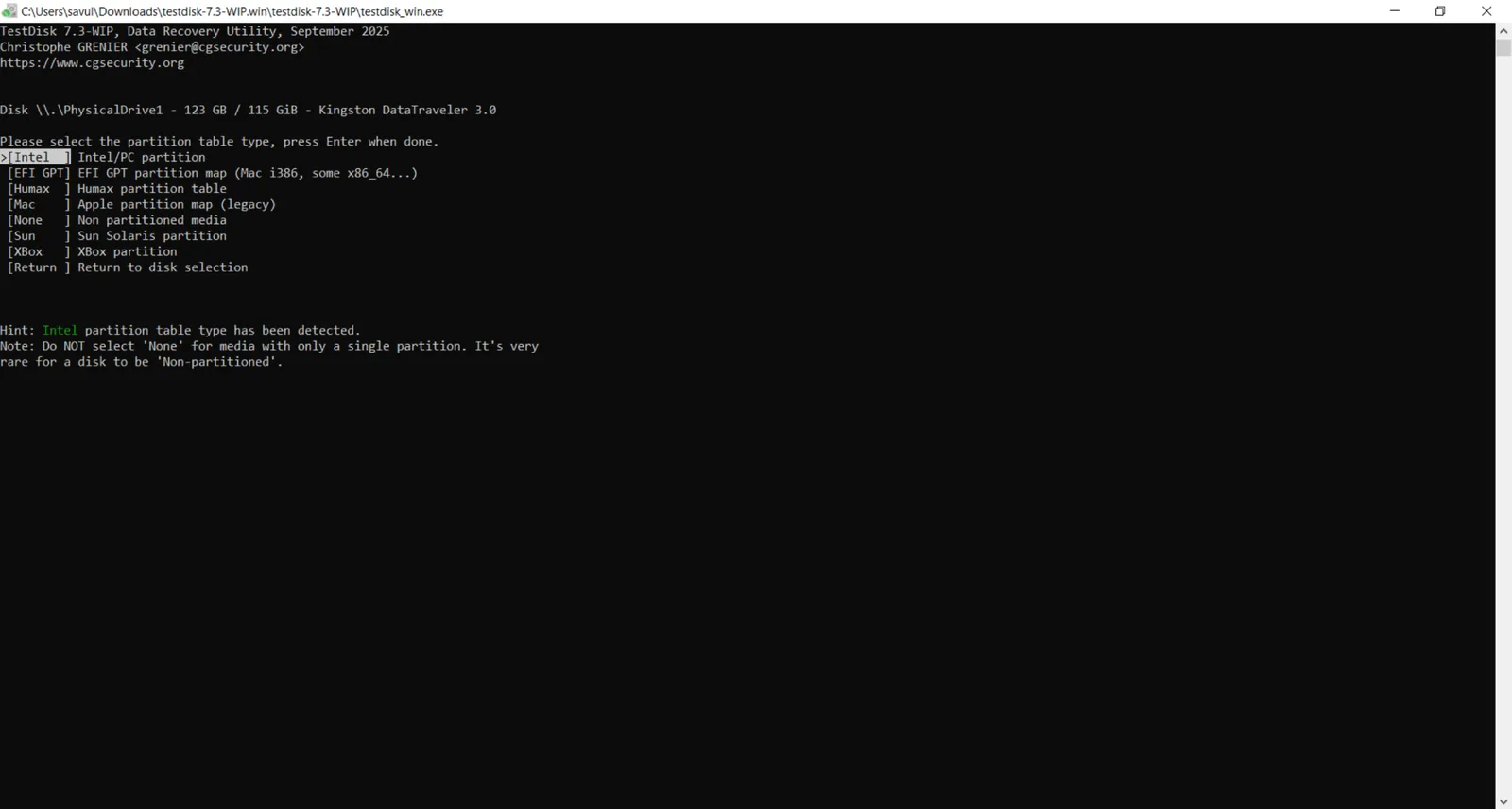
- Select Analyse to examine the current partition structure.
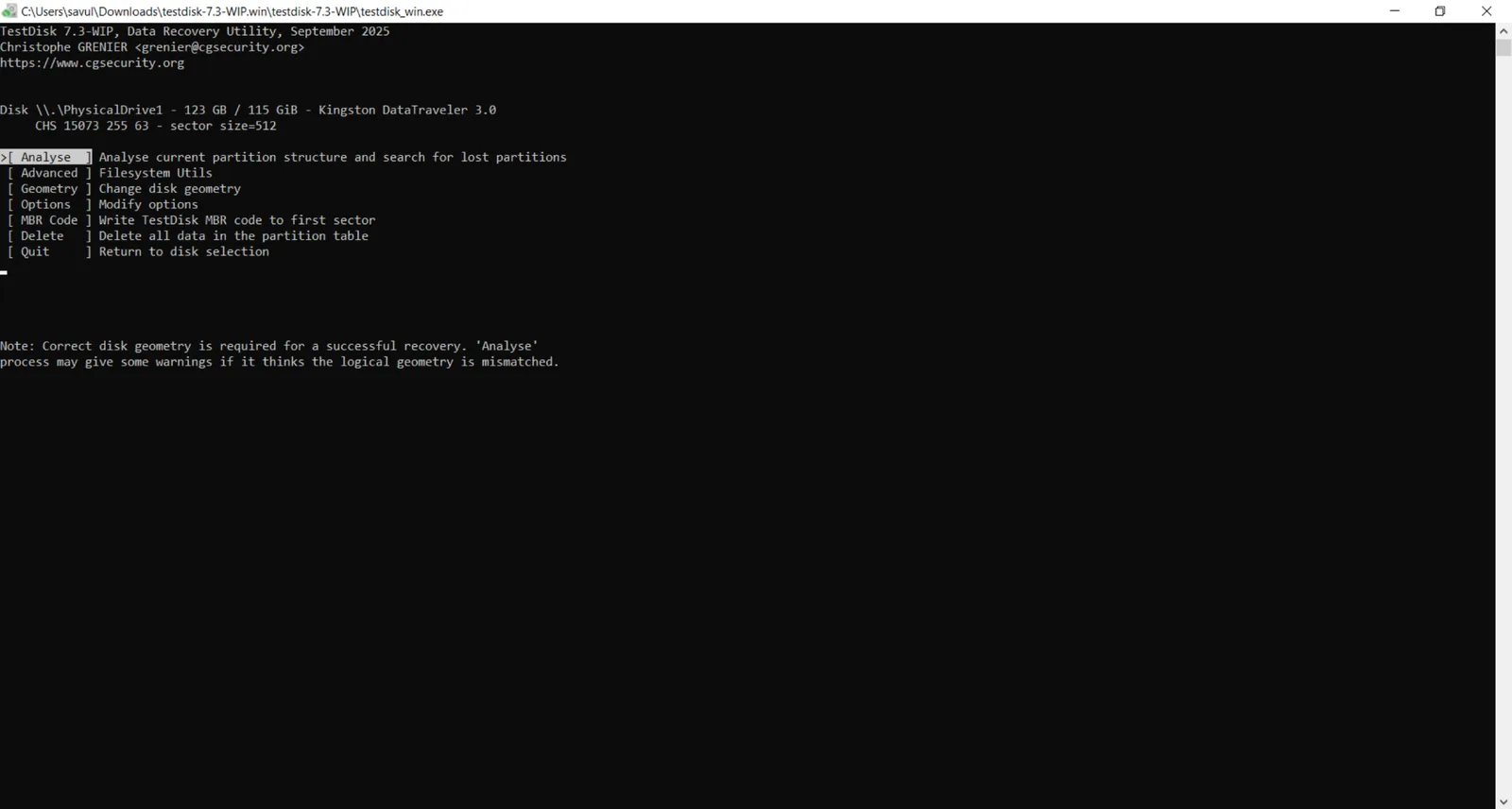
- Choose Quick Search to search for lost partitions.

- If TestDisk finds the expected partition, highlight it and press P to check whether your files and folders appear correctly.
- If the partition looks correct, return to the previous screen and select Write to save the recovered partition structure.
- Confirm the operation and reconnect or restart the USB drive.
Be careful before selecting Write. TestDisk modifies the partition structure directly, so double-check that you have selected the correct USB drive and partition.
Method 3. Format the RAW or Unallocated USB Drive
If neither the built-in repair tools nor TestDisk can restore the drive, then you need to format the corrupted USB drive. This method replaces the damaged file system with a new one that the operating system can recognize.
Format RAW USB drive on Windows:
- Connect the USB drive to your PC.
- Press Win+X and select Disk Management.
- Find your USB drive and verify it by its capacity.
- Right-click the RAW volume and select Format.
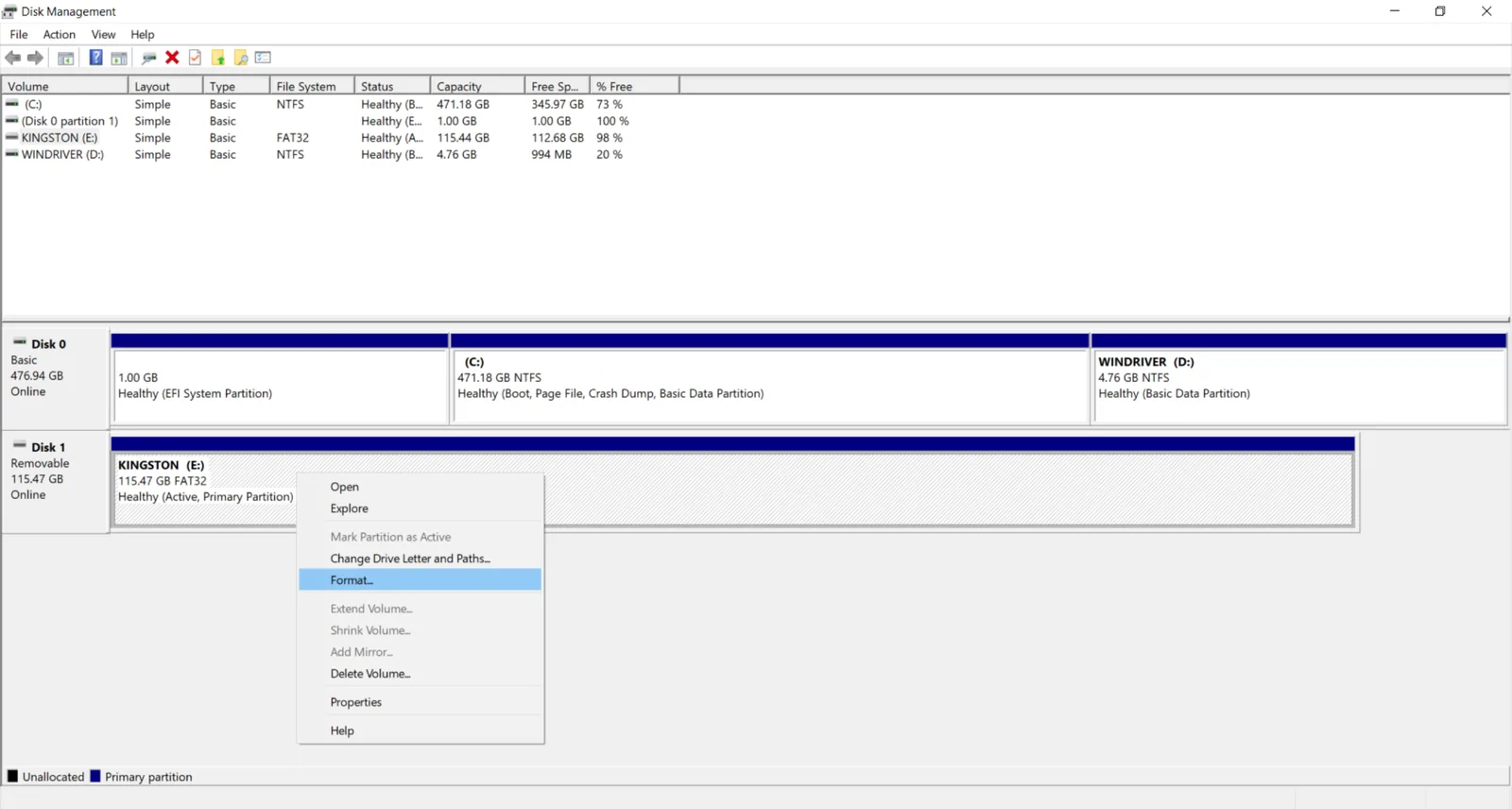
- Choose a file system. Select exFAT if you plan to use the USB drive with both Windows and Mac, or NTFS if you primarily use it with Windows.
- Leave Perform a quick format checked.
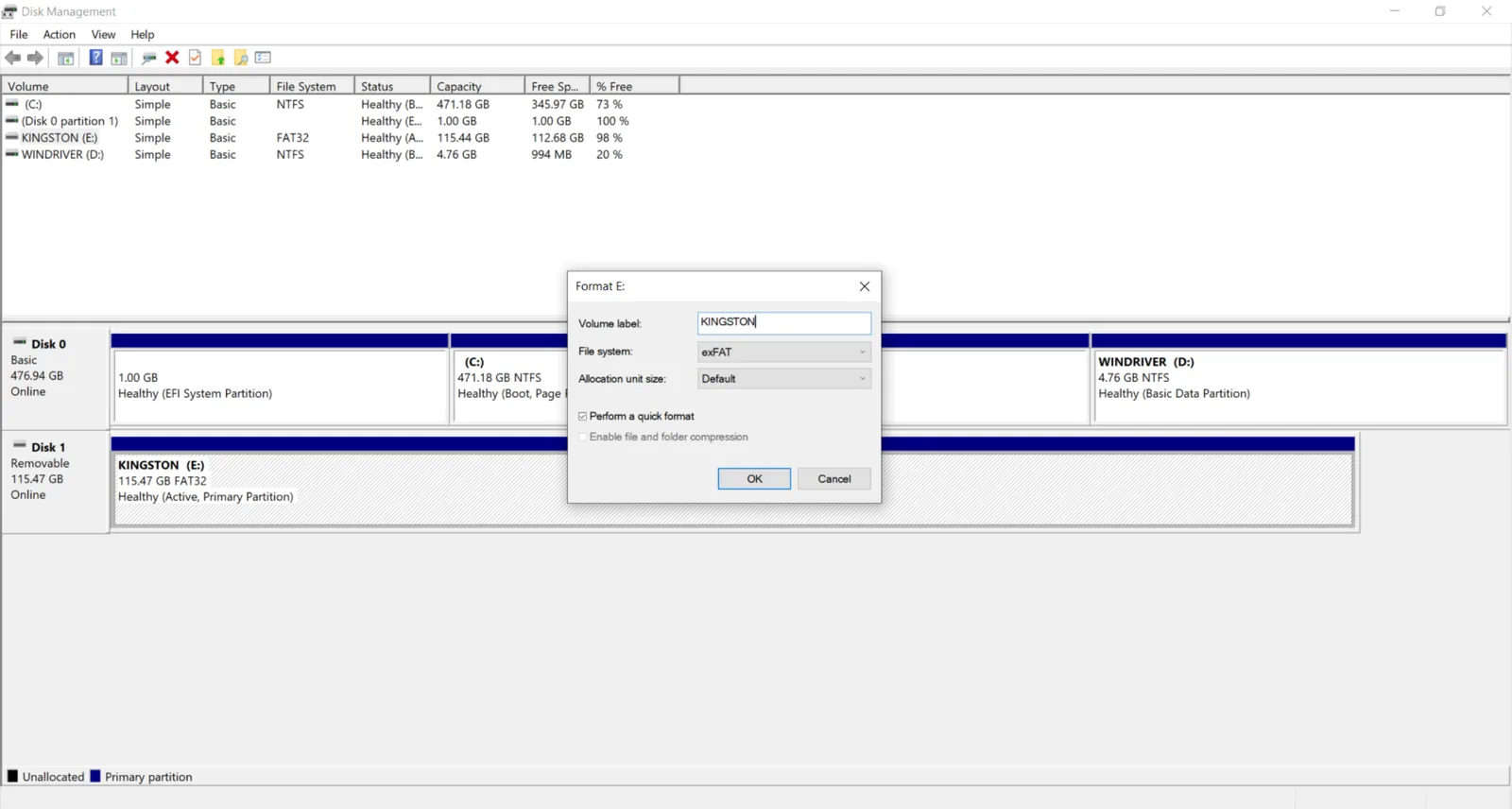
- Click OK and confirm the operation.
Format Unallocated USB drive on Mac:
- Connect the USB drive to your Mac.
- Open Disk Utility.
- Select View > Show All Devices.
- Select the affected USB drive in the sidebar.
- Click Erase.
- Enter a name for the drive.
- Select exFAT if you want to use the USB drive with both Windows and Mac.
- Select GUID Partition Map under Scheme, if available.
- Click Erase and wait for the process to finish.
- Click Done.
Once formatting is complete, reconnect the USB drive and copy a few non-important files to it to make sure it works normally.
Also popular on Amazon

- 【16GB Flash Drive】USB flash drives with 16GB capacity, meet your needs of daily use on work, school, home and travelling for photos, music, videos, files storage and transfer. IMEASON thumb drives can be used to store different files, easy to data backup.
- 【Metal Swivel Cap Design】USB thumb drive is metal swivel cover provides extra protection for the usb thumbdrive connector, no usb drive cap to lose; keychain design makes it easier to carry without worrying lose it.
- 【Wide Compatibility】USB drive supports Windows 7/8/10/11 / Vista / XP / Unix / 2000 / ME / NT Linux and Mac OS, also Supports USB 2.0 and 1.1 ports. USB Stick support TV, desktop, notebook computer, car, audio and other device. The USB Memory Stick is your great data storage and transfer companion with traveling and working.
- 【Easy to use】usb memory stick is plug and play without any software installation. Just simply plug the Flashdrive into the port of your USB-compatible devices such as computer, laptop to start data storage or transmission.
- 【What You Get】16 GB USB Flash Drive Thumb Drive, The default format of the usb storage flash drive is FAT32.
Method 4. Recreate the USB Partition With DiskPart
If Windows cannot format the RAW USB drive through Disk Management, you can use DiskPart to remove the damaged partition structure and create a new partition from scratch.
- Connect the USB drive to your PC.
- Press Win + S, type cmd, right-click Command Prompt, and select Run as administrator.
- Type diskpart and press Enter.

- Type list disk and press Enter to display all connected drives.
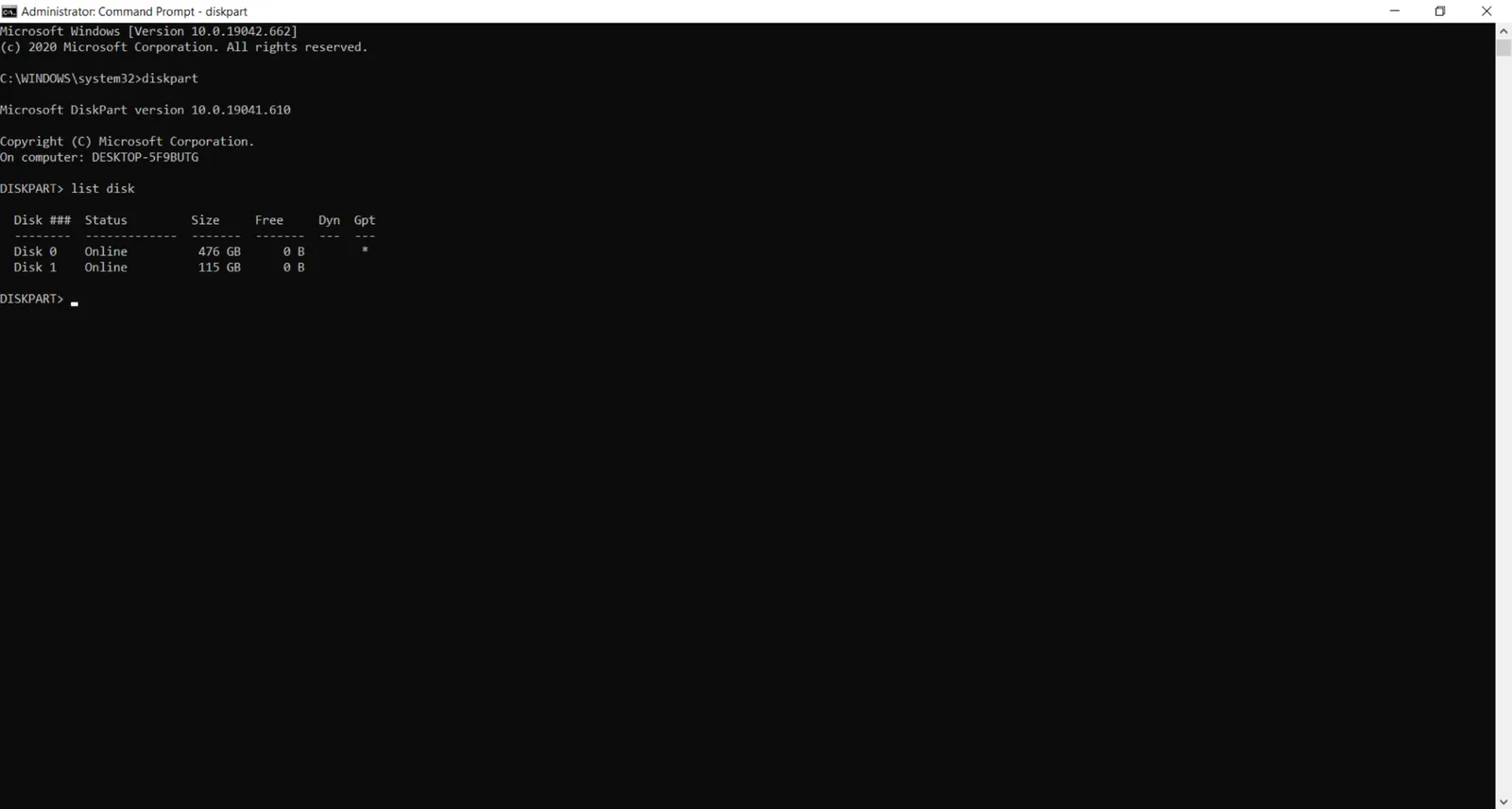
- Identify the USB drive by its capacity, then type select disk X, replacing X with its disk number.
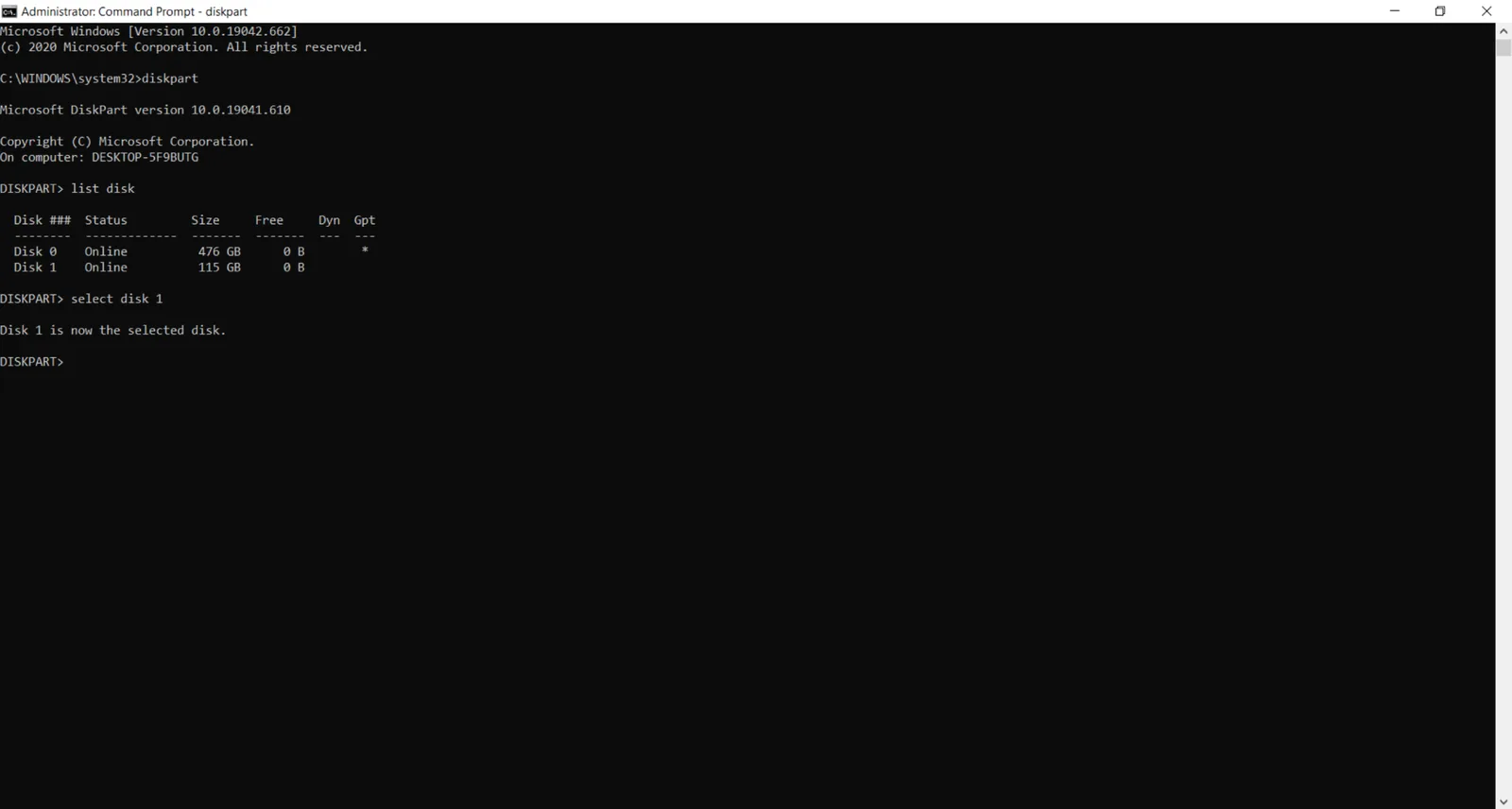
- Type clean and press Enter to remove the existing partition information.
- Type create partition primary and press Enter.
- Type format fs=exfat quick and press Enter. Alternatively, use format fs=ntfs quick if you only plan to use the drive with Windows.
- Type assign and press Enter to assign a drive letter.
- Type exit and press Enter to close DiskPart.
Make sure you select the correct disk before you run clean. This command removes the partition information from the selected drive.
Note: If none of these methods work and the USB drive still appears as RAW or Unallocated, it is better to replace it with a new one.
PC Slower Than It Used to Be?
A free scan shows the junk files, broken settings and background clutter dragging Windows down - then fixes them in one click.Free scan · Windows 10 & 11Outdated Drivers Are Slowing You Down
One free scan finds every outdated or missing driver and matches the right update for your exact hardware.Free scan · exact hardware matchFinal Thoughts
If your USB drive suddenly becomes RAW or Unallocated, don’t rush to fix it. Recover your important data first, and only then try to repair the drive using one of the solutions described. This way, you can avoid putting your files at risk while trying to make the USB drive usable again. To reduce the chance of running into the same problem again, keep a backup of important files on another drive or in cloud storage. Always eject the USB drive safely before disconnecting it, avoid removing it while files are being transferred, and protect it from physical damage.

