Special offer. See more information about Outbyte and uninstall instructions. Please review EULA and Privacy policy.
iTechGuides is reader-supported. When you buy through links on our site, we may earn an affiliate commission. As an Amazon Associate I earn from qualifying purchases. Learn more
This Itechguide teaches you how to freeze a row in Google Sheets. The guide offers steps to freeze a row in Google Sheets from a PC.
Option 1: Freeze a Row Using a PC
- Open Sheets.Google.com from your PC and log in with your Google account.
- Then open the Google Sheets spreadsheet you want to freeze a row on. You can open a saved spreadsheet from the home page.
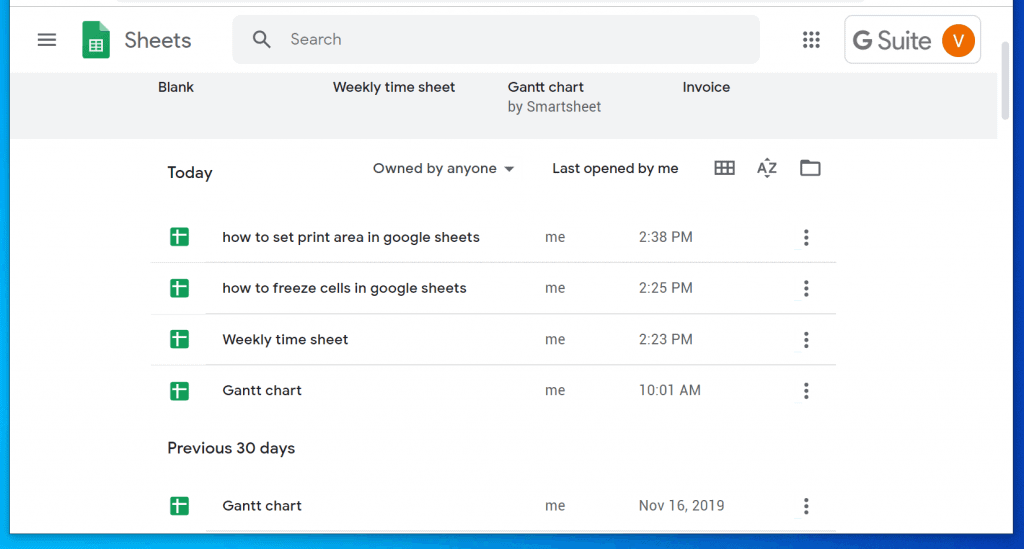
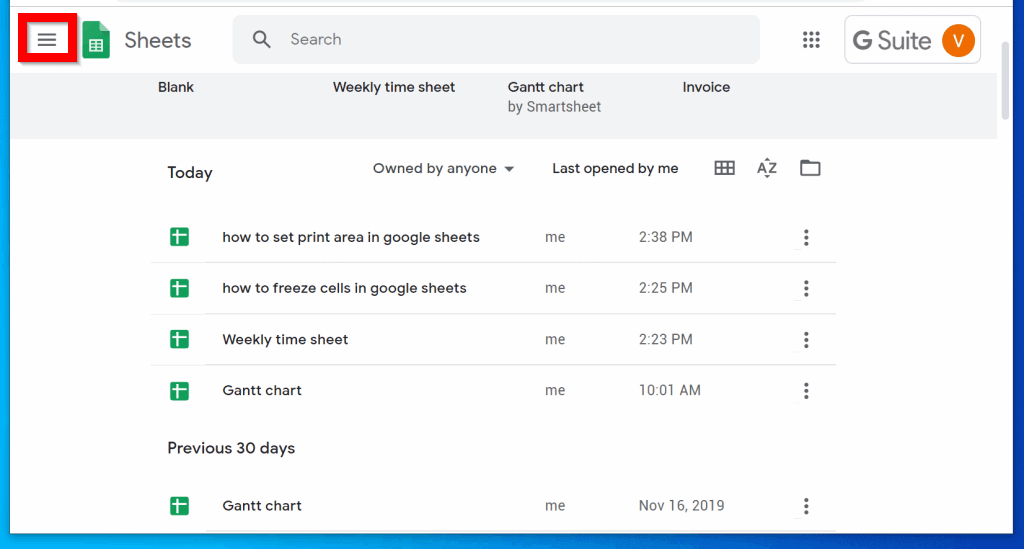
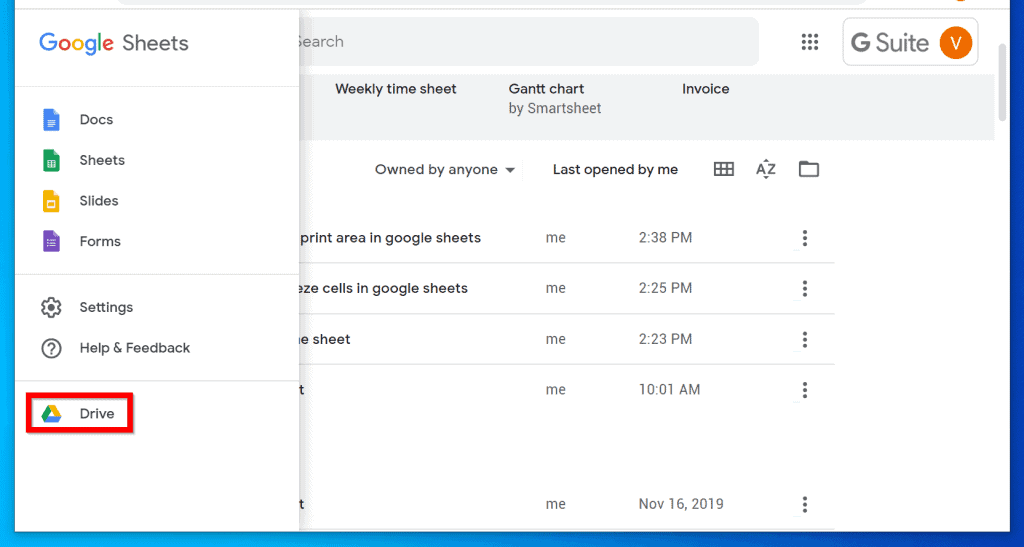
- You could also open a saved spreadsheet from Google Drive. To access Google Drive, click the 3 lines on the top left of Google Sheets home page. Then click Drive.
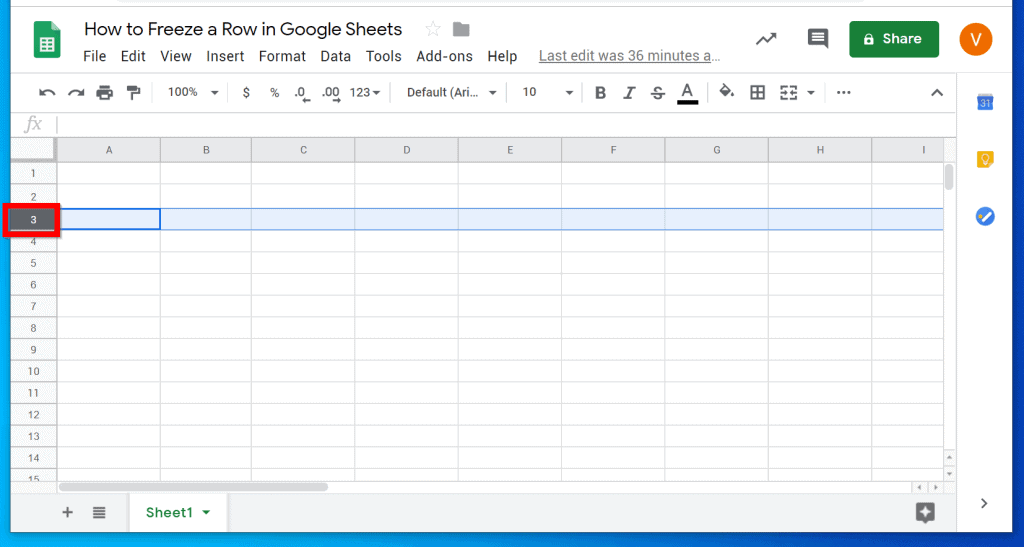
- When the spreadsheet opens, click on the row number for the row you want to freeze. In this example, I want to freeze row 3. I clicked on row number 3. The entire row will be selected.
- Then click View, point to Freeze and select the row you want to freeze. Since I selected row 3, I am offered the option to freeze the first row (1 row), rows 1 and 2 (2 rows) or Up to current row (3). In this example, I will click the last option.
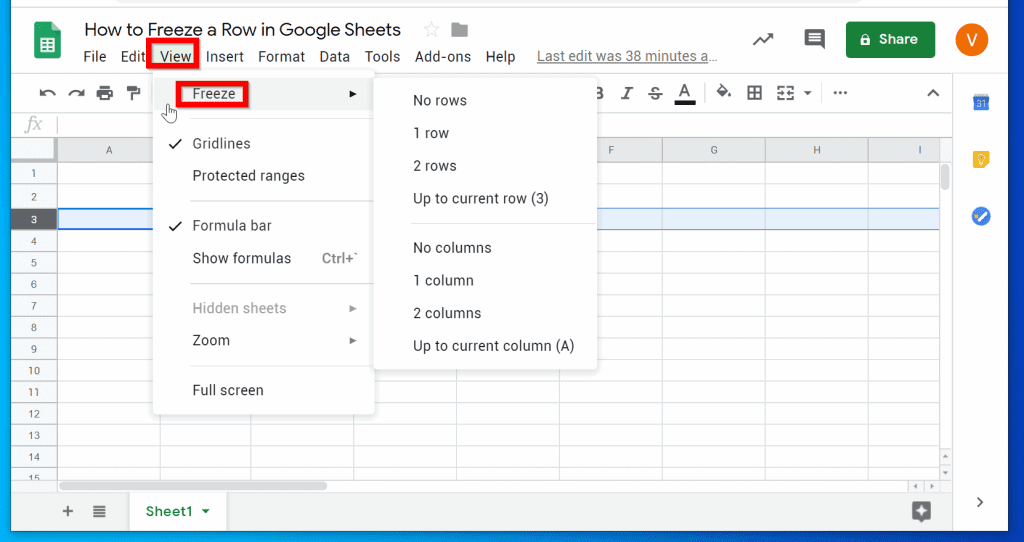
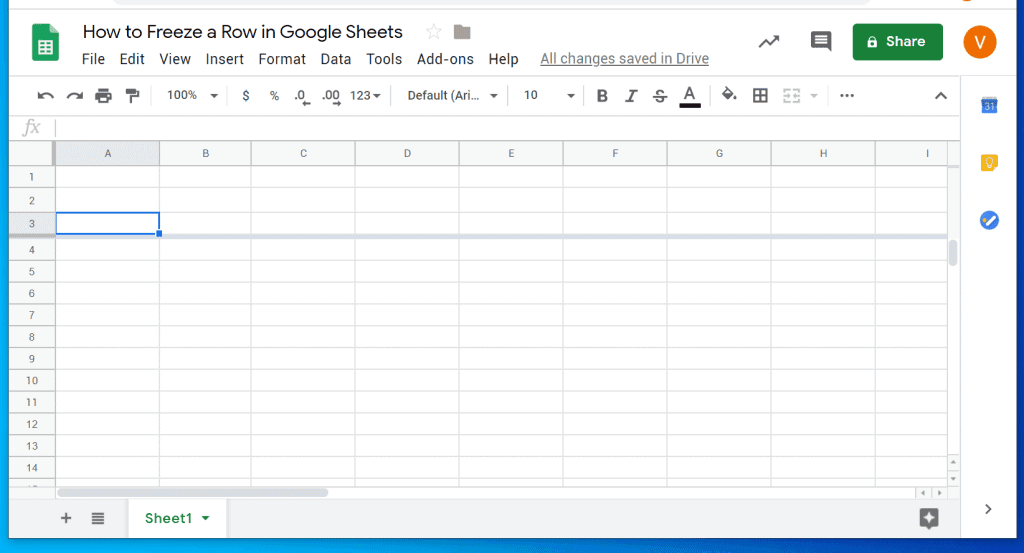
- Rows 1, 2 and 3 will be frozen with a thick gray line running beneath the last frozen row – in this instance, row 3.
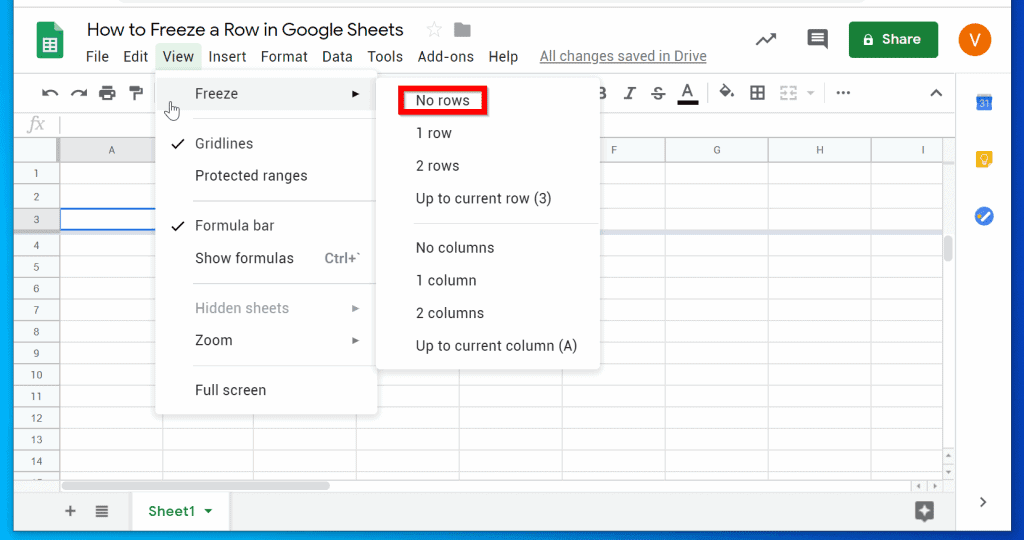
- To unfreeze the rows, click View and point to Freeze. Then click No rows.
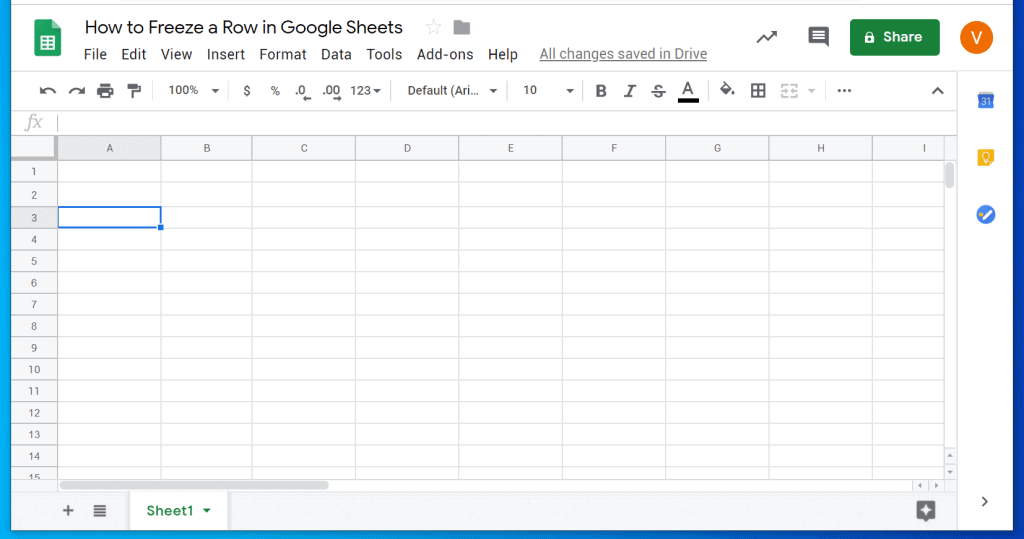
- The rows will unfreeze and the gray line will disappear!
Option 2: Freeze a Row via the Android App
- Open Google Sheets App for Android and login with your Google account.
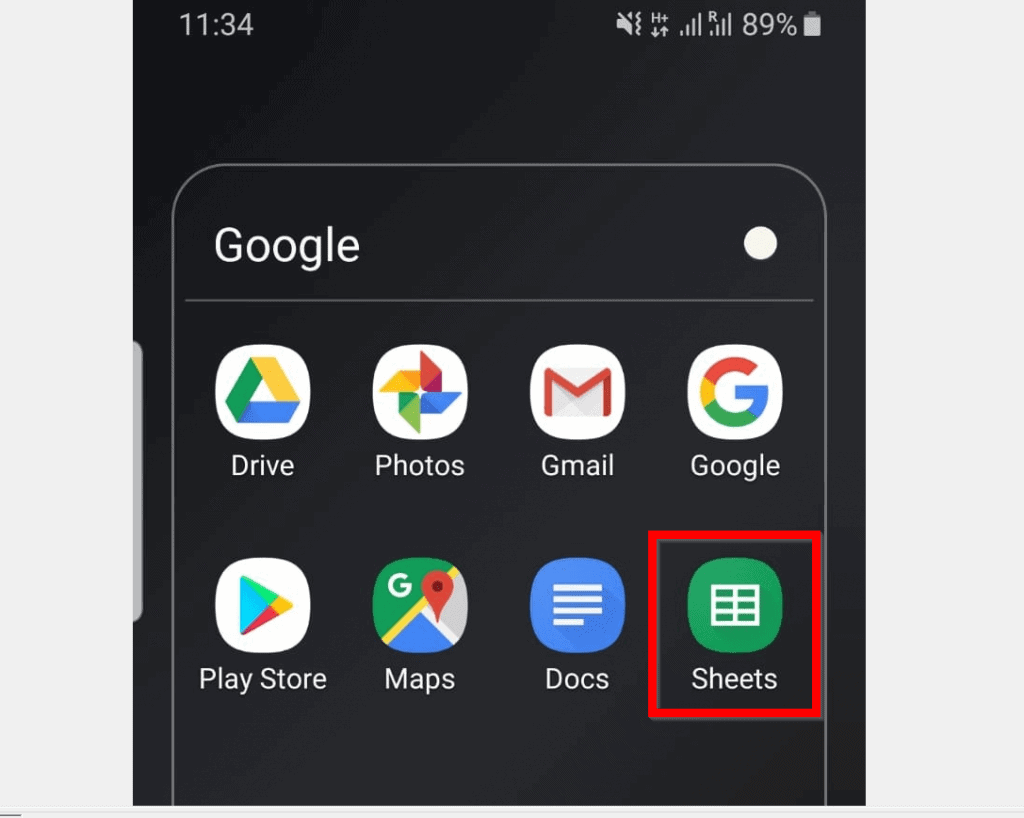
- Then open the spreahsheet you want to free rows on. You can open the spreadsheet from the Last opened by me section or from Google Drive.

- To access Google Drive from Google Sheets, on the top right of the App, tap the folder icon.

- Then tap and hold on the row number you want to freeze until a set of options are displayed. In this example, I want to freeze row 4. I will tap and hold row number 4 until the highlighted menu options are displayed.

- To freeze the row, tap on the 3 vertical dots at the end of the menu.
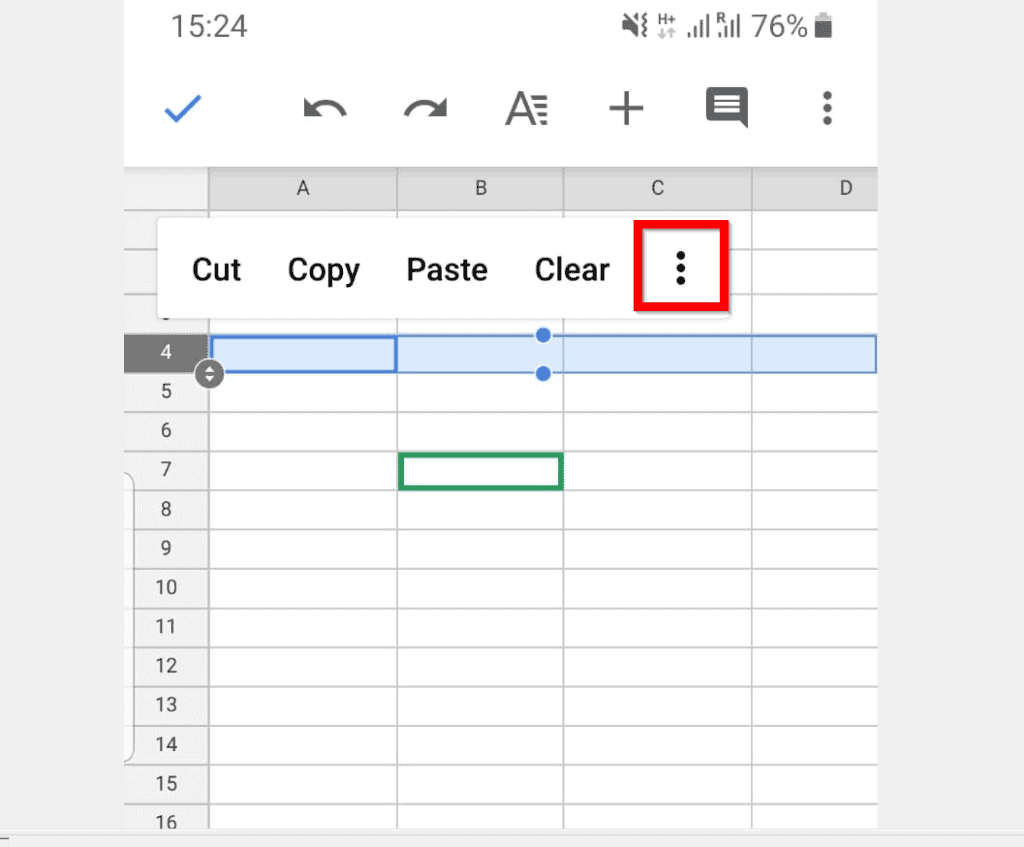
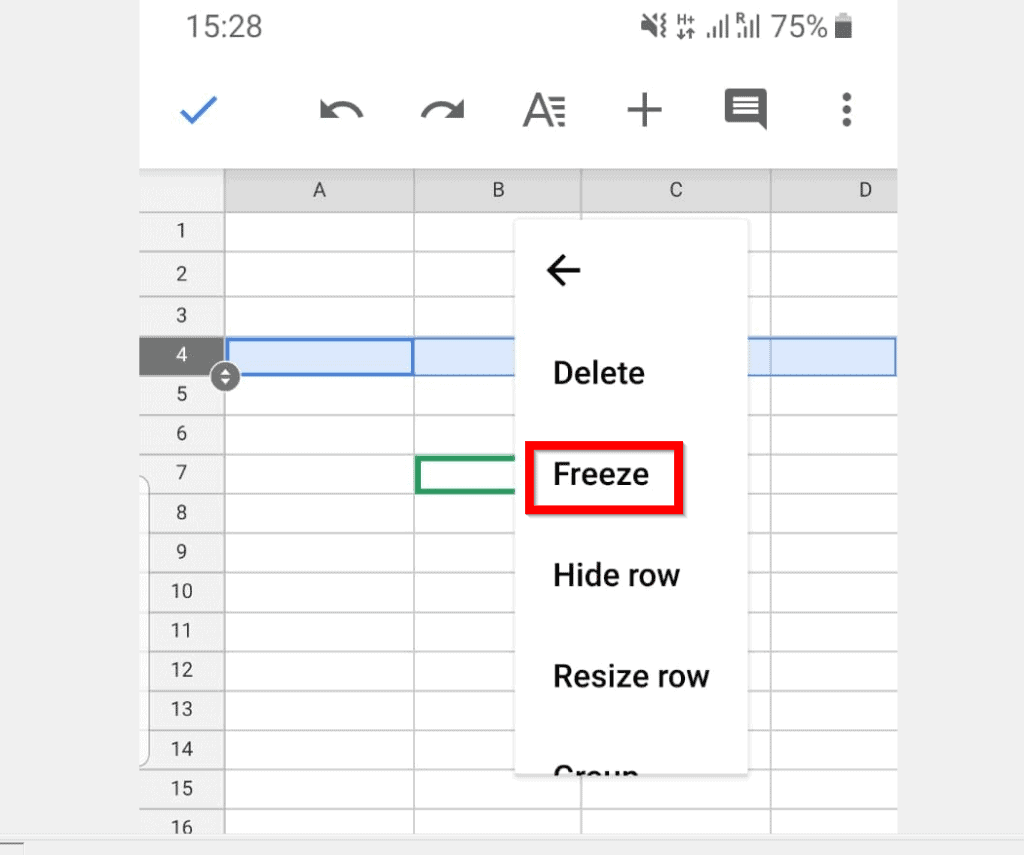
- When you click the 3 dots, another set of options will be displayed. From the displayed options, tap Freeze.
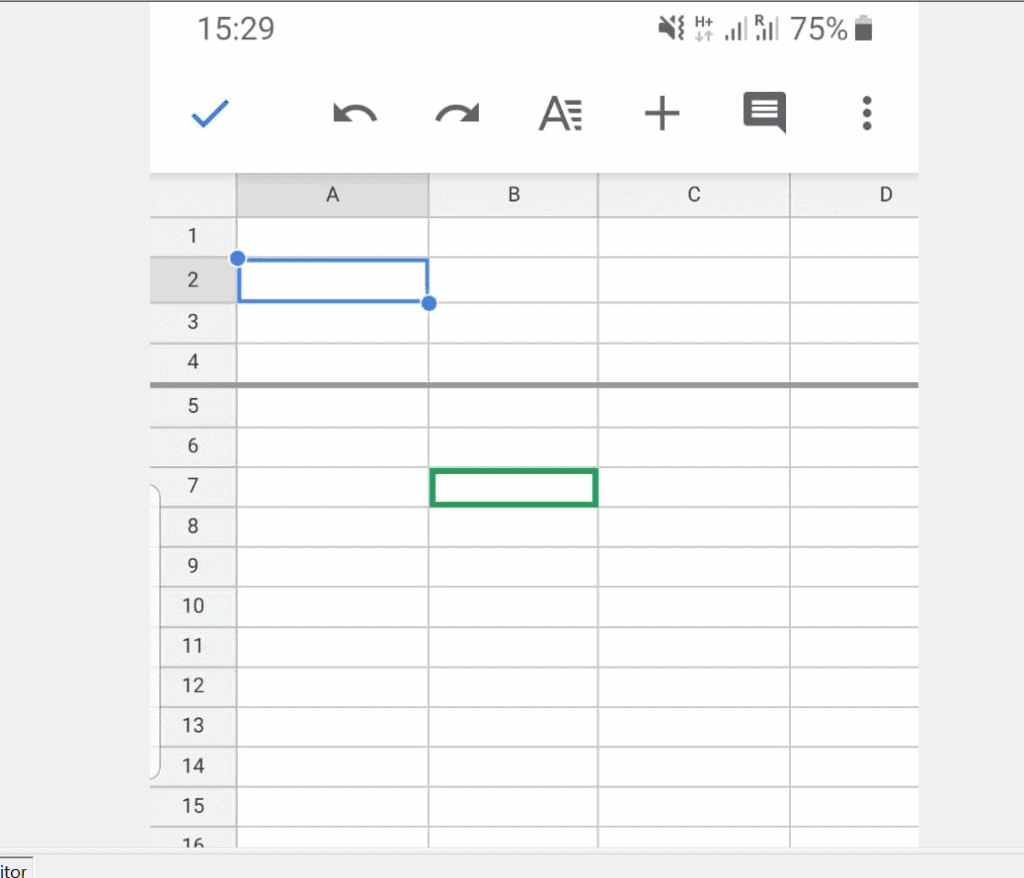
- The row will be frozen. To confirm that it is frozen, it will display a thick gray line beneath the frozen row.
Option 3: Freeze a Row Through the iPhone App
- Open the Google Sheets App for iPhone and login with your Google account.
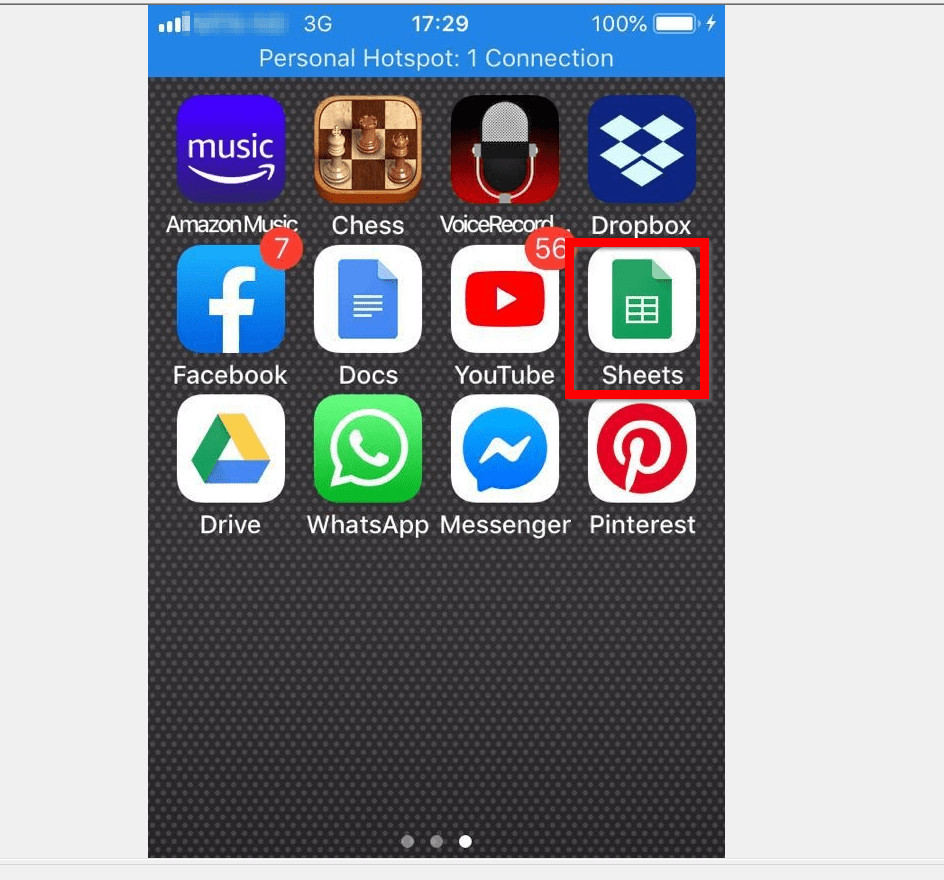
- Then open the spreadsheet you want to work on. You can open the document beneath Last opened by me group. You could also open a saved spreadsheet from Google Drive. To access Google Drive, tap the folder icon on the top right of the Google Sheets App.

- When the document opens, tap the row you want to freeze. Then tap it again to display a set of options. In this example, I want to freeze row 1. I tapped the part of the row with number 1. Then tap the row again to display the Cut, Copy, Clear options.

- To display the freeze option, tap the next arrow until Freeze row is available – see the second image below. Finally, to freeze the row, tap Freeze row (see the second image below).
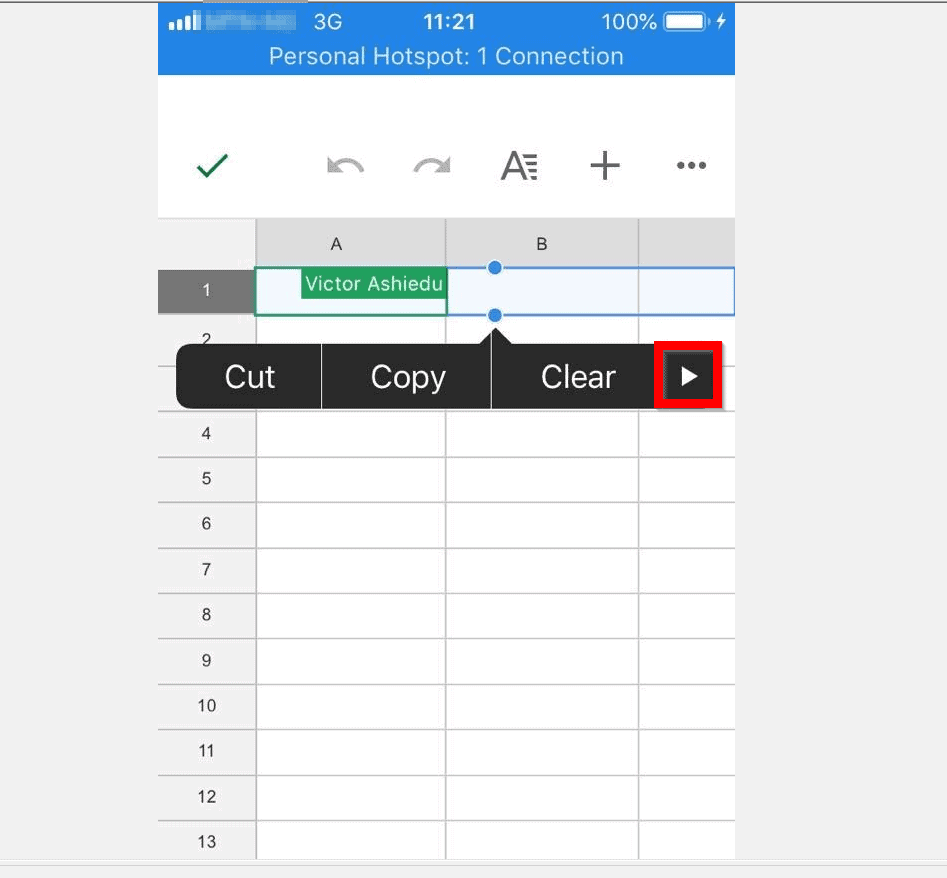

- The row will freeze. To confirm that it is frozen, Google Sheets will display a thick gray line below it.
It is really this easy to freeze a row in Google Sheets! If you found it helpful, click on “Yes” beside the “Was this page helpful” question below.
You may also express your thoughts and opinions by using the “Leave a Comment” form at the bottom of this page.
Special offer. See more information about Outbyte and uninstall instructions. Please review EULA and Privacy policy.
Finally, to read more Google Itechguides, visit our Google How To page.
Quick Recap
Also popular on Amazon
msi Katana 15 HX 15.6” 165Hz QHD+ Gaming Laptop: Intel Core i9-14900HX, NVIDIA Geforce RTX 5070, 32GB DDR5, 1TB NVMe SSD, RGB Keyboard, Win 11 Home: Black B14WGK-016US
- Intel Core i9 HX Power for Elite Gaming: Dominate demanding titles with the Intel Core i9-14900HX and its 24-core hybrid architecture, delivering fast load times, high FPS, and smooth multitasking.
- GeForce RTX 5070 With Ray Tracing & DLSS 4: Powered by NVIDIA Blackwell, the RTX 5070 delivers stronger ray tracing, higher FPS, faster AI upscaling, and more responsive gameplay—ideal for competitive and cinematic gaming.
- QHD 165Hz, 100% DCI-P3 for Ultra-Clear Combat: The QHD 165Hz display reveals more detail, reduces motion blur, and boosts visibility in fast-paced games while delivering richer, more accurate colors.
- Cooler Boost 5 for Sustained Performance: Dual fans and a 5-heat-pipe share-pipe design keep the CPU and GPU cool, maintaining stable frame rates during long gaming marathons.
- 4-Zone RGB Keyboard + Full Game-Ready Ports: Customize your setup with a 4-zone RGB keyboard and highlighted WASD keys. Includes USB-C Gen 2, HDMI up to 8K, multiple USB-A ports, RJ45, Wi-Fi 6E & Hi-Res Audio.
Popular on Amazon
Product prices and availability are accurate as of the date/time indicated and are subject to change. Any price and availability information displayed on Amazon at the time of purchase will apply. Prices as of November 9, 2026 10:47 pm GMT.
Independent reader supportYour contribution helps us test, update, and keep practical guides available for everyone.