

iTechGuides is reader-supported. When you buy through links on our site, we may earn an affiliate commission. As an Amazon Associate I earn from qualifying purchases. Learn more
This Itechguide teaches you how to defrag Windows 10. The guide covers steps for 3 methods to defrag Windows 10 – Defragment Tool, Command Prompt, PowerShell.
Option 1: Defrag with Defragment Tool
The Defragment Tool allows you to perform one-time, manual defragmentation or scheduled, automatic defragmentation.
Method 1: Manual Defragmentation
- Type defrag in the search box. Then select Defragment and Optimise Drives.

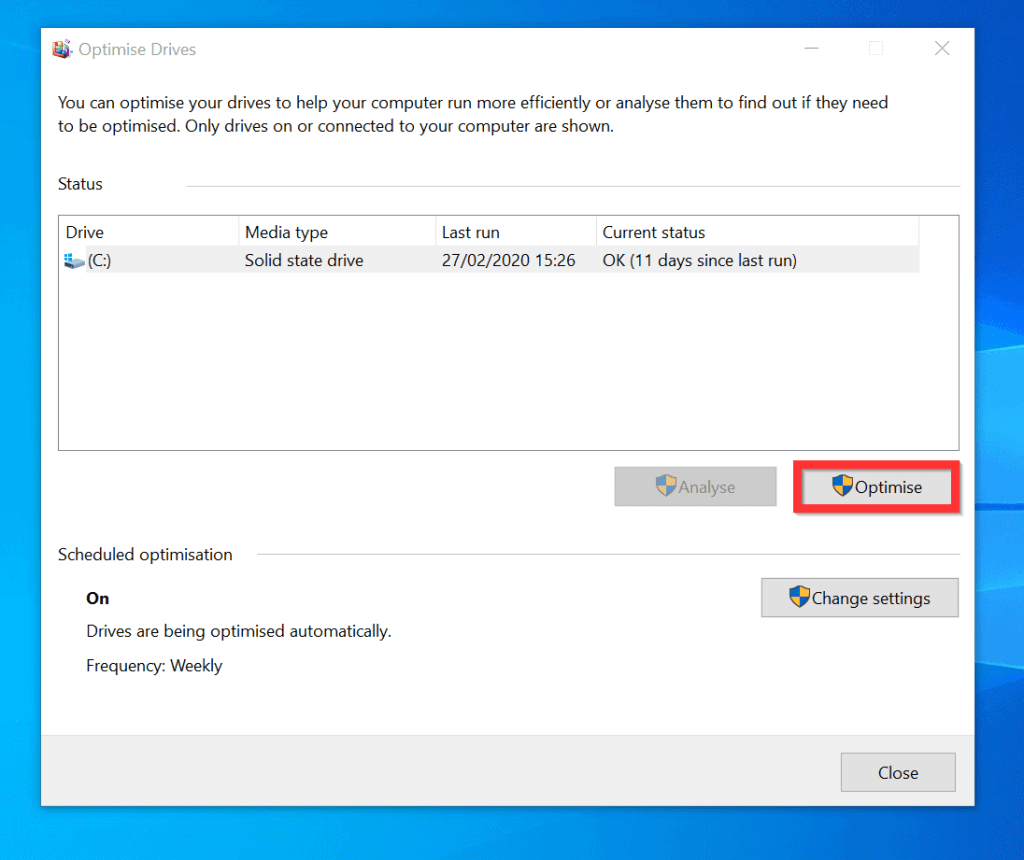
- When the Optimise Drives tool opens, select the drive you want to defrag. Then, on the bottom right of the tool, click Optimise.

Method 2: Scheduled Automatic Defragmentation
- You can also schedule your computer to defragment automatically. To manage the settings, beneath Scheduled optimization, click Change settings.

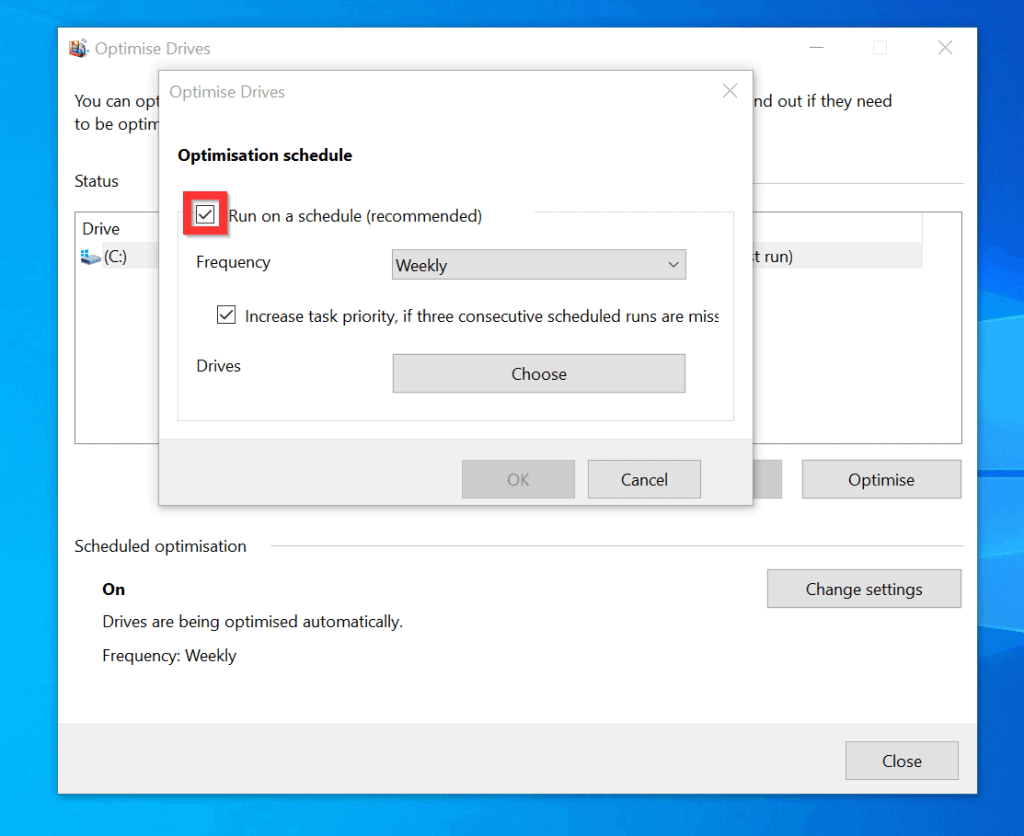
- To turn off scheduled automatic defragmentation, uncheck the checkbox beside Run on a schedule (recommended).
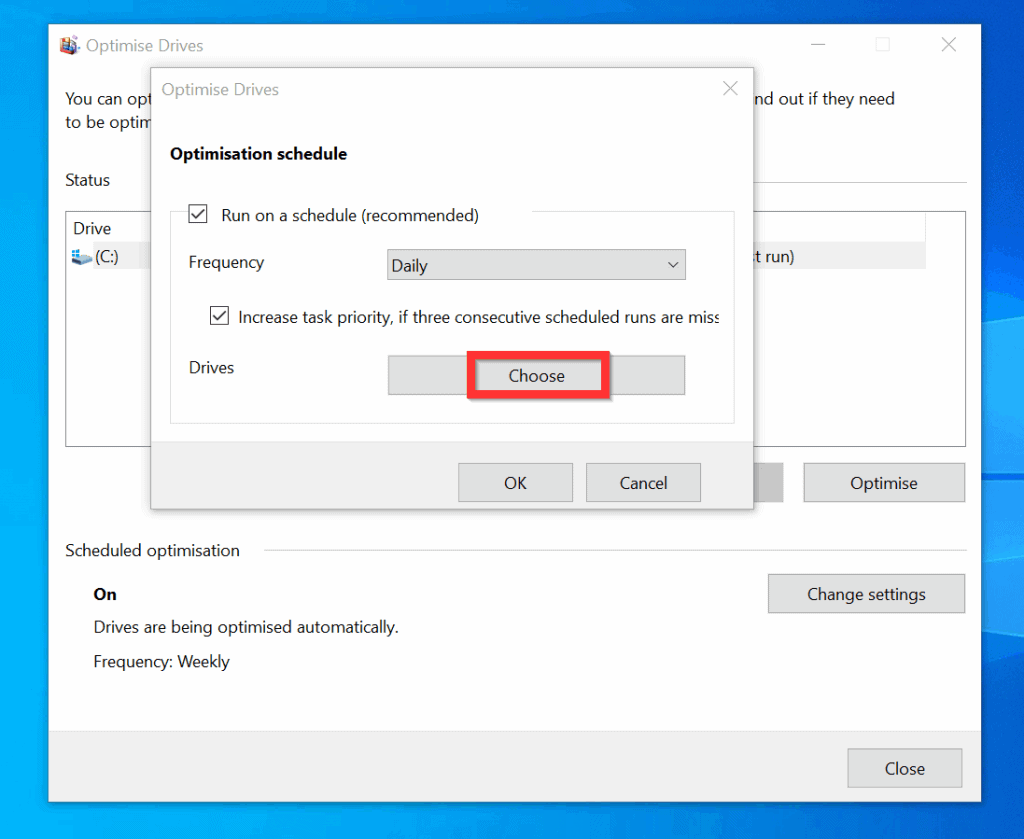
- Alternatively, leave the box checked and select how often (Frequency) you want the defragmentation to run.
- Then, beside Drives, click Choose and select or deselect the drives you want to add to or remove from the automatic defragmentation schedule.
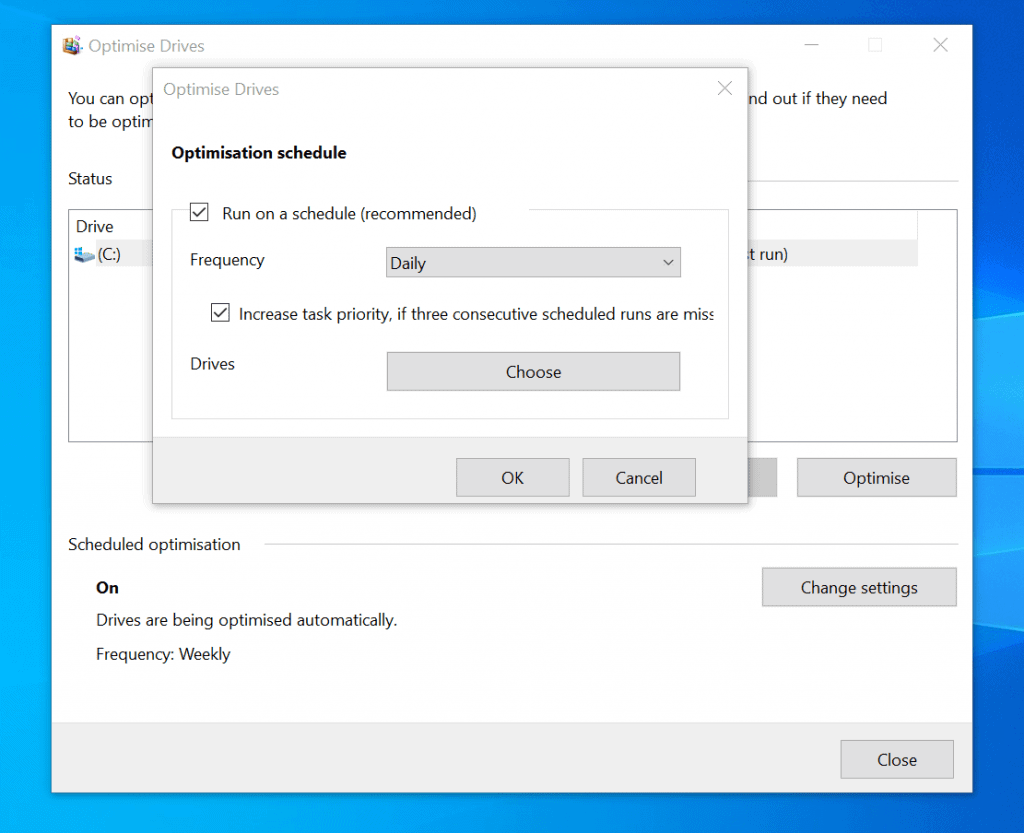
- When you finish click OK.

- Finally, on the Optimisation schedule screen, click OK.
Option 2: Defrag with Command Prompt
- Search command prompt and click Run as administrator.
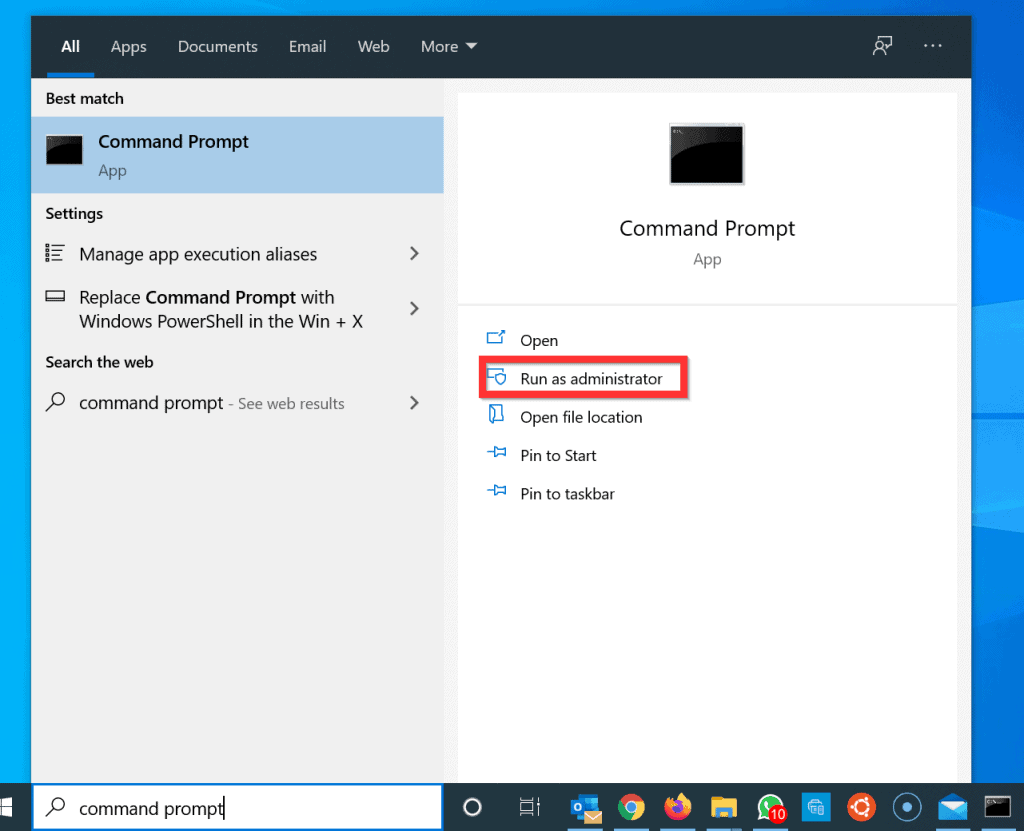
- If you receive the User Account Control tool prompting you to allow the app to make changes to your computer, click Yes.
- On the Command Prompt, type the command below and press enter
defrag /C /H /V /O
- Wait for the operation to complete. If everything goes well, you should receive “The operation completed successfully”. You should also receive a “Post Defragmentation Report”

- To learn more about the defrag switches used in the previous command and other available switches, type the command below and press enter.
defrag /? | more
- Piping “defrag /?” to “more”, forces command prompt to display the results one page per time. To display more pages, press the enter key.

Option 3: Defrag with PowerShell
- Type PowerShell in the search box and click Run as Administrator.
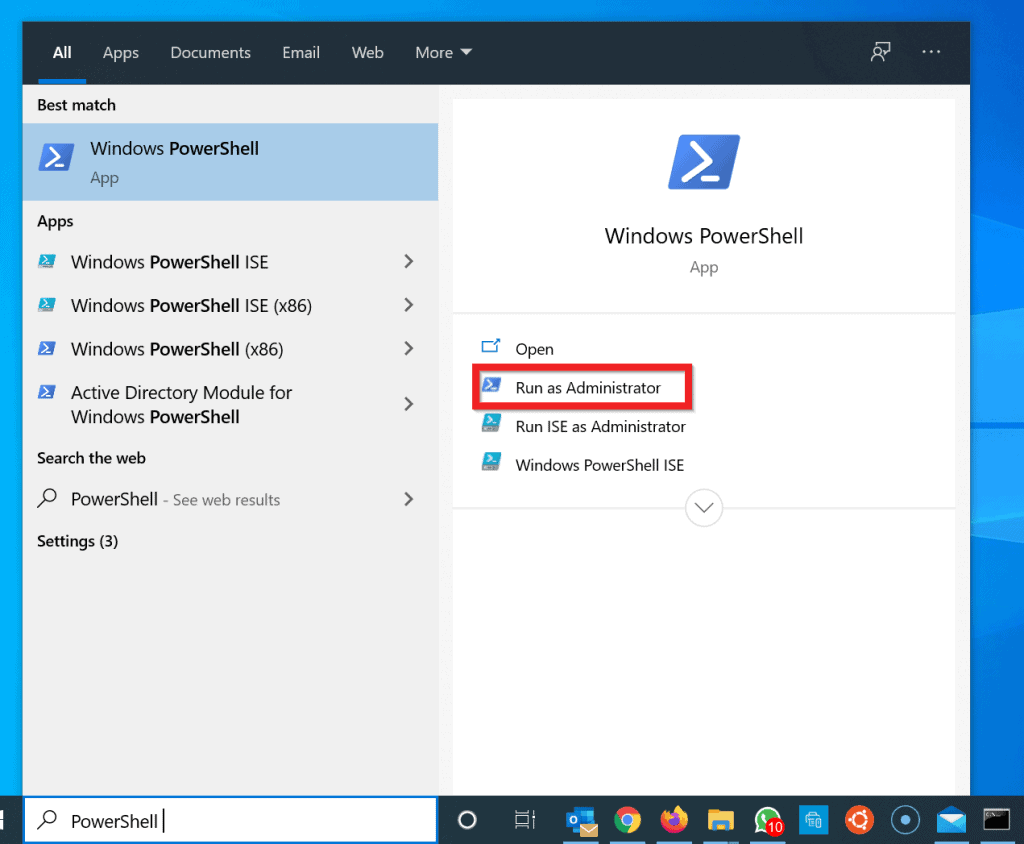
- If you receive the User Account Control tool prompting you to allow the app to make changes to your computer, click Yes.
- Then on the PowerShell command, type the command below and press enter:
Optimize-Volume -DriveLetter <drive_letter> -Verbose
Optimize-Volume -DriveLetter C -Verbose
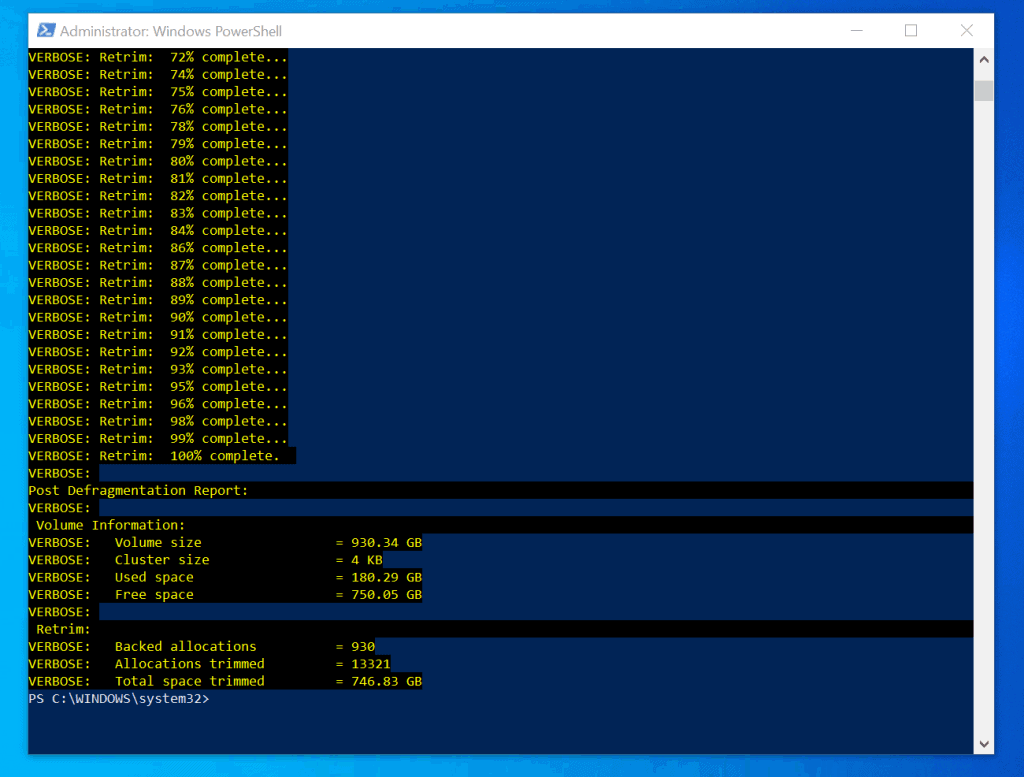
- When you press enter, the command will start running. Verbose switch forces PowerShell to display the progress of the command. The second image below shows the final result.

It is very easy to defrag Windows 10! I hope this Itechguide was helpful. If it was, click on “Yes” beside the “Was this page helpful” question below.
You may also express your thoughts and opinions by using the “Leave a Comment” form at the bottom of this page.
Popular on Amazon

- Get NVMe solid state performance with up to 1050MB/s read and 1000MB/s write speeds in a portable, high-capacity drive(1) (Based on internal testing; performance may be lower depending on host device & other factors. 1MB=1,000,000 bytes.)
- Up to 3-meter drop protection and IP65 water and dust resistance mean this tough drive can take a beating(3) (Previously rated for 2-meter drop protection and IP55 rating. Now qualified for the higher, stated specs.)
- Use the handy carabiner loop to secure it to your belt loop or backpack for extra peace of mind.
- Help keep private content private with the included password protection featuring 256‐bit AES hardware encryption.(3)
- Easily manage files and automatically free up space with the SanDisk Memory Zone app.(5). Non-Operating Temperature -20°C to 85°C
Finally, for more Windows 10 Itechguides, visit our Windows How-To page.
Quick Recap
Also popular on Amazon

- Easily store and access 5TB of content on the go with the Seagate portable drive, a USB external hard Drive
- Designed to work with Windows or Mac computers, this external hard drive makes backup a snap just drag and drop
- To get set up, connect the portable hard drive to a computer for automatic recognition software required
- This USB drive provides plug and play simplicity with the included 18 inch USB 3.0 cable
- The available storage capacity may vary.
Also popular on Amazon

- NEARLY 2X FASTER THAN OUR PREVIOUS GENERATION(8) – move 1,000 high-res photos in under 60 seconds(6) with up to 2000MB/s transfer speeds(2).
- IP65 RATING AND UP TO 3M DROP PROTECTION(3) – protects against spills and drops.
- POCKET-SIZED – fits easily in pockets and small bags.
- SPACE TO OWN YOUR AI CONTENT – speed and capacity to download your high-res clips and photo edits.
- 256-BIT AES ENCRYPTION(4) – helps keep private files secure with password protection.
Also popular on Amazon
- Easily store and access 2TB to content on the go with the Seagate Portable Drive, a USB external hard drive
- Designed to work with Windows or Mac computers, this external hard drive makes backup a snap just drag and drop
- To get set up, connect the portable hard drive to a computer for automatic recognition no software required
- This USB drive provides plug and play simplicity with the included 18 inch USB 3.0 cable
- The available storage capacity may vary.
Also popular on Amazon

- Solid state performance with up to 800MB/s read speeds in a portable drive. (Based on internal testing; performance may be lower depending on host device, interface, usage conditions and other factors. 1MB=1,000,000 bytes.)
- Back up your content and memories on a storage solution that fits seamlessly into your mobile lifestyle.
- Take it with you on your adventures—up to two-meter drop protection means this durable drive can take a beating. (Based on internal testing.)
- Secure it to your belt loop or backpack for extra peace of mind thanks to the tough rubber hook.
- From Sandisk, a brand professional photographers trust to take on assignments.



