Free tools Windows power users keep installed
One-click scans. No signup required.
iTechGuides is reader-supported. When you buy through links on our site, we may earn an affiliate commission. As an Amazon Associate I earn from qualifying purchases. Learn more
In this Itechguide, Victor teaches you how to clone a hard drive on Windows 10. The guide covers 2 steps to clone a hard drive Windows 10.
The hard drive or partition you are cloning to will be wiped. Use only the drive or partion that has no data or that you are willing to lose the data.
Step 1: Install EaseUS Todo Free Backup Software
The first step to clone your Windows 10 hard drive is to download a free disk cloning software. There are a number of them out there but for this Itechguide, I will use EaseUS Todo Backup.
Here are the steps to download and install this free software…
What’s actually slowing this PC down?
Pick the symptom - the matching free tool is one click away.
- Open EaseUS Backup Software from a browser on your PC. The software will start downloading immediately. Open the download folder for your browser.
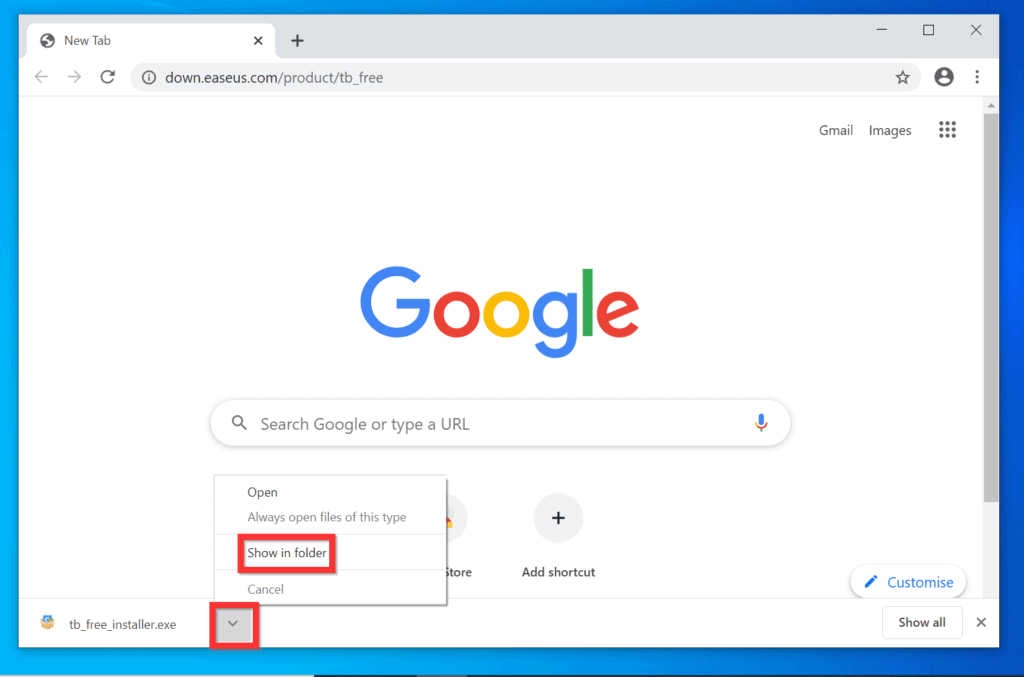
- If you downloaded with Google Chrome, on the bottom left of the browser, click the arrow beside the downloaded file. Then, from the displayed options, click Show in folder.
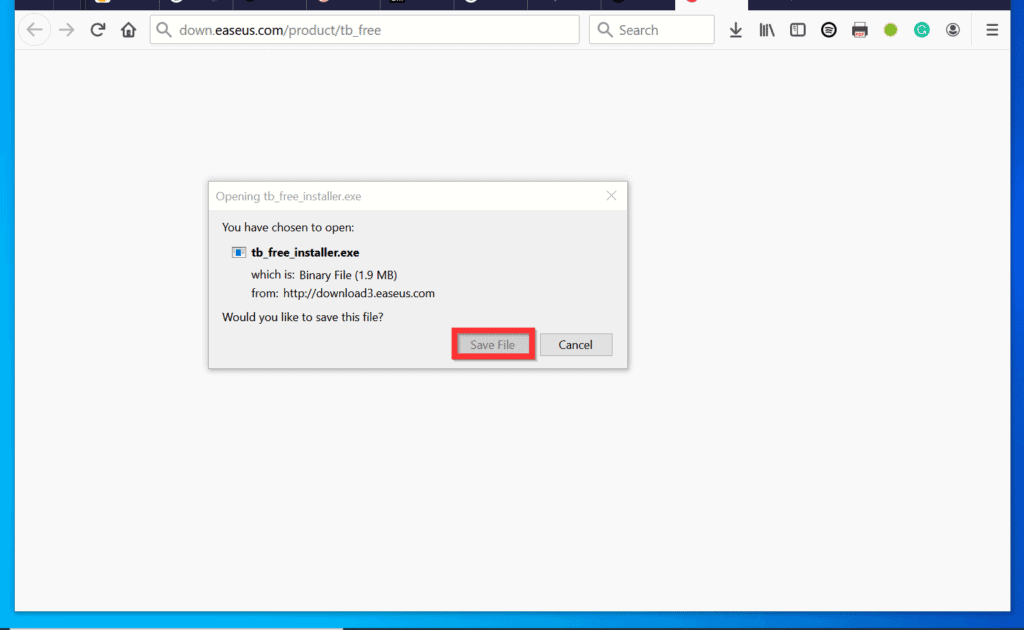
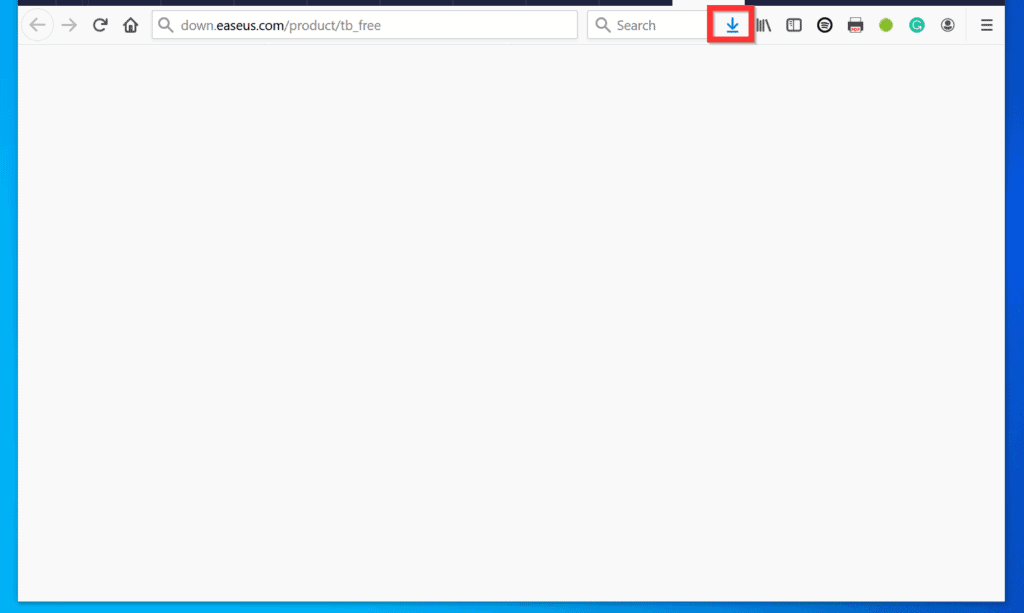
- Alternatively, if you downloaded with Firefox, click Save file. Then, open the download folder – on the top right of the browser, click the download icon – see the second image below.
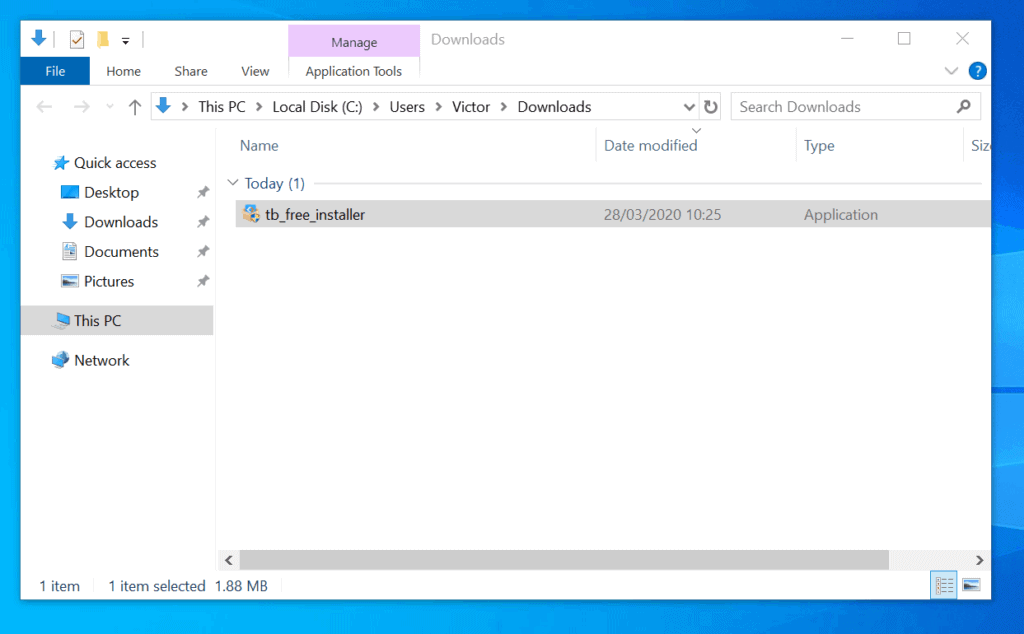
- The next step is to install the disk cloning software. To perform the install, double-click the downloaded installer file.
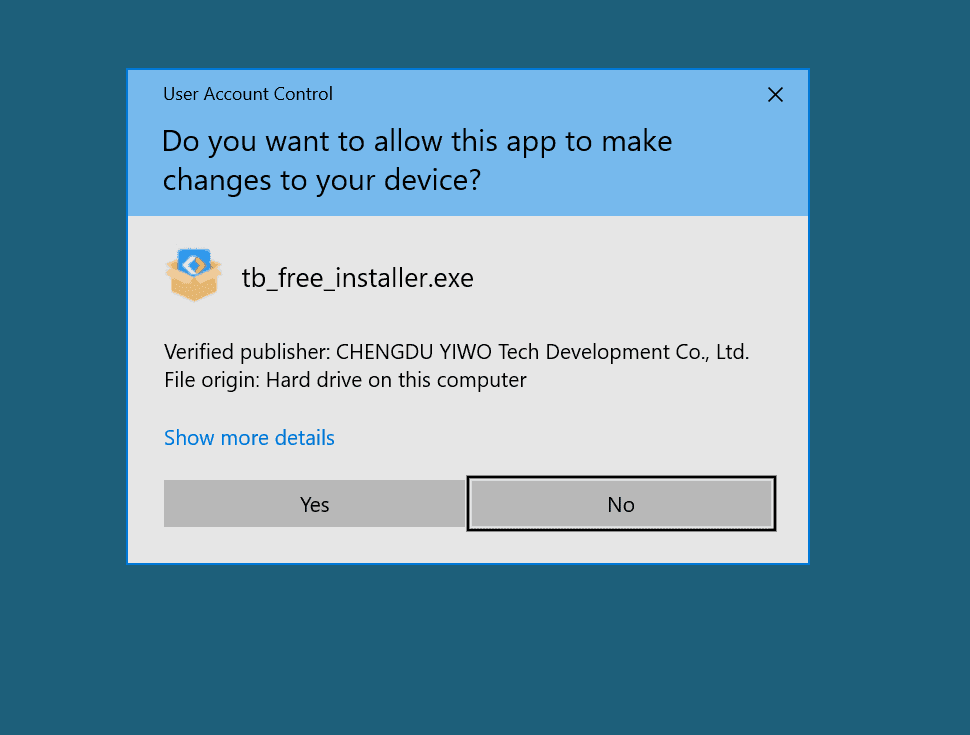
- You will receive a User Account Control confirmation requestion that you allow the app to “make changes to your device”. To proceed with the installation, click Yes.
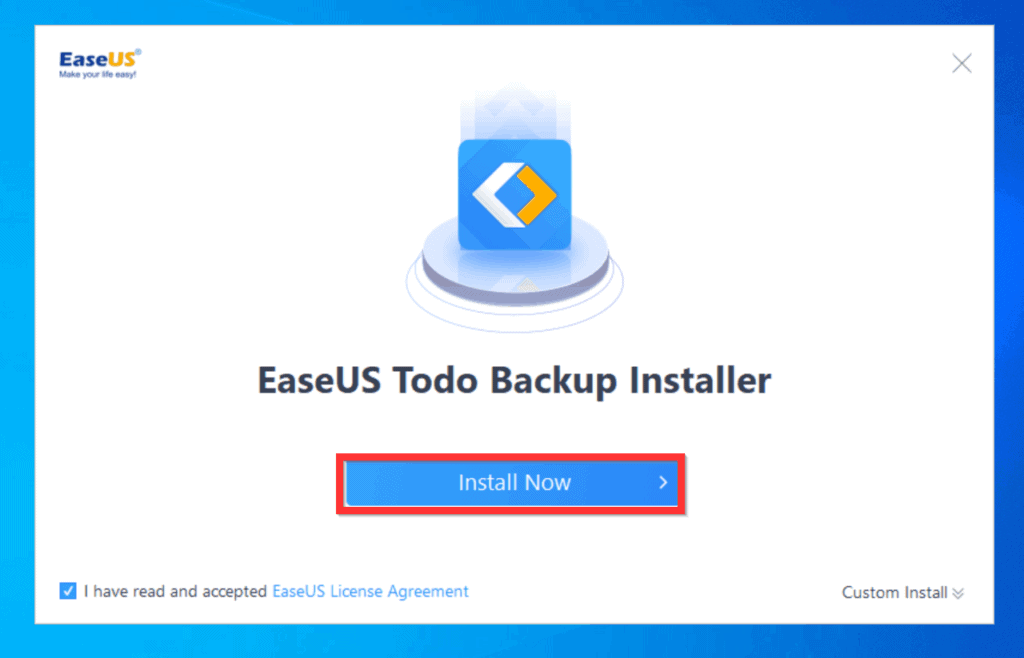
- Then, on the installer screen, click Install Now.
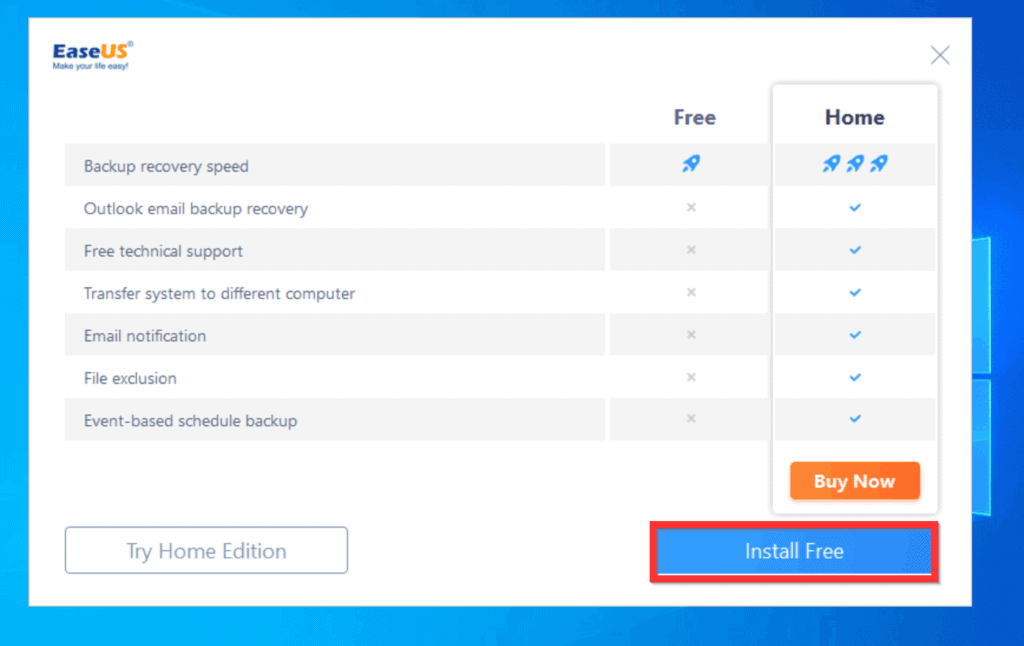
- The software provider will attempt to get you to purchase the paid version of the software. Ignore the request – on the bottom right of the screen, click Install Free.
- Wait for the installer to download the software.
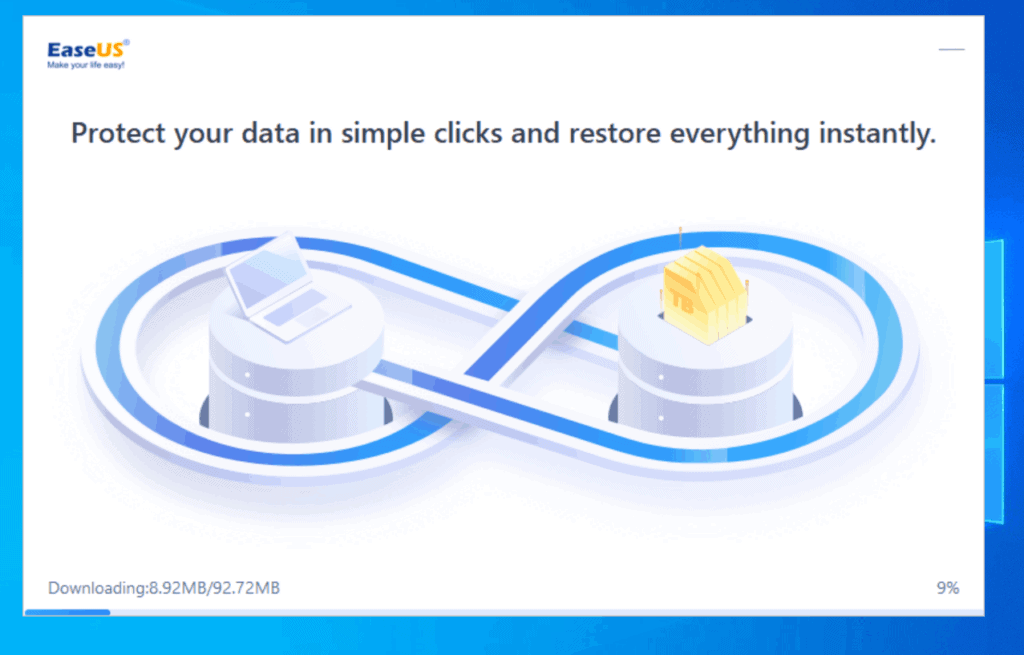
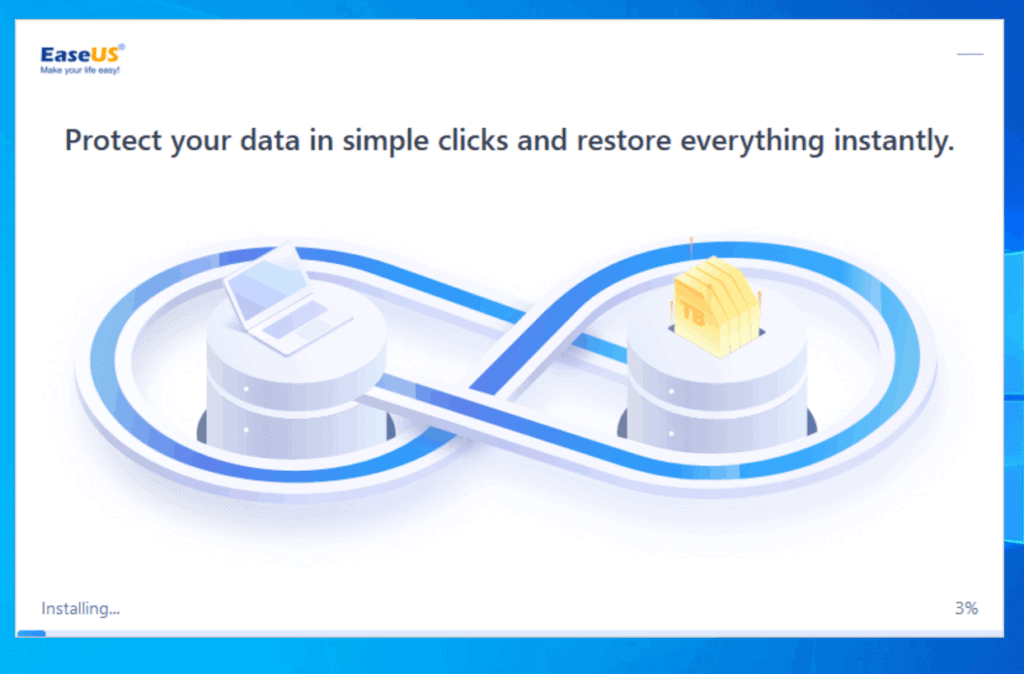
- Once the software is downloaded, it will start installing automatically. Wait for the installation to finish. Then, proceed to step 2 of this Itechguide.
Step 2: Clone Your Hard Drive with EaseUS Free Backup Tool
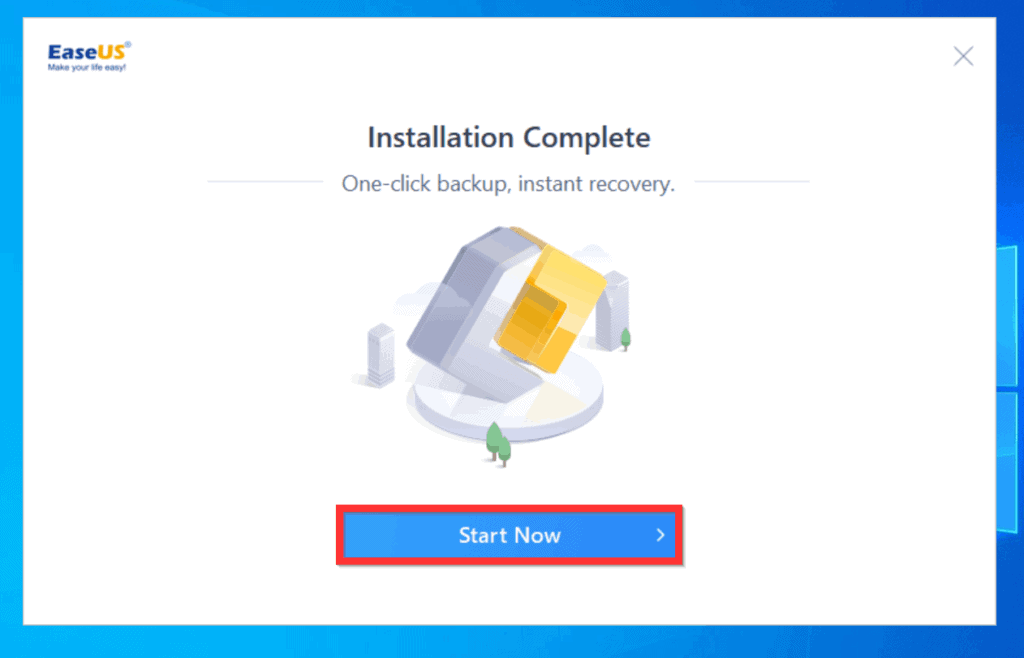
- On the installation confirmation screen, click Start Now.
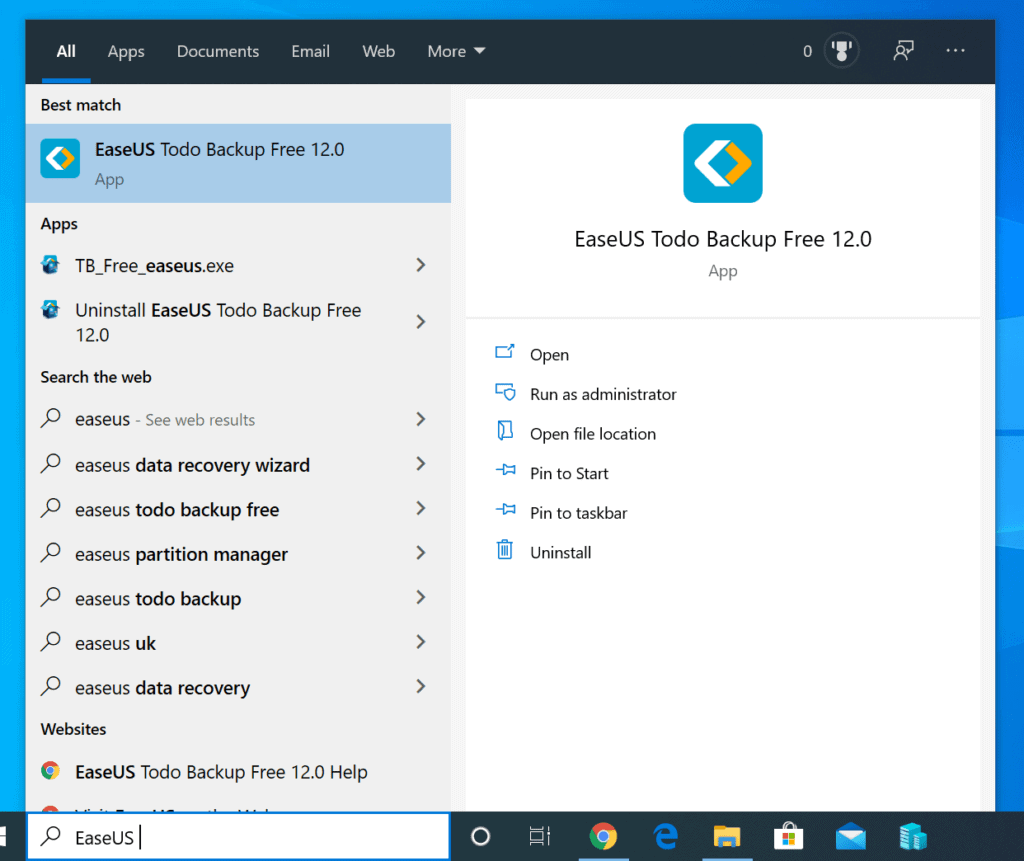
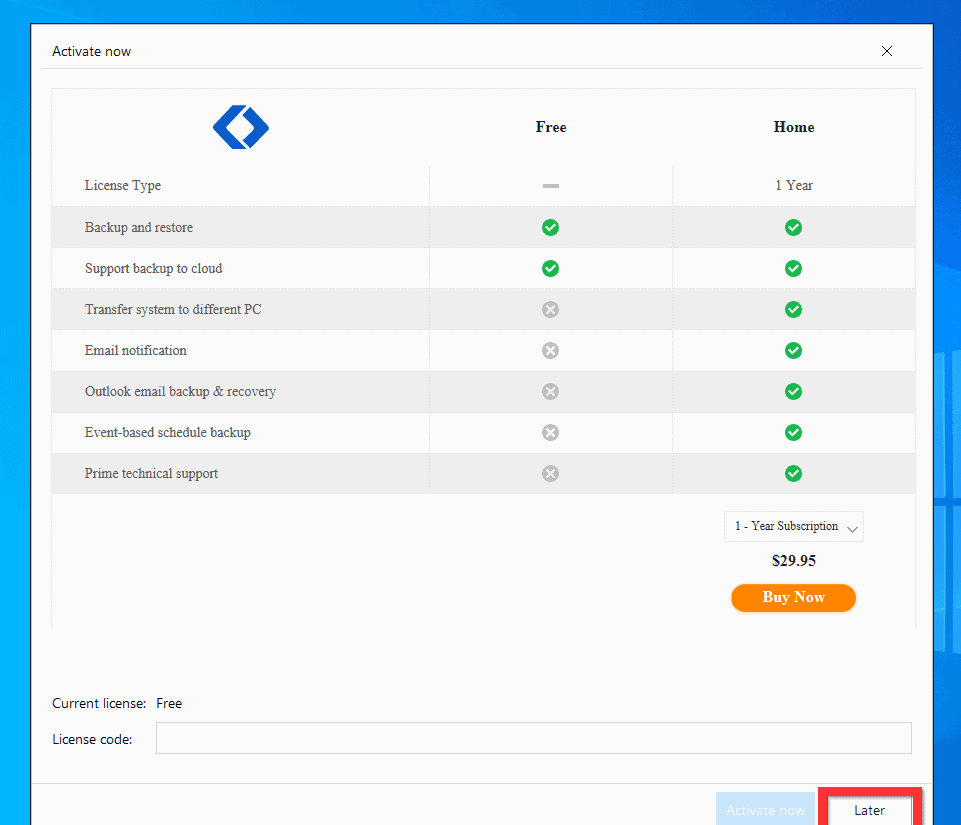
- Then, on the bottom right of the Activate now window, click Later.
- When the application finally opens, on the bottom left, click the Clone icon. See the highlighted icon in the image below. The disk clone software will open and display all the hard drives/partitions on your Windows 10 PC.
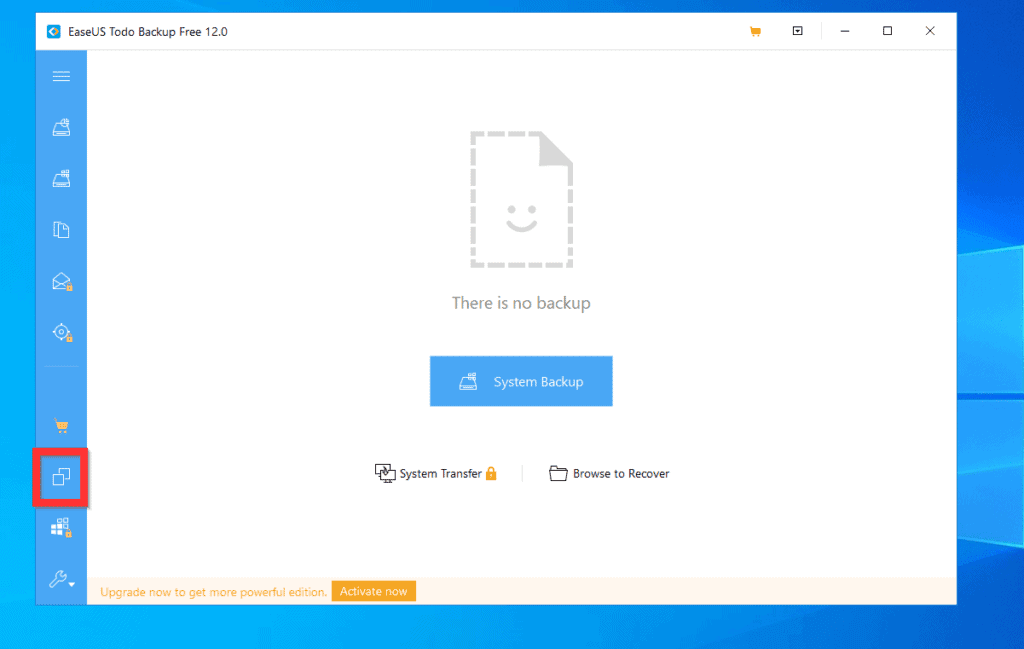
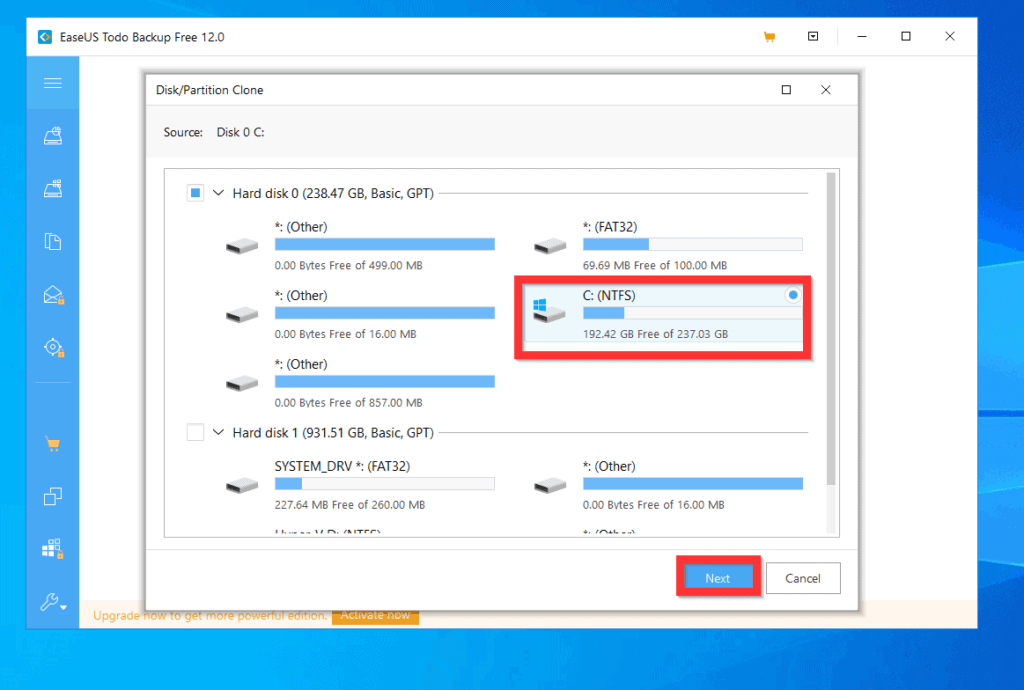
- To proceed with cloning your hard drive, select the drive/partition you want to clone and click Next. In this example, I want to clone my Operating System drive (C:).
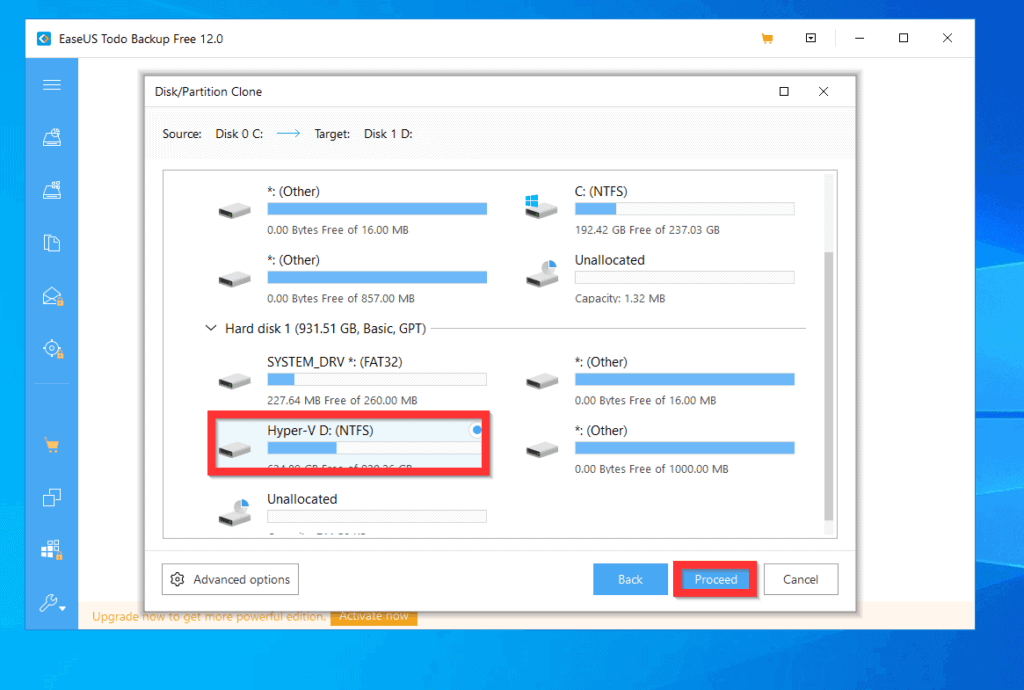
- Then, on the target window, select the drive with enough space to keep the clone copy. After making your selection, on the bottom right, click Proceed.
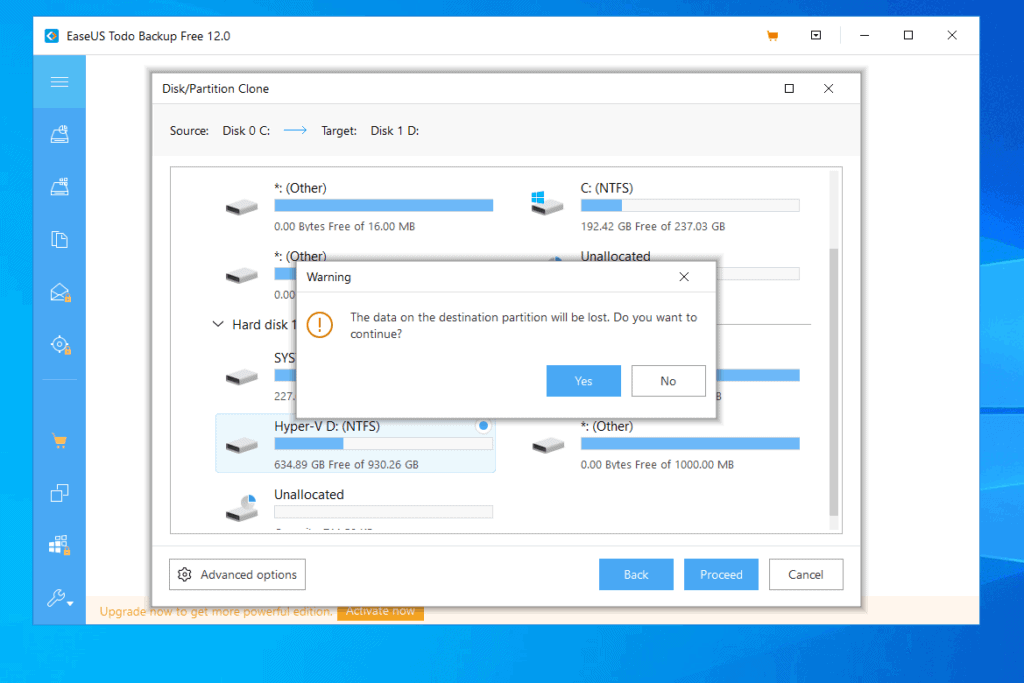
If you decide to proceed with the next step, note that the data in the destination drive WILL BE LOST. Proceed with caution!
- You will receive a data loss warning. If you are happy to wipe the data on the destination drive you want to clone to, to clone the hard drive, click Yes.
As you can see, it is very easy to clone a hard drive Windows 10!
Popular on Amazon

- OFFLINE CLONER, NO COMPUTER NEEDED: Copy one SATA drive to another at the press of a button, up to 60MBps, with the dock unplugged from any PC. Target drive must be the same size as the source or larger.
- READS AND WRITES TWO DRIVES AT ONCE: Both bays mount as separate drives when connected to a computer over USB, so you can move files between them or work off both. Hot-swappable, tool-free, with an HDD access LED per bay.
- SATA ONLY, 2.5in AND 3.5in: Fits bare 2.5in and 3.5in SATA hard drives and SATA SSDs. It does NOT support IDE/PATA drives, drives with a 4-pin Molex power connector, M.2 or NVMe drives, and drives are not included.
- WHAT COMES IN THE BOX: Docking station, power adapter and a USB Type-C cable. The cable is USB-C on the dock end - check your computer has a USB-C port or add your own USB-C to USB-A cable before you order.
- USB 3.0 SPEEDS UP TO 5GBPS: Plug and play on Windows and Mac with no drivers to install. Real-world speed is set by the drives you fit - a mechanical hard drive will not reach 5Gbps, and offline cloning runs up to 60MBps by design.
I hope you found this Itechguide helpful. If you did, click on “Yes” beside the “Was this page helpful” question below.
You may also express your thoughts and opinions by using the “Leave a Comment” form at the bottom of this page.
Also popular on Amazon

- Dual-bay Docking Station: The Wavlink two-slot hard drive dock supports all 2.5''/ 3.5'' SATA I/ II/ III HDD SSD (up to 2x 20TB), a perfect solution for data backup and transferring files. The unique bezel design offers stable performance and better protection for your hard drives
- Offline Clone Function: Offline data copy between two hard drives with no computer involved, totally a competent assistant for data backup. Press the Clone button for about 5 seconds to quick start the offline clone process. Tips: please make sure the capacity of target disk' s is larger/equal than source disk's
- USB 3.0 Superspeed with UASP: With standard USB 3.0 and SATA III connectors' ready, the data transfer rates up to 5 Gbps, 10x faster than USB 2.0. UASP supported allows a 20% faster transfer speed over conventional USB 3.0, transferring 1GB files only takes 3 seconds, backward compatible with USB 2.0/1.1
- Easy to Use: Back-up files and expand storage with convenient access. Tool-free, no driver is needed. Hot-swappable, plug and play! Compatible with Windows 7/8/10/11, Mac 10.2 or latest, Chrome OS, Linux, Android. Note: Your phone should support the OTG function
- Package Includes: 1x usb 3.0 dual bay hard drive docking station, 1x usb 3.0 type-b to a cable, 1x usb 3.0 type-a to c adapter, 1x 12v/3a power adapter, 1x user manual, 2x bezels, several screws
Finally, for more Windows 10 Itechguides, visit our Windows 10 How-To page.
PC Slower Than It Used to Be?
A free scan shows the junk files, broken settings and background clutter dragging Windows down - then fixes them in one click.Free scan · Windows 10 & 11Outdated Drivers Are Slowing You Down
One free scan finds every outdated or missing driver and matches the right update for your exact hardware.Free scan · exact hardware matchQuick Recap
Also popular on Amazon

- 【Effortless Dual-Bay Operation & Data Management】 Work on two drives at once! Read, write, and transfer data between two 2.5” or 3.5” HDD/SSD simultaneously. Perfect for quickly backing up important files, migrating your entire system to a new drive, or simply expanding your storage capacity without the need for multiple docks.
- 【One-Button Offline Clone Function (No PC Required!)】 Duplicate drives effortlessly without a computer. Insert both drives, then turn on the dock. Press and hold the COPY button for 3 seconds. Briefly Click the COPY button Once More. Then cloning will begin. ✅ The indicator lights show the cloning progress. (Please note: For a successful clone, the target drive's capacity must be equal to or larger than the source drive's. )
- 【Blazing-Fast USB 3.2 Gen 1 Speeds with UASP Support】 Experience transfer speeds up to 5Gbps. Advanced UASP (USB Attached SCSI Protocol) support accelerates data transfers by up to 20% compared to traditional USB 3.0, drastically reducing your waiting time for large file backups and clones.
- 【Stable & Reliable Performance with Protected Power】 A dedicated 12V/2.5A power adapter ensures a stable power supply for both bays, guaranteeing safe and reliable operation even with two power-hungry 3.5” HDDs. The built-in power switch safeguards your hard drives during connection and disconnection.✅ For safety, please always turn off the power switch before plugging or unplugging drives.
- 【Trusted Quality with 18-Month Warranty】 Your purchase is protected by the BENFEI Promise—an exclusive 18-month warranty and friendly, easy-to-reach customer support. We stand behind the quality and reliability of our products to ensure your long-term satisfaction.
Also popular on Amazon
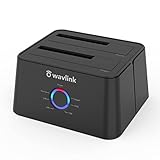
- Support USB 3.0 external, SATA-I/II/III internal; Works great with 2.5 inch and 3.5 inch SATA HDD/SSD.
- Support transfer speeds up to 6Gbps by UASP transfer protocol, which is up to 20% faster than USB 3.0. Speeds up to 5Gbps (USB 3.0),480Mbps (USB 2.0), 12Mbps (USB 1.1)
- Support Offline Cloning up to 60Mbps. No drivers needed, easy installation; Offline clone is from source disk to target disk, make sure the capacity of target disk is larger or equivalent to that of source disk; not support online Clone
- Built-in Power Control Switch; Highly efficient (12V, 3A), stable and reliable DC power source a steady supply of energy; Automatic sleep mode after 30 minutes of inactivity saves energy.
- Tool-free installation on Windows 10 through XP, Mac OS X (not compatible with M1/M2-based Mac), and Linux / Unix, Support hot-swapping and easy set up.(No drivers are required for the disk dock itself as it uses the standard USB Mass Storage class)
Also popular on Amazon

- 【Wide Compatibility】FIDECO hard drive docking station is widely compatible with Windows XP/ Vista/ 7/ 8 /8.1/ 10/ Mac OS/ Linux. Please note that our hard drive dock can only support SATA HDD/SSD.
- 【USB 3.0 Super Speed】FIDECO HDD docking station can support USB3.0 super fast data transfer speed with rates up to 5Gbps. Therefore, there is no need for you to wait that longer during data read or write. Totally save time for you!
- 【Offline Clone】FIDECO HDD dock can support offline clone! You just need to insert 2 HDDs into the respective station bays and press the "Clone" button for 5 seconds until the LED indicator flashes. The clone can be completed with no computer needed!
- 【Plug and Play】FIDECO SATA dock provides an easy way to add HDD/SSD to your computer. It offers you the flexibility of connecting two 2.5"/3.5" SATA HDD/SSD simultaneously to your computer. Just plug and play with no driver needed.
- 【Warm Note】For new HDD or SSD, it needs to be initialized and then it can be recognized by computer. We can offer firmware update and technical support. Any other question, contact us at [support@fideco.cn].