

Recommended Free Tools
iTechGuides is reader-supported. When you buy through links on our site, we may earn an affiliate commission. As an Amazon Associate I earn from qualifying purchases. Learn more
This Itechguide teaches you how to add music to google slides. The guide covers 2 methods to add music to google slides – 1, add via a URL. 2, add via Google Drive.
Option 1: Add Music Using a URL
You can add music to Google slides by adding a URL of a music from a streaming service. Here are the 2 steps…
Step 1: Copy the URL from the Streaming Service
For this guide I will add a Spotify song to Google Slides. You can use any other music streaming service of your choice.
Here is how you copy the URL of a song from Spotify…
Popular on Amazon
- [Immersive Sound & TWS Dual Pairing] Two full-range drivers deliver powerful, well-balanced sound with minimal distortion for music, movies and gaming. Pair two speakers together for true wireless stereo (TWS) - instant left and right channels that fill any room or backyard party.
- [IPX5 Waterproof & Built for Outdoors] Durable shell rated IPX5 against water splashes and spills - poolside, beach, shower steam and light rain are no problem (not for submersion). Rugged enough for camping, hiking and tailgates; just 13 oz to toss in any bag.
- [24-Hour Playtime & Bluetooth 5.3] Up to 24 hours per charge at 50% volume with lights off (expect less at full volume) plus a 100 ft wireless range on Bluetooth 5.3, stable through walls and outdoors. One press turns off the lights to stretch battery even further.
- [A Gift That Actually Gets Used] A dynamic LED light show pulses to the beat of the music and switches off with one button - party mode when you want it, invisible when you do not. A go-to white elephant gift, stocking stuffer, and Christmas or birthday gift for men, women, dads and moms.
- [Everything in the Box] 1 portable Bluetooth speaker, 1 Type-C charging cable, quick start guide and lifetime technical support. Built-in microphone for hands-free calls; 3.5mm AUX supported for non-Bluetooth devices (AUX cable not included).
- Click Open.Spotify.com link. Then, at the top right of the page, click the LOG IN link.

- When the login page opens, login with your Spotify email and password.

- Open the Playlist with the song you want to get its URL. If you know the name of the song, you can also find it with search.

- Hover over the song and click on the menu. A set of menu options will be displayed.
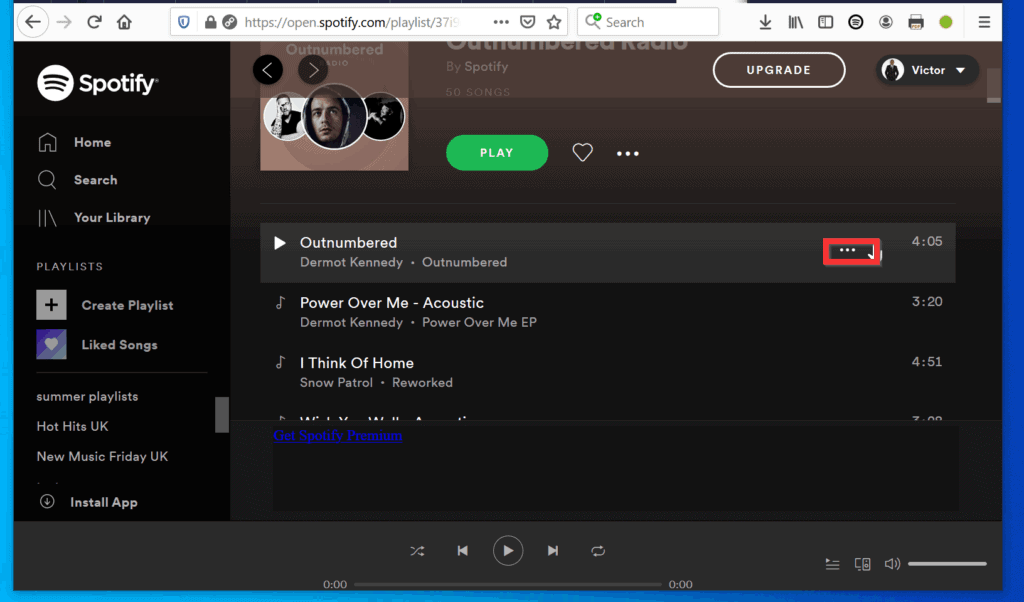
- From the displayed menu options, click Copy Song Link.
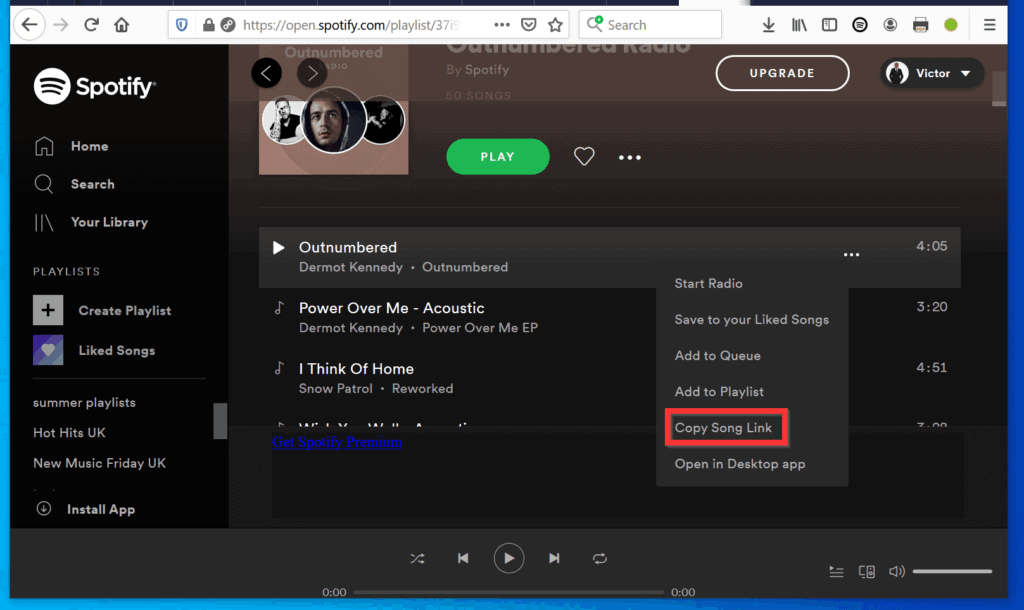
Apart from Spotify, you can get music from other music streaming sites. For a list of top music streaming sites, read our Top 5 Online Music Stores review.
Once you have copied the URL of the music you want to add to Google Slides, proceed to the second step in this section…
Also popular on Amazon

- Outdoor-Proof Speaker: Portable design with IPX7 waterproof protection to safeguard against splashes, waves, and water vapor. Get incredible sounds at home, on camping trips, or for outdoor adventures.
- 24H Non-Stop Music: With Anker's world-renowned power management technology and a 5,200mAh Li-ion battery, the soundcore 2 speaker delivers a full day of great sound.
- Powerful Sound: The speaker features 12W power with enhanced bass from dual neodymium drivers. An advanced digital signal processor ensures pounding bass and zero distortion at any volume.
- Intense Bass: Our exclusive BassUp technology and a patented spiral bass port boost low-end frequencies to make the beats hit even harder. The soundcore 2 speaker delivers vibrant audio for home theater nights, beach parties, and sitting around a campfire.
- Grab, Go, Listen: A classic design refined with simple controls and effortless portability. Easy to use and take anywhere, and supports wireless stereo pairing.
Step 2: Insert the URL of the Song
- Open the Google Slides presentation you want to add a song to. Then, click on the slide you want to add the song.
- Type the text you want to insert the song link and highlight the link. Then, on the Slides menu, click Insert.

- From the Insert menu options, click Link.

- On the Link field, paste the URL of the song you copied from the music streaming service.
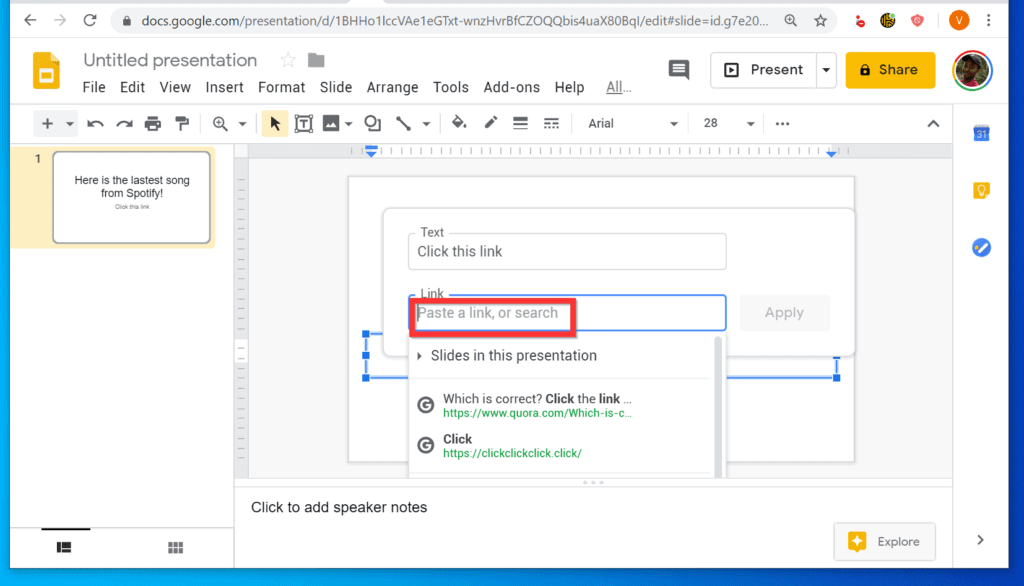
- Finally, to add the song’s URL, click Apply.
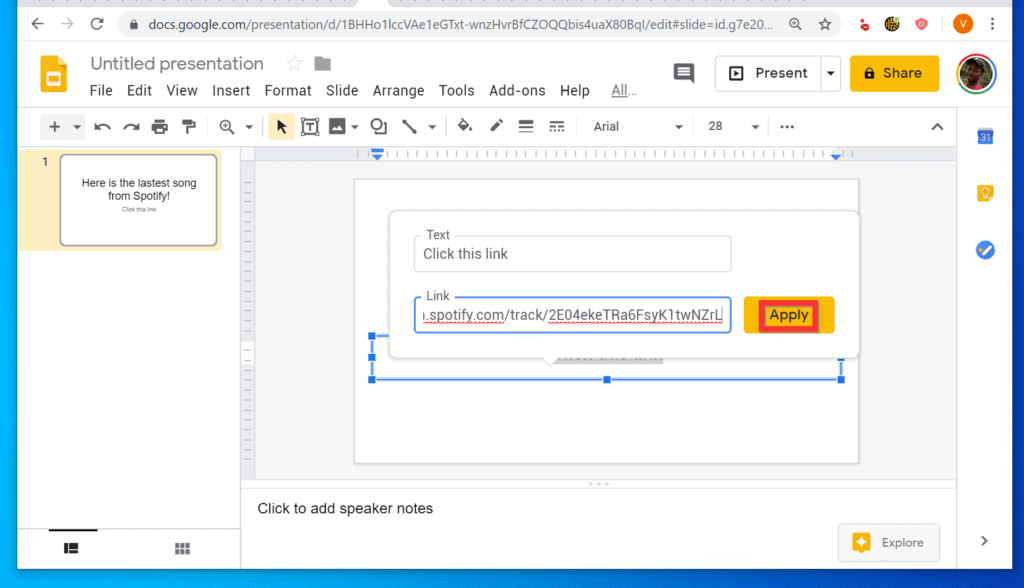
- The text will now have a hyperlink. When you are presenting, click the link to open the music.

Option 2: Add Music from Google Drive
This is also a 2-step process. First, upload the music file to Google Drive. Then, add the music to Google Slides. If someone shared a a music file with you on Google Drive, you can skip the first step…
Step 1: Upload Music to Google Drive
- Open the Google Drive folder you want to upload your music file to. Then, open the folder with your music file. Place the browser (Google Drive) and the folder side by side.
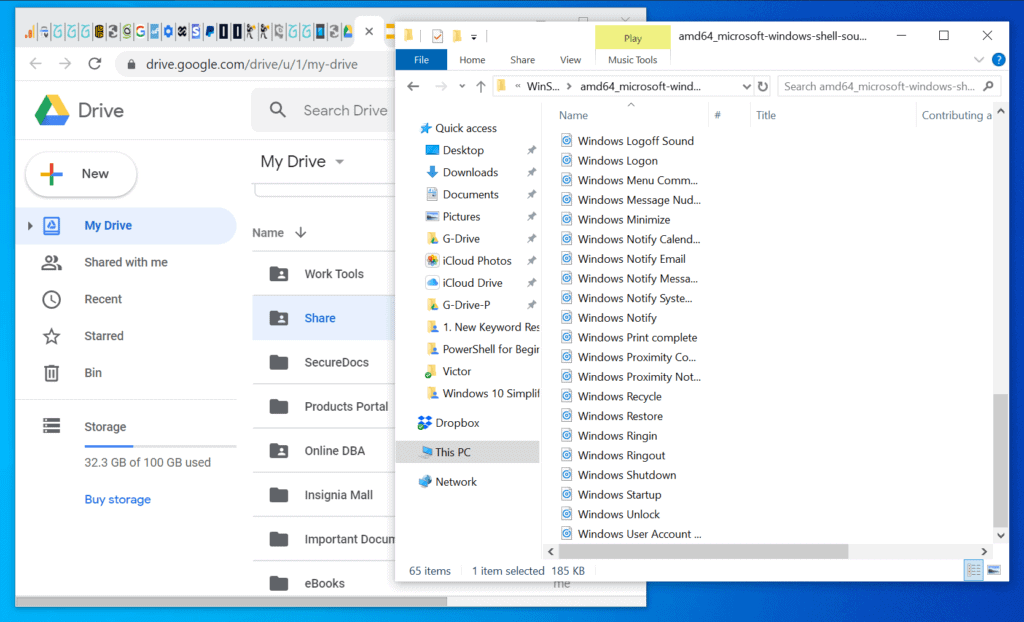
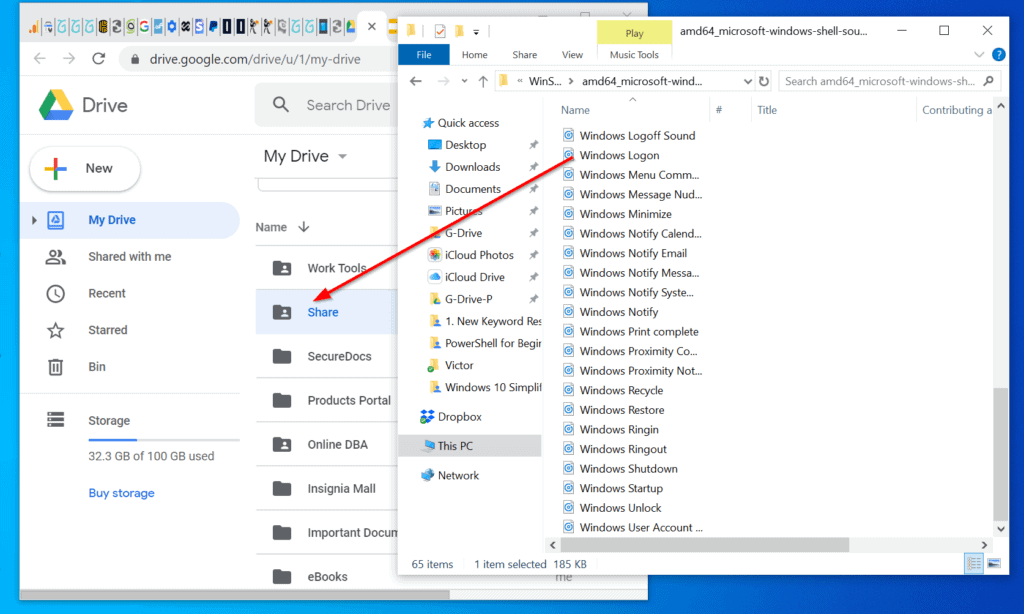
- Then, drag the music file from the folder in your computer into the Google Drive folder on the browser. It will start uploading immediately.
- The status of the upload will be displayed at the bottom right of Google Drive.
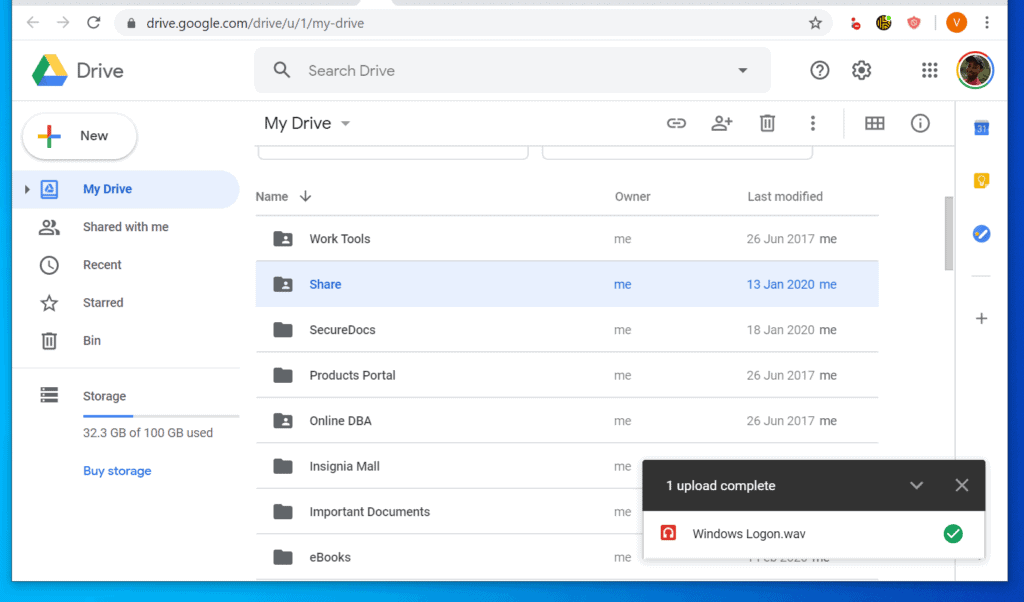
- When the music is uploaded, proceed to the next step in this section…
Step 2: Add Music to Google Slides from Google drive
- Open the Google Slides presentation you want to add a song to.
- Then, click on the slide you want to add the song. On the Slides menu, click Insert.
- From the displayed Insert menu, click Audio.
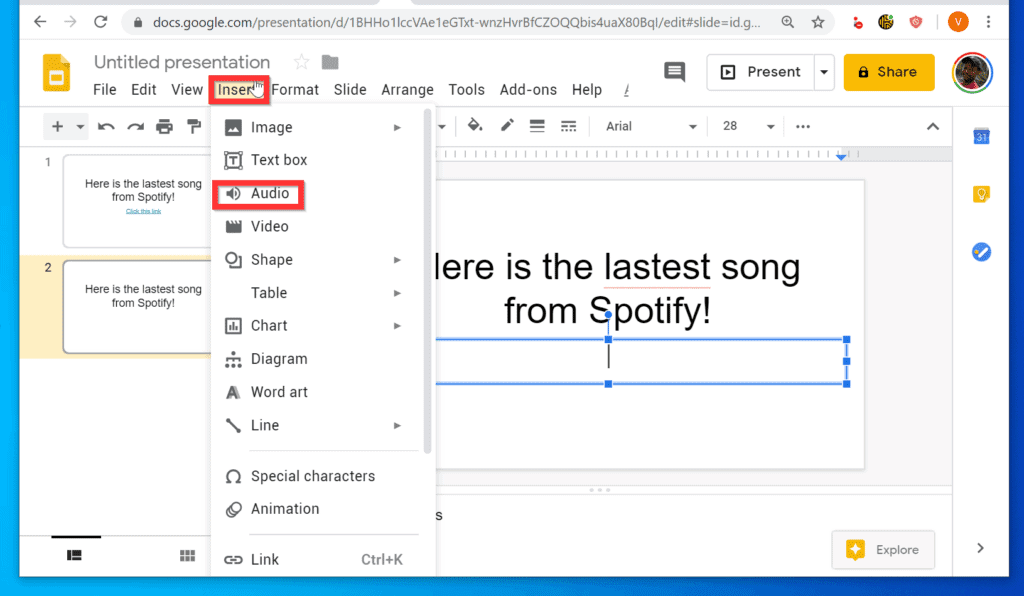
- When the Insert audio dialogue opens, your Google “My Drive” will open by default. The music files in your “My Drive” will be displayed.
- Click on the song you want to add to Google Slides. Then, at the bottom left, click Select.
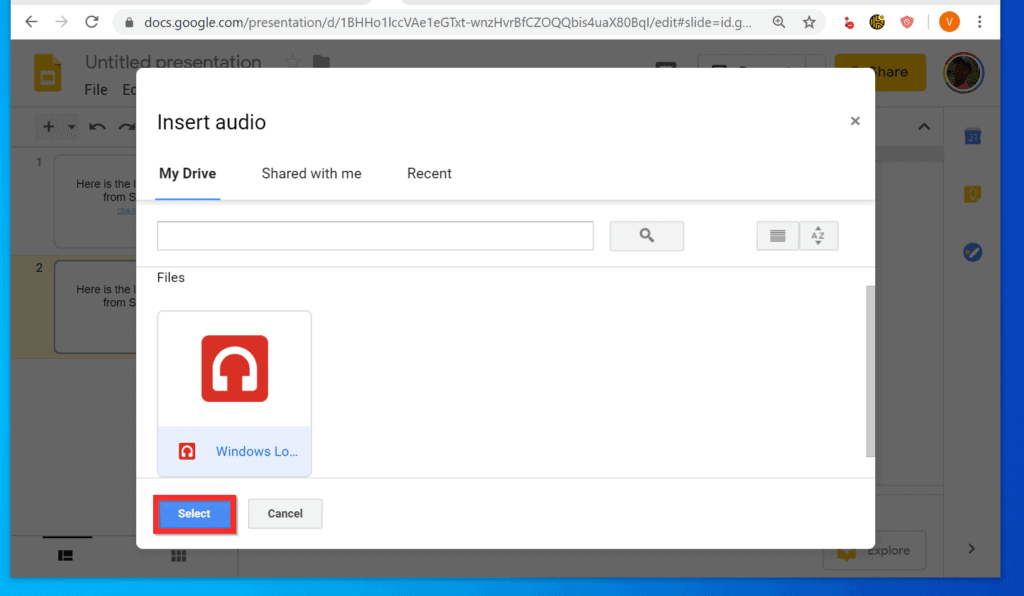
- Google Slides will display a Creating audio notification. Wait for the audio to be created. Once it is created, it will be displayed in the slide.

- The inserted audio file will be highlighted. You can play the music immediately. You can also play it during your presentation.

It is this easy to add music to Google Slides! I hope you found this Itechguide helpful. If you could add music to google slides with the steps in this guide, click on “Yes” beside the “Was this page helpful” question below.
Also popular on Amazon

- Wireless Bluetooth streaming
- 12 hours of playtime
- IPX7 waterproof
- Pair multiple speakers with party boost
- Premium JBL sound quality
You may also express your thoughts and opinions by using the “Leave a Comment” form at the bottom of this page.
Finally, for more Google Itechguides, visit our Google How To page.
Quick Recap
Also popular on Amazon

- Ultra-portable JBL Pro Sound with punchier bass: Don't let its little size fool you. The JBL Go 4 packs a serious musical punch. Your friends won't believe how much great JBL Pro Sound comes out of such a small speaker.
- Up to 7 hours of playtime plus 2 hours with Playtime Boost: Don't sweat the small stuff like charging your battery. JBL Go 4 gives you up to 7 hours of playtime on a single charge. Tap Playtime Boost to add up to 2 more hours to your battery life.
- Waterproof and dustproof: The JBL Go 4's IP67 waterproof and dustproof rating ensures this portable speaker can handle almost any environment, from a poolside party to a seaside picnic.
- Multi-speaker connection by Auracast: Want even bigger JBL Pro Sound? Pair two Go4s for stereo sound, or wirelessly connect multiple JBL Auracast-enabled speakers using Auracast for even bigger sound.
- Made in part with recycled materials: The JBL Go 4 incorporates post-consumer recycled plastic and fabric for the speaker grille. It's also packaged in FSC-certified paper printed with soy ink.
Product prices and availability are accurate as of the date/time indicated and are subject to change. Any price and availability information displayed on Amazon at the time of purchase will apply.
The Tool Desk
Outbyte PC Repair FREERepair Windows errors before they cause bigger problemsFix Now →Outbyte Driver Updater FREEFix the driver behind crashes, sound loss and screen glitchesFind Drivers →


