
iTechGuides is reader-supported. When you buy through links on our site, we may earn an affiliate commission. As an Amazon Associate I earn from qualifying purchases. Learn more
How long does a gaming mouse last? Most gaming mice last about 2–5 years, with heavy competitive use sometimes bringing major repairs within 1–3 years and careful, light use reaching 5 years or more. Switch ratings such as 50 million or 100 million clicks describe one component’s laboratory lifecycle, not the guaranteed life of the complete mouse.
A gaming mouse can remain usable long after its warranty ends, but calendar lifespan depends on the weakest part: the main switches, scroll-wheel encoder, cable, charging port, battery, feet, shell, sensor, or wireless electronics. A mouse that still powers on may no longer be reliable enough for competitive play or daily work.
Key takeaways
- Most gaming mice are best planned around a 2–5-year ownership period, although light or careful use can reach 5 years or more.
- Heavy competitive use may cause a major component problem within approximately 1–3 years, especially in click-intensive games.
- A 50-million-click or 100-million-click rating applies to a tested switch lifecycle, not to the mouse shell, wheel encoder, battery, cable, sensor, or PCB.
- Mechanical switches can develop double-clicking or missed clicks, while optical switches avoid the conventional electrical-contact bounce mechanism without making the entire mouse failure-proof.
- Warranty verification should come before opening the shell, because disassembly or unauthorized repair may affect coverage.
How long does a gaming mouse usually last?
A gaming mouse usually lasts around 2–5 years, but actual ownership duration varies with use, handling, environment, design, and the first component to fail. The following ranges are practical planning estimates rather than a controlled industry-wide failure-rate study.
| Usage pattern | Practical planning range | What commonly limits life |
|---|---|---|
| Heavy competitive use | Approximately 1–3 years before a major repair may be needed | High click volume, button force, cable movement, worn feet, or scroll-wheel use |
| Typical daily gaming and general use | Approximately 3–5 years | Normal switch, encoder, cable, battery, and surface wear |
| Light or careful use | 5 years or more is realistic | Ageing batteries, dry solder joints, accidental damage, and obsolete software or parts |
The estimate describes when a mouse may need attention, not the moment it becomes unusable. A worn set of feet is inexpensive to address, whereas a swollen battery, failing PCB, or unreliable wireless radio may make replacement the sensible option.
Popular on Amazon

- Ultra-fast LIGHTSPEED wireless technology in this wireless mouse gives you a lag-free gaming experience, delivering incredible responsiveness and reliability with 1 ms report rate for competition-level performance
- G305 wireless computer mouse boasts an incredible 250 hours of continuous gameplay on just 1 AA battery; switch to Endurance mode via Logitech G HUB software and extend battery life up to 9 months
- The durable, compact design with built-in nano receiver storage makes G305 not just a great portable desktop mouse, but also a great laptop travel companion and gaming wireless mouse. Use with a gaming laptop and play anywhere
- The next-generation optical HERO sensor in this gaming mouse delivers incredible performance and up to 10x the power efficiency over previous generations, with 400 IPS precision and up to 12,000 DPI sensitivity
- Wireless does not have to mean heavy. This gaming mouse provides high maneuverability, coming in at only 3.4 oz, thanks to an efficient, lightweight mechanical design and ultra-efficient battery usage
A secondary practical estimate from Tom’s Hardware’s durability guidance also treats replacement every 2–3 years as unsurprising and 3–4 years as achievable with careful use. That guidance is useful context, not a product-wide reliability statistic.
What does a gaming mouse’s click rating actually mean?
A click rating is a lifecycle claim for a switch tested under specified conditions; it is not a calendar-life promise for the complete mouse. Manufacturers may advertise ratings such as 20 million, 50 million, 70 million, or 100 million clicks, but the rating does not guarantee that the wheel, cable, battery, shell, sensor, or electronics will survive for the same period.
For examples of how manufacturers present these figures, Corsair lists 50-million-click Omron switches on the Scimitar RGB Elite, while Razer’s optical-switch technology page lists lifecycle figures up to 100 million clicks for its Gen-4 optical switch. Those specifications describe the intended switch lifecycle, not the expected life of every mouse using the switch.
The theoretical conversion is:
Years = rated clicks ÷ average daily clicks ÷ 365| Average clicks per day | 20 million clicks | 50 million clicks | 70 million clicks | 100 million clicks |
|---|---|---|---|---|
| 1,000/day | 54.8 years | 137 years | 192 years | 274 years |
| 3,000/day | 18.3 years | 45.7 years | 63.9 years | 91.3 years |
| 5,000/day | 11.0 years | 27.4 years | 38.4 years | 54.8 years |
| 10,000/day | 5.5 years | 13.7 years | 19.2 years | 27.4 years |
| 20,000/day | 2.7 years | 6.8 years | 9.6 years | 13.7 years |
The calculation shows why a click rating should not be read literally as the expected ownership period. Even if the primary switch reaches its laboratory rating, the mouse can develop a bad encoder, damaged cable, tired battery, cracked actuator, loose charging port, or failing solder joint first.
Which parts of a gaming mouse fail first?
The part that fails first depends on how the mouse is used and how it is built. The main switches receive the most attention, but the scroll wheel, cable, battery, feet, and small plastic mechanisms can be equally important.
1. Main left- and right-click switches
Main switches are frequent failure points because they are actuated constantly. Mechanical-switch wear can produce double-clicking, missed clicks, clicks that register only under firm pressure, inconsistent activation or release, and a changed sound or tactile feel.
Corsair’s double-clicking guidance identifies degrading mechanical switches as a possible cause and warns that opening a mouse can affect warranty coverage. Software settings and operating-system problems should still be ruled out before diagnosing a physical switch failure.
Windows Errors? Fix Them Before They Spread
Repair common Windows errors and clear accumulated junk for a smoother, more stable PC - no reinstall needed.Free scan · no reinstallOutdated Drivers Are Slowing You Down
One free scan finds every outdated or missing driver and matches the right update for your exact hardware.Free scan · exact hardware match2. Scroll wheel and encoder
The scroll-wheel encoder can fail independently of the primary click switches. Typical symptoms include scrolling in the wrong direction, skipped input, intermittent scrolling, a loose or gritty wheel, and loss of middle-click function.
Scroll-wheel failure matters more than many buyers expect. Simulation games, web browsing, inventory-heavy games, and productivity workflows can put more stress on the encoder and middle-click mechanism than on the left button.
Also popular on Amazon

- Adjustable weights: Match your playing style with our PC gaming mouse. Arrange up to five 3.6 g weights for a personalized weight and balance configuration
- HERO Gaming Sensor: Next generation HERO mouse sensor in this PC mouse delivers precision tracking up to 25600 DPI with zero smoothing, filtering or acceleration
- LIGHTSYNC technology: Logitech G LIGHTSYNC technology provides fully customizable RGB lighting that can also synchronize with your gaming (requires Logitech Gaming Software)
- Mechanical Switch Button Tensioning: This mouse has a metal spring tensioning system; metal pivot hinges are built into left and right computer gaming mouse buttons for a crisp, clean click feel with rapid click feedback
- 11 programmable buttons and dual mode hyper-fast scroll wheel: This wired gaming mouse gives you fully customizable control over your gameplay
3. Cable, USB connector, or charging port
Wired mice can develop internal conductor breaks, intermittent disconnects, damaged USB plugs, or strain-relief failure near the mouse. A permanently attached cable is generally more difficult to replace than a detachable cable, although a detachable connector introduces another possible wear point.
Wireless mice avoid cable drag but add a charging port and a radio receiver. A loose charging connection, cable that works only at a particular angle, lost receiver, or damaged USB adapter can make a working mouse difficult to use.
Free tools Windows power users keep installed
One-click scans. No signup required.
4. Wireless battery
A wireless mouse battery gradually becomes a limiting component as its capacity declines. Symptoms include shorter intervals between charges, sudden shutdowns under load, failure to hold a charge, or charging that works only when the cable is positioned carefully.
| Battery arrangement | Long-term implication |
|---|---|
| Replaceable disposable batteries | Simple to restore, provided compatible batteries remain available |
| User-replaceable rechargeable cell | Potentially good for long ownership, but the replacement cell must be compatible and safely installed |
| Sealed internal rechargeable battery | Convenient during normal use, but battery ageing may eventually make professional repair or replacement preferable |
A swollen battery is a safety problem. Stop using and charging a mouse with a swollen cell rather than treating the battery as an ordinary performance issue.
5. Feet and shell
Mouse feet wear according to mousepad texture, hours of movement, applied pressure, dust, grit, and foot material such as PTFE. Feet worn down to the adhesive layer can make the mouse scrape or feel inconsistent even when the electronics remain healthy.
A polished grip surface, cracked shell, loose button, broken side-button hinge, or damaged actuator can also make the mouse unpleasant or unreliable without proving that the sensor or PCB has failed.
6. Sensor and wireless electronics
Sensor problems can result from impact, contamination near the sensor opening, firmware or driver problems, poor surface tracking, wireless interference, receiver placement, USB faults, or liquid exposure. A skipping cursor is not automatically evidence of a dying sensor.
Are optical switches better than mechanical switches for durability?
Optical switches are a meaningful durability advantage when the main concern is traditional mechanical-switch double-clicking, but optical switches do not guarantee a longer life for every part of a gaming mouse.
| Switch type | Durability advantage | Trade-offs and remaining risks |
|---|---|---|
| Mechanical | Familiar click feel; broad range of weights and tactile designs; often easier for hobbyists to replace | Electrical contact wear and switch bounce can contribute to double-clicking; lifespan varies by implementation and use |
| Optical | Uses light-based actuation and avoids the conventional electrical-contact bounce mechanism; manufacturers can specify high lifecycle figures | Click feel may be heavier or sharper; replacement can be less straightforward; wheel, actuator, shell, cable, battery, PCB, and other failures remain possible |
Razer explains that its optical design uses light-based actuation, avoids the physical contact issue associated with conventional mechanical switches, and removes the need for a traditional debounce delay. That addresses one failure mechanism; it does not make the mouse indestructible.
Also popular on Amazon

- Ultra-fast LIGHTSPEED wireless technology in this wireless mouse gives you a lag-free gaming experience, delivering incredible responsiveness and reliability with 1 ms report rate for competition-level performance
- G305 wireless computer mouse boasts an incredible 250 hours of continuous gameplay on just 1 AA battery; switch to Endurance mode via Logitech G HUB software and extend battery life up to 9 months
- The durable, compact design with built-in nano receiver storage makes G305 not just a great portable desktop mouse, but also a great laptop travel companion and gaming wireless mouse. Use with a gaming laptop and play anywhere
- The next-generation optical HERO sensor in this gaming mouse delivers incredible performance and up to 10x the power efficiency over previous generations, with 400 IPS precision and up to 12,000 DPI sensitivity
- Wireless does not have to mean heavy. This gaming mouse provides high maneuverability, coming in at only 3.4 oz, thanks to an efficient, lightweight mechanical design and ultra-efficient battery usage
Razer’s technology page lists earlier optical generations at 70 million clicks and its Gen-4 generation at 100 million clicks. A 100-million-click optical mouse is not automatically twice as durable overall as a 50-million-click mechanical-switch mouse, because the two products may fail in different components first.
Do these 3 things before closing this tab:
1Fix the driver behind crashes, sound loss and screen glitches2Clear out junk files and repair common Windows errors3Scan for outdated or missing drivers - takes under a minuteHow does usage affect gaming mouse lifespan?
Usage affects gaming mouse lifespan through more than the number of clicks. Long sessions, high actions-per-minute games, rapid clicking, forceful dragging, tight grips, repeated middle-clicking, rough mousepads, contamination, and cable bending all add different forms of wear.
- FPS games: Frequent left- and right-clicking, rapid movement, cable motion, and foot wear may matter most.
- RTS and MOBA games: Rapid repeated actuation can increase main-switch stress and click volume.
- MMO games: Side buttons and thumb grids receive substantial use in addition to the primary switches.
- Simulation games: Scroll-wheel and middle-click reliability may matter more than headline left-click ratings.
- Productivity use: Browser scrolling, middle-clicking, drag-and-drop, and long daily sessions can expose encoder and button problems.
Wear can accelerate when a user repeatedly holds or slams a button, clicks near the edge of a button, drags with excessive pressure, transports the mouse loose in a bag, or bends a cable at the same point. Sweat, skin oils, dust, food particles, smoke, liquid, and a rough or dirty mousepad can also contribute to contamination and physical stress.
What are the signs that a gaming mouse is failing?
Double-clicking
Double-clicking occurs when one physical press registers twice. Mechanical-switch degradation is a classic cause, but test another computer and check software settings before concluding that the hardware is defective.
Missed clicks or drag release
Missed clicks occur when a press sometimes does not register. Drag release occurs when the mouse stops holding a button during a drag. Both symptoms can disrupt games, file management, and design work and commonly justify a warranty or repair investigation.
Quick wins for a faster PC:
Repair Windows errors before they cause bigger problemsFix Now →Scan for outdated or missing drivers - takes under a minuteDriver Scan →Clear out junk files and repair common Windows errorsFree Scan →Scroll skipping or reversal
Skipping lines, intermittent scrolling, or scrolling in the opposite direction often points to the wheel encoder rather than the primary click switch. Cleaning may remove contamination, but cleaning cannot reliably repair a worn encoder.
Cursor skipping
A skipping cursor can be caused by a dirty sensor opening, unsuitable or dirty surface, wireless interference, receiver placement, USB or cable problems, software, firmware, or actual sensor failure. Test the simple causes first.
Intermittent disconnection
Repeated disconnections can indicate a damaged cable, USB port, receiver, charging connection, low battery, radio interference, or internal electronics problem. A fault that follows the mouse to another computer is more suggestive of hardware trouble than a fault limited to one computer.
Physical deterioration
Cracked plastic, loose buttons, broken side-button hinges, a frayed cable, a loose charging port, feet worn to the adhesive layer, and a swollen battery are visible warning signs. A swollen battery requires immediate safety attention rather than continued troubleshooting.
The Tool Desk
Outbyte PC Repair FREERepair Windows errors before they cause bigger problemsFix Now →Outbyte Driver Updater FREEFix the driver behind crashes, sound loss and screen glitchesFind Drivers →Also popular on Amazon

- ICONIC ERGONOMIC DESIGN WITH THUMB REST — PC gaming mouse favored by millions worldwide with a form factor that perfectly supports the hand while its buttons are optimally positioned for quick and easy access
- 11 PROGRAMMABLE BUTTONS — Assign macros and secondary functions across 11 programmable buttons to execute essential actions like push-to-talk, ping, and more
- HYPERSCROLL TILT WHEEL — Speed through content with a scroll wheel that free-spins until its stopped or switch to tactile mode for more precision and satisfying feedback that’s ideal for cycling through weapons or skills
- 11 RAZER CHROMA RGB LIGHTING ZONES — Customize each zone from over 16.8 million colors and countless lighting effects, all while it reacts dynamically with over 150 Chroma integrated games
- OPTICAL MOUSE SWITCHES GEN 2 — With zero unintended misclicks these switches provide crisp, responsive execution at a blistering 0.2ms actuation speed for up to 70 million clicks
How should you troubleshoot a gaming mouse before replacing it?
Use a warranty-first troubleshooting sequence. The sequence separates hardware faults from software and connection problems while avoiding unnecessary disassembly.
- Test whether the problem follows the mouse. Connect the mouse to another computer or operating system. If the fault remains, hardware is more likely; if the fault disappears, investigate drivers, firmware, settings, or configuration software.
- Test another connection. For a wired mouse, try a different USB port, avoid a problematic hub, and test another compatible cable when the cable is detachable. For a wireless mouse, fully charge it, move the receiver closer, connect the receiver directly rather than through an overloaded hub, reduce nearby interference, and test wired mode if supported.
- Clean carefully. Use a dry microfiber cloth on exterior surfaces, carefully directed compressed air around button gaps and the wheel, and a clean, dry mousepad. Do not spray liquid directly into the mouse, flood gaps with cleaner, use excessive air pressure, or introduce moisture near openings.
- Check software and firmware. Review the manufacturer’s configuration software, button assignments, debounce or click-filter settings where available, firmware updates, polling-rate settings, connection mode, and operating-system mouse settings. Exact menu names vary by brand, software version, and operating system.
- Check warranty status before opening the shell. Record the model, serial number, purchase date, seller, and symptoms. Corsair’s United States warranty page places gaming mice in a two-year category subject to eligibility conditions, while Razer’s referenced regional warranty information lists wireless mice and mat bundles under a two-year category. Verify the policy for the exact country, model, seller, and purchase date using Corsair’s warranty terms or Razer’s regional warranty page before disassembly.
- Only then consider repair. Opening the mouse may affect warranty eligibility, and a repair that fixes double-clicking may leave a failing encoder, cable, battery, or PCB untouched.
Logitech’s button troubleshooting guidance also recommends investigating button behavior and configuration rather than assuming every button problem requires immediate replacement. Brand-specific instructions may differ, so use the manufacturer’s documentation for the exact model.
How can you make a gaming mouse last longer?
Good maintenance reduces contamination and physical stress, although maintenance cannot prevent normal component wear.
Recommended habits
- Keep the mouse and mousepad free of grit, dust, food particles, and liquid.
- Wash and dry hands before long sessions when practical to reduce sweat and oil buildup.
- Use a cable bungee or careful cable management for a wired mouse, and avoid sharp repeated bends.
- Keep a wireless receiver close to the mouse and avoid pulling sideways on the charging cable.
- Clean the sensor opening periodically and keep the mousepad dry and clean.
- Replace worn feet before the bare shell begins scraping the pad.
- Store the mouse in a protected compartment during travel rather than loose in a bag.
- Use only the force needed for clicks, drags, and middle-clicks.
Habits that shorten service life
- Slamming or sharply lifting and dropping the mouse.
- Gripping buttons with unnecessary force or clicking at extreme angles.
- Pulling the mouse by its cable or repeatedly bending the cable at the strain relief.
- Using a wet cloth around button gaps or spraying cleaner directly into the housing.
- Leaving a wireless mouse attached to a failing or loose charging cable.
- Opening the mouse before checking warranty coverage.
Should you repair or replace a gaming mouse?
Repair is sensible when the fault is isolated, parts are available, the warranty is no longer valuable, and the mouse remains a good fit. Replacement is usually better when safety, multiple failures, unavailable parts, or urgent reliability outweigh the repair cost.
| Situation | Usually repair | Usually replace |
|---|---|---|
| Worn feet | Yes; feet are a replaceable wear part when the electronics and shell are healthy | Only if the shell or multiple parts are also badly damaged |
| Detachable cable failure | Yes, if a compatible replacement cable is available | If the connector, PCB, and shell are also damaged |
| Mechanical double-clicking | Possible with switch replacement, especially for an expensive or well-fitting mouse | If repair cost approaches a new mouse’s cost or warranty support is available |
| Scroll-wheel encoder failure | Possible for an experienced technician with compatible parts | If parts are unavailable or multiple controls are failing |
| Swollen battery | Replace the battery only through a safe, compatible repair path | Replace the mouse when safe battery service is unavailable; do not continue charging a swollen cell |
| Liquid, corrosion, PCB, or wireless-radio damage | Only when professional repair is economical and reliable | Usually, especially when immediate dependable use is required |
Switch replacement is technically possible on some mice. iFixit’s microswitch replacement documentation provides an example of the process, and iFixit’s mouse-switch guide illustrates the practical repair considerations.
Repair risks include losing small screws or clips, changing button height or actuation, damaging the PCB while soldering, choosing a switch with the wrong force or dimensions, and fixing one symptom while another component continues to deteriorate. Replacement switches must match physical dimensions, pin layout, actuation height, force, and electrical specifications; a higher click rating alone does not establish compatibility.
Independent reader supportYour contribution helps us test, update, and keep practical guides available for everyone.How should you buy a gaming mouse that lasts longer?
Choose a mouse by its complete ownership system rather than by click rating alone. Warranty, repairability, replaceable wear parts, battery design, wheel construction, ergonomics, and workload are more useful durability criteria than a single headline number.
- Compare the warranty first. Check duration, regional coverage, authorized-reseller requirements, repair versus replacement policy, purchase documentation, and whether opening the mouse may affect coverage. Corsair states that eligible United States mice generally need to be purchased from Corsair or an authorized reseller for warranty coverage; confirm the exact model and region in Corsair’s current warranty terms.
- Choose switch technology according to the failure you fear. Optical switches make sense for buyers especially concerned about traditional mechanical-contact bounce and double-clicking. Mechanical switches may be preferable for a specific familiar click feel or straightforward hobbyist replacement.
- Check repairability. Look for a replaceable cable, standard screws, accessible feet and screws, available replacement parts, teardown or repair documentation, and a battery that can be replaced safely.
- Identify replaceable wear parts. Useful replaceable parts include feet, cables, batteries, main switches, scroll-wheel encoders, and side buttons.
- Inspect the wireless design. Wired mice avoid battery degradation and charging complexity. Wireless mice eliminate cable drag but add battery ageing, charging-port wear, receiver loss, and additional electronics.
- Consider scroll-wheel construction. If browsing, middle-clicking, simulation games, or inventory management are central to your use, wheel and encoder reliability deserve as much attention as the left- and right-click rating.
- Match the shape to your grip. A mouse that causes excessive grip force, awkward finger placement, or accidental button pressure may wear faster in actual use and will be less comfortable even if its components are durable.
- Use the click rating as one data point. Consider the switch type alongside warranty, cable design, battery access, scroll-wheel design, replacement-part availability, and repair documentation.
Which durability features matter for different buyers?
| Buyer priority | Features to prioritize | Important limitation |
|---|---|---|
| Avoiding traditional double-click risk | Optical switches and strong warranty support | Optical switches do not protect the wheel, battery, shell, cable, or PCB |
| Avoiding battery ageing | Wired connection or safely replaceable battery | Wired mice can still suffer cable, switch, encoder, and shell failures |
| Long-term ownership | Replaceable feet, cable, battery, switches, and encoder; published repair documentation | Repair requires compatible parts, skill, tools, and sometimes soldering |
| MMO or MOBA use | Durable side buttons or thumb grid, comfortable shape, reliable primary switches | More buttons create more mechanisms that may eventually wear |
| Competitive FPS use | Comfortable fit, low cable drag, reliable primary switches, durable feet | Lightweight designs may involve trade-offs in shell complexity or battery capacity |
| Casual gaming and school or office work | Comfort, warranty, simple connection, and reasonable repair or replacement cost | A very high click rating may provide little practical value if another part fails first |
Is a wired gaming mouse more reliable than a wireless gaming mouse?
A wired gaming mouse is simpler in one important respect because it has no rechargeable battery to age, but the evidence does not establish that every wired mouse lasts longer overall. A wired model can develop cable or USB damage, while a wireless model can avoid cable fatigue but add battery, charging-port, receiver, and radio concerns.
Recommended Free Tools
Choose wired when avoiding battery degradation and charging management matters most. Choose wireless when eliminating cable drag and desk clutter matters more, preferably with a replaceable or serviceable battery and a charging connection that is unlikely to be pulled sideways.
Also popular on Amazon
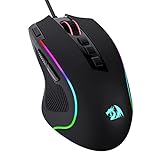
- Pentakill, 5 DPI Levels - Geared with 5 redefinable DPI levels (default as: 500/1000/2000/3000/4000), easy to switch between different game needs. Dedicated demand of DPI options between 500-8000 is also available to be processed by software.
- Any Button is Reassignable - 11 programmable buttons are all editable with customizable tactical keybinds in whatever game or work you are engaging. 1 rapid fire + 2 side macro buttons offer you a better gaming and working experience.
- Comfort Grip with Details - The skin-friendly frosted coating is the main comfort grip of the mouse surface, which offers you the most enjoyable fingerprint-free tactility. The left side equipped with rubber texture strengthened the friction and made the mouse easier to control.
- 5 Decent Backlit Modes - Turn the backlit on and make some kills in your gaming battlefield. The hyped dynamic RGB backlit vibe will never let you down when decorating your gaming space, it would be better with other Redragon accessories with lights on.
- Fatigue Killer with Ergonomic Design - Solid frame with a streamlined and general claw-grip design offers a satisfying and comfortable gaming experience with less fatigue even though after hours of use.
When should you replace a gaming mouse?
Replace a gaming mouse when the mouse is unsafe, unreliable for the work or games that matter, uneconomical to repair, or suffering from several simultaneous faults. A single worn set of feet or a replaceable cable does not usually justify replacement, but a swollen battery, liquid corrosion, failing PCB, unavailable parts, and repeated disconnections usually do.
For a mouse that double-clicks outside warranty, compare the cost and risk of a switch repair with a new mouse. Repair is attractive when the shape, weight, buttons, and fit are unusually good. Replacement is more practical when repair cost approaches the cost of a suitable new mouse, when immediate reliability is essential, or when the mouse has already developed wheel, cable, shell, or battery problems in addition to the switch fault.
Frequently Asked Questions
Can a gaming mouse last ten years?
A gaming mouse can remain usable for ten years in light, careful use, but ten years should not be treated as a normal guaranteed lifespan. Batteries, cables, wheel encoders, feet, switches, and replacement-part availability can limit ownership well before ten years.
What’s actually slowing this PC down?
Pick the symptom - the matching free tool is one click away.
Does a higher click rating guarantee a longer-lasting gaming mouse?
No. A higher click rating describes a tested switch lifecycle, not the complete mouse. A mouse with a 100-million-click switch can still fail first at the wheel encoder, battery, cable, charging port, shell, sensor, or PCB.
Can double-clicking on a gaming mouse be fixed?
Double-clicking can sometimes be fixed by replacing a worn mechanical switch, but software and connection problems should be excluded first. Check warranty coverage before opening the mouse, because disassembly or unauthorized repair may affect support.
How long does a wireless gaming mouse battery last?
A wireless gaming mouse battery can become the limiting component after years of use, but the dossier does not provide a universal battery-life number. Shorter time between charges, sudden shutdowns, failure to hold a charge, or charging at only certain cable angles indicate battery or charging problems.
Why does a gaming mouse scroll backward or skip?
Backward or skipping scroll usually points to the scroll-wheel encoder, although contamination and software problems should be checked first. Clean the wheel and surface carefully, test the mouse on another computer, and investigate warranty or repair options before replacing the entire mouse.
The Bottom Line
Plan on roughly 2–5 years from a gaming mouse, with 1–3 years possible before major attention under heavy competitive use and 5 years or more realistic with light, careful use. For the best long-term choice, prioritize a strong region-appropriate warranty, a comfortable shape, replaceable wear parts, and a repairable design. Choose optical switches when traditional mechanical-switch double-clicking is your main concern, wired operation when battery ageing is your main concern, and replacement over repair when a battery is unsafe or several components are failing.

