
iTechGuides is reader-supported. When you buy through links on our site, we may earn an affiliate commission. As an Amazon Associate I earn from qualifying purchases. Learn more
To install Google Play on an Amazon Fire tablet, manually sideload four compatible Google APKs in a fixed order. It is reversible in principle, but unsupported: back up first, match files to the exact tablet generation and Fire OS, and expect some apps and child-management features not to work.
Amazon Fire tablets run Fire OS and normally use Amazon’s Appstore. You can add Google Play by manually sideloading four Google APKs that match your tablet’s exact generation and Fire OS version. It does not require root, a computer, or a “jailbreak,” but it is not an official Amazon or Google setup method. A wrong package, wrong installation order, or a future Fire OS update can leave Play Store unusable. Back up first.
This workaround is a poor primary choice for a child’s tablet or for anyone who depends on Google Family Link or Amazon Kids+. Installing Play Store does not turn a Fire tablet into stock Android, and it does not guarantee that every Play Store app, certification-dependent feature, or managed-child experience will work.
What’s actually slowing this PC down?
Pick the symptom - the matching free tool is one click away.
Before you begin: identify the exact Fire tablet
Do not choose files from the name “Fire HD 8” or “Fire HD 10” alone—Amazon has reused those names across generations.
- Open Settings > Device Options > About Fire Tablet. Record the exact model name and generation.
- Open Settings > Device Options > System Updates. Record the installed Fire OS version, and install any pending update before selecting APKs.
| Examples of Fire tablets | Amazon-listed Fire OS / Android base | Package-selection implication |
|---|---|---|
| Fire 7 (2022, 12th gen); Fire HD 8 (2022/2024, 12th gen); Fire HD 10 (2023, 13th gen); Fire Max 11 (2023, 13th gen) | Fire OS 8 / Android 11 / API 30 | Use the newer-model, Android-11-compatible branch. |
| Fire HD 8 (2018, 8th gen); Fire 7 and Fire HD 10 (2019, 9th gen); Fire HD 8 (2020, 10th gen); Fire HD 10 (2021, 11th gen) | Fire OS 7 / Android 9 / API 28 | Use the Android-9-compatible branch. |
| Fire 7, Fire HD 8, and Fire HD 10 (2017, 7th gen) | Fire OS 5 / Android 5.1 / API 22 | Use older-package guidance. Modern Android-11-only APKs are not suitable. |
Prepare the tablet safely
- Back up photos, downloads, and other important local files. If you use a microSD card, remove it as an extra precaution.
- Connect to reliable Wi-Fi and charge the tablet adequately.
- Open Settings > Security & Privacy > Apps from Unknown Sources.
- Select Silk Browser and turn on Allow from this source. On older Fire OS releases, look under Settings > Security instead.
Enable this only for the browser or file app you will actually use to install the files. It allows installations outside Amazon’s Appstore, so turn it off again when setup is complete.
Popular on Amazon

- Like-New Amazon Fire HD 10 tablet is refurbished, tested, and certified to look and work like new and comes with the same limited warranty as a new device. Like-New Amazon devices may be packaged in generic Amazon-branded boxes.
- Do what you love, uninterrupted — 25% faster performance than the previous generation and 3 GB RAM are ideal for seamless streaming, reading, and gaming.
- High-def entertainment — A 10.1" 1080p Full HD display brings brilliant color to all your shows and games. Binge watch longer with 13-hour battery of video playback, 32 or 64 GB of storage, and up to 1 TB expandable storage with micro-SD card (sold separately).
- Thin, light, durable — Tap into entertainment from anywhere with a lightweight, durable design and strengthened glass made from aluminosilicate glass. As measured in a tumble test, Fire HD 10 is 2.7 times as durable as the Samsung Galaxy Tab A8 (2022).
- Stay up to speed — Use the 5 MP front-facing camera to Zoom with family and friends, or create content for social apps like Instagram and TikTok.
Important compatibility limits
Even a successful Play Store sign-in is not a promise of full Android compatibility. Some apps may not be listed for the Fire tablet, may fail to install, or may not work correctly. Features that rely on device certification can be limited. Family Link may not behave as expected, and the workaround can conflict with Amazon Kids+ workflows. If those features matter, keep the tablet on Amazon’s supported Appstore path.
Download the four required APKs
Use these labelled package pages, not a generic “Google Play download” button, search advert, or unknown mirror. They are third-party APK-repository destinations, not official Google Play download links. Their contents and available versions change, so verify your exact model and Fire OS against the maintained selection guidance before downloading.
The Tool Desk
Outbyte Driver Updater FREEScan for outdated or missing drivers - takes under a minuteDriver Scan →Outbyte PC Repair FREEClear out junk files and repair common Windows errorsFree Scan →- Google Account Manager package page
- Google Services Framework package page
- Google Play services package page
- Google Play Store package page
- Maintained Fire-tablet package-selection guide
APKMirror identifies Google LLC as publisher/signer on applicable listings and provides certificate details, which is useful provenance information. It does not make this sideloading procedure officially supported. Avoid beta releases and advertising downloads.
How to choose versions
The following rules are from the maintained Fire-tablet guide above and must be checked against your own tablet and Fire OS. Do not assume that the newest APK is automatically the right one.
- Google Account Manager: use version 7.1.2 for Fire 7 and Fire HD 8 models from 8th generation onward, Fire HD 10 from 9th generation onward, and Fire Max 11. Use version 5.1 for older models.
- Google Services Framework: the guide uses version 10 for Fire 7 12th generation and later and Fire HD 8 11th generation and later; version 9 for Fire 7 9th generation, Fire HD 8 10th generation, Fire HD 10 9th generation and later, and Fire Max 11. Older branches use version 7 or 5.
- Google Play services: choose a stable, non-beta nodpi variant compatible with the underlying Android version. Recent 12th- and 13th-generation Fire tablets use Android 11; the common 8th- through 11th-generation group uses Android 9; older tablets need older Android-compatible packages.
- Google Play Store: choose a stable, non-beta universal, nodpi APK compatible with the tablet’s Android version.
Download all four APKs before installing any of them. If a package page offers multiple variants, stop and recheck the model generation, Android compatibility, and whether the file is non-beta and nodpi/universal as required. Do not guess based on the tablet’s screen size.
Also popular on Amazon

- Fire HD 8 offers an 8" HD display for seamless streaming and gaming, coupled with a 5MP rear facing camera for photos—with a thin, light, durable design.
- Fast and responsive with long battery life - With up to 4 GB RAM (2X more than 2022 release), 64GB of storage, and up to 1 TB of expandable storage (sold separately). Hexa-core processor for fast, responsive performance. Up to 13 hours of reading, browsing the web, watching videos, gaming, and listening to music at home and on-the-go.
- Save time, get creative - Enjoy three smart tools to help you send polished emails, quickly summarize webpages, and create unique wallpapers.
- Stream or download your favorite shows, movies, and games (like Minecraft, Roblox, and more). Enjoy your favorite content from Facebook, Hulu, Instagram, TikTok, and more through Amazon’s Appstore (Google Play not supported. Subscription for some apps required).
- Stay connected with family and friends - ask Alexa to make video calls to friends and family or download apps like Zoom.
Install the APKs in this exact order
After all four downloads finish, open the tablet’s Files or Docs app and go to Downloads. Install the files in this order:
- Google Account Manager —
com.google.android.gsf.login - Google Services Framework —
com.google.android.gsf - Google Play services —
com.google.android.gms - Google Play Store —
com.android.vending
After each installation, tap Done, not Open. When the fourth package is installed, restart the Fire tablet from the power menu. After it restarts, open Play Store and sign in with your Google account.
Give Play Store time to update its components and apps after the first sign-in. Do not try to repair a slow first launch by repeatedly installing random newer APKs.
Troubleshooting
Play Store is missing, closes, or will not open
- Confirm that all four APKs match the tablet’s exact generation and Fire OS/Android branch.
- Confirm they were installed in the required order.
- Force-stop Play Store, open its storage settings, clear its data/storage, restart the tablet, then try again.
- Check for and install Fire OS updates before trying a different compatible package set.
An APK says it cannot be installed
- Check that the app opening the APK—Silk or the Files app—has permission in Apps from Unknown Sources.
- Re-download only the failed file from its labelled package page. Do not install a search advert, beta release, or a variant for the wrong Android level or architecture.
- Return to About Fire Tablet and verify the generation and Fire OS version. Reused model names make this step essential.
When a factory reset is appropriate
A factory reset can clear a failed setup, but it erases the tablet’s data. Treat it as a last resort only after confirming that your backup is complete. It is not the first troubleshooting step.
Independent reader supportYour contribution helps us test, update, and keep practical guides available for everyone.Lock down the temporary installation permission
Once Play Store works, return to Settings > Security & Privacy > Apps from Unknown Sources and turn off Silk’s permission. Keep Google Play Protect enabled. Play Protect can check apps installed from other sources for potentially harmful behavior and may warn about, disable, or remove harmful apps. Do not disable it merely to force an unexplained installation through.
Also popular on Amazon
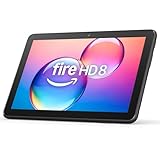
- Like-New Amazon Fire HD 8 tablet is refurbished, tested, and certified to look and work like new and comes with the same limited warranty as a new device. Like-New Amazon devices may be packaged in generic Amazon-branded boxes.
- Fire HD 8 offers an 8" HD display for seamless streaming and gaming, coupled with a 5MP rear facing camera for photos—with a thin, light, durable design.
- Responsive with all day battery life - Includes 3GB RAM (50% more than 2022 release), 32GB of storage, and up to 1 TB of expandable storage (sold separately). Up to 13 hours of reading, browsing the web, watching videos, gaming, and listening to music at home and on-the-go.
- Save time, get creative - Enjoy three smart tools to help you send polished emails, quickly summarize webpages, and create unique wallpapers.
- Stream or download your favorite shows, movies, and games (like Minecraft, Roblox, and more). Enjoy your favorite content from Facebook, Hulu, Instagram, TikTok, and more through Amazon’s Appstore (Google Play not supported. Subscription for some apps required).
Keep in mind that a later Fire OS update can affect this manual setup. If Play Store stops working after an update, recheck your tablet’s generation, Fire OS version, and the current compatibility notes before reinstalling anything.
Frequently Asked Questions
Do I need to root my Fire tablet to install Google Play?
No. This four-APK method is manual sideloading; it does not require root, a computer, or a jailbreak.
Can I use the same APKs for every Fire HD 8 or Fire HD 10?
No. Fire tablets with the same marketing name can be different generations with different Fire OS and Android bases. Check Settings > Device Options > About Fire Tablet and System Updates before downloading files.
Will every Play Store app and Google feature work on a Fire tablet?
No. Play Store access does not guarantee every app, certification-dependent feature, Family Link function, or Amazon Kids+ workflow will work. Compatibility can also change after Fire OS updates.
Quick wins for a faster PC:
Fix the driver behind crashes, sound loss and screen glitchesFind Drivers →Clear out junk files and repair common Windows errorsFree Scan →The Bottom Line
Google Play can be added to a compatible Fire tablet without root, but only by carefully matching and installing four APKs in order. Back up first, use the exact-generation guidance, and turn off unknown-source permission again afterward.

