
Quick wins for a faster PC:
Repair Windows errors before they cause bigger problemsFix Now →Scan for outdated or missing drivers - takes under a minuteDriver Scan →Google Home automations now support buttons, more specifically compatible button and switch events as automation starters. Since the February 2, 2026 rollout reported with Google Home app version 4.8, supported devices can react to single presses, multi-presses, long presses, and releases, although the exact events depend on the device and integration.
Key takeaways
- Google Home can use compatible physical button and switch events—including single press, multi-press, long press, and release—as automation starters.
- Button events are starter-only: they can begin an automation, but they are not generally conditions or actions that another automation can perform.
- Google’s current automation support also includes humidity thresholds, robot-vacuum docking, battery states, binary sensor states, and more specific smart-light color controls.
- Not every Matter button exposes every gesture to Google Home, and “Works with Google Home” does not guarantee direct, hub-free pairing.
- Matter over Thread devices require a suitable Thread Border Router, while Zigbee buttons such as the Aqara Wireless Mini Switch require an Aqara hub.
- The current visual editor path is Google Home → Add → Automation → Add starter; menu labels can vary by app version and device.
What changed in Google Home automations?
Google Home has expanded its automation editor so supported physical button and switch interactions can start household automations. The feature was reported as rolling out with Google Home app version 4.8 on February 2, 2026, alongside additional sensor, vacuum, battery, and lighting capabilities; Google’s current support documentation is the better reference for the capability list available now.
The practical result is that a compatible remote, smart button, dimmer button, or switch can provide a physical trigger for lights, plugs, scenes, notifications, and other supported actions. You do not need to open the Google Home app, issue a voice command, or replace a wired switch simply to perform a common task.
Which button and switch events does Google Home support?
Google Home documents several press-related events, but Google does not promise that every device exposes every event. The automation editor may offer a single press, double-tap or other multi-press, long press, long-press release, or button release depending on what the device integration reports.
The Tool Desk
Outbyte PC Repair FREEClear out junk files and repair common Windows errorsFree Scan →Outbyte Driver Updater FREEFix the driver behind crashes, sound loss and screen glitchesFind Drivers →#1 Best Overall
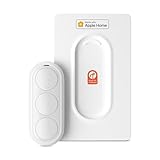
- Click. Trigger. Done. —— Take control of all your Apple Home (HomeKit) accessories in the palm of your hand. With a 3-button design, you can trigger up to 9 different automations - from simple actions like turning on/off a group of lights to advanced scenes such as Arrive Home, where your garage door opens, lights turn on, music starts playing, and curtains draw automatically. Each button supports single click, double click, and long press, giving you effortless control for any occasion
- Apple Privacy - Works Exclusively with Apple Home over THREAD —— Requires a Thread-enabled Apple Home hub (Apple TV4K 2/3 Wi-Fi+Ethernet, HomePod mini 1, or HomePod 2) placed within 30 feet of the smart button. Certified as an MFi HomeKit accessory, ensuring your home data is end-to-end encrypted and securely stored in your iCloud account. Built on THREAD, a dedicated mesh network for smart homes, this button delivers instant responsiveness and reliable connectivity throughout your home
- No More Battery Swaps - Up to 2 Months per Charge —— This smart button features a built-in rechargeable battery that lasts up to 2 months on a single charge. When the battery level falls below 20%, a red LED indicator lets you know it’s time to recharge — eliminating guesswork, saving money, and reducing waste from disposable batteries
- Designed for Ultimate Convenience and Flexibility —— Made with V0-grade fireproof material, this Triple-button remote is both safe and durable. Its sleek industrial design provides a comfortable, ergonomic grip. The included wall plate lets you mount it anywhere. A built-in magnet also allows quick attachment to any magnetic surface. Each button press delivers vibration and audible feedback, making it especially helpful for users with visual impairments
- Endless Possibilities for Your Personalized Smart Home —— Effortlessly control single or multiple devices - lights, appliances, blinds, curtains, shades, or even garage doors - in any room or across your entire home. With one press, trigger customized automations, routines, or scenes such as Morning, Bedtime, Away, Party, or Panic Mode. Instantly activate entertainment with music playback, Apple TV, or other media for the perfect atmosphere anytime
| Event or capability | What it can do | Important limitation |
|---|---|---|
| Single press | Start an automation after one press | The device must expose the event to Google Home. |
| Double-tap or multi-press | Start a different automation or scene | Physical support in the manufacturer’s app does not guarantee Google Home support. |
| Long press | Start an automation while using a sustained press gesture | Only available when the integration exposes the gesture. |
| Long-press release | Start an automation when a long press ends | This is a separate event from the initial long press. |
| Button or switch release | Start an automation when the control is released | Release behavior varies by device type and integration. |
| Dimmer-switch button press | Use a supported dimmer button as an automation trigger | The dimmer’s available controls may be more limited in Google Home than in its vendor app. |
Google’s examples include “When double tapping the switch,” “When holding down the button on a dimmer switch,” and “When the button is released.” Those examples describe supported event types, not a guarantee that every Matter remote, rocker, dial, or smart button will provide those controls.
What does “starter only” mean in Google Home?
In Google Home, a starter begins an automation; a condition restricts when the automation is allowed to run; and an action is what Google Home does after the starter and conditions are satisfied. Google explicitly labels button and switch press events starter only in its automation documentation.
For example, a single press can start an automation that turns off bedroom lights. You can add a condition such as “only when someone is home,” but you should not assume that Google Home can use “the button was pressed” as a later conditional state. You also cannot assume that one automation can simulate a press on the button as an action.
Google Home can support more than one starter in an automation. Any selected starter can begin the automation, while conditions can be configured so that either any selected condition or all selected conditions must be met. The editor must expose the exact logic you need; do not assume that Google Home supports custom timing logic such as “double press within 10 seconds” unless that event or rule appears in the editor.
Crashes, No Sound, or Screen Glitches?
Random freezes, missing sound and display glitches usually trace back to one bad driver. Find and replace yours safely.Free scan · under a minutePC Slower Than It Used to Be?
A free scan shows the junk files, broken settings and background clutter dragging Windows down - then fixes them in one click.Free scan · Windows 10 & 11What else is included in the Google Home automation update?
The button changes are only one part of the expanded automation support. Google’s current supported-capability list includes additional environmental, device-state, and lighting controls, although support remains device-dependent.
| Capability | Example use | Compatibility caveat |
|---|---|---|
| Humidity threshold | Turn on a bathroom fan when humidity rises above a selected level. | The sensor and controlled fan or plug must expose the required readings and actions. |
| Robot-vacuum docking | Change a status light or send a notification when the vacuum returns to its dock. | Docking may be exposed even when room selection, mop controls, cleaning modes, or error states are not. |
| Battery state | Notify you when a device reports low battery or begins charging. | Battery reporting differs between device models and integrations. |
| Binary sensor state | React to open/closed, contact/no-contact, leak/no-leak, or freeze/no-freeze states. | The sensor must expose that specific state to Google Home. |
| Light color and color temperature | Set a supported light to a particular color or warm or cool temperature. | The light integration must expose the selected color or temperature control. |
For example, a humidity sensor could start a smart-plug-controlled fan when humidity exceeds a chosen threshold, while a separate automation could turn the fan off when humidity falls. That two-automation design is only possible if the sensor, plug, fan, and Google Home editor expose the required states and actions.
How do you create a button-triggered Google Home automation?
Use Google Home’s current visual automation editor: open Google Home, tap Add, tap Automation, then add the button event as a starter. Google lists the general setup sequence in its current automation-editor instructions.
Rank #2

- Tapo HUB REQUIRED * To utilize Tapo smart button S200D, a Tapo hub H100 (sold separately) and a secured 2.4 GHz Wi-Fi network connection are required. Tapo S200D communicates with the hub via the Sub-1G Low-Power Wireless protocol, which provides extended battery life for the sensor and a wider coverage area compared to Wi-Fi. The Tapo Hub H100 can connect up to 64 devices simultaneously and includes a 90dB ringer with 19 different ringing tones. The Tapo Hub also enables the use of Smart Action for sensors and other Tapo devices even when the network is disconnected and is highly responsive.
- Effortless Control Experience the ease of managing your Tapo smart home devices with a wireless, all-in-one smart button.
- Personalized Actions With options for a single tap, double tap, and rotation, one button can initiate a variety of actions tailored to your needs.
- Remote Dimmer Switch Easily control your home lighting by turning Tapo lights on/off or setting the perfect ambiance with adjustable dimming, streamlining your illumination experience.
- Doorbell Button When linked to the Tapo Hub, the S200D Smart Button doubles as a doorbell, complete with 19 unique ringtone options for added personalization.
- Open the Google Home app.
- Tap Add at the top right.
- Tap Automation.
- Tap Add name and give the automation a clear name, such as “Bedside lights off.”
- Choose Add starter.
- Select the compatible button, switch, or dimmer.
- Choose the event that the editor exposes, such as single press, double or multi-press, long press, long-press release, or release.
- Add optional conditions. Examples include only when someone is home, only during a time window, or only when a light is already off.
- Add one or more actions, such as turning a light or plug on or off, setting a supported light color or color temperature, starting a scene, controlling another supported device, or sending a notification.
- Tap Save, then physically perform the selected button event to test the automation.
The exact event list is device-specific. If the button’s own app supports single, double, and long presses but Google Home shows only single press, Google Home is currently receiving only the single-press capability through that integration.
What are useful button automation examples?
Bedside control for renters
A portable button can provide app-free control without changing a wall switch. A practical setup is single press to turn off bedroom lights, double press to turn off lights and smart plugs, and long press to activate a nighttime scene. A “someone is home” condition can prevent the automation from running while the home is empty.
Physical accessibility control
A large, tactile button placed beside a bed, sofa, or doorway can control lights, plugs, or scenes without requiring phone navigation, voice recognition, or a small touchscreen. This is a potential accessibility use case, not a claim that every button is accessibility-certified or suitable for every user.
Humidity-based bathroom control
A humidity threshold can start an automation that turns on a smart plug connected to a fan. A separate automation may turn the fan off when humidity drops below a chosen level, provided the relevant sensor state and action are available. Because device capabilities vary, Google Home should be checked for the actual threshold and action controls before installation.
Robot-vacuum status
Where supported, a robot vacuum’s docked state can start or restrict an automation. For example, Google Home could change a status light or send a notification after the vacuum returns to its dock. Docked status should not be mistaken for complete access to every vacuum function.
Do these 3 things before closing this tab:
1Repair Windows errors before they cause bigger problems2Scan for outdated or missing drivers - takes under a minute3Clear out junk files and repair common Windows errorsWhat hardware do button automations require?
Button automation requirements depend on the button’s protocol, the way the device was added, and the capabilities exposed by the vendor integration. A button being visible in Google Home is not enough; Google Home must also receive the relevant button event.
Matter is not the same as Matter over Thread
Matter describes the smart-home application standard, while Matter devices can use different network transports. IKEA’s BILRESA dual-button remote uses Matter over Thread, not Wi-Fi Matter. IKEA says a Thread Border Router is required to control the remote through a phone or comparable smart-home ecosystem and lists Google among its compatible platforms; see the IKEA BILRESA product information.
Rank #3

- CONTROL LIGHTS WITH A CLICK: A simple touch of the smart button is enough to turn your lights on and off, cycle through scenes, and more. Press and hold to dim or brighten the space
- GET THE BEST LIGHT THROUGHOUT THE DAY: The wireless light switch button uses the Time-based light function by default, giving you the best light for each moment of the day
- CUSTOMIZE IN THE APP: Set the Rooms or Zone your button controls, adjust settings to remote control lights or start an automation, choose scenes you want for each time slot, and more in the Hue app
- START/STOP AUTOMATIONS: Start or stop an automation created in the Automations tab with a simple press on your PHILIPS Hue Switch
- FLEXIBLE, WIRELESS MOUNTING: Use the included adhesive to mount the Hue button around your home — or place it on any magnetic surface.
A buyer who purchases a Matter-over-Thread button without a suitable Thread Border Router may be unable to complete or maintain the setup. The button, Google Home account, Matter fabric, Thread network, and compatible hub must work together.
Do you need a Google Home hub?
You need an appropriate Google Home, Matter, and—when applicable—Thread setup for the particular device. The US Google Home Speaker specifications list a Matter-hub function for Google Home and an included Thread 1.3 Border Router, with a US price of $99.99 when checked during the August 16, 2026 research pass. That speaker is one infrastructure option, not the only compatible Google device and not a mandatory purchase for homes that already have suitable hardware.
Check Google’s smart-home compatibility information and the device manufacturer’s documentation for the hub and transport requirements of a specific product.
Why can a vendor hub still be necessary?
Some devices use a vendor-specific bridge even when the product page lists Google Home compatibility. Aqara’s Wireless Mini Switch uses Zigbee, and Aqara states that an Aqara hub is required while listing Google Home among the compatible platforms; the Aqara product page provides those details.
“Works with Google Home” can therefore mean that a vendor hub or bridge passes selected controls into Google Home. It does not necessarily mean direct pairing, hub-free operation, or exposure of every button event and sensor state.
Which buttons and switches are worth considering?
The following are examples rather than universal recommendations. Prices are US prices observed during the August 16, 2026 research pass and can change. More importantly, transport and hub requirements should be treated as part of the purchase price.
| Product | Observed US price | Transport and hub requirement | Best fit | Main drawback |
|---|---|---|---|---|
| IKEA BILRESA dual-button remote | $6.99 | Matter over Thread; a Thread Border Router is required. | Budget-conscious users, renters, and portable physical triggers. | The low device price does not remove the need for Thread infrastructure. |
| Google Home Speaker | $99.99 | Google Home Matter hub and Thread 1.3 Border Router. | Users who need Google/Matter/Thread infrastructure and also want a smart speaker. | Poor value if purchased only to operate one inexpensive button and an existing hub is already available. |
| Aqara Wireless Mini Switch | $17.99 | Zigbee; Aqara hub required. | Existing Aqara users who already have a compatible hub. | It is not a hub-free Matter-over-Thread Google Home button. |
| Aqara Light Switch H2 | $54.99 | Thread and Zigbee support; wired installation. | Homeowners or advanced users wanting permanent wall controls and remappable buttons. | Installation, wiring, and model-specific compatibility make it unsuitable as a simple renter-friendly remote. |
The IKEA BILRESA is the simplest low-cost example for a reader who already has Thread infrastructure. The Aqara Wireless Mini Switch is more sensible for someone already committed to Aqara. The Aqara Light Switch H2 is a permanent-control option rather than a plug-and-play portable button. The Google Home Speaker is an infrastructure purchase, not a required accessory for every button.
Rank #4

- 【Easy Control】Onvis Smart Button allows you to control multiple smart bulbs, smart plugs and other smart home devices.
- 【Thread and Bluetooth】Thread allows smart home products to connect faster and more reliably than ever.The button also support bluetooth if your devices don't support thread.
- 【Powerful Scene Control】5 individual keys, each supports single, double and long press, up to 15 scenes within one device.
- 【100% Privacy】No cloud, no tracking. Works with Apple HomeKit, all data is end-to-end encrypted and stored in your iOS devices.
- 【Easy To Use】Setting up the smart button in Onvis App or Home App is easy, just connect your buttons via thread or bluetooth and choose what should happen when press each key.
Why does a button pair but show no usable starter?
A button can appear in Google Home without exposing a usable press event. The device may expose only basic controls through a vendor bridge, the Matter fabric or Thread network may be incomplete, the feature may not have reached the account or device combination, or the user may be looking in an older automation workflow.
Google notes that some capabilities are unavailable in the previous automation editor or script editor. Try the current visual automation editor before deciding that the hardware is unsupported. If the button still has no event under Add starter, the integration is not currently exposing a compatible starter to Google Home.
Independent reader supportYour contribution helps us test, update, and keep practical guides available for everyone.How do you fix an offline button?
An offline button may remain listed in Google Home but fail to trigger an automation because the endpoint, Thread Border Router, Matter fabric, vendor bridge, or battery is unavailable. Use this recovery sequence:
- Check that the button battery is installed and not depleted.
- Confirm that the button remains visible and usable in the vendor app, if a vendor app is required.
- Confirm that the Google Home hub, vendor hub, or Thread Border Router is online.
- Move the button closer to the relevant hub or improve the radio path.
- Restart the relevant hub or Thread Border Router.
- Wait for the device to return online, then edit or test the automation again.
- Remove and re-add the Matter device only as a last resort, because re-pairing can require restoring the device across Matter fabrics.
Why do double press and long press fail?
Double press and long press can fail because the physical device supports those gestures locally while the Google Home integration exposes only a single press. That is an integration limitation, not necessarily a hardware defect.
Separate the capability into three layers: the hardware may detect a gesture; the vendor app may support the gesture; and Google Home may or may not receive that gesture as an automation starter. Test the exact event shown in Google Home rather than relying on the product’s full feature list.
Why does the automation save but not run?
An automation that saves but does not run usually has a mismatched starter, an unsatisfied condition, an offline target, or an unsupported action. Check each item:
- Confirm that the automation has a starter and that the selected event matches the physical action you perform.
- Check whether conditions are set to require all conditions when you intended any condition.
- Confirm that the target light, plug, fan, vacuum, or other device is online.
- Verify that the target device integration supports the chosen action, such as color, temperature, notification, or scene control.
- Confirm that the automation is a household automation rather than a personal routine if the intended behavior requires household-device control.
Google’s automation guidance states that an automation without a starter will not begin automatically, although an automation with no starter and no conditions may be manually run.
Recommended Free Tools
Best Value

- 【Matter-Certified】Matter devices work with any certified platform such as Apple Home, Alexa, Google Home & SmartThings
- 【Wireless Button Dimming】Use the dimmer button to instantly dim and brighten two lamps simultaneously anywhere in your home. No more struggling to fire up an app or reaching for the lamps. (No hub required. The dimmer button is bound to the dimmer plug and cannot be used separately.)
- 【Dual Outlets】Two outlets on the left and right allow simultaneous control of two lamps with ease. (Make sure the lights connected to the outlets have the same load and same dimming type.)
- 【Brightness & Fade Control】Simultaneously control two lamps’ optimal dimming range from their dimmest to brightest levels to achieve the perfect ambience. Smoothly illuminate or dim your lamps, allowing your eyes to gently adjust to the new lighting level.
- 【App & Voice Control】Control your WiFi smart plug from anywhere, anytime via the free Tapo App or just give voice commands to Siri, Amazon Alexa, Google Assistant or Samsung SmartThings.
Does the Google Home script editor support the new button behavior?
Do not assume that the new button behavior is available in the older script editor. Google separates the enhanced visual automation editor from scripted automations, and the script-editor documentation describes a separate workflow.
If a button event is missing from a script or an older routine, try creating the automation through the current visual path: Google Home → Add → Automation. The visual editor is the appropriate first test for the newly documented starter behavior.
What Google Home button support does—and does not—mean
Google Home’s update is a meaningful expansion for physical smart-home controls, especially for renters, bedside controls, accessibility-oriented setups, and simple scene triggers. A compatible button can now remove the phone or voice assistant from many everyday actions.
The feature is not a universal button platform. The accurate interpretation is that Google Home supports compatible button and switch events as automation starters. Device traits, vendor bridges, Matter fabrics, Thread Border Routers, Zigbee hubs, app versions, regional rollout, and target-device capabilities still determine what works.
Before buying, verify four things: the button’s protocol, the required hub or border router, the exact press events exposed to Google Home, and the actions available on the target device. That checklist matters more than a broad “Google Home compatible” label.
Frequently Asked Questions
Can any Matter button trigger a Google Home automation?
No. Google Home can use compatible Matter button events as automation starters, but not every Matter button exposes every press or release event. The device’s traits, Matter or Thread setup, and Google Home integration determine which events appear.
Can a Google Home button press be used as a condition?
Google documents button and switch press interactions as starter-only. A button press can begin an automation, but users should not assume that the press is available as a condition or as an action that another automation can perform.
Do Matter-over-Thread buttons need a hub?
Matter-over-Thread buttons need a suitable Thread Border Router and a compatible smart-home controller. A Matter-over-Thread device is not the same as a Wi-Fi Matter device, so purchasing the button alone may not complete the setup.
What’s actually slowing this PC down?
Pick the symptom - the matching free tool is one click away.
Why does a device work with Google Home but not show button gestures?
“Works with Google Home” can mean that a vendor bridge exposes only selected controls. A device may support button gestures in its own app while Google Home receives only basic on/off control or no usable button starter.
The Bottom Line
Bottom line: Google Home now makes compatible physical button and switch events useful automation triggers, but the feature is capability-based rather than universal. Confirm the exact event, transport, hub requirement, and target action before buying hardware or troubleshooting a missing gesture.
Quick Recap
Product prices and availability are accurate as of the date/time indicated and are subject to change. Any price and availability information displayed on Amazon at the time of purchase will apply.

