
The simplest way to start programming an STM32 is to use a Nucleo board that matches your course or target MCU, install STM32CubeIDE and its device package, then create, build, program, and debug a small GPIO example. Nucleo boards are designed for evaluation and prototyping, and ST says its STM32 boards include an in-circuit debugger and programmer, so a separate debugger is not normally needed.
Choose a board that matches your learning path
There is no single best STM32 board for every beginner. Match the board’s MCU series to the tutorial, course, or application you intend to follow; examples for one STM32 family are not automatically interchangeable with another.
| Learning resource | Board named for hands-on work | Setup detail |
|---|---|---|
| STM32CubeIDE basics MOOC | NUCLEO-G071RB | Course page lists a microUSB cable, Windows PC, STM32CubeIDE, and STM32G0 package. |
| STM32CubeMX and CubeHAL basics MOOC | NUCLEO-F401RE | Course page lists a miniUSB cable and assumes C proficiency and good embedded-development understanding. |
| Moving from 8 to 32 bits workshop | NUCLEO-F072RB | Used in the workshop’s hands-on exercises. |
These are course-specific examples, not a ranking. Before buying, check the board manual and pinout for the connectors, headers, and peripherals your project needs. ST describes Nucleo boards as evaluation and prototyping boards; its Discovery kits are more feature-rich prototyping options. The Nucleo documentation index links manuals for multiple board form factors.
Install the tools and matching device package
STM32CubeIDE is ST’s environment for coding, compiling, building, programming, and debugging. STM32CubeMX provides graphical MCU configuration and generates initialization C code; its functions are integrated into the IDE workflow. ST also lists a VS Code variant alongside STM32CubeIDE, but course instructions may specifically require STM32CubeIDE.
#1 Best Overall

- High-performance foundation line, ARM Cortex-M4 core with DSP and FPU, 512 Kbytes Flash, 180 MHz CPU, ART Accelerator, Dual QSPI
- On-board ST-LINK/V2-1 debugger/programmer with SWD connector
- Can be powered from USB
- Three LEDs, Two Push-buttons
- Support of wide choice of Integrated Development Environments (IDEs) including IAR, ARM Keil, GCC-based IDEs
- Open ST’s STM32CubeIDE software page and check the current download, documentation, supported operating systems, and release information for your computer.
- Find the embedded software package associated with your selected board or MCU, and install the matching package as indicated by the project instructions. Available content and package details can differ by STM32 series and tool version.
- Confirm that the course’s required operating system and software package are supported by the current downloads. A course page may retain older setup requirements.
ST describes STM32CubeIDE as free to download and use. Tool versions and package availability can change, so use the current ST pages rather than assuming an older tutorial’s download screen is unchanged.
Create and configure a first project
- In STM32CubeIDE, start a project and select the exact MCU or board used by your hardware or course.
- Use the CubeMX configuration view to assign pins, set up clocks, and enable the peripherals required by the example. For a first exercise, use a board-specific GPIO or LED example where available.
- Generate the initialization code, then review the project files and the example’s included instructions. Board wiring and pin assignments can differ.
- Put your application logic in the designated user-code sections when modifying generated code. Follow the IDE’s current guidance so regenerating configuration does not overwrite your custom work.
Build, program, and debug a small example
Start with one visible outcome, such as controlling an onboard LED through GPIO, rather than configuring several peripherals at once. Build the project in the IDE, connect the board using a data-capable USB cable that fits its connector, then use the IDE’s programming and debug functions with the board’s onboard debugger/programmer.
Rank #2

- Ultra-low-power with FPU ARM Cortex-M4 MCU 80 MHz with 1 Mbyte Flash, LCD, USB OTG, DFSDM
- On-board ST-LINK/V2-1 debugger/programmer with SWD connector
- Can be powered from USB
- Three LEDs, Two Push-buttons
- Support of wide choice of Integrated Development Environments (IDEs) including IAR, ARM Keil, GCC-based IDEs
If the program does not behave as expected, check that the project targets the connected board’s MCU, the correct device package is installed, the cable supports data, and the example’s pin and board instructions match your hardware. Consult the board manual for connector and pin details rather than assuming another Nucleo model has the same layout.
Expand one peripheral at a time
After a minimal GPIO program works, add only the peripheral needed for the next exercise. ST’s learning materials cover topics including interrupts and EXTI, timers and PWM, ADC, DMA, USART/UART, and in some courses FreeRTOS. Working incrementally makes it easier to identify whether a new configuration, pin assignment, or code change caused a problem.
Free tools Windows power users keep installed
One-click scans. No signup required.
Rank #3

- Experience the power of the ARM Cortex M4 with this STM32F411CEU6 Development Board, featuring a blazing fast 100Mhz frequency and zero-wait state access to 512KB ROM and 128KB RAM for seamless programming
- Unlock endless possibilities with the STM32F4 Core STM32F411CEU6 Module System Board, equipped with FPU floating-point unit for efficient calculations and a plethora of interfaces including USART, I2C, SPI, and USBFS for versatile connectivity options
- Dive into the world of embedded systems with this Learning Board, boasting 20 Pin 2.54mm I/O interfaces, 4 Pin 2.54mm SW debugging interface, and user-friendly buttons like KEY (PA0), NRST, and BOOT0 for convenient operation and development
- Stay powered up and connected with the 3.3V-5V power input, 3.3V LDO with a maximum output current of 100mA, and a USB-C interface with built-in diode to prevent power backflow, along with high-speed and low-speed crystal oscillators for reliable performance
- Elevate your programming projects with the STM32F411CEU6 Development Board, featuring a SPI Flash for additional storage options, 12-bit ADC, 12-bit 5 S for accurate measurements, and 32.768K 6pF low-speed crystal oscillator for precise timing control
Pick a course that fits your experience
- For an IDE-centered first project: the STM32CubeIDE basics MOOC covers project work, HAL and Low Layer examples, GPIO, EXTI, PWM, ADC, DMA, USART, and FreeRTOS. Its listed practical setup is specific to the NUCLEO-G071RB and STM32G0 package.
- For configuration and HAL practice: the STM32CubeMX and CubeHAL basics MOOC includes MCU selection, pinout and clock setup, code generation, interrupts, DMA, and GPIO, SPI, UART, timer, and ADC exercises. Its page assumes C proficiency and good embedded-development understanding.
- For a bridge from 8-bit microcontrollers: the Moving from 8 to 32 bits workshop covers startup, register access, assembly as a debugging aid, CubeMX, HAL, and Low Layer, with NUCLEO-F072RB exercises.
Use the course page and its included material for the exact prerequisites and setup. For broader installation and board references, consult ST’s Nucleo documentation index and STM32CubeIDE page.
Quick Recap
Best Value

- STM32F103C8T6 ARM STM32 minimum system development module.
- ST-Link V2 support the full range of STM32 SWD interface debugging, simple interface (including power supply), 4 line speed, stable work.
- Use the current smart phones of Mirco USB interface, easy to use, USB communication and power supply can be done.
- The board lead to all the I/O resources.Download with SWD debug interface, which requires a minimum of 3 wires to complete debug a download task
Rank #4
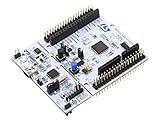
- STM32 STM32F401RE microcontroller Cortex-M4 in LQFP64 package
- 1 user LED shared with UNO 1 user and 1 reset push-button
- Board expansion connectors: Uno V3 ST morpho extension pin headers for full access to all STM32 I/Os
- On-board ST-LINK/V2-1 debugger/programmer with USB re-enumeration capability. Three different interfaces supported on USB: mass storage, Virtual COM port and debug port
- Comprehensive free software libraries and examples available with the STM32Cube MCU Package
Product prices and availability are accurate as of the date/time indicated and are subject to change. Any price and availability information displayed on Amazon at the time of purchase will apply.

