
Free tools Windows power users keep installed
One-click scans. No signup required.
iTechGuides is reader-supported. When you buy through links on our site, we may earn an affiliate commission. As an Amazon Associate I earn from qualifying purchases. Learn more
QuickStar remains the safest starting point for changing Samsung status-bar icons. It is Samsung’s own Good Lock module for SystemUI and can hide or show selected indicators, adjust clock presentation, and alter parts of the Quick panel without root. If you want colors and icon-theme styling, pair it with Theme Park. If Good Lock is unavailable on your Galaxy, utilities such as Nice Lock or SystemUI Tuner are fallback categories that require careful model- and One UI-version checks. AOSP resources and root overlays provide deeper control, but they are engineering solutions rather than ordinary replacement apps.
Which QuickStar alternative should you use?
The right choice depends on what “customize” means in your case. Samsung separates visibility and layout controls from broader theme styling, and neither category is served equally well by every utility.
| What you want to change | Best-fit route | Root or advanced access | What it actually changes |
|---|---|---|---|
| Hide or show existing status indicators | QuickStar | No root | Visibility, clock-area presentation and selected Quick-panel layout options |
| Change panel colors, accent colors or icon-theme appearance | Theme Park, usually alongside QuickStar | No root | Interface colors and icon styling rather than replacing every SystemUI asset |
| Use Good Lock where Samsung does not expose it normally | Nice Lock or a SystemUI Tuner-style utility | May need special permissions, ADB or device-specific setup | Access to hidden settings or a launcher for modules; behavior varies |
| Replace SystemUI assets or alter framework behavior | AOSP/SystemUI build work or a root overlay | Build, root or custom-ROM expertise | Low-level resources such as status-bar dimensions and artwork |
There is no evidence of a single third-party app that is a universally compatible, drop-in replacement for QuickStar across all Galaxy models, regions and One UI releases. Treat compatibility as a device-specific question, not a feature of an app’s name.
What QuickStar can and cannot do
QuickStar is a Samsung SystemUI plugin
Samsung’s Galaxy Store describes QuickStar as a “SystemUI service app” and a plugin for customizing Samsung SystemUI Quick Settings components. In practice, it works inside Samsung’s Good Lock framework instead of replacing the phone’s system interface.
Popular on Amazon
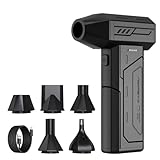
- Powerful Turbo Fan:CAGIWIRU Electric Air Duster have reached speed up to 130000RPM,Can efficient remove dust and debris.With LED light and Three Adjustable Speed to meet with different cleaning tasks.
- With Attached USB C Fasting Charging cable.Charing 3 hours,Enjoy up to 240 minutes of use on the lowest setting, For third speed can use for 25mins.with four charging options to meet with your needs.
- Wide Application: attached 5 different nozzles,making it suitable for a variety of scenes, such as car,pet, pc, keyboards, and other electronic devices. It also serves for office and home clean duster.
- Handy Design & Portable:Cordless air duster electric nozzle is Light weight and small size, design and comfortable to hold and space saving, convenient to carry around. You can put it in your room or inside the car without taking up space.
- Economical &Reusable: Built durable materials with a long-lasting battery,our CAGIWIRU air duster it's a sustainable alternative to disposable air cans.
That integration is why QuickStar is generally more predictable than an overlay made for generic Android. The module knows which SystemUI controls Samsung exposes for the installed One UI build, and it can be removed without leaving a modified framework behind.
Visibility is its strongest use case
Samsung’s Good Lock documentation specifically covers choosing which standard status-bar indicators are visible. Depending on the software version and model, controls can include items such as the date, battery level and Wi-Fi indicator. QuickStar can also provide clock-area options and changes to Quick-panel presentation.
These are hide/show and layout controls. They should not be interpreted as permission to redraw every icon with arbitrary artwork. A toggle that removes an indicator is different from installing a new icon set into SystemUI.
Recommended Free Tools
Availability is conditional
Good Lock modules are not identical on every Galaxy phone. Samsung says availability and features vary by software version and phone model, and regional distribution can also differ. A feature shown in a Samsung help page may therefore be absent from your QuickStar screen.
Install and configure QuickStar
Use Samsung’s current Good Lock application rather than downloading an old module package from an unverified mirror. The labels below can vary slightly by One UI release.
- Open the Galaxy Store and install or update Good Lock.
- Open Good Lock and select the Life up section, or the section Samsung currently uses for customization modules.
- Find QuickStar and install it when Samsung offers it for your phone.
- Return to Good Lock, open QuickStar and turn on the module’s main switch.
- Open the status-bar or indicator-visibility controls. Disable only the indicators you do not want to see.
- Check the clock-related controls if you want a different clock position or presentation. Options differ by model and One UI version.
- Open the Quick-panel controls separately if your goal includes changing the expanded panel rather than the narrow status bar.
- Lock and unlock the phone, then expand the Quick panel to verify that icons remain understandable and that notifications still provide the information you need.
QuickStar changes can be reversed from the same switches. If a module update or One UI update resets a setting, reopen Good Lock and reapply the preference instead of installing a system modification.
Also popular on Amazon

- Screen Cleaner is Your Screen’s New Bestfriend! - EVEO is proud to present a screen cleaner that’s perfectly suited for your TV. Meet your new screen cleaner, computer screen cleaner, laptop cleaner, iPad cleaner, Macbook,tv cleaner or any other electronic device. Our screen cleaner spray and wipe along with the included plush microfiber cloth, easily removes dust, fingerprints & other smudges on the screen’s surface. Clean effectively for a streak-free screen
- Gentle on your Screens - Our screen cleaner spray and wipes is compatible to be used even for the most sensitive LCD, LED, CRT, and OLED screens in proper use. Be at ease knowing that this product is compatible with all the major brands: LG, SONY, Samsung, Sharp, iPad, iPhone, Android screens, Kindle, PC monitors - we’ve got you covered! Can be used as LCD screen cleaner, tv cleaner, smart tv screen cleaner, and more
- Premium Super Soft Plush Microfiber Cloth - Included in this efficient screen cleaning kit. This screen cleaner spray and wipe has our signature plush microfiber cloth specially designed to comply with screens and monitors and leave them streak-free. Has been shown to effectively absorbs stubborn stains, zero streaks, and no fiber shedding. Always use this together with our screen cleaner for the best results
- Easy-to-Use Screen Cleaner Kit + microfiber cleaning cloth - The EVEO Screen Cleaning Kit will easily be your new favorite tool when it comes to taking care of the things you love most, quick and easy solution for a streak-free screen. Simply screw on the sprayer gun on the screen cleaner bottle. Spray the cleaning liquid onto the microfiber cloth, then wipe the screen until desired cleanliness & shine is achieved.
- Quality Screen Care Kit Worth Purchasing - Enjoy a convenient Screen Cleaner anytime, anywhere you need it. Your satisfaction is our top priority. We stand behind the quality of our products and that’s why, you shouldn’t be worrying at all. We manufacture the Best Screen Cleaner. and can be used for laptop cleaning kit, laptop screen cleaner, tv screen cleaner for smart tv. MacBook screen cleaner, monitor cleaner or screen cleaner spray for electronic devices with microfiber cleaning cloth
Theme Park: the closest complement, not a replacement
Use Theme Park for appearance
Theme Park is the relevant Samsung Good Lock route when the request is really about the look of the interface. It can work with interface colors, accent colors, icon colors and labels. Those controls address visual styling in a way that QuickStar’s visibility switches do not.
For a coordinated result, use QuickStar to decide which indicators appear and Theme Park to establish the panel and icon color treatment. Keeping the jobs separate also makes troubleshooting easier: if an indicator is missing, inspect QuickStar; if the panel colors look wrong, inspect Theme Park.
What Theme Park does not guarantee
Theme Park is not a promise that every status-bar glyph will be replaced with a custom drawing. Samsung’s SystemUI can use different resources for different states, themes and One UI releases. Some icons may retain their system artwork even after a theme is applied.
Basic Theme Park workflow
- Open Good Lock and install Theme Park if it is offered for the device.
- Open Theme Park and choose the interface area you want to style, such as the Quick panel or icons.
- Adjust colors and labels using the preview rather than changing every value at once.
- Save the theme with a descriptive name and apply it.
- Recheck QuickStar’s indicator settings after applying the theme, because a theme update can alter the visual context in which an indicator appears.
Samsung’s exact Theme Park controls are also version-dependent. A missing color or icon option usually indicates a module or One UI limitation, not a failed installation.
When Good Lock is unavailable: Nice Lock and SystemUI Tuner-style tools
Nice Lock
Nice Lock is commonly used as a launcher for Good Lock modules on devices or regions where Samsung’s normal Good Lock presentation is inconvenient. It does not turn an unsupported module into a universally supported one. You still need to verify that the QuickStar version matches your One UI release and that the module can operate on your model.
The Tool Desk
Outbyte Driver Updater FREEFix the driver behind crashes, sound loss and screen glitchesFind Drivers →Outbyte PC Repair FREEClear out junk files and repair common Windows errorsFree Scan →Before installing, check whether the utility is simply launching Samsung modules or asking for additional permissions. A launcher cannot supply a Samsung framework feature that the phone’s firmware does not contain.
Also popular on Amazon

- 【Large size】:Measuring 800 x 300 mm/ 31. 5×12 inches, which is wider and taller than others. Large mouse pad can perfectly fit your keyboard and mouse of any size, and there is also ample space for peripherals such as phones, tablets, etc.
- 【LED backlight mouse pad】:Blade Hawks RGB mouse pad provides 7 static modes and 7 dynamic modes will give you the options you are looking for. Power-off memory function remembers the last lighting mode you selected. The super glow fiber Chroma will give you a colorful gaming setup that you want.
- 【Anti-slip rubber base】:Made from Natural rubber, this gaming mousepad will firmly grip your desktop, allowing you to enjoy the ultimate precision in the games you are most passionate about. It also comes with a texture that enhances this ability even further.
- 【Smooth and waterproof surface】: Micro-textured cloth surface, for extremely precise mouse control and a smooth movement. When liquid splashes on the gaming mouse pad, it forms water droplets and slides down. Will not delay your work or gameplay.
- 【Plug and play】: This mouse and keyboard pad is powered by USB, plug and play, no driver required. One button control light modes. Press one time to change the lighting mode, press twice to change the brightness, press and hold about 3 seconds turn ON/OFF.
SystemUI Tuner-style utilities
Utilities in the SystemUI Tuner category expose hidden Android settings or provide shortcuts to settings that manufacturers do not show in the normal interface. They may be useful for a narrow visibility adjustment, but their results depend on Samsung’s SystemUI implementation.
Some versions require an ADB-granted permission, and others may need root for changes that Android normally protects. The permission requirement should be treated as part of the compatibility check, not as a minor installation detail. Removing the app may not automatically restore every setting it changed, so record the original values first.
Questions to answer before using either fallback
- What is the exact Galaxy model number and regional firmware?
- Which One UI and Android versions are installed?
- Does the tool document support for that combination, rather than merely claiming support for “Samsung”?
- Does it need ADB, root or an accessibility service?
- Can its changes be undone after a security or One UI update?
- Is the desired result hiding an indicator, or replacing its artwork? Many utilities can do only the former.
If the answers are not clear, do not assume the utility is safe or compatible. Samsung’s own module is the lower-risk route when it is available.
Quick wins for a faster PC:
Fix the driver behind crashes, sound loss and screen glitchesFind Drivers →Repair Windows errors before they cause bigger problemsFix Now →AOSP and root overlays: what system-level customization really means
AOSP is an implementation reference
Android Open Source Project documentation treats the status bar as part of Android SystemUI and identifies resources such as status_bar_system_icon_size that influence system-icon presentation. This explains where low-level changes live in an Android build.
It does not provide a consumer installation recipe for replacing Samsung One UI icons. Samsung adds its own framework, resource overlays and version-specific behavior, so an AOSP resource name alone cannot be copied into a stock Galaxy phone and expected to work.
What a root overlay or custom build can provide
With a compatible root setup, overlay framework or custom ROM build, an experienced developer may replace resources, alter dimensions or modify SystemUI code. This is the only route in the supplied options that can approach complete artwork control.
Also popular on Amazon

- 【Softer and More Comfortable】Vaydeer wrist rest has unique diamond pattern, which is the combination of softness and aesthetics. The materials of wrist rest are improved into higher quality memory foam and covered with silky smooth lycra. The computer wrist rest makes you as comfortable and cushiony as like rest your wrists on clouds.
- 【Ergonomic Wrist Saver】The wrist rests for keyboard and mouse comes with a 17.32×3.15×0.83 inch keyboard wrist pad and a 5.94×3.15×0.83 inch mouse wrist support. Based on ergonomic design, the unique concave shape is the perfect fit for your wrist joints. The wrist rest pad fits most computer keyboards and laptops, improve hand and wrist posture, release your wrist and arm stress.
- 【Non-Slip Rubber Bottom】Featuring an anti-skid silicone base on the bottom, this wrist keyboard support stays firmly in place on your desk, preventing the padding from sliding around, ensuring stable and consistent wrist support during extended computer sessions.
- 【Better Experience & Pain Relief】Our keyboard arm rest is beneficial to alleviate the soreness caused by direct contact and friction between your arm and a hard desk surface, reducing the risk of wrist fatigue or carpal tunnel. The soft texture of memory foam can evenly distribute the pressure around your wrists and provide good support with just enough give.
- 【Helpful in Multiple Scenarios】Whether you're working, studying, writing, typing, gaming, this keyboard and mouse rest combo is an essential accessory to add comfort and support to your hands and wrists. It’s also a great gift for men, women, family, friend, coworker, gamer, teacher, etc.
The trade-off is maintenance. A resource overlay built for one firmware release can fail after an update, cause SystemUI crashes or leave the phone without a usable status bar. Recovery may require disabling the module from a recovery environment, restoring a backup or reflashing the stock image.
Outdated Drivers Are Slowing You Down
One free scan finds every outdated or missing driver and matches the right update for your exact hardware.Free scan · exact hardware matchPC Slower Than It Used to Be?
A free scan shows the junk files, broken settings and background clutter dragging Windows down - then fixes them in one click.Free scan · Windows 10 & 11When not to choose this route
- You only need to hide a battery, Wi-Fi or date indicator.
- You need a reversible change on a work or primary phone.
- You cannot restore the device if SystemUI stops loading.
- You expect an AOSP resource to work unchanged on every Galaxy model.
For those cases, QuickStar or a tested Samsung theme is more appropriate than a low-level modification.
QuickStar alternatives compared by practical criteria
| Option | Samsung/One UI alignment | Hide existing indicators | Replace icon artwork | Root, ADB or build access | Update reversibility |
|---|---|---|---|---|---|
| QuickStar | Highest; Samsung Good Lock module | Yes, for controls exposed by the installed version | Limited; primarily visibility and layout | No root; normal Good Lock installation | Usually high; settings can be disabled or reapplied |
| Theme Park | High; Samsung Good Lock module | Not its primary job | Theme-level colors and icon styling; coverage varies | No root for supported features | Usually high, but themes may need reapplication |
| Nice Lock | Indirect; launches modules | Only when the underlying module supports it | No independent artwork engine | Depends on module and device | Depends on the launched module and Samsung updates |
| SystemUI Tuner-style utility | Variable; depends on Samsung’s implementation | Possibly, for exposed Android settings | Usually no | May require ADB or root | Variable; settings can be reset by updates |
| AOSP/custom build or root overlay | Lowest on stock firmware; highest for engineering control | Yes, if implemented in the build or overlay | Potentially, at resource or code level | Build tools, root or custom-ROM expertise | Lowest across updates unless maintained |
“Not stated” in a category would mean that the available documentation does not establish a reliable behavior for every device; no third-party option should be interpreted as universally compatible from its category name alone.
Independent reader supportYour contribution helps us test, update, and keep practical guides available for everyone.Choose by the result you want
You want a cleaner status bar
Start with QuickStar’s indicator-visibility controls. Hide only redundant items and keep indicators that communicate a state you need at a glance. If an icon cannot be hidden in your version, that is a firmware limitation rather than proof that another app will safely remove it.
You want a different-looking Quick panel
Use Theme Park for colors, accents and icon styling, then use QuickStar for visibility and clock presentation. This combination stays within Samsung’s supported customization layer when both modules are available.
You want a different clock arrangement
Check QuickStar first. Samsung documents clock-presentation changes as part of its Good Lock status-bar customization, but the available positions and formats depend on the One UI build.
Also popular on Amazon

- 【No Drill Mounted】Cable management tray can be assembled in as little as 3 minutes or less-simply. Side clips easily clampe the edge of desk, pass through the holes on the sides, and secure excess cables with baskets. Desk cable management supports inward or outward installation to meet your needs in different scenarios, and provides you with great convenience when collecting and organizing wires.
- 【Rubber Pad Protects Desk】Wire organizer under desk built-in soft rubber pads on the clamp protect your desk from scratches, so you will not damage your furniture or office.
- 【Sturdy and Beautiful】Cord management under desk is made of high-quality carbon steel and holds about 15 lbs. The wire basket has 2 holes on each side of the tray to enable your cables to pass freely. Cable baskets are suitable for desk thickness use from 0.4" to 2.4".
- 【Space Saving & Keep Organized】Desk cable management tray holds all your power cords, outlet strips, USB hubs and computer transformers hidden from your feet, and the data cables will not enter the vacuum cleaner to keep your desk clean and tidy. Desk wire organizer is also suitable for use in the kitchen and outdoors.
- 【Reduce Safety Risks】Cable tray under desk keeps all plugs away from your kids, no more worry about tripping. Using 2 holes wire tray saves extra space, helps you easily cabling and wire protection. The mesh design is not easy to accumulate dust, but avoids safety accidents caused by messy wires.
Good Lock is missing from your region or phone
Confirm the model and software version before trying Nice Lock or a SystemUI Tuner-style utility. Install only a tool whose permissions and compatibility are documented for that combination, and keep a record of the original settings.
You are developing a ROM or OEM build
Use the AOSP SystemUI documentation and resources as implementation guidance. Plan for Samsung-specific resources and test on the exact firmware target; an AOSP example is not a stock-phone end-user procedure.
Troubleshooting status-bar customization
An icon remains visible after you disabled it
- Confirm that the QuickStar main switch is enabled and that you changed the status-bar indicator section, not only Quick-panel settings.
- Restart the phone or toggle the module off and on to reload SystemUI.
- Check whether the icon is supplied by a notification, VPN, accessibility service or another system component that QuickStar does not control.
- Verify the One UI version. Samsung can move or remove controls in an update.
The clock option is missing
Clock controls are model- and version-dependent. Update Good Lock and QuickStar through Samsung’s store, then check whether the phone’s regional firmware exposes the option. Do not infer that a screenshot from another Galaxy model represents your build.
Do these 3 things before closing this tab:
1Scan for outdated or missing drivers - takes under a minute2Repair Windows errors before they cause bigger problems3Fix the driver behind crashes, sound loss and screen glitchesThe panel colors changed but the status icons did not
That is expected when Theme Park applies a panel theme without replacing every SystemUI glyph. Use QuickStar for indicator visibility and treat Theme Park as a style layer, not a complete icon replacement system.
The third-party utility asks for ADB or root
Stop and decide whether the requested access matches the result you need. ADB or root can expose settings that Samsung normally protects, but it also increases recovery and update risk. If hiding an indicator is all you need, return to QuickStar or accept the firmware’s limitation.
A One UI update broke the customization
- Disable the third-party module or overlay first so stock SystemUI can load.
- Update Good Lock modules from Samsung’s store.
- Reapply the settings manually and test after a reboot.
- If a root overlay still crashes SystemUI, use its documented disable or recovery procedure before experimenting with another version.
Keeping changes reversible
Supported Good Lock modules are the easiest to undo: turn off the module, remove the theme or uninstall the module. For third-party utilities, save screenshots of original settings and note every permission granted. For root or overlay work, make a restorable backup and keep a removal path that does not depend on the modified SystemUI loading normally.
Recheck customization after major One UI upgrades. Samsung can change indicator names, move controls or remove a previously exposed option, while overlays compiled for an earlier framework can become incompatible.
Bottom line
For most Galaxy owners, QuickStar is still the best answer to “How do I hide or rearrange Samsung status-bar icons?” Theme Park is the best companion when the goal includes colors and broader icon styling. Nice Lock and SystemUI Tuner-style tools are conditional fallbacks for devices where Good Lock is unavailable, not universal replacements. AOSP and root overlays belong to custom-ROM and engineering workflows, where deeper control comes with substantially greater maintenance and recovery risk.

