
Recommended Free Tools
iTechGuides is reader-supported. When you buy through links on our site, we may earn an affiliate commission. As an Amazon Associate I earn from qualifying purchases. Learn more
First find out whether the slowdown is on one device, the Wi-Fi link, the router, or the internet service. Test the affected device near the main router, compare it with another device, and use Ethernet if possible. If Ethernet is fast but Wi-Fi is slow, focus on placement, bands, interference, or mesh backhaul. If Ethernet is slow too, investigate the modem or ONT, cables, router WAN link, an outage, or the ISP before buying new equipment or upgrading your plan.
This guide is for U.S. home networks. Menu names differ between Windows 10 and 11, macOS, iOS, Android manufacturers, and router brands, but the isolation process works across them.
The five-minute Wi-Fi diagnosis
- Test near the main router. Move the affected phone or laptop a few feet from the primary router or access point. Pause downloads, cloud backups, game updates, cameras, and streaming first.
- Test a second device in the same place. This separates a device problem from a network-wide problem.
- Temporarily disconnect a VPN. If the connection improves, the VPN route, server, protocol, or client may be responsible. Do not disable a work VPN permanently; ask your organization’s IT team instead.
- Run two or three tests. Use the same device and, where possible, the same test server. Record download, upload, latency, and any jitter or packet-loss information.
- Compare Wi-Fi with Ethernet. Connect a computer directly to a LAN port on the router or gateway. If your ISP setup supports a direct modem or ONT test, follow the ISP’s instructions rather than changing the wiring blindly.
| What you find | Most likely area | What to do next |
|---|---|---|
| Only one phone or computer is slow | The device, VPN, proxy, driver, background process, or saved network profile | Restart it, inspect traffic, forget and rejoin Wi-Fi, update software, and try the device-specific steps below. |
| Several devices are slow only in one room | Coverage, walls, interference, band selection, or mesh placement | Test near the router, try another band, move the router or mesh point, and check the wireless backhaul. |
| Every device is slow everywhere | The router, modem or ONT, WAN cable, ISP, service line, or household congestion | Pause other traffic, reboot the network correctly, run a wired test, check the WAN link and outage status, then contact the ISP if necessary. |
| Ethernet is fast but Wi-Fi is slow | The wireless portion of the network | Investigate distance, obstructions, channels, interference, bands, client capability, and mesh backhaul. |
| Ethernet is slow too | The modem or ONT, router WAN connection, cable, ISP, or service plan | Check cables and negotiated link speed, test at another time, and give the ISP your wired results. |
| Speed tests are normal but websites or apps are slow | DNS, VPN, proxy, security software, latency, packet loss, bufferbloat, or the destination service | Try another site and browser, inspect loaded latency, and isolate VPN and DNS issues. |
| Only one website or app is slow | That service, its CDN, server route, browser, or account | Try a different site, browser, private window, device, and non-VPN connection before changing the router. |
This approach follows the basic isolation recommended by Google’s home-network troubleshooting guidance and Netgear’s router and ISP troubleshooting guidance.
Quick wins for a faster PC:
Scan for outdated or missing drivers - takes under a minuteDriver Scan →Repair Windows errors before they cause bigger problemsFix Now →Fix the driver behind crashes, sound loss and screen glitchesFind Drivers →What does slow Wi-Fi actually mean?
People use slow Wi-Fi to describe several different problems:
Popular on Amazon

- 40 Gbps 2000 Mhz High Speed: The Cat 8 ethernet cable support max. 40 Gbps data transfer and 2000 MHz Brandwith, ideal for gaming and streaming, greatly improving upload and download speed, sound, image and resolution quality
- Excellent Anti-interference: The ethernet cable comes with 4 shielded foiled twisted pairs (F/FTP), pure copper core and gold-plated RJ45 connector, reducing interference, noise and crosstalk, making network speed faster and more stable
- Marvelous Durability: Internet cable wrapped with quality cotton braided cord, which makes the LAN cable stronger and more durable. The test proves that this internet cable can be bent at least 10000 times without broken, very suitable for long-term use
- PoE Supported: All lengths of ethernet cord can support the PoE power supply function except 65ft. You don't need additional power supply when installing a PoE camera, which is very convenient and safe
- Wide Compatibility: With the RJ45 Connector, network cable can be perfectly compatible with computers, laptops, modems, routers, PS5, X-Box and other networking devices. It can also be fully backward compatible with Cat7, Cat6e, Cat6, Cat5e, Cat5
- Low download or upload speed.
- High ping, lag, or delayed responses during games and video calls.
- Video buffering even though a speed test looks acceptable.
- Web pages that take a long time to start loading.
- Frequent disconnects, reconnects, or a device that keeps switching bands.
- Only certain applications or websites failing.
- Strong signal bars but poor real-world performance.
- A connection that works well beside the router but poorly elsewhere.
Download speed measures how quickly data arrives, while upload speed measures how quickly it leaves. Latency or ping is the round-trip delay. Jitter is the variation in that delay, and packet loss means some data never arrives and must be sent again. Loaded latency measures delay while the connection is busy. A large increase in loaded latency is commonly called bufferbloat.
That is why a connection can show adequate Mbps and still feel bad. An upload from a security camera or cloud backup can leave plenty of download capacity but make calls and games lag through high loaded latency. FAST.com provides optional unloaded and loaded latency details, while Cloudflare’s speed-test documentation treats throughput, latency, jitter, and packet loss as separate parts of connection quality.
Run a speed test that tells you something useful
A single test from a router app is not always a test of the phone or laptop you are using. Some router apps measure the connection at the router itself, not the real-time wireless performance of a particular client. TP-Link explains this distinction for its equipment.
The Tool Desk
Outbyte PC Repair FREEClear out junk files and repair common Windows errorsFree Scan →Outbyte Driver Updater FREEScan for outdated or missing drivers - takes under a minuteDriver Scan →- Use the same affected device before and after each change.
- Test once near the main router and once in the problem room.
- Pause high-bandwidth activity on every device if possible.
- Temporarily disconnect a VPN and close an unfamiliar proxy.
- Run at least two or three tests instead of relying on one result.
- Record download, upload, latency, and, when shown, jitter, packet loss, or loaded latency.
- Use a wired computer for comparison whenever possible.
- Test at different times if the issue is intermittent or especially bad in the evening.
- Compare results with the connection’s normal performance, not only with the advertised maximum.
Useful test sites include FAST.com, which starts with a simple download test and offers more detail, and Cloudflare’s speed test. Do not expect every test to match the ISP’s advertised figure. Wi-Fi overhead, device capability, test-server distance, server congestion, household activity, and the test’s measurement method all affect the result. Google notes that test-server location and congestion can change the result.
Restart the network in the right order
A reboot can clear temporary modem, router, or mesh state. It cannot repair a damaged cable, weak coverage, a failing service line, or an ISP congestion problem.
- Shut down or unplug the router and any mesh points or extenders.
- Unplug the separate modem or fiber ONT, if you have one.
- Wait at least 30 seconds. Some equipment benefits from a longer power-off period; Google’s guidance uses two minutes for a modem.
- Power the modem or ONT back on first.
- Wait for its normal online indicators to return. This may take several minutes.
- Power on the main router.
- Power on mesh points or extenders.
- Reconnect one test device and run the same test again.
For equipment-specific timing, see Google’s restart procedure and Linksys’ modem-to-mesh startup sequence.
Make sure another device is not using all the capacity
Large game and operating-system downloads, cloud backup, 4K streaming, security-camera uploads, and multiple video calls can saturate a home connection. Every device competes for the capacity supplied by the ISP.
Free tools Windows power users keep installed
One-click scans. No signup required.
- Pause game updates and large downloads.
- Pause cloud synchronization and backup temporarily.
- Stop unnecessary video streams.
- Check the router or mesh app’s connected-device and traffic-usage pages.
- Disconnect devices that are not needed.
- Run the test again with only one active device.
If the connection becomes usable when the traffic stops, the problem may be capacity or loaded latency rather than weak Wi-Fi. A router with properly configured traffic management or SQM may help with upload saturation, but do not enable random QoS settings without checking what they do and measuring before and after.
What if you see an unknown device?
Do not assume that an unfamiliar name means an intruder. A television, printer, smart appliance, guest device, or manufacturer label can look unfamiliar in a router list. Identify it by turning known devices off one at a time. If it still cannot be identified, change the Wi-Fi password and reconnect your devices.
Use WPA3 Personal where compatible, or WPA2/WPA3 Transitional or WPA2 Personal with AES for older equipment. Update router firmware, remove old devices, and disable unused remote-management features. The FTC recommends changing default credentials and keeping router software current. Apple advises avoiding WEP, WPA, WPA/WPA2 mixed modes, and TKIP; its recommended router settings favor WPA3 Personal, WPA2/WPA3 Transitional, or WPA2 Personal AES.
Improve router placement before buying hardware
Place the main router:
- As centrally as practical rather than at the far edge of the home.
- Elevated rather than on the floor.
- In an open area rather than inside a cabinet.
- Away from large metal objects, thick masonry, aquariums, appliances, and dense obstructions.
- Near the rooms where people actually use Wi-Fi.
- Away from another wireless router or access point.
Walls, obstacles, access-point location, signal strength, and interference all affect Wi-Fi performance. Google recommends an open, elevated, central location, and Microsoft explains how home layout affects wireless performance.
Moving the router can improve the wireless link, but it cannot increase the speed delivered by an ISP connection that is already slow. Test the same device before and after the move rather than judging by signal bars alone.
Also popular on Amazon

- Cat 6 performance at a Cat5e price but with higher bandwidth
- High Performance Cat6, 30 AWG, RJ45 Ethernet Patch Cable provides universal connectivity for LAN network components such as PCs,computer servers,printers,routers,switch boxes,network media players,NAS,VoIP phones
- Jadaol cat6 standard cable support Cat8 and Cat7 network and provides performance of up to 250 MHz 10Gbps and is suitable for 10BASE-T, 100BASE-TX (Fast Ethernet), 1000BASE-T/1000BASE-TX (Gigabit Ethernet) and 10GBASE-T (10-Gigabit Ethernet)
- UTP(Unshielded Twisted Pair) patch cable with RJ45 gold-plated Connectors and are made of 100% bare copper wire, ensure minimal noise and interference
- The unique flat cable shape allows for a cleaner and safer installation. You can easily and seamlessly make the cable run along walls, follow edges & corners or even make it completely invisible by sliding it under a carpet.
Choose the right Wi-Fi band
| Band | Advantages | Limitations |
|---|---|---|
| 2.4 GHz | Longest reach and better wall penetration; useful for older devices and many smart-home products. | Usually more crowded and offers less capacity than newer bands. |
| 5 GHz | Often faster and less congested than 2.4 GHz near the router. | Shorter range and more affected by walls and floors. |
| 6 GHz, including Wi-Fi 6E and Wi-Fi 7 equipment | Additional spectrum and potentially less congestion close to a compatible access point. | Shorter practical range, poorer wall penetration, and a requirement for compatible router, client, and drivers. |
5 GHz is not always faster in every room, and 6 GHz is not automatically the best choice. Test the bands where the device is actually used. A distant device may perform better on 2.4 GHz because a stable lower-speed link can outperform a weak 5- or 6-GHz link.
One Wi-Fi name or separate names?
There is a practical difference between normal configuration and diagnosis:
- Normal operation: use the router maker’s recommended band-steering setup. One unique SSID across supported bands often makes roaming and compatibility easier; Apple recommends this arrangement.
- Troubleshooting: temporarily give the bands separate names so you can deliberately test 2.4 GHz, 5 GHz, and 6 GHz in the same location. Microsoft describes separate names as useful for identifying which band a device uses.
Splitting the SSID does not inherently make Wi-Fi faster. It gives you control and makes comparisons possible. After testing, restore the manufacturer’s recommended configuration if it provides better roaming.
Do these 3 things before closing this tab:
1Fix the driver behind crashes, sound loss and screen glitches2Clear out junk files and repair common Windows errors3Scan for outdated or missing drivers - takes under a minuteCheck interference, channels, and channel width
Neighboring Wi-Fi networks compete for airtime, especially in apartments and dense neighborhoods. Other household devices can also interfere, particularly around 2.4 GHz. Strong signal bars do not rule out congestion, retransmissions, a poor negotiated link rate, an overloaded router, or a weak mesh backhaul.
- Use a Wi-Fi analyzer or the router’s wireless survey from several rooms.
- Check signal strength, nearby networks, and channel occupancy.
- Try the router’s automatic channel selection first.
- If Auto performs poorly, choose a less-congested channel based on what you measured.
- Change one setting at a time, then retest in the same location.
Do not treat channels 1, 6, or 11 as a universal cure. They can be useful in particular 2.4-GHz configurations, but the best choice depends on nearby networks, channel width, region, router firmware, and other interference. Microsoft notes that automatic selection works well on some routers but poorly on others.
Channel width can matter too. If a strong signal and a relatively clear channel still produce unreliable 2.4-GHz performance, testing 20 MHz instead of Auto or 40 MHz may improve stability. Wider channels can carry more data when the spectrum is clean, but they occupy more airtime and are more vulnerable to competition in a crowded area.
Fix mesh and extender problems
A mesh point or extender should not be placed in the dead zone where the client is already slow. It needs a good connection to the main router or another node.
- Place a wireless satellite partway between the main router and the weak area.
- Keep nodes in open, elevated locations.
- Run the system’s mesh or connection test if available.
- Check the node’s connection to the primary router, not just the client’s signal to the node.
- Use Ethernet backhaul whenever practical.
- Reconnect a device that remains attached to a distant node, especially after moving it near another access point.
Google explains that a weak link between mesh points can become a bottleneck and recommends positioning a point between the primary router and the weak area. TP-Link notes that wireless backhaul and additional wireless hops can reduce satellite performance; wired backhaul avoids that particular wireless hop.
| Option | Best use | Trade-off |
|---|---|---|
| Ethernet access point | Homes where cable can reach the weak area. | Usually the most consistent, but requires cabling and suitable equipment. |
| Mesh with wired backhaul | Several coverage areas with available Ethernet. | Strong coverage with less wireless backhaul contention, but installation is less convenient. |
| Wireless mesh | Convenient whole-home coverage without new cable. | Node placement and backhaul quality determine performance. |
| Basic extender | A limited dead zone or a low-cost solution. | May add a wireless hop, reduce throughput, complicate roaming, or create a second network name. |
Adding more nodes does not automatically add speed. Too many wireless nodes can increase contention and make it harder for devices to choose the best access point.
Update the router and device software
Use the router manufacturer’s app or administration page to check for firmware updates. Also install current operating-system updates and Wi-Fi adapter drivers. Restart afterward if requested, and back up router settings before a major firmware or configuration change.
Do not permanently disable Windows Update or automatic security updates to solve a temporary slowdown. An update download can briefly consume bandwidth, but disabling updates creates security and reliability risks. Apple recommends current router firmware and device software, while Microsoft’s current troubleshooting path recommends checking updates and drivers.
Check Wi-Fi capability on Windows
Open Command Prompt as administrator and run:
netsh wlan show driversLook for supported radio types such as 802.11ax for Wi-Fi 6/6E or 802.11be for Wi-Fi 7, and check whether WPA3 is supported. Windows 11 Wi-Fi 7 support begins with version 24H2, but the computer, adapter, router, and drivers must all be compatible. A newer router cannot make an older client use a newer standard.
Also popular on Amazon

- Designed for Outdoor & Direct Burial Installations – Heavy-duty double-shielded Cat8 Ethernet cable minimizes EMI/RFI interference and delivers stable long-distance performance. Waterproof, anti-corrosion PVC jacket allows safe direct burial and reliable use in outdoor or indoor environments.
- 26AWG for Stable High-Load Networks – Thicker 26AWG conductors provide faster, more stable data transmission than standard 32AWG cables. Ideal for high-performance home networks, gaming setups, smart homes, and data-intensive applications.
- F/FTP Shielding & Hyper-Speed Performance: Cat8 Ethernet cable constructed with 4 shielded foiled twisted pairs and 26AWG OFC conductors; supports bandwidth up to 2000 MHz and data transmission speeds up to 40 Gbps, effectively reducing signal interference and ensuring stable connections. Ideal for low-latency gaming, 4K/8K streaming, and high-speed internet connections.
- RJ45 Connectors & Wide Compatibility: Cat8 Ethernet cable with two shielded RJ45 connectors; compatible with networking switches, IP cameras, routers, Nintendo Switch, modems, PS3, PS4, Xbox, patch panels, servers, smart TVs, and more; works with Cat7, Cat6, Cat5e, and Cat5 devices
- Weatherproof & UV Resistant: Outdoor-rated Cat8 Ethernet cable with UV-resistant PVC jacket; withstands direct sunlight, extreme cold, humidity, and hot weather; anti-aging and durable; Includes 18-month support.
Fix a problem affecting only one device
Windows 10 and Windows 11
First check for background traffic:
- Press
Ctrl + Shift + Escto open Task Manager. - Sort by network usage if the column is available.
- Pause or close a high-usage application only if you recognize it and it is safe to stop.
If the device still behaves badly, open Command Prompt as administrator and run these commands in order:
netsh winsock reset
netsh int ip reset
ipconfig /release
ipconfig /renew
ipconfig /flushdns
Restart Windows afterward. The commands reset Winsock and TCP/IP components, renew the local address, and clear the DNS resolver cache. They do not repair a weak wireless signal or a slow ISP connection.
Then check the adapter:
If the Windows Wi-Fi adapter driver is missing, outdated, or incompatible, Outbyte Driver Updater is an optional way to help identify and update it; verify any offered driver against your computer or adapter manufacturer before installing.
PC Slower Than It Used to Be?
A free scan shows the junk files, broken settings and background clutter dragging Windows down - then fixes them in one click.Free scan · Windows 10 & 11Outdated Drivers Are Slowing You Down
One free scan finds every outdated or missing driver and matches the right update for your exact hardware.Free scan · exact hardware match- Open Device Manager > Network adapters.
- Update the Wi-Fi driver from the computer or adapter manufacturer.
- If the issue began immediately after an update, Microsoft documents uninstalling the adapter and restarting so Windows can reinstall it.
- In the adapter’s Power Management tab, test with Allow the computer to turn off this device to save power unchecked.
Use Windows Network reset only late in the process:
- Windows 11: Settings > Network & internet > Advanced network settings > Network reset > Reset now.
- Windows 10: Settings > Network & internet > Status > Network reset.
Network reset removes and reinstalls network adapters. It may require a VPN client, virtual switch, or other networking software to be configured again. Save any necessary credentials and settings first. See Microsoft’s Windows troubleshooting steps.
macOS
- Restart the Mac and install any available macOS update.
- Temporarily disconnect a VPN or third-party security product.
- Hold Option while clicking the Wi-Fi icon.
- Select Open Wireless Diagnostics and follow the prompts. Treat one measurement as evidence, not as a reason to change several router settings at once.
- If only the Mac is affected, open Apple menu > System Settings > Wi-Fi, select Details beside the network, choose Forget This Network, and join again.
Apple documents Wireless Diagnostics and the current forget-network path.
iPhone and iPad
- Open Settings > Wi-Fi and turn Wi-Fi off and on.
- Temporarily disconnect a VPN or security app.
- Restart the device, then restart the router if necessary.
- Move near the router and compare with another device.
- If only this device is affected, forget and rejoin the network.
- As a last device-side step, open Settings > General > Transfer or Reset [device] > Reset > Reset Network Settings.
Network reset removes saved Wi-Fi networks and passwords, cellular settings, VPN settings, and APN settings. It should not be the first step, particularly on a work, school, or managed device. See Apple’s iPhone and iPad Wi-Fi troubleshooting.
Android
Android menu names vary by manufacturer and version. Usually:
- Restart the phone.
- Toggle Wi-Fi off and on.
- Test mobile data briefly. If mobile data is normal but Wi-Fi is slow, the problem is likely on the Wi-Fi path.
- Move closer to the router.
- Restart the router.
- Check for a system update.
- Forget and rejoin the network if only that phone is affected.
- Use the manufacturer’s network-reset option only after recording saved Wi-Fi credentials and checking what will be erased.
Google’s Android guidance notes that labels may differ between devices and recommends restarting, toggling connections, moving closer, and restarting the wireless router.
Test VPN, proxy, DNS, and security software
VPN
Disconnect the VPN briefly and run the same test. If performance improves, the VPN server, route, protocol, encryption overhead, or client may be responsible. A required work VPN should remain enabled according to company policy; contact IT rather than treating the result as permission to disable it.
Proxy
On Windows, open Settings > Network & Internet > Proxy. Disable an unfamiliar manual proxy and test again. A proxy installed by an employer, school, or security product may be intentional, so confirm before removing it.
DNS
DNS translates a domain name such as a website address into an IP address. DNS can make pages appear slow when lookups fail or time out, but changing DNS will not strengthen a weak radio signal or increase the Wi-Fi link’s throughput.
Consider DNS troubleshooting when some domains fail while others work, browsers report name-resolution errors, or a valid IP connection works but DNS requests fail. Do not begin by changing DNS as a generic speed optimization. The result depends on location, resolver performance, caching, privacy policy, and the actual cause. Microsoft treats DNS changes as a troubleshooting step after checking the IP connection, not as a first-line Wi-Fi fix. See Microsoft’s networking guidance and Apple’s DNS information.
Also popular on Amazon

- Cat 8 Speed, Cat 5/5e Value Enjoy Cat 8 Ethernet cable performance at a Cat 5/5e-level value. With up to 40Gbps speed and 2000MHz bandwidth, this high speed internet cable delivers more bandwidth than standard Cat 5 and Cat 5e cables, helping support smooth gaming, streaming, video calls, large file transfers and everyday wired network use.
- 40Gbps Speed, Wide Compatibility This Cat 8 Ethernet cable supports up to 40Gbps data transfer and 2000MHz bandwidth for fast, reliable internet performance. Standard RJ45 connectors are backward compatible with Cat7, Cat6, Cat6a and Cat5e devices, including routers, modems, switches, gaming PCs, PS5, PS4, Xbox, smart TVs, laptops and printers.
- Stable U/FTP Shielding Each of the 4 twisted pairs is individually wrapped with aluminum foil to help reduce crosstalk, noise, and signal interference. Combined with RJ45 connectors on both ends, the U/FTP design helps maintain cleaner signal transmission for a stable and reliable wired network connection.
- Nylon Braided Durability The nylon braided jacket adds everyday durability while keeping the cable flexible and easy to route. Reinforced construction helps the cord handle bending, pulling and frequent plugging, making it a reliable choice for desks, gaming rooms, home offices and long-term network setups.
- 50ft Reach for More Setups The 50 ft length makes it easier to connect devices across rooms, along walls, under desks or around corners. Great for router-to-PC connections, modem-to-TV setups, gaming consoles, workstations, printers and other home network equipment that needs a longer Ethernet cable.
Check Ethernet cables, ports, and link negotiation
A damaged or low-speed cable between the modem, ONT, router, switch, mesh node, or computer can make the entire internet seem slow. Check that:
- Ethernet plugs are fully seated.
- The cable is not damaged.
- The router’s WAN port supports the subscribed speed.
- The modem, router, switch, and computer support the intended speed.
- The link has not negotiated at 100 Mbps or 10 Mbps when gigabit or multi-gigabit service is expected.
- A USB Ethernet adapter or computer port is not the bottleneck.
A 100-Mbps result is not automatically evidence of a bad ISP. It may be normal for a 100-Mbps port, older adapter, cable, or service plan. Google notes that the slowest Ethernet component can limit the network, and TP-Link explains how a 100-Mbps port can cap the result.
What’s actually slowing this PC down?
Pick the symptom - the matching free tool is one click away.
When to contact the ISP
Contact the ISP when a wired test through the modem or gateway is consistently slow, multiple devices are affected, the modem or ONT shows an abnormal status light, the problem follows a daily pattern, or reboots help only briefly. Also contact it when the service is slow with Wi-Fi disabled, the router reports a low WAN link speed or no internet IP, or you have already tried known-good cables and devices.
Before calling, collect:
- ISP name and subscribed plan speed.
- Modem or ONT and router models.
- Wired and Wi-Fi test results.
- Test server and approximate test times.
- Whether one or all devices are affected.
- Whether the issue occurs near the router.
- Status-light or outage information.
- What you restarted, replaced, or changed.
Ask the ISP to check the line, signal levels, neighborhood outage, account provisioning, and modem status. Google and Netgear both use wired or router-level evidence to distinguish an upstream service problem from a Wi-Fi problem.
When should you replace the router?
Replace or supplement the router only after testing shows a specific limitation. A new router is reasonable when the existing one cannot cover the home, lacks the required wired-port speed, does not support the needed band or client devices, has outdated firmware, cannot handle the number of active devices, or has a demonstrable hardware fault.
Before buying, consider lower-cost alternatives:
- Move the existing router to a central, open location.
- Use Ethernet for stationary devices such as televisions, consoles, and desktop computers.
- Add a wired access point.
- Improve mesh-node placement.
- Use Ethernet backhaul for a mesh system.
- Replace a damaged or low-speed Ethernet cable.
- Update firmware and drivers.
- Remove an obsolete second router.
- Use carefully configured traffic management only if testing shows upload saturation or bufferbloat.
If you use a second router, configure it deliberately as an access point or follow the manufacturer’s mesh or bridge instructions. Two independent routers can create overlapping DHCP and NAT services, interference, and confusing roaming. Another router broadcasting the same Wi-Fi name can make devices jump between systems; Google specifically warns about this configuration.
What the signal bars cannot tell you
Signal strength is only one part of wireless quality. A device can show a strong signal while experiencing congestion, interference, retransmissions, a low negotiated link rate, an overloaded router, a weak mesh backhaul, high latency under load, or packet loss. Conversely, a device with fewer bars may still deliver a satisfactory connection if the channel is clean and the link is stable.
Use scope, location, medium, metric, timing, and recent changes as your diagnostic checklist:
- Scope: one device or all devices?
- Location: near the router or everywhere?
- Medium: Wi-Fi or Ethernet?
- Metric: Mbps, latency, packet loss, or DNS/app delay?
- Timing: constant, intermittent, or time-of-day?
- Recent change: update, VPN installation, new device, moved furniture, new neighboring network, router change, or cable change?
- Reversibility: did you change one low-risk setting at a time and record the result?
Frequently Asked Questions
Why is Wi-Fi slow but Ethernet fast?
That result points mainly to the wireless link rather than the ISP. Test router placement, obstructions, 2.4-, 5-, and 6-GHz bands, channel congestion, channel width, client capability, and mesh backhaul. An Ethernet cable can be fast even when a distant device is connected through a congested or weak wireless path.
Why is Wi-Fi slow in only one room?
Distance, walls, floors, interference, and a poorly placed mesh point are the usual areas to investigate. Test the same device near the router, then place a mesh satellite partway between the router and the weak room—not inside the dead zone. Ethernet backhaul or a wired access point is generally more consistent than a wireless extender.
Windows Errors? Fix Them Before They Spread
Repair common Windows errors and clear accumulated junk for a smoother, more stable PC - no reinstall needed.Free scan · no reinstallCrashes, No Sound, or Screen Glitches?
Random freezes, missing sound and display glitches usually trace back to one bad driver. Find and replace yours safely.Free scan · under a minuteWhy did my device switch to 2.4 GHz?
Routers and devices may select 2.4 GHz because it reaches farther or penetrates walls better. That does not necessarily mean something is broken. Test 5 GHz or 6 GHz near the access point, but use the band that performs best in the device’s actual location. Temporarily separating SSIDs can help diagnose band selection, although one SSID across bands is often preferable for normal roaming.
Should I change the Wi-Fi channel?
Measure first. Use a Wi-Fi analyzer or router survey, try automatic channel selection, and change one setting at a time. A manual channel can help in a crowded area, but the best choice depends on nearby networks, channel width, region, and interference. Do not assume channels 1, 6, or 11 are always the answer.
Also popular on Amazon
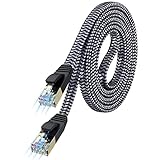
- [Flat Design, Zero Cable Clutter] - Lies perfectly flat against walls, under rugs, along baseboards, and through tight spaces without kinks, tangles, or messy coils. Customers praise it for effortless installation and clean cable management that blends into any room.
- [REINFORCED BRAIDED CONSTRUCTION FOR LONG‑LASTING PERFORMANCE] - Premium cotton braided jacket paired with reinforced RJ45 connectors delivers outstanding durability, rigorously tested for over 15,000 bend cycles. Many customers describe this ethernet cable as rock‑solid and well‑crafted, ideal for long‑term daily use with no worries about premature wear‑and‑tear or connection failure
- [10GBPS SPEED & 600MHZ BANDWIDTH — GAMING, STREAMING & FIBER READY] - Delivers 10Gbps data transfer rate with 600MHz bandwidth for PS5, Xbox, 4K streaming, and fiber internet. Customers report stable performance and fast speeds. Backward compatible with Cat 6 and Cat 5e devices
- [STP SHIELDING & GOLD-PLATED RJ45 — MINIMIZES EMI/RFI INTERFERENCE] - 100% bare copper STP shielding helps protect signal integrity when routed near power cords. Gold-plated RJ45 connectors resist corrosion. Compatible with 2.5GB network card
- [Works with Everything — Router, Modem, PS5, Xbox, PC, Smart TV, Printer More ] - Full backward compatibility with Cat7, Cat6, Cat6a, and Cat5e devices means this one cable works with all your home or office equipment today, and future upgrades tomorrow. Works with 10/100/1000/10G/40G BASE-T speeds. Includes 36-month warranty with free replacement support
Is 5 GHz always faster than 2.4 GHz?
No. 5 GHz often has more capacity and less congestion near the router, but it has shorter range and weaker wall penetration. A stable 2.4-GHz connection can perform better in a distant room. Compare both bands at the location where you need the connection.
Is 6 GHz worth using?
It can be useful near a compatible Wi-Fi 6E or Wi-Fi 7 access point because it adds spectrum and may have less congestion. It has shorter range and poorer wall penetration than lower bands, and the router, device, and drivers must all support it. It is not automatically the best band throughout a home.
Does changing DNS make Wi-Fi faster?
Usually not. DNS can help when domain lookups fail or are unusually slow, but it cannot improve a weak signal, wireless congestion, packet loss, or the Mbps capacity of the link. Treat DNS as a targeted troubleshooting step when some domains fail or name-resolution errors appear.
Can a VPN slow Wi-Fi?
Yes. A VPN can add encryption overhead or send traffic through a distant or congested server and route. Disconnect it briefly for comparison. If it is required for work or school, keep it enabled according to policy and ask the administrator to investigate the server, protocol, or route.
Should I reboot the modem or router first?
If the modem or ONT is separate, power it back on first, wait for its normal online status, then start the main router and finally mesh points or extenders. Power everything off before beginning. Exact timing varies, and a reboot preserves settings; a factory reset erases them.
Will factory-resetting the router delete my Wi-Fi password?
Yes, it can erase the Wi-Fi name and password along with ISP settings, guest networks, parental controls, port forwards, and other custom configuration. Do not use the recessed reset button as a routine restart. Back up or record settings and confirm the setup procedure before resetting.
What’s actually slowing this PC down?
Pick the symptom - the matching free tool is one click away.
Do Wi-Fi extenders reduce speed?
They can. A wireless extender may add another wireless hop and must receive a strong connection from the main router. It can be useful for a limited dead zone, but a wired access point or mesh system with Ethernet backhaul is usually more consistent. Adding more wireless nodes does not automatically increase speed.
Why is speed good but gaming or video calls laggy?
Investigate latency, jitter, packet loss, and loaded latency rather than download speed alone. Cloud backups, camera uploads, and other traffic can saturate the upload and create bufferbloat. Pause those activities, compare unloaded and loaded latency, and consider carefully configured traffic management if the measurements confirm the problem.
When should I contact my ISP?
Contact it when wired tests are consistently slow, multiple devices are affected near the router, the modem or ONT has an abnormal light, the issue follows a daily or neighborhood pattern, or the connection remains slow with Wi-Fi disabled. Give the ISP wired results, test times, server names, equipment models, plan speed, and the steps you already tried.
When should I replace the router?
Replace it only after testing identifies a coverage, port-speed, compatibility, firmware, capacity, or hardware limitation. Moving the router, using Ethernet, adding a wired access point, improving mesh placement, replacing a cable, or fixing an obsolete second-router setup may solve the problem more cheaply.
The Bottom Line
Do not start with a new router, a factory reset, or a DNS change. Start by comparing one device with many, near-router Wi-Fi with the problem location, and Wi-Fi with Ethernet. That comparison usually identifies the fault domain quickly: the device, wireless network, router and cables, or ISP. Then make one reversible change at a time and retest.

