
iTechGuides is reader-supported. When you buy through links on our site, we may earn an affiliate commission. As an Amazon Associate I earn from qualifying purchases. Learn more
“Nothing is running” usually means no application window is open. It does not mean the operating system is idle. Windows, macOS, and Linux continue using RAM for services, drivers, security tools, file caches, compressed memory, graphics, virtual machines, and background applications.
High RAM usage is not automatically a fault. Check available memory, swap or pagefile activity, memory pressure, and system responsiveness before trying to free RAM. An operating system that uses spare memory for caching may show 70–90% usage and still be working normally.
Why RAM can be high when no apps are open
RAM usage includes much more than the programs visible on your desktop. Common users of memory include:
- Windows, macOS, or Linux system processes
- Antivirus and security services
- Cloud-sync tools and software updaters
- Browser background processes and extensions
- Printer, audio, graphics, and hardware utilities
- File-system caches
- Memory compression
- Device drivers and kernel memory
- Integrated graphics hardware
- Virtual machines and container platforms
Some applications also remain active after their windows close. A messaging client may keep synchronizing, a game launcher may check for updates, and a cloud-storage client may continue scanning files.
Popular on Amazon
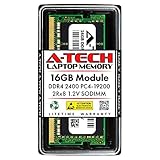
- Compatible with select DDR4 Laptop, Notebook computers + Easy to install at home, no expertise required
- Maximize your system's performance, boost loading speeds and multitask with ease
- Backed by A-Tech's Lifetime Warranty + Friendly tech support team available to help before and after your purchase
- Single 16GB RAM Module | DDR4 SO-DIMM 260-Pin | Speeds up to 2400MHz, PC4-19200 / PC4-2400T
- NON-ECC Unbuffered | 2Rx8 - Dual Rank | JEDEC DDR4 standard 1.2V
Used RAM is not the same as unavailable RAM
Operating systems deliberately use otherwise idle memory as a cache. Keeping recently accessed files in RAM avoids reading them from slower storage again. When an application needs that memory, the operating system can normally reclaim the cache.
| System | What to check | Why it matters |
|---|---|---|
| Windows | Available, Cached, In use, Committed, and Hardware reserved | Available includes memory that Windows can allocate, including reclaimable standby memory. |
| macOS | Memory Pressure and Swap Used | Memory Used can be high while cached files are still available. Persistent yellow or red pressure is more significant. |
| Linux | available in free -h |
available estimates how much memory can be allocated without swapping. |
Windows standby memory contains cached data that can become available when needed. macOS calls a similar category Cached Files. Linux reports filesystem cache and reclaimable kernel memory under buff/cache. None of these categories automatically indicates a leak.
Check whether the RAM use is actually causing a problem
Look for symptoms rather than relying on the percentage alone. High usage deserves investigation when the computer is slow while doing little work, applications pause or crash, swap or pagefile activity stays high, or one process keeps growing over time.
A healthy system may show high RAM usage while still having substantial available memory and little disk swapping. A system with lower reported usage can still be unhealthy if a driver is leaking memory or the machine is constantly paging.
Windows 11 and Windows 10
1. Check the Memory page in Task Manager
- Press Ctrl+Shift+Esc to open Task Manager.
- Select Performance in the left pane.
- Select Memory.
Pay particular attention to these values:
- In use: memory currently used by applications, Windows, drivers, and other components.
- Available: memory that can be allocated to applications, including free and standby memory.
- Cached: recently used data retained for faster access.
- Committed: virtual memory promised to processes and Windows, backed by RAM and the pagefile.
- Paged pool and Non-paged pool: kernel memory used by Windows and drivers.
- Hardware reserved: RAM assigned to firmware or devices and therefore unavailable to Windows.
Do not confuse Committed with physical RAM usage. A process can have committed virtual memory backed partly by the pagefile, while its current working set is the portion resident in physical RAM.
2. Find the process using the memory
- Open Task Manager with Ctrl+Shift+Esc.
- Select Processes.
- Click the Memory column to sort from largest to smallest.
For a PowerShell list of the ten largest working sets, open PowerShell and run:
Get-Process | Sort-Object -Property WS | Select-Object -Last 10The WS property means working set: pages from a process currently resident in physical RAM. It is useful, but it will not necessarily equal every byte associated with an application. Shared memory, kernel allocations, caches, and other system-wide categories can make the process list total differ from the overall RAM figure.
What’s actually slowing this PC down?
Pick the symptom - the matching free tool is one click away.
Also popular on Amazon

- Boosts System Performance: 32GB DDR5 RAM laptop memory kit (2x16GB) that operates at 5600MHz, 5200MHz, or 4800MHz to improve multitasking and system responsiveness for smoother performance
- Accelerated gaming performance: Every millisecond gained in fast-paced gameplay counts—power through heavy workloads and benefit from versatile downclocking and higher frame rates
- Optimized DDR5 compatibility: Best for 12th Gen Intel Core and AMD Ryzen 7000 Series processors — Intel XMP 3.0 and AMD EXPO also supported on the same RAM module
- Trusted Micron Quality: Backed by 42 years of memory expertise, this DDR5 RAM is rigorously tested at both component and module levels, ensuring top performance and reliability
- ECC Type = Non-ECC, Form Factor = SODIMM, Pin Count = 262-Pin, PC Speed = PC5-44800, Voltage = 1.1V, Rank And Configuration = 1Rx8
A large process is not automatically leaking memory. Record its value, close its workload, wait several minutes, and check again after a restart. A leak is more likely when the same process or service grows continuously without stabilizing.
3. Review startup and background applications
To disable unnecessary startup items in Windows:
- Go to Start > Settings > Apps > Startup.
- Turn unnecessary applications Off.
You can also open Task Manager > Startup apps, select an item, and choose Disable. Focus on applications you recognize, such as launchers, sync tools, update agents, and hardware utilities. Do not disable security or driver components without knowing what they do.
For Windows 11 background permissions, go to Start > Settings > Apps > Installed apps > [app] > Advanced options > Background app permissions. Depending on the application, you may see options such as Always or Power optimized (recommended).
Some startup entries do not appear in the normal list. The startup folders can be opened with these Run commands:
PC Slower Than It Used to Be?
A free scan shows the junk files, broken settings and background clutter dragging Windows down - then fixes them in one click.Free scan · Windows 10 & 11Outdated Drivers Are Slowing You Down
One free scan finds every outdated or missing driver and matches the right update for your exact hardware.Free scan · exact hardware matchshell:startup
shell:common startupWindows also stores some entries in these registry locations:
HKCUSoftwareMicrosoftWindowsCurrentVersionRun
HKLMSoftwareMicrosoftWindowsCurrentVersionRun
HKLMSoftwareWow6432NodeMicrosoftWindowsCurrentVersionRun
Do not delete registry entries indiscriminately. Incorrect registry changes can prevent software from working or cause Windows problems.
4. Use a clean boot to test third-party software
If Task Manager does not identify an obvious cause, a clean boot can show whether a third-party service or startup program is responsible.
Also popular on Amazon

- A-Tech 16GB RAM Module, DDR4 SO-DIMM 260-Pin, 3200MHz PC4-25600 (PC4-3200AA)
- Non-ECC Unbuffered, JEDEC DDR4 Standard 1.2V Operating Voltage
- Compatible with select Laptop, Notebook, Mini PC, and All-in-One (AIO) systems. Please verify your system's memory type, form factor, and maximum supported capacity before purchasing
- Not compatible with desktop DIMM, non DDR4 memory, or ECC memory types such as RDIMM, LRDIMM, and ECC UDIMM
- Increases available memory capacity to enhance system responsiveness, application performance, and multitasking capabilities.
- Search for
msconfigand open System Configuration. - Open the Services tab.
- Enable Hide all Microsoft services.
- Select Disable all.
- Open the Startup tab and select Open Task Manager.
- Disable enabled third-party startup items.
- Close Task Manager, select OK in System Configuration, and restart.
If memory usage returns to normal, re-enable items in groups or one at a time until you identify the cause. A clean boot temporarily changes system behavior, so restore the original settings after testing.
Recommended Free Tools
5. Check malware, hardware reservations, and drivers
High RAM usage alone does not prove malware. First identify the process, executable path, and publisher. If the process is suspicious or returns after reboot, run a scan:
- Open Windows Security.
- Select Virus & threat protection.
- Under Current threats, select Scan options.
- Choose Full scan.
For persistent threats, Microsoft Defender Antivirus offline scan restarts the computer and scans from the Windows Recovery Environment.
Also check Task Manager > Performance > Memory > Hardware reserved. If Windows reports substantially less usable RAM than is installed, integrated graphics, firmware settings, a BIOS change, or a device driver may be reserving it. Resource Monitor is another Windows source for the hardware-reserved value.
A growing Non-paged pool, particularly after a driver or hardware utility update, can indicate a driver memory leak. Update or roll back the related driver rather than installing a RAM-cleaner utility.
Quick wins for a faster PC:
Repair Windows errors before they cause bigger problemsFix Now →Scan for outdated or missing drivers - takes under a minuteDriver Scan →Clear out junk files and repair common Windows errorsFree Scan →What Memory Compression means
Windows may show a Memory Compression process. It stores inactive memory in compressed form in RAM instead of immediately writing it to disk. Its presence is normal and is not, by itself, evidence of a leak. Investigate sustained low Available memory, heavy paging, and poor responsiveness instead.
macOS
Check Memory Pressure instead of only Memory Used
- Open Activity Monitor.
- Select the Memory tab.
Review these fields:
- Memory Pressure: how efficiently macOS is meeting memory demands.
- Physical Memory: installed RAM.
- Memory Used: RAM currently in use.
- App Memory: memory used by applications.
- Wired Memory: memory that cannot be cached and must remain in RAM.
- Compressed: memory compressed to make more RAM available.
- Cached Files: files held in memory and available for reuse.
- Swap Used: startup-disk space used when data is moved out of RAM.
Apple determines memory pressure using factors including free memory, swap rate, wired memory, and cached files. A high Memory Used number can therefore be normal. Persistent yellow or red Memory Pressure, increasing Swap Used, and noticeable slowdowns are stronger signs of insufficient memory or a runaway process.
Also popular on Amazon
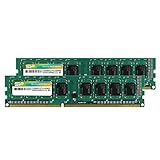
- Efficient performance: A lower voltage of 1.35 V is applied to reduce 20% power, enabling to effectively decrease hardware power consumption.
- System upgrade: With our high quality memory module, ideal for virtualization, cloud computing and multitasks handling, 100% factory-tested for stability, durability and compatibility.
- Durability Armed: 100% factory-tested to make sure the high stability, durability and compatibility.
- Compatibility is imperative: Compatible with major DDR3L / DDR3 motherboards.
- 【NOTE】The DDR3L UDIMM is backed by a lifetime warranty to promise complete services and technical support.
Review login items and background activity
- Open Apple menu > System Settings.
- Select General.
- Select Login Items & Extensions.
Review both Open at Login and App Background Activity. Background activity lets an app synchronize, check for updates, or perform other tasks while its window is closed. Remove a suspected item temporarily, restart the Mac, and compare memory pressure.
To temporarily prevent login items from opening, hold Shift while clicking Log In at the login window. This is useful for testing without permanently changing the login-item list.
Linux
Use available memory, not just free memory
Open a terminal and run:
free -hThe important column is usually available:
- free: completely unused RAM.
- buff/cache: kernel buffers, filesystem page cache, and reclaimable slabs.
- available: estimated memory available for starting applications without swapping.
Linux can show very little free memory because it is using RAM for cache. That is expected if available remains healthy and swap is not being used heavily.
For the underlying counters, run:
cat /proc/meminfoUseful fields include:
MemTotal
MemFree
MemAvailable
Buffers
Cached
SwapTotal
SwapFree
Use top or, if installed, htop to find large processes:
top
htop
Remember that an ordinary process list may not explain all memory use. Kernel memory, filesystem cache, shared memory, containers, virtual machines, and graphics allocations can sit outside one visible desktop process.
Independent reader supportYour contribution helps us test, update, and keep practical guides available for everyone.Causes that may not appear as open windows
Background services and agents
Cloud synchronization, antivirus scans, update services, printer utilities, audio tools, hardware monitors, game launchers, messaging clients, browser helpers, containers, and virtual machines can all use RAM without displaying a normal window.
File and application caches
Cache is useful memory, not wasted memory. Windows system-file caching, macOS Cached Files, and Linux filesystem page cache are designed to be reclaimed when applications need space. Clearing a cache may reduce the displayed usage temporarily, but it does not fix a process or service that is continually allocating memory.
Also popular on Amazon
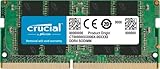
- Boosts System Performance:16GB DDR4 laptop memory that operates at 3200MHz to improve multitasking and system responsiveness for smoother performance
- Easy Installation: Upgrade your laptop RAM with ease—no computer skills required Follow step-by-step how-to guides available at Crucial for a smooth, worry-free installation
- Compatibility Guaranteed: Ensure seamless compatibility with your laptop by using the Crucial System Scanner or Crucial Upgrade Selector—get accurate recommendations for your specific device
- Trusted Micron Quality: Backed by 42 years of memory expertise, this DDR4 RAM is rigorously tested at both component and module levels, ensuring top performance and reliability for your Mac system
- ECC Type = Non-ECC, Form Factor = SODIMM, Pin Count = 260-pin, PC Speed = PC4-25600, Voltage = 1.2V, Rank and Configuration = 1Rx8 or 2Rx8
Drivers and kernel memory
Drivers can consume paged or non-paged kernel memory without appearing as a large application in Task Manager. This is a likely avenue when process totals are much lower than system-wide RAM use, especially if the issue started after installing a graphics, network, storage, RGB, or monitoring driver.
Integrated graphics
Integrated graphics can use system RAM as graphics memory. Check Windows Hardware reserved if the usable amount is far below the installed amount. A sudden change after a BIOS update, graphics-driver update, or display-configuration change warrants further investigation.
Virtual machines and containers
Hypervisors and container platforms can reserve substantial RAM while no ordinary desktop application is open. Check the virtualization software itself, including configured virtual-machine memory and background services.
Do these 3 things before closing this tab:
1Repair Windows errors before they cause bigger problems2Fix the driver behind crashes, sound loss and screen glitches3Clear out junk files and repair common Windows errorsRAM claims that lead to bad troubleshooting
| Claim | What is actually true |
|---|---|
| “High RAM usage always means a leak.” | Caches, compression, drivers, services, and wired memory can all raise usage normally. A leak is more likely when one allocation grows continuously. |
| “The lowest used percentage is healthiest.” | Unused RAM provides no direct benefit. The operating system can use spare RAM for cache and reclaim it later. |
| “Task Manager process totals must equal total RAM used.” | Kernel allocations, drivers, shared pages, caches, compressed memory, and hardware reservations are not necessarily shown as one ordinary process. |
| “A RAM-cleaner app is necessary.” | Windows, macOS, and Linux already manage reclaimable memory. A cleaner usually hides the symptom temporarily. |
| “Closing every window stops the application.” | Background processes, services, login items, extensions, and tray components may continue running. |
When high RAM usage is a real problem
Investigate further when one or more of these conditions apply:
- Windows Available memory stays very low.
- Committed memory approaches its limit.
- Pagefile or swap activity remains high during light workloads.
- macOS Memory Pressure stays yellow or red.
- Linux
availablememory stays low while swap is active. - One process, service, driver, or kernel pool keeps growing.
- The system becomes slow, freezes, or reports out-of-memory errors.
- An unexpectedly large amount of RAM is marked Hardware reserved.
- The issue began immediately after a driver, utility, security product, BIOS, or operating-system update.
For a reliable diagnosis, record the memory figures, identify the largest processes, note cache and available memory, restart the computer, and compare the same figures during the same idle workload. This separates normal caching and startup activity from a genuine leak or resource problem.
FAQ
Is 80% RAM usage normal when no programs are open?
It can be normal if Available memory remains healthy, swap or pagefile activity is low, and the computer responds normally. Cached and standby memory may be counted as used but can be reclaimed when needed.
How do I find what is using RAM in Windows?
Open Task Manager with Ctrl+Shift+Esc, select Processes, and sort by the Memory column. For a PowerShell view of the largest working sets, run Get-Process | Sort-Object -Property WS | Select-Object -Last 10.
Free tools Windows power users keep installed
One-click scans. No signup required.
Why does my Mac show high Memory Used but still work normally?
macOS retains cached files and compresses memory to improve performance. Check Activity Monitor’s Memory Pressure and Swap Used. Persistent yellow or red pressure, high swap activity, and slow performance matter more than Memory Used alone.
Should I install a RAM-cleaner app?
Usually not. Operating systems already reclaim cache and manage memory. A cleaner may reduce the displayed usage temporarily without fixing the background service, driver, startup item, virtual machine, or application responsible for actual demand.
The Bottom Line
High RAM usage with no visible windows is often normal: the operating system may be caching files, compressing memory, running background services, or reserving RAM for hardware. Diagnose the condition using Windows Available memory, macOS Memory Pressure, or Linux available memory—not the used percentage alone. Take action when memory stays unavailable, swapping is sustained, performance suffers, or one process or driver grows continuously.

