
Outdated Drivers Are Slowing You Down
One free scan finds every outdated or missing driver and matches the right update for your exact hardware.Free scan · exact hardware matchWindows Errors? Fix Them Before They Spread
Repair common Windows errors and clear accumulated junk for a smoother, more stable PC - no reinstall needed.Free scan · no reinstallIf the WhatsApp Web QR code is not working, try one of the fixes described in this article.
Option 1: Scan With Built-In WhatsApp QR Scanner

I decided to add this fix and move it to the top because our research shows that some users try to scan WhatsApp web QR code with another QR code scanner app on their smartphone.
If you try this, the WhatsApp web QR code will not work!
If you have been trying to scan WhatsApp QR code with a different app – other than WhatsApp built-in QR code scanner – follow the steps in our guide – How to Connect WhatsApp Web (link opens in a new browser tab).
What’s actually slowing this PC down?
Pick the symptom - the matching free tool is one click away.
#1 Best Overall

- Universal unlocked. Compatible with all major U.S. carriers, including Verizon, AT&T, T-Mobile and other prepaid carriers.
- Super-bright, super-smooth 6.7" display. See your screen clearly even outdoors in sunlight, and enjoy seamless views with a fast-refreshing 120Hz display.*
- AI-powered camera system. Take stunning photos in any light with the 50MP camera**, look your best with a 32MP selfie cam*****, and capture extreme close-ups.
- Superfast 5G performance. Unleash your entertainment at 5G speed*** with the MediaTek Dimensity 6300 chipset and up to 12GB of RAM with RAM Boost****.
- Long-lasting battery + TurboPower charging. Power through day after day with a 5200mAh battery, then get hours of power in just minutes.****
Once you confirmed that you are doing it right but the WhatsApp web QR code is still not scanning, try one of the methods below…
Option 2: Some Phones with Smaller Displays May Not Work
To stop readers with smaller-screen phones wasting their time reading through this guide, this fix comes next.
Some users with a phone display of 4 inches or less may not be able to scan WhatsApp web QR code. This is according to a solution submitted by a user in this Android.stackexchange.com thread.
Specifically, if you try to scan the WhatsApp web QR code with such small screens, you may not be able to tap the “OK, got it” button.
The stackexchange.com thread also confirms that some Sony Xperia phones with small displays have shown this error.
Option 3: Check that Your Phone is Connected to the Internet
If the QR code is loaded on your computer but you cannot scan it on your phone, it is possible that your phone is not connected to the internet.
One quick way to check whether your phone is connected to the internet is to open a browser on your phone and visit a website. If your phone is connected to the internet but you still cannot scan the QR code, restart your phone and try again.
Rank #2

- YOUR CONTENT, SUPER SMOOTH: The ultra-clear 6.7" FHD+ Super AMOLED display of Galaxy A17 5G helps bring your content to life, whether you're scrolling through recipes or video chatting with loved ones.¹
- LIVE FAST. CHARGE FASTER: Focus more on the moment and less on your battery percentage with Galaxy A17 5G. Super Fast Charging powers up your battery so you can get back to life sooner.²
- MEMORIES MADE PICTURE PERFECT: Capture every angle in stunning clarity, from wide family photos to close-ups of friends, with the triple-lens camera on Galaxy A17 5G.
- NEED MORE STORAGE? WE HAVE YOU COVERED: With an improved 2TB of expandable storage, Galaxy A17 5G makes it easy to keep cherished photos, videos and important files readily accessible whenever you need them.³
- BUILT TO LAST: With an improved IP54 rating, Galaxy A17 5G is even more durable than before.⁴ It’s built to resist splashes and dust and comes with a stronger yet slimmer Gorilla Glass Victus front and Glass Fiber Reinforced Polymer back.
However, if you confirm that your phone is connected to the internet but the WhatsApp web QR code scanning is still not working, try the next suggested fix.
Option 4: Log Out From All Devices on WhatsApp
My next suggested fix for WhatsApp Web QR code not working is to log out from all browsers. Here are the detailed steps:
If you tried something that worked for you but not included in this guide, kindly share with us – use the “Leave a Reply” at the end of this page. Alternatively, email Contact@itechguides.com
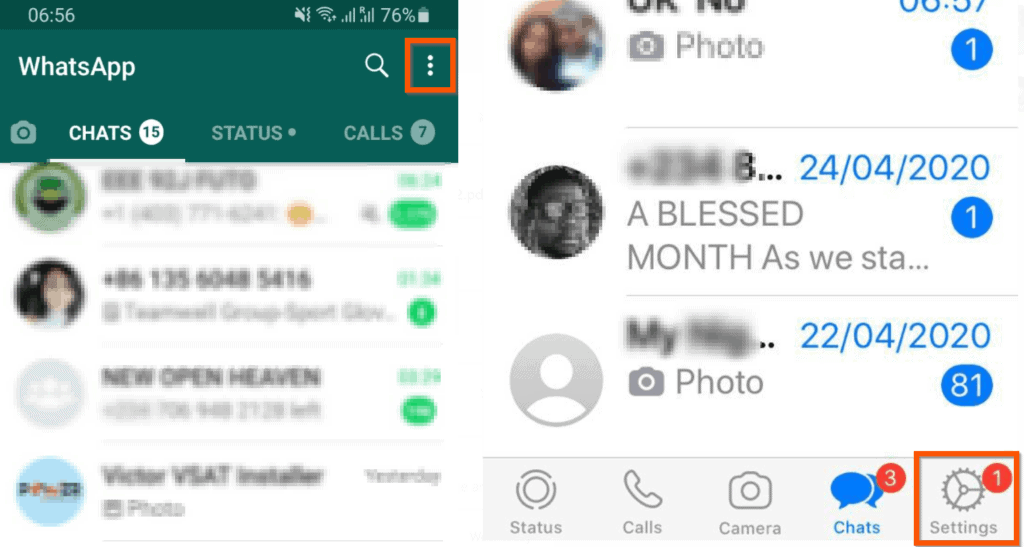
- Open WhatsApp app on your phone. Then for the Android app, on the top right tap the 3 dots. If you use iPhone, on the bottom right of the app, tap Settings.
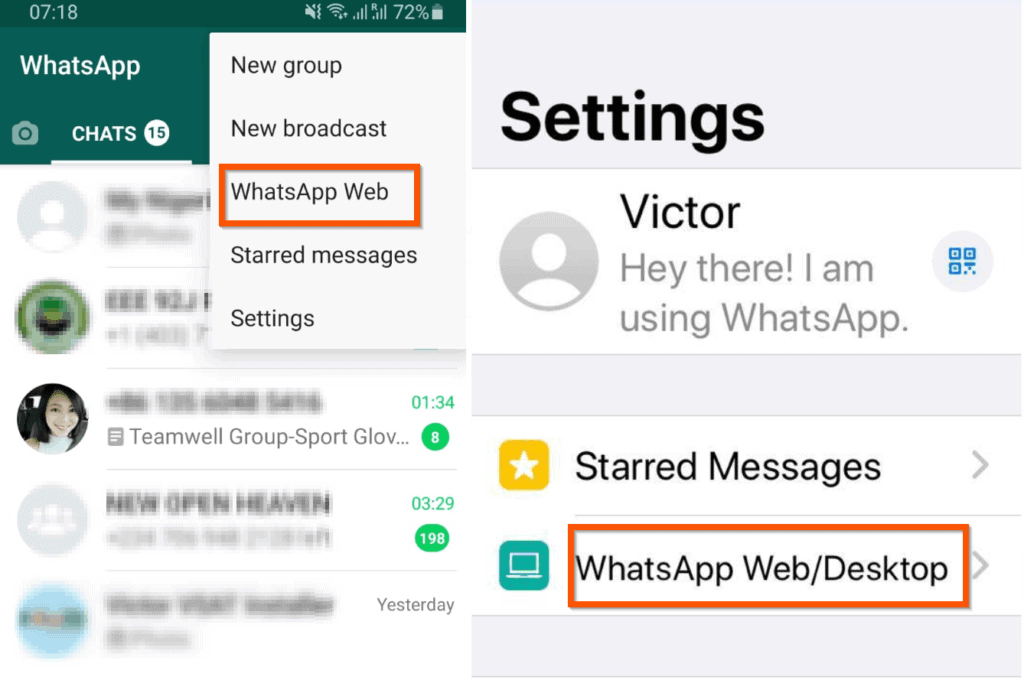
- Then, for the Android app, tap WhatsApp Web. However, for the iPhone App, tap WhatsApp Web/Desktop.
- Finally, tap Log out from all devices. Once you have done this, try scanning WhatsApp QR code again.

Option 5: Clear WhatsApp Cache on Android
If you log WhatsApp out of all devices but find that the Web QR code is still not working, my next recommendation is to clear your phone’s cache. This option is only available for Android devices.
Like most apps on Android, the WhatsApp app has the option to clear the app’s cache. Doing this may fix the QR code not scanning problem.
Follow the steps below to clear WhatsApp cache on an Android phone:
Quick wins for a faster PC:
Fix the driver behind crashes, sound loss and screen glitchesFind Drivers →Clear out junk files and repair common Windows errorsFree Scan →- Open the Settings app.
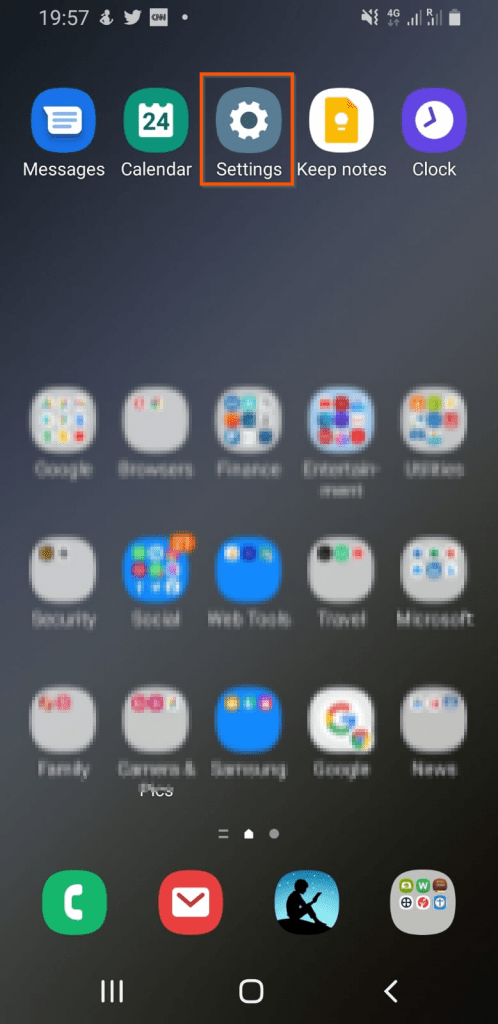
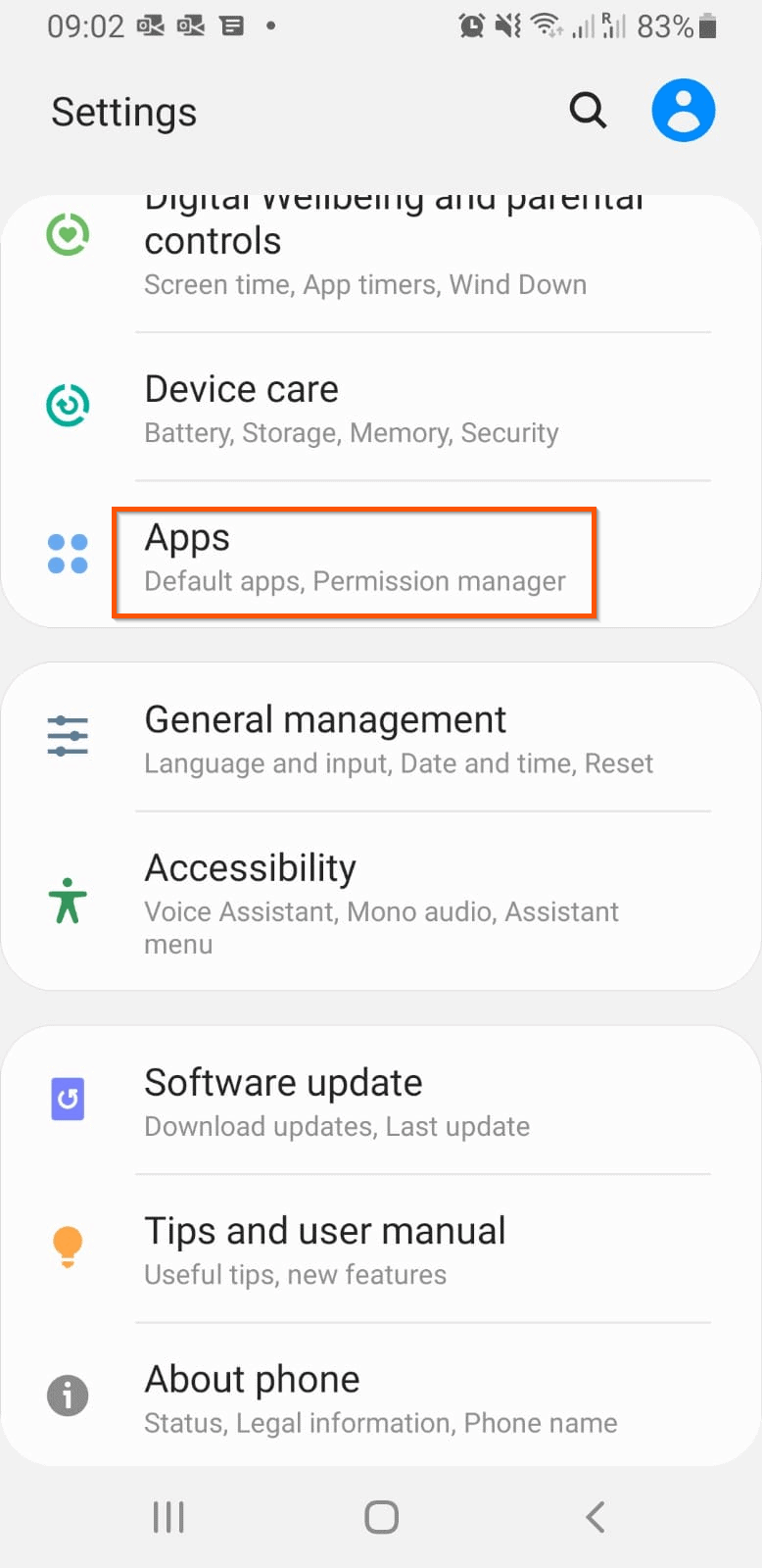
- Then, on the Settings app locate and tap Apps.
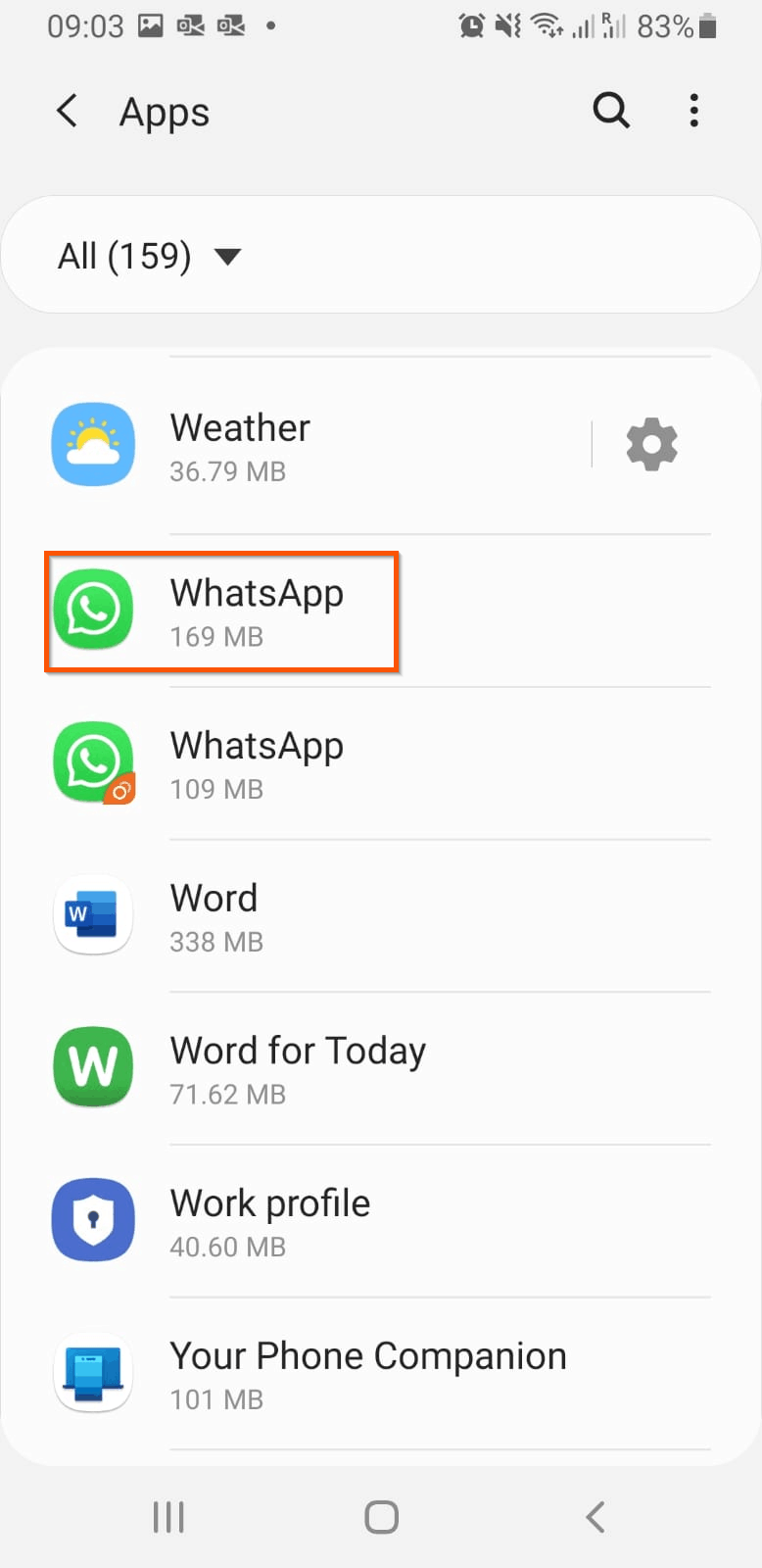
- From the list of Apps, locate WhatsApp and tap it.
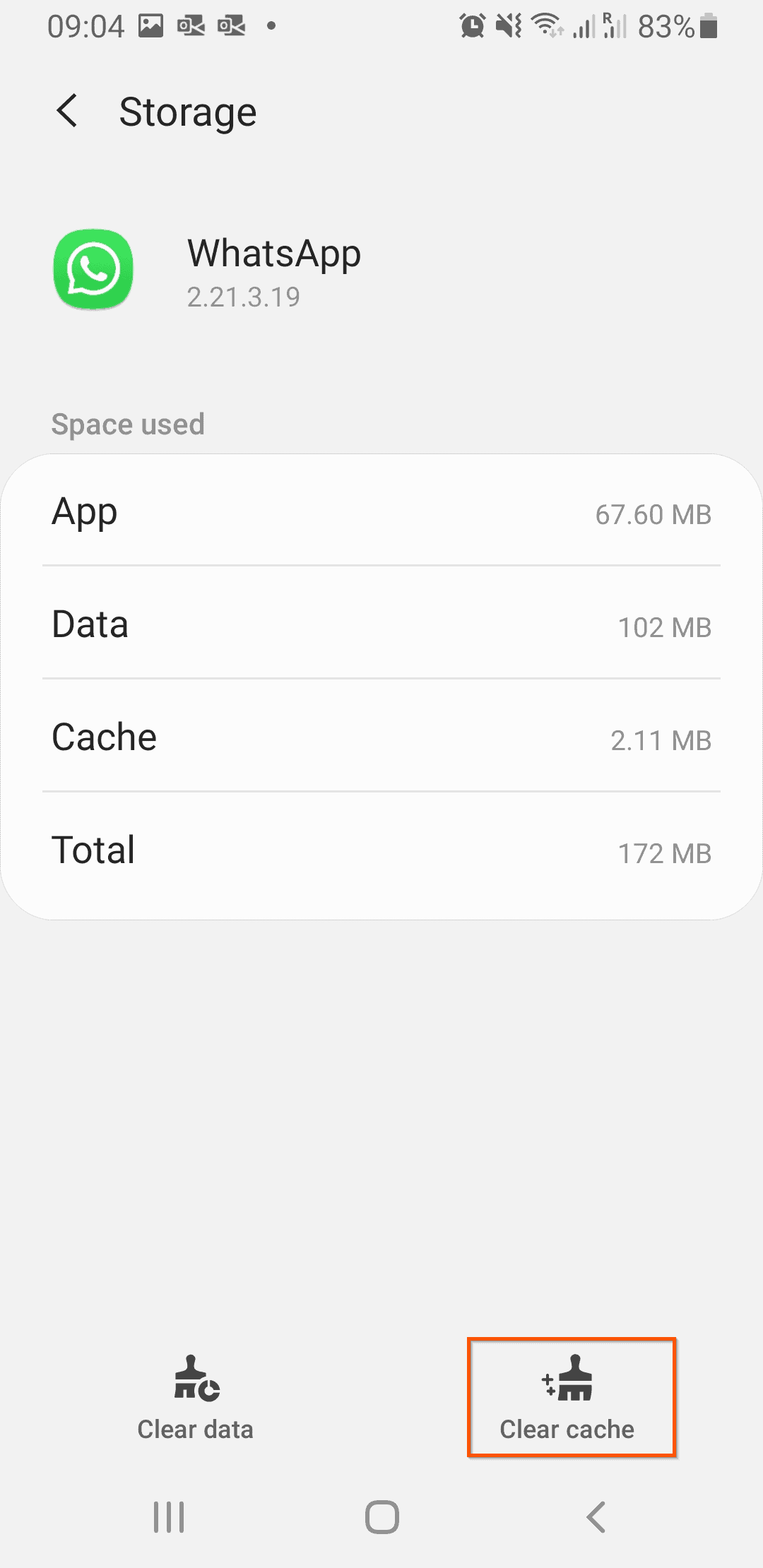
- Then, on the WhatsApp settings, tap Storage.

- Finally, on the bottom right of Storage, tap Clear cache. Then, restart your phone and try scanning WhatsApp web QR code.
Option 6: Reset Your Phone’s Network Setting
Another method to fix the WhatsApp Web QR Code if it is not working is to reset the network on your phone.
If you use an Android phone, follow the steps in – How to reset your network settings on an Android to fix connection issues and speed up your internet (link opens in a new browser tab).
Rank #3

- Charger NOT Included, 6.7" Super AMOLED FHD+, 90Hz Refresh Rate, 385 ppi, 800 nits (HBM), 1080x2340px, 5000mAh Battery
- 128GB, 4GB RAM, microSDXC, Exynos 1330 (5nm), Octa-Core, Mali-G68 MP2 or Mali-G57 MC2 GPU
- Rear Camera: 50MP, f/1.8 (wide) + 5MP, f/2.2 (ultrawide) + 2MP, f/2.4 (macro), LED flash, panorama, HDR; Front Camera: 13MP, f/2.0, Android 14, up to 6 major Android upgrades, One UI 6.1
- 3G: HSDPA 850/900/1700(AWS)/1900/2100; 4G LTE: 1/2/3/4/5/7/12/13/14/20/25/26/28/29/30/38/39/40/41/48/66/71, 5G: 2/5/25/41/66/71/77/78 SA/NSA/Sub6/mmWave - Nano-SIM + eSIM
- US Model – Global Connectivity – Compatible with Most GSM Carriers like T-Mobile, AT&T, MetroPCS, etc. Will Also work with CDMA Carriers Such as Verizon, Straight Talk.
Alternatively, for iPhone users, follow the steps in – If your iPhone, iPad, or iPod touch won’t connect to a Wi-Fi network (step 7).
Option 7: Turn Off WiFi and Scan with 3G
I know that this may sound ridiculous! However, as ridiculous as it may sound, some users have confirmed that they fixed this problem by turning off Wi-Fi.
If you have been trying to scan WhatsApp web QR code with your phone connected to a Wi-Fi, try the following steps:
- Disable Wi-Fi on your phone
- Scan WhatsApp web QR code with 3G
- Finally, once you have connected your WhatsApp to your computer, re-enable Wi-Fi on your phone.
WhatsApp web QR code still not working? Try the next fix…
Option 8: If You use Chrome, Disable Hardware Acceleration
Based on a reply to this Reddit thread, disabling “Hardware Acceleration” fixed the WhatsApp web QR code scanning problem for some users. You can try this fix as well.
To disable “Hardware Acceleration” in Chrome:
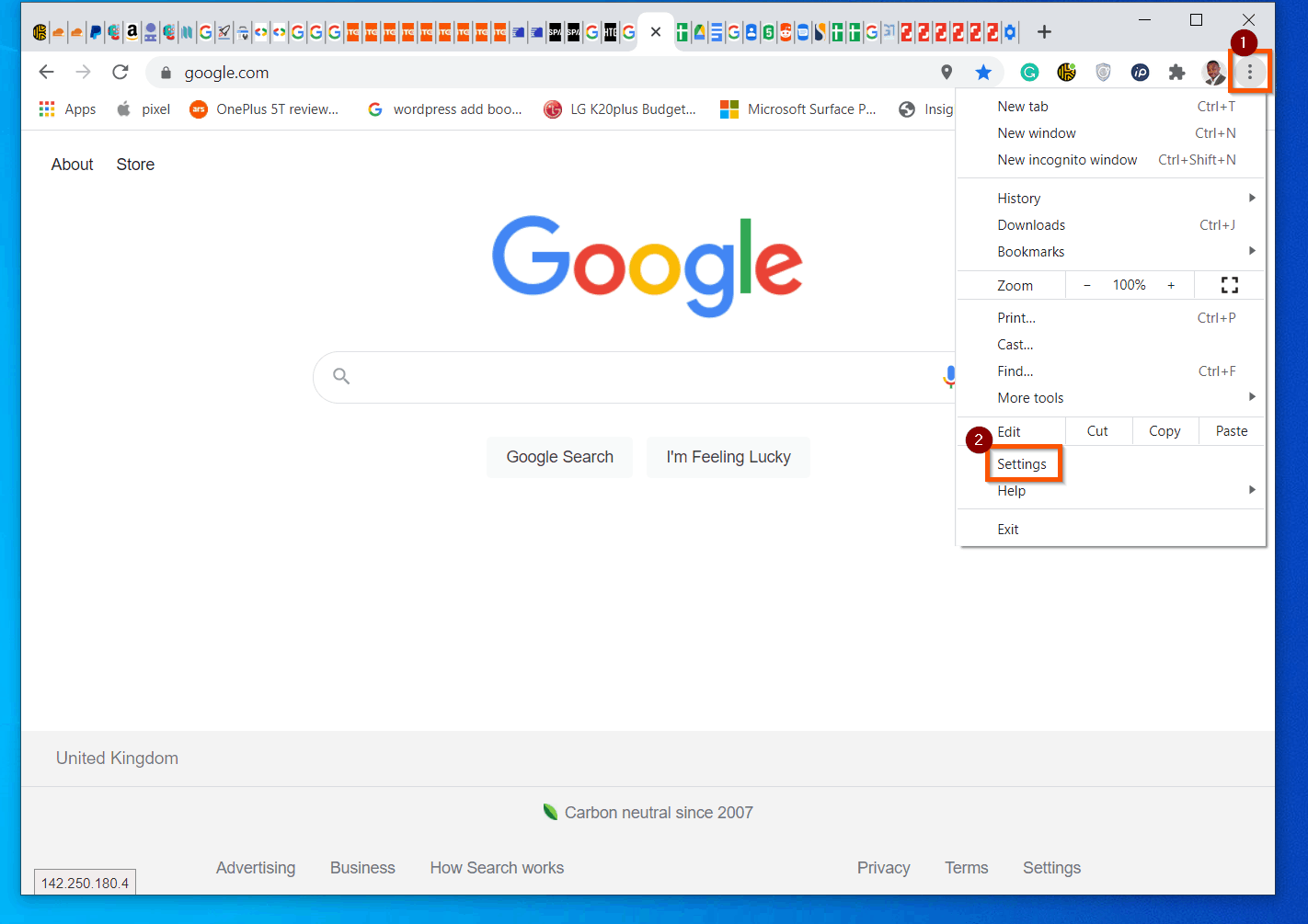
- Click the Chrome menu (3 vertical dots on the top right of the browser). Then, from the displayed options, click Settings.
- When Chrome Settings, scroll down and click Advanced.
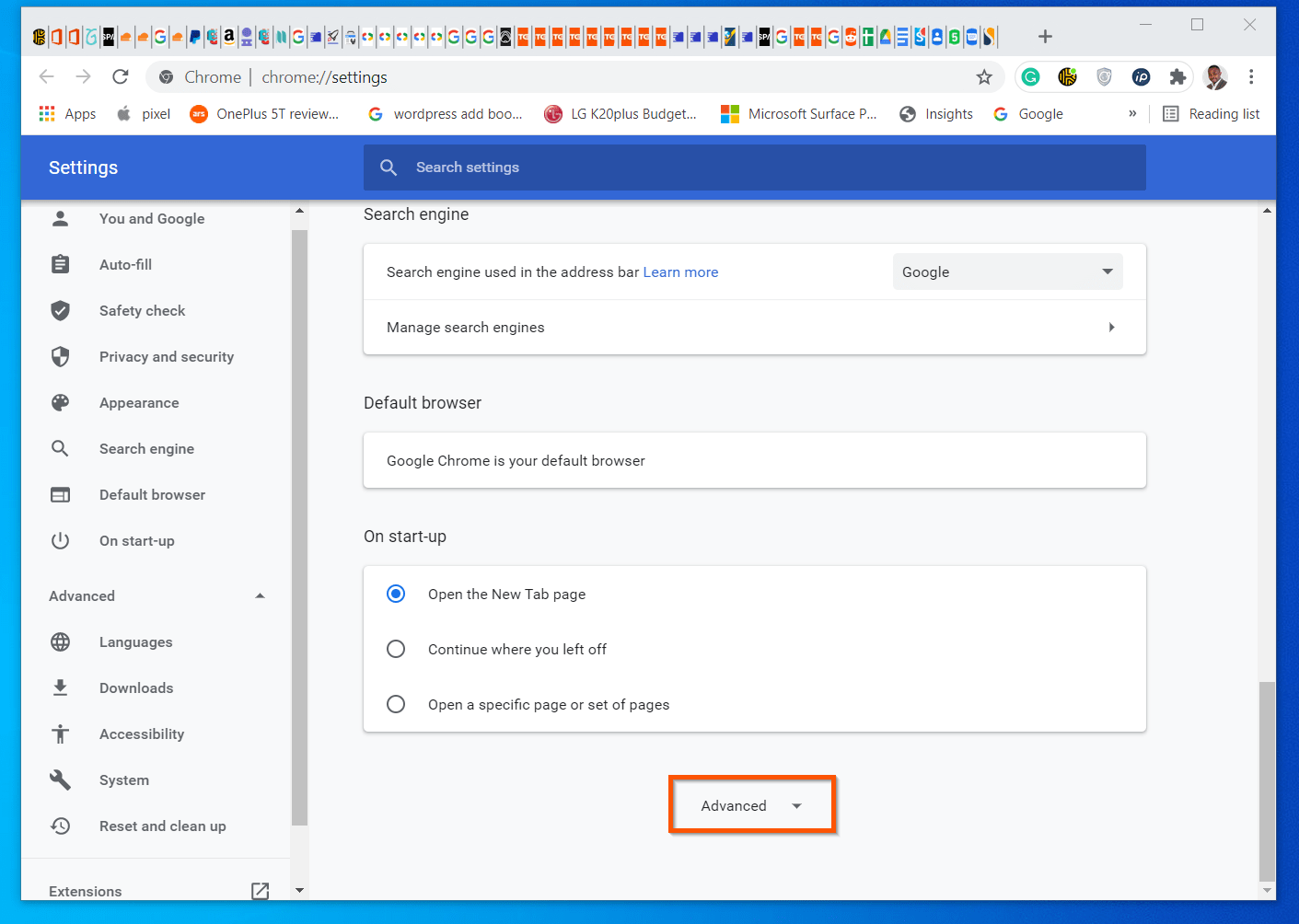
- Then, scroll down and on the Systems section and uncheck the checkbox beside “Use hardware acceleration when available”.

- Finally, close and reopen Chrome. Then, try re-scanning WhatsApp web QR code. If it is still not working, try the next fix.
Option 9: Clean Your Phone’s Camera Lens
Your phone uses the camera to scan QR codes – including WhatsApp QR code. If the lens is dirty or covered with something, it may not be able to scan QR codes.
Recommended Free Tools
To clean the camera’s lens, use a dry ear bud to wipe it. You may also use a clean fiber cloth – the type used to clean sunglasses.
Rank #4

- YOUR CONTENT, SUPER SMOOTH: The ultra-clear 6.7" FHD+ Super AMOLED display of Galaxy A17 5G helps bring your content to life, whether you're scrolling through recipes or video chatting with loved ones.¹
- LIVE FAST. CHARGE FASTER: Focus more on the moment and less on your battery percentage with Galaxy A17 5G. Super Fast Charging powers up your battery so you can get back to life sooner.²
- MEMORIES MADE PICTURE PERFECT: Capture every angle in stunning clarity, from wide family photos to close-ups of friends, with the triple-lens camera on Galaxy A17 5G.
- NEED MORE STORAGE? WE HAVE YOU COVERED: With an improved 2TB of expandable storage, Galaxy A17 5G makes it easy to keep cherished photos, videos and important files readily accessible whenever you need them.³
- BUILT TO LAST: With an improved IP54 rating, Galaxy A17 5G is even more durable than before.⁴ It’s built to resist splashes and dust and comes with a stronger yet slimmer Gorilla Glass Victus front and Glass Fiber Reinforced Polymer back.
If you believe the lens is very dirty, try the tips shared in this guide – How to Clean Phone Camera Lens (link opens in a new browser tab).
Option 10: Clear Computer Browser Cookies
If WhatsApp Web QR code is not working, the first fix is to clear the browser cookies on your computer. If you use Google Chrome, use the steps in – Clear cache & cookies.
However, if you use Firefox, use the steps in Clear cookies and site data in Firefox.
Option 11: Disable Browser Extensions
If at this stage, the WhatsApp web QR code is still not working for you, it may be time to disable some browser extensions. According to one contributor to this Android.stackexchange.com thread, some browser extensions are known to stop WhatsApp web QR code scanning.
Specifically, if you have an extension like Dark Reader that turns your browser into night-mode, disabling the extension may fix the WhatsApp web QR code problem.
To be on the safe side, I will suggest disabling all extensions on your browser and try scanning the WhatsApp web QR code again.
Here are quick steps to access extensions in the 3 major browsers:
Do these 3 things before closing this tab:
1Clear out junk files and repair common Windows errors2Fix the driver behind crashes, sound loss and screen glitches3Repair Windows errors before they cause bigger problemsBest Value

- Carrier: This phone is locked to Tracfone, which means this device can only be used on the Tracfone wireless network. Tracfone plan required, activating is easy, just 3 steps.
- DISPLAY: Immersive viewing on a 6.7-inch super-bright 120Hz display with powerful stereo speakers and Bass Boost for cinematic entertainment.
- CAMERA SYSTEM: Advanced 50MP Quad Pixel camera captures sharp, detailed photos and videos in any lighting condition
- PERFORMANCE: Lightning-fast 5G connectivity paired with a powerful processor and RAM Boost for smooth multitasking.
- BATTERY LIFE: Long-lasting 5000mAh battery with TurboPower charging technology delivers hours of power in minutes.
- Open Extensions on Chrome: Click the menu on the top right (the 3 vertical dots) -> More tools -> Extensions
- Additionally, to open extensions (called add-ons in Firefox): Click the menu on the top right (the 3 horizontal lines) -> Add-ons
- Finally, to open extensions in the new Microsoft Edge: Click the menu on the top right (the 3 horizontal dots) -> Extensions
Option 12: Update Your Browser
WhatsApp Web QR code is still not working? Check whether your browser has the latest update. Follow the steps in – Update Google Chrome – to update Chrome.
However, if you use Firefox, follow the steps in – Update Firefox to the latest release – to update Firefox.
Option 13: Switch to a Different Browser
After trying the suggested fixes above, if in the unlikely event that WhatsApp Web QR code is still not working, switch to a different browser on your computer.
For example, if you initially use Google Chrome, try opening Web.WhatsApp.com on Firefox or Microsoft Edge. Then, try scanning the QR code again. If trying another browser does not solve the problem, restart your computer and try again.
Conclusion
If none of the suggested fixes worked for you, use the “Was this page helpful” question to let us know.
As I said at the beginning of this guide, there could be so many reasons for this problem and we’re constantly updating the fixes based on our experience and feedback from readers.
To help us improve this guide – which is in high demand – kindly share the solution that worked for you by responding to the “Was this page helpful?” question below.
Alternatively, share with the community using the “Leave a Reply” form located at the bottom of this page.
The Tool Desk
Outbyte PC Repair FREERepair Windows errors before they cause bigger problemsFix Now →Outbyte Driver Updater FREEFix the driver behind crashes, sound loss and screen glitchesFind Drivers →


I resolved the problem printing my laptop screen and then using my phone to scan the QR code printed; but it has to be done fast because the QR code changes .
That is amazing! Thank you for sharing.
Found a new solution! I tried all the methods in this article but it did not work. But the ““OK, got it” button mentioned earlier in the article kept bugging me as I do not see such a button or remembering seeing one … so out of desperation, on the phone screen that is trying to scan the desktop QR code, i double tap around the screen to try to detect if there is any “invisible” button or “OK, got it” button.. somewhere around the fringe of the QR code scanning frame, it just click and i am log into whatsapp desktop!
Hi Ken,
Thanks for sharing.
you can uninstall the Graphic Card driver & try after that the QR code will be visible than.
Hi everyone
I am having the same problem and I tried all of the above but none worked, including the hardware acceleration setting.
Mine must be linked to the dark mode of Chrome. BUT, my MAC chrome just changed to dark mode overnight (my husband’s too) and I am unable to bring it back to light mode.
Its not on dark mode under the extensions setting. Its been done somewhere in the background by Chrome.
Can anyone help me to remove Chrome dark mode so I can get web whatsapp back?
I also cant read slides on Google slides that are shared with me. The text on the white slides doesnt appear now.
I have even had IT guys try to help me with the themes and extensions. I uninstalled Chrome and reinstalled and it still remained on dark mode.
Is your browser (eg Chrome) set to Dark mode??? I use dark mode in experimental settings and it reveals a bug of the QR scanning function in WhatsApp. The WhatsApp app cannot cope with a dark mode view of the QR code. I had to reset experimental features and return to horrible eye burning white in order to get it to recognise the QR code. Please will software manufacturers realise that alot of people are getting eye damage from so much white – so design your stuff to work with or have a dark mode.
Iso,
Thanks for sharing your experience with the community.