
Recommended Free Tools
iTechGuides is reader-supported. When you buy through links on our site, we may earn an affiliate commission. As an Amazon Associate I earn from qualifying purchases. Learn more
To transform your iPhone into a webcam for Windows, install Camo Studio on Windows and Camo Camera on the iPhone, connect the devices by USB or shared Wi-Fi, then select Camo as the camera in Zoom, Teams, Google Meet, OBS, Discord, or another supported app. Windows needs this third-party bridge because Apple’s native Continuity Camera is designed for Mac.
Camo is the most straightforward starting point for most Windows users. Camo’s Windows software supports Windows 10 and later, and Camo’s current product information identifies iOS 15 or later for the iPhone side. A USB connection is the best first choice for stability and low latency; Wi-Fi is useful when you need cable-free placement.
Key takeaways
- Camo is the simplest primary method for using an iPhone as a Windows webcam through USB or Wi-Fi.
- Camo’s free tier supports video up to 720p, while Camo Pro adds resolutions up to 4K and extra effects; do not assume every iPhone supports 4K.
- Apple Continuity Camera is documented as an iPhone webcam feature for Mac, not as a native Windows solution.
- USB is generally more reliable and lower-latency than Wi-Fi for meetings, recording, and streaming.
- A working Camo preview does not guarantee that Zoom, Teams, Meet, or OBS can see the camera; Windows camera permissions and a restart of the target app may still be necessary.
Which iPhone-to-Windows webcam method should you use?
Camo is the best starting point for most readers because it has Windows and iPhone apps, supports USB and Wi-Fi pairing, and provides image controls before sending the video to other applications. Camo’s creator information lists compatibility with major meeting, browser, messaging, and streaming workflows.
The Tool Desk
Outbyte Driver Updater FREEFix the driver behind crashes, sound loss and screen glitchesFind Drivers →Outbyte PC Repair FREERepair Windows errors before they cause bigger problemsFix Now →| Reader priority | Best starting point | Why | Important limitation |
|---|---|---|---|
| Easiest polished Windows setup | Camo | Windows and iPhone apps, USB and Wi-Fi pairing, image controls, virtual-camera output | Free video is limited to 720p or lower; advanced features require Pro |
| Basic, lower-cost webcam use | DroidCam | Supports Wi-Fi, USB, Zoom, Skype, Discord, and OBS workflows | Its free webcam mode is standard definition at 640×480 |
| Windows-focused alternative | iVCam | Provides a Windows client and iPhone app | The official pricing page indicates a watermark in the free version |
| Native Apple feature | Continuity Camera | Convenient iPhone webcam feature for Mac users | Apple documents it for Mac, not Windows |
| Existing EpocCam installation | Verify before relying on it | Older guides may still describe it | Current iPhone-and-Windows support is not sufficiently clear from authoritative current results |
Apple’s Continuity Camera documentation describes using an iPhone as a webcam with a Mac. A Windows PC therefore needs a third-party bridge such as Camo, DroidCam, or iVCam.
Popular on Amazon
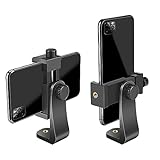
- FEATURE: the tripod phone mount is adjustable by screw mechanism, 360 degree rotating, vertical(portrait mode) and horizontal(landscape mode) or any angle as you need, not necessary to take your cell phone out of a standard tripod or small tripod.
- EASY TO USE: two options for using tripod phone holder: 1. screw it directly to the tripod or selfie stick with pivoting arm, being able to 360 degrees rotating, 2. remove the phone clamp from pivoting arm and then mount on a tripod or monopod.
- ADJUSTABLE WIDTH: 2.2inch-4.1inch(55mm-105mm), attachable to any regular-size smartphone, tripod, selfie stick, monopod or camera; two standard 1/4 x 20mm female thread interfaces meeting your various needs. Very functional and compact.
- MATERIAL: the black part made of sturdy plastic, the female threads inserted are brass, the male screw is steel and soft non-slipping silica gel pads, which protect your cellphone from scratch and hold the phone securely.
- ATTACHABLE TO: most mobile phones, tripods, unipods, selfie sticks, cameras, camcorders, pico projectors, including iPhone 11/11 Pro/11 Pro Max/X/XS/XR/XS Max/8/7/6/6s Plus/SE/5s/5/5c, Samsung Galaxy S10/10+/S9/S9+/S8/S8+/S7/S6/S6 edge, Note10/10+/9/8 and Android phones.
What do you need to use an iPhone as a Windows webcam?
You need an iPhone, a Windows 10 or Windows 11 PC, a webcam-bridge application, and either a data-capable USB cable or a shared local Wi-Fi network. You also need camera permission in Windows and a target application that can select a virtual camera.
Required
- An iPhone compatible with the chosen app. Camo’s current product information identifies iOS 15 or later as the supported iPhone-side requirement.
- A Windows 10 or Windows 11 computer. Camo says its Windows software supports Windows 10 and later.
- Camo Studio on Windows and Camo Camera on the iPhone if you follow the recommended method.
- A USB cable that supports data, not only charging, or a suitable shared Wi-Fi network.
- A meeting, recording, or streaming app such as Zoom, Teams, Google Meet, OBS, or Discord.
Recommended for a reliable setup
- A stable phone mount, tripod clamp, desk clamp, monitor mount, or articulating arm.
- Power for the iPhone during long sessions.
- A camera position at eye level or slightly above eye level.
- A headset or USB microphone if the laptop microphone sounds distant or causes echo.
- Soft light facing you rather than a bright window behind you.
- Focus or Do Not Disturb mode to reduce interruptions.
A premium mount, lighting kit, or external microphone is not mandatory. The phone, software, cable or Wi-Fi, and a stable position are enough to begin.
How do you set up Camo over USB on Windows?
Camo over USB is the recommended first setup because a direct cable usually provides lower latency and greater stability than Wi-Fi.
What’s actually slowing this PC down?
Pick the symptom - the matching free tool is one click away.
1. Install Camo Studio on Windows
- Download Camo Studio from the official Camo Studio page or install it through the Microsoft Store.
- Open Camo Studio and complete the onboarding steps.
- Allow Camo to install its Windows compatibility add-on when prompted.
- Approve the administrator-permission request if Windows displays one. The add-on makes Camo’s video available to other Windows applications as a camera source.
Camo’s support documentation explains that the Microsoft Store version may install the compatibility add-on during onboarding or later through an in-app notification. The direct-download version installs the add-on automatically according to Camo’s setup guidance.
2. Install Camo Camera on the iPhone
- Install Camo Camera from the App Store.
- Open Camo Camera.
- Allow camera access when iOS asks for permission.
- Keep Camo Camera open while pairing the phone.
Camo says that an iOS prompt to trust the computer is not required for its operation because Camo does not need access to trusted personal data.
3. Connect the iPhone
- Open Camo Studio on Windows.
- Connect the unlocked iPhone with a data-capable Lightning or USB-C cable.
- Open Camo Camera on the iPhone.
- Wait several seconds for the live camera feed to appear in Camo Studio.
- Use Camo’s device controls to choose the desired iPhone camera or lens.
If the preview appears in Camo Studio, the phone-to-Camo connection is working. The next step is to select Camo in the meeting, recording, or streaming application.
For Camo’s documented installation and USB workflow, see Camo’s getting-started instructions.
Free tools Windows power users keep installed
One-click scans. No signup required.
How do you connect Camo over Wi-Fi?
Camo over Wi-Fi lets you position the iPhone without a cable between the phone and PC, but both devices must be on the same suitable local network and Wi-Fi can introduce delay or connection problems.
Also popular on Amazon

- Dual Cold Shoe Mounts: This phone tripod mount features 2 rotatable cold shoe mounts for attaching microphones, LED lights, and other accessories. Easily adjust accessory angles for photography, video recording, and vlogging.
- Universal 1/4"-20 Thread: The smartphone tripod adapter features a standard 1/4"-20 threaded mount for compatibility with tripods, selfie sticks, monopods, cameras, stabilizers, and other compatible photography accessories.
- 360° Rotation & 180° Tilt: Adjust your phone angle with 360° rotation and 180° tilt to switch easily between portrait and landscape orientations. The adjustable phone mount allows flexible positioning without an additional ball head.
- Wide Phone Compatibility: This universal cell phone tripod mount fits smartphones measuring 2.16"–3.7" wide (5.5–9.4 cm), including iPhone 18 Pro Max and Samsung Galaxy S26 Ultra. For the best fit, avoid clamping directly over side buttons. With thick cases or protruding buttons, adjust the clamp position slightly higher or lower.
- Secure, Non-Slip Grip: Thick, non-slip silicone pads help hold your smartphone securely and protect it from scratches. The adjustable phone clamp accommodates compatible devices with many types of phone cases for stable mounting during photos and videos.
- Connect the Windows PC and iPhone to the same local network.
- Open Camo Studio on Windows.
- Click the + button beside the Device dropdown in Camo Studio’s left sidebar.
- Wait for the pairing window and QR code to appear.
- Open Camo Camera on the iPhone.
- Tap the wireless-connection button in the upper-right corner.
- Scan the QR code shown by Camo Studio from inside Camo Camera.
- Wait for the live preview, then select the desired camera or lens.
Use Wi-Fi for convenient calls or when cable placement is awkward. Use USB for live streaming, recording, long meetings, or any situation where latency and reliability matter more than a cable-free setup. Camo’s official pairing guidance recommends USB for the first connection.
How do you select the iPhone camera in Zoom, Teams, Meet, or OBS?
Start Camo Studio and confirm that the iPhone preview is live before opening the target application; then open the application’s camera settings and select Camo Camera, Camo, or the equivalent Camo virtual-camera entry.
- Open Camo Studio and connect the iPhone.
- Confirm that Camo Studio displays a live preview.
- Open Zoom, Microsoft Teams, Google Meet, OBS, Discord, or another target app.
- Open the app’s video, camera, source, or device settings.
- Select Camo Camera or Camo from the camera list.
- Preview the image before joining a call or starting a recording.
Camera labels and menu locations vary by application version. If Camo is not listed, close the target application completely, reopen Camo Studio first, and then reopen the target application. Many desktop apps enumerate camera devices only when they launch.
Camo advertises compatibility with major applications including Zoom, Google Meet, Microsoft Teams, Skype, Slack, Discord, Chrome, Edge, Firefox, Webex, WhatsApp, and OBS-related workflows. Availability can still vary because of browser permissions, desktop-app versions, organizational policies, and whether an application was open before Camo installed its camera component. See Camo’s supported camera-app information for the vendor’s compatibility context.
What Windows camera permissions does Camo need?
Windows must allow camera access, desktop applications must be allowed to use the camera, and a Microsoft Store target app may have its own camera permission.
- Open Settings in Windows.
- Choose Privacy & security.
- Select Camera.
- Turn on general camera access.
- Turn on permission for desktop applications.
- If the target is a Microsoft Store app, check that app’s individual camera permission.
- Restart the target application.
Microsoft distinguishes general camera access, Microsoft Store app access, and desktop-application access in its Windows camera-permission instructions.
What should you do if Windows does not recognize the iPhone?
If USB pairing fails, check the cable, unlock the iPhone, and install or update Apple’s supported Windows device components rather than downloading drivers from an unofficial driver site.
Crashes, No Sound, or Screen Glitches?
Random freezes, missing sound and display glitches usually trace back to one bad driver. Find and replace yours safely.Free scan · under a minutePC Slower Than It Used to Be?
A free scan shows the junk files, broken settings and background clutter dragging Windows down - then fixes them in one click.Free scan · Windows 10 & 11- Unlock the iPhone before connecting it.
- Confirm that the cable supports data transfer.
- Try another cable and another USB port.
- Connect directly to the PC instead of through a hub or dock.
- Make sure Camo Camera is open.
- Check whether Windows recognizes the iPhone in another Apple-supported workflow.
- Install or update the Apple mobile components needed for Windows-to-iPhone communication.
The exact Apple component and installation path can depend on the Windows release and whether the PC uses Apple Devices, iTunes, or another Apple-supported package. Camo’s FAQ discusses the need for Apple’s standard mobile components; consult Camo’s USB and troubleshooting FAQ for the vendor’s qualification.
Also popular on Amazon
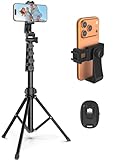
- 【Sturdy and Stable】: Made of premium aluminum alloy and stainless steel, Liphisy phone tripod with remote keeps your device stay securely in place for still shots and video recording.
- 【Multi-angle Shot】: With a max height of 64”, this tripod stand with a 210-degree rotation head and 360-degree rotation holder allows you to capture shots from any angle, catering to different photography needs.
- 【Wireless Remote Included】: Package includes a wireless remote that connects to your cell phone easily, making it a breeze to snap photos or video recordings.
- 【Height Adjustable】: The height of this cell phone tripod with remote can be adjusted from 17” to 64” and the easy lock mechanism makes it really easy to set up. It gives you an excellent vantage point for capturing photos and videos.
- 【Wide Application】: Compatable with different phone and camera, this tripod is great for photography and video recording, perfect for travel and home use.
How can you improve iPhone webcam video quality?
Good placement and lighting usually improve an iPhone webcam more than simply selecting the highest available resolution.
Choose the right camera
The rear camera generally offers better image quality and more lens choices, but the front camera is easier to frame because you can see yourself. A rear-camera setup works best with the Camo desktop preview, a second device, or another way to confirm framing before a call.
Mount the phone correctly
- Place the iPhone at eye level or slightly above eye level.
- Keep the phone stable; do not hold it during a meeting or stream.
- Make sure the selected lens faces you rather than the room.
- Leave enough distance for a natural field of view.
- Choose landscape or portrait according to the target platform.
Camo’s FAQ specifically warns that orientation lock can interfere with phone-camera use. Disable orientation lock if the image remains rotated or Camo does not respond correctly after changing the phone’s position.
Use light deliberately
Place a soft light in front of you or slightly to one side. Avoid placing a bright window directly behind you because backlighting can make your face appear dark. A basic diffused desk lamp may be sufficient for meetings.
Understand resolution limits
According to Camo’s pricing information, the free Camo tier supports video up to 720p, while Camo Pro supports resolutions up to and including 4K and adds features such as portrait mode, background privacy blur, background replacement, smart zoom, and additional image controls.
Do not assume that every iPhone can deliver 4K through Camo. Camo’s troubleshooting documentation identifies iPhone 12 and newer as the supported range for reliable 4K on iOS. A conferencing service may also reduce the delivered resolution even when the phone and Camo support a higher setting.
Image quality also depends on the front or rear camera, lighting, focus, exposure, digital zoom, network compression, the meeting app’s resolution cap, and the distance between the phone and your face. An iPhone is not automatically a better webcam in every room or application.
Should the iPhone provide audio as well as video?
No; the best setup often uses the iPhone for video and a separate headset, USB microphone, or reliable PC microphone for audio.
Also popular on Amazon

- 🏆【Latest Metal Phone Tripod Mount】: 360° rotation smartphone holder with 2 side cold shoe and 1 back cold shoe & 1/4" Expand Hole Design, you can attach additional LED light, microphone or other film device. It helps you film steady vlogging video for Facebook, Youtube, and platforms as well as live streaming channels.
- 🏆【Back Cold Shoe & Two 1/4" Expand Hole Design】: There is a cold shoe on the back, which solves the problem that the wireless microphone cannot be fixed during mobile phone recording. Two 1/4" screw hole help you expand the devices you want.
- 🏆【Standard Arca Mount on Bottom】- ULANZI Iron Man IV with a standard Aka quick release plate port, quick installation. A 1/4 screw port is added at the bottom to connect tripods. It is all aluminum metal made. Solid, Durable and Safer.
- 🏆【Side Double Cold Shoe Design】: ULANZI ST-27 with 2 cold shoes on the side, you can mount your fill light & microphone at same time. It is be the best choice for your vlog.
- 🏆【Extra Wide Compatibility】: Ulanzi phone tripod mount compatible with iPhone17 16 15 14 13 12/12Pro/12Pro Max/11/11Pro/11Pro Max/X/Xs/XR/Xs Max,8/7/6/6s, iPhone 6/6s plus, iphone SE,Samsung Galaxy s10s10 plus S9/S9+,S8/S8+/S7/S6/S6 edge, Note 10 9 8 5 4 3 and many other brands and models
Camo’s core workflow is primarily about forwarding the iPhone camera to Windows. Do not assume that every Camo configuration exposes the iPhone microphone as a Windows audio device. In the target application, select and test the audio source separately.
- For ordinary calls, a wired or USB headset is a dependable choice.
- For desk recording, a USB microphone can sound more consistent than a laptop microphone several feet away.
- For streaming, select Camo as the video source and the preferred microphone as the audio source in OBS or the streaming application.
- Run a short test recording before an important call to check echo, volume, and audio-video synchronization.
How do you keep the iPhone stable during long sessions?
Use a stable mount, connect power, and keep the phone ventilated because sustained camera streaming uses the iPhone’s camera, processor, display, battery, and possibly network connection.
- Use USB power for long meetings when practical.
- Remove a thick case if the phone becomes hot.
- Keep the iPhone away from direct sunlight and leave airflow around it.
- Lower resolution or frame rate if heat or battery drain becomes excessive.
- Enable Focus or Do Not Disturb mode to reduce calls and notifications.
- Keep Camo Camera open if the chosen setup requires the camera screen to remain active.
These measures improve stability but do not guarantee unlimited runtime. Camera streaming remains a sustained workload.
How do you fix common iPhone webcam problems on Windows?
| Symptom | First fix | If the problem continues |
|---|---|---|
| Camo is not listed in Zoom, Teams, Meet, or OBS | Open Camo Studio first, confirm its preview, then restart the target app | Check Windows camera permissions, update Camo, repair or reinstall the compatibility add-on, and restart Windows |
| No USB connection | Unlock the iPhone and try a known data-capable cable | Try another port, avoid a hub, install or update Apple components, and test whether Windows recognizes the phone |
| Wi-Fi pairing fails | Put both devices on the same non-guest network | Disable or test around VPN and firewall software, check that local-device discovery is allowed, or switch to USB |
| Video is delayed | Switch from Wi-Fi to USB | Lower resolution, disable background effects, close unnecessary programs, and reduce OBS preview or encoding load |
| Video is black or frozen | Check iPhone camera permission and reopen Camo Camera | Select another lens, reconnect the cable, restart Camo Studio, and check whether another app is using the camera |
| Video is rotated or upside down | Disable orientation lock and rotate the phone before reconnecting | Restart Camo Studio and update Camo |
| Battery drains or the phone overheats | Connect power and improve ventilation | Lower resolution or frame rate, remove a heat-trapping case, and avoid direct sunlight |
Camo does not appear as a camera
- Confirm that Camo Studio itself displays the iPhone feed.
- Check Windows camera access and desktop-app permission.
- Close the target app completely.
- Reopen Camo Studio first, then reopen the target app.
- Check the camera dropdown again.
- Use Camo’s in-app update control, represented by the Camo icon in the upper-right.
- Repair or reinstall the compatibility add-on.
- Restart Windows if the virtual-camera component was newly installed.
- Test the source in Windows Camera or another simple camera application.
Camo’s official troubleshooting documentation covers updates, camera-source detection, and the iPhone 12-or-newer 4K qualification.
Wi-Fi pairing does not work
Guest networks, VPNs, firewall rules, mesh-network isolation, and weak wireless signals can prevent local-device discovery. Scan the QR code from inside Camo Camera, not from the iPhone’s ordinary Camera app. If the network remains unreliable, use USB.
Video quality is disappointing
Check lighting, lens selection, focus, exposure, phone distance, digital zoom, Camo’s tier limit, and the target app’s own resolution cap before concluding that the iPhone camera is unsuitable.
Independent reader supportYour contribution helps us test, update, and keep practical guides available for everyone.What are the alternatives to Camo?
DroidCam
DroidCam is a credible basic alternative for readers who want Wi-Fi, USB, and OBS support. Its current iPhone listing describes free standard-definition webcam use at 640×480, with higher resolutions available through paid capabilities; the listing also describes up to 1080p as a PC webcam and up to 4K as an OBS Camera. The listing’s US App Store result shows in-app purchase signals including $14.99 and $4.99, but prices can vary by region and platform. See the DroidCam iPhone listing and DroidCam feature information before purchasing.
iVCam
iVCam provides a Windows download and an iPhone app, making it worth considering for Windows-focused users. Its official pricing page indicates that the free version carries a watermark, so iVCam should not be described as unrestricted free HD webcam software. Start with the official iVCam download page and check the current iVCam pricing and license information.
Also popular on Amazon
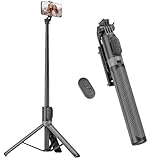
- [Versatile Design] RISEOFLE 71'' Phone Tripod and Selfie Stick combo is the perfect accessory for all your cell phone photography needs.The high-quality aluminum alloy telescopic pole allows you to extend effortlessly and smoothly, and turns into a tripod with just one pull. Its sturdy yet lightweight design provides stability and reliability, ensuring that your phone or camera stays safe during use. Ideal for Selfies/Live/Video Recording/Travel
- [Extra Tall 71" Adjustable Phone Tripod] This selfie stick tripod features a 7-section adjustable aluminum telescoping pole that adjusts from 12.2 in (31 cm) to 70.86 in (180 cm). Provides exceptional flexibility for shooting a variety of shots. Whether you're taking a selfie, a group photo or shooting a video, the adjustable height ensures you get the best angle every time.
- [Compact & Portable Design] The RISEOFLE phone tripod stand With a folded length of only 31cm (12.2 in) and a weight of 264g (0.58 lb), extremely portable and easy to store, it can be effortlessly placed into your backpack or carry-on luggage, making it the perfect companion for your travels. Wherever you go, it allows you to capture amazing footage with ease.
- [360° Rotation & Wide Compatibility] Featuring a 360° rotating phone holder, this selfie stick tripod allows you to easily switch between portrait and landscape modes for the best viewing angle. The universal holder fits smartphones with widths of 2.6''-3.6'' (4''-7'' screen size) and is compatible with most cameras, action cams, and webcams via the 1/4” screw mount (Note: the remote control function only applies to cell phones, the camera cannot use the remote control function).
- [Perfect for Content Creation] Ideal for selfies, vlogging, and social media content creation, the RISEOFLE Tripod comes with a wireless remote control for hassle-free shooting. Whether you're on Instagram, YouTube, TikTok, or Twitter, this phone stand for filming helps you capture professional-quality photos and videos with ease.
Continuity Camera for Mac users
Continuity Camera is the native Apple choice when the computer is a Mac, but it does not solve the Windows use case described in this guide. Apple’s platform distinction is the reason a Windows user needs Camo, DroidCam, iVCam, or another bridge.
Capture cards for advanced creators
A capture-card workflow can work when an iPhone outputs a suitable HDMI signal through compatible adapters, but it is not the simple option for most users. The method adds adapters, a capture card, more cables, power requirements, and possible output, HDCP, latency, or compatibility limitations. It makes sense mainly for creators who already own capture hardware and understand the iPhone’s video-output requirements.
What about EpocCam?
Use caution with older EpocCam instructions. Historical Elgato material and user reports may describe drivers or Camera Hub behavior that does not establish a dependable current iPhone-and-Windows recommendation. Verify current first-party support before basing an important call or stream on EpocCam.
Quick wins for a faster PC:
Scan for outdated or missing drivers - takes under a minuteDriver Scan →Repair Windows errors before they cause bigger problemsFix Now →Fix the driver behind crashes, sound loss and screen glitchesFind Drivers →What is the best final setup for most Windows users?
Use Camo over a direct USB connection, mount the iPhone at eye level, connect power for long sessions, use suitable front lighting, and select a separate headset or microphone for audio. Start with Camo’s free tier if 720p is sufficient; consider Camo Pro only when you need higher-than-720p video or its advanced effects.
Choose Camo over Wi-Fi when cable-free placement matters more than minimum latency. Choose DroidCam when a basic budget workflow and OBS support are more important than a polished interface, while remembering that its free webcam mode is 640×480. Evaluate iVCam only if its Windows-focused workflow suits you and you accept its free-version watermark or plan to pay for a license.
A dedicated webcam becomes the better choice when you need an always-ready camera that does not depend on phone placement, charging, app permissions, battery temperature, or maintaining a second device during every call.
Frequently Asked Questions
Can I use an iPhone as a webcam on Windows without buying a dedicated camera?
Yes. You can use an iPhone as a webcam on Windows without buying a dedicated camera by installing a bridge such as Camo, DroidCam, or iVCam, then connecting the phone by USB or Wi-Fi and selecting the bridge’s virtual camera in your meeting or streaming app. Windows does not provide Apple’s Mac-style Continuity Camera feature natively.
Do these 3 things before closing this tab:
1Fix the driver behind crashes, sound loss and screen glitches2Clear out junk files and repair common Windows errors3Scan for outdated or missing drivers - takes under a minuteCan every iPhone stream 4K to Windows through Camo?
No. Camo’s free tier is limited to 720p or lower, and Camo’s troubleshooting information identifies iPhone 12 and newer for reliable 4K support on iOS. The target meeting or streaming app may impose an additional resolution limit.
Can I use the iPhone camera and a different microphone?
Yes. Select Camo as the video source and choose a headset, USB microphone, or reliable PC microphone separately in the target application. A separate microphone often provides more consistent audio than relying on an unverified phone-audio configuration.
Is USB better than Wi-Fi for using an iPhone as a Windows webcam?
USB is usually better for reliability and latency, especially for live streaming, recording, and long meetings. Wi-Fi is more convenient for cable-free placement but depends on local-network discovery and can be affected by VPNs, guest networks, firewalls, congestion, and weak signals.
The Bottom Line
Bottom line: For most Windows 10 and Windows 11 users, Camo over USB is the dependable way to transform an iPhone into a webcam. Add a stable eye-level mount, power, front lighting, and a separate microphone for the most useful everyday setup. Use Wi-Fi for convenience, DroidCam for a basic budget alternative, and a dedicated webcam when you want a permanently ready camera.

