
iTechGuides is reader-supported. When you buy through links on our site, we may earn an affiliate commission. As an Amazon Associate I earn from qualifying purchases. Learn more
The top five web-accessibility tools are axe DevTools for professional development teams, WAVE for visual page inspection, Accessibility Insights for guided testing, Lighthouse for a fast Chrome-based first pass, and NVDA for real Windows screen-reader testing. No single tool finds every accessibility problem or proves WCAG conformance, so the strongest approach combines automation with manual and assistive-technology testing.
This updated ranking treats “accessibility tools” as website and web-application testing and validation tools. It does not cover general assistive technology, PDF remediation suites, workplace accommodations, or accessibility overlays. The original title refers to 2025, but the product and platform discussion below reflects the August 18, 2026 research checkpoint rather than pretending that software, pricing, or interfaces were frozen in 2025.
Key takeaways
- axe DevTools is the best overall choice for teams that need browser testing, guided checks, issue reporting, and CI/CD integration.
- WAVE is the most approachable option for visually inspecting page structure, headings, landmarks, labels, alternative text, and reading order.
- Accessibility Insights is the strongest free guided-testing option, especially for Chrome, Microsoft Edge, and Windows-focused teams.
- Lighthouse is an excellent built-in first pass in Chrome, but its accessibility score is not a WCAG-conformance percentage.
- NVDA is a free Windows screen reader that tests the user experience automation cannot fully evaluate.
Which accessibility tool is best overall?
axe DevTools is the best overall accessibility tool for professional web-development and QA teams. axe DevTools is purpose-built for accessibility testing and supports browser-based checks, guided testing, reporting, automation, and development or CI/CD workflows. The free developer-facing tools and the broader commercial platform are different offerings, so a free browser extension should not be confused with the full paid product.
Recommended Free Tools
WAVE is the better choice for visual learning, Accessibility Insights is the better free guided option, Lighthouse is the fastest no-install baseline, and NVDA is the essential complement when the question is what a Windows screen-reader user actually experiences. The ranking is an editorial judgment based on coverage across different testing layers, not an independently verified market ranking.
#1 Best Overall

- ⌨【Large Print Keyboard】With letter characters larger than usual and command keys in a larger bolder font, these high-contrast keys can really help those who have trouble seeing keyboards. Perfect for elderly, the visually impaired, schools, special needs departments and libraries, as well as companies.
- ⌨【Spill resistant keyboard】It is designed to keep electronic components of keyboard safe. Water-Resistant function protection against accidental spills provides extra peace of mind. Be sure to air dry completely after spill before further use.
- ⌨【High Contrast】Large print keyboard offers increased visibility with easy to see yellow key caps and crisp large print black letters, Easily seen print, even in low light. With a life cycle of 5 million keystrokes, membrane key switches provide a faster response along with a quieter typing experience.
- ⌨【Ergonomics Design】Unfold the feet at back of the keyboard to reduce hand fatigue and enjoy long hours of playing. Full QWERTY English (US) 104 key keyboard layout with numeric keypad, Large Print keys provides superior comfort without forcing you to relearn how to type.
- ⌨【Wide Compatibility & Lifetime After-Sales Service】Compatible with Windows 10 / 8 / 7 / Vista / XP / 2000 / 98 | Also works with Mac OSX and macOS. Easy to install with plug and play technology | No additional software required.Except for Windows systems, other system hotkeys may not work and are only used for typing
The W3C evaluation-tool directory lists automated checkers, guided testing tools, browser tools, and screen readers as distinct parts of the accessibility-testing ecosystem. That distinction matters: comparing five scanners as if they were interchangeable produces a less useful shortlist.
Top five accessibility tools at a glance
| Tool | Best for | Testing layer | Free availability | Main limitation |
|---|---|---|---|---|
| axe DevTools | Developers, QA teams, agencies, component libraries, and CI/CD | Automated, guided, and workflow-based testing | Free developer tools; broader features may require a paid plan | Automated findings still need human interpretation |
| WAVE | Visual inspection, content teams, educators, and individual pages | Automated checks plus human-assisted inspection | Free online checker and browser extensions; subscription and API options also exist | Cannot decide whether content such as alternative text is meaningful |
| Accessibility Insights | Guided testing and Windows-focused teams | Automated FastPass checks and guided manual assessment | Downloadable and open-source community tools | Public Web product description centers on WCAG 2.1 AA, not blanket WCAG 2.2 coverage |
| Lighthouse | A quick first pass for Chrome developers | High-level automated audit | Built into Chrome DevTools and available as open-source tooling | General audit, not a complete accessibility-testing platform |
| NVDA | Manual screen-reader testing on Windows | Assistive-technology and user-experience testing | Free to download and open source | Windows-only and requires tester training |
How were the five tools selected?
The shortlist prioritizes practical coverage rather than a single score. The selection considers whether a tool supports more than static HTML, helps a human perform manual checks, works with dynamic or private content, fits a developer or QA workflow, and is accessible to teams with different budgets.
| Criterion | Weight | What it measures |
|---|---|---|
| Coverage of testing methods | 25% | How well the tool combines automated, guided manual, structural, or assistive-technology testing |
| Actionability of findings | 20% | Whether results help a tester locate, understand, and fix a problem |
| Ease of use and learning curve | 15% | How quickly a beginner or specialist can use the tool effectively |
| Dynamic and private-content support | 15% | Whether the tool can inspect rendered, authenticated, local, or changing page states |
| Developer and QA workflow integration | 15% | Browser, IDE, automation, CI/CD, reporting, and regression-testing fit |
| Cost and availability | 10% | Free access, open-source availability, paid tiers, and platform requirements |
1. axe DevTools: best overall for development teams
axe DevTools is best for developers, QA teams, agencies, component-library maintainers, and organizations that need repeatable accessibility testing. Deque describes axe-core as an open-source accessibility-testing engine and offers free developer tools alongside the broader axe DevTools product. The official axe DevTools product information describes browser testing, guided tests, automation, reporting, and integrations across development workflows.
Do these 3 things before closing this tab:
1Fix the driver behind crashes, sound loss and screen glitches2Repair Windows errors before they cause bigger problems3Scan for outdated or missing drivers - takes under a minuteWhat does axe DevTools test?
axe DevTools can identify many programmatically detectable issues in rendered pages and component states, such as missing labels, certain contrast failures, invalid ARIA patterns, duplicate IDs, and other rule-based conditions. The tool is more useful than a one-time source scan when a team runs it against real application states, including opened dialogs, expanded menus, validation errors, and dynamically rendered content.
Why choose axe DevTools?
- It is designed specifically for digital accessibility rather than being a general website-quality audit.
- It fits browser-based development, structured issue reporting, and automated or CI/CD workflows.
- Issue explanations and remediation guidance can make findings more actionable for developers.
- It can be used repeatedly against components and application states instead of only against a public homepage.
- It provides a stronger accessibility-specific workflow than Lighthouse alone.
What are axe DevTools’ limitations?
Automated axe results do not establish WCAG conformance. A passing scan cannot determine whether alternative text is accurate, whether a custom widget is usable in context, whether keyboard focus makes sense, or whether a person can complete a task efficiently. Deque itself says that automated testing complements manual testing rather than replacing it.
The free browser experience also should not be treated as the complete commercial platform. Teams may need paid plans for centralized reporting, scale, advanced workflows, or enterprise features. Deque’s statements about coverage, accuracy, or false positives are vendor claims and should be evaluated as such rather than presented as independent test results. Check the official axe DevTools pricing page for current plans; the retrieved research did not show a reliable public dollar price.
How should a team use axe DevTools?
- Run the browser extension against the exact rendered page or component state.
- Review each violation in context and confirm that the finding is genuine.
- Fix the underlying HTML, CSS, component logic, or interaction behavior.
- Retest the same state after remediation.
- Add appropriate axe-based checks to development or CI pipelines to detect regressions.
- Follow the automated pass with keyboard, screen-reader, and task-based testing.
Verdict: Choose axe DevTools when accessibility is part of a professional development or QA process. Choose WAVE or Accessibility Insights instead when the immediate need is visual learning or guided manual testing without a broader commercial workflow.
Free tools Windows power users keep installed
One-click scans. No signup required.
2. WAVE: best for visual inspection and learning
WAVE is best for inspecting individual pages visually and helping content teams, designers, educators, and beginners understand accessibility issues. WAVE combines automated checks with human evaluation support. The WAVE help documentation explains that the tool can expose headings, landmarks, alternative text, reading order, and other structural information while leaving context-sensitive judgments to a person.
Why is WAVE useful for private or dynamic pages?
WAVE’s browser extensions inspect content after scripting has been applied in the browser. That means the extension can evaluate pages that are private, password-protected, on an intranet, or dynamically generated, where a public URL scanner may not be able to reach the relevant content. Browser extensions are available for Chrome, Firefox, and Edge through the official WAVE extension page.
What are WAVE’s strengths?
- Visual annotations make findings easier to connect to elements on the page.
- Structural information helps users understand headings, landmarks, labels, and reading order.
- The browser extension works on the page state currently open in the browser.
- WAVE is suitable for accessibility education and human-assisted content review.
- The free online checker and extensions provide a practical starting point.
What can WAVE not decide?
WAVE cannot determine whether every alternative-text description is accurate, useful, or appropriate in context. WAVE’s documentation explicitly warns that no automated tool checks every WCAG issue. WAVE is also page-oriented rather than a complete organization-wide governance system, and its visual annotations can become crowded on complex applications.
Free online and extension tools should be distinguished from WAVE subscription and API offerings. Current commercial pricing was not visible in the retrieved official material, so readers should verify the current offer directly rather than relying on an old price.
How should a content team use WAVE?
- Open the exact page state in a supported browser and launch the extension.
- Review errors, alerts, structural elements, and contrast indicators.
- Inspect the heading hierarchy, landmarks, labels, alternative text, and reading order.
- Turn off CSS when useful to examine the underlying reading and navigation sequence.
- Manually decide whether descriptions and labels make sense for the page’s purpose.
- Continue with keyboard-only and screen-reader testing.
Verdict: Choose WAVE when seeing the structure of a page is more valuable than receiving a developer-oriented regression report. WAVE is not an accessibility score that proves compliance.
3. Accessibility Insights: best free guided-testing tool
Accessibility Insights is the best free choice when a tester wants instructions and guided manual checks rather than a raw automated report. Accessibility Insights for Web is a browser extension for Chrome and Microsoft Edge, while Accessibility Insights for Windows tests Windows applications. Microsoft’s official Accessibility Insights site describes FastPass, guided assessments, Windows inspection tools, and Color Contrast Analyzer capabilities.
How does Accessibility Insights help beginners?
FastPass provides a quick check for common issues, and the guided assessment features lead testers through manual checks involving keyboard behavior, focus, names, roles, values, and control states. Visual helper features can help locate the reported element in the rendered interface. That combination makes Accessibility Insights more instructional than a report that simply lists failed rules.
Rank #2

- SEE WITH EASE, TYPE WITH CONFIDENCE – Featuring large, bold print, this large font key board makes every character easy to see. A great solution for seniors, students, and visually impaired users who want a more comfortable computer keyboard experience.
- SEE KEYS CLEARLY IN ANY LIGHT – Work day or night with a lighted keyboard for PC that includes 7 colors and 4 brightness levels. This backlit keyboard design ensures the keyboard light up keys stay visible in dim rooms, offices, or late-night study sessions.
- BOOST YOUR PRODUCTIVITY – The full-size 107-key layout includes a number pad and 12 shortcut keys, making this keyboard wired perfect for faster navigation, smoother workflow, and more efficient typing on any project.
- PLUG AND PLAY RELIABILITY – A simple USB keyboard connection delivers instant setup for PC, Chromebook, or as a keyboard for laptop. No software required, just connect this wired keyboard and start typing right away.
- DURABLE AND DEPENDABLE DESIGN – Built to handle daily use, this desktop keyboard is a long-lasting solution for home, office, or shared workspaces. A reliable keyboard designed for comfort and ease of use.
What are Accessibility Insights’ strengths?
- It combines automated checks with guided manual assessment.
- FastPass offers a relatively quick initial pass.
- Visualizations help testers locate elements and understand reported problems.
- The Windows product includes tools such as Inspect and Color Contrast Analyzer.
- The tools are downloadable and presented as open-source community software.
What are its scope limits?
Accessibility Insights for Web is centered on Chrome and the new Microsoft Edge. The public product description states coverage for WCAG 2.1 AA; readers should not casually describe the product as a complete WCAG 2.2 evaluator. The current W3C reference is WCAG 2.2, which W3C also identifies as ISO/IEC 40500:2025. A tool’s stated coverage and the current standard reference are not automatically the same thing.
Guided checks still require a knowledgeable tester. Accessibility Insights does not replace NVDA, VoiceOver, TalkBack, JAWS, or testing with people with disabilities. Teams that need centralized monitoring, broad WCAG 2.2 reporting, or enterprise governance may need a commercial platform or specialist audit.
How should a tester use Accessibility Insights?
- Install Accessibility Insights for Web from the official downloads page.
- Run FastPass for a quick initial check.
- Use visual helper features to locate reported elements.
- Run guided assessments for keyboard access, focus, names, roles, values, and interaction behavior.
- Record issues and retest after remediation.
- Use Accessibility Insights for Windows when the target is a Windows application rather than a website.
Verdict: Choose Accessibility Insights for a low-cost, guided starting point, particularly if the team works mainly in Chrome, Edge, and Windows.
4. Lighthouse: best built-in first pass
Lighthouse is the best zero-friction first check for developers who already use Chrome DevTools. Lighthouse audits accessibility alongside performance, best practices, and SEO. Chrome’s Lighthouse documentation describes a high-level audit that produces scores, findings, and improvement suggestions.
Why start with Lighthouse?
- Lighthouse is available directly in Chrome DevTools.
- The audit is quick to run and familiar to many web developers.
- The tool can catch obvious accessibility problems early in development.
- The accessibility report can establish a useful baseline before deeper testing.
- The basic workflow does not require purchasing a separate accessibility product.
Why is Lighthouse not enough?
Lighthouse is a general-purpose audit, not a complete accessibility-testing solution. Its accessibility score is a prioritization signal, not a percentage of accessibility, a legal finding, or a WCAG-conformance statement. Lighthouse does not test every WCAG success criterion and cannot replace keyboard, visual, screen-reader, or user testing.
Deque states that Lighthouse uses axe-core but does not run the full set of tests available in axe DevTools. That comparison should be understood as a statement from a vendor with a commercial interest in the distinction, not as an independent benchmark.
How do you run a Lighthouse accessibility audit?
- Open the page in Chrome.
- Open Chrome DevTools.
- Select the Lighthouse panel.
- Run an audit with Accessibility selected.
- Review each finding instead of relying only on the overall score.
- Repeat the audit for important states such as open menus, dialogs, logged-in screens, form errors, and mobile layouts.
Results can vary with page state, browser settings, the rendered DOM, and other conditions. An empty Lighthouse report means only that the selected automated rules found nothing; it does not mean the page is accessible.
Verdict: Use Lighthouse on every project as a fast first pass, but pair it with WAVE, Accessibility Insights, axe DevTools, manual keyboard testing, or a screen reader when the page matters.
5. NVDA: best for real screen-reader testing on Windows
NVDA is the best free option in this list for manual Windows screen-reader testing. NVDA is assistive technology, not an automated accessibility scanner. As of the August 18, 2026 research check, the official NVDA download page listed NVDA 2026.1.1 and stated that the current release supports Windows 10 and later. NV Access identifies NVDA as free and open source.
What’s actually slowing this PC down?
Pick the symptom - the matching free tool is one click away.
What can NVDA reveal that scanners miss?
NVDA can reveal confusing announcements, poor focus movement, misleading labels, unusable custom controls, missing status updates, and interactions that are technically present but difficult to understand. NVDA testing is especially important for search, checkout, account creation, navigation, form completion, dialogs, tabs, accordions, carousels, and dynamic validation messages.
What are NVDA’s limitations?
- NVDA is currently a Windows screen reader, so it does not represent every assistive technology or operating system.
- A novice tester may misinterpret announcements without training and practice.
- NVDA results do not automatically generalize to JAWS, VoiceOver, TalkBack, or other screen readers.
- Screen-reader testing does not replace code inspection, automated testing, or keyboard testing.
- Mobile applications require platform-specific testing with VoiceOver, TalkBack, and mobile accessibility tools.
NVDA itself is free to download. NV Access also offers training, support, and paid products or bundles; prices and promotions are volatile, so current offers should be checked before publication or purchase.
What should you test with NVDA?
- Page title, heading navigation, landmarks, and link purpose.
- Form labels, instructions, required states, and error messages.
- Dialog names, focus placement, focus return, and dismissal.
- Live-region announcements and other dynamic status changes.
- Expanded, selected, checked, disabled, and pressed states.
- Whether decorative content is hidden and meaningful content is announced clearly.
Test with the keyboard rather than relying on a mouse, and judge whether a person can complete a real task without visual assumptions. For a broad audience, repeat important tests on another platform, such as VoiceOver on Apple devices or TalkBack on Android.
Verdict: Choose NVDA when the goal is to validate the experience delivered to a screen-reader user. NVDA is complementary to the four inspection tools, not a replacement for them.
The Tool Desk
Outbyte Driver Updater FREEFix the driver behind crashes, sound loss and screen glitchesFind Drivers →Outbyte PC Repair FREEClear out junk files and repair common Windows errorsFree Scan →Which accessibility tool should a beginner use?
A beginner should start with Lighthouse for an immediate baseline, WAVE for visual learning, or Accessibility Insights for guided checks. Lighthouse requires no separate accessibility product, WAVE makes page structure visible, and Accessibility Insights explains how to perform manual assessments.
Rank #3

- 【Large Print Keyboard】- 4X larger than standard keyboard fonts, clear and easy to find, and can really help those who have trouble seeing keyboards. Perfect for elderly, the visually impaired, schools, special needs departments and libraries, etc
- 【White LED Backlight】- Bright and evenly distributed backlit keys, easy typing in lower light environment. Ideal for studio work, office. Backlit can choose to turn on/off and adjust brightness.
- 【Full Size & Ergonomics Design】- Unfold the feet at back of the keyboard to reduce hand fatigue and enjoy long hours of playing. Full QWERTY English (US) 104 key keyboard layout with numeric keypad, Large Print keys provides superior comfort without forcing you to relearn how to type.
- 【Plug and Play & Wide Compatibility】 - This USB keyboard takes away the hassle of power charging or swapping out batteries and is easy to setup. No drivers required.Compatible with Windows 2000/XP/7/8/10, Vista,Raspberry Pi 3/4, Mac OS(Note: Multimedia keys may not fully compatible with Mac, OS System).Works with your PC, laptop.
- 【Spill-proof】- This durable keyboard features a spill-resistant design. So you don't have to worry about spilling coffee and water. Enjoy Keys life of more than 5000W times.
| Beginner need | Recommended starting point | Why |
|---|---|---|
| Fastest first check | Lighthouse | Available in Chrome DevTools |
| Understand page structure | WAVE | Visual annotations expose headings, landmarks, labels, and related findings |
| Learn guided manual testing | Accessibility Insights | FastPass and guided assessments provide more direction |
| Experience a screen-reader journey | NVDA | Provides actual assistive-technology feedback on Windows |
A beginner does not usually need a large enterprise platform at the start. A small number of pages, a browser extension, keyboard testing, and a screen reader can expose more useful problems than an expensive dashboard used only for occasional scans.
Which accessibility tool is best for developers?
axe DevTools is the strongest developer choice when the team needs dedicated accessibility testing, component coverage, structured issue handling, and CI/CD integration. Lighthouse remains useful for a quick baseline, while WAVE or Accessibility Insights can help investigate structure and manual behavior.
Developers should test the rendered application rather than only the initial HTML source. Modern web applications may contain client-side routes, dialogs, autocomplete fields, custom dropdowns, lazy-loaded content, infinite scrolling, and dynamically updated status messages. A scan of the landing page cannot validate every state.
Quick wins for a faster PC:
Fix the driver behind crashes, sound loss and screen glitchesFind Drivers →Repair Windows errors before they cause bigger problemsFix Now →Scan for outdated or missing drivers - takes under a minuteDriver Scan →What is the best low-cost accessibility stack for a small business?
A practical low-cost stack is Lighthouse, WAVE, Accessibility Insights, keyboard-only testing, and NVDA on Windows. The combination covers automated first-pass checks, visual and structural inspection, guided manual assessment, keyboard behavior, and screen-reader experience without assuming that an overlay or a single score proves accessibility.
- Run Lighthouse on important templates and workflows.
- Use WAVE on rendered public, private, and authenticated pages.
- Use Accessibility Insights for guided checks and clearer manual-test instructions.
- Navigate every important task with only a keyboard.
- Use NVDA to test important Windows screen-reader journeys.
- Bring in an accessibility specialist or users with disabilities when the product is complex, high-risk, or business-critical.
What is the right accessibility-testing workflow?
The right workflow has five passes: automated scanning, visual and structural inspection, keyboard testing, screen-reader testing, and retesting after fixes. The passes should be applied to the exact states and tasks that users need, not just to a static homepage.
Pass 1: Run an automated scan
Use Lighthouse, axe DevTools, or WAVE on the rendered page state. The expected result is a list of potential issues, affected elements, and remediation suggestions. If the report is empty, continue anyway: an empty automated result does not prove that the page is accessible.
Pass 2: Inspect visually and structurally
Use WAVE or Accessibility Insights to inspect heading hierarchy, landmarks, alternative text, form labels, contrast indications, reading order, hidden or duplicated content, and focus-related issues. The expected result is a human-readable map of the page’s structure and likely trouble spots.
Pass 3: Test with only the keyboard
Confirm that every interactive element can receive focus, that focus is visible, and that focus moves in a logical order. Open and close menus, dialogs, accordions, tabs, carousels, and overlays. Check that modal focus is managed appropriately, that users can escape overlays, and that no keyboard trap exists. The expected result is that every important task can be completed without a mouse.
Pass 4: Test with NVDA or another screen reader
Check the page title, headings, landmarks, link purpose, form labels, instructions, error messages, live-region announcements, dialog names, focus behavior, and state changes such as expanded, selected, checked, and disabled. Confirm that decorative content is not unnecessarily announced and that a user can complete the task without relying on visual context.
Pass 5: Retest after fixes
Run automated tools again after changes, but repeat manual checks too. A fix can create a new focus-order problem, hide a label, break a dynamic announcement, or alter the visual and structural relationship between controls and content.
What do accessibility tools actually test?
Accessibility tools test different layers of a website, and no one layer is sufficient.
PC Slower Than It Used to Be?
A free scan shows the junk files, broken settings and background clutter dragging Windows down - then fixes them in one click.Free scan · Windows 10 & 11Outdated Drivers Are Slowing You Down
One free scan finds every outdated or missing driver and matches the right update for your exact hardware.Free scan · exact hardware match| Testing layer | What it can reveal | What it cannot reliably prove |
|---|---|---|
| Automated rules | Missing labels, some contrast failures, missing alternative text, invalid ARIA patterns, duplicate IDs, and other detectable conditions | Whether descriptions are meaningful, whether a task is usable, or whether every WCAG criterion is satisfied |
| Guided manual checks | Focus visibility, keyboard behavior, names, roles, values, states, and interaction patterns | Whether every real user can complete every task efficiently |
| Assistive-technology testing | What a screen-reader user hears, how focus and navigation behave, and whether controls announce useful states | All other screen readers, platforms, disabilities, or every possible user journey |
| Human usability testing | Whether people with disabilities can complete real tasks accurately and efficiently | A complete technical inspection of source code and every page state |
Can an accessibility checker guarantee WCAG compliance?
No accessibility checker can guarantee WCAG compliance. Automated tools identify many programmatically detectable problems, but they cannot decide every context-sensitive issue. WAVE explicitly explains that automated tools cannot check every WCAG issue and that humans must evaluate questions such as whether alternative text is appropriate.
Use WCAG 2.2 as the current technical reference, while checking each product’s stated version and testing method. Passing an automated scan is not the same as a WCAG conformance assessment, legal compliance, or proven usability by people with disabilities.
Independent reader supportYour contribution helps us test, update, and keep practical guides available for everyone.What should you test beyond the homepage?
Test dynamic states, authenticated workflows, custom widgets, and high-value user tasks beyond the homepage. Important states include opened menus, dialogs, validation errors, autocomplete results, infinite-scroll content, single-page-application route changes, logged-in screens, and mobile layouts.
Rank #4
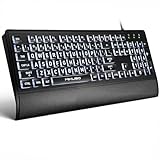
- LIGHT UP LARGE KEY KEYBOARD: Large print backlit Keyboard features an oversized font design, clear and easy to find, 4X larger than standard keyboard fonts,it can really help those who have trouble seeing keyboards. reduce typing errors, ideal for seniors, students, office workers, and those with visual impairments
- WHITE LED BACKLIT KEYBOARD: The wired keyboard features a white backlight design. Bright and evenly distributed light up keys, easy typing in lower light environment.You can open/close it with just one click according to your needs, which is very Simple operation(Please note: The white backlight cannot be turned off when the computer is in standby mode and locked. Only when the computer is turned off can the backlight be turned off.)
- ERGONOMIC DESIGN WITH WRIST REST: Full size keyboard features quick rebound keys,reduce hand fatigue,It also provides you with a foldable tripod and wrist support during use. Full size QWERTY English (US) 104 key keyboard layout with numeric keypad,Suitable for the office,work. Keyboard size: 17.67 x7.48 x 1 inch
- CONVENIENT FN MULTIMEDIA SHORTCUTS:Equipped with 12 FN+key combinations, this keyboard provides quick access to volume control, mute, media playback, email, homepage, and more. With just one press, you can handle essential tasks faster and keep your workflow smooth.
- KEYBOARD WITH COVER: This computer keyboards is equipped with original cover, which not only prevents splashing water and coffee, but also extends the service life of the keys, Suit for office snacking, pet shedding, work shop production, warehouse management,and other occasions.Prevent dust from entering through gaps and keep the keyboard clean
Custom widgets
Automated tools may find missing roles or labels, but they cannot reliably determine whether a custom dropdown, tab set, date picker, carousel, or combobox behaves naturally. Use the keyboard and a screen reader to test operation, focus, announcements, and state changes.
Recommended Free Tools
Canvas, charts, maps, and visual editors
Canvas-based interfaces, charts, maps, and visual editors need semantic alternatives, keyboard interaction, textual summaries or data tables where appropriate, and task-based testing. A conventional scanner may report little even when the experience is unusable.
Color contrast
A contrast result does not prove readability in every state. Check text size, font weight, hover and focus states, disabled states, images of text, gradients, overlays, and content displayed over changing backgrounds.
Alternative text
A tool can often identify missing, empty, or suspicious alternative text, but only a person can reliably determine whether an image description is accurate and useful in context. The purpose of the image and the surrounding content determine what an appropriate description should communicate.
Can these tools test mobile apps and PDFs?
These five tools are primarily for websites and web applications, so they do not by themselves validate native mobile apps or PDFs. Mobile apps need platform-specific testing with VoiceOver, TalkBack, iOS accessibility tools, Android accessibility tools, and suitable mobile testing products. Desktop browser testing cannot prove that a native iOS or Android app works correctly.
PDF testing also requires document-specific checks, including tagging, reading order, language, bookmarks, table structure, form fields, and keyboard operation. Some commercial accessibility platforms support document testing, but the five tools in this article should not be marketed as a complete PDF-remediation solution.
When should you pay for a platform or specialist audit?
Pay for a broader platform, training, or specialist audit when the product is large, high-risk, complex, or important enough that scan output alone is insufficient. A commercial platform may be justified by centralized reporting, monitoring, workflow integration, large numbers of pages, CI/CD requirements, cross-team ownership, or procurement documentation.
| Need | Most suitable direction | Why |
|---|---|---|
| Occasional checks on a small site | Lighthouse, WAVE, Accessibility Insights, keyboard testing, and NVDA | Low-cost coverage across several testing layers |
| Developer and CI regression testing | axe DevTools or axe-core-based tooling | Dedicated rules and development workflow integration |
| Organization-wide monitoring and governance | Enterprise platform such as Siteimprove or a comparable service | Dashboards, ownership, reporting, and broader governance features |
| Cross-browser and device QA infrastructure | Accessibility testing integrated with a service such as BrowserStack | Useful when broader browser and device coverage is the priority |
| Complex or high-risk product | Specialist accessibility audit plus user testing | Expert judgment and task-based evidence beyond automated rules |
| Build-your-own developer workflow | Pa11y or the open-source axe-core engine | Flexible automation for teams willing to manage their own tooling |
Pricing and availability change by geography, currency, billing period, seat limits, page limits, and plan. Deque exposes a pricing page but the retrieved material did not provide a reliable public dollar amount. WAVE offers free tools plus subscription and API products. Accessibility Insights and Lighthouse are downloadable or open-source-oriented tools rather than conventional paid subscriptions. NVDA is free to download, while NV Access offers paid training, support, and bundles.
Why should you avoid accessibility overlays as a substitute for testing?
An accessibility overlay should not be treated as a substitute for fixing the site, performing manual testing, or testing with disabled users. An overlay is a separate and contested product category, not one of the five testing tools ranked here. Claims such as “ADA-compliant with one click,” “guaranteed WCAG compliance,” “the scanner finds every violation,” or “an accessibility score proves compliance” overstate what automated software can establish.
Do these 3 things before closing this tab:
1Clear out junk files and repair common Windows errors2Fix the driver behind crashes, sound loss and screen glitches3Repair Windows errors before they cause bigger problemsTechnical testing, WCAG conformance assessment, legal compliance, and usability by people with disabilities are related but different outcomes. Legal questions also depend on jurisdiction and should not be answered by a software score.
Recommended tool stacks by reader type
| Reader or team | Recommended stack | Reason |
|---|---|---|
| Beginner | Lighthouse + WAVE + keyboard testing | Simple first pass, visual learning, and a basic manual check |
| Developer | axe DevTools + Lighthouse + keyboard testing | Dedicated accessibility workflow plus a fast built-in baseline |
| Microsoft or Windows team | Accessibility Insights + axe DevTools + NVDA | Guided Web and Windows checks plus screen-reader validation |
| Content team | WAVE + Accessibility Insights | Page structure and guided review without requiring an enterprise platform |
| Professional QA program | axe DevTools or another enterprise platform + manual audit + screen-reader testing | Regression detection combined with expert and user-oriented validation |
| Small business | Lighthouse + WAVE + Accessibility Insights + keyboard testing + NVDA | Broad coverage without assuming that a paid overlay or one scanner proves accessibility |
Frequently Asked Questions
Are accessibility checkers accurate?
Accessibility checkers are useful for finding many programmatically detectable problems, but they are not complete. Automated results still require human review, keyboard testing, screen-reader testing, and task-based evaluation because tools cannot reliably judge every context-sensitive issue.
Is Lighthouse enough for accessibility testing?
Lighthouse is not enough for complete accessibility testing. Lighthouse is an excellent Chrome-based first pass, but its score is not a WCAG-conformance percentage and it does not replace manual, screen-reader, or user testing.
Which accessibility tool is free?
Lighthouse is built into Chrome DevTools, WAVE offers a free online checker and browser extensions, Accessibility Insights provides downloadable open-source-oriented tools, and NVDA is free to download. axe also has free developer-facing tools, while broader axe DevTools features may require a paid plan.
Do I need a screen reader to test website accessibility?
You should use a screen reader for important websites and workflows because screen-reader testing reveals announcements, focus behavior, labels, states, and interaction problems that automated tools may miss. NVDA is a strong free Windows option, but NVDA results do not represent every screen reader or platform.
Can these tools test mobile apps or PDFs?
These tools are primarily designed for websites and web applications. Native mobile apps require platform-specific testing with VoiceOver, TalkBack, and mobile accessibility tools, while PDFs require document-specific checks such as tagging, reading order, language, bookmarks, tables, and form fields.
The Bottom Line
Bottom line: Start with Lighthouse if you need an immediate check, use WAVE or Accessibility Insights to understand and manually inspect the page, adopt axe DevTools when accessibility needs to become part of a professional development workflow, and use NVDA to test the experience from a screen-reader user’s perspective. The most trustworthy result comes from combining all relevant layers—not from a single score or automated pass.
Quick Recap
Product prices and availability are accurate as of the date/time indicated and are subject to change. Any price and availability information displayed on Amazon at the time of purchase will apply.

