
iTechGuides is reader-supported. When you buy through links on our site, we may earn an affiliate commission. As an Amazon Associate I earn from qualifying purchases. Learn more
The reason why your games keep crashing on Windows 11 is usually not one universal Windows setting: the cause is more often a game installation, graphics driver, overlay, Windows component, unstable hardware setting, overheating, power problem, or failing component. The correct fix depends on whether one game crashes, every game crashes, or Windows itself crashes.
Use the symptom and scope of the failure to choose the least destructive test. A game that closes to the desktop needs a different investigation from a black screen, full reboot, or blue screen.
Key takeaways
- A single game crashing usually points first to its files, mods, configuration, launcher, anti-cheat system, graphics API, or a game-specific bug.
- Several unrelated games crashing while Windows remains stable makes the graphics driver, overlays, tuning settings, RAM, temperatures, and power more important suspects.
- A black screen, unexpected reboot, or blue screen indicates a system, driver, or hardware-stability problem rather than merely a damaged game installation.
- Windows 11 installs recommended drivers through Windows Update, while optional driver updates require manual selection under Settings > Windows Update > Advanced options > Optional updates.
- DISM and SFC repair Windows components and protected system files; they do not repair a defective GPU, unstable RAM, overheating, or arbitrary game files.
What kind of crash is happening?
The fastest way to narrow down why games keep crashing on Windows 11 is to classify the visible failure before changing settings. Record the game, when the crash occurs, the exact error message, whether audio continues, and whether Windows remains responsive.
The Tool Desk
Outbyte PC Repair FREEClear out junk files and repair common Windows errorsFree Scan →Outbyte Driver Updater FREEFix the driver behind crashes, sound loss and screen glitchesFind Drivers →| Symptom | Investigate first | What the symptom suggests |
|---|---|---|
| Game closes to the desktop without a message | Game files, mods, overlays, driver, RAM, or a game bug | An application-level failure is more likely than a complete system failure. |
| Crash occurs immediately at launch | Launcher, missing runtime, anti-cheat, permissions, corrupted files, driver, or graphics API | The game may fail before rendering a scene. |
| Crash occurs while compiling shaders or entering a new area | Driver, shader cache, DX12/Vulkan, GPU instability, or a game patch | The failure may occur when a new rendering workload is submitted. |
| Black screen while audio continues | Display driver, GPU timeout, cable, display mode, or GPU instability | The game may still be running while the graphics stack has stopped responding. |
| The whole PC reboots | Power, thermals, RAM, CPU/GPU tuning, firmware, kernel driver, or hardware | A game-file repair is unlikely to fix the underlying problem. |
| Blue screen | Driver, RAM, storage, kernel software, or hardware | Record the stop code and any named driver or module. |
DXGI_ERROR_DEVICE_HUNG or DEVICE_REMOVED |
GPU timeout or reset, driver, game/API, overclock, temperatures, power, or hardware | The error is a clue about the graphics path, not automatic proof that the GPU is defective. |
| Only borderless or windowed mode crashes | Windowed-game optimization, Auto HDR, VRR, overlays, or presentation mode | Fullscreen and borderless modes use different display paths. |
| Crashes began after an update | Rollback or clean reinstall of the changed driver or update | The newest version is not always the most stable version for every game and system. |
| Every game crashes after several minutes | Heat, power, RAM stability, GPU driver, or hardware | Sustained load is exposing a system-wide problem. |
| Only one modded title crashes | Remove mods, injectors, ReShade, and trainers | The clean, unmodified game is the correct baseline. |
Is one game crashing or does every game crash?
The number of affected games is one of the most useful diagnostic clues. A single title usually has a local problem; widespread crashes require system-level testing.
Popular on Amazon
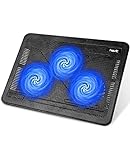
- Ultra-Portable: Slim, portable, and light weight allowing you to protect your investment wherever you go
- Ergonomic Comfort: Doubles as an ergonomic stand with two adjustable height settings
- Optimized for Laptop Carrying: The metal mesh provides your laptop with a stable laptop carrying surface
- Ultra-Quiet Fans: Three ultra-quiet fans create a noise-free environment for you
- Extra Usb Ports: Extra USB port and power switch design allows for connecting more USB devices. Warm Tips: The packaged cable is USB to USB connection. Type C connection devices need to prepare an Type C to USB adapter
| Scope | Most likely causes | Best starting point |
|---|---|---|
| One game only | Corrupted files, mods, configuration, shaders, anti-cheat, launcher, API incompatibility, or a known game bug | Remove modifications, verify files, reset settings, and check the publisher’s support page. |
| Several games, but Windows stays stable | GPU driver, overlays, monitoring tools, tuning, RAM, temperature, or power | Return hardware to stock, disable background tools, and test the graphics driver. |
| Games cause black screens, reboots, or blue screens | Display driver, kernel software, RAM, storage, thermals, power, or failing hardware | Record evidence and perform system and hardware diagnostics instead of repeatedly reinstalling games. |
What changed immediately before the crashes began?
The first change before the first crash often determines whether updating, rolling back, or undoing a setting is the right move. Check whether the problem followed a Windows update, GPU or chipset-driver update, BIOS update, new game patch, mod, overlay, second monitor, HDR display, VR headset, docking station, SSD, RAM kit, GPU, motherboard, or power supply.
Also check whether you enabled XMP or EXPO, PBO, an overclock, an undervolt, a custom fan curve, DX12, Vulkan, HDR, or variable refresh rate. If the crashes started immediately after a change, reverse that change before adding more variables. Windows Insider or preview builds deserve separate suspicion because preview software can contain regressions that are not present on the ordinary stable channel.
What should you do before changing advanced settings?
Establish a safe baseline before editing the registry, updating firmware, or reinstalling Windows. A baseline makes each test meaningful and provides a recovery path.
Recommended Free Tools
- Restart Windows and save or back up important files and game saves.
- Return CPU, GPU, and RAM settings to stock. Temporarily disable XMP or EXPO if crashes began after enabling the memory profile.
- Close overlays, recording tools, RGB utilities, hardware monitors, frame-limiters, and tuning applications.
- Test one affected game with its default graphics settings and a clean, unmodified installation.
- Write down the game, crash timing, error message, Windows edition and build, GPU model, driver version, and whether the complete PC remains usable.
Do not begin with registry edits that increase the graphics timeout, permanent security-feature changes, or random driver-updater utilities. A longer timeout can hide instability without repairing the game, driver, power delivery, temperature problem, or GPU.
How do you fix one game that keeps crashing?
For a single affected game, start with the game’s own installation and configuration because Windows-wide repairs are disproportionate at this stage.
- Remove mods and injectors. Disable mods, ReShade, trainers, unofficial DLLs, and performance injectors. Test a clean installation.
- Verify the game files. Use the verification or repair command in Steam, Epic Games, Ubisoft Connect, EA App, or the relevant launcher. Verification can replace damaged or missing game data; verification cannot repair unstable RAM, overheating, a failing GPU, or a bad power supply.
- Reset the configuration. Use the game’s supported reset option or rename its configuration folder after backing up settings and saves. A corrupt graphics setting can prevent launch.
- Rebuild the shader cache when appropriate. Use the launcher’s or game’s supported shader-cache option. Rebuilding can resolve a damaged cache, but the first launches may stutter while shaders compile again.
- Test another supported graphics API. If the title officially supports both DX11 and DX12, test DX11 instead of DX12, or the reverse. Treat the result as a diagnostic experiment and possible workaround, not proof that Windows 11 is defective.
- Disable the game’s overlay and anti-cheat conflicts. Use the publisher’s repair or reinstall procedure for its anti-cheat component rather than downloading replacement files from an unofficial site.
- Check the publisher’s support page and patch notes. A reproducible crash in one title may be a game bug that requires a patch; no local reinstall can repair a defect in the game itself.
Reinstall the game only after file verification, configuration reset, modification removal, and supported repair options fail. Reinstalling first consumes time while leaving drivers, RAM, temperatures, and power completely untested.
How should you update or roll back the graphics driver?
Update the graphics driver when the driver is old or a game’s current patch requires a fix, but roll back when the crashes began immediately after a driver update. A newer driver is not automatically the best driver for every GPU, game, API, Windows build, or laptop design.
Check Windows and optional drivers
- Open Settings > Windows Update.
- Select Check for updates.
- Open Advanced options > Optional updates.
- Install relevant chipset, display, audio, or system-device drivers when appropriate, then restart.
Microsoft states that Windows 11 installs recommended drivers through Windows Update, while optional driver updates are not installed automatically. Read Microsoft’s guidance on recommended and optional driver updates before selecting optional packages.
Use the correct graphics-driver source
Download a GPU driver from the manufacturer rather than from a generic driver-updater program. Use the official NVIDIA driver portal, official AMD driver page, or official Intel Download Center. On a laptop, compare the GPU vendor’s package with the laptop manufacturer’s support page; an OEM driver may include power management, display switching, or firmware integration that a generic package does not.
When is a clean reinstall justified?
Try the graphics installer’s official clean-install or factory-reset option first. If a normal update or rollback does not help, a Safe Mode display-driver removal procedure can be an escalation, not a Microsoft requirement. Use the removal utility’s official documentation, install only necessary driver components initially, and test the game before restoring overlays, capture software, or tuning utilities.
If the display becomes unusable after removal, boot into Safe Mode and install a supported driver. If the new driver is worse, reinstall the previous known-good version. Microsoft’s Windows driver guidance directs users toward supported hardware-vendor drivers when Windows Update does not provide an adequate package.
Quick wins for a faster PC:
Scan for outdated or missing drivers - takes under a minuteDriver Scan →Repair Windows errors before they cause bigger problemsFix Now →Also popular on Amazon

- 9 Super Cooling Fans: The 9-core laptop cooling pad can efficiently cool your laptop down, this laptop cooler has the air vent in the top and bottom of the case, you can set different modes for the cooling fans.
- Ergonomic comfort: The gaming laptop cooling pad provides 8 heights adjustment to choose.You can adjust the suitable angle by your needs to relieve the fatigue of the back and neck effectively.
- LCD Display: The LCD of cooler pad readout shows your current fan speed.simple and intuitive.you can easily control the RGB lights and fan speed by touching the buttons.
- 10 RGB Light Modes: The RGB lights of the cooling laptop pad are pretty and it has many lighting options which can get you cool game atmosphere.you can press the botton 2-3 seconds to turn on/off the light.
- Whisper Quiet: The 9 fans of the laptop cooling stand are all added with capacitor components to reduce working noise. the gaming laptop cooler is almost quiet enough not to notice even on max setting.
Can Windows 11 graphics settings cause game crashes?
Windows 11 graphics features can affect particular games and display modes, so test them per game rather than enabling or disabling them universally.
Open Settings > System > Display > Graphics, select the game, choose Options, and test the available settings:
- Select High performance on a laptop or desktop with multiple GPUs to test whether Windows chose the wrong GPU.
- Toggle Optimizations for windowed games when a DX10 or DX11 game crashes only in windowed or borderless mode.
- Test with Auto HDR disabled for the affected title if the problem began with HDR or borderless presentation.
- Temporarily disable HDR and variable refresh rate to isolate display-pipeline conflicts.
- Compare exclusive fullscreen with borderless mode. If only one mode fails, the presentation path, overlay, HDR, VRR, or windowed optimization becomes more likely.
Microsoft documents these per-game controls in its guide to optimizations for windowed games in Windows 11 and notes that Auto HDR can automatically enable windowed-game optimizations. On hybrid-graphics laptops, an external monitor may be wired to a different GPU from the internal panel, so changing the display connection can change the symptom.
For an old game, compatibility mode, legacy runtimes, old launchers, unsupported resolutions, or outdated DRM may matter more than the latest GPU driver. Use the publisher’s supported compatibility instructions where available.
Could an overlay or background application be the cause?
Overlays and background utilities can inject into the game’s rendering or input path. Temporarily disable Xbox Game Bar and Windows capture features, Steam, Epic, Ubisoft, EA, Discord, NVIDIA, and AMD overlays; instant replay; GPU recording; MSI Afterburner or RivaTuner-style monitoring; RGB and motherboard-control software; third-party antivirus; browser hardware acceleration; mods; and tuning utilities.
Disable one group at a time when possible so the result is informative. Disabling every overlay can remove useful recording or monitoring features, so re-enable tools individually after stability returns.
How do you perform a clean boot in Windows 11?
A clean boot temporarily prevents selected third-party services and startup programs from loading. Microsoft’s procedure uses the built-in System Configuration tool to determine whether an application or service interferes with a program.
- Sign in with an administrator account.
- Search for
msconfigand open System Configuration. - On the Services tab, select Hide all Microsoft services, then select Disable all.
- Open the Startup tab and choose Open Task Manager.
- Disable enabled startup items.
- Restart and test the affected game.
- If the crash stops, re-enable services and startup items systematically until the conflicting program is identified.
- Restore normal startup afterward by opening System Configuration and selecting normal startup, then re-enabling the required services and startup programs.
Follow Microsoft’s clean-boot procedure precisely. Clean boot temporarily removes functionality; it is an isolation test, not a permanent gaming configuration.
Do these 3 things before closing this tab:
1Clear out junk files and repair common Windows errors2Fix the driver behind crashes, sound loss and screen glitches3Repair Windows errors before they cause bigger problemsCan corrupted Windows files cause games to crash?
Damaged Windows components can contribute to widespread crashes, especially when Windows itself began behaving abnormally after an update. Run the following commands from an elevated Command Prompt, in this order:
DISM.exe /Online /Cleanup-image /Restorehealth
sfc /scannow
Open Command Prompt as administrator, run DISM, wait for it to finish, then run SFC and wait until SFC reaches 100 percent. Microsoft explains in its DISM and System File Checker guidance that DISM repairs the Windows image and SFC checks protected system files.
| Result | Meaning and next action |
|---|---|
| No integrity violations | Windows file corruption is less likely; continue with driver, software-conflict, and hardware tests. |
| Corruption repaired | Restart Windows and retest the game before making another change. |
| SFC cannot repair some files | Run DISM first if you did not, rerun SFC, and then consider Safe Mode or Windows recovery options. |
| DISM fails | Investigate Windows Update, use a valid repair source, or escalate to an in-place repair. |
DISM and SFC cannot repair a defective GPU, unstable memory, overheating, inadequate power, or a corrupt game installation. Use Microsoft’s Windows Update troubleshooting guidance if the repair commands fail because the component source or update system is damaged.
Also popular on Amazon

- Dual USB Hub: With a built-in dual USB hub, the laptop fan enables you to connect additional USB devices to your laptop, providing extra connectivity options for your peripherals. Warm tips: The packaged cable is a USB-to-USB connection. Type C connection devices require a Type C to USB adapter. Please plug the cooling pad's USB cable into a 5V 1A adapter for best performance; otherwise, the fans may fail to spin or run at very low speed.
- Whisper-Quiet Operation: Enjoy a noise-free and interference-free environment with super quiet fans, allowing you to focus on your work or entertainment without distractions.
- Enhanced Cooling Performance: The laptop cooling pad features 5 built-in fans (big fan: 4.72-inch, small fans: 2.76-inch), all with blue LEDs. 2 On/Off switches enable simultaneous control of all 5 fans and LEDs. Simply press the switch to select 1 fan working, 4 fans working, or all 5 working together.
- Ergonomic Design: The laptop cooling stand also serves as an ergonomic stand, offering 6 adjustable height settings that enable you to customize the angle for optimal comfort during gaming, movie watching, or working for extended periods. Ideal gift for both the back-to-school season and Father's Day.
- Secure and Universal Compatibility: Designed with 2 stoppers on the front surface, this laptop cooler prevents laptops from slipping and keeps 12-17 inch laptops—including Apple Macbook Pro Air, HP, Alienware, Dell, ASUS, and more—cool and secure during use.
How can you tell whether a graphics timeout is involved?
Windows uses Timeout Detection and Recovery, or TDR, to detect when the GPU takes too long to complete work and attempt a graphics-driver recovery. A TDR event can appear as a frozen display, black screen, driver reset, game crash, or a game error such as DEVICE_REMOVED. Microsoft describes this behavior in its Timeout Detection and Recovery documentation.
What’s actually slowing this PC down?
Pick the symptom - the matching free tool is one click away.
A TDR does not automatically mean the GPU is dying. The trigger can be the game, graphics API, driver, overclock, undervolt, temperature, power delivery, defective GPU, or another unstable component. If an event names nvlddmkm, amdkmdag, amdwddmg, igdkmdn, dxgkrnl, or another display component, treat the name as a clue about where Windows detected the failure, not conclusive proof of the original cause.
For a temporary display failure, press Windows + Ctrl + Shift + B. Microsoft documents this shortcut for certain blank-screen and display-driver situations. The shortcut may restore the display, but it does not fix the underlying driver, temperature, power, or hardware problem.
Where should you look for crash evidence?
Evidence is more useful than repeatedly applying unrelated fixes. Check the following immediately after reproducing the crash:
- Reliability Monitor: Search Windows for “Reliability Monitor” and review application failures, hardware errors, Windows failures, and
LiveKernelEvententries on the date and time of the crash. - Event Viewer: Open Event Viewer and inspect Windows Logs > Application and Windows Logs > System around the event. Look for display-driver resets, unexpected shutdowns, disk errors, or named modules.
- Game and launcher logs: Save the relevant crash dump or log before reinstalling the game.
- Blue-screen evidence: Record the stop code, named driver, and whether the system entered Safe Mode successfully.
- Physical behavior: Note whether the monitor loses signal, audio continues, fans suddenly accelerate, the PC reboots, or the system remains responsive.
Microsoft’s guidance for unexpected restarts and stop-code errors covers drivers, Safe Mode, memory testing, hardware changes, and Windows 11 stop-code behavior. A driver name in a crash record is evidence to investigate, not permission to blame that driver without testing.
When should you test RAM, temperatures, storage, and power?
Move to hardware diagnostics when several unrelated games fail, crashes occur only after sustained load, the PC reboots or loses display signal, clean driver installation does not help, or Windows reports memory-management, page-fault, disk, or other hardware-related stop codes.
RAM and memory profiles
- Temporarily disable XMP or EXPO and retest at default memory settings.
- If practical, test one memory module at a time and use Windows Memory Diagnostic or a reputable bootable memory test.
- Do not treat one clean pass as proof of long-term stability if failures are intermittent.
Temperatures and clock stability
Monitor CPU temperature, GPU temperature, GPU hotspot temperature where available, clock behavior, and power limits while reproducing the crash. Test at stock settings. Check dust, blocked laptop vents, failed fans, pump problems, and poor thermal contact. Do not apply one universal “safe” temperature number: limits vary by component and firmware.
Storage health
Confirm that the game drive has free space and check its health with the SSD or hard-drive manufacturer’s utility. Repeated file corruption, disk errors, or health warnings make storage a serious suspect. Back up important files before attempting repairs on a failing drive.
Microsoft documents chkdsk /f C: as a disk-repair example. The command can require a restart, and Microsoft’s Windows troubleshooting documentation provides related repair guidance. Do not use CHKDSK casually as a substitute for backing up a failing drive or diagnosing its health.
PC Slower Than It Used to Be?
A free scan shows the junk files, broken settings and background clutter dragging Windows down - then fixes them in one click.Free scan · Windows 10 & 11Crashes, No Sound, or Screen Glitches?
Random freezes, missing sound and display glitches usually trace back to one bad driver. Find and replace yours safely.Free scan · under a minutePower delivery
Verify that the PSU is adequate for the GPU and that GPU power connectors are fully seated. For a recently installed GPU, follow the manufacturer’s connector, adapter, and cable-routing instructions. A sudden reboot under load points more strongly toward power, firmware, thermals, or hardware instability than a corrupt game file.
Independent reader supportYour contribution helps us test, update, and keep practical guides available for everyone.What should laptop users with hybrid graphics check?
A laptop with integrated and discrete graphics can launch a game on the power-saving GPU instead of the intended high-performance GPU. Open Settings > System > Display > Graphics, select the game, choose Options, select High performance, save, and restart the game.
Also popular on Amazon

- SMART COOLING — From idle to full load, keep the laptop running smoothly with our first laptop cooling pad that changes fan speeds automatically to manage system temperatures based on the settings
- AIRTIGHT PRESSURE CHAMBER — Included foam seals ensure no cool air leakage and works in tandem with a long lifespan 140 mm brushless fan that spins up to 3000 RPM to significantly reduce CPU, GPU, and surface temperatures
- WORKS WITH MOST LAPTOPS — Whether you've got an ultra-portable 14″ laptop or an 18″ powerhouse, choose between three magnetic frames that maximize cool air pressure and circulation
- PRESET & CUSTOM FAN CURVES — Keep the system cool in any scenario with our recommended presets or calibrate the fan to adjust for noise level or desired internal temperature via Razer Synapse
- 3-PORT USB TYPE A HUB — From webcams to controllers to drawing tablets, plug in more devices to the laptop without solely relying on its native USB ports
Also test the laptop manufacturer’s performance mode, AC power connection, OEM chipset and graphics drivers, and external-monitor configuration. An external display can be connected to a different GPU path from the internal panel, so a crash that appears only with a dock or second monitor may be a display-routing or driver interaction rather than a failing game.
When is Windows recovery appropriate?
Use Windows recovery only after the evidence points to a recent Windows change or damaged installation and lower-risk tests have failed. If Windows provides the option, uninstall a problematic update or use System Restore with a restore point from before the crashes.
Microsoft’s Windows recovery guidance distinguishes System Restore, reset, and reinstall options. Back up important data before using a more destructive option. Reset this PC — Keep my files removes applications and settings and can leave a hardware fault unresolved, so resetting Windows solely because one game crashes is not a first-line fix.
What is the correct troubleshooting order?
The following decision tree keeps the process focused and makes each result meaningful.
If one game crashes
- Remove mods, injectors, and unofficial files.
- Verify the game installation.
- Reset graphics settings and configuration.
- Test another supported API and display mode.
- Disable that game’s overlays, HDR, and windowed-game optimization as controlled tests.
- Check the publisher’s support page, issue tracker, and current patch notes.
- Reinstall only if the earlier steps fail.
If most or all games crash
- Return CPU, GPU, and RAM tuning to stock.
- Update or roll back the graphics driver, then perform a clean reinstall if needed.
- Disable overlays, monitoring utilities, recording tools, and RGB software.
- Use a clean boot to isolate third-party services.
- Run DISM and SFC if Windows itself is unstable.
- Test RAM, temperatures, storage, and power.
- Check chipset, BIOS, and laptop OEM drivers only when release notes or the manufacturer’s instructions make the update relevant.
If the PC reboots or blue-screens
- Record the stop code and any named driver or module.
- Undo recent hardware, driver, BIOS, and tuning changes.
- Use Safe Mode if normal Windows is unstable.
- Run memory and storage tests and inspect temperatures and power.
- Escalate to hardware diagnostics rather than repeatedly reinstalling games.
When should you stop troubleshooting and seek help?
Contact the game publisher when one unmodified game fails reproducibly and its logs point to a known title, launcher, anti-cheat, or patch issue. Contact the laptop, desktop, GPU, or motherboard manufacturer when the system is under warranty or the failure began after a supported hardware or firmware change.
Use a qualified repair professional when the PC repeatedly reboots under load, memory tests fail, the display shows artifacting, drive-health warnings appear, there is a burning smell, power connectors or components become unusually hot, or the same crash follows a GPU or RAM module into another system. Stop testing hardware that shows physical damage or overheating.
Free tools Windows power users keep installed
One-click scans. No signup required.
Final Windows 11 game-crash checklist
- One game or every game?
- Desktop exit, black screen, reboot, or blue screen?
- What changed immediately before the first crash?
- Are CPU, GPU, and RAM settings back at stock?
- Are mods, injectors, overlays, recording tools, and monitoring utilities disabled?
- Have the game files been verified?
- Have default graphics settings and another supported API or display mode been tested?
- Has the GPU driver been updated or rolled back from an official source?
- Has a clean boot isolated background software?
- Have DISM and SFC completed if Windows itself is behaving abnormally?
- Have RAM, temperatures, storage health, GPU power, and PSU capacity been checked?
- Have crash logs, Reliability Monitor entries, Event Viewer records, or stop codes been saved?
Frequently Asked Questions
Why do games keep crashing on Windows 11 but Windows does not crash?
Games that close to the desktop while Windows remains stable are commonly affected by game files, mods, overlays, graphics settings, drivers, RAM instability, or a game-specific bug. Start with a clean unmodified game, file verification, default settings, disabled overlays, and the graphics-driver path before repairing or resetting Windows.
Does a graphics-driver timeout mean the GPU is dying?
No. A Windows TDR event means Windows detected that the GPU took too long to complete work and attempted to recover the graphics driver. The trigger can be the game, driver, graphics API, overclock, temperature, power delivery, or defective hardware, so a timeout is evidence for investigation rather than proof of GPU failure.
Can DISM and SFC fix games crashing on Windows 11?
DISM and SFC can repair damaged Windows components and protected system files, but they cannot repair arbitrary game files, unstable RAM, overheating, a defective GPU, or inadequate power. Run DISM first and SFC second when Windows itself is also behaving abnormally.
Should you reset Windows 11 to fix recurring game crashes?
Resetting Windows 11 should not be a first-line fix for game crashes. Test the game, drivers, overlays, stock hardware settings, Windows files, temperatures, RAM, storage, and power first; use System Restore, an in-place repair, or reset only when the evidence points to a Windows problem and important data is backed up.
Do these 3 things before closing this tab:
1Clear out junk files and repair common Windows errors2Fix the driver behind crashes, sound loss and screen glitches3Repair Windows errors before they cause bigger problemsThe Bottom Line
There is no single Windows 11 setting that explains every game crash. Classify the failure, determine whether one game or the whole library is affected, undo recent changes, return hardware to stock, disable modifications and overlays, repair the relevant game or driver, and then test Windows and hardware. Black screens, reboots, blue screens, failed memory tests, artifacting, and drive warnings deserve system or professional diagnosis rather than another game reinstall.

