
iTechGuides is reader-supported. When you buy through links on our site, we may earn an affiliate commission. As an Amazon Associate I earn from qualifying purchases. Learn more
The most common Windows 10 error messages do not have one universal fix: the correct repair depends on whether the message appears during startup, Windows Update, activation, normal use, networking, or one application. Windows 10 support ended on October 14, 2025, so repair urgent problems while planning an upgrade, replacement, or verified ESU option.
Record the exact wording, error code, and timing before changing anything. A stop code after a driver installation needs a different response from a Windows Update failure, an activation warning, or a disk that is becoming unreadable.


Key takeaways
- Windows 10 support ended on October 14, 2025, although existing installations can still be repaired and eligible version 22H2 PCs may qualify for a free Windows 11 upgrade.
- Run
DISM.exe /Online /Cleanup-image /Restorehealthbeforesfc /scannowwhen Windows system files or Windows Update appear damaged. - A blue-screen stop code narrows the problem to a class of hardware, driver, or software failures but does not prove that a particular component is defective.
- Startup Repair is intended for boot failures, while System Restore is the next recovery option when a recent application, driver, or configuration change caused the problem.
- Repeated disk errors, SMART warnings, clicking sounds, disappearing drives, or increasingly unreadable files are reasons to back up immediately and consider drive replacement or professional data recovery.
What should you do before fixing a Windows 10 error message?
Before attempting a repair, protect your data and preserve the evidence that can identify the cause.
Crashes, No Sound, or Screen Glitches?
Random freezes, missing sound and display glitches usually trace back to one bad driver. Find and replace yours safely.Free scan · under a minutePC Slower Than It Used to Be?
A free scan shows the junk files, broken settings and background clutter dragging Windows down - then fixes them in one click.Free scan · Windows 10 & 11- Photograph or copy the exact message. Include the error code, stop code, “What failed” module name, and any file name shown on screen.
- Record what changed immediately beforehand. Relevant changes include Windows Update, a new driver, new hardware, an application installation, power loss, a malware alert, or storage cleanup.
- Back up important files. Back up before using Reset, reinstalling Windows, repairing a disk, or clearing an update cache. If the drive may be failing, copy the most important files first and avoid repeated scans or repairs.
- Disconnect recently added hardware. Remove unnecessary USB devices, docks, external storage, printers, and adapters, then test again.
- Create or verify a System Restore point. If Windows still works, open the Start menu and search for Create a restore point. Confirm that an appropriate restore point exists before making major changes.
- Avoid untrusted repair utilities. Do not download random “driver fixer,” “registry cleaner,” “DLL repair,” or “one-click Windows repair” programs. These tools can add software, alter the registry, or make diagnosis harder.
How do you identify the right Windows 10 error fix?
The stage at which an error appears is often more useful than the code alone. Use the symptom and timing to choose the least destructive starting point.
| Message or symptom | Likely category | Start with | Stop and escalate when |
|---|---|---|---|
| “Your device ran into a problem and needs to restart” | Stop code, driver, hardware, or kernel failure | Record the stop code, remove new hardware, and test Safe Mode | Crashes repeat, occur before login, or involve storage, memory, heat, or power symptoms |
| Windows Update fails | Corrupt update files, storage, services, network, or incompatible drivers | Restart, check storage and connectivity, run the troubleshooter | The failure repeats after DISM, SFC, and driver checks |
| Automatic Repair or Startup Repair appears | Boot configuration, system files, storage, or a bad update | Run Startup Repair from Windows Recovery Environment | Startup Repair and System Restore both fail, or the drive shows failure symptoms |
| Black or blank screen | Display driver, Explorer, monitor connection, profile, update, or boot device | Check display connections and try the display-driver reset shortcut | A blinking cursor persists, the drive is missing, or Windows cannot load in Safe Mode |
| “Activate Windows” | License, edition, hardware change, or network problem | Open Activation settings and run the Activation troubleshooter | The edition or license does not match, or a major hardware change invalidated activation |
| Only one application crashes | Application files, dependencies, permissions, or compatibility | Repair or reinstall the application from its official source | Multiple applications fail or Windows itself is unstable |
| Every device loses internet access | Router, modem, ISP, or wider network outage | Restart the router and check the ISP or other devices | The outage continues across devices or requires network equipment replacement |
What does “Your device ran into a problem and needs to restart” mean?
“Your device ran into a problem and needs to restart” is a Windows stop-code, bug-check, kernel, or blue-screen-of-death error. Microsoft’s stop-code guidance identifies hardware, drivers, and software as possible causes, so the displayed stop code and any “What failed” name are diagnostic clues rather than proof of a single defective part.
What is the safest blue-screen troubleshooting sequence?
- Remove recently installed hardware and disconnect unnecessary peripherals.
- Start Windows in Safe Mode if normal startup crashes. Safe Mode loads a limited environment; if the problem disappears, a startup program, third-party service, or driver becomes more likely, but Safe Mode does not identify the exact cause by itself.
- Open Device Manager and look for warning icons. For a recently changed device, update, roll back, disable, or uninstall the suspected driver.
- Check free space on the system drive. Microsoft recommends keeping roughly 10% to 15% of the system drive free as a practical guideline, although the exact requirement varies by system configuration.
- Install available updates if Windows remains stable enough to do so, or use System Restore if the crashes began after a driver, application, or configuration change.
- If crashes continue, investigate memory, storage, overheating, and power problems instead of repeatedly installing generic drivers.
What do common Windows 10 stop codes suggest?
The following codes indicate useful investigation areas, not guaranteed diagnoses.
| Stop code | What to investigate first |
|---|---|
PAGE_FAULT_IN_NONPAGED_AREA |
Faulty or incompatible drivers, memory, storage, or corrupted system files |
MEMORY_MANAGEMENT |
RAM, drivers, storage, or damaged system files; the code does not automatically prove that RAM is bad |
CRITICAL_PROCESS_DIED |
Damaged system components, a failed update, storage problems, or software and driver conflicts |
IRQL_NOT_LESS_OR_EQUAL |
Often a driver or memory-related fault, but hardware and system corruption remain possible |
SYSTEM_SERVICE_EXCEPTION |
Driver, system-service, graphics, memory, or corrupted-file problems |
DPC_WATCHDOG_VIOLATION |
Storage-controller, firmware, or device-driver compatibility problems |
INACCESSIBLE_BOOT_DEVICE |
Boot storage access, storage-controller drivers, disk failure, or a change to the boot configuration |
How do you fix Windows Update error codes?
Windows Update errors can come from damaged update files, insufficient storage, disabled services, connectivity problems, permissions, or incompatible drivers. Microsoft’s Windows Update troubleshooting guidance groups recurring codes by likely cause, but each listed cause is a starting hypothesis rather than a guaranteed diagnosis.
| Error | Possible issue | First actions |
|---|---|---|
0x8007000D |
Damaged Windows Update files or corrupted update cache | Restart, run the Windows Update troubleshooter, then repair system files |
0x800705B4 |
Update timeout or interruption | Restart, disconnect unnecessary peripherals, check free space, and retry |
0x80240034 |
Incomplete update or connection issue | Confirm connectivity, restart, retry, and repair update components if needed |
0x800F0922 |
Insufficient space or problems involving .NET or another component; a VPN can also interfere | Free space, temporarily disconnect the VPN, and repair system files |
0x80070057 or 0x80080005 |
Corrupted files, permissions, or incorrect configuration | Run DISM followed by SFC |
0xC1900101 |
Usually an incompatible driver, although the exact driver must be identified | Remove external devices and update or roll back problematic drivers |
0x800F081F or 0x80073712 |
Missing or damaged system files or an incomplete download | Run DISM and SFC, then retry the update |
0x80070422 |
Windows Update service is disabled or stopped | Check the Windows Update service and start it if necessary |
What is the safe basic Windows Update repair path?
- Restart the computer.
- Check the date, time, internet connection, VPN or proxy, and available storage.
- Run the Windows Update troubleshooter from the Windows 10 Settings app.
- Install pending updates one at a time if several updates are queued.
- Disconnect nonessential USB devices, docks, and external storage.
- Open Command Prompt as administrator and run the system-repair commands below.
DISM.exe /Online /Cleanup-image /Restorehealth
sfc /scannow
Microsoft instructs users to run DISM first and SFC second. DISM can take several minutes, and SFC should be allowed to reach 100% before the window is closed. DISM repairs the Windows component store; SFC checks protected system files and attempts to replace damaged files with cached copies.
When should you reset the Windows Update cache?
Reset the Windows Update cache only after restarting, troubleshooting, checking storage and connectivity, and running DISM and SFC. Microsoft lists stopping the Windows Update service, clearing the contents of C:WindowsSoftwareDistribution, starting the service again, restarting the PC, and retrying as an advanced procedure for missing or unavailable update files.
Do not delete unrelated Windows folders, make registry changes without a specific reason, or leave security software permanently disabled. If a VPN or third-party antivirus interferes with one update, test temporarily without it and re-enable protection afterward.
How do you repair “Windows cannot find” messages and missing DLL errors?
A missing DLL message may concern one application rather than Windows itself. The file may belong to the application, be a damaged protected Windows component, have been quarantined by antivirus software, or be malware pretending to be a system file.
Do these 3 things before closing this tab:
1Repair Windows errors before they cause bigger problems2Scan for outdated or missing drivers - takes under a minute3Clear out junk files and repair common Windows errors- Identify which application displays the message.
- Repair or reinstall that application from its official source. Do not download an individual DLL from an unofficial DLL website.
- Run DISM first and SFC second:
DISM.exe /Online /Cleanup-image /Restorehealth
sfc /scannow- Restart Windows.
- Use System Restore if the problem began immediately after an installation.
- Investigate malware if the DLL message appears with pop-ups, browser redirects, unusual processes, or disabled security tools.
Microsoft explains that SFC checks protected system files and can replace corrupted files with cached copies. If SFC cannot complete in normal Windows, retry in Safe Mode. SFC does not repair failing hardware, every third-party application, or every form of malware.
What should you do when Windows shows Automatic Repair or will not boot?
When Windows cannot start or repeatedly loads recovery tools, use the Windows Recovery Environment rather than applying normal desktop fixes that require a working session.
Also popular on Amazon
- Windows does not start or keeps loading: choose Startup Repair.
- Startup Repair fails: try System Restore, especially if the problem began after a driver, application, or configuration change.
- System Restore fails: use a recovery drive if one is available.
- The installation remains unusable: consider Reset this PC or reinstalling Windows after confirming backups.
Microsoft’s recovery-options matrix maps Startup Repair to boot failures and System Restore to cases where Startup Repair does not resolve the problem. Reset and reinstall choices can remove applications and may remove files depending on the option selected. Read every recovery screen carefully; do not assume that every Reset option preserves personal files.
A boot failure can also indicate a failing SSD or hard disk. If the drive disappears from firmware, produces clicking sounds, reports SMART warnings, or becomes progressively unreadable, prioritize data recovery and replacement over repeated software repairs.
How do you fix a black or blank Windows 10 screen?
A black or blank screen can be caused by a display connection, a stalled Windows process, an incompatible graphics driver, an incomplete update, a damaged profile, or firmware failing to find a boot device. Microsoft’s blank-screen guidance distinguishes several of these situations.
Blank screen with a cursor
- Check the monitor cable, selected monitor input, and power.
- Disconnect external displays, docks, and adapters.
- Try the Windows display-driver reset shortcut, then wait for the screen to redraw.
- If Task Manager opens, restart Windows Explorer. If Explorer is not listed, use Run new task and enter
explorer.exe. - Start Safe Mode and roll back, reinstall, or remove a recently changed graphics driver.
Blank screen after an update
If the blank screen began immediately after Windows Update or a graphics-driver update, use Safe Mode to roll back the driver or use System Restore. A clean reinstall can hide a hardware fault temporarily, so recurring black screens should also prompt storage, memory, overheating, and graphics-hardware checks.
Blinking cursor before Windows loads
A blinking cursor before Windows starts is more consistent with a boot-device, storage, boot-configuration, or firmware problem than with an ordinary desktop graphics issue. Check whether the system drive is detected and use Startup Repair when appropriate.
How do you fix Windows 10 activation errors?
Windows activation messages usually concern a digital license, product key, edition mismatch, hardware change, or network connection—not corrupted Windows system files. In Windows 10, open Settings > Update & Security > Activation and run the Activation troubleshooter.
What’s actually slowing this PC down?
Pick the symptom - the matching free tool is one click away.
- Confirm that the installed Windows edition is correct. Home and Pro licenses are not interchangeable in every situation.
- Connect the PC to the internet.
- Open Settings > Update & Security > Activation.
- Run the Activation troubleshooter.
- If the motherboard or another major component changed, sign in with the Microsoft account associated with the digital license.
- Do not buy another product key until the license status, edition, and hardware history are understood.
Common activation messages and codes include Activate Windows, “Windows reported that no product key was found,” 0x803F7001, 0x800704CF, 0xC004E003, and 0x80004005. Microsoft notes that the Activation troubleshooter may change the displayed error code; record the new code and troubleshoot the new code rather than continuing to use the old one.
Use winver to check the installed Windows version. Microsoft’s referenced activation workflow specifies Windows 10 version 1607 or later, while current Windows 11 upgrade guidance focuses on Windows 10 version 22H2 and Windows 11 hardware eligibility. Those are different requirements and should not be conflated.
How do you fix Windows 10 Wi-Fi, DNS, and network messages?
First determine whether the problem affects one Windows 10 PC, one application, every device on the local network, or the internet service itself. If every device fails, the router, modem, ISP, or wider network is more likely than Windows.
Also popular on Amazon
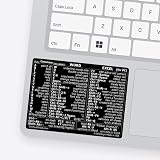
- 💻 ✔️ EVERY ESSENTIAL SHORTCUT - With the SYNERLOGIC Reference Keyboard Shortcut Sticker, you have the most important shortcuts conveniently placed right in front of you. Easily learn new shortcuts and always be able to quickly lookup commands without the need to “Google” it.
- 💻✔️ Work FASTER and SMARTER - Quick tips at your fingertips! This tool makes it easy to learn how to use your computer much faster and makes your workflow increase exponentially. It’s perfect for any age or skill level, students or seniors, at home, or in the office.
- 💻 ✔️ New adhesive – stronger hold. It may leave a light residue when removed, but this wipes off easily with a soft cloth and warm, soapy water. Fewer air bubbles – for the smoothest finish, don’t peel off the entire backing at once. Instead, fold back a small section, line it up, and press gradually as you peel more. The “peel-and-stick-all-at-once” method only works for thin decals, not for stickers like ours.
- 💻 ✔️ Compatible and fits any brand laptop or desktop running Windows 10 or 11 Operating System.
- 💻 ✔️ Original Design and Production by Synerlogic Electronics, San Diego, CA, Boca Raton, FL and Bay City, MI, United States 2020. All rights reserved, any commercial reproduction without permission is punishable by all applicable laws.
- Check whether another device on the same network has internet access.
- Restart the PC and router.
- Forget the Wi-Fi network and reconnect using the password.
- Temporarily disable a VPN or proxy for testing.
- Run Windows’ network troubleshooter.
- Update or reinstall the network-adapter driver using Windows Update, Device Manager, the PC manufacturer, or the component manufacturer.
- Reset network settings only after recording Wi-Fi passwords, VPN details, and other network configuration.
- Contact the ISP or investigate the router if all devices are affected.
| Message | Interpretation |
|---|---|
| “No internet, secured” | The PC is connected to Wi-Fi but cannot reach the internet; the router, ISP, DNS, VPN, or adapter may be involved. |
| “Windows could not connect to this network” | Investigate the saved Wi-Fi profile, password, adapter, driver, router, and signal. |
| “DNS server isn’t responding” | Investigate DNS reachability, the router, VPN or proxy, and the ISP; changing DNS is not a universal fix. |
| “Unidentified network” | Investigate the adapter, IP configuration, router, cable, and network profile. |
| Only one application fails | Test the application, its server, firewall permissions, proxy settings, and dependencies before changing system-wide DNS. |
How do you fix Windows 10 disk, storage, and file-system errors?
Disk messages require a distinction between insufficient free space, file-system corruption, and physical drive failure. Software repair cannot restore data that a failing drive can no longer read.
Recommended Free Tools
For Windows 10 upgrades, Microsoft’s cited guidance gives at least 16 GB of free space for a 32-bit operating system and 20 GB for a 64-bit operating system. Those figures apply to the referenced upgrade guidance, not to a universal amount of free space required for everyday use.
Messages such as “Windows detected a hard disk problem,” “You need to format the disk before you can use it,” and “The file or directory is corrupted and unreadable” may indicate file-system damage or a failing device. After backing up important data, an administrator can run:
chkdsk /f C:The command may schedule a check for the next restart. chkdsk repairs file-system structures; it cannot restore permanently damaged data and may place additional stress on a failing drive. Stop repeated repair attempts and prioritize recovery if the drive clicks, disappears, reports SMART warnings, or becomes increasingly unreadable.
How do you fix Windows 10 application crashes and compatibility errors?
“This app can’t run on your PC,” “The application was unable to start correctly,” “Not responding,” and “Side-by-side configuration is incorrect” usually point first to the application, its dependencies, permissions, architecture, or compatibility—not necessarily Windows as a whole.
Quick wins for a faster PC:
Scan for outdated or missing drivers - takes under a minuteDriver Scan →Clear out junk files and repair common Windows errorsFree Scan →- Restart Windows.
- Install the application’s current version from the vendor’s official source.
- Check whether the application supports the installed Windows edition and system architecture.
- Use the application’s repair option or reinstall it.
- Check Event Viewer only after simpler application-level steps fail.
- Use a clean boot if multiple applications are affected and a third-party service may be interfering.
- Roll back a recently changed graphics, storage, or other driver when the timing strongly matches.
Compatibility mode can help some older programs, but compatibility mode is not a substitute for a supported application version. If one program fails while the rest of Windows works, repairing Windows first can waste time and introduce new variables.
When should you use System Restore, Reset, reinstall, or replacement?
Choose the recovery method according to the scope of the failure and the risk to personal data.
| Situation | Preferred starting point | Why |
|---|---|---|
| One application fails | Repair or reinstall the application | Limits changes to the likely source of the problem |
| Windows Update fails once | Restart, troubleshoot, check storage and connectivity, then retry | A transient interruption does not justify an aggressive reset |
| Repeated blue screens | Safe Mode, driver history, and hardware checks | Repeated crashes may indicate hardware or a persistent driver conflict |
| Windows will not boot | Startup Repair | Designed for boot failures |
| Failure follows an application or driver change | System Restore | Reverts system configuration to an earlier restore point |
| Recovery tools fail but data is backed up | Reset or reinstall | More disruptive, but appropriate when the installation remains unusable |
| Drive, memory, heat, or power symptoms persist | Hardware diagnosis, replacement, or data recovery | Reinstalling Windows may only mask the underlying fault |
| Windows 10 hardware is unsupported and errors recur | Eligible Windows 11 upgrade or a supported replacement PC | A repair restores operation but not the security support lifecycle |
Microsoft’s Windows recovery decision matrix places Startup Repair, System Restore, recovery drives, Reset, and reinstall in different circumstances. Reset and reinstall may remove applications and may remove files depending on the selected option and the condition of the installation. Read the chosen option’s confirmation screen carefully.
Is Windows 10 still supported?
Windows 10 standard support ended on October 14, 2025. A successful repair does not restore ordinary Windows 10 security updates or technical support. Microsoft says eligible Windows 10 version 22H2 PCs that meet Windows 11 hardware requirements can upgrade to Windows 11 for free.
The Tool Desk
Outbyte Driver Updater FREEScan for outdated or missing drivers - takes under a minuteDriver Scan →Outbyte PC Repair FREERepair Windows errors before they cause bigger problemsFix Now →Also popular on Amazon
Use Microsoft’s PC Health Check workflow to determine whether the PC is eligible. Do not bypass Windows 11 hardware requirements merely to avoid diagnosing unreliable storage, memory, overheating, or power problems.
Microsoft’s currently surfaced first-party pages conflict about the end date for consumer Windows 10 Extended Security Updates: one support page states October 12, 2027, while Microsoft’s separate Windows end-of-support page states October 13, 2026. The difference may reflect different ESU programs or stale page content, so verify eligibility, enrollment method, price, and coverage dates directly with Microsoft before relying on ESU. ESU is a temporary bridge, not a substitute for a supported operating system or replacement hardware.
Microsoft says Microsoft 365 Apps on Windows 10 continue receiving security updates through October 10, 2028, while recommending migration to Windows 11. App support does not mean that the Windows 10 operating system itself remains fully supported.
When should you stop troubleshooting?
Stop applying increasingly aggressive software fixes when the evidence points to hardware failure, data loss, unsupported software, or an unsafe recovery situation.
- Back up immediately when files are disappearing, the drive is becoming unreadable, or SMART warnings appear.
- Test or replace memory when blue screens persist without a clear software trigger.
- Investigate overheating, power delivery, and hardware changes when crashes occur under load or after a component upgrade.
- Use professional data-recovery help when the data is irreplaceable and the drive is failing.
- Use a supported Windows 11 PC when the current computer cannot meet Windows 11 requirements and continues to produce hardware-related errors.
- Use paid remote support only when the provider’s identity, scope, price, access requirements, and cancellation terms are clear.
Built-in Microsoft tools should be the default path. Registry cleaners, generic driver-updater subscriptions, unofficial DLL sites, “one-click” repair programs, and antivirus products marketed as guaranteed fixes are poor substitutes for identifying when the failure is actually caused by a driver, application, network, storage device, or unsupported installation.
Frequently Asked Questions
What is the fastest way to fix a Windows 10 error?
The fastest safe fix depends on when the error appears. Restart first for a one-time update or application failure, use Safe Mode and driver investigation for repeated blue screens, use Startup Repair for boot failures, and repair or reinstall one application when only that application fails.
Should I run SFC or DISM first in Windows 10?
Run DISM first and then run SFC. Use DISM.exe /Online /Cleanup-image /Restorehealth followed by sfc /scannow from an elevated Command Prompt, and allow both commands to finish.
Does a Windows 10 blue-screen code prove that the RAM or hard drive is bad?
No. A blue-screen code identifies a class of failure but does not prove which component is defective. For example, MEMORY_MANAGEMENT can involve RAM, drivers, storage, or corrupted system files.
Free tools Windows power users keep installed
One-click scans. No signup required.
Will Windows 10 still work after October 14, 2025?
Windows 10 installations can continue to start and can still be repaired after October 14, 2025, but standard Windows 10 support ended on that date. Check whether the PC can upgrade to Windows 11, and verify any ESU option directly with Microsoft because current Microsoft pages show conflicting consumer ESU end dates.
When should I replace a Windows 10 PC instead of repairing it?
Consider replacement when the PC fails Windows 11 requirements and also has recurring storage, memory, overheating, power, or other hardware problems. Replace or recover a failing drive rather than repeatedly running software repairs that could put data at greater risk.
The Bottom Line
Windows 10 error messages are clues, not diagnoses. Match the repair to the stage and symptom, back up before destructive recovery, run Microsoft’s built-in tools in the documented order, and treat recurring crashes or disk warnings as possible hardware failures. Because Windows 10 standard support ended on October 14, 2025, a lasting solution may be an eligible Windows 11 upgrade, a supported replacement PC, or a carefully verified temporary ESU arrangement.

