
iTechGuides is reader-supported. When you buy through links on our site, we may earn an affiliate commission. As an Amazon Associate I earn from qualifying purchases. Learn more
The best video converter apps for Mac depend on the job: HandBrake is the best free all-rounder, Shutter Encoder is stronger for professional codecs and unusual files, Permute is the simplest paid drag-and-drop option, FFmpeg offers maximum control, and QuickTime Player handles basic exports without another installation.
Key takeaways
- HandBrake 1.11.2 is the best free default for local conversion to broadly compatible H.264, HEVC, or AV1 video.
- Shutter Encoder 20.2 is the better free choice for ProRes, DNxHR, subtitles, rewrapping, media analysis, and other professional workflows.
- Permute 4 costs $14.99 in the U.S. Mac App Store but requires macOS 26.0 or later and an Apple M1 chip or later.
- FFmpeg is the most powerful option for Terminal commands, scripts, automation, and precise codec or filter control.
- QuickTime Player is already included with macOS, but Apple says QuickTime exports video as MOV rather than MP4.
- Transcoding can change quality, color, HDR, frame rate, audio, subtitles, and metadata, so test a short sample before converting a large library.
What is the best video converter app for Mac?
HandBrake is the best video converter app for most Mac users. HandBrake is free, open source, operates locally without requiring an account, and provides practical presets for converting common files to H.264, HEVC, or AV1. The official download page currently lists version 1.11.2 with a universal macOS build. See the official HandBrake download page for the current release.
HandBrake is not the right answer for every task. Choose Shutter Encoder for professional codecs and post-production operations, Permute for the easiest paid interface on a recent Apple Silicon Mac, FFmpeg for automation and exact control, or QuickTime Player when a basic MOV export is enough.
The Tool Desk
Outbyte PC Repair FREEClear out junk files and repair common Windows errorsFree Scan →Outbyte Driver Updater FREEScan for outdated or missing drivers - takes under a minuteDriver Scan →| App | Best for | Cost or model | Intel Mac | Apple Silicon | Batch or workflow features | Main drawback |
|---|---|---|---|---|---|---|
| HandBrake | Free general conversion | Free and open source | Supported; check current macOS requirements | Universal build | Queue, presets, audio and subtitle selection | Less suited to broadcast and advanced post-production tasks |
| Shutter Encoder | Professional and unusual formats | Free; donation-supported | Separate Intel download | Separate Apple Silicon download | Rewrap, lossless cuts, render queues, subtitles, media analysis, FTP automation | More controls mean a steeper learning curve |
| Permute 4 | Simple drag-and-drop conversion | $14.99 U.S. Mac App Store price shown | No; requires M1 or later | Requires M1 or later | Batch conversion, trimming, resizing, cropping, subtitles, metadata | Requires macOS 26.0 or later; limited advanced control |
| FFmpeg | Scripts, servers, and maximum control | Free and open source | Available; build and codec support vary | Available; build and codec support vary | Command-line automation, filters, stream mapping, reproducible settings | No beginner-friendly graphical interface |
| QuickTime Player | One-off basic export | Included with macOS | Depends on macOS version | Included with macOS | Simple File > Export As workflow | Exports MOV, not MP4 |
| Adobe Media Encoder | Adobe production pipelines | Adobe Creative Cloud workflow; verify current plan | Verify current Adobe requirements | Verify current Adobe requirements | Watch Folders, presets, proxies, destination publishing | Poor value for occasional conversion without Adobe software |
| Compressor | Final Cut Pro and Apple delivery workflows | Verify current Mac App Store price | Verify current compatibility | Verify current compatibility | Professional Apple export workflow | Overkill for casual conversions |
Which Mac video converter should you choose?
| If you need to… | Choose | Reason |
|---|---|---|
| Convert ordinary MOV, MKV, WebM, or camera files for sharing | HandBrake | Good presets, local processing, and broad H.264 or HEVC compatibility |
| Create ProRes or DNxHR files for an editor | Shutter Encoder | Designed around professional codecs and media operations |
| Drag files onto a polished Mac app | Permute | Hides codec complexity and supports batch conversion |
| Run the same conversion repeatedly | FFmpeg | Commands can be scripted and reproduced |
| Export a simple file without installing an app | QuickTime Player | Already included with macOS |
| Queue exports from Premiere Pro or After Effects | Adobe Media Encoder | Watch Folders, presets, proxies, and Adobe integration |
| Deliver media from a Final Cut Pro workflow | Compressor | Built for Apple-centric professional delivery; verify current requirements and price |
Why is HandBrake the best free Mac converter?
HandBrake is the strongest recommendation for a typical conversion because it combines a graphical interface with useful presets and detailed controls. HandBrake can convert video locally, queue multiple jobs, select audio and subtitle tracks, and produce H.264, HEVC, or AV1 output without requiring an account.
Popular on Amazon

- This Video Capture Card Can transfer video and audio from VHS, VCR, DVD, Hi8, DV tapes, camcorders, or other video source devices with RCA or S-Video interfaces to your PC or Mac synchronously.
- Convert analog RCA/S-Video audio and video signal input to high-definition 1080P/30fps USB-A/USB-C output, digitize and save your good memories with your friends and family on your computer, share with your friends and family, leaving precious memories
- Plug and play, easy to operate, just connect the RCA or S-Video interface of your video recorder to the USB-A/USB-C interface of your computer or notebook and it can be used without any driver. Note: It needs to be used with the acquisition software
- Compatible with USB-A/USB-C interfaces, not limited by computer interfaces, compatible with Windows and Mac OS, supports NTSC, PAL and other video formats, and supports brightness, contrast, hue and saturation control
- Note: This video converter needs to be used with capture software, which can be downloaded free of chargge . We recommend OBS Studio or PotPlayer for Windows and QuickTime Player for Mac. Please feel free to contact us if you need technical support.
HandBrake’s official documentation lists support for both Intel and Apple Silicon Macs. The documentation covers recent macOS releases including macOS 26 Tahoe, macOS 15 Sequoia, and macOS 14 Sonoma; older Macs should be checked against the current system-requirements page rather than assumed compatible. Read the HandBrake macOS system requirements before installing on an older Mac.
HandBrake’s official presets are useful because a preset sets several related decisions at once, including resolution, frame-rate behavior, video quality, and audio handling. The documented Fast 1080p30 preset is a sensible general starting point, but a preset named “1080p” does not necessarily preserve every source property. Inspect the output summary if the source contains HDR, multiple audio tracks, subtitles, unusual frame rates, or a high frame rate.
Use HandBrake when: you want a free, understandable, local converter for ordinary delivery files.
What’s actually slowing this PC down?
Pick the symptom - the matching free tool is one click away.
Skip HandBrake when: you need detailed broadcast controls, a professional interchange format, subtitle burn-in, extensive stream manipulation, or a repeatable command-line pipeline. Shutter Encoder or FFmpeg will usually fit those needs better.
How do you convert a video with HandBrake?
- Open HandBrake and select the source video.
- Choose a preset based on the destination. Use a compatibility-oriented H.264 preset when playback support matters more than file size.
- Confirm the output container and video codec in the Summary and Video tabs.
- Check the Audio tab. Decide whether to retain every audio track, keep only one track, copy compatible audio, or transcode it.
- Check the Subtitles tab. Soft subtitles remain selectable; burned-in subtitles become part of the picture.
- Choose the destination filename and folder.
- Start the encode and inspect the result on the intended device or in the intended editor.
- Keep the original until the converted file has been checked.
If the output does not play, retry with a broadly compatible MP4 using H.264 video and AAC audio. If audio is missing, select the intended track explicitly. If subtitles are missing, choose a subtitle behavior instead of relying on the preset default. If the output is too large, lower the resolution, use HEVC where the destination supports it, or reduce quality gradually.
When is Shutter Encoder better than HandBrake?
Shutter Encoder is better than HandBrake when the conversion is part of a professional or unusual media workflow. Shutter Encoder uses FFmpeg as its encoding engine and provides separate Intel 64-bit and Apple Silicon downloads. The developer describes Shutter Encoder as free software without advertising or feature limitations. Its official feature list includes professional codecs, rewrapping, cutting without re-encoding where supported, subtitle operations, audio replacement, media analysis, render queues, presets, and FTP automation.
Shutter Encoder is a strong fit for converting camera footage to ProRes or DNxHD/DNxHR, preparing files for Avid, Premiere Pro, Final Cut Pro, or DaVinci Resolve, burning in SRT, VTT, or ASS subtitles, and creating several delivery versions from a queue. Shutter Encoder also supports a broad range of formats including H.264, H.265, H.266, VP8, VP9, AV1, FFV1, XDCAM, XAVC, MPEG-2, and WMV.
More capability also creates more opportunities for a bad setting. A beginner who only wants a compatible MP4 may find HandBrake’s presets easier to understand. Use Shutter Encoder when a specific professional operation justifies its additional controls.
Shutter Encoder lists hardware paths for Apple, Intel, AMD, and NVIDIA systems, but hardware acceleration can mean decoding, encoding, scaling, or filtering. The presence of a hardware option does not establish that every codec and filter uses the hardware path.
Is Permute 4 worth buying for Mac video conversion?
Permute 4 is worth considering if convenience matters more than advanced codec control and the Mac meets its unusually narrow requirements. The U.S. Mac App Store listing shows version 4.0.6 at $14.99, but requires macOS 26.0 or later and an Apple M1 chip or later. That requirement excludes Intel Macs and older macOS installations. Check the current Permute 4 Mac App Store listing before purchasing because price, version, and compatibility can change.
Permute is aimed at people who want to drag files into a Mac-focused interface rather than choose encoders and rate-control modes. The listing includes batch processing, video, audio, image, and document conversion, plus trimming, resizing, cropping, rotation, subtitle addition, multiple audio tracks, metadata editing, HLS stream creation, and custom FFmpeg-powered presets.
Windows Errors? Fix Them Before They Spread
Repair common Windows errors and clear accumulated junk for a smoother, more stable PC - no reinstall needed.Free scan · no reinstallCrashes, No Sound, or Screen Glitches?
Random freezes, missing sound and display glitches usually trace back to one bad driver. Find and replace yours safely.Free scan · under a minutePermute is a poor fit for an Intel Mac, an older macOS version, advanced broadcast work, or a user who wants open-source software and deep control over GOP structure, filters, or automation. The captured App Store listing also did not have enough ratings to display an overall review summary, so the purchase decision should be based on workflow fit rather than a strong rating signal.
Why use FFmpeg on a Mac?
Use FFmpeg when you need precise, scriptable, repeatable video conversion. FFmpeg is a cross-platform tool for recording, converting, and streaming audio and video. The official site currently lists FFmpeg 8.1, released March 16, 2026. See the official FFmpeg site for downloads and project information.
FFmpeg is particularly useful for batch jobs, servers, automated ingest, exact stream mapping, custom filters, and workflows where the same command must produce the same class of output repeatedly. FFmpeg does not provide the approachable visual workflow of HandBrake or Permute, and codec availability can vary with the build installed on the Mac.
Also popular on Amazon
![Roxio Easy VHS to DVD for Mac | VHS, Hi8, V8 Video to DVD or Digital Converter [Mac Disc]](https://m.media-amazon.com/images/I/51YN0EXXTFL._SL160_.jpg)
- Capture video from analog sources and preserve it by converting to digital formats to burn to disc
- Transfer your footage from your VCR and analog camcorders including Hi8 and Video8 to DVD in just a few clicks
- Create your own movies by importing into iMovie to edit your video and add effects, titles, and transitions
- Save your video to popular digital formats to easily share online or upload directly to YouTube
- Burn to disc with custom chapters and menus using Roxio MyDVD
Useful FFmpeg examples
Convert a source to a broadly compatible H.264 MP4:
Quick wins for a faster PC:
Clear out junk files and repair common Windows errorsFree Scan →Fix the driver behind crashes, sound loss and screen glitchesFind Drivers →ffmpeg -i input.mov
-c:v libx264 -preset medium -crf 20
-c:a aac -b:a 192k
output.mp4The command uses software H.264 encoding with a quality target and AAC audio. The best CRF, preset, resolution, and audio settings depend on the source and destination; the command is an example, not a universal quality guarantee.
Use Apple VideoToolbox H.264 encoding where the installed FFmpeg build and Mac support it:
ffmpeg -i input.mov
  -c:v h264_videotoolbox -b:v 8M
  -c:a aac -b:a 192k
  output.mp4
Hardware encoding is often faster, but speed does not automatically mean better quality at the same nominal bitrate. Test software and hardware paths on the same source, Mac, preset, and target before standardizing a production workflow.
Rewrap an MKV as MP4 without re-encoding compatible streams:
ffmpeg -i input.mkv -map 0 -c copy output.mp4Stream copying avoids a generational video encode, but the command can fail when the video, audio, subtitles, or metadata are not valid for the MP4 container. DTS, TrueHD, unusual subtitle formats, and other streams may require transcoding or a different container.
Inspect a difficult source:
ffprobe -hide_banner input.movExtract compatible audio without re-encoding:
ffmpeg -i input.mp4 -vn -c:a copy output.m4aCodec availability, container compatibility, hardware support, permissions, and source characteristics affect every FFmpeg command. Keep the original file and examine the output before deleting anything.
Can QuickTime Player convert video without installing an app?
QuickTime Player can perform a basic export without another installation, but QuickTime is not a full MP4 converter. In QuickTime Player, open the movie and choose File > Export As. Apple lists 4K, 1080p, 720p, and 480p export choices. The export can use H.264 or HEVC at 4K and 1080p; Smaller File Size selects HEVC, while Greater Compatibility selects H.264.
Apple’s current QuickTime Player export guide states that QuickTime exports movies as MOV, not MP4. Use QuickTime when a MOV file is acceptable and the export choices are sufficient. Use HandBrake or FFmpeg when the destination specifically requires MP4, custom audio settings, subtitles, batch processing, or precise codec control.
QuickTime can preserve HEVC transparency for a source with an alpha channel, such as ProRes 4444, under the conditions described by Apple. If the Export menu has no available options, Apple says the source may be copyright-protected and unavailable for distribution. A converter should not be treated as a DRM-removal tool.
When should you use Adobe Media Encoder?
Adobe Media Encoder makes sense when Premiere Pro, After Effects, or another Adobe workflow is already central to the project. Adobe emphasizes watch folders, presets, proxy creation, and destination publishing on the Adobe Media Encoder product page. Those workflow features matter more than standalone conversion convenience for most users.
Media Encoder is useful for exporting while continuing to work in an Adobe application, applying consistent presets to incoming files, generating proxies, and publishing outputs to configured destinations. Occasional converters who do not use Adobe software generally have better value in HandBrake, Shutter Encoder, or FFmpeg. The captured Adobe page did not provide a reliable standalone price, so verify the current Creative Cloud plan rather than relying on an old price comparison.
Is Compressor the best Mac converter for Final Cut Pro?
Compressor is best considered a specialist delivery tool for Apple post-production workflows, especially when Final Cut Pro is already part of the process. Compressor is not the natural first purchase for someone who only needs to turn an MKV or WebM into a shareable MP4. Verify the current Mac App Store price, macOS requirement, and compatibility before buying; the supplied Apple page did not expose a reliable current Compressor price.
Final Cut Pro users should compare Compressor’s delivery workflow with the export tools already available in Final Cut Pro. A casual user should start with HandBrake or QuickTime instead of paying for a professional Apple export application.
Also popular on Amazon
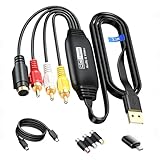
- RCA to USB Converter: This USB Capture Device can convert anolog RCA composite input into high-definition USB output, the maximum output resolution can reach 1920x1080@30Hz, suitable for camcorders, set-top boxes, boxes, DV camcorders, DVD, VHS, VCD, VCR, DVR and other devices. (Note: Only compatible with NTSC/PAL formats)
- USB2.0 Video Capture: Supports RCA and S-Video input, USB 2.0/Type-C capture, the RCA to USB Capture Card is compatible with most current laptops, ensuring stable video capture and transmission.
- 3.3ft/1m USB Cable: avedio links USB2.0 capture card is equipped with 3.3 feet USB capture cable, reduce the use of troubles caused by short cables and improve operational flexibility.
- Wide Compatibility: Compatible with Windows and MacOS operating systems and supporting video capture software such as OBS, Potplayer, etc., this RCA to USB Capture Card is ideal for video production, screen recording and other scenarios.
- Packing List: RCA&S-Video to USB Capture Card*1, USB A to Type-C converter*1, CD*1, 5ft S-Video Cable*1, RCA Converter*1, User Manual*1.
Which video containers and codecs matter on a Mac?
A container and a codec are different. The container, such as MP4, MOV, MKV, or WebM, holds video, audio, subtitles, chapters, and metadata. The codec, such as H.264, HEVC, AV1, ProRes, or DNxHR, determines how a stream is encoded. A converter may read a container without supporting every codec inside it, and a file may use a supported video codec but still fail because its audio or subtitle stream is incompatible.
| Format or codec | Practical use | Important limitation |
|---|---|---|
| MP4 | Usually the safest container for general sharing and playback | Compatibility still depends on video, audio, subtitles, and metadata inside it |
| MOV | Common in Apple and professional workflows | Being MOV does not automatically make a file more compatible than MP4 |
| MKV | Flexible container for archival and downloaded media | Some macOS tools do not natively play every MKV stream; rewrapping may fail |
| WebM | Common for browser recordings and web video | VP9 or AV1 video and Opus audio may need transcoding for Apple-oriented software |
| H.264/AVC | Broad compatibility and relatively fast encoding | Usually produces larger files than HEVC at comparable quality |
| H.265/HEVC | Smaller files at comparable quality and useful for supported Apple devices | Less universally compatible and potentially more demanding to encode or decode |
| AV1 | Efficient modern delivery codec | Encoding can be slower and playback or editing support is less universal |
| ProRes | Editing masters and professional interchange | Files are much larger than H.264 or HEVC |
| DNxHD/DNxHR | Professional editing and post-production | Not the normal choice for a small shareable file |
| AAC, Opus, PCM, and AC-3 | Audio streams used across consumer, web, and professional media | Audio compatibility can determine whether an otherwise supported video plays correctly |
Do not choose an app because it advertises a large number of formats. A format count may mix input and output support and may not explain whether audio, subtitles, chapters, HDR metadata, or color information survive the conversion.
Does converting video reduce quality?
Remuxing usually avoids video quality loss, while lossy transcoding can reduce quality. Remuxing or rewrapping changes the container without re-encoding compatible video and audio streams. Transcoding decodes and re-encodes the streams, which can remove detail, grain, HDR information, or color accuracy, particularly when a lossy source is encoded repeatedly.
Recommended Free Tools
Lossless and near-lossless workflows are appropriate for editing masters, archival files, or intermediate files, but the resulting files are much larger. ProRes and DNxHR are generally editing and interchange choices rather than compact sharing formats.
Keep the original source. Before converting a large library, encode a short representative section and check playback, file size, audio channels, subtitles, color, frame rate, and compatibility with the destination.
How do hardware acceleration and Apple Silicon affect conversion?
Hardware acceleration can refer to hardware decoding, hardware encoding, GPU-assisted scaling or filtering, or a specific path such as Apple’s VideoToolbox. Intel Macs may use Intel Quick Sync or a discrete GPU, while newer Macs may use Apple media engines, but support varies by application, codec, build, and operation.
HandBrake documents Apple Silicon support and Apple VideoToolbox-related capabilities. Shutter Encoder lists Apple, Intel, AMD, and NVIDIA hardware paths. Those statements establish available support, not a universal speed ranking. Encoding speed depends on the Mac model, source resolution and frame rate, codec, preset, quality target, filters, audio settings, and whether the job uses hardware or software encoding.
Do these 3 things before closing this tab:
1Scan for outdated or missing drivers - takes under a minute2Repair Windows errors before they cause bigger problems3Fix the driver behind crashes, sound loss and screen glitchesHardware encoding is often faster, but software encoding may deliver better quality at a given file size in some workflows. Compare both paths using the same source, output target, bitrate or quality setting, and test section if speed or quality is important.
How should you preserve subtitles, audio, HDR, and metadata?
Before starting a conversion, decide which source properties the destination actually needs:
- Audio tracks: Keep all tracks, select one, downmix surround to stereo, or preserve surround audio deliberately. Some presets keep only the first or default track.
- Subtitles: Soft subtitles remain selectable, while burned-in subtitles permanently become part of the image. Shutter Encoder supports subtitle embedding and burn-in for formats including SRT, VTT, and ASS.
- Chapters and metadata: Check whether chapter markers, title information, timecode, reel information, and other metadata are retained.
- Rotation: Phone footage may rely on rotation metadata. A conversion can change whether the video displays upright.
- Variable frame rate: Phones, screen recordings, and web captures often use VFR. Preserving VFR may be correct for playback, while editing workflows may require constant frame rate to prevent audio drift or timeline problems.
- HDR and wide color: Generic SDR presets can strip HDR metadata or change color. Washed-out output is often a color-management or metadata problem rather than simply a codec problem.
- Alpha channels: Transparency is not supported by every codec or container. QuickTime’s documented HEVC export can preserve transparency for suitable source files with an alpha channel.
Shutter Encoder and Permute expose more subtitle, audio, metadata, and editing controls than QuickTime. HandBrake remains capable for common track-selection tasks, but its preset defaults should not be assumed to preserve every source feature.
Independent reader supportYour contribution helps us test, update, and keep practical guides available for everyone.How do you convert MKV, WebM, and phone footage safely?
Choose the destination before choosing the converter. An MKV file may only need a remux if its streams are valid for MP4, but DTS, TrueHD, unusual multichannel audio, or subtitle tracks may require transcoding. A WebM recording using VP9 or AV1 video and Opus audio often needs a real transcode to H.264/AAC MP4 for maximum compatibility with Apple-oriented software.
Free tools Windows power users keep installed
One-click scans. No signup required.
Phone and screen-recording footage frequently uses variable frame rate. If the converted file develops audio drift or editing problems, inspect the frame-rate mode and consider a constant-frame-rate export suited to the editing application. Do not convert HDR masters through a generic SDR preset without checking the color and metadata behavior.
For a large camera or phone library, work from a local drive with sufficient free space for the original, temporary files, and outputs. Run a short sample first, queue the remainder, and verify the outputs before removing originals.
What should you do when conversion fails?
| Problem | Likely cause | Useful response |
|---|---|---|
| Output will not play | Unsupported codec, audio stream, subtitle stream, or container combination | Try MP4 with H.264 video and AAC audio; inspect the source with FFmpeg or ffprobe |
| Audio is missing | The preset omitted a track or the audio codec is incompatible | Select the intended track and transcode it when stream copying is not compatible |
| Subtitles are missing | Subtitle behavior was not selected or the format did not transfer | Choose soft subtitles or burn them in explicitly |
| Output is much larger | Higher bitrate, lossless/intermediate codec, retained tracks, or different resolution | Run a sample; adjust quality, resolution, codec, and audio-track choices |
| Colors look washed out | HDR or wide-color metadata was stripped or interpreted incorrectly | Use a color-aware workflow and compare the output on a color-managed player |
| Audio and video drift apart | Variable-frame-rate source handled poorly by the destination | Inspect frame-rate behavior and test a constant-frame-rate output for editing |
| The app cannot open the source | Corruption, DRM, permissions, unsupported stream, or incomplete download | Copy the file locally, check permissions, run ffprobe, and verify that the media is not protected |
| Conversion is unexpectedly slow | Software encoding, demanding codec, filters, high resolution, or unsupported hardware path | Check the selected encoder and compare a hardware path with a software test |
| QuickTime produces MOV instead of MP4 | QuickTime’s export design | Use HandBrake or FFmpeg when MP4 is a requirement |
Corrupt or partially downloaded files may need media-recovery software rather than an ordinary converter. Protected media may be technically or legally unavailable for conversion. Apple documents that QuickTime may provide no export options for copyright-protected recordings.
Also popular on Amazon
![Prism Video Converter Software for Mac Free [Mac Download]](https://m.media-amazon.com/images/I/41Me1ehO7eL._SL160_.jpg)
- Prism can convert popular formats like WMV, MP4, AVI, MOV, MPG, VOB, ASF, and all video formats that have a DirectShow based codec
- Add video effects such as watermarks, text overlay, filters, and video rotation
- Easily drag and drop video files or choose a whole folder
- Preview your video and any changes made to it before conversion
- Adjustable output settings
Are online video converters safe for private Mac footage?
For personal, client, unreleased, or very large footage, a local desktop converter is usually the safer and more practical choice. Local processing avoids upload time and reduces the need to send media to a third-party server. Browser-based converters can impose file-size limits, require accounts, retain uploads, or expose sensitive footage under policies that vary by service.
What’s actually slowing this PC down?
Pick the symptom - the matching free tool is one click away.
Distinguish a genuinely offline desktop application from a desktop front end that includes optional downloading or online services. Do not label an app private or telemetry-free unless a current privacy policy or official documentation verifies that claim. Download converters from official project or vendor pages, and avoid cracked applications and unofficial mirrors.
What about MacX Video Converter Pro?
MacX Video Converter Pro should not be a leading modern recommendation. The vendor’s own purchase page makes extensive format and device claims but also says the product receives only sporadic updates and that no new features will be added, directing users toward a newer Macxvideo AI product. Read the vendor’s MacX Video Converter Pro purchase page carefully if a legacy DVD, device, or format feature specifically matters to you.
The captured page showed a $79.95 lifetime-upgrade bundle for one Mac and volume prices of $29.95 per unit for five to ten units and $24.95 per unit for eleven to thirty units. Those are promotional page signals rather than a timeless price guarantee; verify the exact checkout price before purchase. For ordinary conversion, HandBrake, Shutter Encoder, FFmpeg, or Permute may offer a better long-term fit depending on the workflow.
What does “video converter” actually include?
“Video converter” can describe several different operations, and the distinction affects the correct app:
Do these 3 things before closing this tab:
1Scan for outdated or missing drivers - takes under a minute2Repair Windows errors before they cause bigger problems3Fix the driver behind crashes, sound loss and screen glitches- Transcoding decodes and re-encodes video or audio into another codec, such as H.264 to HEVC.
- Remuxing or rewrapping changes the container without re-encoding compatible streams, such as MKV to MP4 in a suitable case.
- Compression reduces bitrate, resolution, frame rate, or file size, often with a quality trade-off.
- Exporting creates a delivery file from an editor or media player.
- Editing trims, crops, rotates, replaces audio, or adds or burns subtitles.
- Ripping and downloading are separate capabilities that can involve DRM, copyright, or service terms. A converter does not grant permission to copy or redistribute a file.
Rankings based only on the number of listed formats are misleading. Input support, output support, codec support, audio compatibility, subtitle handling, metadata preservation, and destination compatibility all matter more than a headline format count.
What is the final recommendation?
Download HandBrake first if you want a free converter for ordinary Mac video files. Choose Shutter Encoder if you need professional codecs, subtitles, rewrapping, lossless cuts, or media-analysis tools. Buy Permute 4 only if you value a simple drag-and-drop interface and own an M1-or-newer Mac running macOS 26 or later. Use FFmpeg for automation and exact control, QuickTime Player for a basic MOV export, Adobe Media Encoder for an Adobe pipeline, and Compressor for an Apple post-production delivery workflow.
Whatever the app, preserve the original, test a short sample, verify the output on its intended destination, and check audio, subtitles, color, frame rate, and metadata before launching a large batch.
Frequently Asked Questions
What is the best free video converter for Mac?
HandBrake is the best free general-purpose video converter for Mac because it is local, open source, easy to use, and provides practical H.264, HEVC, and AV1 presets. Shutter Encoder is the better free choice for professional codecs, subtitle work, rewrapping, and unusual media operations.
Can QuickTime Player convert a video to MP4?
QuickTime Player can export H.264 or HEVC video, but Apple says QuickTime exports movies as MOV rather than MP4. Use HandBrake or FFmpeg when the destination specifically requires an MP4 file.
Is Permute 4 compatible with an Intel Mac?
No. The U.S. Mac App Store listing for Permute 4 requires macOS 26.0 or later and an Apple M1 chip or later, so Intel Macs are excluded from that listed version.
Does video conversion always reduce quality?
No. Remuxing compatible streams into another container usually avoids re-encoding and generational video loss. Lossy transcoding can reduce quality or alter HDR, color, audio, subtitles, and metadata, so keep the original and test a sample.
The Bottom Line
Bottom line: HandBrake is the best starting point for most Mac users. Move to Shutter Encoder for professional media work, Permute for simple paid drag-and-drop conversion on a recent Apple Silicon Mac, FFmpeg for automation, QuickTime for basic MOV exports, and Adobe Media Encoder or Compressor when an existing Adobe or Final Cut Pro workflow justifies them.
The Tool Desk
Outbyte Driver Updater FREEFix the driver behind crashes, sound loss and screen glitchesFind Drivers →Outbyte PC Repair FREEClear out junk files and repair common Windows errorsFree Scan →Quick Recap
Product prices and availability are accurate as of the date/time indicated and are subject to change. Any price and availability information displayed on Amazon at the time of purchase will apply.

