
iTechGuides is reader-supported. When you buy through links on our site, we may earn an affiliate commission. As an Amazon Associate I earn from qualifying purchases. Learn more
RAM prices are genuinely elevated in 2026, but panic-buying is not the answer. AI infrastructure is absorbing more HBM and server DRAM, manufacturers are prioritizing those higher-value products, and new memory-factory capacity takes years—not weeks—to arrive. That is tightening the supply available for ordinary desktop and laptop memory.
The practical response is compatibility-first: confirm that RAM is actually causing your slowdown, identify the exact memory your computer supports, and buy only the capacity that solves the problem. A TrendForce forecast for PC DRAM contract prices rising by more than 100% quarter over quarter in 1Q26 illustrates the severity of the market, while its later 3Q26 forecast of roughly 13–18% growth for overall DRAM shows why “prices will rise forever” is too simplistic. These are supply-chain forecasts, not guaranteed prices for a particular retail listing.
The short version: buy carefully, not automatically
If your computer is working normally and memory pressure is occasional, delay the upgrade and reduce the workload. If Windows is repeatedly paging, applications are crashing from insufficient memory, or your editing, development, gaming, or virtual-machine workload consistently exceeds installed RAM, buy the smallest compatible upgrade that fixes the problem.
What’s actually slowing this PC down?
Pick the symptom - the matching free tool is one click away.
Do not assume that every memory product has risen by the same amount. Desktop UDIMMs, laptop SO-DIMMs, server RDIMMs, DDR4, DDR5, HBM, contract pricing, spot pricing, and retail pricing are separate but connected markets. A high contract-price forecast does not establish the current price of a specific kit on Amazon or at a local retailer.
#1 Best Overall
Why AI is making ordinary RAM more expensive
A gaming PC does not use HBM simply because an AI data center does. The connection is the shared DRAM manufacturing ecosystem. Memory companies decide how to allocate limited wafer, cleanroom, packaging, and engineering capacity among products such as conventional PC DRAM, server DRAM, and HBM.
HBM and servers have changed the demand mix
AI accelerators need extremely high memory bandwidth. HBM—high-bandwidth memory—is built from stacked DRAM dies and placed close to a compute processor. Server platforms also require large quantities of reliable, high-capacity memory. AI training and inference deployments therefore create demand for both specialized HBM and conventional server DRAM.
Micron has described AI and broader server demand as key drivers of a memory-intensive computing environment. Its fiscal-2026 materials said DRAM and NAND supply-demand conditions could remain tight beyond calendar 2026, citing HBM growth, higher HBM trade ratios, cleanroom constraints, and long construction lead times. In its fiscal Q3 2026 disclosures, Micron also reported HBM4 high-volume shipments for a lead customer’s platform and said HBM4E development was underway, with volume production expected in calendar 2027.
Those announcements support the conclusion that AI-related memory demand is not merely a short-lived retail rumor. They do not prove that the price of every consumer kit will remain high for a particular number of months.
Capacity is being allocated toward higher-value memory
Manufacturers can increase the share of production devoted to HBM and server applications without physically eliminating every desktop DIMM. However, if more of the available DRAM capacity is committed to higher-value products, conventional consumer memory becomes tighter relative to demand.
TrendForce has reported that suppliers were reallocating capacity toward HBM and server applications, contributing to higher conventional-DRAM contract prices. This is an allocation effect, not a claim that AI companies are directly buying the same retail packages that consumers put in a desktop.
Windows Errors? Fix Them Before They Spread
Repair common Windows errors and clear accumulated junk for a smoother, more stable PC - no reinstall needed.Free scan · no reinstallOutdated Drivers Are Slowing You Down
One free scan finds every outdated or missing driver and matches the right update for your exact hardware.Free scan · exact hardware matchNew factories cannot solve a short-term shortage
Memory manufacturing requires cleanrooms, specialized equipment, process qualification, packaging capacity, and trained personnel. Building or expanding that capacity takes a long time. Micron has announced U.S. expansion plans, including expanded DDR4 production in Virginia, but a factory announcement—or even the start of initial production—does not immediately create abundant inventory on retail shelves.
There is another complication: improvements in bits produced per wafer do not remain constant during every node transition, and HBM’s higher trade ratio consumes more underlying DRAM resources for a given output mix. Supply can therefore grow while still falling short of the market’s appetite.
Why the price forecasts look contradictory
“PC DRAM up more than 100%” and “overall DRAM up 13–18%” are not necessarily conflicting claims. They refer to different periods and market scopes. Contract prices negotiated between suppliers and large customers are not the same as the price of a consumer kit in a retail cart.
| Price category | What it measures | Why consumers should be cautious |
|---|---|---|
| Contract price | Negotiated supply pricing between memory producers and large buyers | It can signal the direction of the market but does not equal a retail checkout price. |
| Spot price | Short-term transactions for available memory components | It can move faster and more sharply than longer-term contracts. |
| Retail price | The price of a finished kit or module sold through a retailer | Promotions, inventory age, seller behavior, region, and configuration can temporarily create a different trend. |
| Product category | Desktop DDR4, desktop DDR5, laptop SO-DIMM, server RDIMM, or another type | Two products with the same capacity can have very different supply and pricing. |
The responsible forecast is that memory conditions remain tight and prices are elevated, while the future rate of increase is uncertain. Consumer affordability can weaken demand and moderate the slope. That is not the same as saying prices have normalized or that a specific date for a major drop is known.
The Tool Desk
Outbyte Driver Updater FREEScan for outdated or missing drivers - takes under a minuteDriver Scan →Outbyte PC Repair FREERepair Windows errors before they cause bigger problemsFix Now →Rank #2

- Boosts System Performance: 32GB DDR5 RAM laptop memory kit (2x16GB) that operates at 5600MHz, 5200MHz, or 4800MHz to improve multitasking and system responsiveness for smoother performance
- Accelerated gaming performance: Every millisecond gained in fast-paced gameplay counts—power through heavy workloads and benefit from versatile downclocking and higher frame rates
- Optimized DDR5 compatibility: Best for 12th Gen Intel Core and AMD Ryzen 7000 Series processors — Intel XMP 3.0 and AMD EXPO also supported on the same RAM module
- Trusted Micron Quality: Backed by 42 years of memory expertise, this DDR5 RAM is rigorously tested at both component and module levels, ensuring top performance and reliability
- ECC Type = Non-ECC, Form Factor = SODIMM, Pin Count = 262-Pin, PC Speed = PC5-44800, Voltage = 1.1V, Rank And Configuration = 1Rx8
First, confirm that RAM is actually the bottleneck
More RAM will not fix a slow SSD, an overheating processor, a failing drive, a malware infection, a buggy application, or a weak graphics card. Diagnose the slowdown while reproducing the activity that causes it.
Windows 10 and Windows 11 checklist
- Open Task Manager: Press Ctrl + Shift + Esc, or right-click the taskbar and choose Task Manager.
- Check overall memory: Open Performance > Memory. Note the installed amount, memory speed, slots used, available memory, and whether the system is using hardware-reserved memory.
- Reproduce the problem: Start the game, browser session, virtual machine, editor, or other workload that normally becomes slow. Watch memory for several minutes rather than relying on a single reading.
- Find the consumer: In Processes, click the Memory column to sort by usage. Expand applications where possible and look for one process that grows continuously or consumes an unusually large share.
- Inspect commitment: Task Manager’s Memory page shows Committed memory, usually as current committed memory versus the commit limit. If committed memory repeatedly approaches the limit and the system is paging, installed RAM may be insufficient for that workload.
- Check the disk during the slowdown: Sustained disk activity while memory is nearly full can indicate paging, although disk activity by itself does not prove a RAM shortage.
High percentage usage alone is not conclusive. Windows uses available RAM for caching, and cached memory can be reclaimed. The stronger pattern is repeated memory pressure during the real workload, heavy paging, a workload-specific slowdown, or applications failing because capacity is exhausted.
Useful Windows clues
- Many browser tabs: Close or suspend unused tabs and extensions, then see whether the problem disappears.
- One steadily growing process: A memory leak or misbehaving application may need an update, restart, reconfiguration, or replacement—not a larger RAM kit.
- Virtual machines: Reduce the guest allocation only if the guest still has enough memory for its job. Otherwise, adding RAM may be justified.
- Video and photo work: Large timelines, high-resolution assets, catalogs, and effects can create genuine capacity pressure.
- Crashes and blue screens: These can indicate defective or unstable RAM, not merely too little RAM. Test the modules before buying more.
macOS and Linux
On a Mac, open Activity Monitor > Memory. Pay attention to Memory Pressure and Swap Used while the problem is happening. A Mac with soldered memory may have no practical upgrade path, so check the exact model before shopping.
On Linux, commands such as free -h, vmstat 1, and top or htop can reveal available memory, swap activity, and the processes using RAM. Interpret them over time and under the workload that causes the slowdown.
Recommended Free Tools
Software can reduce load—but cannot create physical RAM
Removing unnecessary startup programs, closing background applications, cleaning up a nearly full system drive, and fixing a runaway process can make a computer feel better. These steps do not increase installed DRAM and cannot substitute for additional capacity when the workload genuinely exceeds it.
For Windows users, an optional Windows memory troubleshooting tool such as Outbyte PC Repair may help identify or address background-process, junk-file, privacy, or general optimization issues, according to the product’s official positioning. Treat it as a diagnostic or optimization aid, not as a RAM upgrade. It does not add physical memory and does not repair a defective module.
Identify the exact memory before you buy
Memory modules can look similar while being electrically and physically incompatible. Identify the computer first, then select the module.
The compatibility checklist
- Generation: DDR3, DDR4, and DDR5 are different standards. DDR5 does not work in a DDR4 or DDR3 system.
- Form factor: Desktop systems generally use full-size UDIMMs. Laptops and many mini PCs use shorter SO-DIMMs. They are not interchangeable.
- Capacity limit: Check the motherboard, laptop, processor platform, and BIOS documentation for maximum capacity and supported module density.
- Slots: Count available slots and determine whether existing modules can be removed. Some laptops have soldered memory, removable memory, or a combination of both.
- Memory type: Verify whether the system requires non-ECC UDIMM, ECC UDIMM, or server RDIMM. Server RDIMMs are not a general-purpose desktop substitute.
- Speed and voltage: Match the platform’s supported specifications. Faster advertised memory may run only at a supported fallback speed, if it works at all.
- Profiles: Check whether the motherboard and CPU support the advertised XMP or EXPO profile. A kit’s headline speed may require enabling that profile in firmware.
- Configuration: Decide whether a complete matched kit is safer than adding a different module to the existing memory.
How to find the installed part
In Windows, press Win + R, enter msinfo32, and record the system model and motherboard-related information available there. Task Manager’s Performance > Memory page can show the generation-related speed and slots in use, although it may not identify every module detail.
Quick wins for a faster PC:
Fix the driver behind crashes, sound loss and screen glitchesFind Drivers →Clear out junk files and repair common Windows errorsFree Scan →Scan for outdated or missing drivers - takes under a minuteDriver Scan →PowerShell can expose the installed modules and their reported speeds:
Get-CimInstance Win32_PhysicalMemory | Select-Object Manufacturer,PartNumber,Capacity,Speed,ConfiguredClockSpeed,DeviceLocatorFor a desktop, the motherboard model is especially important. For a laptop, use the exact model number—including its generation or screen-size suffix—because two machines with similar names may have different memory designs. Linux users can inspect hardware information with a distribution’s supported hardware tools, including dmidecode --type memory when run with the required privileges.
Before ordering, compare the result with the manufacturer’s memory compatibility checker or memory configurator. Crucial and Kingston both provide compatibility workflows, and motherboard manufacturers publish qualified-vendor lists, commonly called QVLs. A module not appearing on a QVL is not automatically incompatible—the lists cannot cover every valid kit—but listed support reduces uncertainty.
DDR4 or DDR5: choose the platform you actually own
DDR generations are not upgrade steps that can be mixed inside one motherboard. A DDR5 module will not fit and operate in a DDR4 slot, and changing from DDR4 to DDR5 normally requires a compatible motherboard and often a new processor platform as well.
Rank #3

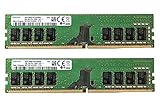
- Capacity: 16GB Kit ( 2x 8GB Modules ) | Type: DDR4 DIMM ( 288-Pin ) | Memory RAM for Desktop Computers
- Speed: DDR4 2400 MHz ( PC4-19200 / PC4-2400T ) | ECC Type: Non-ECC UDIMM (Unbuffered DIMM) | Rank: 2Rx8 ( Dual Rank x8 ) | Voltage: 1.2V
- Designed for select Desktop Computers (not limited to) Acer, Alienware, ASRock, ASUS, Dell, DFI, Fujitsu, Gateway, Gigabyte, HP, HP Compaq, Intel, Lenovo, LG, MSI, Panasonic, QNAP, Samsung, Sony, Supermicro, Synology & Toshiba (DDR4 Capable) Models
- All modules undergo quality assurance testing to ensure dependable and reliable performance | Please verify the supported memory (RAM) specifications of your system prior to purchase to ensure compatibility
- A-Tech provides a Lifetime Warranty for all orders & offers complimentary United States based Tech Support before, during, & after your purchase
For a compatible DDR5 desktop
A mainstream desktop owner who has verified motherboard and CPU support can investigate a DDR5 RAM 32GB kit. The phrase describes a capacity category, not a universally suitable product. Confirm the kit’s module count, speed, voltage, profile support, density, seller, and return policy before ordering.
For a legacy DDR4 desktop
If the existing system supports DDR4, a DDR4 RAM 32GB kit may be the sensible path. Do not buy DDR5 merely because it is newer; it will not work in a DDR4 motherboard. A platform replacement should be considered only when the performance benefit justifies replacing the board and likely the processor as well.
For an upgradeable laptop or mini PC
Use the exact system model to confirm that memory is removable and that the machine supports the desired capacity. If it does, a DDR5 SO-DIMM 32GB kit may be an appropriate category for a two-slot DDR5 laptop or mini PC. Many modern laptops have soldered memory or only one accessible slot, so never assume a kit will fit based on the DDR generation alone.
Capacity usually matters more than headline speed
When money is tight, prioritize enough compatible capacity over an impressive speed number. A correctly supported 32GB kit that prevents paging is generally more useful than a faster kit that requires manual tuning, falls back to a lower speed, or fails to boot.
Do these 3 things before closing this tab:
1Scan for outdated or missing drivers - takes under a minute2Clear out junk files and repair common Windows errors3Fix the driver behind crashes, sound loss and screen glitches| Workload pattern | Practical buying logic |
|---|---|
| Office work, light browsing, and modest multitasking | If the current system is not paging or slowing under normal use, an upgrade may be unnecessary. Close background software first. |
| Heavy browser use, modern games, and general multitasking | Choose a platform-compatible capacity that leaves reasonable headroom; do not pay for extreme speed unless the platform and workload justify it. |
| Photo/video editing, software development, or large creative projects | Measure usage with the actual project open. More capacity can be valuable when the workload repeatedly exhausts available memory. |
| Several virtual machines, containers, or large local datasets | Capacity often matters substantially more than a small memory-speed increase. Size the upgrade around the simultaneous workload. |
These are decision categories, not universal minimums. The correct capacity depends on the operating system, applications, project size, and whether the system can be upgraded later.
Understand kits, channels, profiles, and QVLs
A “32GB” listing may not be a 2×16GB kit
Read the configuration carefully. “32GB” can mean one 32GB module or a matched kit containing two 16GB modules. Two-module configurations can enable the platform’s intended dual-channel operation, but the motherboard manual determines the recommended slots and supported arrangement.
Adding a second module to an old one is not automatically equivalent to buying a tested kit. Different chips, ranks, timings, firmware assumptions, and manufacturing revisions can reduce stability. If you mix modules, use the system at conservative settings and test it thoroughly.
XMP and EXPO are profiles, not guarantees
XMP and EXPO profiles store higher-performance settings that can be selected in the motherboard firmware. Their advertised speed depends on the CPU’s memory controller, motherboard design, BIOS version, module combination, and luck of the particular system. A kit may boot at a standard JEDEC setting while failing at its profile speed.
Free tools Windows power users keep installed
One-click scans. No signup required.
For a first-generation DDR5 platform, BIOS support can matter for some higher-density modules. Update the BIOS only according to the motherboard manufacturer’s instructions, and do not interrupt the process. If a system is unstable with XMP or EXPO enabled, return to default settings or try a lower supported speed rather than assuming the memory is defective.
Use QVLs and compatibility tools intelligently
A motherboard QVL is a list of memory kits the manufacturer tested. It is useful evidence, especially for high-capacity or high-speed configurations, but it is not a complete list of every module that works. A compatibility configurator can narrow the choices, while the motherboard manual confirms slot placement and platform limits.
Search terms such as memory compatibility checker and “find compatible RAM” are more useful than searching only for “fastest RAM.” Start with the exact system, then compare the resulting parts across reputable sellers.
How to avoid a bad listing during the RAM-pocalypse
- Compare like with like: Compare price per gigabyte only among the same DDR generation, form factor, capacity configuration, and broad performance class.
- Check the module count: Confirm whether the listing contains one module or a complete matched kit.
- Confirm the form factor: Desktop UDIMM and laptop SO-DIMM are different products.
- Reject server memory: RDIMM and other server memory types are not ordinary desktop upgrades.
- Read the full specification: Check generation, capacity, speed, timings, voltage, ECC status, and profile support.
- Inspect the seller: Marketplace seller identity, return terms, warranty handling, and changing listing specifications matter more when prices are volatile.
- Be careful with used or mixed kits: Unknown operating conditions and unverified compatibility add risk.
- Do not pay for unused speed: A platform that supports only a lower speed will not benefit from the entire headline specification.
- Do not future-proof excessively: Buying capacity that the current workload does not need can tie up money while the market is inflated.
Retail availability and pricing vary by country, seller, inventory age, and configuration. This guide deliberately does not quote a timeless dollar price for a particular listing.
When delaying the purchase makes sense
Delay is reasonable when the computer is functional and memory pressure is occasional. Try these reversible changes first:
- Close unused browser tabs and applications.
- Disable unnecessary startup programs.
- Reduce the number of simultaneously running virtual machines or containers.
- Update or replace an application that shows a continuing memory leak.
- Keep adequate free space on the system drive so Windows can manage its pagefile.
- Restart a machine suffering from a temporary runaway process, then investigate the cause rather than treating every recurrence as a hardware shortage.
These steps reduce demand; they do not make the computer equivalent to one with more physical RAM. If the system is consistently paging, crashing, or exceeding available capacity, the time lost to waiting may cost more than the premium paid for a necessary upgrade.
Rank #4

- Boosts System Performance: 16GB DDR4 Pro Series desktop memory RAM kit (2x8GB) that operates at 3200MHz, 3000MHz, or 2666MHz to improve multitasking and system responsiveness for smoother performance
- Easy Installation: Upgrade your desktop RAM with ease—no computer skills required Follow step-by-step how-to guides available at Crucial for a smooth, worry-free installation
- Compatibility Guaranteed: Ensure seamless compatibility with your desktop by using the Crucial System Scanner or Crucial Upgrade Selector—get accurate recommendations for your specific device
- Trusted Micron Quality: Backed by 42 years of memory expertise, this DDR4 RAM is rigorously tested at both component and module levels, ensuring top performance and reliability
- ECC Type = Non-ECC, Form Factor = UDIMM, Pin Count = 288-pin, PC Speed = PC4-25600, Voltage = 1.2V, Rank and Configuration = 1Rx16, 1Rx8 or 2Rx8
A narrow creator workaround: move an always-on stream off the PC
Install and test the upgrade safely
- Back up important data. Memory installation should not affect your files, but troubleshooting an unstable system is easier when the data is protected.
- Shut down completely. Turn off the computer, disconnect power, and follow the laptop manufacturer’s battery and service instructions.
- Control static electricity. Work on a suitable surface, handle modules by their edges, and use an anti-static wrist strap if appropriate.
- Use the manual’s slots. For desktops, the recommended two-module slots are often—but not universally—the second slot in each channel. Follow the exact motherboard diagram.
- Seat the modules evenly. Align the notch, press firmly until the retaining clips engage, and never force a module in the wrong orientation.
- Boot at default settings first. Confirm that the full capacity is recognized before enabling XMP or EXPO.
- Update firmware only when justified. A BIOS update may improve memory compatibility, but use the board maker’s procedure and stable power.
- Test stability. Use Windows Memory Diagnostic or a reputable bootable memory test. Run the test at default settings first, then test again after enabling a performance profile.
If the PC will not boot after the upgrade
- Power off and reseat every new module.
- Remove mixed or old modules and test only the new kit.
- Try one module at a time in the motherboard’s recommended slot.
- Clear CMOS according to the motherboard manual if the firmware is stuck on an invalid memory setting.
- Boot at default memory settings before attempting XMP or EXPO.
- Check for the correct BIOS version and consult the board’s QVL.
- If one module repeatedly fails while another passes in the same slot, pursue a warranty return or replacement.
Failure to boot is not proof that a kit is bad; an unsupported density, incorrect slot, mixed kit, outdated BIOS, or aggressive profile can produce the same symptom.
A decision framework for the current market
Buy now if…
- Your real workload repeatedly exhausts available memory.
- Paging, application failures, or severe slowdowns are costing meaningful time.
- You have verified the generation, form factor, capacity limit, and memory type.
- You can buy a returnable, appropriately specified kit rather than an unclear listing.
Wait if…
- The computer is stable and memory usage is only occasionally high.
- Closing applications or fixing one runaway process solves the issue.
- You are shopping only because a headline says prices may rise.
- You have not yet identified the motherboard or exact laptop model.
Consider a platform upgrade if…
- The current motherboard has no useful upgrade path.
- It is limited to an obsolete generation or cannot support the required capacity.
- The CPU, storage, and other components would also benefit from replacement.
- The total platform cost makes more sense than paying a premium for scarce legacy memory.
What the RAM-pocalypse does—and does not—mean
The current market is a real supply-and-allocation problem: AI and server demand are increasing memory consumption, suppliers are emphasizing higher-value HBM and server products, cleanroom capacity is constrained, and new fabs take a long time to expand supply. Those pressures can make conventional desktop and laptop memory expensive even though a consumer PC is not using HBM.
Quick wins for a faster PC:
Scan for outdated or missing drivers - takes under a minuteDriver Scan →Repair Windows errors before they cause bigger problemsFix Now →Fix the driver behind crashes, sound loss and screen glitchesFind Drivers →It does not mean every RAM product has the same price, that retail prices must follow contract forecasts immediately, or that every reader should purchase an upgrade today. The best defense is to measure the workload, identify the platform, prefer compatible capacity over unnecessary speed, and preserve the option to return anything that fails verification.
Frequently Asked Questions
Should I buy RAM immediately before prices rise further?
Only if your workload genuinely needs more memory and you have verified compatibility. If the computer is stable and pressure is occasional, delaying the purchase and reducing background demand may be the better financial decision. Market forecasts do not guarantee the price of a particular retail kit.
Can I install DDR5 RAM in a DDR4 computer?
No. DDR4 and DDR5 are different memory standards and are not interchangeable. Moving from DDR4 to DDR5 normally requires a compatible motherboard and often a new processor platform.
Will an SSD replace the need for more RAM?
No. An SSD can make paging less painful than a hard drive, but it is still far slower than physical RAM and does not increase memory capacity. It may improve responsiveness while you delay an upgrade, but it is not a substitute for sufficient RAM.
Is a faster RAM kit always better?
No. Capacity, compatibility, stability, and the platform’s supported settings come first. A high-speed XMP or EXPO kit may require a compatible BIOS and memory controller, and may run at a lower fallback speed or become unstable if the platform cannot support its profile.
},{
The Bottom Line
Survive the 2026 RAM-pocalypse by refusing to shop from the headline. Check whether memory is the bottleneck, identify DDR generation and form factor, verify capacity and BIOS support, and buy a tested, returnable kit sized to the workload. Delay when the machine is usable; upgrade when paging and lost productivity make the shortage more expensive than the hardware.
Quick Recap
Product prices and availability are accurate as of the date/time indicated and are subject to change. Any price and availability information displayed on Amazon at the time of purchase will apply.

