
What’s actually slowing this PC down?
Pick the symptom - the matching free tool is one click away.
iTechGuides is reader-supported. When you buy through links on our site, we may earn an affiliate commission. As an Amazon Associate I earn from qualifying purchases. Learn more
There is no single open-source, drop-in replacement for Adobe Creative Cloud. A workable replacement is a stack: GIMP or Krita for raster images, Inkscape for SVG vector work, Scribus for page layout and PDF production, and Kdenlive for open-source video editing. DaVinci Resolve can fill much of the video role at no software cost, but it is proprietary rather than open source.
The trade-off is straightforward. You can eliminate recurring application-license fees, but you give up some of Adobe’s integrated cloud libraries, shared document workflows, plug-in compatibility, exact PSD/AI round-tripping, and built-in Firefly generative AI. The right choice depends on the files you exchange, the applications your clients require, and whether your team can absorb migration and training work.
What an open-source Adobe alternative actually replaces
Creative Cloud is a bundle of specialized applications and shared services, not one program. Photoshop handles raster editing, Illustrator handles vector illustration, InDesign handles page layout, Premiere handles video, and Acrobat handles many PDF tasks. Adobe also combines those applications with cloud storage, libraries, collaboration features and, in current Creative Cloud Pro plans, Firefly generative AI for image, video and audio creation.
Recommended Free Tools
Open-source software is organized differently. Each application normally has its own project format, interface, plug-in system and export process. You choose the strongest tool for each job and hand files between them. That modularity can reduce licensing costs and let you keep working locally, but it introduces more decisions about formats, fonts, linked assets, color management, review and version control.
Popular on Amazon
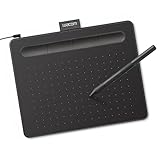
- Wacom Intuos Small Graphics Drawing Tablet: Enjoy industry leading tablet performance in superior control and precision with Wacom's EMR, battery free technology that feels like pen on paper
- Works With All Software: Wacom Intuos tablet can be used in any software program to explore new facets of digital creativity; draw, paint, edit photos/videos, create designs, and mark up documents
- What the Professionals Use: Wacom's industry leading pen technology and pen to paper feeling makes it the preferred drawing tablet of professional graphic designers
- Software and Training Included: Only Wacom gives you software with every purchase. Register your Intuos tablet and gain access to some of the best creative software and Wacom's online training
- Wacom is the Global Leader in Drawing Tablet and Displays: For over 40 years in pen display and tablet market, you can trust that Wacom to help you bring your vision, ideas and creativity to life
“Free” also has two meanings. The applications can generally be downloaded and used without a recurring software subscription. Your organization may still pay for capable hardware, storage, backups, support, training, accessibility work, file conversion, plug-in replacements and the time required to rebuild templates or migrate an archive.
Tool map: which application covers each Adobe role?
| Adobe role | Open-source or free alternative | Best fit | Main boundary |
|---|---|---|---|
| Photoshop-style raster editing | GIMP; Krita for painting and illustration | Photo manipulation, compositing, layers, digital painting | Different interface and plug-in ecosystem; PSD round-trips require validation |
| Illustrator-style vector design | Inkscape | SVG-native logos, icons, diagrams, typography and technical artwork | AI or PDF import does not guarantee complete Illustrator-document fidelity |
| InDesign-style page layout | Scribus | Long documents, print layout, prepress and PDF production | Separate workflow with less integrated cloud collaboration |
| Premiere-style editing | Kdenlive; DaVinci Resolve when proprietary software is acceptable | Timeline editing, effects, audio mixing and finishing | Project compatibility is application-specific; Resolve is not open source |
| Acrobat-style PDF work | Scribus plus dedicated PDF utilities | Creating layout-based PDFs and preparing files for print | Editing, signing, OCR, forms and advanced review may require separate tools |
No row in this table promises identical behavior. It identifies a practical starting point, then leaves you to test the exact files and outputs your work requires.
Cost: subscription savings versus total migration cost
Adobe’s US pricing page displayed Creative Cloud Standard at US$54.99 per month when billed annually in 2026. The same page displayed Creative Cloud Pro for teams at US$99.99 per month per license when billed annually. Prices are region-specific, annual-billing figures and subject to applicable taxes; a different country, billing term or account type can produce a different amount. Adobe describes Creative Cloud Pro as including more than 20 applications, including Photoshop, Illustrator, Premiere and Acrobat Pro, plus Firefly generative AI.
Windows Errors? Fix Them Before They Spread
Repair common Windows errors and clear accumulated junk for a smoother, more stable PC - no reinstall needed.Free scan · no reinstallCrashes, No Sound, or Screen Glitches?
Random freezes, missing sound and display glitches usually trace back to one bad driver. Find and replace yours safely.Free scan · under a minute| Cost category | Creative Cloud | Open-source stack |
|---|---|---|
| Application license | Recurring subscription; the displayed US annual-billed figures are US$54.99/month for Standard and US$99.99/month per team license for Pro | Applications generally available without a recurring software-license fee |
| Cloud services and shared libraries | Bundled according to the selected plan and account configuration | Must be assembled separately or replaced with local storage, a file server or another service |
| AI features | Firefly features and credits are included in the Pro plan description | No single equivalent AI layer across GIMP, Krita, Inkscape, Scribus and Kdenlive is established |
| Migration and training | Usually lower when an existing Adobe workflow is retained | Potential costs for learning, template rebuilding, conversion and support |
| Hardware and storage | Still required for professional work | Still required; local-first workflows may increase storage and backup responsibilities |
Compare the cost of a complete workflow, not just the download price. A small team with standard export needs may save substantially by using open-source tools. A studio whose revenue depends on exact Illustrator or Photoshop round-trips can spend more on conversion checks and rework than it saves on subscriptions.
Raster editing: GIMP or Krita?
Choose GIMP for general image manipulation
GIMP is the closer general-purpose choice for photographs, web graphics, compositing, selections, masks, retouching and layered image manipulation. It is a sensible first installation when your work is primarily editing existing bitmap images rather than drawing from scratch. Expect a different menu structure, shortcut scheme and plug-in ecosystem from Photoshop, so document your team’s repeatable operations instead of assuming that an old tutorial or action will transfer unchanged.
Choose Krita for painting and illustration
Krita is designed around digital painting and illustration, with brush-oriented tools, stabilizers, assistants and animation capabilities that suit artists creating rather than merely correcting images. It also has useful PSD awareness, but that does not make it a Photoshop clone. A painter who needs natural brush control may prefer Krita, while a production retoucher may find GIMP’s image-manipulation workflow more familiar.
Also popular on Amazon

- Word-first 16K Pressure Levels: The upgraded stylus features 16,384 levels of pressure sensitivity and supports up to 60 degrees of tilt, delivering smoother lines and shading for a natural drawing experience. With no battery or charging needed, it operates like a real pen, making it easy for beginners to create effortlessly. This functionality helps novice artists develop their skills and explore their creativity without the intimidation of complex tools
- Designed for Beginners: This drawing pad desinged with 8 customizable shortcuts for both right and left-hand users, express keys create a highly ergonomic and convenient work platform
- Perfectly Adapted for Android: The XPPen Deco 01 V3 art tablet supports connections with Android devices running version 10.0 and above. It is recommended to download the XPPen Tools Android application, which adapts to your smartphone's screen aspect ratio, ensuring accurate mapping. It also supports mapping on Android screens with different aspect ratios in portrait mode
- Large Drawing Space, Bigger Bold Inspiration: This expansive drawing pad has10 x 6.25-inch helps you break through the limit between shortcut keys and drawing area
- Easy Connectivity for Beginners: The Deco 01 V3 offers USB-C to USB-C connectivity, plus adapters for USB C. This ensures easy connection to various devices, allowing beginner artists to set up quickly and focus on their creativity without compatibility concerns. Whether using a laptop, tablet, or desktop, the Deco 01 V3 provides a seamless experience, making it an ideal choice for those just starting their digital art journey
What PSD support means in practice
Krita’s manual states that “.psd, unlike actual interchange formats like *.pdf, *.tiff, *.exr, *.ora and *.svg doesn’t have an official spec online.” The manual documents support for loading and saving raster layers, blending modes, layer styles, vector shapes, text layers, layer groups and transparency masks. Those are valuable capabilities, but they are not a guarantee that every Photoshop feature will survive a round-trip.
Before moving a production archive, test representative files containing text, smart objects, adjustment layers, masks, blend modes, linked assets and unusual color profiles. Open the exported file in the destination application, inspect layer structure and typography, and compare a rendered image at 100 percent and at final output size. Keep the original PSD unchanged so you can recover if an editable feature is flattened or altered.
Vector work: why Inkscape is strongest when SVG is the canonical file
Inkscape is a free, open-source vector editor whose native format is SVG. It is well suited to logos, icons, diagrams, maps, signage, technical illustrations and type-based artwork when the deliverable can remain standards-based SVG or be exported to PDF.
Illustrator’s AI files can contain application-specific objects, effects, linked graphics, symbols, variables and text behavior that do not map perfectly to SVG. An AI or PDF import that visually resembles the original is not proof that the document remains fully editable. Expand or convert elements deliberately, embed or package fonts and linked images, and inspect clipping paths, gradients, transparency, strokes and text after import.
Use SVG as the editable interchange format when the receiving workflow supports it. Export a PDF for print or approval, retain the original Inkscape SVG, and record which fonts and external assets were used. If a client requires an untouched Illustrator document or a plug-in-dependent effect, retain access to Illustrator for that handoff rather than promising equivalence.
Do these 3 things before closing this tab:
1Clear out junk files and repair common Windows errors2Fix the driver behind crashes, sound loss and screen glitches3Repair Windows errors before they cause bigger problemsPage layout and print production with Scribus
Scribus is the open-source choice for brochures, books, newsletters, posters, reports and other multi-page layouts. It provides frames, master pages, styles, text flow, preflight-oriented checks and PDF export for print workflows. Its model is independent of Inkscape and GIMP: place linked graphics and text into a layout document instead of trying to perform every task inside one application.
Also popular on Amazon
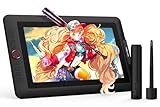
- PLEASE NOTE:XPPen Artist13.3 Pro drawing tablet Need to connect with computer,you need to use it with your computer or laptop, the 3 in 1 cable is included
- Drawing Tablet with Screen: Tilt Function- XPPen Artist 13.3 Pro supports up to 60 degrees of tilt function, so now you don't need to adjust the brush direction in the software again and again. Simply tilt to add shading to your creation and enjoy smoother and more natural transitions between lines and strokes
- Graphics Tablets: High Color Gamut- The 13.3 inch fully-laminated FHD Display pairs a superb color accuracy of 88% NTSC (Adobe RGB≧91%,sRGB≧123%) with a 178-degree viewing angle and delivers rich colors, vivid images, and dazzling details in a wider view. Your creative world is now as powerful as it is colorful
- Drawing Pad: One is enough- The sleek Red Dial on the display is expertly designed with creators in mind, its strategic placement allows for natural drawing postures. With just one wheel, you can effortlessly zoom in and out, adjust brush sizes, and flip the canvas—all tailored to suit the habits of everyday artists. The 8 customizable shortcut keys allow you to personalize your setup, streamlining your workflow and enhancing creative efficiency
- Universal Compatibility & Software Support:supports Windows 7 (or later), Mac OS X 10.10 (or later), Chrome OS 88 (or later), and Linux systems. Fully compatible with major creative software including Photoshop, Illustrator, SAI, and Blender 3D. Register your device to access additional programs like ArtRage 5 and openCanvas for expanded creative possibilities.
Plan the handoff around assets. Keep an editable Scribus project, the placed images, the fonts permitted by their licenses and a PDF proof. Confirm page size, bleed, margins, color intent, image resolution and font embedding with the printer before exporting. A PDF can preserve the visual result while hiding whether text remains editable, so archive the layout file as well as the final PDF.
Krita’s PDF documentation recommends Scribus for creating image-based PDFs and notes that Krita can open PDFs with multiple layers. Use Krita when you need to inspect or edit artwork; use Scribus when the job is assembling pages and producing a print-oriented PDF.
Video editing: Kdenlive or DaVinci Resolve?
Kdenlive when open-source licensing is required
Kdenlive covers the core open-source editing workflow: importing media, arranging clips on a timeline, trimming, transitions, titles, effects, audio work and rendering. It is the appropriate choice when your organization requires an open-source editor and can standardize on Kdenlive project files and export presets.
Quick wins for a faster PC:
Clear out junk files and repair common Windows errorsFree Scan →Scan for outdated or missing drivers - takes under a minuteDriver Scan →DaVinci Resolve when capability matters more than open-source licensing
DaVinci Resolve is a no-software-cost option for many editing, color, audio and finishing tasks, but it is proprietary. Classify it separately from an open-source stack. Resolve project files are not interchangeable with Kdenlive projects, and a free price does not remove the need to check hardware requirements, codecs, storage and licensing terms for your specific use.
For either editor, preserve camera originals, proxies, project files, fonts, music licenses and graphics. Render a review file using a documented codec and frame rate, then verify audio sync, captions, color and playback on the delivery system.
PDF, forms, signing and OCR: where the stack needs extra tools
Scribus is effective for creating layout-driven PDFs, but “PDF support” covers several different jobs. Creating a press-ready PDF, editing existing text, adding a digital signature, recognizing scanned text, validating accessibility and building interactive forms are separate capabilities. Do not assume that an application that exports PDF also provides a complete Acrobat replacement.
Also popular on Amazon

- Customize Your Workflow: The 6 customizable press keys on Huion H640P drawing tablet for pc let you assign your most-used commands—like undo, zoom, brush switch, or save—so you can keep your hands on the tablet and your mind on the art. Whether you're a digital painter switching brushes, or a comic artist zooming in and out, these keys keep your workflow smooth and uninterrupted. Plus, the Huion driver lets you save different shortcut profiles for different apps, so you never have to reconfigure when switching software.
- Professional Pen Performance: Huion H640P drawing pad for computer comes with the battery-free PW100 stylus that's always ready when inspiration strikes. With 8192 levels of pressure sensitivity, every light sketch, or bold stroke responds naturally to your hand—just like a real pen. The 5080 LPI resolution and 233 PPS report rate deliver lag-free, precise strokes, so you can draw confidently without second-guessing your cursor. The pen side buttons help you switch between pen and eraser instantly.
- Compact and Portable: Huion H640P computer graphics tablet features a compact, ultra-portable design at just 0.3 inches thin and 0.61 lbs light, so it slides easily into your backpack—perfect for sketching in coffee shops, taking notes in class, or editing on the go between home and studio. The 6x4 inch active area offers enough room for natural pen movements while fitting comfortably on crowded desks, or lecture hall seats.
- Stable Compatibility: Huion H640P graphic drawing tablet works seamlessly with Mac, Windows, Linux PCs, and Android smartphones/tablets (OS version 6.0 or later). Left-handed friendly, and you just need to flip the tablet and adjust the settings in the driver. Please note: H640P does NOT support iPhone/iPad.
- Move Beyond the Mouse: Huion Inspiroy H640P is a pen tablet that replaces your mouse for more natural, precise control. Freehand draw, take notes, or even play OSU—everything you do with a mouse, you can do better with a pen. The precise tip makes it ideal for detailed photo editing, graphic design, or signing PDF. Meanwhile, the ergonomic pen grip helps you avoid the strain that comes from hours of using a mouse.
Define the required PDF operations before choosing software. If your team only creates brochures and sends proofs, Scribus plus a PDF inspection utility may be sufficient. If you routinely edit contracts, apply signatures, run OCR or maintain complex forms, plan for dedicated utilities or retain an application that provides those functions.
File compatibility: a safe handoff method
Interchange support is not the same as editable-document parity. PSD, AI, PDF, SVG and linked assets can move between applications with varying fidelity. Use a controlled handoff rather than relying on an import dialog alone.
- Inventory the real files. Select representative simple, typical and worst-case documents. Include the fonts, placed images, smart objects, masks, effects, color profiles, videos and plug-ins used in production.
- Preserve native originals. Keep the source PSD, AI, INDD or other native file read-only. Do not overwrite it with an experimental conversion.
- Choose an interchange format. Use SVG for vector artwork when supported, PDF for a fixed visual deliverable, TIFF or another documented raster format for flattened images, and an application-native file for continued editing.
- Package dependencies. Collect permitted font files, linked images, color profiles, LUTs, audio, video and any scripts or plug-ins. Record versions and licenses.
- Convert a copy. Open the copy in the destination application and save it in that application’s native format. Keep the imported file separate from the original.
- Inspect structure and appearance. Check text edits, layer order, masks, blend modes, clipping paths, transparency, dimensions, color, overprint, timing and audio. Compare both the canvas and the final export.
- Validate the delivery environment. Open the output in the client’s or printer’s application, on the target operating system and, for print, through the intended preflight process.
- Document exceptions. Record which elements were flattened, substituted, outlined or rebuilt so a future editor knows what can and cannot be changed.
AI capabilities: why “open-source AI alternative” is not one product
Adobe positions Firefly as an integrated generative AI layer inside Creative Cloud Pro, with features for image, video and audio creation and an associated credit system. The open-source applications in this stack are mature creative tools, not one unified AI suite with a shared account, model, credit balance and cloud workflow.
You may be able to add separate community-developed models or plug-ins to individual applications, but their model quality, hardware needs, licensing, commercial-use terms, privacy behavior, offline operation and maintenance vary by project. There is no evidence here for claiming feature parity with Firefly or for promising that any particular open-source add-on is suitable for commercial production. Evaluate an AI component separately from the editor that hosts it.
Independent reader supportYour contribution helps us test, update, and keep practical guides available for everyone.Cloud collaboration and team operations
Creative Cloud’s value is partly operational: shared libraries, synchronized assets, comments, account management and predictable application integration. A modular stack can reproduce parts of that workflow, but you must design it. Use a central project directory or version-control system appropriate to binary files, establish naming and folder rules, and define who may edit source files versus exports.
Standardize application versions, color settings, export presets and fonts. Decide whether files are locked during editing, how conflicts are resolved and where backups are stored. For remote teams, test upload and download times for large media and verify that linked assets remain available after a project moves between machines.
Also popular on Amazon
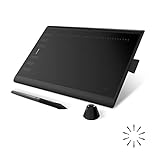
- Working Area Configuration - HUION art tablet equips with a 10 x 6.25 inches working area, providing the user with the most comfortable size to work; the 10mm slim structure and minimalist design of appearance make the drawing tablet more attractive.
- Tilt Function Battery-free Stylus: This computer graphics tablet come with a battery-free stylus PW100, no need to charge, allowing for constant uninterrupted drawing. ±60° tilt support enables imitation of lines input with diverse drawing gestures, with accuracy ensured.
- Press Keys:12 programmable press keys plus 16 programmable soft keys, you can set shortcut keys on drawing tablet's driver based on your preferences, such as erase, zoom in/out, scroll up and down, and so on.
- Compatibility: HUION graphics tablet supports Windows 7 or later/ macOS 10.12 or later/ Android 6.0 or later/ Linux (Ubuntu). A USB adapter is required to connect to a Mac computer. H1060P supports various mainstream design and drawing software, including PS, SAI, AI, CDR, etc. (Please note: The H1060P is compatible with Ubuntu, but it requires the use of the Xorg display server. Wayland is not supported.)
- NOTE: You can easily connect your phone to the art tablet via the OTG connector; while iPhone and iPad are NOT at the moment. The cursor will not show up in the SAMSUNG Galaxy S series at present. If you are not sure whether the product is compatible with your Phone or any help, please contact us.
A migration plan that limits risk
1. Classify your work
Separate raster retouching, illustration, vector design, page layout, PDF operations, video, animation, collaboration and AI tasks. A single “Can this replace Adobe?” question hides different requirements for each category.
2. Identify non-negotiable exchanges
List clients, printers, broadcasters and partners who require PSD, AI, PDF/X, specific codecs, untouched native files or particular plug-ins. Those requirements determine where an open-source tool can be the primary editor and where Adobe or another proprietary application must remain available.
3. Build a representative pilot
Choose at least one ordinary project and one difficult project from each category. Measure conversion defects, export quality, time to complete common tasks, accessibility, collaboration friction and recovery from mistakes. Published cross-tool benchmarks for total migration time, learning curve and performance are not reliable substitutes for this pilot because results depend on project type, hardware, plug-ins, team practice and user skill.
The Tool Desk
Outbyte PC Repair FREERepair Windows errors before they cause bigger problemsFix Now →Outbyte Driver Updater FREEScan for outdated or missing drivers - takes under a minuteDriver Scan →4. Create templates and operating procedures
Rebuild recurring document sizes, paragraph styles, color swatches, export presets, keyboard shortcuts and folder structures. Write short procedures for packaging assets, checking fonts, exporting proofs and restoring an earlier version.
5. Migrate in stages
Start with new projects or low-risk deliverables. Keep the original Adobe workflow available for files that fail validation. Move an archive only after you know which documents can be converted, which must remain untouched and how long restoration takes.
Decision guide by primary need
| If your priority is… | Start with… | Keep in mind… |
|---|---|---|
| Digital painting and illustration | Krita | Use PSD support selectively and retain the native Krita file |
| Photographs, compositing and general raster editing | GIMP | Rebuild Photoshop-specific actions and test layered imports |
| Logos, icons and diagrams | Inkscape | Make SVG the canonical deliverable where possible |
| Books, brochures and print layouts | Scribus with GIMP, Krita or Inkscape for artwork | Package fonts and linked assets and verify the printer’s PDF requirements |
| Open-source timeline editing | Kdenlive | Standardize project versions, codecs and render presets |
| Advanced video finishing without a software fee | DaVinci Resolve | It is proprietary, so it does not satisfy an open-source-only policy |
| Exact Photoshop or Illustrator round-trips | Retain Adobe for those files | Use the open-source tools for compatible portions of the workflow instead of forcing conversion |
| Integrated generative AI | Creative Cloud Pro if its Firefly workflow is required | The open-source stack has no single documented equivalent layer |
Common failure modes and fixes
- Text changes after import: install the exact permitted fonts, package them with the project and compare line breaks. Outline text only for a fixed-output copy when future editing is no longer needed.
- Missing or flattened effects: identify the unsupported layer, smart object or plug-in, then rebuild it in the destination application or retain the original for editing.
- Links appear blank: package linked graphics and preserve relative paths rather than sending only the main project file.
- Colors do not match: record working profiles, soft-proof settings, export intent and the printer or screen used for approval.
- PDF looks correct but is not editable: keep the native layout file and treat the PDF as the delivery artifact, not the sole source.
- Video project will not open: move rendered media and an edit decision list or XML/AAF export where supported, then rebuild transitions and effects that are application-specific.
- Team members overwrite work: introduce file locking or versioned copies, define ownership of source files and test restoring a previous revision.
- AI output creates compliance concerns: review the specific model’s license, data handling and commercial-use terms instead of assuming that open-source software makes generated content unrestricted.
When keeping Adobe is the more practical choice
Retain Adobe access when a client requires exact Photoshop or Illustrator round-trips, a production plug-in has no replacement, shared Creative Cloud libraries are central to daily work, or Firefly features are an explicit deliverable. A mixed environment is legitimate: use Krita, GIMP, Inkscape, Scribus or Kdenlive where they provide a better cost or licensing fit, and open Adobe only for files and services that genuinely depend on it.
Conversely, an open-source-first stack is compelling when your deliverables can be SVG, PDF, rendered images or standard video files; your team controls its templates and storage; and you can budget time for training and validation. The strongest case is not “every Adobe feature is reproduced.” It is that the work can be divided into well-defined applications and exchanged through formats your clients actually accept.

