
iTechGuides is reader-supported. When you buy through links on our site, we may earn an affiliate commission. As an Amazon Associate I earn from qualifying purchases. Learn more
Connecting your headphones to a smart TV is easiest when the television supports Bluetooth audio: pair the headphones from the TV’s Sound Output menu. If the TV lacks Bluetooth headphone support, connect a Bluetooth transmitter to optical, 3.5-mm, RCA, or compatible HDMI ARC audio output. The TV model and available ports decide the right method.
Start with the television, not the headphones. “Smart TV” does not automatically mean “Bluetooth audio output”: Bluetooth may be included only for a remote, keyboard, controller, or other accessory. Look for a sound-output option named Bluetooth speaker, Bluetooth headphones, or Wireless speaker, then check the exact model manual if the option is missing.
Key takeaways
- Direct Bluetooth pairing works only when the TV supports Bluetooth audio output, not merely Bluetooth accessories.
- Sony identifies the A2DP Bluetooth profile as the relevant capability for sending audio from supported Android TV and Google TV models to headphones.
- A Bluetooth transmitter can add headphone support through optical, 3.5-mm, RCA, or compatible HDMI ARC output when the TV cannot transmit Bluetooth audio itself.
- Optical connections commonly require the TV’s digital audio format to be set to PCM or stereo for transmitter compatibility.
- Whether TV speakers remain active, whether two headphones can connect, and whether the TV remote controls headphone volume are all model- and connection-dependent.
What is the best way to connect headphones to a smart TV?
The best method depends on the TV’s audio outputs and the headphones you already own. Use the following order: direct Bluetooth for the simplest wireless setup, a 3.5-mm jack for inexpensive wired listening, a Bluetooth transmitter for a TV without Bluetooth audio, and dedicated wireless TV headphones when independent volume, charging, or hearing assistance matters most.
| Your situation | Best connection | Main advantage | Main limitation |
|---|---|---|---|
| The TV has Bluetooth audio | Pair headphones directly with the TV | No extra hardware | Compatibility, delay, speaker output, and volume behavior vary |
| The TV has a 3.5-mm headphone jack | Use wired headphones or a small Bluetooth transmitter | Simple and usually inexpensive | The cable may be restrictive and the TV may mute its speakers |
| The TV has optical output but no Bluetooth audio | Use an optical Bluetooth transmitter | Digital connection and broad TV compatibility | PCM may be required and TV volume may not control headphones |
| The TV has RCA audio output | Use an RCA-compatible transmitter | Works with some older TVs and audio equipment | RCA output must be an output, not an input |
| The TV has HDMI ARC/eARC | Use an ARC-compatible transmitter | Useful when optical and headphone outputs are unavailable | Both the TV port and transmitter must support ARC or eARC audio |
| You mainly watch through Roku | Use compatible Roku Headphone Mode or mobile-app private listening | Can avoid the TV’s own Bluetooth menu | Support depends on the exact Roku device and source |
Which audio outputs does your TV have?
Inspect the rear and side panels of the television before buying an adapter. The output—not simply any port with a familiar shape—determines which connection will work.
Popular on Amazon

- ✅1. DUAL-MODE 2.4G LOW LATENCY & BLUETOOTH 6.0 WIRELESS TV HEADPHONES Equipped with upgraded 2.4G transmitter and Bluetooth 6.0 dual-mode tech, these TV headphones deliver smooth lip-sync audio with zero lag for movie watching and gaming. 2.4G signal supports stable indoor transmission while Bluetooth mode enables portable use with mobile devices, bringing clear synchronized audio for home entertainment.
- ✅2. UP TO 65 HOURS PLAYTIME ON A SINGLE FULL CHARGE Built-in high-capacity lithium battery delivers up to 65 hours of continuous playback on a single full charge. No need for daily recharging, ideal for long drama binges, all-night movie sessions and daily news watching without unexpected power loss.
- ✅3. 2-IN-1 CHARGING & STORAGE DOCK FOR TV HEADSET Comes with a matching dedicated charging dock for automatic charging after each use. The dock doubles as a tidy storage stand to organize your headset neatly, eliminating messy loose charging cables and saving desktop space for living rooms.
- ✅4. WIDE COMPATIBLE PLUG & PLAY HEADPHONES FOR SENIORS Compatible with most TVs, computers and audio devices via Optical, 3.5mm AUX and RCA ports. Plug-and-play design needs no complicated pairing steps, super simple for elderly users and people with limited tech experience to set up private TV listening.
- ✅5. ERGONOMIC OVER-EAR HEADSET, FAMILY & GIFT-FRIENDLY Lightweight ergonomic over-ear design reduces ear pressure for all-day comfortable wear with stable wireless signal. It is a practical private listening solution for every family member and a thoughtful gift choice for parents and elders to watch TV without disturbing others.
- Bluetooth audio: Look in Sound, Audio Output, or Sound Output for headphones, speakers, or wireless-audio devices.
- 3.5-mm headphone jack: This accepts wired headphones and can feed some Bluetooth transmitters. Selecting the jack may mute the TV speakers.
- Optical/TOSLINK: This is a digital audio output often labeled Digital Audio Out or Optical. A transmitter may require PCM or stereo.
- RCA audio out: Use the red-and-white connectors only when they are labeled as audio output. RCA inputs cannot send TV sound to a transmitter.
- HDMI ARC/eARC: The HDMI socket must be labeled ARC or eARC. A standard HDMI input is not an audio output for headphones. Roku’s ARC and eARC guidance explains that ARC sends TV audio to compatible external audio equipment, while ARC and eARC are distinct capabilities.
- USB: Do not assume that a TV USB port carries audio. USB may be provided for media playback, service functions, or power. A transmitter can sometimes use USB for power while receiving sound through optical, AUX, RCA, or ARC.
How do you pair Bluetooth headphones directly with a smart TV?
Direct pairing normally takes these steps, although menu names differ by brand, model year, region, firmware, and TV operating system.
- Charge the headphones or earbuds and turn them on.
- Put the headphones into explicit pairing mode. Being powered on is not always enough.
- Open the TV’s Settings menu.
- Open Sound, Audio Output, or Sound Output.
- Select Bluetooth audio, Bluetooth speaker, Wireless speaker, or a similarly named option.
- Choose the headphones from the device list and confirm the connection.
- Make sure the headphones are selected as the active audio output, then test volume, lip-sync, and TV-speaker behavior.
If the TV has a general Bluetooth menu but no Bluetooth-audio or sound-output option, do not assume the TV supports headphones. The TV may support Bluetooth remotes, keyboards, game controllers, or other control devices without supporting audio streaming. Sony’s guidance identifies A2DP as the relevant Bluetooth profile for audio output on supported Android TV and Google TV models; Sony also documents older and model-specific TVs that do not support Bluetooth audio.
AirPods and similar earbuds follow the same rule. AirPods can work with a TV that supports Bluetooth audio or with a compatible Bluetooth transmitter, but automatic device switching, microphones, spatial-audio features, and battery reporting may not carry over.
Free tools Windows power users keep installed
One-click scans. No signup required.
How do you connect headphones to a Samsung TV?
On compatible Samsung TVs, open Settings → All Settings → Sound → Sound Output, then choose the Bluetooth speaker or headphone option and select the headphones. Samsung’s Bluetooth-device instructions also describe using an adapter when a compatible TV does not provide Bluetooth support. The exact menu labels and available options vary by Samsung model and software version.
How do you connect headphones to an LG TV?
For LG TVs using webOS 6.0 or later, LG’s current U.S. instructions use Settings → All Settings → Sound → Sound Out → Use Wireless Speaker → Bluetooth Devices → Connectable Devices. Select the headphones from the list and confirm them as the sound output. LG says some compatible models can output to two Bluetooth headphones simultaneously, but dual-headphone support is not universal.
LG’s Bluetooth TV support page also documents model-specific simultaneous output options. A different LG model may show different Sound Out choices or may mute its internal speakers when headphones are selected.
How do you connect headphones to a Sony Android TV or Google TV?
Open the TV’s Bluetooth settings, place the headphones in pairing mode, select the headphones, and verify that the TV supports Bluetooth audio through the A2DP profile. Sony’s Bluetooth audio guidance for Google TV and Android TV explains the A2DP requirement and model-specific compatibility.
Recommended Free Tools
If the Sony TV does not support A2DP audio output, Sony recommends an optical-connected wireless transmitter for certain models. See Sony’s guidance for TVs without A2DP Bluetooth audio before choosing the transmitter and connection method.
How does Roku private listening differ from TV Bluetooth pairing?
Roku private listening is not the same as pairing headphones through the television manufacturer’s Bluetooth menu. Roku provides several device-specific approaches:
- Roku mobile-app private listening: TV audio is routed to headphones connected to the phone running the Roku app. This is separate from Bluetooth pairing between the headphones and TV.
- Roku Bluetooth Headphone Mode: Headphones pair with a compatible Roku player or supported Roku TV. Roku’s current support information limits the feature to compatible devices and specified Roku TV families, including Roku Select Series 4K (2025), Roku Plus Series, and Roku Pro Series TVs.
- Roku Streambar: A compatible Roku Streambar can provide TV audio when connected through HDMI ARC or optical, subject to the supported setup.
Check the exact Roku model in Roku’s Bluetooth Headphone Mode documentation. Do not assume that every Roku TV supports direct Bluetooth headphones, or that Roku private listening covers every external source connected to the TV.
How do you connect headphones when the TV has no Bluetooth audio?
Use a Bluetooth transmitter connected to a working TV audio output. A transmitter takes wired audio from the television and sends it wirelessly to headphones; a Bluetooth receiver does the opposite by receiving wireless audio and sending it to wired headphones. Buying the wrong mode is a common reason an adapter fails.
What’s actually slowing this PC down?
Pick the symptom - the matching free tool is one click away.
- Connect the transmitter to the TV’s optical, 3.5-mm/AUX, RCA, or supported HDMI ARC output.
- Connect the transmitter’s USB power cable to a suitable USB port or wall adapter. USB power does not normally carry the TV audio signal.
- Set the TV’s sound output to the port you used.
- Set the transmitter to TX or Transmit mode if it has multiple modes.
- Put the transmitter and headphones into pairing mode.
- Wait for the connection, select the headphones if required, and test the sound.
Sony recommends an optical-connected wireless transmitter for certain TVs without A2DP Bluetooth audio. The most reliable transmitter is one whose input matches the TV’s output and whose audio-format requirements are documented.
Also popular on Amazon
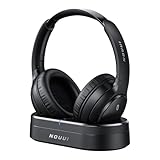
- HIFI Stereo Sound: Say goodbye to thin, tinny TV speakers. Wireless headphones for tv professionally tuned for an immersive sound experience beyond your TV speakers. From explosive action scenes to delicate melodies, every sonic detail is accurately reproduced. Headphones for tv combined with noise-isolating ear cups they easily block out household distractions like family conversations or kitchen noises, transforming your living room into a distraction-free private home theater
- Easy Setup & Wide Compatibility: No complicated pairing required—just "plug and play." Simply plug the audio cables into the ports on the transmitter and power it on; tv headphones will automatically pair and start working. TV headphones wireless for seniors support multiple connection methods (Optical, 3.5mm AUX, and RCA). Compatible with most TVs and audio devices, with the added option of Bluetooth connectivity. Even seniors can get started in just a few minutes and enjoy wireless freedom
- Ultra-Low Latency: Bluetooth headphones for tv equipped with Bluetooth 5.4 technology, achieve precise audio-video synchronization with a latency as low as 40ms. Whether it's the sound of players' footsteps during a soccer match or the roar of the crowd at an awards show, every detail is transmitted in real time. Wireless tv headphones with a reliable connection range of up to 100 feet, you can comfortably walk to the kitchen for a drink while the audio stays with you every step of the way
- 65-Hour Battery Life: One charge lasts for days! Wireless headphones for tv watching on a full charge, enjoy up to 65 hours of use—enough for multiple movie marathons or a full week of daily viewing. Wireless TV headphones with mprotein leather ear cushions ensure comfort even during extended wear. Unique storage-charging design, simply place the headphones back on the transmitter dock after use—they’ll recharge automatically and store securely. Say goodbye to battery anxiety for good
- Perfect Thoughtful Gift: Headphones for tvs wireless give each family member their own personal audio space. You can turn up the volume for a late-night game without waking others, while the high-volume mode allows seniors for hard of hearing to listen clearly without disturbing the rest of the household. TV wireless headphones made with skin-friendly protein leather; they remain comfortable even after hours of use. It’s the most practical, heartwarming gift for parents, partners, or yourself
Which TV output should you use for a Bluetooth transmitter?
| Output | When to use it | Settings or cautions |
|---|---|---|
| Optical/TOSLINK | Best general fallback when the TV has no Bluetooth or 3.5-mm jack | Set digital audio to PCM or stereo if the transmitter cannot decode Dolby or multichannel audio; TV volume may be fixed |
| 3.5-mm/AUX | Best for simple wired headphones or a small transmitter | TV volume often works, but the jack may mute internal speakers |
| RCA audio out | Useful on older TVs or external audio equipment | Use audio-out connectors, not RCA inputs; a 3.5-mm-to-RCA cable may be needed |
| HDMI ARC/eARC | Useful when the TV lacks optical and headphone outputs | Requires an ARC/eARC-labeled TV port and an ARC-compatible transmitter; ordinary HDMI inputs do not work |
| USB | Usually useful only for powering the transmitter | Do not treat USB as a guaranteed USB-audio output without model-specific confirmation |
Why is optical usually a good transmitter connection?
Optical is digital, widely available on TVs that omit a headphone jack, and suitable for dedicated TV-headphone systems. Optical output can be inconvenient because the TV may send a fixed-level signal, preventing the TV remote from changing headphone volume. Some TVs also mute or alter internal speakers when optical output is selected.
If optical produces silence, change the TV’s digital-audio setting from Auto, Bitstream, Dolby, or Pass-Through to PCM, Linear PCM, or Stereo. Avantree’s Orbit Pro specifications document PCM/LPCM support for optical input, and the company’s Opera setup guide recommends PCM or stereo for compatible transmitter systems.
Can the TV speakers and headphones work at the same time?
Whether headphones and TV speakers work simultaneously is model-specific. Some LG TVs support compatible Bluetooth headphones and internal speakers together, while other televisions mute the speakers when Bluetooth or the headphone jack becomes the selected output.
Crashes, No Sound, or Screen Glitches?
Random freezes, missing sound and display glitches usually trace back to one bad driver. Find and replace yours safely.Free scan · under a minutePC Slower Than It Used to Be?
A free scan shows the junk files, broken settings and background clutter dragging Windows down - then fixes them in one click.Free scan · Windows 10 & 11If shared listening is important, look for one of these solutions:
- TV multi-output: Some televisions offer a setting such as Bluetooth plus internal speakers.
- Audio-pass-through transmitter: The transmitter sends sound to the headphones while passing audio onward to a soundbar or stereo system, if the TV and connection support that arrangement.
- Dedicated wireless TV headphones: A dock-and-headphone system may provide independent volume while other people listen through the TV or sound system.
Avantree describes pass-through operation for systems such as Opera. A soundbar or AV receiver can complicate the setup if it already occupies the TV’s optical or HDMI ARC connection. Verify that the transmitter supports the required pass-through arrangement rather than blindly splitting a digital signal.
How do you fix common smart-TV headphone problems?
| Problem | First checks | Likely explanation |
|---|---|---|
| TV cannot find the headphones | Use explicit pairing mode, disconnect phones, move close to the TV, remove old pairings, and restart both devices | The headphones are connected elsewhere, not truly discoverable, or the TV lacks Bluetooth audio support |
| Headphones show connected but there is no sound | Select them as active output, check separate volumes, confirm the transmitter is on an output, and try PCM | The TV paired the device but continued using speakers, or the audio format is unsupported |
| Optical connection is silent | Remove optical-cap cable covers, check cable direction, select optical output, and set PCM/stereo | The TV is using an unsupported Dolby or multichannel format, or the transmitter is not receiving signal |
| Sound is delayed | Disable surround processing, use PCM, check AV sync, test another app, and re-pair | Bluetooth codec mismatch, TV processing, streaming-app behavior, or source-format conversion |
| TV speakers went silent | Check simultaneous-output settings and transmitter pass-through support | The selected headphone jack or Bluetooth output replaces the internal speakers |
| Headphones disconnect repeatedly | Remove other pairings, reboot, reduce distance and interference, check device limits, and use stable power | Another device is taking the connection, the range is marginal, or the transmitter is underpowered |
| Roku will not pair | Verify the exact Roku player or TV supports Bluetooth Headphone Mode | Roku support is device-specific; ordinary Roku TV Bluetooth behavior is not universal |
Why do Bluetooth headphones have lip-sync delay?
Lip-sync delay can come from Bluetooth encoding and decoding, codec mismatch, TV audio processing, surround virtualization, picture processing, or a particular streaming app. Bluetooth 5.x by itself does not guarantee delay-free audio.
- Set the TV’s digital output to PCM.
- Disable unnecessary surround, voice-enhancement, and audio-processing modes.
- Use the TV’s AV Sync, Audio Delay, or Lip Sync control if available.
- If the transmitter supports a low-latency codec, verify that the headphones support the same codec. A transmitter alone cannot guarantee low latency.
- Try optical instead of built-in TV Bluetooth, or built-in Bluetooth instead of the transmitter.
- Test a live broadcast and another app to determine whether the delay is source-specific.
- Restart and pair both devices again.
Avantree lists codecs including aptX Low Latency, FastStream, aptX, and SBC on some products, but low-latency performance depends on compatible support at both ends. If delay remains unacceptable, wired headphones or a purpose-built low-latency TV system are more dependable.
The Tool Desk
Outbyte PC Repair FREERepair Windows errors before they cause bigger problemsFix Now →Outbyte Driver Updater FREEScan for outdated or missing drivers - takes under a minuteDriver Scan →What kinds of headphones work with a smart TV?
| Headphone type | How it connects | Important qualification |
|---|---|---|
| Bluetooth headphones or earbuds | Directly to a TV with Bluetooth audio, or through a Bluetooth transmitter | The TV and headphones must support compatible audio profiles and codecs |
| Wired 3.5-mm headphones | TV headphone jack or compatible audio adapter | Lowest cost and usually lowest latency, but cable length and speaker muting matter |
| USB headphones | Only if the specific TV supports USB audio | Never assume a TV USB port functions as a headphone output |
| Proprietary wireless TV headphones | Included dock or transmitter connected to optical, AUX, or another supported output | Often provides charging and independent volume but may be tied to the included system |
| AirPods | Direct Bluetooth audio pairing or a compatible transmitter | Automatic switching, microphone, spatial-audio, and battery features may be unavailable |
| Hearing aids or Auracast headphones | Compatible Auracast broadcast or supported Bluetooth connection | The TV, transmitter, and listening device must support the required Auracast functions |
What is Auracast, and is it required for TV headphones?
Auracast is a broadcast-oriented Bluetooth capability, not a universal replacement for ordinary one-to-one Bluetooth headphone pairing. Auracast can matter for compatible hearing aids and headphones, but the TV or transmitter and the listening device must support the necessary Auracast functions.
Avantree’s current transmitter collection distinguishes Bluetooth-only, Bluetooth-plus-Auracast, and Auracast-focused products. An Auracast-only product is not a substitute for a conventional Bluetooth transmitter when the existing headphones use ordinary Bluetooth audio.
Can two people listen privately at the same time?
Two people can listen privately only when the TV, Roku device, transmitter, or dedicated headphone system supports two simultaneous headphones. LG documents two compatible Bluetooth headphones on some models; some transmitters provide dual-link output; and dedicated TV systems may support additional headphones.
Check the exact product specification for dual-link, two headphones, or an equivalent feature. Do not infer dual-headphone support from the presence of Bluetooth alone. Roku availability is also limited by exact device model.
Quick wins for a faster PC:
Fix the driver behind crashes, sound loss and screen glitchesFind Drivers →Clear out junk files and repair common Windows errorsFree Scan →Which smart-TV headphone solution should you buy?
Choose based on the problem you need to solve, not simply the Bluetooth version printed on a product box.
Also popular on Amazon

- Crystal-Clear TV Dialogue for Easy Listening: Hear every conversation, every line and every moment more clearly with wireless TV headphones made for relaxing everyday viewing. Ideal for seniors and anyone who struggles with unclear TV audio, these TV headphones wireless for seniors deliver enhanced dialogue clarity for movies, news, sports and late-night shows—without needing to turn up the TV volume for everyone else
- <40ms Ultra-Low Latency for Better-Synced Audio: These TV headphones wireless feature advanced <40ms ultra-low latency technology, keeping audio closely synced with the screen for a smooth viewing experience. Whether you're watching sports, movies or live shows, voices stay clear and naturally aligned without distracting lag. The dedicated transmitter provides a stable wireless connection and does not require Bluetooth pairing with your TV, making private TV listening simple and reliable
- Easy 3-Step Setup & Broad TV Compatibility: These bluetooth headphones for TV with TVs featuring Optical, AUX, or RCA audio outputs. Simply connect the transmitter, turn on the headphones, and adjust the TV audio settings if needed. With Bluetooth 5.4, the headphones also connect directly to compatible phones, tablets, and laptops. The included cables and illustrated guide make setup easy for seniors and first-time users. For Optical connections, set the TV audio format to PCM if required
- Comfortable Over-Ear Wireless Headphones for TV Watching: Ultra-soft, breathable protein leather ear cushions gently surround your ears for lasting comfort without pressure or overheating, even during long movies or sports games. The ergonomic adjustable headband features a durable outer frame and soft padded inner band for a secure, pressure-free fit on different head sizes, making these TV headphones comfortable for hours of everyday viewing
- Week-Long Battery Life & 100ft Wireless Range: Designed for everyday TV listening, these headphones for tvs wireless offer up to a week of battery life on a single charge. Enjoy clear TV audio from up to 100ft away while relaxing on the couch, cooking in the kitchen or moving around your home. When you're finished, simply place the headphones back on the transmitter base for convenient charging. The headphones support one active connection at a time
| Priority | Recommended solution | What to verify before purchase |
|---|---|---|
| Lowest cost and latency | Wired headphones through a 3.5-mm TV jack | The TV has a headphone output and the cable reaches the seating position |
| Use existing Bluetooth headphones | Direct TV Bluetooth pairing | The TV explicitly supports Bluetooth audio output |
| TV lacks Bluetooth audio | Optical, AUX, RCA, or ARC Bluetooth transmitter | The transmitter input matches the TV’s output and supports TX mode |
| Independent volume and easy charging | Dedicated wireless TV headphones with dock | Input type, pass-through, volume controls, and expansion support |
| TV speakers must remain available | Pass-through transmitter or TV multi-output | Simultaneous-output behavior on the exact TV and connected soundbar |
| Two private listeners | TV or transmitter with dual-headphone support | Whether both headphones can connect at the same time |
| Roku-centered viewing | Compatible Roku Headphone Mode or mobile-app private listening | Exact Roku model and whether all desired sources are covered |
| Hearing assistance | Dedicated clear-dialogue system or compatible Auracast setup | Compatibility with the hearing aids, TV output, and required standard |
Are dedicated TV headphones worth it?
Dedicated wireless TV headphones are worth considering when simple charging, large independent volume controls, clearer dialogue, or separate household volume levels matter more than using an existing pair of headphones with many devices. A dedicated system generally costs more than a basic cable or transmitter but reduces pairing and charging friction.
During the August 16, 2026 research pass, Avantree listed the Opera complete TV-headphone system at $139.99 and the Ensemble Pro at a $99.99 sale price against a $129.99 reference price on its official pages. Prices and availability are volatile; treat those figures as dated manufacturer-page observations, not permanent prices. The Opera combines headphones with a transmitter and charging dock, while the Ensemble Pro is positioned around independent volume and dialogue-oriented controls.
Should you buy a transmitter for existing headphones?
A transmitter is the better fit when the TV lacks Bluetooth audio but already has optical, AUX, RCA, or compatible ARC output and you want to keep your current headphones. For example, Avantree’s Orbit Pro lists optical, AUX, and RCA inputs and codecs including aptX Low Latency, FastStream, aptX, and SBC. The listed price was $129.99 during the August 16, 2026 research pass.
A transmitter is a poor purchase when the TV already pairs reliably with the headphones, when the chosen transmitter lacks the required input, or when the headphones do not support the transmitter’s low-latency codec. A product’s Bluetooth version alone is not enough to predict lip-sync performance.
When does a Sony WLA-NS7 make sense?
The Sony WLA-NS7 is an ecosystem-specific option for compatible BRAVIA XR televisions and selected Sony headphones. Sony specifies optical and USB connections to a compatible BRAVIA XR TV and Bluetooth pairing to selected Sony headphones on the official WLA-NS7 page. The WLA-NS7 is a poor fit for a non-Sony TV or for someone seeking a broadly compatible universal transmitter.
Final setup checklist
- Identify the TV model and confirm whether Bluetooth audio output is supported.
- Inventory the available outputs: 3.5-mm, optical, RCA out, and HDMI ARC/eARC.
- Put headphones into pairing mode and disconnect nearby phones or computers.
- If using a transmitter, confirm it is a transmitter in TX mode and connect it to an audio output.
- For optical audio, select PCM or stereo if the transmitter produces silence.
- Select the headphones as the active sound output rather than assuming pairing changed the output automatically.
- Test volume, lip-sync, TV-speaker behavior, other apps, and every source you intend to watch.
- If shared listening matters, verify multi-output or pass-through support before finalizing the setup.
Frequently Asked Questions
Can every smart TV connect to Bluetooth headphones?
No. A smart TV may include Bluetooth for a remote, keyboard, or controller without supporting Bluetooth audio output. The TV must provide a Bluetooth-headphone or wireless-speaker sound-output option, and supported models may require the A2DP audio profile.
Why are my Bluetooth headphones connected to the TV but silent?
The TV may have paired the headphones without selecting them as the active audio output. Select the headphones in Sound Output, check both TV and headphone volume, confirm a transmitter is connected to an audio output, and set optical audio to PCM if necessary.
Do these 3 things before closing this tab:
1Repair Windows errors before they cause bigger problems2Fix the driver behind crashes, sound loss and screen glitches3Clear out junk files and repair common Windows errorsCan I use AirPods with a smart TV?
AirPods work when the TV supports Bluetooth audio pairing or when a compatible Bluetooth transmitter is connected to the TV. AirPods features such as automatic switching, microphones, spatial audio, and battery reporting may not work through every TV or transmitter.
How can I prevent Bluetooth headphone lip-sync delay on a TV?
Set digital audio to PCM, disable unnecessary surround processing, adjust the TV’s AV-sync control, and use a transmitter and headphones with matching low-latency codec support. Wired headphones remain the most dependable option when delay is unacceptable.
Can TV speakers and Bluetooth headphones play at the same time?
Sometimes, but simultaneous playback is model-specific. Check for a TV multi-output setting or use a transmitter with audio pass-through; selecting Bluetooth or a headphone jack may otherwise mute the internal speakers.
The Bottom Line
If Bluetooth audio appears in the TV’s sound-output menu, pair your headphones directly. If Bluetooth audio is missing or unreliable, connect a Bluetooth transmitter to optical, AUX, RCA, or compatible HDMI ARC output and set optical audio to PCM when needed. For shared viewing, independent volume, or hearing assistance, choose a pass-through or dedicated TV-headphone system after confirming compatibility with the exact TV model.

