
iTechGuides is reader-supported. When you buy through links on our site, we may earn an affiliate commission. As an Amazon Associate I earn from qualifying purchases. Learn more
To watch movies from an external drive on your iPad with iPadOS, connect the drive with the correct USB-C or Lightning adapter, open Files → Browse, choose the drive under Locations, and tap the movie. Compatible MP4 or MOV files may play immediately; VLC or Infuse can handle many files the built-in player cannot.
Key takeaways
- iPadOS can access compatible USB drives, portable SSDs, flash drives, SD cards, and supported network storage through the Files app.
- The documented path is Files → Browse → the external drive under Locations, followed by tapping the movie file.
- Apple lists APFS, encrypted APFS, HFS+, exFAT/FAT64, FAT32, and FAT for a single-partition external storage device.
- exFAT is usually the most practical format for a drive shared between an iPad, Mac, and Windows PC, while FAT32 cannot store one file larger than 4 GB.
- A drive appearing in Files proves storage access, not video compatibility; codecs, audio tracks, subtitles, resolution, and DRM still determine whether a movie plays.
- VLC is the free broad-compatibility option, while Infuse is better suited to a large, organized movie library and offers optional Pro features.
What do you need to watch movies from an external drive on an iPad with iPadOS?
You need an iPad with a compatible port, an external drive or SD card, a data-capable cable or adapter, and enough power for the storage device. You may also need a third-party media player if the movie uses a format that the built-in Files player cannot decode.
| iPad connection | Suitable accessories | Important consideration |
|---|---|---|
| USB-C | USB-C flash drive, USB-C SSD, USB-C cable, USB-C hub, or USB-C SD-card reader | A USB-C connector does not by itself guarantee the fastest USB or Thunderbolt speed. Cable, hub, drive, and iPad model also matter. |
| Lightning | Lightning to USB Camera Adapter, Lightning to USB 3 Camera Adapter, or Lightning to SD Card Camera Reader | Portable hard drives are more likely to need external power. The USB 3 Camera Adapter provides a power-input path for a connected USB power adapter. |
Apple documents access to external USB drives and SD cards through Files and supported apps in the iPad User Guide. Compatibility can still vary by iPad model, installed iPadOS version, accessory, region, and the power required by the drive. Apple’s iPadOS 26 feature document, dated September 2025, also lists supported models, so do not assume that every iPad supports every current iPadOS feature.
How do you connect an external drive to an iPad?
Connect the drive first, supply power if necessary, and then open it from the Files app. The following procedure works for a USB-C drive, Lightning adapter, portable SSD, flash drive, or SD-card reader.
Popular on Amazon

- USB-C 2-in-1 storage OTG: The Lexar JumpDrive Dual Drive D40E features USB Type-A and Type-C connectors in a slim, portable form factor for easy device compatibility
- Transfer speeds up to 100MB/s: Based on internal testing, performance may vary depending upon the host device, interface, and usage conditions. 1MB=1,000,000 bytes
- Plug and Play: Widely compatible with USB Type-C smartphones, tablets, laptops, Macs, and traditional Type-A devices, no software installation required. The 360° swivel design allows for easy switching between connectors without the hassle of losing a cap
- Durable & Compact: The Lexar D40E USB memory stick features a metal enclosure, withstands temperatures from 0° to 50° C (32°F to 122°F), and is lightweight at 26g with dimensions of 70.4 x 16.9 x 11.7mm
- Security & Warranty: Securely protects files using an advanced security software solution with 256-bit AES encryption. Backed by a Lexar 3-year limited warranty
- Check the iPad’s port. Use a direct USB-C drive or USB-C adapter with a USB-C iPad. Use a Lightning camera adapter or SD-card reader with a Lightning iPad.
- Attach the cable or adapter. Confirm that the cable supports data, not charging only.
- Connect the drive or card. Insert the USB drive, connect the SSD or hard disk, or insert the SD card into its reader.
- Provide power when required. Connect the drive’s own power supply, plug a powered hub into its charger, or connect a USB power adapter to the power input on a Lightning to USB 3 Camera Adapter.
- Open Files. Tap Browse at the bottom of the screen. If the sidebar is hidden, tap Browse again.
- Find the drive. Under Locations, tap the external drive’s name.
- Open the movie. Browse to the folder and tap the video file.
Apple’s documented Files path is Browse → the device name under Locations. The movie can often stream directly from the external device, so iPadOS does not need to copy the entire collection into internal storage first.
Can an iPad play a movie directly from an external drive?
Yes, an iPad can often play a compatible, unprotected movie directly from an external drive without copying the complete file to On My iPad. Direct playback leaves the movie on the drive, while copying the movie to iPad storage or importing it into a player app uses internal storage but can improve reliability.
| Playback method | Where the movie remains | Best use | Main trade-off |
|---|---|---|---|
| Files built-in player | External drive | Common MP4 or MOV files | Limited codec and subtitle compatibility |
| Open with VLC or Infuse | Usually the external drive, depending on app integration | Unsupported containers, alternate audio, and subtitles | App behavior and direct-drive access can vary by iPadOS release |
| Copy to On My iPad | Internal iPad storage | Unstable connections or power-sensitive drives | Consumes internal storage |
| Import into a player app | The player’s local storage | Offline playback after disconnecting the drive | Creates another copy and requires available space |
| Network share or NAS | Mac, PC, NAS, or network drive | Large home libraries | Requires network and server reliability |
Direct playback is not guaranteed simply because the drive appears in Files. External-storage access and video decoding are separate functions: iPadOS may read the storage successfully while the built-in player rejects the movie’s video codec, audio codec, subtitle track, disc-image structure, or DRM protection.
What’s actually slowing this PC down?
Pick the symptom - the matching free tool is one click away.
Which movie formats play natively on an iPad?
The least-friction choice is an unencrypted MP4 or MOV containing H.264 video and AAC audio, but that combination is a compatibility guideline rather than a guarantee. A file’s container, video codec, audio codec, subtitle format, resolution, bitrate, HDR format, and iPad hardware can all affect playback.
| Component | What it means | Why it matters |
|---|---|---|
| Container | The file wrapper, such as MP4, M4V, MOV, MKV, or AVI | A supported container does not guarantee that every stream inside it is supported. |
| Video codec | The compression format, such as H.264, HEVC/H.265, VP9, or AV1 | Older and newer iPads differ in hardware support and performance, especially with demanding high-resolution files. |
| Audio codec | The sound format, such as AAC, AC-3/E-AC-3, DTS, or FLAC | A movie can display video while producing no sound or failing to select the intended audio track. |
| Subtitles | Embedded tracks or separate files such as SRT, VTT, ASS/SSA, or bitmap subtitles | Subtitle controls and styling vary between Files, VLC, and Infuse. |
| DRM | Copy protection applied by a store or streaming service | Protected downloads are not ordinary video files that can be copied to USB and opened in another player. |
MKV is a container, not a single video format. A VLC or Infuse installation may support an MKV file while a particular video, audio, subtitle, or HDR stream inside that MKV still causes a problem. Newer iPads generally handle more demanding formats than older models, but the installed iPadOS version and the specific iPad model remain relevant.
What should you use when Files cannot play the movie?
Try VLC first when you want a free player with broad format support; choose Infuse when you want a polished library interface, metadata, and convenient handling of a large personal collection.
| Player | Best for | Published capabilities | Limitations |
|---|---|---|---|
| Files | Simple playback of compatible files | No extra app and the shortest workflow | Native format and codec support is more limited |
| VLC | Free compatibility and unusual files | VideoLAN lists MKV, multiple audio tracks, subtitles, network streams, cloud integrations, and file-server support | Library management is less polished, and external-drive access can vary by app and iPadOS version |
| Infuse | Organized libraries and home-theater features | The App Store listing describes broad container and codec support, metadata, chapters, subtitles, HDR, Dolby Vision, AirPlay, and USB-drive support | Some features require optional Infuse Pro; DRM-protected store movies remain unsupported |
How do you play an external-drive movie with VLC?
Install VLC, locate the movie in Files, and use the Share menu or Open in VLC to send the file to VLC. If the external location is not offered directly, copy the movie into VLC’s folder under On My iPad and open the copied file from inside VLC.
Free tools Windows power users keep installed
One-click scans. No signup required.
Also popular on Amazon

- [Dual Flash Drive] This 2-in-1 USB flash drive is designed with a Type-C plug and a USB-A plug at each end, working across all your Type-C Android phones, iPhone 15/15 Pro/15 Pro Max, iPhone 16/16Pro/16E, tablets, iPad Pro, Macs and USB-A computers, game consoles, car audios, and more (Not for Lightning iPhone/iPad).
- [Fast Speed] Optimizing the USB 3.0 technology, this USB-C flash drive fast transfers and backs up your high-res photos, videos, music, and heavy files at a read speed of up to 130MB/s and a write speed of up to 35MB/s, 10X faster than USB 2.0 flash drives.
- [Wide Use] This Type-C flash drive supports Windows, Android, Linux, and Mac OS, and is backward compatible with USB 2.0 ports. Plug and play, no need to install any software, working seamlessly with USB-C and USB-A devices.
- [Durable and Reliable] This dual USB 3.0 flash drive adopts superb memory chips thus ensuring extremely reliable performance, plus the premium plastic enclosure offers excellent heat dissipation. The cap protects the connectors from dust and damage, providing extended durability and security.
- [Compact and Portable] Constructed in a mini size of 63.5x17.8x8.4mm/2.5x0.7x0.3inch, this slim USB-C thumb drive can fit into your pocket, letting you enjoy the instant large capacity at any time.
- Install VLC for iOS/iPadOS from VideoLAN.
- Connect and power the external drive.
- Open Files → Browse → the drive under Locations.
- Touch and hold the movie, or open the movie and use the Share button.
- Choose Open in VLC if the option appears.
- If VLC is not listed, choose a copy or save option and place the file in VLC’s folder under On My iPad.
- Open VLC and select the imported movie.
VideoLAN describes VLC for iOS/iPadOS as free, libre, and open source. The official page listed VLC version 3.7.0 when the research was retrieved; app versions and Files integration can change, so use the current App Store release rather than treating that retrieved version as a permanent requirement.
How do you play an external-drive movie with Infuse?
Install Infuse and use its file-browsing or import workflow to open the connected drive, then let Infuse organize the movie if you want artwork, metadata, chapters, alternate audio, and subtitle controls.
Infuse’s iPad App Store listing publishes support for formats and features including MP4, MKV, MOV, AVI, HEVC, VP9, AV1, MTS/M2TS, TS, VOB, multiple audio tracks, subtitles, chapters, HDR, Dolby Vision, AirPlay, and USB-drive sources such as SanDisk iXpand. Published support does not mean every file will play identically on every iPad: the device, iPadOS version, audio output, HDR display, and stream combination still matter.
The Infuse listing describes a free base app with in-app purchases and an optional Infuse Pro subscription with a free trial. Exact prices and offers change by country and over time, so check the current App Store listing before subscribing. Infuse is the more natural choice for a large collection, a television-style library, NAS access, or frequent use of MKV files; occasional MP4 playback does not normally require a paid player.
Windows Errors? Fix Them Before They Spread
Repair common Windows errors and clear accumulated junk for a smoother, more stable PC - no reinstall needed.Free scan · no reinstallOutdated Drivers Are Slowing You Down
One free scan finds every outdated or missing driver and matches the right update for your exact hardware.Free scan · exact hardware matchWhich filesystem should the external drive use?
Use exFAT for most drives that must move between an iPad, Mac, and Windows PC. Apple lists APFS, encrypted APFS, macOS Extended/HFS+, exFAT/FAT64, FAT32, and FAT as supported formats for a single-partition external storage device in its iPad User Guide.
| Filesystem | Practical choice | Trade-off |
|---|---|---|
| exFAT/FAT64 | Best general-purpose option for Mac, Windows, and iPad sharing | Must be formatted correctly and used with a compatible single-partition layout |
| APFS or encrypted APFS | Apple-only workflows | Less convenient when the same drive must be used regularly with Windows |
| HFS+/macOS Extended | Some Mac-focused collections | Not the most convenient cross-platform format |
| FAT32 | Older or broadly compatible devices | Cannot store an individual file larger than 4 GB, which can exclude high-bitrate movies and 4K rips |
| NTFS | Windows-formatted drives requiring qualification | Do not assume normal, native iPadOS access; reformat or use a workflow specifically confirmed for the device and app |
Apple specifies that the external device should have only one data partition. A drive with multiple partitions may fail to appear or may provide incomplete access. Reformatting erases the drive, so back up the movie collection before changing its filesystem. Apple’s documentation says formatting can be changed using Files on an iPad or a Mac or PC, although the exact options depend on the iPad model and installed iPadOS version.
Why is the external drive missing from Files?
A missing drive is usually caused by an adapter, cable, power, filesystem, partition, or hardware problem rather than by the movie file. Troubleshoot the connection in this order:
Also popular on Amazon

- USB-C 2-in-1 storage OTG: The Lexar JumpDrive Dual Drive D40E features USB Type-A and Type-C connectors in a slim, portable form factor for easy device compatibility
- Transfer speeds up to 100MB/s: Based on internal testing, performance may vary depending upon the host device, interface, and usage conditions. 1MB=1,000,000 bytes
- Plug and Play: Widely compatible with USB Type-C smartphones, tablets, laptops, Macs, and traditional Type-A devices, no software installation required. The 360° swivel design allows for easy switching between connectors without the hassle of losing a cap
- Durable & Compact: The Lexar D40E USB memory stick features a metal enclosure, withstands temperatures from 0° to 50° C (32°F to 122°F), and is lightweight at 26g with dimensions of 70.4 x 16.9 x 11.7mm
- Security & Warranty: Securely protects files using an advanced security software solution with 256-bit AES encryption. Backed by a Lexar 3-year limited warranty
- Reconnect the drive. Disconnect the adapter and drive, wait briefly, and connect them again.
- Check the adapter and cable. A charge-only cable or non-data adapter cannot expose storage to Files.
- Add power. Connect the hard drive’s power supply or use a powered hub. Apple warns that external hard drives may need independent power, and Apple recommends a powered USB hub for some Thunderbolt or USB 4-capable setups when the drive does not supply its own power.
- Try another cable or port. A damaged cable, loose connector, or faulty hub can cause intermittent recognition.
- Test the drive on a Mac or PC. If the computer cannot read it either, the drive or its filesystem may be damaged.
- Check the filesystem. Use one of Apple’s documented formats and avoid assuming that NTFS will work normally.
- Check the partition layout. Apple specifies one data partition.
- Restart and update carefully. Restart the iPad and install an available iPadOS update if the iPad model supports it and the update is appropriate.
- Reformat only as a last resort. Back up the files first because formatting deletes the contents.
Typical signs of insufficient power include a drive that never appears, repeatedly disappears, produces an accessory-power warning, stops playback, clicks, spins down, or reconnects continuously. A low-power flash drive or SSD is usually easier to run from an iPad than a bus-powered spinning hard disk.
Recommended Free Tools
Why does the movie appear but refuse to play?
A movie that appears in Files but will not play is usually using an unsupported video or audio stream, has damaged data, is protected by DRM, or is too demanding for the iPad and player combination.
- Try the movie in VLC.
- Try the movie in Infuse.
- Copy a short sample or the movie itself to local iPad storage and test it again.
- Open a different movie from the same drive. If other movies work, the problem is likely file-specific.
- Test the original file on a Mac or PC to check whether the file is incomplete or corrupt.
- Check the movie’s video codec, audio codec, subtitle tracks, resolution, and HDR format.
- Convert or remux the file to H.264 video with AAC audio in an MP4 container only if the player alternatives fail.
Conversion should be a fallback, not the first step. Re-encoding can reduce quality, remove subtitles or alternate audio tracks, change HDR behavior, and take considerable time. If conversion is necessary, preserve the subtitle and audio tracks deliberately rather than accepting the converter’s default selections.
How do you fix subtitles that do not appear?
Try VLC or Infuse when Files does not expose subtitle controls. Embedded subtitle tracks may work in a third-party player even when the native player ignores them.
For an external subtitle file, place the subtitle beside the movie and use a matching base filename. For example:
The Tool Desk
Outbyte Driver Updater FREEFix the driver behind crashes, sound loss and screen glitchesFind Drivers →Outbyte PC Repair FREERepair Windows errors before they cause bigger problemsFix Now →Movie.mkv
Movie.en.srtSubtitle behavior varies by player and format. VLC and Infuse publish support for multiple subtitle tracks and formats, but forced subtitles, PGS bitmap subtitles, ASS/SSA styling, and other advanced features may not render identically. If a subtitle is missing, test another subtitle format, confirm that the filename matches, and select the track from the player’s subtitle menu.
Why does the video play without sound?
Video without sound usually means the container is readable but the selected audio codec or audio output is not fully supported by the current player and hardware.
Also popular on Amazon

- 2-in-1 Dual Design: Features both USB-C and USB-A connectors, making it compatible with phones, tablets, MacBooks, PCs, and laptops-no adapter needed
- Wide Compatibility: Works seamlessly with USB A and USB C devices, ensuring reliable file transfers across smartphones, computers, and more
- Ample Storage Options: Available in 16GB/32GB/64GB/128GB providing plenty of space for photos, videos, music, and documents
- Portable & Lightweight: Compact and durable design for travel, school, or daily use-take your files anywhere
- Plug-and-Play Convenience: No software or drivers required; simply insert into USB-C or USB-A ports and start transferring files instantly
- Try another audio track if the movie contains several tracks.
- Open the movie in VLC or Infuse, which advertise broader audio-track support than the native Files player.
- Check whether the audio uses AAC, Dolby formats, DTS, FLAC, AC-3, E-AC-3, or another codec.
- Test the iPad’s built-in speakers before troubleshooting Bluetooth, HDMI, or AirPlay.
- Do not assume every DTS, Dolby TrueHD, Atmos, or multichannel file will decode or pass through identically on every iPad, app, output device, or subscription tier.
How do you reduce stuttering during playback?
Stuttering can result from insufficient power, an unstable cable, a slow or failing drive, a very high-bitrate file, or an iPad/player combination that cannot decode the video smoothly.
- Use a powered hub or the drive’s own power supply if the drive disconnects or spins down.
- Try the same movie from local iPad storage. Smooth local playback points toward a drive, cable, hub, or power problem.
- Try a different movie from the drive. If only one file stutters, its bitrate, codec, or damaged data may be responsible.
- Use a portable SSD instead of a mechanical hard disk for a travel setup or high-bitrate 4K collection.
- Try VLC or Infuse, then consider remuxing or converting the file if the iPad cannot decode it reliably.
USB-C can enable faster connections on some iPads, but connector type alone does not establish maximum speed. The iPad model, drive, cable, hub, filesystem, and sustained power behavior all contribute to real-world playback reliability.
Can you play Apple TV, Netflix, or other streaming downloads from USB?
No. DRM-protected movies and television downloads from Apple TV, iTunes, Netflix, Disney+, and similar services generally cannot be copied to an external drive and played as ordinary files in Files, VLC, or Infuse.
Use the official service app while signed in to the account that owns or provides the content. A DRM-free personal video file is different from a protected offline download. Do not attempt to bypass the service’s copy protection.
Infuse’s App Store listing specifically excludes DRM-protected iTunes Store movies and TV shows as ordinary Infuse files.
Should you use a flash drive, portable SSD, hard disk, or NAS?
Choose a low-power flash drive for a few travel movies, a portable SSD for a larger or high-bitrate collection, a hard disk for inexpensive capacity when power and movement are manageable, and a NAS or network share for a library that stays at home.
| Storage choice | Best fit | Advantages | Drawbacks |
|---|---|---|---|
| USB flash drive | A handful of movies and minimal luggage | Small, inexpensive, and generally low power | Can be slower, run hot during sustained transfers, or have unreliable companion software |
| Portable SSD | Large libraries, frequent travel, and high-bitrate 4K files | Quiet, fast, and less vulnerable to movement than a mechanical disk | Costs more, needs a suitable cable, and some models may draw substantial power |
| Portable hard disk | Maximum capacity per dollar | Large storage capacity at relatively low cost | More likely to require external power and more vulnerable to movement and disconnects |
| NAS or network share | A home collection shared across devices | No physical drive connection; central library for an iPad, Mac, PC, or television | Requires Wi-Fi, server configuration, and a reliable home network |
Infuse lists Mac, PC, NAS, Wi-Fi hard drives, Plex, Emby, Jellyfin, and cloud services as possible sources. VLC lists network protocols and sources including SMB, NFS, SFTP, FTP, UPnP/DLNA, and several cloud integrations. Network playback avoids adapter and USB-power problems, but Wi-Fi bandwidth and server configuration become the new potential failure points.
Also popular on Amazon
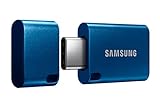
- USB-C STORAGE ON THE GO: This sleek drive is supported by Samsung NAND flash and is incredibly compact to fit in the palm of your hand; Count on reliable performance and fast transfer speeds while staying compact
- PERFORMANCE WITH SPEED: No need to choose between performance and reliability; Experience a fast, powerful flash drive that transfers 4GB files in just 11 seconds with up to 400MB/s USB 3.2 Gen 1 read speeds and is backward compatible with USB 3.0/2.0
- MODERN MEETS ICONIC: The ultra-sleek USB-C drive looks as good as it performs; Featuring a reversible plug, the Type-C inserts into your devices seamlessly every time; Transfer large files with style and ease
- ALWAYS CONNECTED**: USB-C is compatible across devices, including laptops, tablets, phones and cameras, with enough space for 63,730 photos or maximum 12 hours of 4K video; With up to 256GB of storage space, this pocket-sized thumb drive comes in handy wherever you go
- TOUGH & TRUSTED***: Files stay secure, no matter the terrain; Samsung's flash memory technology makes the Type-C a trustworthy drive to store your valuable data; It's waterproof, shock-proof, magnet-proof, temperature-proof, and X-ray-proof body, plus it's backed by a 5-year limited warranty
What is the best setup for different types of iPad users?
| Situation | Recommended setup | Reason |
|---|---|---|
| Occasional MP4 or MOV playback | Compatible drive plus Files | Fastest setup with no additional player |
| MKV, multiple audio tracks, or subtitles | Drive plus VLC | Free player with broad published format and track support |
| Large, organized personal library | Portable SSD or NAS plus Infuse | Better metadata, artwork, library navigation, and home-media features |
| Lightning iPad with portable hard disk | Lightning to USB 3 Camera Adapter plus power | Lightning connections often need a powered adapter setup for hard disks |
| Travel with a few files | Low-power flash drive and the correct adapter | Small, simple, and less demanding than a mechanical hard disk |
| Drive repeatedly disconnects | Powered hub or lower-power SSD | Addresses likely power and connection instability before reformatting |
| Protected streaming or store download | Original Apple TV or streaming app | DRM prevents normal USB-file playback |
What is the quickest decision tree?
Use this sequence to avoid unnecessary copying, formatting, or conversion:
- Drive visible and MP4/MOV plays: Keep using Files and play directly from the drive.
- Drive visible but movie does not play: Try VLC, then Infuse, before converting the file.
- Drive missing: Check data support, power, cable, filesystem, and the single-partition requirement.
- Large library: Use a portable SSD for direct travel playback or a NAS with Infuse or VLC at home.
- DRM-protected purchase or subscription download: Use the original official app instead of copying the download to USB.
Bottom line
The normal method is simple: connect the compatible drive, open Files → Browse, select the drive under Locations, and tap the movie. Use exFAT for most cross-platform drives, provide power to demanding storage devices, and remember that drive recognition does not guarantee codec compatibility. Files is the right first choice, VLC is the best free fallback, and Infuse is the stronger library experience for people with many movies or advanced format requirements.
Frequently Asked Questions
Can an iPad play movies directly from a USB drive without copying them?
Yes. Open Files, choose Browse, tap the external drive under Locations, and tap a compatible movie. The movie can remain on the drive, although copying it to On My iPad may improve reliability if the connection or power supply is unstable.
Do these 3 things before closing this tab:
1Clear out junk files and repair common Windows errors2Scan for outdated or missing drivers - takes under a minute3Repair Windows errors before they cause bigger problemsWhat format should an external drive use with an iPad?
exFAT is usually the best choice for a drive shared between an iPad, Mac, and Windows PC. Apple also lists APFS, encrypted APFS, HFS+, FAT32, and FAT, and specifies a single data partition; reformatting erases the drive.
Why does my iPad recognize a movie but not play it?
Drive recognition only confirms that iPadOS can access the storage. The movie may use an unsupported video codec, audio codec, subtitle format, resolution, HDR format, or DRM system; try VLC or Infuse before converting the file.
Can Apple TV or Netflix downloads be copied to an external drive and played on an iPad?
Generally no. Protected downloads from Apple TV, iTunes, Netflix, Disney+, and similar services use DRM and are not ordinary files for Files, VLC, or Infuse. Watch them in the official app while signed in to the relevant account.

