
iTechGuides is reader-supported. When you buy through links on our site, we may earn an affiliate commission. As an Amazon Associate I earn from qualifying purchases. Learn more
To control smart-home devices by voice, first confirm that each device works with your chosen assistant, then set it up in the assistant or manufacturer app, assign it a clear room and name, and use short commands that specify the action. A Matter label can make cross-platform setup easier, but it does not guarantee that your assistant supports every feature or remove requirements such as a compatible hub or network.
The most reliable approach is to work outward from the device: verify compatibility and requirements, complete pairing, test control in the manufacturer app, and only then add voice control. That sequence makes it easier to tell whether a failure comes from power, Wi-Fi, an account link, or the assistant itself.
What do you need before using voice control?
You need a compatible smart-home device, a configured assistant, and a way for the two to communicate. Depending on the product and platform, that may mean pairing directly in the assistant app, linking a manufacturer account or assistant skill, or using a hub or bridge.
What’s actually slowing this PC down?
Pick the symptom - the matching free tool is one click away.
Check the device’s compatibility information before buying or pairing it. Look for the assistant badge or Matter support, then verify that your chosen platform supports the functions you want to use. A device might appear in an assistant app but expose only some of its capabilities there. For example, discovery may allow an assistant to switch a plug on and off without exposing every setting, sensor reading, or device-specific mode.
#1 Best Overall

- 【Matter: All-Round Compatibility】With Matter, users are no longer tied to specific platforms and works with all certified smart home platforms, such as Apple Home, Amazon Alexa, Google Home and Samsung SmartThings. You can control all your smart home devices from a single app, reducing the need for multiple apps for different devices.
- 【Matter: Smooth LAN Control】All Matter-certified devices in your local area network (LAN) will work smoothly even when your home internet goes offline. Matter allows effective communication directly between devices, without the need for a specific 'forwarding' device. For example, a Matter smart switch or sensor can turn on/off a Matter bulb directly without being connected to a cloud service, or other specific action. Once configured, communication and control between Matter devices can be achieved directly on the local network.
- 【Matter: Future-Proofing】Matter devices will be compatible with future updates and advancements in technology, ensuring that your smart home system remains up-to-date and compatible with new devices and features.
- 【Compact & Flame Retardant Design】Avoid blocking additional outlets with its compact design, and plug in your WiFi smart plug with confidence thanks to its UL certified flame retardant design and 2-year limited warranty.
- 【App & Voice Control】Control your WiFi smart plug from anywhere, anytime via the free Tapo App or just give voice commands to Siri, Amazon Alexa, Google Assistant or Samsung SmartThings. Your favorite smart assistant enables you to have a truly hands-free experience.
- Assistant compatibility: Confirm that the device supports your chosen voice assistant or can be connected through a supported integration.
- Setup requirements: Check whether it needs a hub, a particular Wi-Fi configuration, a manufacturer account, or an assistant skill.
- Features: Verify that the assistant can control the specific functions you care about, not just discover the device.
- Room and naming: Plan names that are easy to say and distinguish from other devices in the home.
- Region: Device classes, voice services, and integrations can vary by country or region.
- Privacy controls: Review the current privacy and voice-history settings in the platform you plan to use. The setup documentation cited below does not provide a consistent basis for ranking platforms on privacy.
Matter is a shared smart-home standard, not a guarantee of identical setup or feature support everywhere. For example, Google’s documented Matter setup requires a Google Account, home Wi-Fi with IPv6 enabled, a Matter-enabled Google Home hub, and a Matter-enabled device. Check the requirements for your chosen ecosystem as well as the device’s own instructions.
A hub can be a separate product or a compatible assistant device that provides the controller function. Do not assume that owning a smart speaker automatically satisfies every hub requirement: confirm that the specific model is listed as compatible. If a product uses a bridge such as SmartThings or Home Assistant, include that bridge in your setup plan and verify which device functions it can expose.
How do you set up a Matter device with Google Home?
Google says you can set up a Matter device directly in Google Home or set it up in its manufacturer’s app and then share it with Google Home. For Google’s documented setup, you need the prerequisites described above; the setup flow then guides you through pairing, room assignment, and naming.
The Tool Desk
Outbyte PC Repair FREERepair Windows errors before they cause bigger problemsFix Now →Outbyte Driver Updater FREEScan for outdated or missing drivers - takes under a minuteDriver Scan →- Confirm that you have a Google Account, IPv6-enabled home Wi-Fi, a Matter-enabled Google Home hub, and a Matter-enabled device.
- Power on the device and put it into pairing mode as described by its manufacturer. A device that is powered but not in pairing mode will not be discoverable through the normal add-device flow.
- Open Google Home and start the add-device flow. Scan the device’s Matter QR code, or follow the app’s alternative pairing instructions if scanning is unavailable.
- Follow the prompts to complete setup, then choose a room and give the device a distinctive name. Use a name that is easy to pronounce and does not closely resemble another device.
- If you set the device up in its manufacturer’s app first, use that app’s sharing flow to add it to Google Home. Keep the manufacturer account details available if the app asks you to authorize sharing.
- Test the device in Google Home before relying on voice. This confirms that pairing completed and gives you a baseline for troubleshooting later.
Google Home and Nest Help describes the app’s role this way: “You can use the Google Home app to set up and manage Matter-enabled devices.” Once setup is complete, voice is one way to control the device; the functions and wording available depend on the device and platform.
If the device does not appear, check the prerequisites first rather than repeatedly scanning the code. Confirm IPv6 is enabled on the home network, verify that the intended Google Home hub is Matter-enabled, and make sure the device has power and is still in pairing mode. If setup began in the manufacturer’s app, complete any account-sharing step required there before trying to add it again in Google Home.
How do you set up a device with Amazon Alexa?
For a Matter device, Amazon’s documented app path is Devices → Add Device → Matter. For certain third-party Wi-Fi devices that are not Matter certified, Amazon says to complete setup in the manufacturer’s app and then connect the device using its relevant Alexa skill.
- Check that the device is compatible with Alexa, powered on, online, and in pairing mode.
- For Matter, open the Alexa app and go to Devices → Add Device → Matter.
- Scan the device’s Matter QR code or enter its pairing code, then follow the app’s prompts.
- For a supported non-Matter Wi-Fi device, finish setup in the manufacturer’s app and enable or link the appropriate Alexa skill as instructed. The skill is the connection between the manufacturer account and Alexa, so use the account that owns the device.
- Assign a room and give the device a clear name if the app offers those options. A consistent room assignment helps when you have several similar lights, plugs, or switches.
- Test control from the Alexa app, then try a simple voice command. If app control works but voice does not, investigate the skill, account link, name, and supported device functions instead of resetting the hardware immediately.
For the Matter setup described in Amazon’s instructions, the company recommends placing the device within 30 feet (9 m) of a compatible Alexa hub or device. That distance is specific to the documented setup context, not a universal range for every smart-home protocol or product. Follow the product’s own range guidance when it differs.
Rank #2

- 【Easy Setup, One Control】With Matter, Skip the step of downloading and registering multiple manufacturers' apps every time you buy a new device. Instead, head straight to certified smart home platforms like Apple Home, Alexa, Google Home, SmartThings, or AiDot to control all your Matter devices.【TIP】Matter-certified hub or controller (HomePod, Echo Dot, Nest, SmartThings Hub) is required for Apple Home/Alexa/Google Home/SmartThings platforms. Alternatively, the AiDot app can be used without hub
- 【Offline-Ready Control】Once you've set up your Matter-certified devices on your LAN, they'll be able to communicate with each other directly, using the Matter protocol. This means that if your home internet connection goes offline, your Matter-certified devices will still be able to communicate and be controlled within your LAN, without relying on the internet or cloud services.
- 【Remote Control from Anywhere】Use the app to turn electronics on before you arrive home and off after you leave, no matter where you are. Using the smart plug that work with alexa manage your power usage and save money.
- 【Hands-free Voice Control】Control linkind homekit plug using simple voice commands through Apple HomeKit, Siri, Amazon Alexa, Google Assistant, and SmartThings, without the need for physical input such as buttons or switches.
- 【Flexible Scheduling & Timer】Effortlessly reduce energy usage with automatic device shutdown after a set time. For example Chrismas Tree, TV, Lamp, Fan, Humidifier,Blenders, Lightbulbs
Amazon’s flow also assumes that the device is online and ready to pair. A device that was previously configured may need to be returned to pairing mode according to its manufacturer’s instructions. Do not factory-reset it simply because Alexa cannot find it; first confirm whether the app is asking for a fresh pairing code or an account link.
Can you connect devices across different smart-home platforms?
Sometimes. SmartThings and Home Assistant can act as links between devices and voice assistants, but the device types and controls available depend on the integration and, in some cases, your region.
Link SmartThings with Google Assistant or Alexa
Samsung’s US support instructions describe linking SmartThings to Google Assistant by authorizing the account, selecting compatible devices, and assigning them to rooms. SmartThings also documents voice-service support for Google Assistant and Alexa. Examples include lighting, plugs, switches, thermostats, locks, routines, and sensor status, but support varies by assistant, device class, and region.
That means a SmartThings device can be visible to an assistant without every SmartThings control being available by voice. During linking, select only the compatible devices you want exposed, then check the resulting room and device list. If a device is missing, confirm that it is supported by the particular assistant service and that the correct SmartThings account was authorized.
Outdated Drivers Are Slowing You Down
One free scan finds every outdated or missing driver and matches the right update for your exact hardware.Free scan · exact hardware matchWindows Errors? Fix Them Before They Spread
Repair common Windows errors and clear accumulated junk for a smoother, more stable PC - no reinstall needed.Free scan · no reinstallUse Home Assistant as a bridge
Home Assistant documents ways to expose devices to Apple Home and Siri, Google Home and Assistant, and Alexa. This may let you use a preferred assistant with devices that do not integrate directly, provided the relevant Home Assistant integration and bridge are configured. Check the integration documentation for the device and the assistant before relying on a particular control.
Adding an intermediary can solve a compatibility gap, but it also adds setup and maintenance. Confirm which functions the bridge exposes, and whether it requires account linking or additional configuration, before choosing this route. Keep the device name and room assignment consistent across the bridge and the voice assistant; otherwise, a command may refer to the wrong entity or fail to match anything.
What should you say to control a device?
Start with a short command that identifies the device or room and the action. For example, try “turn on the kitchen light” or “set the thermostat to 20 degrees.” These are illustrative phrasings, not tested commands or a complete list of supported language.
Rank #3

- 【Matter-Certified】Matter-certified devices, regardless of brand, can work together and are compatible with most major smart home platforms like Amazon Alexa, Apple HomeKit, Google Home, and Samsung SmartThings. Enjoy more flexible and unified control.
- 【Insightful Energy Tracking】 Monitor your energy consumption with in-depth statistics and clear visuals, helping you optimize power usage.
- 【Estimate Your Energy Bill】 Enhance energy management by integrating with billing systems for clear cost visualization (both single and periodic readings). Additionally, programmable scheduling allows automatic operation of high-consumption devices during off-peak hours with lower electricity rates, resulting in cost savings.
- 【Overcharge Prevention & Power Management】 Automatically cuts off power based on user-set thresholds and durations to prevent overcharging, conserve energy, and protect connected devices from overcurrents by shutting off when power exceeds set limits.
- 【Voice & Remote Control】 With built-in support for both Alexa and Google Assistant, issue simple voice commands to adjust settings, turn devices on or off, or even access specific functions without lifting a finger. Manage Tapo P110M and its connected devices from anywhere with the user-friendly Tapo app.
Use one action at a time while setting up. Once the assistant reliably recognizes the device, you can test other supported controls listed in the platform’s current help. A command that works for a light may not work for a lock, thermostat, sensor, or routine, because each device class exposes different capabilities.
Recommended Free Tools
If a command fails, make it more specific: use the room or device name you assigned during setup, and describe one action at a time. Avoid names that sound alike, duplicate a room name, or contain words that could be interpreted as an action. Check your assistant’s current help for supported controls and regional wording; voice capabilities differ by device, platform, and language.
When several devices share a room, include the individual name rather than saying only “the light.” Conversely, if the assistant supports room-level control, a room name can be useful for turning several compatible lights or switches on together. The available group behavior depends on the assistant and the device classes in that room.
How do you choose devices and an assistant that will work together?
Compare the complete setup path, not just the assistant logo on a product box. These questions help reveal compatibility gaps before you buy or connect a device.
| What to check | Why it matters |
|---|---|
| Assistant compatibility and Matter support | Identifies whether the assistant can connect directly or whether you may need a manufacturer app, skill, or bridge. Matter support alone does not establish that every feature is available in every assistant. |
| Hub and network requirements | Some setups require a compatible hub, a specific Wi-Fi configuration, or proximity during pairing. Google’s documented Matter setup, for example, requires IPv6-enabled home Wi-Fi and a compatible Google Home hub. |
| Manufacturer accounts and skills | Some non-Matter devices need to be set up in the manufacturer’s app and connected to the assistant through an account link or skill. Confirm which account owns the device before linking. |
| Available controls | Confirm that the assistant exposes the functions you actually want to use. Device discovery does not necessarily mean every setting or sensor reading is available by voice. |
| Existing phone and home ecosystem | A platform that fits the devices, accounts, and assistant you already use may be simpler to manage. Check whether any bridge or integration is needed to connect them. |
| Pairing distance and placement | Some documented setup flows specify a proximity requirement. Amazon’s Matter instructions recommend up to 30 feet (9 m) between the device and a compatible Alexa hub or device in the stated setup context. |
| Regional availability | SmartThings voice services, supported device classes, and integrations can vary by region. Confirm local support instead of relying on a feature shown in another country’s instructions. |
| Privacy settings | Review the platform’s current controls for voice history and other privacy choices directly; the setup sources here do not support a consistent cross-platform privacy comparison. |
A Matter smart plug is a straightforward way to try voice control because it has a simple on/off function and is covered by the Matter setup paths described above. Before purchasing one, confirm that your assistant has a compatible Matter controller or hub, that your network meets the platform’s requirements, and that the plug’s listed functions match what you need. If you do not have a voice-control endpoint or required controller, a compatible speaker or hub may be necessary.
Do these 3 things before closing this tab:
1Fix the driver behind crashes, sound loss and screen glitches2Repair Windows errors before they cause bigger problems3Scan for outdated or missing drivers - takes under a minuteWhat should you check when voice control stops working?
Troubleshoot from the device outward. First establish whether the device itself works, then check its connection to the assistant; this separates a power or network problem from an account or integration problem.
- Check power. Make sure the device is on and replace its batteries if applicable. Look for the device’s normal status indicator rather than assuming that a silent device is connected.
- Test the manufacturer’s app. If control fails there too, check power, internet access, pairing mode, and the manufacturer’s troubleshooting instructions before investigating the assistant. If the manufacturer app cannot reach the device, changing a voice command will not solve the underlying problem.
- Verify compatibility and account linking. If the manufacturer app works but voice control does not, confirm that the device and the desired functions are supported. Check that the right account is linked and, where relevant, that the skill or integration is active.
- Review network, hub, and range requirements. Check Wi-Fi and hub requirements, device software, and whether the device is within the range specified for its connection or pairing process. For Google Matter setup, verify IPv6-enabled Wi-Fi and a Matter-enabled Google Home hub. For the stated Alexa Matter setup, move the device within the recommended 30 feet (9 m) of the compatible hub or device.
- Check names, rooms, and duplicates. Make sure the spoken name matches the name shown in the assistant app and that the device is assigned to the expected room. Remove or rename duplicate entries when the platform offers that option.
- Update and refresh. Check for assistant-app and device software updates. If the platform uses a skill or integration, remove and add it again when appropriate. Re-linking can refresh an account connection without erasing the device’s local configuration.
- Restart before resetting. Restart the assistant and device. Use a factory reset only if simpler checks fail, and follow the manufacturer’s reset instructions because resetting may require setup again.
Amazon’s troubleshooting guidance specifically covers power, software updates, tests in the manufacturer’s app, skills, network, proximity, and reset steps. A reset is a last resort: first find out how to put the particular device back into pairing mode and add it again.
Rank #4
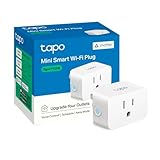
- 【Matter: All-Round Compatibility】With Matter, users are no longer tied to specific platforms and works with all certified smart home platforms, such as Apple Home, Amazon Alexa, Google Home and Samsung SmartThings.
- 【Matter: Smooth LAN Control】All Matter-certified devices in your local area network (LAN) will work smoothly even when your home internet goes offline. Matter allows effective communication directly between devices, without the need for a specific 'forwarding' device. For example, a Matter smart switch or sensor can turn on/off a Matter bulb directly without being connected to a cloud service, or other specific action. Once configured, communication and control between Matter devices can be achieved directly on the local network.
- 【Compact & Flame Retardant Design】Avoid blocking additional outlets with its compact design, and plug in your WiFi smart plug with confidence thanks to its UL certified flame retardant design and 2-year limited warranty.
- 【App & Voice Control】Control your WiFi smart plug from anywhere, anytime via the free Tapo App or just give voice commands to Siri, Amazon Alexa, Google Assistant or Samsung SmartThings. Your favorite smart assistant enables you to have a truly hands-free experience.
- 【Advanced Scheduling & Timer】Time your smart plugs to automatically turn on and off any home electronic appliances such as lamps, fans, humidifiers, Christmas lights, etc. Advance Scheduling your appliances with your daily routine.
After a reset, repeat the full setup path: power the device, enter pairing mode, scan or enter the pairing code if required, link the account or skill, assign a room, choose an unambiguous name, and test from the app before speaking commands. This avoids treating a successful reset as proof that voice control is restored.
Independent reader supportYour contribution helps us test, update, and keep practical guides available for everyone.How should you handle privacy and account access?
Voice control generally involves an assistant account and, for many devices, a manufacturer account. Use the account that owns the device and review which devices are exposed when you link a service. SmartThings, Google Assistant, Alexa, and Home Assistant each have their own integration and account steps, so do not assume that authorizing one service grants identical access in another.
Review the current privacy controls in the assistant and manufacturer apps, including voice-history settings and connected-service permissions. The available controls can change with app versions and regions. Because the setup documentation does not provide a consistent basis for ranking privacy policies, compare the settings shown in the platforms you actually plan to use rather than relying on a general ecosystem label.
What can you expect from setup guidance?
Google, Amazon, Samsung, SmartThings, and Home Assistant document setup and support paths, but these procedures are not a comparative test of devices or assistants. No particular device is guaranteed to behave identically across every network, region, app version, or bridge.
App flows, supported devices, regional availability, and Matter requirements can change. Before purchasing or setting up a product, check the current instructions from its manufacturer and the platform you intend to use. If a capability matters—such as thermostat temperature control, lock control, sensor status, or a specific routine—verify that exact capability is listed for your assistant and integration.
Frequently Asked Questions
Can voice control keep working if my internet connection goes down?
The setup guidance cited here does not establish a universal offline behavior. Whether control continues depends on the device and the path it uses to communicate, so check the manufacturer’s documentation for the specific device and assistant.
Does Matter guarantee that every smart-home feature will work in every assistant?
No. Matter support can help devices connect across ecosystems, but you still need to check each assistant’s device and feature support, along with its setup requirements.
Best Value

- 【Matter-Compatible Smart Home Integration】Works with Matter-certified platforms such as Apple Home, Amazon Alexa, Google Home, and Samsung SmartThings. Users can manage compatible devices across supported apps within the Matter ecosystem.
- 【Energy Monitoring】Tracks energy usage over time to help you understand consumption patterns and make informed decisions about how your devices are used.
- 【Matter: Smooth LAN Control】All Matter-certified devices in your local area network (LAN) will work smoothly even when your home internet goes offline. Matter allows effective communication directly between devices, without the need for a specific 'forwarding' device. For example, a Matter smart switch or sensor can turn on/off a Matter bulb directly without being connected to a cloud service, or other specific action. Once configured, communication and control between Matter devices can be achieved directly on the local network.
- 【Compact & Flame Retardant Design】Avoid blocking additional outlets with its compact design, and plug in your WiFi smart plug with confidence thanks to its UL certified flame retardant design and 2-year limited warranty.
- 【App & Voice Control】Control your WiFi smart plug from anywhere, anytime via the free Kasa App or just give voice commands to Siri, Amazon Alexa, Google Assistant or Samsung SmartThings. Your favorite smart assistant enables you to have a truly hands-free experience.
Can I use voice commands in any language or region?
Not necessarily. Supported language, phrasing, device classes, and regional availability can vary; consult the current help for your assistant and confirm regional support for the specific integration.
Do I need a separate hub for a Matter device?
It depends on the platform and device. Google’s documented Matter setup requires a Matter-enabled Google Home hub, while other ecosystems specify their own compatible hubs or controller devices. Check the exact model and platform requirements.
Should I set up a device in the manufacturer app or the assistant app first?
Follow the path supported by the product. Google allows Matter devices to be set up directly in Google Home or in the manufacturer app and then shared. Amazon directs certain non-Matter Wi-Fi devices through the manufacturer app and the relevant Alexa skill.
Quick wins for a faster PC:
Repair Windows errors before they cause bigger problemsFix Now →Fix the driver behind crashes, sound loss and screen glitchesFind Drivers →Why can the assistant see my device but not control a particular feature?
Discovery does not guarantee full feature exposure. Confirm that the assistant and integration support the specific device class and function, and check whether regional limitations apply.
What is the safest first troubleshooting step?
Check power and test the device in its manufacturer app. If it fails there, investigate power, internet access, pairing mode, and the manufacturer’s instructions before changing the assistant integration.
When should I factory-reset a smart-home device?
Use a factory reset only after checking power, app control, compatibility, account links, network and hub requirements, updates, and a restart. Follow the manufacturer’s reset procedure because you will probably need to pair and configure the device again.
Can SmartThings or Home Assistant make an incompatible device work with my assistant?
They can bridge some devices and assistants, but only through supported integrations. Available device classes and controls vary, and the bridge adds configuration and maintenance requirements.
The Bottom Line
Start with compatibility, Matter or hub requirements, and the exact features your assistant supports. Pair the device in the correct app, link any required account or skill, assign a clear room and name, then test a short command. If voice control fails, test the manufacturer app first and work through power, network, compatibility, account, update, restart, and only lastly reset checks.
Quick Recap
Product prices and availability are accurate as of the date/time indicated and are subject to change. Any price and availability information displayed on Amazon at the time of purchase will apply.

