

PC Slower Than It Used to Be?
A free scan shows the junk files, broken settings and background clutter dragging Windows down - then fixes them in one click.Free scan · Windows 10 & 11Crashes, No Sound, or Screen Glitches?
Random freezes, missing sound and display glitches usually trace back to one bad driver. Find and replace yours safely.Free scan · under a minuteiTechGuides is reader-supported. When you buy through links on our site, we may earn an affiliate commission. As an Amazon Associate I earn from qualifying purchases. Learn more
On Facebook you can “Like” a post or a photo. You can also “Like” a comment or a page. This guide demos how to “Unlike” something on Facebook.
Below are steps to “Unlike” a post, comment or page.
Option 1: “Unlike” a Post, Comment, or Page from a PC
If you want to “Unlike” a Post on Facebook, here are the steps:
Do these 3 things before closing this tab:
1Scan for outdated or missing drivers - takes under a minute2Clear out junk files and repair common Windows errors3Fix the driver behind crashes, sound loss and screen glitches- Locate the post you want to “Unlike”.

- Then scroll below the post. To confirm that you already “Liked” the post, the color of the “Like” icon will be blue.
- To “Unlike” the post, click on the “Like” icon (thumbs-up icon).

- The “Like” icon will immediately go from blue to gray! It is that easy to “Unlike” something on Facebook!

As I mentioned earlier you also can also “Unlike” a comment on Facebook.
Popular on Amazon

- Compact Mouse: With a comfortable and contoured shape, this Logitech ambidextrous wireless mouse feels great in either right or left hand and is far superior to a touchpad
- Durable and Reliable: This USB wireless mouse features a line-by-line scroll wheel, up to 1 year of battery life (2) thanks to a smart sleep mode function, and comes with the included AA battery
- Universal Compatibility: Your Logitech mouse works with your Windows PC, Mac, or laptop, so no matter what type of computer you own today or buy tomorrow your mouse will be compatible
- Plug and Play Simplicity: Just plug in the tiny nano USB receiver and start working in seconds with a strong, reliable connection to your wireless computer mouse up to 33 feet / 10 m (5)
- Better than touchpad: Get more done by adding M185 to your laptop; according to a recent study, laptop users who chose this mouse over a touchpad were 50% more productive (3) and worked 30% faster (4)
Here are the steps to “Unlike” a comment on Facebook from a PC…
- Locate the post with the comment you want to “Unlike”.

- Then scroll to the bottom of the post and click the x comments. See the highlighted portion of the image below.

- When the comments are displayed, the comment you previously “Liked” will be blue. To “Unlike” a comment, click on the thumbs-up “Like” icon. The comment “Like” icon will turn gray, confirming that you have now “Unliked” the comment.


Finally, for this section here are the steps to “Unlike” a Facebook page…
Also popular on Amazon

- Ultra-fast LIGHTSPEED wireless technology in this wireless mouse gives you a lag-free gaming experience, delivering incredible responsiveness and reliability with 1 ms report rate for competition-level performance
- G305 wireless computer mouse boasts an incredible 250 hours of continuous gameplay on just 1 AA battery; switch to Endurance mode via Logitech G HUB software and extend battery life up to 9 months
- The durable, compact design with built-in nano receiver storage makes G305 not just a great portable desktop mouse, but also a great laptop travel companion and gaming wireless mouse. Use with a gaming laptop and play anywhere
- The next-generation optical HERO sensor in this gaming mouse delivers incredible performance and up to 10x the power efficiency over previous generations, with 400 IPS precision and up to 12,000 DPI sensitivity
- Wireless does not have to mean heavy. This gaming mouse provides high maneuverability, coming in at only 3.4 oz, thanks to an efficient, lightweight mechanical design and ultra-efficient battery usage
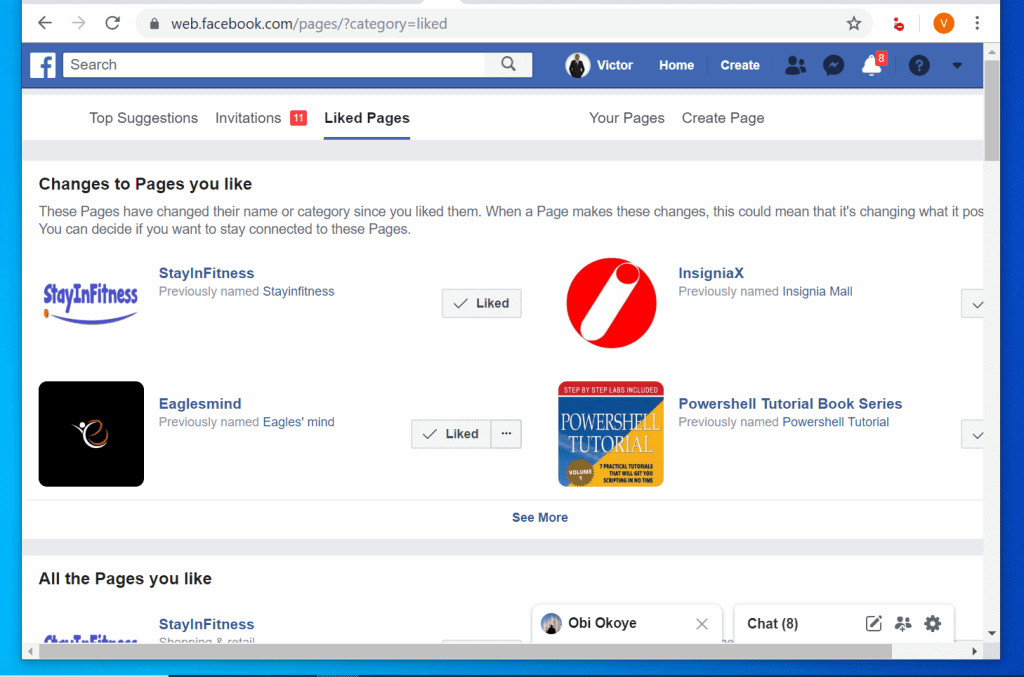
- On the left pane of your Facebook News Feed, click Pages.

- All the Facebook Pages you “Like” will be displayed. To “Unlike” a page, click “Liked” thumbs-up icon beside the page. The “Liked” icon will change from a tick to a normal thumbs-up. In this example, I “Unliked” Eaglesmind. See the difference between the “Like” buttons in the first and second image below.

Option 2: “Unlike” a Post, Comment, or Page via the Facebook App
If you access Facebook from the App on your smartphone, you can still “Unlike” something on Facebook – Post, Comment or Page. Here are the steps:
To “Unlike” a post:
- Locate the post you want to “Unlike” and scroll to the bottom. If you previously “Liked” the post, the thumbs-up “Like” icon will be blue.
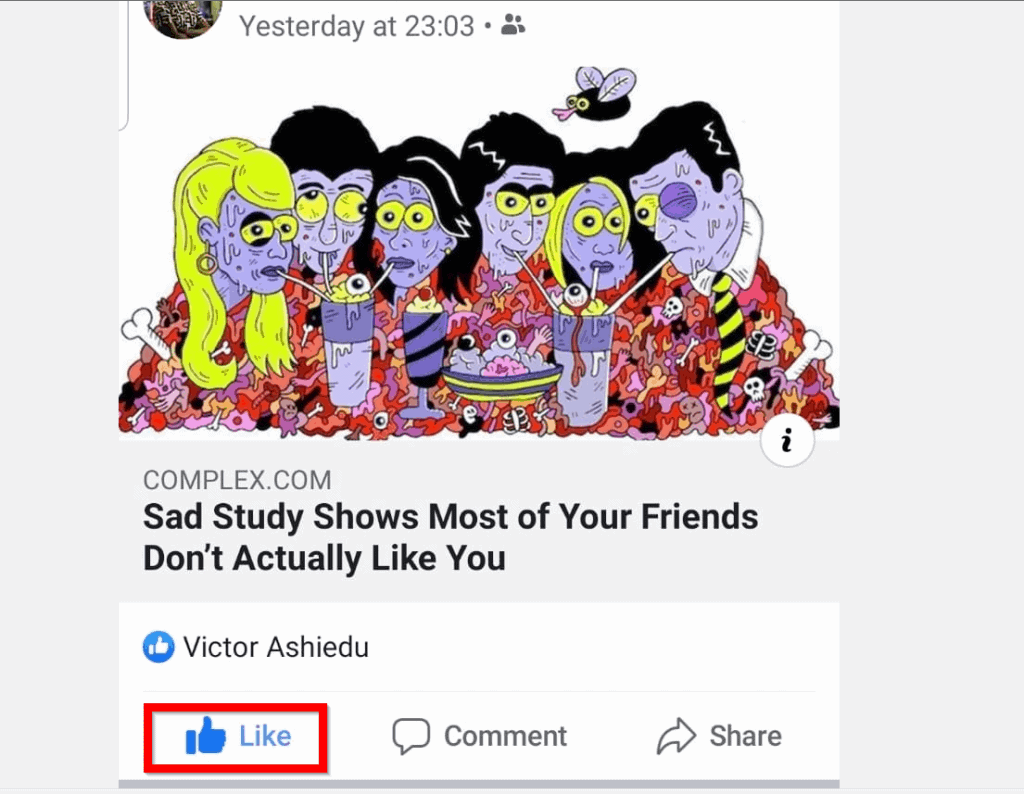
- To “Unlike” the post, click on the “Like” icon. Once you “Unlike” the post the “Like” icon will turn gray.

If you are looking to “Unlike” a comment, here is how…
Also popular on Amazon

- Compact Mouse: With a comfortable and contoured shape, this Logitech ambidextrous wireless mouse feels great in either right or left hand and is far superior to a touchpad
- Durable and Reliable: This USB wireless mouse features a line-by-line scroll wheel, up to 1 year of battery life (2) thanks to a smart sleep mode function, and comes with the included AA battery
- Universal Compatibility: Your Logitech mouse works with your Windows PC, Mac, or laptop, so no matter what type of computer you own today or buy tomorrow your mouse will be compatible
- Plug and Play Simplicity: Just plug in the tiny nano USB receiver and start working in seconds with a strong, reliable connection to your wireless computer mouse up to 33 feet / 10 m (5)
- Better than touchpad: Get more done by adding M185 to your laptop; according to a recent study, laptop users who chose this mouse over a touchpad were 50% more productive (3) and worked 30% faster (4)
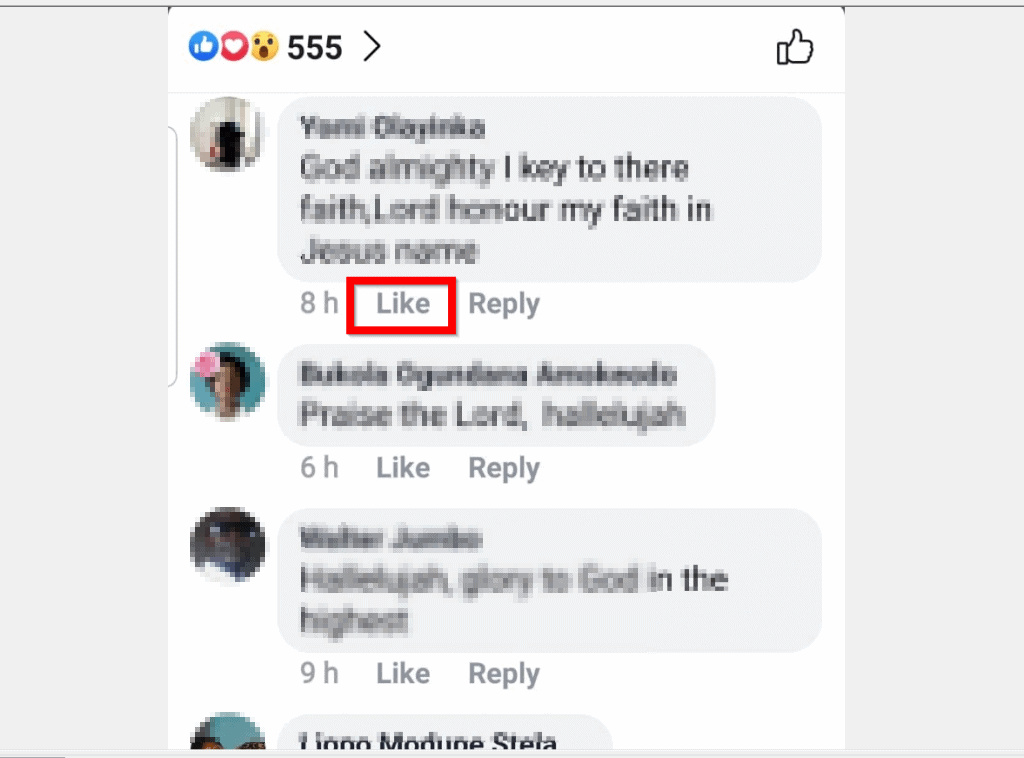
- Open the post with the comment you previously “Liked” and want to “Unlike”. Beneath the post click x comments.

- Any comment you previously “Liked” will be displayed in blue. To “Unlike” a comment, click on the blue “Like” icon. It will turn gray. Compare the two images below.

Finally, here are the steps to “Unlike” a Facebook page from the App..
- From the Facebook App on your phone, click the 3 lines on top right of the page. Then click Pages Manager.

- Then, on the top right of Pages, click Liked Pages.

- A list of all the pages you “Like” will be will be displayed – each with a ticked “Liked” icon. To “Unlike” a page, click the “Liked” icon beside it. In this example, I will “Unlike” Argus.

- To confirm that you have “Unliked” the page, the blue tick icon will change to gray thumbs-up icon.

Whatever your reason for wanting to “Unlike” something on Facebook, I hope you found this guide helpful!
Also popular on Amazon

- IN THE BOX: Amazon Basics 3-button USB wired mouse (MSU0939) in Black with 4.9-foot cable; plug-and-go ready for instant use with no drivers needed
- WIRED CONNECTION: USB-A wired connection with 4.9-foot cable for reliable, lag-free use; if device only supports USB-C, an additional adapter will be required
- OPTICAL TRACKING: High-definition 1000 DPI optical sensor ensures responsive cursor control for precise tracking & easy text selection on your personal computer
- AMBIDEXTROUS DESIGN: Lightweight ambidextrous shape suits both left & right-handed users; portable design measuring 4.3 x 2.4 x 1.4 inches
- BUTTONS & CONTROLS: 3 buttons provide effortless fingertip control including click & scroll for smooth navigation of your computer interface
Have a question, comment, or feedback? Use the “Leave a Comment” form found at the end of this page.
For more guides like this one visit our Social Media how-to page.
Quick Recap
Also popular on Amazon

- 【Plug and Play for Home/Office/School】The wireless computer mouse features 2.4GHz connectivity, delivering a stable, interference-free connection up to 32ft. Designed for 𝐦𝐞𝐝𝐢𝐮𝐦 𝐭𝐨 𝐥𝐚𝐫𝐠𝐞 𝐬𝐢𝐳𝐞𝐝 𝐡𝐚𝐧𝐝𝐬, it ensures comfortable use all day. Simply plug in the USB-A receiver for instant pairing—no drivers needed. 📌📌 If the mouse isn’t suitable, place the USB receiver in the battery compartment and return both.
- 【3 Levels Adjustable DPI】This travel USB mouse offers 3 adjustable DPI settings (800, 1200, 1600), allowing you to customize sensitivity for precise design work. Effortlessly switch to match your task and elevate your productivity. 📌 Please remove the film at the bottom of the mouse before use.
- 【Effortless Browsing】Equipped with forward and backward buttons, this computer mice streamlines your workflow, making it easy to navigate through web pages and files with a simple click. 📌Side button does not work on Mac.
- 【Visible Indicator Light】 The pc mouse features a visual indicator for DPI levels and low battery alerts. The red light flashes once for 800 DPI, twice for 1200 DPI, and three times for 1600 DPI. When the battery level is below 10%, the light flashes red until the mouse is completely out of power.
- 【Click to Wake】With smart sleep mode, it saves power by standby after 10 inactive minutes, just 2-3 clicks to wake. This efficient design delivers 3x longer battery life than motion-wake mice. Engineered for durability, its buttons and scroll wheel are tested for 10 million clicks, ensuring long-term reliability and consistent performance.



Он сказал, что без медицинского журнала. И если их не читать. Вестник медицинских наук — Там рецензируемые публикации. А кто-то журнал клиническая медицина. Медицинский совет журнал — И чтобы статьи были доступны. Можете ознакомиться по ссылке: вестник травматологии и ортопедии [url=https://cvetnik.me]вестник травматологии и ортопедии[/url] И про требования к статьям для практиков. Не откладывайте чтение на потом.
https://longnews.ru/
Здравствуйте, коллеги! Хочу поделиться о своём опыте ведения маркетингового блога. Запустил проект, посвящённый интернет-маркетингу, и хочу поделиться находками. Самыми интересными для меня оказались seo статьи, которые открыли новые подходы. Пока изучал материалы по маркетингу [url=https://seo-blog12.ru]https://seo-blog12.ru[/url], нашёл несколько полезных блогов, которые реально прокачали мои навыки. Советую обратить внимание оптимизацию сайта блог — там разбираются реальные примеры. Главное — не просто читать, а адаптировать под свои проекты. Пишите о своих результатах!
Если вы ищете качественный ресурс по теме интернет-маркетинга, рекомендую обратить внимание на специализированные блоги. Они часто публикуют полезные материалы, которые помогают разобраться в современных трендах. В них часто появляются материалы по маркетингу, которые охватывают различные аспекты продвижения. Особенно полезны цифровой маркетинг статьи, ведь они помогают понять, как эффективно привлекать клиентов. Если вас интересует оптимизация сайта, блог о маркетинге — это именно то, что нужно. Я недавно изучал [url=https://statyi-o-marketinge2.ru]маркетинговый блог[/url] и нашёл множество полезных советов. В них часто обсуждаются темы, связанные с продвижением сайтов. Такие ресурсы действительно помогают оставаться в курсе последних изменений в сфере интернет-маркетинга.
На днях решил освоить новую профессию и начал изучать тему SEO. Поискал в интернете, нашёл несколько интенсивов по SEO, но пока не определился, какой выбрать. Хотелось бы найти что-то с нуля, чтобы разобраться в основах. Смотрел, есть и бесплатные курсы, но пока склоняюсь к тому, чтобы инвестировать в качественное обучение. По теме [url=https://kursy-seo-4.ru]курсы по seo[/url] советую ознакомиться с отзывами и программами разных школ — это поможет сделать правильный выбор. Также интересно, сколько времени в среднем уходит на то, чтобы стать профессионалом в продвижении сайтов. Может, кто-то уже прошёл обучение и поделится своим опытом? Буду благодарен за рекомендации!