
Recommended Free Tools
iTechGuides is reader-supported. When you buy through links on our site, we may earn an affiliate commission. As an Amazon Associate I earn from qualifying purchases. Learn more
How to share a USB drive from your Wi-Fi router depends on one requirement: the exact router model must support USB storage sharing. Connect a compatible, powered drive, enable local SMB/Samba sharing in the router administration page, then open the share from Windows with a UNC path or from macOS with an SMB address.
The labels differ by manufacturer, and a USB port alone proves nothing. TP-Link may call the feature USB Storage Device or Storage Sharing, NETGEAR uses ReadySHARE, and ASUS commonly places it under USB Application, Servers Center, Samba Share, AiDisk, or Cloud Disk.
Key takeaways
- Only a router with firmware that supports USB storage sharing can share a USB drive; a USB port by itself is not enough.
- SMB/Samba is the usual protocol for local Windows and Mac access, while FTP and vendor cloud features are separate remote-access options.
- Supported file systems, drive power requirements, partitions, and external enclosures vary by router model, so check the exact manual before reformatting a drive.
- Windows can open the share with a UNC path such as
\readyshare, and macOS can connect through Finder using an address such assmb://192.168.0.1. - Guest access and direct internet exposure make the files less secure; do not expose SMB directly to the internet or enable SMBv1 as a routine troubleshooting fix.
What do you need to share a USB drive from your Wi-Fi router?
To share a USB drive from your Wi-Fi router, you need a router model whose firmware explicitly supports USB storage sharing, a compatible USB flash drive or external hard drive, and a device connected to the router’s normal home network. The router must also support the drive’s file system and provide a local file-sharing service such as SMB or Samba.
What’s actually slowing this PC down?
Pick the symptom - the matching free tool is one click away.
A router’s USB port may instead be intended for a printer, cellular modem, charging, or another accessory. Check the exact model, hardware revision, and firmware documentation for terms such as USB Storage Device, Storage Sharing, ReadySHARE, Samba Share, AiDisk, or Cloud Disk. NETGEAR’s ReadySHARE documentation, for example, describes storage sharing only for compatible routers and warns that USB devices requiring special computer drivers may not work.
Popular on Amazon

- USB-C 2-in-1 storage OTG: The Lexar JumpDrive Dual Drive D40E features USB Type-A and Type-C connectors in a slim, portable form factor for easy device compatibility
- Transfer speeds up to 100MB/s: Based on internal testing, performance may vary depending upon the host device, interface, and usage conditions. 1MB=1,000,000 bytes
- Plug and Play: Widely compatible with USB Type-C smartphones, tablets, laptops, Macs, and traditional Type-A devices, no software installation required. The 360° swivel design allows for easy switching between connectors without the hassle of losing a cap
- Durable & Compact: The Lexar D40E USB memory stick features a metal enclosure, withstands temperatures from 0° to 50° C (32°F to 122°F), and is lightweight at 26g with dimensions of 70.4 x 16.9 x 11.7mm
- Security & Warranty: Securely protects files using an advanced security software solution with 256-bit AES encryption. Backed by a Lexar 3-year limited warranty
How should you prepare the USB drive?
Prepare the USB drive by checking its file system, power requirements, partition layout, and data safety before connecting it to the router.
Check the supported file system
File-system support is model-specific. Some TP-Link routers support FAT32 and NTFS, while some models also support exFAT or HFS+. TP-Link’s USB settings documentation recommends checking the exact product specification and notes that NTFS may provide better compatibility and performance on applicable models.
Do not reformat the drive until you have checked the router manual. Reformatting erases the existing contents, so copy important files to another location first. Files stored on a router-shared drive should not be the only copy of irreplaceable data.
Choose the right type of storage
| Storage type | Best for | Important limitation |
|---|---|---|
| USB flash drive | Occasional access, documents, and a simple low-power setup | Capacity, file-system support, and sustained write behavior still depend on the router and drive |
| Portable external hard drive | More capacity than a flash drive | The router’s USB port may not provide enough power; use the drive’s external power adapter when supplied |
| Multi-bay enclosure | Multiple disks or specialized storage arrangements | Compatibility and performance are more likely to be limited; verify support before connecting it |
| Powered USB hub | Additional compatible USB devices on routers that explicitly support hubs | Hub support and device-count limits are model-specific and a hub can add compatibility problems |
A USB flash drive for router sharing is usually the simplest physical option when the router supports its file system. If you need more capacity, an externally powered USB hard drive may be more appropriate, but do not assume that a larger drive or enclosure will work simply because the router has a USB socket. TP-Link and NETGEAR both document model-specific storage and power limitations in their support material.
A bus-powered flash drive is generally straightforward. A larger portable hard drive may draw more power than the router can reliably supply, so connect its external power adapter if it has one. NETGEAR’s ReadySHARE guidance and TP-Link’s documentation both identify external power as necessary for devices that require it.
How do you share the USB drive from the router?
The general setup is to connect the drive, open the router administration page, enable local storage sharing, and configure authenticated access.
- Connect the drive. Insert the flash drive or external hard drive into the router’s USB port. If the drive has a power adapter, connect that adapter. Wait for the router to detect and mount the drive.
- Sign in locally to the router. Connect a computer or phone to the router’s ordinary Wi-Fi or Ethernet network, not an isolated guest network. Open the administration address configured for the model. Common vendor examples include
tplinkwifi.net,routerlogin.net,readyshare.routerlogin.net,asusrouter.com, or the router’s current LAN IP address. - Find the USB or storage-sharing page. The label and menu location differ by manufacturer and model. Look for USB storage, file sharing, Samba, SMB, ReadySHARE, AiDisk, or Cloud Disk.
- Enable local sharing. Choose SMB or Samba for ordinary local Windows and Mac access when the router offers it. Set the network device name, workgroup, share name, and permissions if the interface asks for them.
- Require authentication. Create or select a dedicated router-share account where possible. Give read-only access when users do not need to modify files.
- Save the settings and test locally. Confirm that the router shows the drive as mounted, then connect from a computer using the router’s hostname or LAN IP address.
- Safely remove the drive. Use the router’s eject or safely-remove control when the interface provides one. Disconnecting a drive during a write can corrupt files.
Vendor menu examples
| Router brand | Typical location or name | Relevant setting |
|---|---|---|
| TP-Link | Advanced > USB > USB Storage Device or Storage Device | Enable the applicable SMB/Samba or file-sharing option; TP-Link’s current guide recommends Secure Sharing |
| NETGEAR | Advanced > USB Functions > ReadySHARE Storage | Set the network device name, workgroup, share permissions, and account access |
| ASUS | USB Application > Servers Center > Network Place (Samba) Share / Cloud Disk | Enable the share and choose whether guest login is permitted |
| ASUS AiDisk | USB Application > AiDisk | Can publish files through FTP and ASUS DDNS on supported models; this is remote access, not ordinary local SMB sharing |
Use the manufacturer’s instructions for the exact model rather than assuming that a similar router uses the same labels. The TP-Link Windows and Mac USB-sharing guide, NETGEAR USB access guide, and ASUS documentation for Samba Share and Cloud Disk show how substantially the menus and authentication options can differ.
Also popular on Amazon
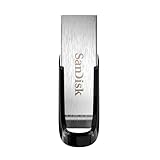
- High-speed USB 3.0 performance of up to 150MB/s(1) [(1) Write to drive up to 15x faster than standard USB 2.0 drives (4MB/s); varies by drive capacity. Up to 150MB/s read speed. USB 3.0 port required. Based on internal testing; performance may be lower depending on host device, usage conditions, and other factors; 1MB=1,000,000 bytes]
- Transfer a full-length movie in less than 30 seconds(2) [(2) Based on 1.2GB MPEG-4 video transfer with USB 3.0 host device. Results may vary based on host device, file attributes and other factors]
- Transfer to drive up to 15 times faster than standard USB 2.0 drives(1)
- Sleek, durable metal casing
- Easy-to-use password protection for your private files(3) [(3)Password protection uses 128-bit AES encryption and is supported by Windows 7, Windows 8, Windows 10, and Mac OS X v10.9 plus; Software download required for Mac, visit the SanDisk SecureAccess support page]
How do you access the router USB share in Windows?
In Windows, open File Explorer and enter the router share’s UNC path in the address bar. Use the router’s advertised hostname or its current LAN IP address.
Typical paths include:
\readysharefor NETGEAR ReadySHARE\tplinkwifi.netfor supported TP-Link routers\192.168.0.1or another current router LAN address\192.168.0.1share-namewhen the router exposes a named folder
Press Enter after entering the path. Windows may request the router-share username and password. If the router does not appear under Network, enter the path directly; direct addressing is often more dependable than waiting for network discovery. TP-Link documents both hostname and LAN-IP access, while NETGEAR documents \readyshare for local access.
How do you map the share to a Windows drive letter?
To map the router share as a drive letter in Windows, open File Explorer, select This PC, choose More > Map network drive, select a drive letter, enter the network path, and optionally select Reconnect at sign-in. Microsoft documents this workflow for current Windows versions in its network-drive instructions.
How do you connect to the router USB share on a Mac?
On macOS, open Finder, choose Go > Connect to Server, enter the router’s SMB address, and select Connect. Apple documents the format as smb://DNS-name/share-name or smb://IP-address/share-name.
Examples include:
smb://readysharesmb://tplinkwifi.netsmb://192.168.0.1smb://192.168.0.1/share-name
Choose Registered User when the router requires credentials. If the path does not include a folder name, macOS may show the available shares after authentication. Apple describes SMB as the normal method for connecting a Mac to shared computers and file servers on a network; see Apple’s Connect your Mac to shared computers and servers instructions.
Should you enable guest access?
You should normally leave guest access disabled and require a username and password for the router USB share. ASUS explains that guest access lets any user on the network reach the Samba share without a password, while TP-Link recommends Secure Sharing and NETGEAR documents account-based read and write permissions.
Also popular on Amazon

- What You Get - 2 pack 64GB genuine USB 2.0 flash drives, 12-month warranty and lifetime friendly customer service
- Great for All Ages and Purposes – the thumb drives are suitable for storing digital data for school, business or daily usage. Apply to data storage of music, photos, movies and other files
- Easy to Use - Plug and play USB memory stick, no need to install any software. Support Windows 7 / 8 / 10 / Vista / XP / Unix / 2000 / ME / NT Linux and Mac OS, compatible with USB 2.0 and 1.1 ports
- Convenient Design - 360°metal swivel cap with matt surface and ring designed zip drive can protect USB connector, avoid to leave your fingerprint and easily attach to your key chain to avoid from losing and for easy carrying
- Brand Yourself - Brand the flash drive with your company's name and provide company's overview, policies, etc. to the newly joined employees or your customers
Use a separate share credential when the router allows it, avoid reusing an important online password, and grant write access only to accounts that need it. Anyone who joins the trusted home network may otherwise be able to read, change, or delete files. A visitor network should be configured to isolate guests from local devices; the FTC’s home Wi-Fi security guidance also recommends changing default router credentials, keeping firmware updated, using WPA2 or WPA3 encryption, disabling remote management when unnecessary, and providing a guest network for visitors.
Is router USB sharing safe over the internet?
Router USB sharing is safest when the share remains available only to devices on the home network. Internet access through FTP, HTTPS, a vendor cloud service, DDNS, port forwarding, or a VPN is a separate and higher-risk feature; leave remote access disabled unless you have a specific need and understand the router’s security controls.
Quick wins for a faster PC:
Fix the driver behind crashes, sound loss and screen glitchesFind Drivers →Repair Windows errors before they cause bigger problemsFix Now →Never forward TCP port 445 or expose SMB directly to the public internet. CISA’s #StopRansomware guidance recommends blocking external SMB communications and disabling SMBv1 where feasible. CISA’s internet-exposure guidance also recommends removing services that do not need to be internet-accessible, changing default passwords, and keeping systems patched.
If remote access is genuinely necessary:
- Prefer a router-supported VPN or a vendor service with strong authentication over exposing SMB.
- Use a unique, strong password and least-privilege read/write permissions.
- Update the router firmware before enabling remote access.
- Do not store sensitive personal documents on a share that is reachable remotely unless the router provides appropriate protection.
- Disable remote access when the task is complete.
NETGEAR documents ReadyCloud as a secured remote-access option on supported products. TP-Link documents remote USB access through Internet FTP on applicable models and distinguishes that feature from local SMB. Neither feature should be assumed to exist on every model; verify the current manual before enabling it.
Why is the router USB drive not detected?
A router may fail to detect the drive because of unsupported formatting, insufficient power, an unsupported partition layout, a faulty cable or enclosure, or a model-specific compatibility limitation.
- Confirm that the router’s USB page supports storage sharing, not only printers or modems.
- Check whether the drive is listed as mounted in the router interface.
- Connect the external power adapter if the drive has one.
- Check the supported file systems before reformatting.
- Test a simple single-partition flash drive if a complex enclosure or multi-bay device fails.
- Try another USB port or cable if the router provides another port or the cable is detachable.
Back up the files before changing partitions or formatting. TP-Link specifically warns that external enclosures, particularly multi-bay models, can have compatibility and performance limitations, and NETGEAR notes that devices requiring special computer drivers may not work.
Also popular on Amazon

- GOOD VALUE PACKAGE - 1 Pack 32GB Memory Stick USB 2.0 Flash Drives with great cost performance and high quality.
- BIG CAPACITY - The available capacity: 29.10GB-29.8GB, You can save the data of movies, music, photos, designs, programs, manuals, handouts in a high speed.Good performance in digital data storing, transferring and sharing with families, friends, workmates, clients and machines.
- EASY TO USE & PLUG AND WORK - Support windows 7 / 8 / 10 / Vista / XP / 2000 / ME / NT Linux and Mac OS, Compatible with USB2.0 and below.
- TWISTTURN DESIGN & EASY CARRY - The metal clip rotates 360° round the ABS plastic body which with rubber oil skin feeling finish. The capless design can avoid lossing of cap, and providing efficient protection to the USB port.
- WARRANTY & SUPPORT - SIMMAX logo is laser printed on the USB connector surface, our products are of good quality and we promise that any problem about the product within one year since you buy.
Why can I open the share but not change files?
A share that opens but does not allow changes is usually configured as read-only, mounted read-only by the router, or limited by the drive’s file system or account permissions.
- Check that the router account has write permission for the specific share.
- Confirm that the router mounted the drive normally rather than read-only.
- Check whether the file system is supported for writing, not merely readable.
- Test with a small, nonessential file before moving important data.
A successful read connection does not prove that Windows or macOS has write access. Review the router’s storage-sharing and account settings before changing operating-system security settings.
Independent reader supportYour contribution helps us test, update, and keep practical guides available for everyone.Why does the share work on one device but not another?
Different computers can negotiate different SMB versions, authentication methods, and name-resolution methods with the router’s embedded file server. Use the router’s LAN IP address, verify the credentials, and check the router’s current support documentation.
On Windows, first confirm that the computer is connected to the home network rather than an isolated guest network. Try the IP address instead of the hostname, and confirm that the router shows the drive as mounted and sharing enabled. Do not enable SMBv1 merely as a first-line fix: CISA recommends disabling SMBv1 and using SMBv3 where feasible, so a router that requires SMBv1 presents a compatibility and security concern.
The Tool Desk
Outbyte Driver Updater FREEFix the driver behind crashes, sound loss and screen glitchesFind Drivers →Outbyte PC Repair FREEClear out junk files and repair common Windows errorsFree Scan →On macOS, try the IP-based SMB address and remove stale saved credentials from Keychain if macOS keeps reusing an incorrect password. Apple states that SMB 3 is the default way to connect to a Mac-hosted SMB server, although a router’s embedded file server may implement a different subset of SMB features. Apple’s SMB troubleshooting documentation is useful when a share cannot be mounted.
Windows network-profile settings can cause confusion. Microsoft says a Private profile makes a trusted network discoverable for file sharing, while a Public profile hides the PC from other devices and prevents that PC from being used for file and printer sharing. That setting applies to shares hosted by the PC; the router’s own share permissions still control access to the USB drive.
Also popular on Amazon

- 【16GB Flash Drive】USB flash drives with 16GB capacity, meet your needs of daily use on work, school, home and travelling for photos, music, videos, files storage and transfer. IMEASON thumb drives can be used to store different files, easy to data backup.
- 【Metal Swivel Cap Design】USB thumb drive is metal swivel cover provides extra protection for the usb thumbdrive connector, no usb drive cap to lose; keychain design makes it easier to carry without worrying lose it.
- 【Wide Compatibility】USB drive supports Windows 7/8/10/11 / Vista / XP / Unix / 2000 / ME / NT Linux and Mac OS, also Supports USB 2.0 and 1.1 ports. USB Stick support TV, desktop, notebook computer, car, audio and other device. The USB Memory Stick is your great data storage and transfer companion with traveling and working.
- 【Easy to use】usb memory stick is plug and play without any software installation. Just simply plug the Flashdrive into the port of your USB-compatible devices such as computer, laptop to start data storage or transmission.
- 【What You Get】16 GB USB Flash Drive Thumb Drive, The default format of the usb storage flash drive is FAT32.
Why does the drive disconnect during large transfers?
Unexpected disconnections can result from inadequate USB power, drive sleep behavior, router resource limits, Wi-Fi interference, or firmware problems. Check the drive’s power supply, update the router firmware, and test a wired Ethernet connection from the computer if possible.
For occasional document access, a router share may be convenient. For repeated large transfers, multiple users, automated backups, snapshots, redundancy, or consistently higher performance, a dedicated NAS is generally a better fit. Router USB sharing depends on the router processor, USB implementation, drive format, firmware, and Wi-Fi conditions, so it should not be presented as equivalent to NAS hardware or as a measured performance result.
Do these 3 things before closing this tab:
1Scan for outdated or missing drivers - takes under a minute2Repair Windows errors before they cause bigger problems3Fix the driver behind crashes, sound loss and screen glitchesWhen is a dedicated NAS or cloud service better?
A router USB share is a reasonable low-cost choice for occasional local file access when the router already supports the feature. Choose a dedicated NAS when you need stronger storage management, multiple drives, redundancy, user administration, regular backups, or dependable performance for several users.
Choose a cloud-storage service when you need access away from home without exposing a router share, or when off-site durability matters. Whichever approach you use, maintain a second copy of important files; a USB drive attached to a router is not automatically a backup.
Quick checklist
- Verify USB storage-sharing support for the exact router model and hardware revision.
- Check the router’s supported file systems before formatting the drive.
- Back up existing files before reformatting or changing partitions.
- Use external power for a hard drive that requires it.
- Enable local SMB/Samba sharing and use a named account with the least access needed.
- Connect from Windows with a UNC path or from macOS with Finder’s SMB connection.
- Try the router’s LAN IP address when hostname discovery fails.
- Keep guest access and internet-facing SMB disabled.
- Do not enable SMBv1 as a generic compatibility fix.
- Eject the drive through the router interface before unplugging it when that option exists.
Frequently Asked Questions
Can every Wi-Fi router share a USB drive?
A router can share a USB drive only if its firmware supports USB storage sharing. A USB port intended for a printer, modem, or charging does not necessarily provide file sharing. Check the exact model documentation for USB Storage, ReadySHARE, Samba, SMB, AiDisk, or Cloud Disk support.
Should I use SMB or FTP for a router USB drive?
Use SMB or Samba for local file access from Windows and macOS. FTP is a separate protocol that some routers provide for remote access, and it should not be treated as the same thing as secure local SMB sharing.
Can I access my router USB drive from outside my home?
No. Do not expose SMB directly to the internet or forward TCP port 445. If remote access is necessary, prefer a supported VPN or protected vendor service, use strong unique credentials, keep firmware updated, and disable remote access when finished.
Why is my router not detecting the USB drive?
A drive may be undetected because it needs more power, uses an unsupported file system or partition layout, has an incompatible enclosure, or is connected to a router without storage-sharing support. Check the router’s USB page, use external power when required, and verify compatibility before reformatting.
The Bottom Line
A Wi-Fi router can share a USB drive as a small local file server, but only when the exact router model supports USB storage sharing. Check the file system and power requirements, enable authenticated SMB/Samba access, connect with a Windows UNC path or macOS SMB address, and keep remote access disabled unless it is genuinely necessary.

