
iTechGuides is reader-supported. When you buy through links on our site, we may earn an affiliate commission. As an Amazon Associate I earn from qualifying purchases. Learn more
Install the current melonDS Android app, point it at Nintendo DS files you are entitled to use, and configure the two emulated screens for your unfolded display. Begin with vertically stacked screens, then adjust their size, position, rotation and touch controls for your particular phone. A controller is optional, and performance settings such as JIT and threaded rendering should be changed one at a time because they can improve speed while introducing instability or graphical glitches.
What this setup gives you
A foldable Android phone can provide a much larger Nintendo DS play area than a conventional handset, but there is no universal foldable preset. Hinge placement, aspect ratio, orientation behavior, heat management, Android version and controller compatibility differ by model. The practical goal is to make both emulated DS screens readable and keep the touch-sensitive lower screen usable when the phone is open.
melonDS is the main path in this guide. Its Google Play listing identifies it as an unofficial Android port of the melonDS project and advertises customizable controls, save states, fast-forward and wired or Bluetooth gamepad support. The listing shown in the source material was updated May 6, 2026; check the live listing for the version and menu labels currently offered on your device. It is not a Nintendo-made application and does not imply Nintendo endorsement.
- Game ROM files are not bundled with the app.
- DS BIOS and firmware files are conditional requirements, depending on the mode and configuration you choose.
- The unfolded screen is best configured manually rather than assuming a layout designed for another phone.
- Touch controls work by themselves; a wired or Bluetooth gamepad is an optional alternative.
Before installing: files, storage and legal boundaries
Prepare a folder in Android storage for game files you have obtained in a way permitted where you live. The melonDS listing states: “No ROM files are provided. You must extract ROM files from your own cartridges and/or systems.” That is an app-specific file-sourcing statement, not a universal copyright rule. Laws governing personal copies, cartridge dumping and system firmware differ by jurisdiction, so do not assume that owning a cartridge automatically makes every download or copying method lawful.
Popular on Amazon

- Bluetooth Controller for iPhone/ iPhone Duo & Android: Mocagen mobile gaming controller Compatible with all iPhone models (including Duo/18/17 series) and Android devices. Pairing steps: 1. Turn on Bluetooth on your phone and go to the pairing screen. 2. Press and hold the Home button for 3 sec until LED4 flashes. 3. Find "XBOX Wireless Controller" on your phone and tap to pair. Quick reconnect: After first pairing, simply press the Home button once (with Bluetooth on) to reconnect
- Play Most Controller-Compatible Games: This iPhone game controller supports cloud gaming (e.g., Xb*x Game Pass, GeForce NOW), Xbox Remote Play, emulator games, and native mobile games (e.g., Apple Arcade). Enjoy effortless control and play Fortnite, Call of Duty, Roblox, Genshin Impact, and many more anytime, anywhere. Note: Controller only works with games that support controller input, and does not support PS Remote Play
- 5M-Cycle Lifespan & Zero Drift: MC1 mobile gaming controller features a Hall-effect joystick with a 5M cycle lifespan, 2.5x longer than standard carbon-film sticks. Its innovative electromagnetic induction technology ensures drift-free operation, enabling precise character control in intense games and significantly extending this phone game controller durability
- Ergonomic Grip Design: The handle is ergonomically shaped with a l*ser-engraved texture for anti-slip and enhanced grip, effectively reducing fatigue during long gaming sessions. The scientifically designed joystick and button layout ensures smooth operation. Whether for personal use or as a gift, it delivers a more comfortable and healthier gaming experience
- 7-Color RGB Light Ring & 600mAh Battery: The mobile game controller features a 7-color adjustable light ring on the joystick(ABXY button lights can be turned off, but their colors are not adjustable). The lighting is vibrant yet eye-friendly. The built-in 600mAh battery provides up to 6 hours of battery life in brightness mode — enough for a full day of gaming
Do not use random ROM or firmware download sites as a substitute for extracting files from hardware you own or otherwise have permission to use. Keep your game folder organized before selecting it in the emulator; the Android settings documentation allows one ROM search directory and scans it recursively, so subfolders can separate games without requiring multiple library paths.
Also decide whether you need microphone input. Some DS games expect blowing or voice input. melonDS offers a simulated Blow option and a phone-microphone option, but Android audio-recording permission is required for the latter.
Install the correct melonDS Android app
- Open Google Play on the Android phone and search for melonDS.
- Verify that the listing identifies the app as the unofficial Android port of the melonDS project. This avoids confusing it with unrelated emulator applications.
- Install the current listing and open it once so Android can create its application folders and request any required permissions.
- Note the installed version and Android version. If a menu name in this guide differs, use the equivalent display, input, storage or system-file setting in your build; the settings documentation available for melonDS Android dates from 2021 and labels may have changed.
The app itself does not supply commercial game images, BIOS files or firmware. Installation is only the first part of the setup.
Set the ROM library directory
Use melonDS Android’s settings to choose the folder containing your legally obtained game files. The documented workflow selects one directory and scans it recursively.
- Create or select a top-level folder in Android storage, such as a dedicated DS-games folder.
- Copy or transfer your game files into that folder and any clearly named subfolders.
- In melonDS, open Settings and find the ROM or game-library directory selector.
- Select the top-level folder and confirm the choice.
- Return to the game list and allow the recursive scan to finish. If a title is missing, verify that the file is actually inside the selected folder rather than beside it.
Android storage permissions can vary by phone and Android release. If the picker shows only a parent location, navigate through the system file picker until you select the folder itself. Avoid repeatedly changing the library path while troubleshooting; first confirm that the chosen directory contains the expected files.
Configure DS BIOS and firmware when required
For DS mode, the Android settings documentation specifies a BIOS directory containing these filenames:
bios7.binbios9.binfirmware.bin
Place the files in a clearly identified directory and select that directory in melonDS’s DS BIOS settings. The files should be extracted from a real system you are entitled to use; the documentation does not authorize downloading copyrighted firmware from arbitrary websites.
Do these 3 things before closing this tab:
1Scan for outdated or missing drivers - takes under a minute2Repair Windows errors before they cause bigger problems3Fix the driver behind crashes, sound loss and screen glitchesAlso popular on Amazon

- Compatible with Windows and Android.
- 1000Hz Polling Rate (for 2.4G and wired connection)
- Hall Effect joysticks and Hall triggers. Wear-resistant metal joystick rings.
- Extra R4/L4 bumpers. Custom button mapping without using software. Turbo function.
- Refined bumpers and D-pad. Light but tactile.
Do not treat BIOS setup as a mandatory step for every possible configuration without checking the mode you intend to run. It is a conditional part of the setup, and requirements can vary with the emulator version and emulation mode.
Using experimental DSi mode
The Android documentation describes DSi mode as experimental. Its directory requires bios7.bin, bios9.bin, firmware.bin and nand.bin; DS BIOS must also be configured for DSi mode. Because this mode has additional files and experimental status, start with ordinary DS mode unless you specifically need DSi functionality and have the required system data.
If a game launches to an error or black screen after changing system-file paths, check spelling, capitalization and directory selection before changing performance settings. Keep the original files untouched so you can restore a known configuration.
Arrange the two DS screens on the unfolded phone
Open the phone fully and choose the orientation that gives you the most useful tall play area. Start with a vertically stacked presentation: the upper emulated screen above the lower touchscreen. This arrangement follows the physical relationship of the original DS and normally leaves a continuous area for touch input.
The Tool Desk
Outbyte Driver Updater FREEScan for outdated or missing drivers - takes under a minuteDriver Scan →Outbyte PC Repair FREEClear out junk files and repair common Windows errorsFree Scan →- Open melonDS’s display or layout controls.
- Select a two-screen arrangement with the screens stacked vertically.
- Adjust display size until text and status information are readable without forcing either screen off the physical display.
- Adjust each screen’s position so the hinge or fold does not obscure important content.
- Choose the rotation setting that matches the phone’s current orientation.
- Move, resize or hide software controls so they do not cover the lower screen’s buttons, maps or stylus targets.
- Launch a game and test menus, gameplay and touch input before fine-tuning the layout further.
melonDS documents display positioning, sizing and rotation controls, while its Android listing describes customizable controller layouts and backgrounds. Those controls allow manual fitting, but they do not establish one guaranteed preset for every foldable. In particular, do not promise that the hinge line will align exactly with the boundary between the emulated screens or that every build will span both panels identically.
Preserve space for touch-heavy games
Games that use drawing, dragging or rapid stylus taps need a clear, reachable lower screen. Leave enough room around it for your thumb and avoid placing a permanent virtual button over an area that the game uses for input. If the installed build lets you alter opacity or hide soft input, reduce or hide those controls when a physical gamepad is connected.
When a different arrangement is better
A stacked layout is a starting point, not a rule. A side-by-side or rotated arrangement may be more comfortable for a particular game or for a phone whose unfolded aspect ratio is unusually wide. Use the same process—position, size, rotate, then test touch targets—rather than relying on a layout designed for another model.
Also popular on Amazon
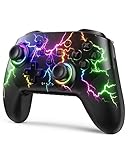
- RGB Cool Lightning Bolt & Long Battery Life: Switch controller with lightening bolt style and 9-color LED looks really cool; 4 light modes: solid lights, breathing lights, RGB strobe led light and led off; Fully charged: 3-4 hours, Runtime: 10-15 hours
- Widly Compatible & One-key Pairing/Wake Up: The switch pro controller is compatible with Switch/Lite/OLED/PC Windows 7/8/10 (only wrok for pc under wired connection); 2 pairing ways; Support one key to wake up your switch console
- Programmable Button & 3 Speeds Turbo: Switch controllers has simplify complex skill operations with M1/M2 key; Support single and multiple mapping; 3 adjustable burst: 5 shots/s, 12 shots/s and 20 shots/s; Programming and Turbo will maximize game play
- Sensitive Motion Control & 4-Level Nice Vibration: 6-axis gyro sensor help you react quickly, enhance experience in sports games; Buttons and joysticks are responsive, no lag; Dual vibration motors with 4-level feedback: Strong, Medium, Weak and None
- Great Gift For All People: This cool switch controller will be great gifts for women, men, girl, boy, family and friends; Packing list: 1 X Wireless switch controller, 1 X Type-C cable, 1 X Detailed user manual, 1 X Cool gift box
Choose touchscreen controls or a physical gamepad
You can play entirely with the on-screen controls. melonDS Android’s listing also advertises wired and Bluetooth gamepad support, and the settings documentation describes key mapping and hiding soft input.
Outdated Drivers Are Slowing You Down
One free scan finds every outdated or missing driver and matches the right update for your exact hardware.Free scan · exact hardware matchWindows Errors? Fix Them Before They Spread
Repair common Windows errors and clear accumulated junk for a smoother, more stable PC - no reinstall needed.Free scan · no reinstallTouchscreen setup
- Open the controller-layout editor or equivalent input settings.
- Place the directional pad, face buttons, shoulder buttons and system buttons where your hands do not block either emulated screen.
- Resize controls for the unfolded display and adjust their transparency if the build provides that option.
- Keep stylus input accessible on the lower screen for games that require it.
Gamepad setup
- Pair a Bluetooth controller through Android’s Bluetooth settings, or connect a wired controller through the phone’s supported USB-C connection.
- Open melonDS input settings and map each physical button to the corresponding DS control.
- Test the directional pad, both screens’ touch interaction, shoulder buttons, Start and Select before starting a long session.
- Hide or minimize software controls if they obstruct the display.
A controller is optional rather than a requirement. Before buying a clamp-style accessory, confirm the exact phone’s USB-C port location, Bluetooth behavior, case clearance and physical fit. The available sources verify gamepad support in the app, not compatibility of a particular controller with an unspecified foldable model.
Tune performance without sacrificing stability
Foldable phones differ substantially in processor, cooling and 32-bit or 64-bit support, so avoid treating old minimum-hardware claims as a current guarantee. Test the game you actually intend to play and change one setting at a time.
JIT
The melonDS Android settings documentation says just-in-time compilation can provide substantial performance improvements, but it can very rarely freeze or crash. JIT is available only on 64-bit devices. If enabling it improves speed without instability, keep it enabled for that device and game; if the emulator freezes, crashes or behaves inconsistently, disable it and retest.
Threaded rendering
Threaded rendering generally helps 3D-heavy games, but the documentation warns that it may produce small graphical glitches. Enable it only after establishing a stable baseline, then test a representative 3D scene, menus and touch interaction. Revert the change if graphics become corrupted or the game becomes less reliable.
Free tools Windows power users keep installed
One-click scans. No signup required.
A repeatable tuning method
- Run the game with default performance settings and note any slowdown or visual problem.
- Enable or disable one option, such as JIT, without changing layout or audio settings.
- Play the same section long enough to check stability, not just the title screen.
- Record the result with the game, phone model, Android version and emulator version.
- Keep the change only if it improves the specific problem without introducing a new one.
Speed varies by game. Avoid claims that every DS title runs perfectly or that one setting is universally best.
Set microphone behavior and audio permission
In melonDS Android’s microphone settings, the documented choices are None, simulated Blow and the phone microphone. Choose None for games that do not use microphone input. Choose Blow when you want a simulated breath input without granting microphone access. Choose the phone microphone only when the game needs real audio input and you are comfortable granting Android’s audio-recording permission.
Also popular on Amazon

- Universal Multi-Platform Compatibility: Works seamlessly with Windows PC, Switch/Switch 2, Android, and iOS via USB-C, 2.4G wireless (1000Hz), or Bluetooth (125Hz). Note: Not compatible with X-box, Play-Station, Luna, or GeForce
- Ultra-Quiet Silent Gaming: Silicone-damped buttons for whisper-quiet operation. Perfect for late-night gaming without disturbing family or roommates. All buttons redesigned for silent play—ABXY, D-pad, triggers, and function keys
- Hall Effect Precision Technology: Drift-free 11-bit Hall Effect joysticks with 1000Hz polling rate in wired/2.4G modes for ultra-fast competitive response. Bluetooth mode offers 125Hz for mobile gaming. Long-lasting durability guaranteed
- Advanced Trigger & Programmability: Dual-stage adjustable triggers with 2+2 rumble motors for realistic feedback. Two top-mounted programmable buttons avoid accidental presses—solving common back-paddle issues for competitive advantage
- Ergonomic Comfort & Endurance: Sweat-resistant silicone grip for marathon sessions. 1000mAh rechargeable battery for extended play. Upgraded 8-way D-pad with dome switches delivers precise diagonal control for fighting and retro games
If microphone input does not work, verify the permission in Android’s app settings, then return to the emulator and confirm that the phone-microphone option is selected. Permission behavior and labels can differ by Android release.
Independent reader supportYour contribution helps us test, update, and keep practical guides available for everyone.Protect save files and states
melonDS supports ordinary in-game saves and save states, but storage locations matter when you move files or change folders.
- Game saves may be stored beside the ROM files or in a separately chosen save directory.
- Save states can use the save directory, the ROM directory or an app-internal directory.
- Changing the save directory does not move existing saves.
- App-internal saves are harder to back up than files in ordinary, accessible storage.
Before changing a path, make an in-game save and copy the existing save data to a safe backup location. Use save states as a convenience, not as your only copy of progress; a state can become unusable after a configuration or version change even when the game’s ordinary save remains valid.
Fast-forward and save states
The Google Play listing advertises fast-forward and save states. Map these functions to visible touch buttons or a gamepad shortcut only if you can avoid pressing them accidentally during normal play. Keep a normal in-game save for important progress, especially before experimenting with JIT, threaded rendering, BIOS paths or display changes.
Troubleshoot the most common setup failures
The game does not appear in the library
- Reopen the ROM-directory setting and verify that the selected folder is the one containing the file.
- Check subfolders; the documented scan is recursive, but a file outside the selected top-level directory will not be found.
- Confirm that Android storage permission was granted and that the file transfer completed.
- Restart the library scan or the app after correcting the path.
The emulator reports missing system files
- Verify that the DS BIOS directory contains exactly
bios7.bin,bios9.binandfirmware.bin. - If using experimental DSi mode, also verify
nand.binand confirm that the DS BIOS directory is configured. - Check capitalization and select the directory that contains the files, not a parent directory that merely contains another folder.
The game is slow, freezes or crashes
- Return to the last stable performance configuration.
- Change JIT or threaded rendering one at a time and retest the same game section.
- On a device that is getting hot, pause and let it cool; exact thermal behavior depends on the phone and Android version.
- Record the emulator version, Android version, phone model and game when seeking support.
The screens or touch controls are awkward
- Reopen display-position, sizing and rotation controls.
- Start again with vertically stacked screens and move them away from the hinge or system gesture area.
- Resize or reposition virtual controls so they do not cover the lower screen.
- For controller play, hide soft input if the installed build provides that option.
DraStic-specific troubleshooting
If you are troubleshooting DraStic rather than melonDS, its FAQ recommends disabling Multi-threaded 3D and Keep main screen on top screen for some graphics or touchscreen problems. Those are DraStic menu names, not melonDS instructions. The same FAQ says performance varies greatly by game, that multithreaded rendering can improve speed while causing glitches or instability, and that you should confirm the latest app version before reporting an issue. Updates can fix one bug while introducing another.
How other Android emulators fit the decision
There is no evidence here for a universal winner. Choose by the game and phone combination, layout flexibility, system-file requirements, save management, input support and stability rather than by a generic speed claim.
What’s actually slowing this PC down?
Pick the symptom - the matching free tool is one click away.
| Option | Documented characteristics | What to verify on your foldable |
|---|---|---|
| melonDS Android | Android port; customizable layouts and backgrounds; display position, sizing and rotation controls; wired and Bluetooth gamepad support; save states and fast-forward; optional DS BIOS and firmware configuration; JIT and threaded-rendering trade-offs documented. | Exact menu labels, game compatibility, screen fit, heat and controller pairing on your model. |
| DraStic | FAQ documents game-to-game performance variation, multithreaded-rendering trade-offs and troubleshooting switches for 3D and screen placement. | Current version, compatibility with the title you want, and whether its layout and input behavior suit the unfolded display. |
| SeedlessDS | Newer project documentation includes customizable layouts and physical-control features. | Its documentation says compatibility, performance and dual-display behavior vary by device; treat it as an experimental alternative rather than a proven foldable-phone upgrade. |
For a first setup, melonDS is the most direct route because the current Play listing and Android settings documentation cover the library, display, input and system-file workflow in one application. An alternative can make sense if a particular game or device behaves better elsewhere, but test that combination rather than assuming the emulator name predicts the result.
Keep the setup maintainable
- Keep ROMs, BIOS files, firmware and save backups in clearly named folders.
- Back up ordinary saves before moving the ROM or save directory.
- Write down the layout and performance settings that work for each frequently played game.
- Check the current app listing before updating, especially if your existing build is stable.
- After an update, test one important game, its touch controls, microphone behavior and saves before changing several settings at once.
The Android settings documentation is older than the current app listing, and the exact labels or Android storage behavior may change. The foldable model is also unspecified, so screen fit, hinge interaction, orientation locking, heat and accessory compatibility must be confirmed on the phone in hand.
Bottom line
Install melonDS from its official Google Play listing, select a recursively scanned folder containing game files you are entitled to use, configure DS BIOS files only when your chosen mode requires them, and begin with vertically stacked screens on the unfolded display. Refine size, position, rotation and touch controls while testing an actual game. Use a wired or Bluetooth controller if you prefer physical buttons, and treat JIT and threaded rendering as per-device experiments rather than guaranteed fixes.

