
To set up a HomeKit or Matter accessory, confirm it is compatible with Apple Home, add it in the Home app on an iPhone or iPad, then create and test a scene or automation. A home hub is not required for every accessory or basic setup: whether you need one depends on the protocol and features you want, such as remote control, sharing, or automations.
Before you add an accessory
Check the product packaging or manufacturer’s documentation for explicit compatibility with Apple Home, HomeKit, or Matter. These are supported accessory routes in Apple’s Home app; a device that works with another smart-home platform is not automatically compatible with Apple Home.
- Follow the accessory’s manual for any required manufacturer app, firmware update, bridge, or other hardware.
- Connect the accessory to power, turn it on, and make sure it has network connectivity. Apple recommends using an iPhone or iPad with current software and Bluetooth enabled. Keep the iPhone or iPad, existing accessories, and any home hub on the same Wi-Fi network while adding the device.
- Keep the accessory’s setup code or QR code available. Matter accessories use a Matter setup code.
For Apple’s current steps and prerequisites, see Set up accessories with Home on iPhone.
Add the accessory in the Home app
- Open the Home app on your iPhone or iPad.
- Tap Home, then Add Accessory. Depending on the app version, you may also start from the Add button.
- Scan the accessory’s QR code when prompted, or enter its Apple Home setup code. For a Matter accessory, follow the prompt to scan or enter its Matter setup code.
- Follow the onscreen instructions. Name the accessory and assign it to a room. The name can also be used when you control the accessory with Siri.
If the accessory requires a manufacturer app, bridge, or update, complete that step as directed in its manual. Apple’s pairing flow and the maker’s setup requirements can both matter.
#1 Best Overall

- 【Easy Setup, One Control】With Matter, Skip the step of downloading and registering multiple manufacturers' apps every time you buy a new device. Instead, head straight to certified smart home platforms like Apple Home, Alexa, Google Home, SmartThings, or AiDot to control all your Matter devices.【TIP】Matter-certified hub or controller (HomePod, Echo Dot, Nest, SmartThings Hub) is required for Apple Home/Alexa/Google Home/SmartThings platforms. Alternatively, the AiDot app can be used without hub
- 【Offline-Ready Control】Once you've set up your Matter-certified devices on your LAN, they'll be able to communicate with each other directly, using the Matter protocol. This means that if your home internet connection goes offline, your Matter-certified devices will still be able to communicate and be controlled within your LAN, without relying on the internet or cloud services.
- 【Remote Control from Anywhere】Use the app to turn electronics on before you arrive home and off after you leave, no matter where you are. Using the smart plug that work with alexa manage your power usage and save money.
- 【Hands-free Voice Control】Control linkind homekit plug using simple voice commands through Apple HomeKit, Siri, Amazon Alexa, Google Assistant, and SmartThings, without the need for physical input such as buttons or switches.
- 【Flexible Scheduling & Timer】Effortlessly reduce energy usage with automatic device shutdown after a set time. For example Chrismas Tree, TV, Lamp, Fan, Humidifier,Blenders, Lightbulbs
Decide whether you need a home hub
A home hub can enable remote control while you are away, sharing control of the home, and automations. Apple says HomePod mini and HomePod become hubs during setup; Apple TV becomes a hub when added to a room. You do not need to buy or configure a hub simply to add every HomeKit accessory.
Requirements vary with the accessory’s protocol and the feature you want. Matter setup requires a home hub in Apple’s cited iPhone guide. Thread has additional, model- and software-dependent requirements: Apple describes local pairing and management on supported Thread-enabled iPhones, while Thread features may require a Thread-enabled hub. For Thread accessories, Apple identifies Apple TV 4K, HomePod (2nd generation), HomePod mini, or a compatible third-party Thread border router as options in its setup guidance. Check Apple’s current instructions and the specific accessory’s documentation before relying on a particular device or feature.
Rank #2
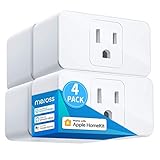
- Remote Control: To enable HomeKit remote control, you need a HomePod, an Apple TV 4K, Apple TV HD, or an iPad. Set any of these Apple devices in your house as a HomeKit bridge and connect it to your home 2.4GHz Wi-Fi network. Keep in mind that once your HomeKit bridge is set up, it has to be kept online. If it is powered off or disconnected from the Wi-Fi, it will fail to respond when you intend to control the device remotely.
- Voice Control: You can control your devices hands free, just give voice commands to turn on/off the connected devices. Compatible with Apple HomeKit, Apple Watch, Siri, Carplay, Amazon Alexa, Google Assistant.
- Compact Size: Smart plug occupies only one socket, the device allows you to stack two mini smart plugs in the same outlet, which is convenient and practical.
- Schedule: You can schedule connected devices to turn on and off automatically by smart plugs. Save energy when lights are not needed or left on by accident. Sunrise and sunset setting are supported.
- Quality: The meross Smart outlet is made of PC flame retardant material, and has been approved for safety and quality assurance. Certified by ETL and FCC, it supports home appliance up to 15A.
Apple says a Thread-enabled hub is required for running automations, receiving notifications, and controlling Thread accessories while away. That does not mean every accessory requires a hub for every kind of use; distinguish local pairing or control from the hub-supported functions you want. See Apple’s accessory setup guide and home hub guidance for current requirements.
Create a scene to control accessories together
A scene sets chosen accessories to coordinated states, such as switching on selected lights or adjusting a thermostat. It is a saved set of actions you can start yourself, rather than a rule that waits for a trigger.
Rank #3

- [Multi-Protocol Hub with Matter Bridge] The M3 is a versatile hub supporting Aqara Zigbee and Thread devices. It integrates third-party devices into the Aqara Home app. Supports advanced Matter bridge functionality, enabling Aqara-exclusive scenes and signals to sync with Matter ecosystems such as Home Assistant for seamless integration. Supports up to 127 Aqara Zigbee devices (** Not third-party Zigbee devices) and 127 Thread devices (Repeaters are needed).
- [Edge Compatibilities and Local Automations] The M3 serves as an Edge Hub, prioritizing local control and automation. Upon integration, it supersedes existing Aqara hubs, shifting the automations among them to local operation (Some cloud-based notifications still require internet). Upgrade-friendly, it supports migrating Zigbee devices from older Aqara hubs.
- [Smart IR Blaster with Feedback and Learning] The 360°IR blaster not only sends commands but also provides accurate status updates by detecting traditional remote use. It connects IR air conditioning units to Matter, functioning as an AC thermostat when paired with an Aqara Temperature and Humidity Sensor. (Note: Only one AC device can be exposed to Matter. Functionality may vary based on the Matter integration app. For Apple Home exposure, use Matter integration instead of HomeKit.)
- [Optimal Wired and Wireless Connectivity] Offering both wired and wireless solutions, the smart home hub M3 provides dual-band Wi-Fi (2.4/5 GHz) with advanced WPA3 security, and a Power over Ethernet (PoE) port. The addition of a USB-C port allows for mini-UPS and power bank connections, delivering unparalleled stability. (2A USB power adapter is not included. ) . Note: To ensure a stable connection, place the Hub M3 between 6 to 19 feet from the router.
- [Privacy-Focused with Encrypted Storage, Easy Setup and Versatile Placement] The M3 prioritizes privacy by excluding microphone or camera components. It boasts 8GB end-to-end encrypted local storage, for device lists, configuration parameters, and automation configuration data. Additionally, it includes a mount and screws for flexible placement on flat surfaces, walls, or ceilings. Magic Pair technology ensures effortless detection by the Aqara Home app upon power-up.
- In Home, tap Add Scene.
- Choose a suggested scene or create a custom one, then give it a clear name.
- Select the accessories to include and set each one to the desired state.
- Test the scene, then save it.
On iPhone, the first accessory you select determines the scene’s room assignment. Apple explains scenes in Create scenes and automations with the Home app.
Create an automation that responds to a trigger
An automation runs an action when a selected condition occurs. Apple’s iPhone guide describes triggers based on arrival or departure, time, accessory control, and sensor detection. The available choices depend on the devices and settings in your home.
Rank #4

- 【Apple Homekit Support】This Apple HomeKit compatible smart plug fully integrates into your Apple ecosystem, just ask Siri to turn on/off the devices in your home. (Apple HomeKit remote control requires an additional networked Apple device at home such as an iPad, HomePod or Apple TV.)
- 【Energy Monitoring & 15A Max Load】Use the smart Wi-Fi home plug to monitor your connected device's energy usage in real-time and view its historical power consumption within the Kasa Smart app. 1800W, 15A max load supported.
- 【Super Easy Setup】Enjoy an extremely easy and quick setup process with this Amazon Frustration-Free Setup (FFS) & Google Seamless Setup (GSS) supported smart plug. You can also setup in a few steps with the Kasa App.
- 【Compact & Flame Retardant Design】Avoid blocking additional outlets with its compact design, and plug in your WiFi smart plug with confidence thanks to its UL certified flame retardant design and 2-year limited warranty.
- 【App & Voice Control】Control your WiFi smart plug from anywhere, anytime via the free Kasa App or just give voice commands to Siri, Amazon Alexa, Google Assistant or Samsung SmartThings. Your favorite smart assistant enables you to have a truly hands-free experience. Operating Humidity: 5%~90% RH, Non-condensing
- In Home, tap Add Automation.
- Choose a trigger, such as a time, a person arriving or leaving, an accessory being controlled, or a sensor detecting activity.
- Choose the accessories or scene that should respond, then set the desired states.
- Review the automation, save it, and test that the trigger produces the intended result.
A location-based automation depends on location-sharing settings. Apple’s steps and trigger options are in Create scenes and automations with the Home app.
Independent reader supportYour contribution helps us test, update, and keep practical guides available for everyone.Edit, disable, or remove an automation
Open the Automation tab in Home to manage existing automations. Select one to change its schedule, trigger, or responding accessories; you can also test it, disable it, or delete it. If an automation stops matching your routine, check its trigger and the states it applies before rebuilding it.
What’s actually slowing this PC down?
Pick the symptom - the matching free tool is one click away.
Best Value

- 【Powerful Smart Matter】Linkind 120V smart light bulb is certified for Matter platform used for integrating all your smart home devices into one control system, fitting for users with multiple smart gadgets. It eliminates the need for switching between multiple apps, enhancing your smart home experience. It works seamlessly with Matter-certified hubs (HomePod, Echo, Nest etc.) allowing for multi-platform control, or directly via AiDot app with no extra hubs needed, offering flexible usage for different home setups.
- 【 Voice & App Remote Control 】This WiFi smart bulb works with Alexa, Apple Home and Google Home allowing for hands-free voice control to turn on/off, dim or change colors. It also supports remote control via the app fit for when you are away from home.
- 【16M Colors & 104 Preset Scenes for All Moods】Linkind alexa light bulb is equipped with 16 million RGB colors and 104 preset scenes used for movie nights, parties, reading or sleeping causing a perfect atmosphere for every occasion in your home. You can customize exclusive light effects freely via the app to match your mood anytime.
- 【 Music Sync & Dynamic Light Effects】The color changing light bulb supports music sync function via the AiDot App, suitable for family gatherings and birthday parties. Simply grant microphone permission to the AiDot App, which will detect the music rhythm in the environment through your phone's mic, letting the light color and brightness change in sync with the music beat. It turns your home into a mini party venue and brings immersive audio-visual enjoyment for you and your friends.
- 【 60W Equiv 800LM & High Quality 】The LED smart bulb provides 800 lumens of bright light equivalent to 60W traditional bulbs saving up to 85% electricity extending the life to over 25000 hours. It is perfect for daily lighting in living rooms, bedrooms and kitchens.
If an accessory will not pair
When Home cannot add a device, work through the setup conditions before resetting anything:
- Confirm the exact model is compatible with Apple Home, HomeKit, or Matter.
- Check that the accessory is powered on, connected to the network, and within reliable range of the Wi-Fi connection.
- Make sure Bluetooth is enabled and the iPhone or iPad, existing accessories, and home hub are on the same Wi-Fi network.
- Install current software and follow the maker’s instructions for required apps, firmware, bridges, or setup steps.
- If it was paired previously, reset it only as directed by the manufacturer.
Apple’s troubleshooting checklist is If you can’t add a smart home accessory to the Home app.
Quick Recap
Product prices and availability are accurate as of the date/time indicated and are subject to change. Any price and availability information displayed on Amazon at the time of purchase will apply.

