
What’s actually slowing this PC down?
Pick the symptom - the matching free tool is one click away.
iTechGuides is reader-supported. When you buy through links on our site, we may earn an affiliate commission. As an Amazon Associate I earn from qualifying purchases. Learn more
Use the companion app first. Open its recordings, notes, history, or conversations area, select the correct item, and determine whether it contains playable audio, a transcript, a generated summary, or all three. Review the item before choosing an export or delete command. Those controls are not interchangeable: exporting creates a copy, deleting a note may affect only that note, and deleting an account can remove an entire profile and its stored data.
Menu names, file formats, synchronization behavior, retention periods, and deletion results vary by wearable and service. The steps below provide a safe general workflow, followed by documented examples from Ruune and the Limitless Pendant. Treat those product details as examples, not universal instructions, and check the current help pages for your device before acting.
What each action actually does
An AI wearable conversation can produce several related records. The device may capture raw audio, while the companion service creates a transcript and a shorter summary or note. An app can display these together even when the service stores them separately.
- Review means opening the saved item to listen, read, or inspect its summary. It does not remove anything.
- Export means creating a file or download outside the app. An export may contain text only, audio only, or both, depending on the product.
- Delete a conversation or note targets one saved item. Whether it also removes its audio, transcript, summary, synchronized copies, or backups is service-specific.
- Delete an account is a broader operation that can remove profile information and every stored conversation, often on a different schedule.
Before deleting, decide which result you need: a readable archive, an audio copy, removal of one conversation from the app, or removal of the entire account.
#1 Best Overall

- Plaud Intelligence: Capture conversations in 112 languages and generate accurate transcripts with the Plaud App and Web. Plaud Intelligence uses leading models like GPT-5.5, Claude Sonnet 4.6, and Gemini 3.1 Pro to transform raw audio into structured insights. Choose from over 10,000 professional templates to generate mind maps and to-do lists, turning hours of discussion into immediate clarity
- Multiple Ways To Wear With Included Accessories: Adapt Plaud NotePin S to any workflow instantly with four included accessories. Wear your device effortlessly as a necklace, wristband, clip, or pin. Plaud NotePin S features a dedicated physical record button for precise, tactile control. Stay professional and keep your intelligence within reach all day
- Enterprise-grade Privacy: Built to the highest standards with ISO 27001/27701, SOC 2, HIPAA, GDPR, and EN18031 compliance. Every conversation is secure and protected. It is the trusted choice for creative, medical, and business professionals handling sensitive info
- Multimodal Input & Multidimensional Summaries: Capture audio, type notes, add images, and press/tap to highlight for richer context with multimodal input. Press the record button to mark key moments in real time. Plaud transforms a single conversation into multiple perspectives, providing faster, clearer insights, and unifies these inputs to deliver role-specific summaries that reflect your intent and priorities
- Lightweight Power and Peace of Mind: Weighing only 0.61 oz, Plaud NotePin S delivers 20 hours of continuous recording and 40 days of standby time. Store up to 64GB of audio locally, ensuring you capture every insight even without an internet connection
Before you open or erase a recording
Identify the app and account
Confirm which phone app is paired with the wearable and that you are signed in to the account that made the recording. If the device supports more than one account, a missing conversation may simply belong to another login. Keep the wearable and phone connected to the internet long enough for pending uploads to finish before you make a decision.
Check the recording context
Write down the approximate date, time, location, and participants. Wearable timelines can contain several items with similar titles. A quick context check prevents exporting or deleting the wrong conversation.
Consider other copies
A conversation may already exist in a shared note, an email attachment, a cloud drive, a calendar integration, or another participant’s recording. A provider’s delete command cannot be assumed to erase copies that someone else downloaded or that a third-party integration retained. Consult the service’s retention and privacy documentation for its treatment of synchronized data, backups, legal holds, and shared material.
The Tool Desk
Outbyte Driver Updater FREEScan for outdated or missing drivers - takes under a minuteDriver Scan →Outbyte PC Repair FREERepair Windows errors before they cause bigger problemsFix Now →How to find and review a conversation
- Open the companion app. Look for a section labeled Notes, Recordings, History, Conversations, or a date-based feed. Products use different labels.
- Locate the item. Browse by date and title. If the app provides search or filters, use the participant, meeting, or date information you recorded earlier; do not assume every app offers those tools.
- Open the item details. Look for separate controls or tabs for an audio player, transcript, and generated summary. Some services show only a transcript after processing, while others keep a playable recording.
- Check completeness. Confirm that the start and end of the conversation are present, the transcript belongs to the right event, and any summary reflects the intended recording. If processing is still underway, wait for it to finish before exporting or deleting.
- Inspect available actions. An overflow menu, three-dot button, download icon, or share control usually contains export and delete commands. Read the labels carefully; a share command is not the same as a private export.
Listening to or reading an item does not normally change its retention status. Keep the original in place until you have verified any copy you need.
Rank #2
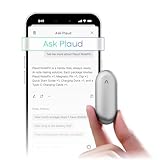
- Plaud Intelligence: Capture conversations in 112 languages and generate accurate transcripts with the Plaud App and Web. Plaud Intelligence uses leading models like GPT-5.5, Claude Sonnet 4.6, and Gemini 3.1 Pro to transform raw audio into structured insights. Choose from over 10,000 professional templates to generate mind maps and to-do lists, turning hours of discussion into immediate clarity
- Global Security Privacy: Built to the highest standards with ISO 27001/27701, SOC 2, HIPAA, GDPR, and EN18031 compliance. Every conversation is secure and protected. It is the trusted choice for creative, medical, and business professionals handling sensitive info
- Wearable Design for Hands-free Capture: Wear your device effortlessly with the 0.59 oz thumb-sized design. Plaud NotePin offers a versatile wearing options as necklace, wristband, clip, or pin, so you can capture ideas and meetings naturally. Plaud NotePin delivers up to 20 hours of continuous recording, 40 days of standby, and 64GB local storage
- Multimodal Input & AI Summary: Capture audio, type notes, add images, and tap to highlight in app for richer context with multimodal input. Plaud transforms a single conversation into multiple perspectives, providing faster, clearer insights, and unifies these inputs to deliver role-specific summaries that reflect your intent and priorities
- Always Ready & Everything Included: Locate your device easily with Apple Find My. Your box includes a Plaud NotePin device (Not S version), a magnetic pin, a clip, a charging dock, and a USB-C charging cable
How to export a recording or conversation
Generic export workflow
- Open the conversation in the companion app.
- Tap the item menu or download control.
- Choose the available export type. If the app offers separate audio and text choices, select each one you need.
- Choose a private destination, such as an encrypted device folder or a storage account you control. Avoid sending sensitive speech to a shared location by default.
- Wait for the export to complete. Large audio files may require Wi-Fi and may fail if the app is backgrounded.
- Open the saved file in the intended application. Check that it contains the required audio, transcript, formatting, timestamps, or summary.
- Only after verification should you delete the in-app item, if deletion is your goal.
File extensions alone do not tell you what is included. A PDF, Markdown, or plain-text file is generally a text export; it is not evidence that raw audio was included. Look for an explicit audio download option or a provider statement about the export’s contents.
Ruune’s documented export controls
Ruune describes its product as an AI note-taker for meetings, calls, and voice memos, with a phone app and an optional MagSafe recording device. To export one note, open the note, tap the three-dot menu, and choose Export. Ruune lists PDF, Markdown, and plain text as export formats. Its support instructions are at https://www.ruune.ai/support.
Those listed formats are document formats. If you need the original audio, verify in the current app whether a separate audio download exists; the cited support description does not establish that these document exports contain audio. Open each saved file before deleting the note.
How to delete one conversation or note
Safe deletion sequence
- Export and verify any material you must keep.
- Return to the correct conversation and open its item menu.
- Select Delete, Remove, or the equivalent command.
- Read the confirmation dialog. It may identify the data types affected or warn that the action cannot be undone.
- Confirm only when the title, date, and account are correct.
- Wait for synchronization, then check the same account on another signed-in device if you need to verify propagation.
- Review the provider’s retention policy for backups, shared copies, and derived data; an empty visible list is not proof that every copy has been erased.
Ruune’s documented note deletion
For Ruune, open the note, tap the three-dot menu, and choose Delete. Ruune says note deletions are permanent and propagate across devices within seconds. That statement describes the company’s product behavior; it does not establish how third-party exports, participant copies, or legally retained information are handled.
Rank #3

- Plaud Intelligence: Capture conversations in 112 languages and generate accurate transcripts with the Plaud App and Web. Plaud Intelligence uses leading models like GPT-5.5, Claude Sonnet 4.6, and Gemini 3.1 Pro to transform raw audio into structured insights. Choose from over 10,000 professional templates to generate mind maps and to-do lists, turning hours of discussion into immediate clarity
- Multiple Ways To Wear With Included Accessories: Adapt Plaud NotePin S to any workflow instantly with four included accessories. Wear your device effortlessly as a necklace, wristband, clip, or pin. Plaud NotePin S features a dedicated physical record button for precise, tactile control. Stay professional and keep your intelligence within reach all day
- Enterprise-grade Privacy: Built to the highest standards with ISO 27001/27701, SOC 2, HIPAA, GDPR, and EN18031 compliance. Every conversation is secure and protected. It is the trusted choice for creative, medical, and business professionals handling sensitive info
- Multimodal Input & Multidimensional Summaries: Capture audio, type notes, add images, and press/tap to highlight for richer context with multimodal input. Press the record button to mark key moments in real time. Plaud transforms a single conversation into multiple perspectives, providing faster, clearer insights, and unifies these inputs to deliver role-specific summaries that reflect your intent and priorities
- Lightweight Power and Peace of Mind: Weighing only 0.61 oz, Plaud NotePin S delivers 20 hours of continuous recording and 40 days of standby time. Store up to 64GB of audio locally, ensuring you capture every insight even without an internet connection
What gets deleted? Compare the scope before you confirm
Use the provider’s own control description to answer these questions. If an answer is not stated, do not infer it from the button label.
| Action | Typical scope to verify | Timing or format evidence | What is not established without provider documentation |
|---|---|---|---|
| Review | Opens the saved item for playback, transcript reading, or summary viewing | Usually immediate after the item is available | Reviewing does not imply deletion or a change to retention |
| Export | Creates a separate file; may include text, audio, or both | Depends on the app; Ruune lists PDF, Markdown, and plain text | Whether a text export contains audio, metadata, or every transcript revision |
| Delete one note | One conversation and possibly its related audio, transcript, and summary | Ruune says propagation across devices occurs within seconds | Whether backups, integrations, or another person’s copy are erased |
| Delete account | Profile and potentially all recordings, transcripts, summaries, and settings | Ruune says account removal completes within 30 days | Whether every external, shared, or legally retained copy is removed |
| Automatic audio deletion | Raw audio may be removed while a transcript remains | Ruune’s Privacy Mode deletes audio after processing | How long transcripts or summaries remain and whether the setting applies retroactively |
Account deletion is a separate decision
Removing one conversation does not equal closing the account. Account deletion can revoke access to every saved item, cancel a subscription, and start a backend removal process. Use it only when you intend that broader result.
Ruune’s account-removal path
Ruune documents this path: Settings → Account → Delete account. The company says this removes recordings, transcripts, summaries, and the profile within 30 days and cancels an active subscription. The 30-day period applies to account removal, not to the separate single-note deletion behavior described above. Export anything needed before starting the account process, because access may end before backend deletion finishes.
Questions to answer before closing any account
- Have you exported records required for work, accessibility, tax, legal, or personal reasons?
- Does the export open correctly on a device that is not logged in to the service?
- Will account deletion cancel billing automatically, or do you need to manage a store subscription separately?
- Do collaborators or participants have copies that account deletion cannot control?
- Does the provider state how it handles backups, fraud-prevention records, or legally required retention?
Audio, transcripts, and summaries can have different lifecycles
Do not assume that deleting raw audio deletes the transcript or summary. Conversely, retaining a transcript may not preserve the original speech, tone, or nonverbal context. Read the privacy controls for each data type.
Rank #4

- 【One-Tap AI Transcription】Press record and let the AI do the rest — this voice recorder turns speech into text with up to 95% accuracy across 109 languages, labels each speaker, and delivers a clean summary plus mind map so you walk away with usable notes instead of hours of audio to sort through.
- 【Built for Meetings, Lectures & Interviews】Bring it into the boardroom, the lecture hall, or a one-on-one interview — Bluetooth 5.3 keeps the connection stable while triple-layer AI noise reduction filters out office chatter, traffic hum, and background noise so every recording stays clear.
- 【Also a Full Fitness Tracker】Flip it over and it works as a fitness tracker with 160+ sport modes and 24/7 health monitoring, so the same device that captures your meeting notes also tracks your workouts — one wearable instead of two.
- 【Made for Professionals, Students & Creators】Whether you're a consultant recording client calls, a student capturing lectures, or a creator logging interview audio, this recorder turns spoken words into organized, exportable notes (TXT, DOCX, PDF, or Markdown) in minutes.
- 【Worn on Your Wrist, No Subscription Required】Wear it on your wrist for hands-free access all day; pair it with your phone over Bluetooth to sync recordings. There's no membership, no time limits, and no hidden fees — turn on encryption whenever you sync to the cloud.
Ruune Privacy Mode
Ruune says its Privacy Mode keeps the transcript and automatically deletes audio after processing. This is a product-specific setting: it is not a general rule for AI wearables. If you need the original recording, save it before enabling or relying on a mode that removes audio, and check whether the setting affects new recordings only or existing ones.
Limitless Pendant example
Limitless describes its Pendant as an AI-powered wearable microphone. Its Help Center says nearby speech may be captured as audio, transcript, and a short summary, and that users control whether to keep, delete, or share recordings and notes in the app. The company also says retention primarily depends on user choices and that information may be retained as allowed by its Privacy Policy. See Limitless Help Center guidance for its current description.
The same article states: “The audio recordings and notes belong to the user who made them—the users control whether to keep or delete the recordings and whether to share them with others.” That is the company’s description of its service, not a universal legal rule or an assurance about copies outside the service.
Free tools Windows power users keep installed
One-click scans. No signup required.
Recording indicators, consent, and other people’s speech
Managing a file responsibly starts before capture. A wearable can record people who did not initiate the recording, and consent rules differ by jurisdiction and situation. Follow the product’s instructions and obtain the permission required where you are; the vendor’s terms are not a substitute for legal advice.
Best Value

- Plaud Intelligence: Capture conversations in 112 languages and generate accurate transcripts with the Plaud App and Web. Plaud Intelligence uses leading models like GPT-5.5, Claude Sonnet 4.6, and Gemini 3.1 Pro to transform raw audio into structured insights. Choose from over 10,000 professional templates to generate mind maps and to-do lists, turning hours of discussion into immediate clarity
- Multiple Ways To Wear With Included Accessories: Adapt Plaud NotePin S to any workflow instantly with four included accessories. Wear your device effortlessly as a necklace, wristband, clip, or pin. Plaud NotePin S features a dedicated physical record button for precise, tactile control. Stay professional and keep your intelligence within reach all day
- Enterprise-grade Privacy: Built to the highest standards with ISO 27001/27701, SOC 2, HIPAA, GDPR, and EN18031 compliance. Every conversation is secure and protected. It is the trusted choice for creative, medical, and business professionals handling sensitive info
- Multimodal Input & Multidimensional Summaries: Capture audio, type notes, add images, and press/tap to highlight for richer context with multimodal input. Press the record button to mark key moments in real time. Plaud transforms a single conversation into multiple perspectives, providing faster, clearer insights, and unifies these inputs to deliver role-specific summaries that reflect your intent and priorities
- Lightweight Power and Peace of Mind: Weighing only 0.61 oz, Plaud NotePin S delivers 20 hours of continuous recording and 40 days of standby time. Store up to 64GB of audio locally, ensuring you capture every insight even without an internet connection
Limitless says a white LED is on while its Pendant records. Its Help Center quotes the requirement this way: “When the Pendant is recording, a white LED light on the device is on to let people around the wearer know the Pendant is on and recording audio.” The same guidance says its Terms of Service require wearers to notify people and obtain consent before recording. Treat the light as an indicator, not proof that every person noticed or agreed.
- Tell participants that a wearable microphone is active before conversation begins.
- Pause or stop recording when someone declines, when sensitive information is discussed, or when the setting’s rules prohibit recording.
- Do not share an export merely because the app offers a share button; confirm the recipients and purpose.
- Use the provider’s privacy controls to limit raw-audio retention when a transcript is sufficient.
Troubleshooting common problems
The conversation is missing
- Confirm the correct account, workspace, and paired device.
- Check whether the wearable is still uploading or processing; keep the app open on a reliable connection.
- Look in notes, recordings, history, and archived views rather than relying on one label.
- Check the date in the wearable’s time zone. A clock mismatch can place an item on an adjacent day.
- If the provider documents a retention limit, determine whether the item has already expired.
The export button is unavailable
- Finish transcription or summary processing first.
- Update the app only through the platform’s normal store and retry after signing in again.
- Check whether your role has permission to export a shared conversation.
- Try a stable Wi-Fi connection and ensure the phone has enough free storage.
- Capture the exact error and item identifier before contacting support; do not repeatedly delete and recreate the note.
The deleted item still appears
- Wait for the service’s stated synchronization period and refresh the list.
- Check another signed-in device to distinguish a local cache from server data.
- Sign out and back in only after confirming you know the account credentials and any recovery method.
- Ask support whether the visible entry is a cached title, a transcript record, or a retained legal or safety record.
You need to prove deletion
Save the confirmation screen, date, and support ticket number without preserving the conversation’s sensitive content. A provider may be able to confirm account-level processing even when it cannot disclose internal backup schedules.
A practical decision checklist
- Locate: Find the item in the companion app and verify its date and participants.
- Review: Identify whether audio, transcript, and summary are separate records.
- Preserve: Export the needed material and open the saved files.
- Choose scope: Delete one note, change an audio-retention setting, or delete the entire account—do not treat these as equivalent.
- Confirm: Read the warning, complete the action, and allow the documented sync or deletion period.
- Check copies: Review shared destinations, integrations, and provider retention terms.
- Protect people: Follow recording indicators, obtain consent, and avoid sharing speech beyond the intended audience.
The safest sequence is therefore: review first, export and verify second, delete only the scope you intend, and confirm the provider’s retention behavior rather than guessing from the interface.
Do these 3 things before closing this tab:
1Scan for outdated or missing drivers - takes under a minute2Clear out junk files and repair common Windows errors3Fix the driver behind crashes, sound loss and screen glitchesQuick Recap
Product prices and availability are accurate as of the date/time indicated and are subject to change. Any price and availability information displayed on Amazon at the time of purchase will apply.

