
iTechGuides is reader-supported. When you buy through links on our site, we may earn an affiliate commission. As an Amazon Associate I earn from qualifying purchases. Learn more
A normal HDMI cable usually cannot display a PS5 on a laptop. The PS5 sends video from its HDMI OUT port, and nearly all laptop HDMI ports also send video out. Direct connection works only when the laptop manufacturer explicitly documents an HDMI input. For the usual laptop, use a USB HDMI capture card: PS5 HDMI OUT to the card’s HDMI IN, then the card to the laptop by USB. If HDMI is not essential, Sony’s PS Remote Play app streams the console to a Windows PC or Mac without a capture card.
At a glance
| Option | What you need | Best for |
|---|---|---|
| Direct PS5-to-laptop HDMI | Laptop with a documented HDMI input and an HDMI cable | A laptop model that specifically accepts HDMI input |
| USB HDMI capture card | Capture card with HDMI IN, USB connection, compatible software and cables | An HDMI-based setup, recording, or viewing the PS5 in a laptop app |
| PS Remote Play | Sony’s app, compatible controller, PS5 account and network connection | The least extra hardware when network streaming is acceptable |
Checked Nov 2026.
Can you plug a PS5 directly into a laptop with HDMI?
Only if the laptop’s specifications clearly say that its HDMI port is an input. A port labelled HDMI OUT, or an ordinary HDMI port on most laptops, cannot receive the PS5 picture. Look up the exact laptop model in its manual or technical specifications; do not infer capability from the shape of the connector.
A USB-C-to-HDMI adapter does not create an HDMI input. These adapters normally carry video from the laptop to a monitor or TV, so adding one does not change the laptop’s signal direction. Likewise, the fact that a laptop has an HDMI socket does not mean that any PS5 will work with it.
Quick wins for a faster PC:
Repair Windows errors before they cause bigger problemsFix Now →Scan for outdated or missing drivers - takes under a minuteDriver Scan →Clear out junk files and repair common Windows errorsFree Scan →How do you play through HDMI with a USB capture card?
A capture card changes the signal path to one the laptop can receive: PS5 HDMI OUT → capture-card HDMI IN → USB → laptop. You view the feed in the card maker’s capture program or another application that supports the device.
Popular on Amazon
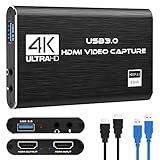
- 【4K60 Loop-Out & 1080P60/2K30 Capture】 This HDMI game capture card supports 4K 60Hz HDMI input and loop-out, captures up to 1080P 60fps video, and outputs up to 2K 30Hz via USB 3.0 with YUY2. HDMI input supports 4K30/60Hz and 1080p120/144Hz; it does not support 4K120/144Hz. Ideal for PS4/PS3, Xbox One/360, Wii U, Switch 2, DVD, DSLR, camera, security camera, set-top box, live games, online meetings, real-time recording, and preview.
- 【Plug-and-Play, Stable & Ultra-Low Latency】 No driver or external power supply required—true plug and play. The device is automatically identified, detects input, and adjusts output automatically. Aluminum alloy body with strong heat dissipation and optimized cable layout improves stability and picture clarity, helping avoid blue screens and lag. USB 3.0 low-latency capture with optional audio capture; no CPU occupation and no freeze with correct settings.
- 【HDMI Loop-Out & Mic-In】 High-speed USB 3.0 single-channel HD HDMI capture with loop-out for lag-free live gameplay. The 3.5mm mic input lets you add external commentary during games or interviews; it only accepts a 3.5mm microphone headset. Note: it does not record party chats.
- 【Wide Compatibility】 Works with Windows 7/8/10, macOS or above, Linux, Android, laptops, Switch, PS3/PS4/PS5, Xbox One/Series X, Xbox 360, Wii U, cameras, webcams, DSLR, security cameras, Steam, TV BOX, and HDTV. Streams to Twitch, YouTube, Facebook, and Twitter; compatible with OBS Studio, Streamlabs, XSplit, Potplayer, VLC, ZOOM, etc.
- 【Package Content & Important Notes】 Includes 1x Video Capture Card, 1x English User Manual, 1x USB-A to USB-C Adapter and 1x USB 3.0 USB-A Cable. After completing audio setup, please restart OBS Studio to avoid no sound output. Customer service is available 24 hours a day for quality problems.
- Check compatibility first. Confirm that the card supports PS5 signals, your laptop’s operating system and USB port, and the resolution and refresh rate you intend to use. Check HDR and VRR handling, required USB bandwidth, and whether the card has HDMI passthrough.
- Connect the console. Plug the PS5 HDMI cable into the card’s port labelled HDMI IN. Do not use a port labelled OUT or passthrough for this first connection.
- Connect the card to the laptop. Use the supplied or specified USB cable and a laptop port that can provide the card’s required bandwidth and power.
- Open capture software. Start the manufacturer’s application, OBS, or another compatible program and select the capture card as the video source. Choose an output mode supported by both the PS5 and the card.
- Handle HDCP if required. Sony says external HDMI capture devices can be used with PS5 when HDCP is disabled in Settings; its official FAQ records that requirement here. The wording and location of the option can change with system software, so use the current HDMI-related setting on your console. Disabling HDCP can prevent protected media from playing while it is off.
- Test audio and controls. Confirm that the capture application has the card’s audio enabled, the laptop is not muted, and your controller is paired with the PS5. A capture card carries the console’s picture and audio; it does not replace the controller.
What should you check before buying a capture card?
“HDMI input” means the card accepts the PS5 signal. “HDMI passthrough” means the card sends that signal onward to a TV or monitor; it does not mean the laptop’s own HDMI socket accepts video. Capture resolution and frame rate can be lower than passthrough limits, so compare both figures rather than relying on a single “4K” label.
Also verify the USB connector and speed, supported HDR and VRR modes, operating-system support, and the application you plan to use. As a model-specific example, a Windows Central review of Elgato Game Capture 4K S describes PS5 support, HDMI input and output, USB-C, passthrough up to 4K60, and capture modes up to 4K60. Those are specifications for that product, not a guarantee that every capture card has the same capabilities.
If you have an unreliable Wi-Fi connection but a spare USB port, a capture card is usually the practical route because the video travels over HDMI and USB rather than your network. If you only have a laptop and controller and want the least additional hardware, Remote Play is normally simpler.
Why is the capture-card screen black or showing no signal?
Start with the physical signal path, then check video settings:
Also popular on Amazon
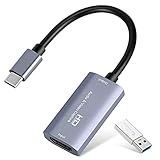
- 【1080P 60FPS Video Capture Card】 This HDMI game capture card is based on USB3.0 high speed transmission port, input resolution up to 4K@30HZ, output resolution up to 2K@30Hz or 1920×1080@60Hz. Type c and USB interface can meet most of the devices in daily life. Easily meet the online capture, real-time recording, online meetings, live gaming and other functions, so you have a better visual enjoyment. Note: For capture use only; requires capture software to function and is not intended for direct screen casting to a monitor or TV
- 【Ultra Low Latency Screen Sharing】 HDMI capture card is made of good quality aluminum alloy with strong heat dissipation, allowing you to enjoy ultra low latency while live gaming or video recording or live streaming, avoiding blue screens and lag. This HDMI to USBC capture card supports easy recording of good quality audio or HD video and transferring it to your computer or streaming platform, allowing you to record 60 fps HD video directly on your hard drive and real-time preview
- 【Plug and Play, Easy to Carry】 This HDMI 1080P video capture card does not require any additional drivers or external power supply, just plug and play for fast capture. The capture card is small and lightweight, so you can put it in your bag for emergencies, making it very portable for outdoor live streaming. It's also a great way to share content in game recording, video conference, video recorder and online teaching
- 【Wide Compatibility USB Capture Card】 Easily streams to Facebook, Youtube or Twitch. With the connection, this HDMI to USB C/3.0 video capture devices can be working on several Operating Systems and various software: Windows 7/ 8/ 10, Mac OS or above, Linux, Android, Laptop, Xbox One, PS3/PS4/PS5, Camera, DVDs, Set Top Box, Webcame, DSLR, Switch/Switch 2, TV BOX, HDTV, Potplayer/VLC, ZOOM, OBS Studio etc.
- 【Package Content & Note】 1x HD Audio Capture Card , 1x USB 3.0 to USB C Adapter (A-side 3.0, B-side 2.0), 1x user manual. Please note that you need to restart the OBS Studio software after the audio setup is complete, otherwise it will result in no sound output. When using an adapter, if the device is recognized as USB 2.0, try using the other side with the USB-C port. Simply flip the capture card and reconnect it to be recognized as USB 3.0
- Make sure the PS5 cable is in HDMI OUT on the console and HDMI IN on the card.
- Reselect the card in the capture application and confirm that the program has permission to access it.
- Temporarily choose a PS5 resolution and refresh rate listed as supported by the card. HDR, VRR or an unsupported high-refresh mode can produce a blank or unsupported picture.
- Check whether HDCP is enabled. Sony documents capture support with HDCP disabled, as noted in its FAQ above.
- Try another known-good HDMI cable and USB port, and connect the card directly rather than through an unpowered hub.
If the image became blank immediately after changing PS5 video settings, switch back to a mode the card supports. If you cannot see the console menu, connect the PS5 temporarily to a television or monitor to restore a compatible setting, then reconnect the card.
What if the capture card disconnects, looks blurry, or loses sound?
A disconnect usually points to the USB link, power or software rather than the PS5 itself. Reseat both ends, use the card’s specified USB cable and port, close other high-bandwidth USB devices, and reopen the capture application. Check the manufacturer’s current driver and software requirements before assuming the card has failed.
For a blurry picture, compare the card’s capture setting with the PS5 output mode and avoid scaling the preview beyond its native size. If video keeps dropping, lower the PS5 mode temporarily and test again; a stable supported mode is more useful than an unsupported headline resolution.
PC Slower Than It Used to Be?
A free scan shows the junk files, broken settings and background clutter dragging Windows down - then fixes them in one click.Free scan · Windows 10 & 11Crashes, No Sound, or Screen Glitches?
Random freezes, missing sound and display glitches usually trace back to one bad driver. Find and replace yours safely.Free scan · under a minuteWhen video appears but there is no sound, select the capture card’s audio input in the application, check the application and laptop volume, and verify that the PS5 is sending audio over HDMI. If the card exposes separate audio controls, enable monitoring or recording for that source.
Also popular on Amazon
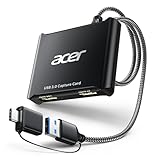
- 【4K Clarity, 1080P Performance】Enjoy stunning clarity with our USB 3.0 Video Capture Card—featuring 4K input and smooth 1080P@60Hz output. Featuring YUY2 technology, it delivers richer colors than MJPEG for lifelike live streaming and recording. Plus, it delivers high-quality video with minimal latency, making it perfect for gamers and content creators.
- 【Mic-in for Easy Commentary】Plug in a headset or mic directly to stream/record voice easily—no extra adapters. Great for real-time gaming commentary, online classes, or vlog dubbing. Paired with its low-latency tech, it keeps voice synced perfectly with video, eliminating post-editing hassle from mismatched audio-visuals. Fits most 3.5mm devices—ideal for gamers, teachers, creators.
- 【Plug and Play, no Extra-Drivers】No extra drivers or external power—just plug in and start capturing instantly. Small and lightweight, it fits easily in your bag for outdoor live streams, on-the-go recordings, or emergencies. Ideal for game capture, video conferences, and online teaching, it saves hassle while delivering smooth results.
- 【Wide Compatibility: Apps & Devices】No extra adapters—works flawlessly with your go-to platforms and gear. It pairs with streaming/recording apps like Twitter, YouTube, Facebook, OBS, XSplit, and VLC, plus devices including Switch/Switch2, PS5/PS4, Xbox, DSLR cameras, PC, macOS, and Android. Whether gaming, streaming, or hosting video calls, it keeps HD quality intact, eliminating "compatibility headaches".
- 【Worry-Free After-Sales Support】We are committed to delivering exceptional quality products that combine sophisticated design with affordable pricing, offering you the best solutions for seamlessly connecting your work and life. Whether you're a newcomer or a seasoned user, feel free to reach out anytime with any questions—your satisfaction is our top priority.
How do you avoid delay when playing through a capture preview?
The laptop preview can add noticeable delay, so do not assume it is suitable for timing-sensitive play. If the card offers HDMI passthrough, connect its HDMI OUT to a TV or monitor and play on that directly while using the laptop preview for recording or chat. Passthrough limits and HDR/VRR behaviour vary by model, so confirm them in the card’s documentation.
This is especially important for competitive games. A television or monitor connected through passthrough gives you a direct display path; use the laptop window for supervision rather than as your primary low-latency screen.
How does PS Remote Play work on a laptop?
Remote Play does not use HDMI. Sony’s app streams the PS5 screen over a network to a compatible Windows PC or Mac. The official Remote Play overview lists supported computer categories and service limits on Sony’s Remote Play page.
Free tools Windows power users keep installed
One-click scans. No signup required.
- Install the current PS Remote Play app for your computer.
- On the PS5, enable Remote Play in the console’s settings and leave the console ready to connect.
- Connect a compatible controller to the computer, commonly by USB or supported wireless connection.
- Open the app and sign in with the same PlayStation account used on the PS5.
- Select PS5 and follow the pairing prompts. Keep the console powered on or in the required rest-mode state.
Sony’s Windows setup page lists Windows 10 64-bit or Windows 11, a USB port, a sound card and other requirements. It recommends at least 5 Mbps upload and download as a standard and at least 15 Mbps for best performance; these are recommendations, not a guarantee of latency or image quality. Check the current requirements on Sony’s Windows instructions because app and system requirements can change.
Also popular on Amazon

- High-Quality Video Capture, 4K HDMI Capture Card Ready: Capture smooth and vibrant video with this 4K HDMI capture card, engineered for gamers and content creators who demand crisp 1080P 60FPS video quality. Whether you're streaming to Twitch or recording gameplay for YouTube, your footage will look professional and detailed
- Plug-and-Play USB Capture Card, No Drivers Needed: Designed as a USB capture card for streaming, this device works instantly out of the box, just plug into your PC or laptop and start capturing. Fully compatible with popular software like OBS Studio, Streamlabs, and XSplit, making setup quick and stress-free for beginners and pros alike
- Universal Compatibility PS5, Xbox, Switch & More: Stream or record gameplay from virtually any HDMI-enabled device including Nintendo Switch, PS5, Xbox Series X, DSLR cameras, and PCs. The video capture card for gaming supports seamless passthrough so you can play without lag while your audience watches every frame in real time
- Low-Latency Performance for Smooth Streaming: This capture card for streaming minimizes delay between gameplay and broadcast, so you get reliable, low-latency capture that works well for competitive gaming, live broadcasts, and podcast sessions. Suitable for those building their channel with high-quality, engaging content
- Compact & Portable Design for Content Creators: Lightweight and portable, this USB 3.0 capture card works well for creators who travel or switch gaming setups often. Throw it in your bag and stream or record wherever you are, at home, events, LAN parties, streaming or studio sessions
What if Remote Play is blocked or cannot find the PS5?
If the app is blocked, check your operating system’s app permissions, security software and network profile, then restart the app. Use only the current Sony application obtained from Sony’s page or your computer’s official app channel.
If the PS5 is not found, confirm that both devices use the same PlayStation account, Remote Play is enabled, the console is online, and the network meets Sony’s recommendations. Restarting the PS5, router and app can clear a stale discovery session. A network that is fast enough for web browsing can still produce blurry video or repeated disconnections when its upload, latency or wireless stability fluctuates.
A game may not start through Remote Play because Sony lists compatibility limits: some games do not support Remote Play, games requiring certain peripherals such as PS VR2 are incompatible, and Remote Play cannot run alongside certain media or console functions. Check the game and accessory requirements before treating the laptop or capture setup as faulty.
The Tool Desk
Outbyte Driver Updater FREEFix the driver behind crashes, sound loss and screen glitchesFind Drivers →Outbyte PC Repair FREEClear out junk files and repair common Windows errorsFree Scan →Which method fits your situation?
- You need an HDMI-based connection: choose a USB HDMI capture card. It is the method that actually accepts the PS5’s HDMI output on a typical laptop.
- You have unreliable Wi-Fi but a spare USB port: choose the capture card, provided the laptop and card support the required USB bandwidth.
- You only have a laptop and controller: choose Remote Play, assuming the computer, account and network meet Sony’s requirements.
- You play competitive games and have a TV or monitor: use a capture card with passthrough and play on the directly connected display to avoid relying on the laptop preview.
- You want the least extra hardware: Remote Play needs the app, controller and network, while HDMI capture adds a card, cables and capture software.
- Your laptop documentation confirms HDMI input: a direct cable may work, but verify the supported resolution and refresh rate; do not assume every laptop HDMI port accepts a PS5.
How we picked these options
The choices follow the signal direction and requirements documented in the available data: direct HDMI input is uncommon and must be confirmed by the laptop maker; capture cards provide HDMI input over USB and may add passthrough; Remote Play is Sony’s network-based alternative with published computer, controller and bandwidth requirements. Compatibility, supported video modes, HDCP behaviour, USB needs and delay determine which route is appropriate.
Also popular on Amazon

- 【1080P HD High Quality】Capture resolution up to 1080p for video source and it is ideal for all HDMI devices such as PS4, PS3, Xbox One, Xbox 360, Wii U, DVDs, DSLR, Camera, Security Camera and set top box.
- 【Plug and Play】No driver or external power supply required, true PnP. Once plugged in, the device is identified automatically as a webcam. Detect input and adjust output automatically. Won't occupy CPU, optional audio capture. No freeze with correct setting.
- 【Compatible with Multiple Systems】suitable for Windows and Mac OS. High speed USB 3.0 technology and superior low latency technology makes it easier for you to transmit live streaming to Twitch, Youtube, Facebook, Twitter, OBS, Potplayer and VLC.
- 【HDMI LOOP-OUT】Based on the high-speed USB 3.0 technology, it can capture one single channel HD HDMI video signal. There is no delay when you are playing game live.
- 【Support Mic-in for Commentary】Kedok capture card has microphone input and you can use it to add external commentary when playing a game. Please note: it only accepts 3.5mm TRS standard microphone headset.
Frequently Asked Questions
Can I use the laptop’s HDMI output to record PS5 gameplay?
No. An HDMI output can send the laptop’s own picture to another display, but it cannot receive the PS5 signal. Recording requires a capture device with an HDMI input or Sony’s network-based Remote Play software.
Will a capture card preserve PS5 HDR and VRR?
Not necessarily. Some cards pass HDR or VRR to a connected display while capturing a different format, and others do not support those modes at all. Check the exact card’s capture and passthrough specifications together with the PS5 mode you intend to use.
Can Remote Play replace a capture card for local recording?
It can show the PS5 on the laptop without capture hardware, but it depends on network quality and may have more delay or compression. A capture card is the better fit when you need an HDMI signal, passthrough display, or a predictable local USB feed.
Recommended Free Tools
Why does Remote Play work for the menu but not one particular game?
The game may be excluded from Remote Play or require a peripheral that the service does not support. Sony specifically notes incompatibility for some games and peripherals such as PS VR2, so check the title’s requirements rather than changing HDMI settings.

